A report group is a named list of people. You give it a name, a description of what it is for, the users who belong to it and the roles it applies to, and you switch it on or off. Read that sentence again before you plan anything around this screen, because the line under the title promises rather more.
What a report group holds
The screen describes itself as “Select the available reports and filter results to gain access to big data of your property”, and there is no report picker on it. Neither the list nor the panel behind Add New Group offers a way to say which reports are in a group. A group stores four things: a name, a description, a set of users and a set of roles.
The list and its switch

The switch in Active / Inactive is not a form control waiting for a save. Clicking it posts the whole group back with the new state and confirms with Successfully updated report group!, so a mis-click is a change, and putting it back is a second change. There is no confirmation step on it.
Enter Search Terms matches on the name only. A word that appears in a description and not in a name finds nothing, and the count line to its right recounts as you type, always starting at 1 because the list is not paged. Long lists scroll rather than paginate.
Creating or editing a group
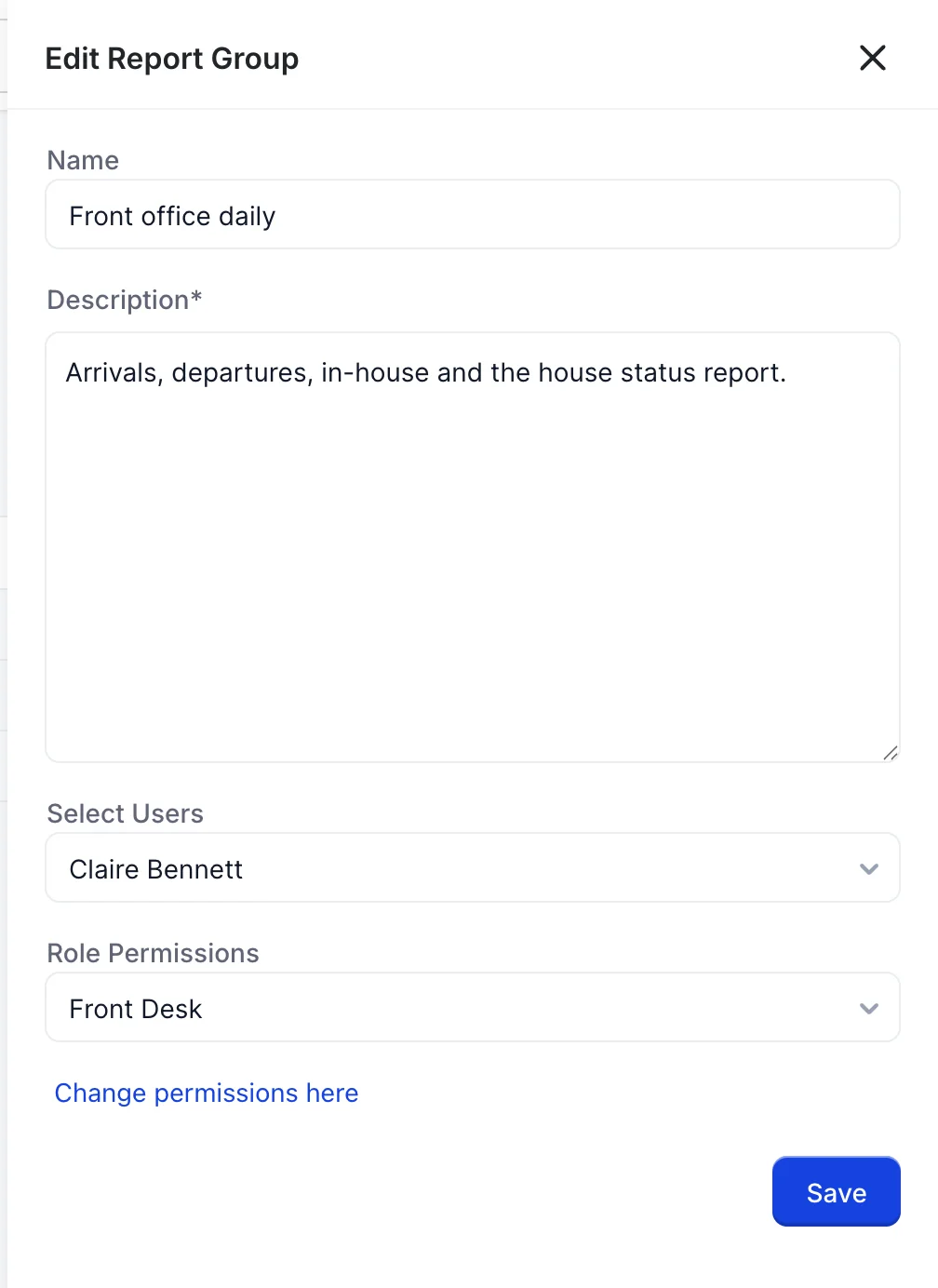
- Click Add New Group, or open the menu in the Actions column of an existing row and choose Edit.
- Name the group after the job it does. The name is what the list shows and the only thing the search will match, so “Front office daily” earns its keep and “Group 2” does not.
- Use Description to record which reports the group is meant to cover. The screen cannot enforce it, and this field is the only place that intent is written down.
- Pick the people in Select Users and the roles in Role Permissions.
- Click Save. The panel closes and the list refreshes with the new row.
The panel checks nothing before it posts. Description* carries the only asterisk on the screen and is not enforced, and Name carries none although it is the field the list and the search depend on. Save with the name empty and you get a row with a blank first cell that no search term will ever find, and the only way to tell two of them apart is to open each one.
Users and roles
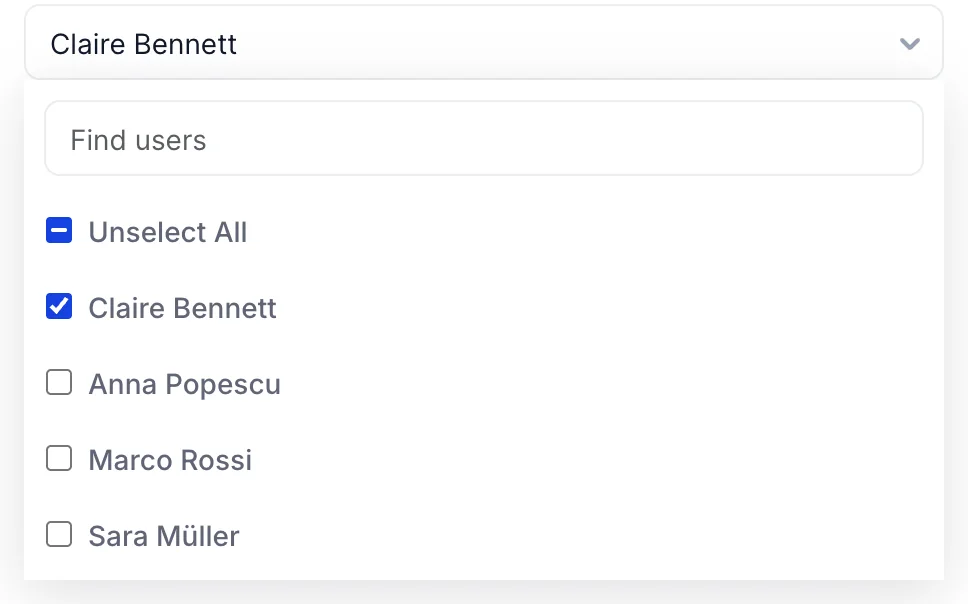
Both pickers work the same way: a search box at the top, then a select-all row, then the names. The select-all row acts on what the search has filtered to, not on the whole list, and it reads Unselect All as soon as one visible name is ticked. Type three letters, tick the row, and you have selected those matches and left everyone else alone, which is the fast way to add a department. Clear the search and the same row now covers everybody, so read it before you click it.
The closed field lists the names you picked, comma separated, so a group with a dozen users shows a line of text rather than a count. Neither picker is required, and a group with nobody in it saves without complaint.
Deleting a group

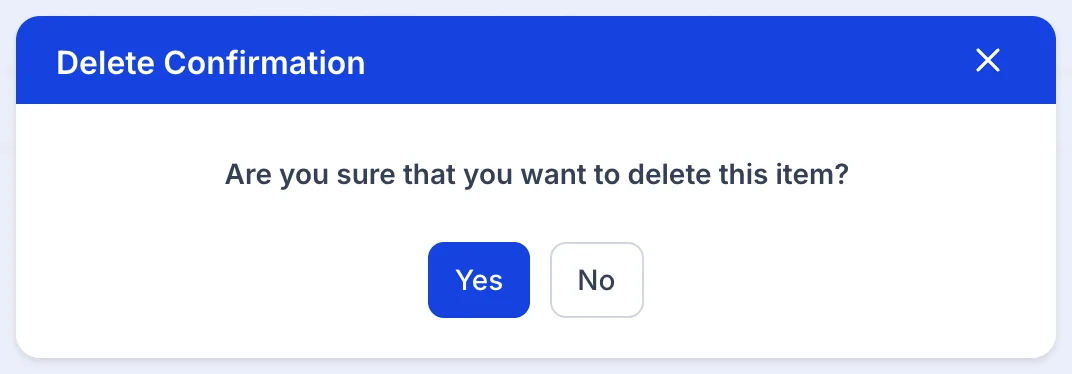
The menu opens downwards over the row beneath it, so on the last row it hangs below the table. Both entries act on the row whose menu you opened, not on the row the menu is sitting over.
What this screen will not do
- It does not assign reports. There is no report picker, so a group cannot say which reports it covers except in prose, in its description.
- It does not grant or withhold access. That is role permissions, on the roles screen the panel links to.
- It does not schedule or send anything. A group is not a distribution list, and no report is emailed because a group exists.
- It has no audit trail. The screen shows the current state of a group and nothing about who changed it. Use the description to record why a group is set up the way it is, and the user activity log to find out who last changed it.
Viewing, editing and deleting are three separate permissions: View report groups, Add / edit report groups and Delete a report group. A role can be given the list and the panel without the delete, which is the sensible setup for a screen whose confirmation dialog does not name what it is about to remove.
If what you are actually trying to do is open a report rather than organise who talks about them, start from finding and filtering reports instead.