A registration card is the form a guest checks the details on and signs when they arrive: who they are, how to contact them, which room, how long, and whatever your local rules require you to record.
It is built with the same drag-and-drop builder as the confirmation letter. Rather than explain that twice, this article links to it and covers only what is different about cards. There are two real differences and both are easy to trip over.
What a registration card is
The same separation applies here as to letters. A template is a design holding no guest and no dates. A card is what one arriving guest signs, produced by filling a template in from their reservation. Editing a template changes what every future arrival is handed, not what anybody has already signed.
The card is also the more regulated of the two documents. In a lot of jurisdictions what a property must record at check-in, and how long it must keep it, is set by law rather than by preference. If your template is missing a field your local rules require, that is a compliance problem rather than an inconvenience, so it is worth having somebody who knows those rules look at the template once.
Templates, and which one is the default
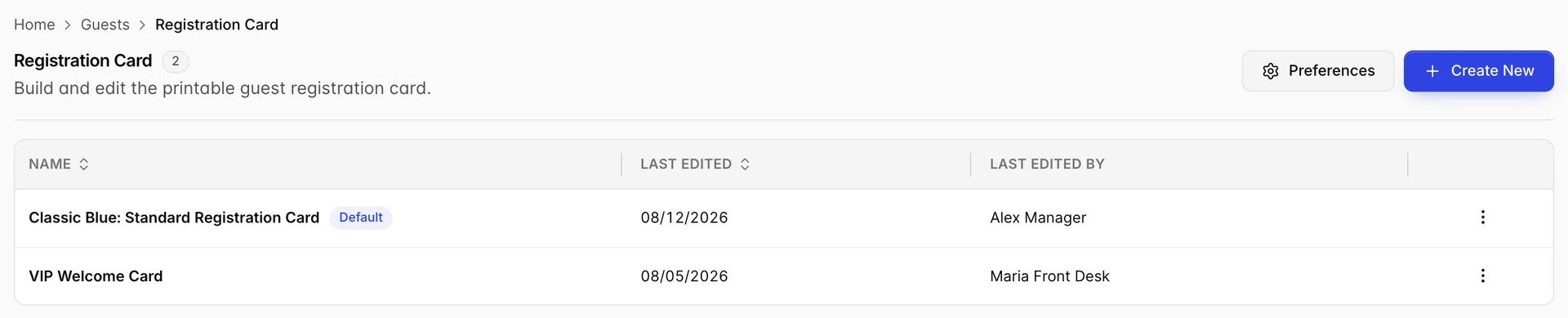
The list works exactly as the letter list does: the templates you have, which one is the default, when each was last changed and by whom. The row menu holds Edit, Duplicate, Set As Default on any template that is not already the default, and Delete. Duplicate is still the right way to start a variant.
The one thing on this screen that has no equivalent on the letter list is Preferences, next to Create New. It is here rather than inside the builder for a reason, covered below.
Building one
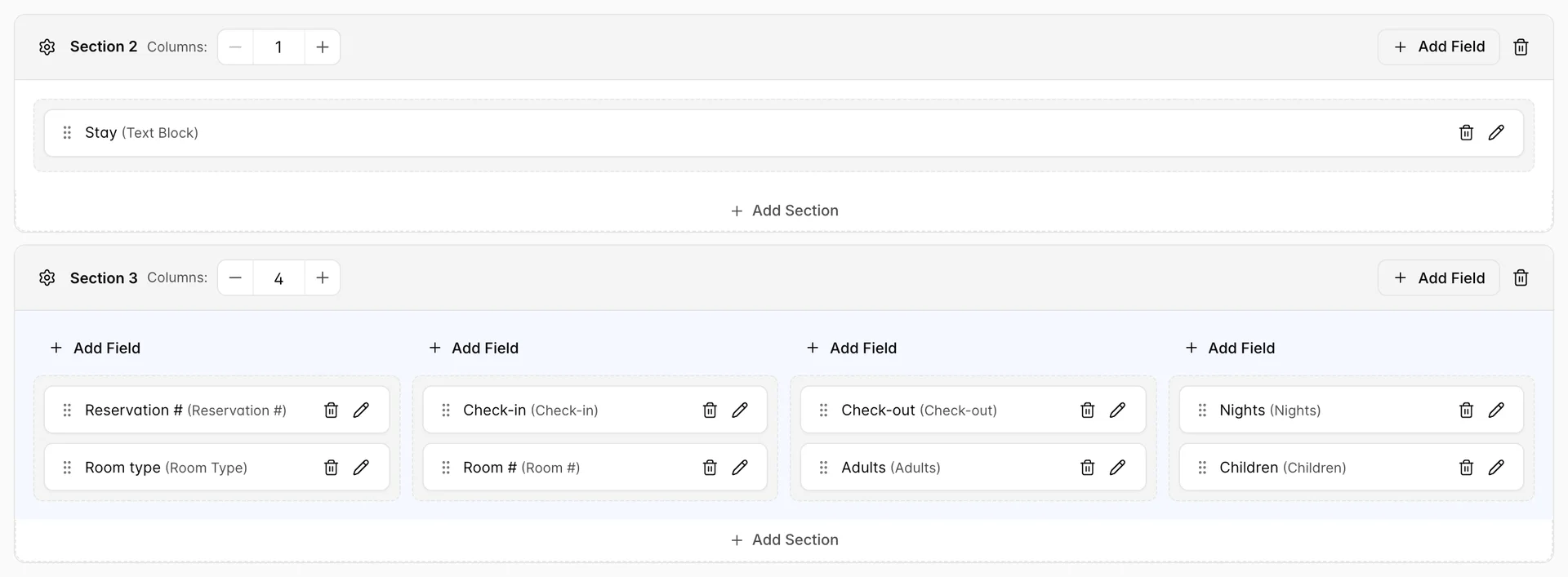
Sections, columns, tiles, dragging, the pencil and the bin all behave exactly as they do on a letter. If you have not read that part yet, it is the builder section of the confirmation letter article, and it is the whole of what you need.
Cards do tend to look different from letters in practice, and the figure above shows why. A card is a dense form rather than something to read, so it is built from many short sections: a one-column text block acting as a printed heading, then a section of fields under it, then the next heading, then the next group. The seeded example runs to eleven sections that way, alternating headings with groups of fields, and uses four columns where a letter would use two.
What you can put on it
The catalogue behind Add Field is the same one the letter uses, minus five entries. It has the guest fields, the address fields, the stay fields, the money fields, checkboxes and text inputs for things a guest fills in by hand, text blocks for your own wording, and your property's own custom fields. It is described in full in the confirmation letter article.
What a card cannot offer is these five, which exist only on letters:
- Payment Method
- Booking Source
- Rate Plan Name
- Items & Services
- All Guest Names
Which is reasonable when you think about who is holding the paper. Those five are things you say while confirming a booking somebody has just made. A guest standing at your desk does not need to be told how they found you or which rate plan they booked, and they certainly do not need it before they sign.
The fields a card does have that matter more than they do on a letter are the ones a guest completes themselves: Checkbox for consent to your house rules, and Text Input for a signature line, a document number or a nationality your rules require you to record.
Preferences apply to every card
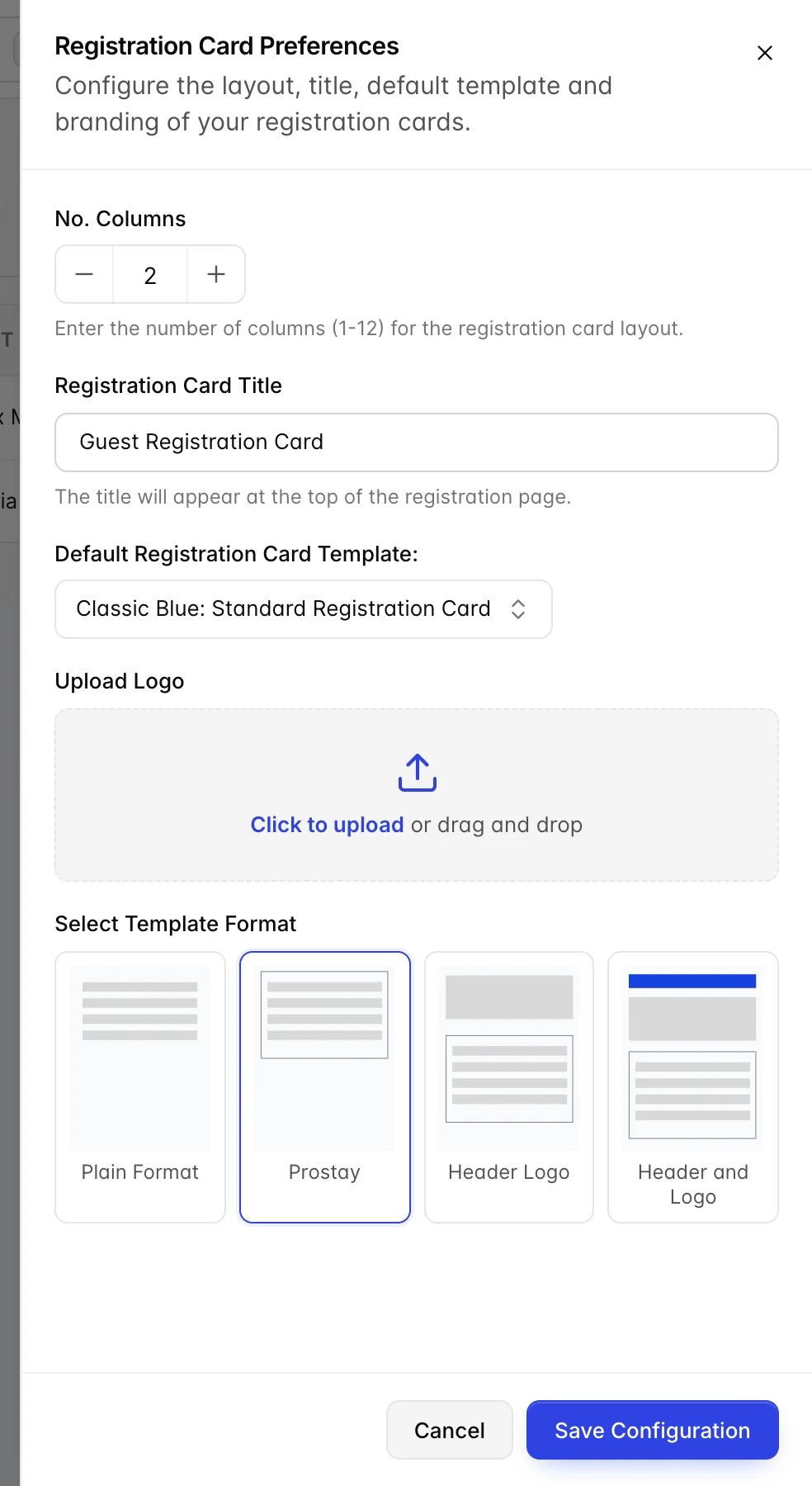
This is the difference worth remembering, and it is the reverse of how letters work. A confirmation letter's preferences belong to the one template you have open. A registration card's preferences are a single record for the whole property, which is why the button is on the list screen rather than inside a template.
What the drawer holds:
- No. Columns, from 1 to 12, is the column count the builder lays a template out against when a section does not say otherwise. Sections still have their own Columns stepper, so this is the starting point rather than a limit.
- Registration Card Title is the heading printed at the top of the card, and again it is not the template name from the list.
- Default Registration Card Template is the second place the default can be set, the first being Set As Default in the row menu. They are the same setting, so changing it here moves the badge on the list.
- Upload Logo takes your letterhead.
- Select Template Format is the same four layouts as on a letter: Plain Format with no header or logo, Prostay, Header Logo, and Header and Logo, which adds the title. A logo that never appears on a printed card is nearly always this setting rather than a failed upload.
Printing one at check-in
Cards are printed from the booking rather than from this module. Open the reservation, then Actions, where Registration Card produces one and Print Registration Cards is the quicker route when a booking has several rooms and you need a card for each.
The card is filled in from the reservation and from the guest profile attached to it, which is the thing worth knowing before a busy arrivals shift: a guest profile with no address prints a card with a blank address line. That is usually what you want, because the guest completes it by hand and you copy it back afterwards. It is only a problem if you expected the card to be a record of what you already hold.
Who can do this
Registration cards and confirmation letters share one permission, Guest module, granted under Users, User Roles. There is no separate right for cards, so anybody who can redesign your confirmation letter can redesign your registration card and the other way round.
Without the permission both screens show a locked message naming it instead of the list. With view but not edit, the templates are readable and Create New, Preferences, Save Changes, Duplicate and Set As Default are disabled. Deleting needs the delete right.
Where to go next
If you have arrived here without reading the confirmation letter article, that is where the builder is actually explained, and it is the longer and more useful of the two.