Two screens, both under Settings, both about the shape of a booking rather than its price. Reservation types answer the question "what kind of booking is this, and what does that oblige us to collect". Custom fields answer "what else do we need to ask". They are worth reading together because they are the two settings that change the reservation form itself, and because each has one option that looks like it does something and does not.
What a reservation type actually decides
Every reservation in Prostay has a type, and the type is chosen before anything else, on a screen of its own. So this setting is not a label filed away in a report. It is the first decision the desk makes, and it changes the form they see next.
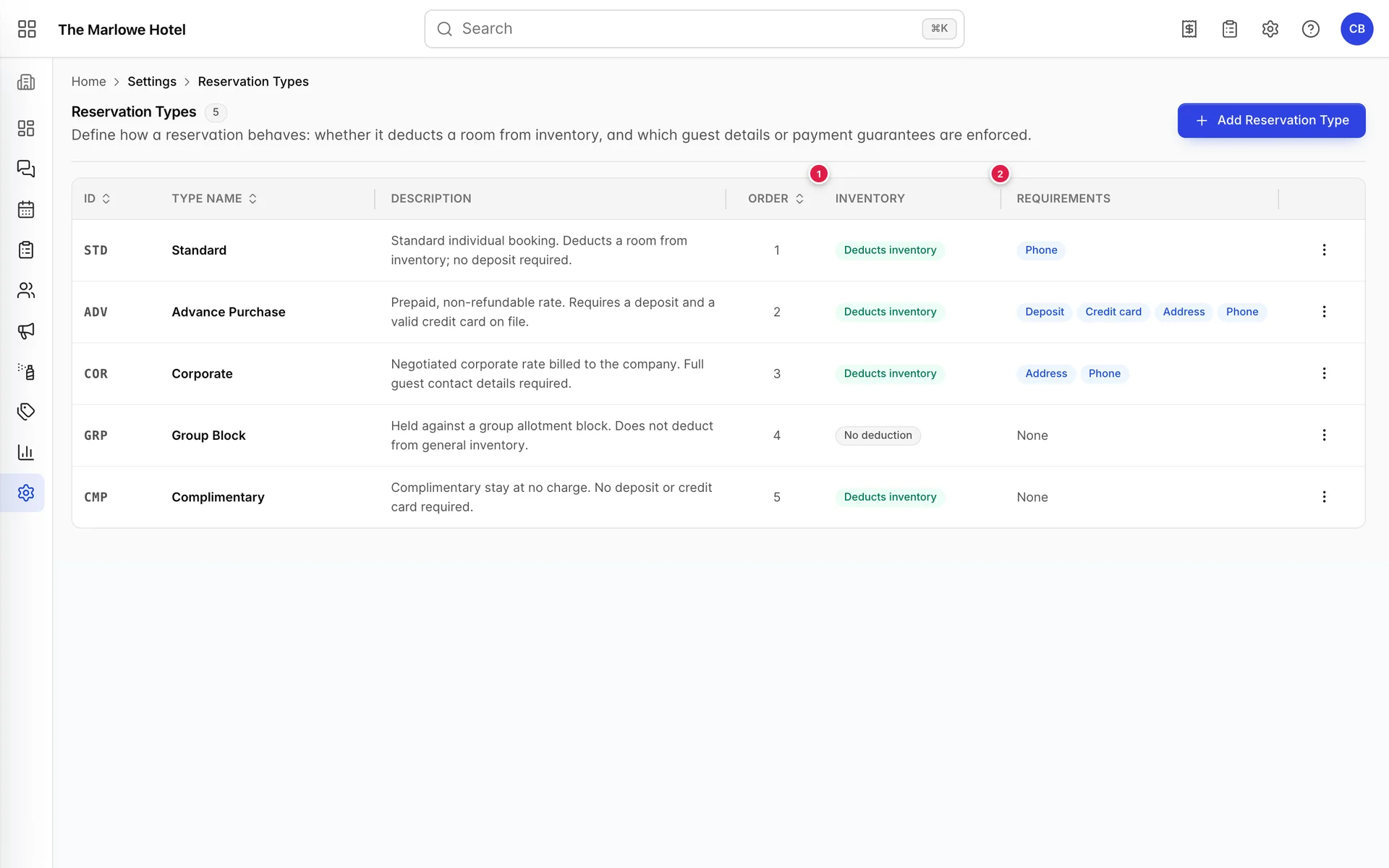
- Inventory. Whether this booking takes a room off the market. One switch, and the one with consequences beyond this screen.
- Requirements. A badge for each enforcement that is switched on. Three of the four badges stop the desk. One does not.
The Description is not decoration. It is shown in full on the type picker, underneath the name, at the moment somebody is choosing. It is the only place you can explain to your own staff what Corporate means at your property, so write it for them rather than for a database. The demo property's descriptions are a reasonable model: what the type is for, then what it does about inventory and deposits.
Order controls the sequence in the picker, nothing else. Put the type you use forty times a day at the top.
The inventory switch is the important one
Deduct from room inventory is the setting in this article with the longest reach. A type that deducts behaves like a normal booking: the room comes out of availability, and the availability matrix and everything downstream of it, including what your channels are told they may sell, count it as occupied.
A type that does not deduct is a booking that exists on paper and leaves the room sellable. In the demo property that is Group Block, which is the standard reason for wanting this: the rooms are already held by the allotment, so a booking drawn from the block must not hold them a second time.
Which enforcements stop a booking
Edit on any row opens a drawer with the name, the description and five switches under a heading that promises rather more than it delivers.
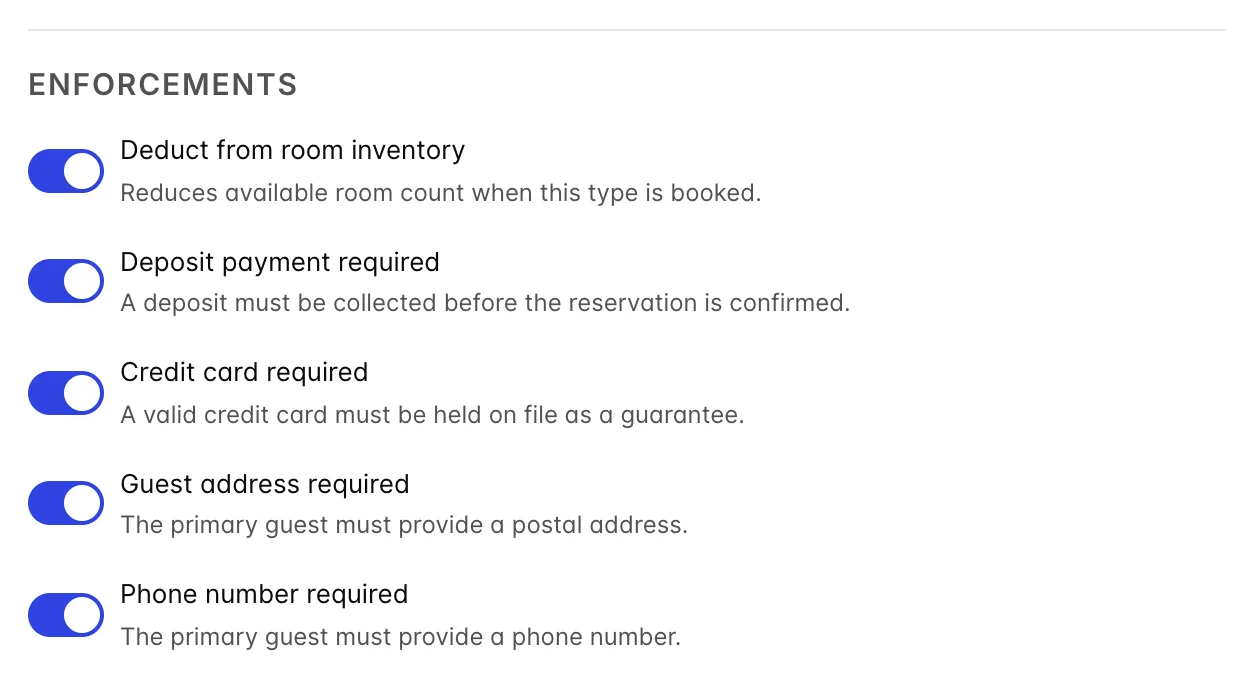
Three of the five are enforced where it matters, at the point of saving a reservation:
- Phone number required and Guest address required put an asterisk on those fields in the guest drawer and refuse to save the guest until they are filled in, naming what is missing.
- Deposit payment required blocks a reservation that has no deposit amount, with exceptions for tentative bookings, house use and complimentary stays, which is sensible: none of those has anything to take a deposit against.
Credit card required is the odd one out. It appears as a requirement badge on the list and on the type picker, so your staff see it and will act on it, but the reservation form does not check for a card before saving. Treat it as a written instruction to the desk rather than a control, and if the guarantee genuinely matters, use Deposit payment required, which does stop the save.
Deduct from room inventory is the fifth switch, and it is not an enforcement at all despite living under that heading. It does not stop anybody; it changes the arithmetic.
Where the settings surface
All of it comes together on one screen, the one the desk sees before any reservation is created.
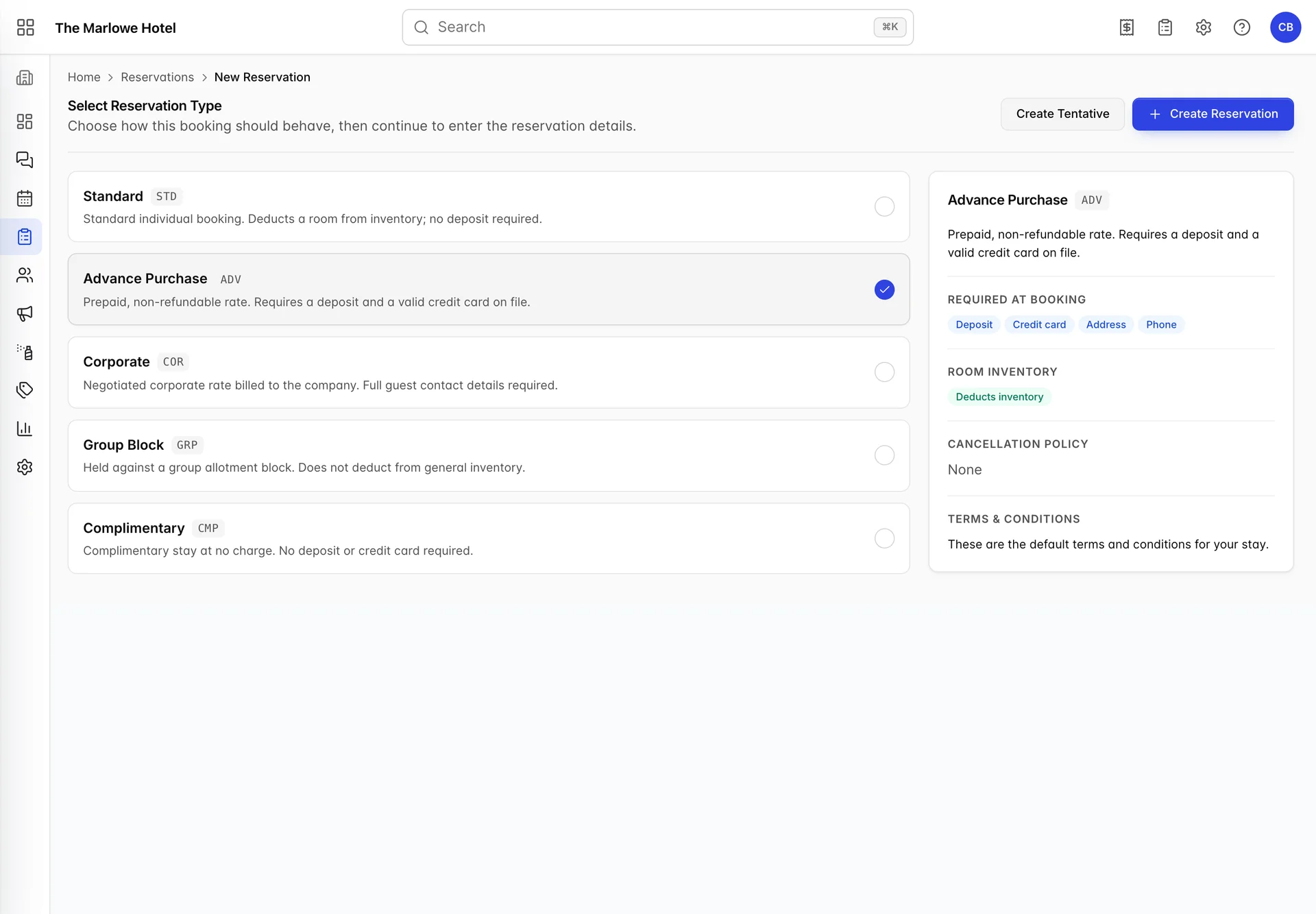
The panel on the right is assembled entirely from settings made elsewhere. The description and the two badge rows come from the reservation type. The cancellation policy and the terms come from the Policies screen. This is the payoff for filling those screens in properly, and it is also the fastest way to check your own configuration: pick each type in turn and read the right-hand panel. If it says something you did not intend, you now know which screen to go and fix.
Linking a cancellation policy to a type
In the shot above, Cancellation policy reads None, even though the demo property has two cancellation policies configured. That is not a bug and it is worth understanding, because it catches people.
A cancellation policy is shown against a reservation type only when it has been linked to that type, using the Link to Reservation Type multi-select in the policy drawer on the Policies screen. A policy with nothing linked is not attached to anything, so every type reads None. Both demo policies are in that state.
The exception is custom text. If you have switched the Cancellation Policy tab to Enter my own custom text, that text is shown against every type regardless of linking, because there is nothing to link. See Policies for the two modes.
Custom fields: your own questions
Custom fields are extra questions bolted onto the booking form. There are two lists, one for reservations and one for guests, on separate menu entries. They behave identically, and the only difference is which form the question lands on: a reservation field is asked once per booking, a guest field once per person. Flight number is a reservation field. Passport number is a guest field.
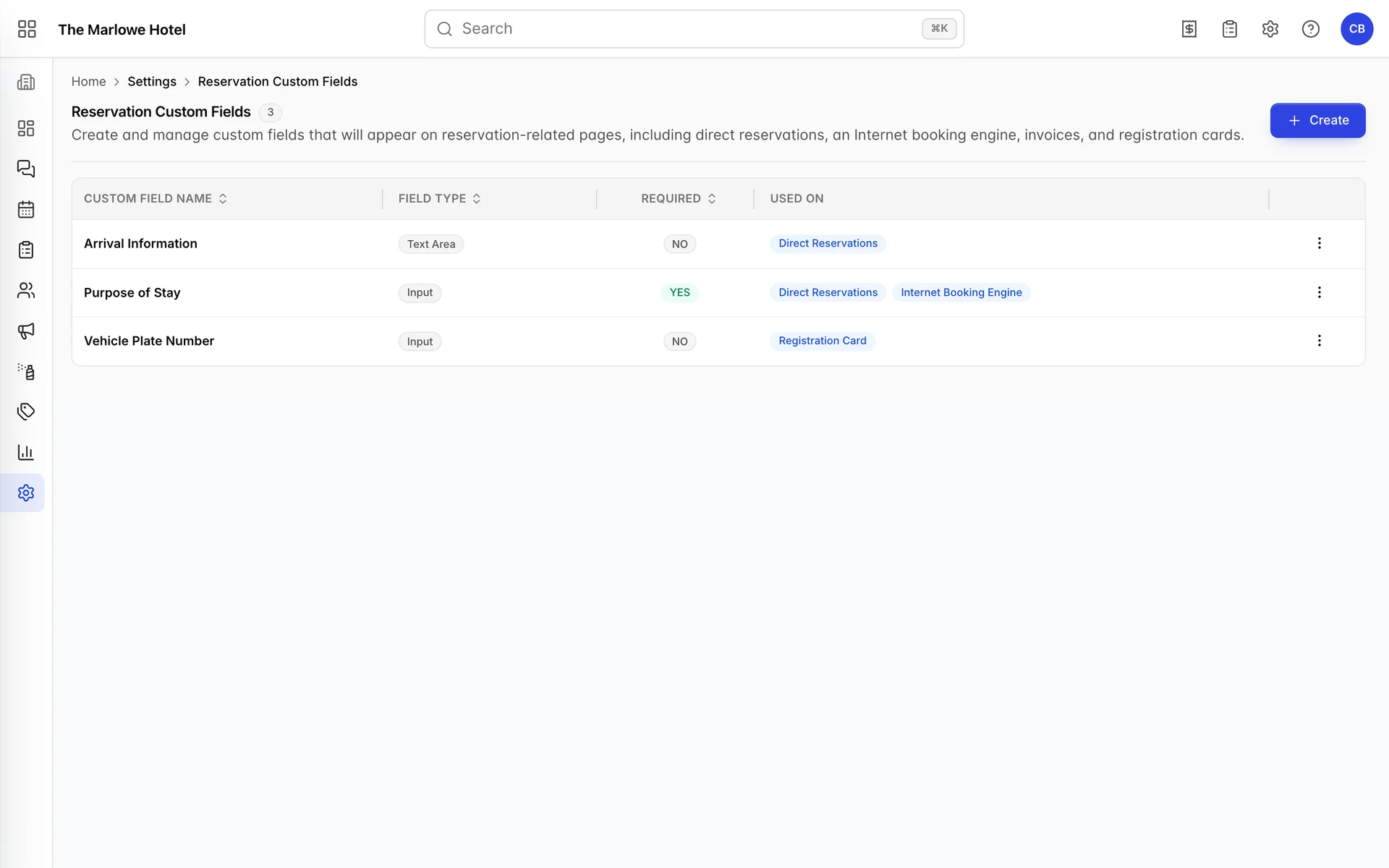
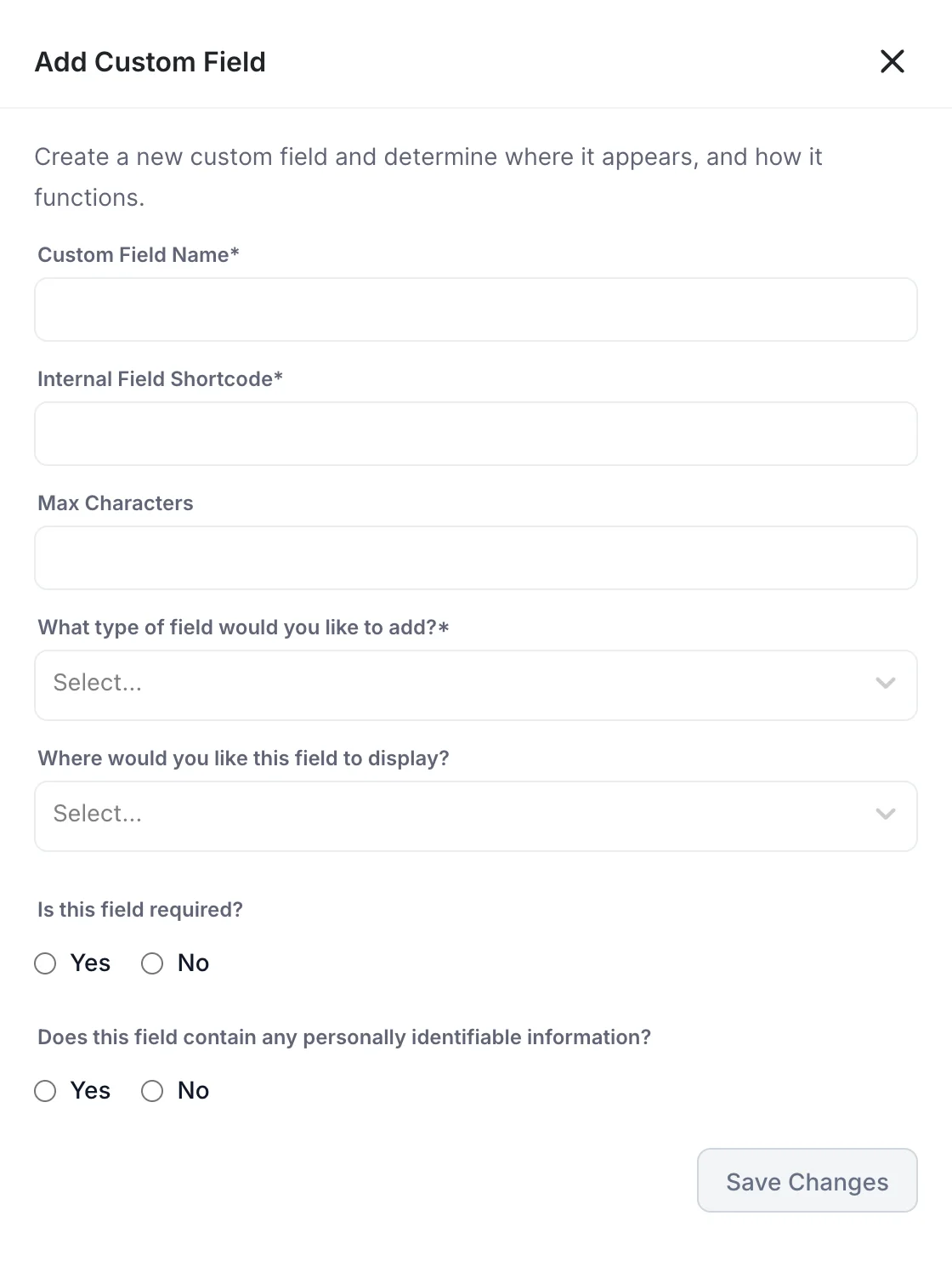
Custom Field Name is the label your staff and, depending on where you display it, your guests will read. Write it as a question or a noun, not an abbreviation.
Internal Field Shortcode is the machine name. It is what an export or an integration will use, so keep it lowercase with underscores and keep it stable. Renaming a shortcode later is the kind of change that quietly breaks somebody's spreadsheet.
Max Characters caps the length. There are only two field types, Input for one line and Text Area for several, so the cap is how you signal the difference between "flight number" and "tell us about your arrival". The demo property allows 20 characters for a vehicle plate and 200 for arrival information.
Where would you like this field to display
This multi-select is the setting that determines whether the field is ever seen, and it offers four destinations. Two of them work.
- Direct Reservations puts the field on the reservation form your own staff use. This is the one most fields want.
- Internet Booking Engine puts it in front of the guest during online booking. Reservation fields appear at the payment step, guest fields at checkout.
- Registration Card and Invoice are offered, and are saved, and nothing reads them. A field with only one of these ticked is stored correctly and displayed nowhere.
Ticking nothing at all has the same effect, and is easier to do by accident, because the multi-select does not object when you save it empty.
Required means the save is blocked
Is this field required? is enforced, on both sides. At the desk, a required reservation field with no value stops the reservation being created. In the booking engine, the guest cannot get past the step, and the label carries an asterisk.
This is worth being careful with on the booking engine specifically. A required field there is one more thing standing between a guest and a completed booking, and unlike your staff, they cannot ask you what you meant by it. Make anything you mark required both short and obvious. In the demo property, Purpose of Stay is required and shown in both places, which is about the limit of what is reasonable to insist on.
The question asking whether the field holds personally identifiable information is a classification flag. It does not change where the field appears or who can see it. Answer it honestly anyway: it is the record of what you collect, and the question it answers is the one you will be asked if a guest ever exercises a data request.
Common pitfalls
- A new type that quietly does not deduct. The switch defaults to off when you create a type, so a type made in a hurry leaves every room it books on sale. Check the Inventory column after adding one.
- Treating Credit card required as a guarantee. It shows as a requirement and stops nobody. Use Deposit payment required if the booking must not proceed without money.
- Wondering why a type shows no cancellation policy. The link is made from the policy, not from the type. Open the policy on the Policies screen and use Link to Reservation Type.
- Building a custom field for the registration card. It will not appear there. Tick Direct Reservations so the value is at least collected, and expect to add it to the card yourself.
- Adding a field to the wrong list. Reservation fields and guest fields look identical and live on different menu entries. A field asked once per booking that you wanted once per person is a new field, not an edit.
- Making booking engine fields required. Every required question is a chance for the guest to give up. Required at the desk costs you nothing; required online costs you bookings.