Everything a guest can be charged for that is not the room lives in one of two lists. Items and services is the catalogue: a breakfast, a massage, a tank of nitrox, each with a price and a code. Add-ons are a thinner layer on top, and they exist for one purpose, which is to be offered to somebody who is in the middle of making a booking. They look similar in the menu and they are not the same object, so it is worth being clear about which one you need before you start typing.
The catalogue
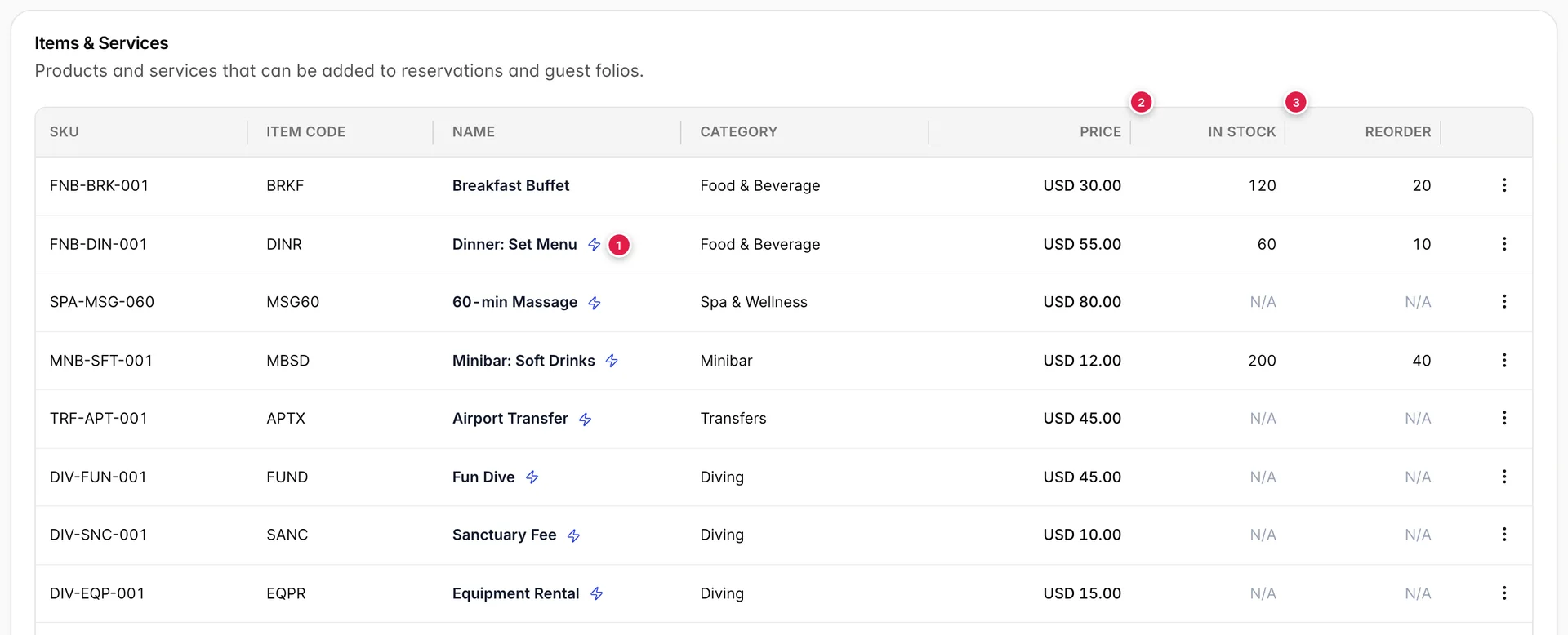
- The lightning bolt. This item is on the Quick Charge grid. It is a flag on the item, not a property of its category.
- Price. A number, or the word Open when staff type the amount at the time of posting.
- In Stock and Reorder. Only meaningful for items you have chosen to count. Services show N/A in both.
Every item needs a name, a type, a SKU, an item code, a category and, usually, a price. The type is one of Product, Service or Package, and it is the only one of those six you cannot change your mind about casually, because switching to Package rewrites how the item is priced.
SKU and item code both look like identifiers and they are not interchangeable. The SKU is yours, for stock-taking and for matching against a supplier list. The item code is the short string that appears against the charge in finance exports, which is why the demo property uses things like BRKF and MSG60. If your accountant has an existing chart of codes, this is the field that has to match it.
Three ways to price one item
Most items have a price and that is the end of it. Two checkboxes change that, and both are worth understanding before you tick either.
This item does not have a price makes it an open-amount item. The list shows Open in the price column and whoever posts it types the figure. This is what you want for damages, for a deposit, for the one-off charge that is different every time. The demo property uses it for a Gift Shop line, so anything bought at reception can be posted at whatever it rang up as.
Allow price to be modified when adding to a reservation is the softer version: the item keeps its price, and a member of staff can change it on the way through. Use it where you have a standard rate that gets discounted, and leave it off where the price is the price, because an editable figure is a figure that will eventually be edited by accident.
Stock and the reorder threshold
Do not track stock inventory for this product is ticked for anything you cannot run out of. A massage is not consumed from a shelf, so the 60-min Massage row shows N/A in both stock columns. A minibar soft drink is, so it shows 200 and reorders at 40.
The reorder threshold is not decorative. Cross it and Prostay sends a low-stock notification, and the recipients of that notification are set in one place: the Settings button at the top of this screen. It takes existing users, chosen by name, and any number of typed addresses for people who do not have a login, such as a supplier or an external bookkeeper.
A threshold with nobody on the recipient list is a threshold that fires into nothing. If you are going to count stock at all, set both.
The Quick Charge flag
Show on the Quick Charge grid is the smallest checkbox on the form and the one that most changes daily life at the desk. Quick Charge is the one-tap counter sale, and its grid is built from exactly the items carrying this flag. Everything else remains chargeable through the folio; it just is not on the front screen.
The temptation is to tick it everywhere, which defeats the point. A grid of thirty tiles is not faster than a search box. Tick the things that genuinely sell over the counter and leave the rest. In the demo property the Breakfast Buffet is deliberately not on the grid, because it arrives as an add-on attached to the booking rather than as something anyone walks up and buys.
Packages
Set an item's type to Package and the price field is replaced by a builder. A package is not a product with its own price. It is a list of other products, and it is worth what they add up to.

Those two numbers diverging is the single most useful thing to understand here. Fun Dive (full) contains ten items but posts at 70.00, because seven of the ten are optional extras that are not ticked by default. The badge is telling you how much is available inside the package. The price is telling you what a guest is charged if nobody touches anything.
If a package row has no Edit action, your role does not include the permission for it and you can read a package without being able to change what is in it. An administrator can add it from Users in System Settings, under Integrations › Items & services.
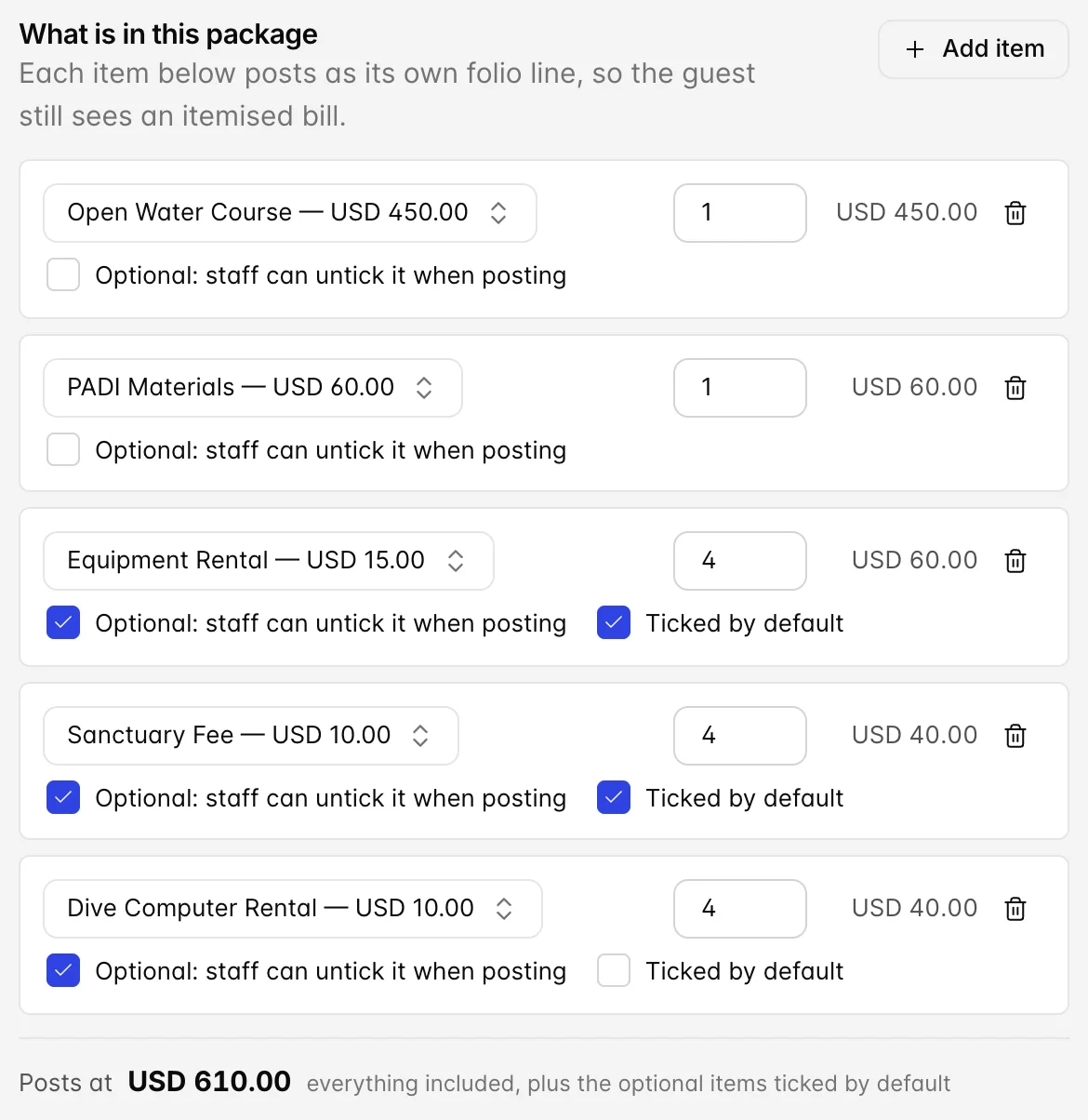
Each line has a component, a quantity and two checkboxes. Leave the first checkbox clear and the component always posts. Tick it and staff can drop that line when they post the package. The second checkbox, which only appears once the first is ticked, decides whether it starts ticked or not. So there are three states worth naming: always included, offered and on by default, and offered and off by default.
The course package above is a good shape. The course itself and the materials are compulsory. Four days of equipment rental and four sanctuary fees are optional but assumed, because most students need them. A dive computer is optional and assumed not, because most students do not. The 610.00 is the first three groups. If a student brings their own computer, nobody has to remember to remove anything.
Each component posts as its own folio line rather than one lump, so the guest still gets an itemised bill and your revenue still lands in the right categories. That is the reason to build a package rather than create a single item called "Open Water Course (full)" priced at 610.
Categories are the reporting axis
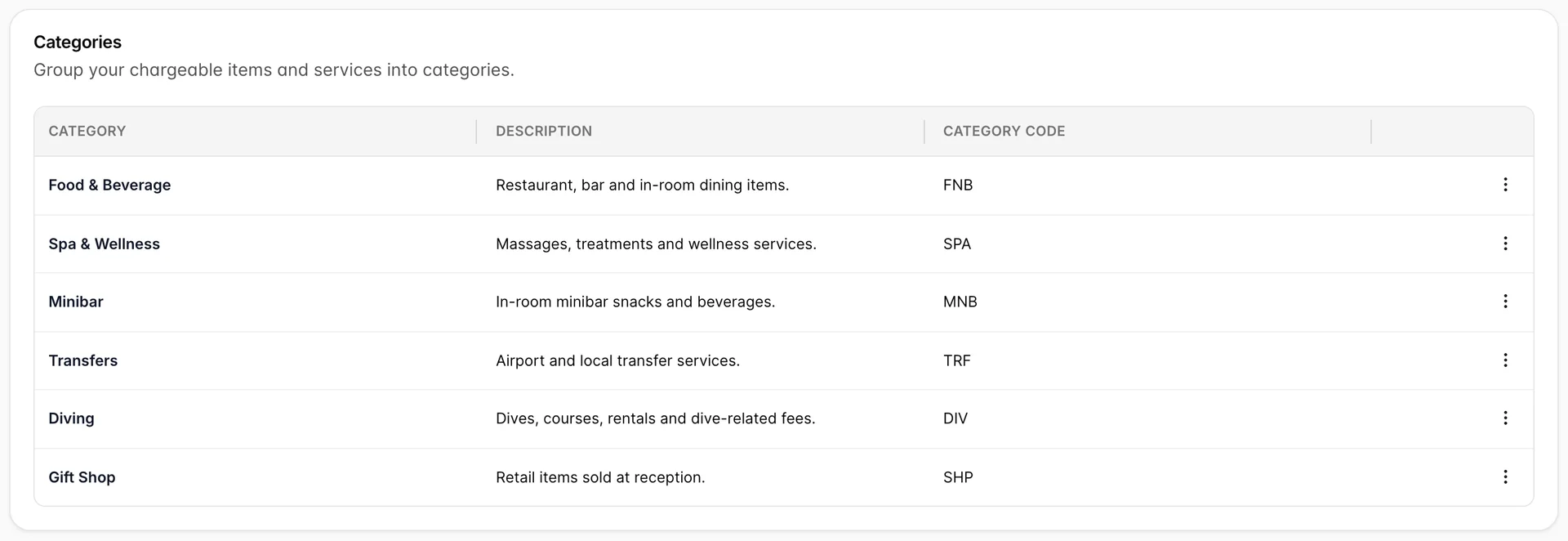
A category is three fields and no behaviour, which makes it easy to treat as an afterthought. It is not one, because the revenue reports group by it. Revenue by item categories is only as useful as the categories you defined, and rearranging them after a year of trading gives you a year of history split on the old shape.
Six is a reasonable number for a hotel with a dive centre. The test to apply is whether you would ever want a single figure for the whole group. If you would never ask "how did Minibar do last month", Minibar should not be a category.
Add-ons are a different thing
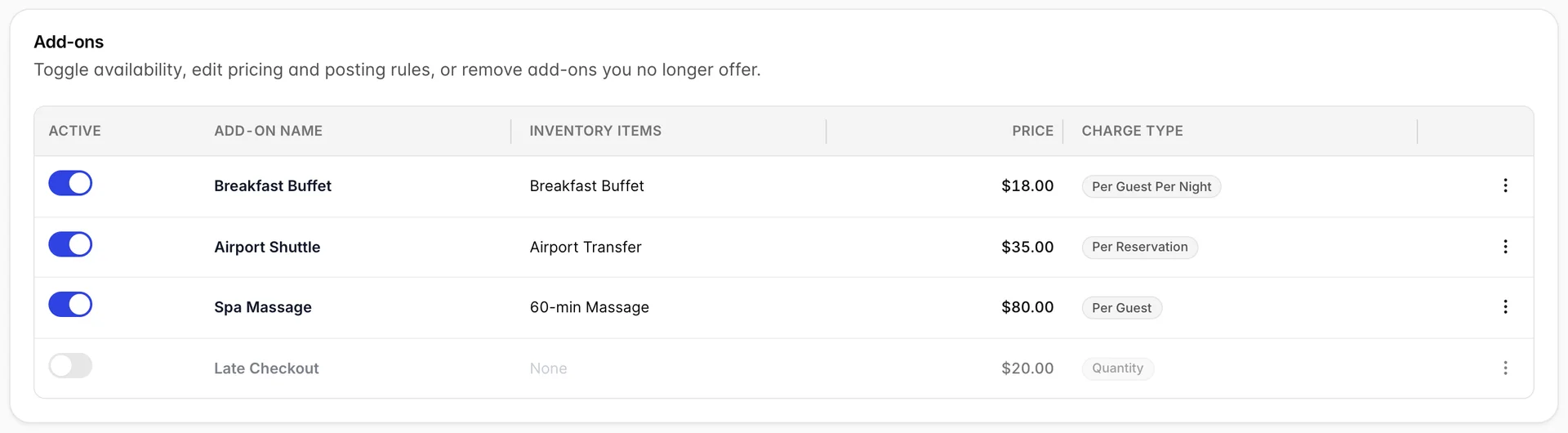
An add-on is an inventory item wrapped in an offer. It appears while somebody is creating a reservation, both inside Prostay and on your booking page, and it carries three things the underlying item does not have: its own price, a charge type, and a set of date intervals during which it is available.
Add-ons carry their own permission, separate from the items behind them. If the fields on this card are greyed out and no row offers Edit, your role does not include it, and an administrator can add it from Users in System Settings, under Integrations › Add-ons.
The price is the giveaway that these are separate objects. The Breakfast Buffet item costs 30.00 in the catalogue. The Breakfast Buffet add-on is 18.00 per guest per night. Both are correct: one is what breakfast costs when someone walks into the restaurant, the other is the rate you offer to attach it to a booking in advance. Changing one does not change the other.
The charge type is where the money is decided, and there are seven of them: per reservation, per night, per room or bed, per room or bed per night, per guest, per guest per night, and quantity. The same 18.00 becomes wildly different totals depending on which you pick, so this is the field to check twice. A four-night stay for two guests bills 18.00 once as per reservation, 72.00 as per night, and 144.00 as per guest per night.
An add-on also needs at least one interval before it can be offered, and an interval carries its own date range, its minimum and maximum overlap with the stay, and the room types it applies to. That is how you offer breakfast all year but the Christmas dinner only in December.
The Active switch on the list is the fastest control here. It takes an add-on out of the booking flow without deleting it or losing its intervals, which is what you want for anything seasonal. Late Checkout in the demo property is switched off and greyed for exactly that reason.
When an add-on posts, and what survives
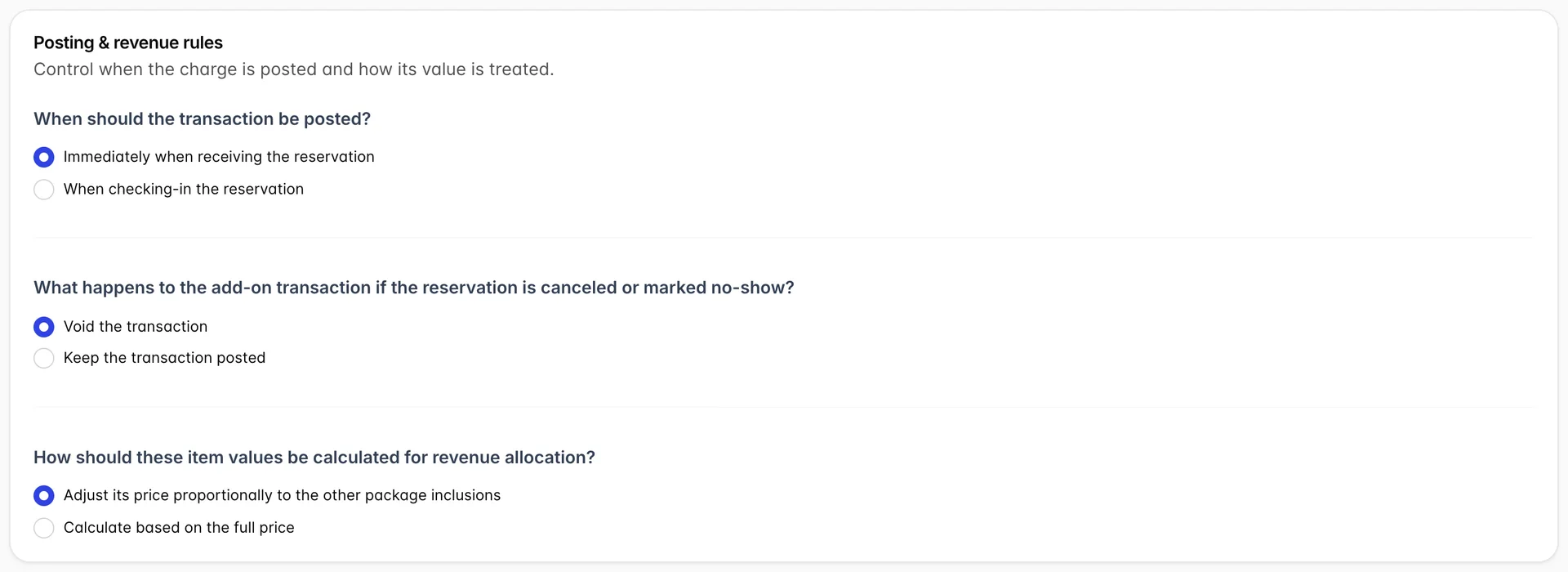
When the transaction is posted. Immediately on receiving the reservation puts the charge on the folio the moment the booking is made, which is what you want for anything you have already committed to buying, such as a transfer you have booked with a driver. On check-in defers it, which is right for anything the guest could still decline.
What happens on a cancellation or no-show. Void removes the charge, keep leaves it posted. This pairs with the setting above: an add-on posted at reservation time and set to keep on cancellation is how you make a non-refundable extra actually non-refundable. Every other combination is effectively refundable.
How the value is calculated for revenue allocation. Adjusted proportionally means that when the add-on is sold inside a package, its contribution is scaled against the other inclusions rather than counted at its sticker price. Full price means it always books its own number. This one is a finance decision rather than an operational one, and if you are not sure, the person who reads the revenue reports is the person to ask.
Common pitfalls
- Reading the package badge as the price. A badge reading 10 items does not mean ten items are charged. Open the package and read the Posts at figure, which counts only what is included or ticked by default.
- Expecting the add-on price to follow the item price. They are independent. Put a price up in the catalogue and the add-on carries on charging what it always did.
- Picking the wrong charge type. Per reservation and per guest per night differ by a factor of the party size times the length of stay. Check it against a real booking before you publish.
- Setting a reorder threshold with no recipients. The alert has nowhere to go. Open Settings from the items screen and add at least one person.
- Deleting rather than deactivating an add-on. Deletion is permanent and takes the intervals with it. If you are stopping for the season, use the Active switch.
- Inventing categories you will never report on. Every extra category makes the revenue breakdown longer without making it more informative, and the split is hard to undo once there is history behind it.