Three registers sit under Housekeeping alongside the board. They look almost identical, they are used by the same people, and they are routinely mixed up. A broken shower goes in one, a guest asking for towels goes in another, and a phone charger left in the nightstand goes in the third. Putting an entry in the wrong one is not a filing error: each register is worked by a different team, on a different clock, and only one of them can stop a room being sold.
Which register does this belong in
| What has happened | Where it goes | Why |
|---|---|---|
| Something is broken, worn or unsafe | Maintenance | Goes to engineering or maintenance with a priority and a due date, and can block the room from sale until it is fixed. |
| A guest has asked for something to be brought or done | Service Requests | Goes to a housekeeping attendant with a countdown against it. Nothing about the room changes. |
| A guest has left something behind | Lost & Found | A storage record: where it was found, where it is now, and who it eventually went back to. |
| The room is simply dirty | None of them | That is a room status on the housekeeping board, not a ticket. |
The test that settles most arguments: would a member of staff have to fix something for this to go away, or only fetch something? Fixing is maintenance. Fetching is a service request. A guest complaining that the air conditioning is noisy is maintenance even though it arrived as a guest complaint, and a guest asking for the room to be made up early is a service request even though it is about cleaning.
Reading the maintenance register
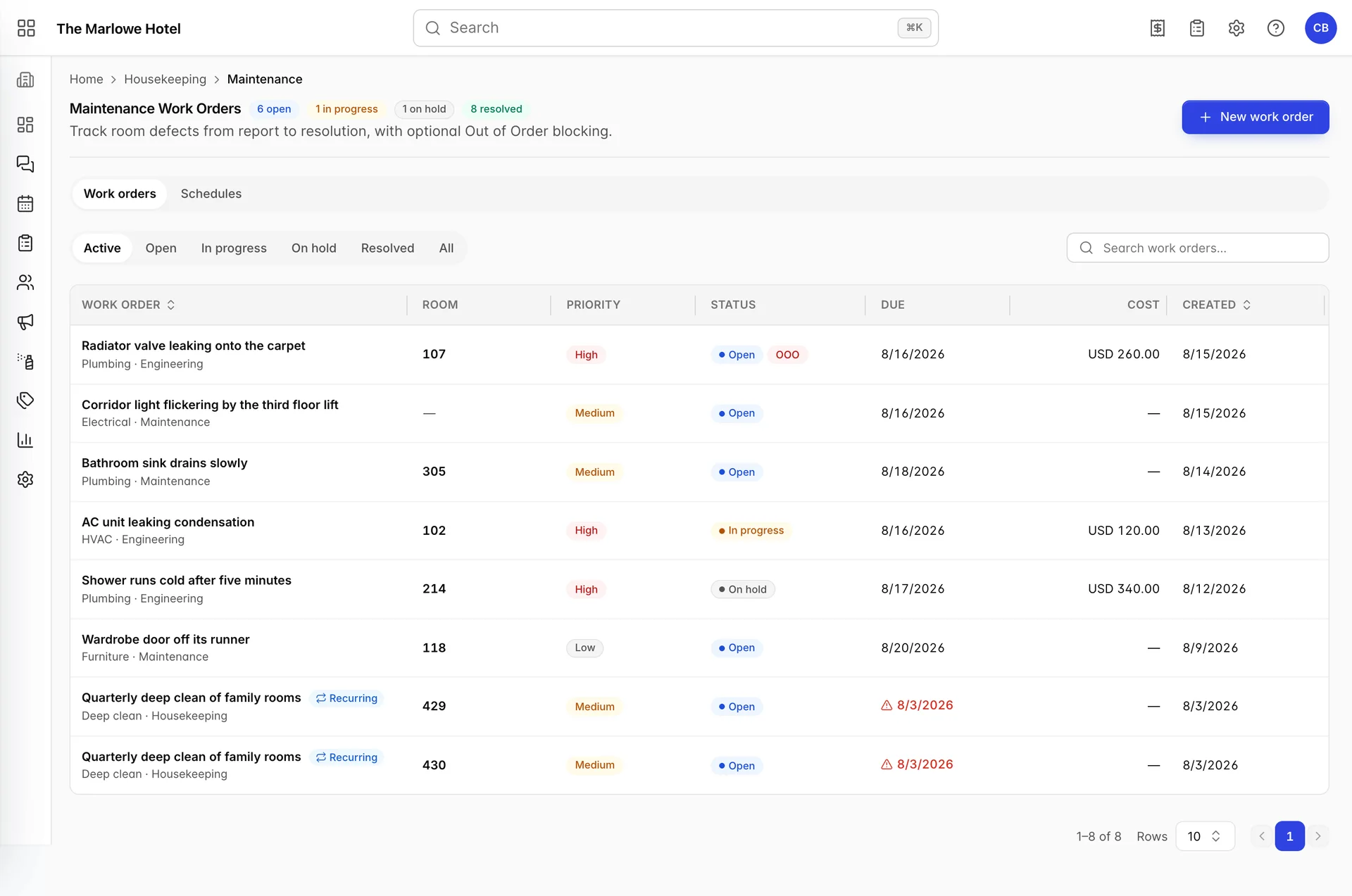

The counts beside the title describe the entire register, not the rows on screen. That is deliberate: the filter tabs underneath change what you are looking at, and a count that moved with them would tell you how many rows you had just asked for rather than how much work is outstanding. Six open and one on hold is the number that matters at a handover.
The tabs are Active, Open, In progress, On hold, Resolved and All. Active is the default and means everything that is not resolved. Search runs across the title, the room, the room type, the issue type, the team and the description, so radiator and 107 both find the same row.

- Work order. The title, with the issue type and the team underneath. A Recurring chip here means a preventive schedule created it rather than a person.
- Room. The room the defect is in. A dash means the work order is not attached to a room at all, which is right for a corridor, a lift or a plant room.
- Priority. Low, Medium or High. It sets no deadline and triggers nothing; it is a label for whoever is picking the next job.
- Status. Where the job has got to. A second red OOO badge means this work order is holding the room out of order.
- Due. The date you promised it by. Once that date has passed and the order is still open, it turns red with a warning triangle.
- Cost. The estimate you typed, in the property currency. It is a record, not a posting: nothing here reaches a folio or the accounts.
Raising a work order
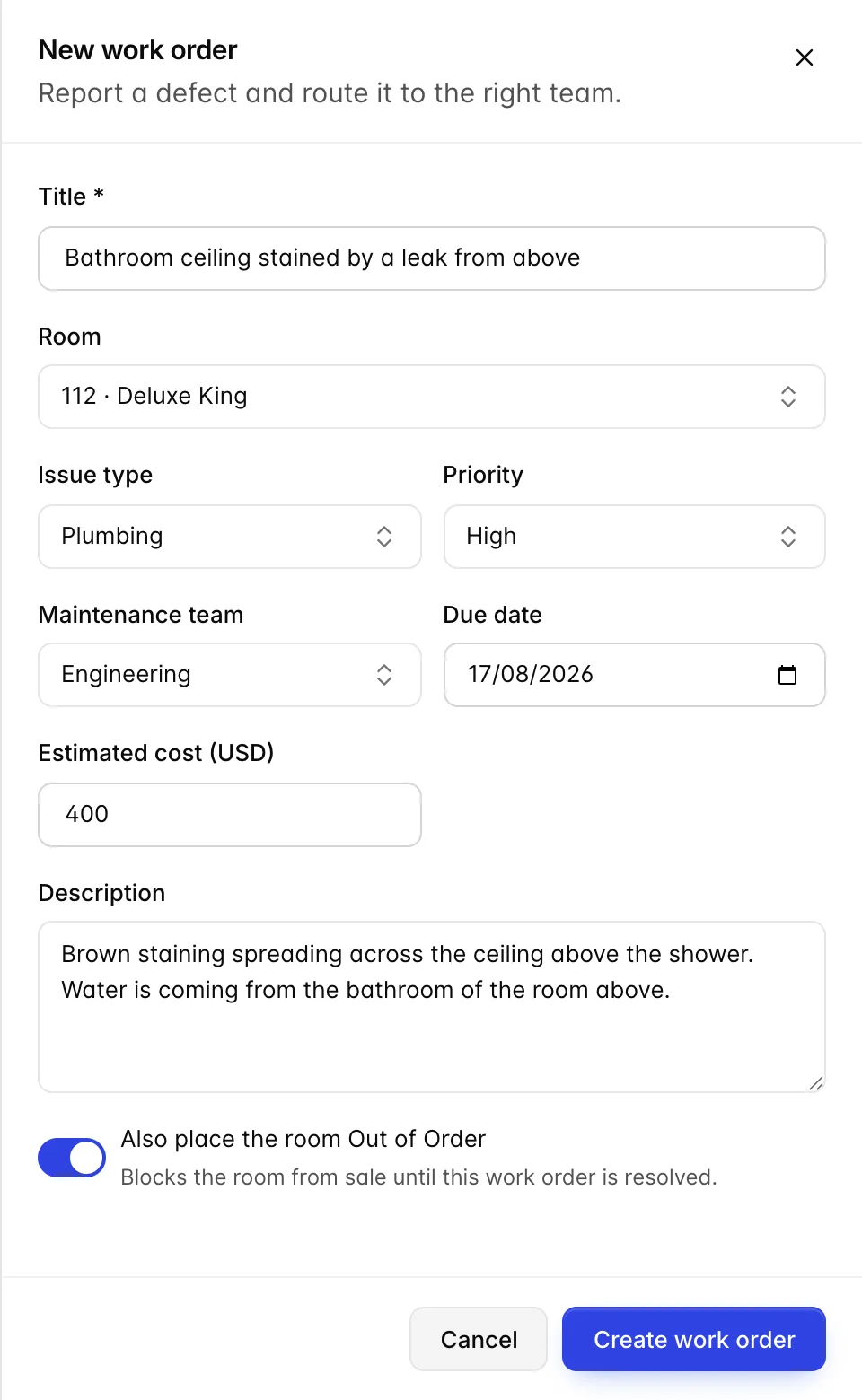
| Field | What it does |
|---|---|
| Title | The only required field, and the only part of the order most people will ever read. Write what is wrong and where, not "broken". |
| Room | Optional, and it can only be set while you are creating the order. Editing an existing one does not offer the field, so a work order raised against the wrong room has to be raised again against the right one. |
| Issue type | Routes nothing by itself, but it is what the register is searched and read by. The list ships as Plumbing, Electrical, HVAC, Furniture, Appliances and General, and Edit issue types… at the bottom of the dropdown changes it for the whole property. |
| Priority | Medium by default. Purely advisory. |
| Maintenance team | Who owns it: Maintenance, Engineering or Housekeeping as shipped, editable in the same way as the issue types. There is no per-person assignment on a work order, only a team. |
| Due date | Drives the red overdue treatment in the table and nothing else. No reminder is sent. |
| Estimated cost | Labelled with the property currency. Useful for a maintenance budget, invisible to the guest and to the folio. |
| Description | What the team needs to know before they walk in. Everything after this point goes in notes instead. |
| Also place the room Out of Order | Blocks the room from sale until this work order is resolved. Disabled until a room is chosen. Only offered while creating. |
The life of a work order
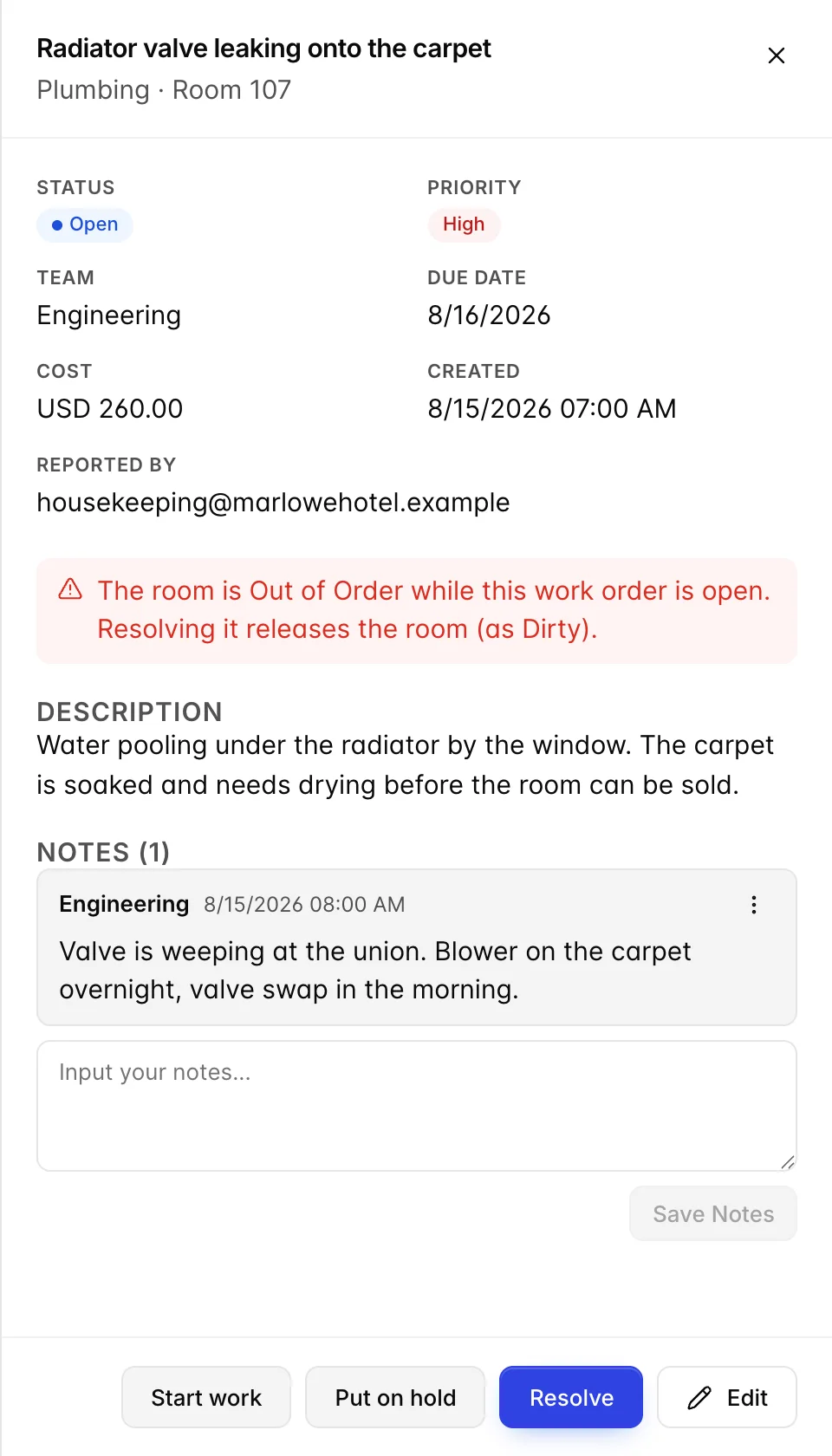
Click any row to open it. The drawer is the whole history of the defect: the facts at the top, the description, the notes, and the buttons that move it along at the bottom.
| Status | What it means | How it gets there |
|---|---|---|
| Open | Reported, nobody has started. | Every new work order starts here. |
| In progress | Somebody is on it now. | Start work. |
| On hold | Genuinely stuck: waiting on a part, a contractor or an empty room. | Put on hold. |
| Resolved | Fixed. Drops out of the Active tab and stamps a resolved time. | Resolve, which asks first. |
The moves are not enforced in a line. You can resolve an order that was never started, and a resolved order can be sent back with Reopen. Use On hold honestly: it is the only way an aged work order says "this is not being ignored, it is waiting for something", and the on-hold count in the header is the one a general manager should be asking about.
Work orders that block a room
A work order with the out of order switch turned on does two things at once. It records the defect, and it takes the room out of your sellable inventory, exactly as if you had blocked it from the calendar. The register shows this as a red OOO badge beside the status, and the drawer spells it out in red: the room is out of order while this work order is open, and resolving it releases the room as dirty.
That last clause is the important part of this whole article.
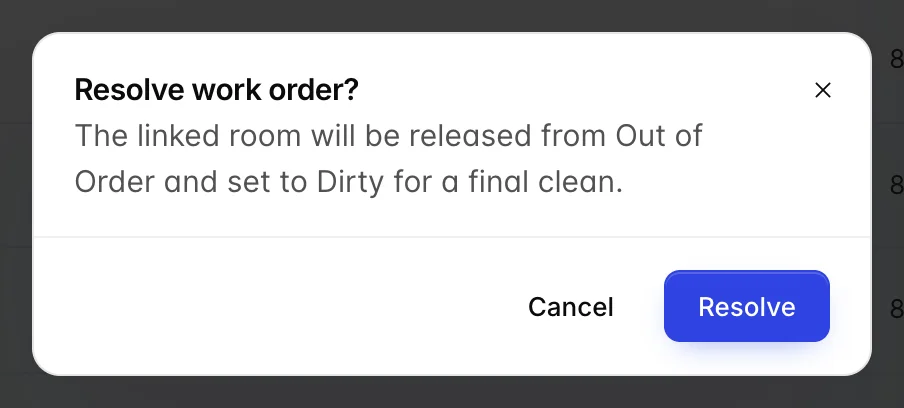
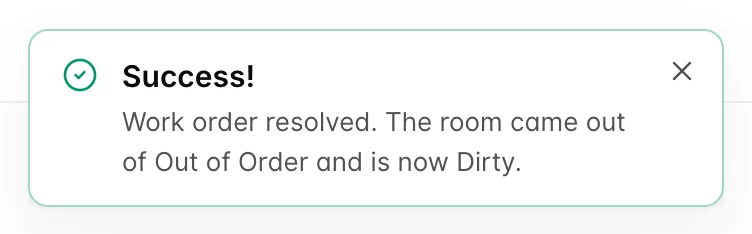
Resolving the work order sets the room to DIRTY, not to clean and not to available. A room that has had a plumber in it has dust, tools and boot prints in it, and a guest walking into that room is a complaint whatever the calendar says. The room becomes sellable again only when housekeeping has cleaned it and marked it so, which is the same route every other dirty room takes. The resolution is also written to the room's history, so View history on the board shows Work order resolved: and the title.
Out of order is not the only kind of block, and the difference between out of order and out of service changes your occupancy percentage. Both are covered in blocked dates, holds, and rooms out of service.
Notes on a work order
Underneath the description is a diary. Each note carries the name of whoever wrote it and the time, an edited note says so, and the menu on a note offers Edit and Delete. Deleting a note needs the delete permission; writing one needs edit.
The division of labour is worth keeping to. The description says what was wrong when the order was raised and should not be rewritten later. The notes say what has happened since: the part is ordered, the contractor is coming Thursday, the valve was replaced but the carpet is still drying. That sequence is what makes a three week old work order readable by somebody who has just walked into the department.
Preventive schedules
The second tab is not a list of work. It is a list of templates that produce work on a cycle: filters, fire doors, deep cleans, the things that are nobody's job until they are overdue.

Next due is the date the schedule will fire. Last generated is the date it last did. When the due date arrives, the schedule creates one work order per room in its scope, all at once, each badged Recurring and each showing Preventive schedule as its origin in the detail drawer. Then it moves its own due date on by the interval.
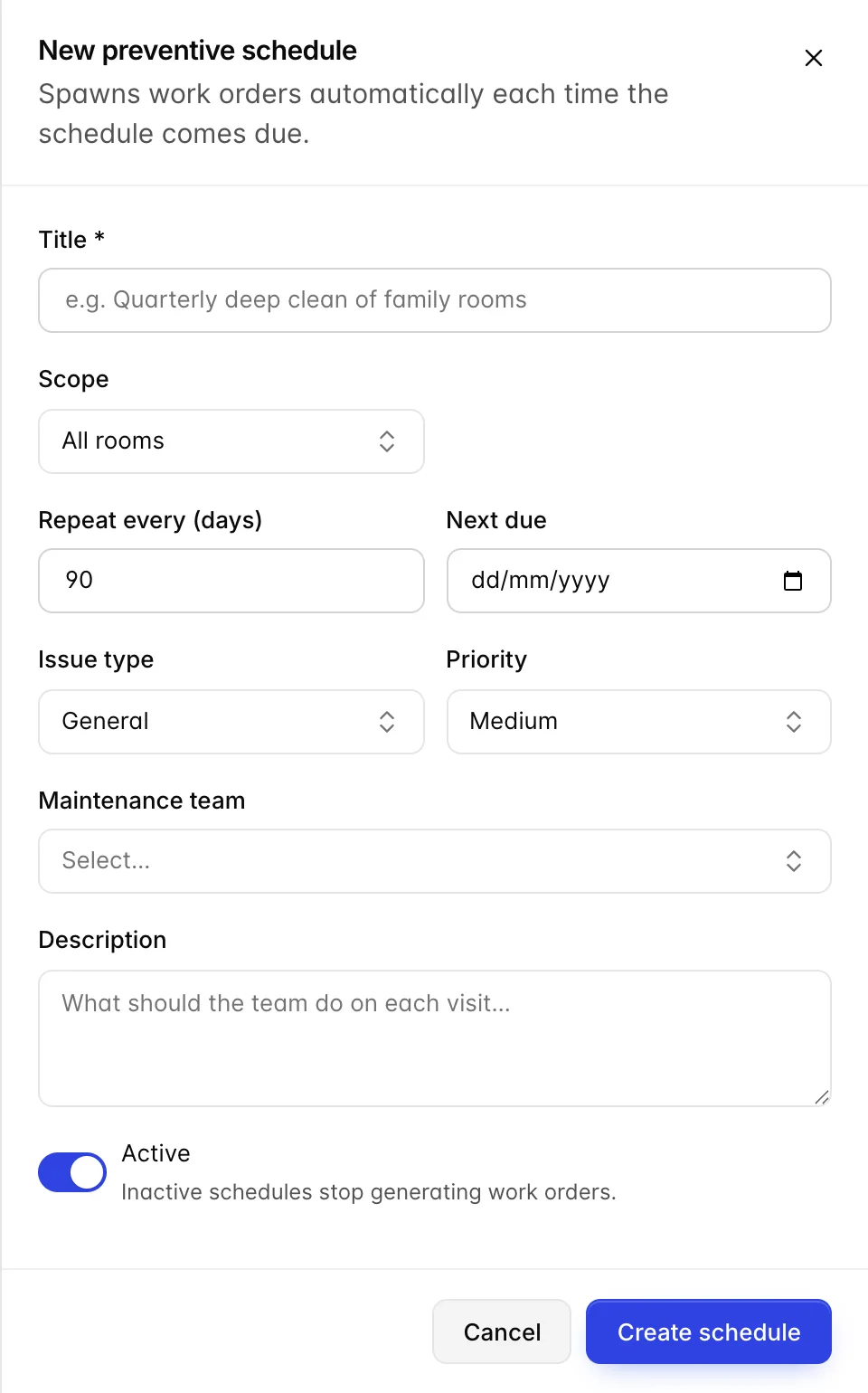
Scope is either All rooms or One room type. Do the multiplication before you save. A quarterly schedule scoped to all rooms at The Marlowe produces 120 work orders on one morning, four times a year, and there is no way to generate them in batches or to spread them across a week. For anything that large, scope it to a room type and create one schedule per type with staggered due dates, or accept that the register will be unusable for a day while the list is worked through.
The Active switch in the table pauses a schedule without deleting it, which is the right move for a seasonal job or one you have decided to reschedule. Deleting asks first, and explains what it will do: work orders already generated stay, and no new ones will be created.
Guest service requests
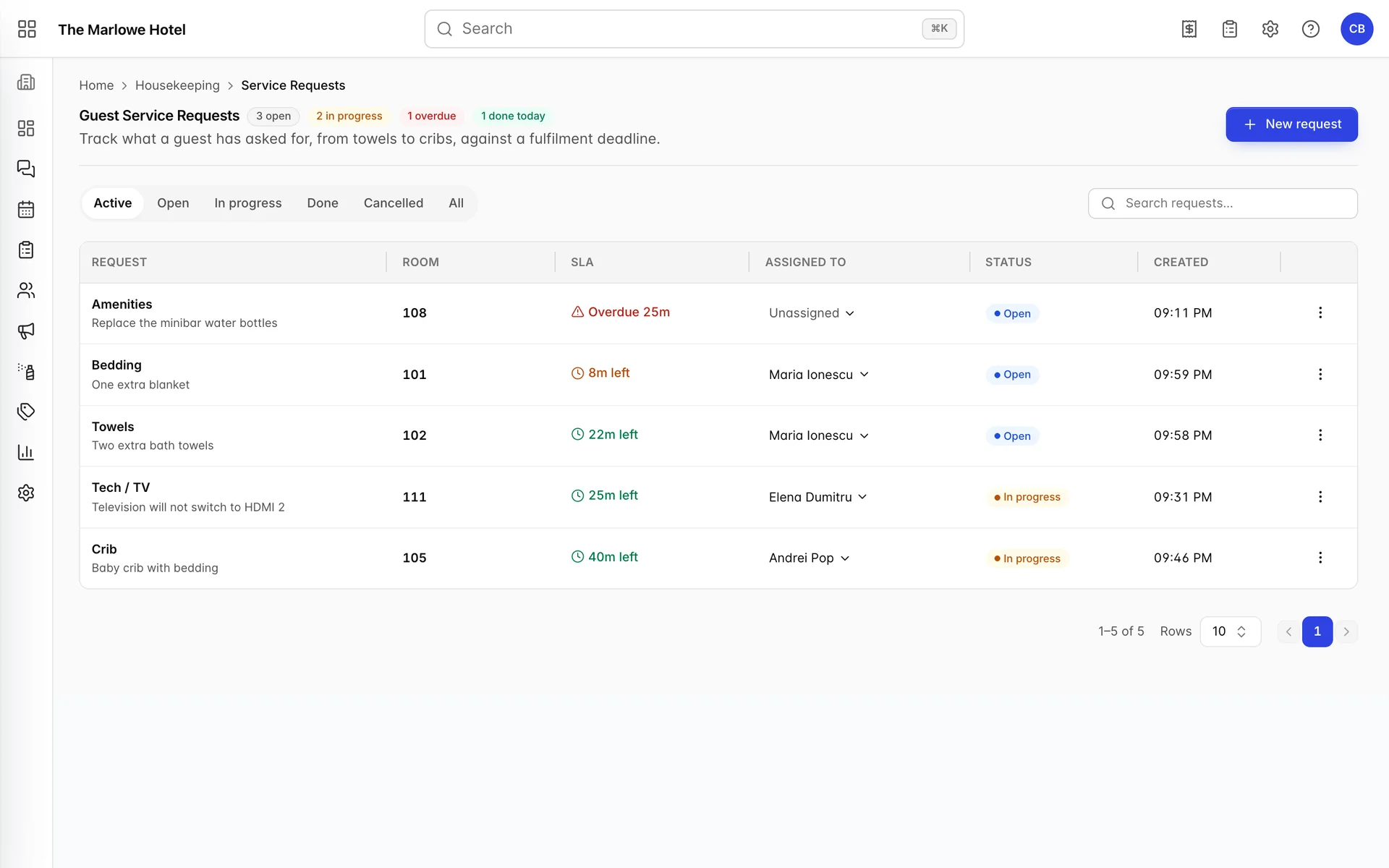
A service request is a guest asking for something: towels, a blanket, a crib, help with the television. It is not about the state of the room, and fulfilling one changes nothing on the board except a line in the room's history. What makes it different from a work order is the deadline attached to every single one.
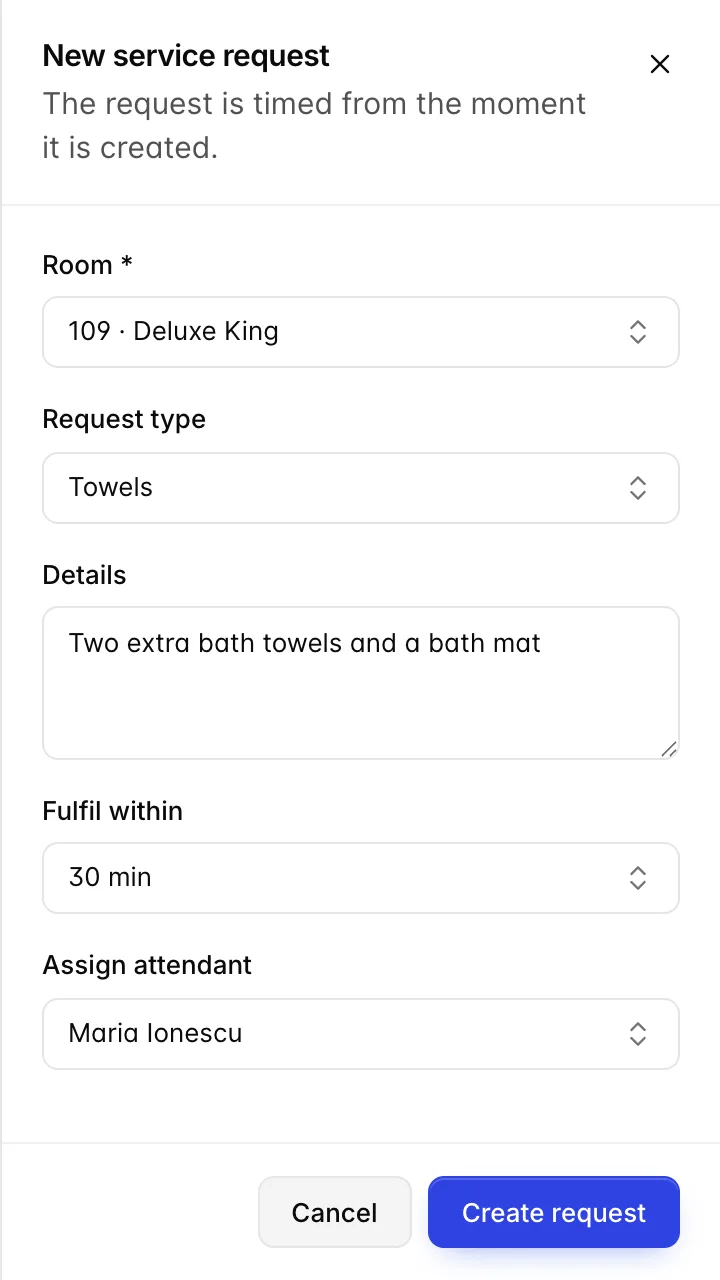
- Press New request, or use New service request on the row menu of the housekeeping board, which opens this same form with the room already filled in.
- Choose the room. It is the only required field, and a request cannot be raised against a public area.
- Pick a Request type. The list is configurable in housekeeping settings and ships as Towels, Amenities, Bedding, Crib, Tech / TV and Other.
- Put the specifics in Details. "Two extra bath towels and a bath mat" saves a phone call that "Towels" does not.
- Set Fulfil within. The presets are 15, 30, 60 and 120 minutes, and they are editable from the bottom of the same dropdown.
- Assign an attendant now if you know who is taking it, or leave it and assign from the table.
There is no link to a reservation. A service request belongs to a room, so a request left open across a check-out belongs to the next guest as far as the register is concerned. Close them out on the shift they were raised on.
The clock, and what it is measuring

- Request. The type, with your details underneath it.
- SLA. Time left against the deadline. Green while there is room, amber under ten minutes, red and counting upwards once it has passed. It refreshes on its own every fifteen seconds.
- Assigned to. A picker, not a label. Click the name to hand the request to somebody else or to Unassign it.
- Status. Open, In progress, Done or Cancelled.
The clock starts when the request is created, which the form says in as many words: The request is timed from the moment it is created. It does not start when somebody is assigned, and it does not pause while the request is unassigned. Taking a call at the desk and typing it up twenty minutes later means the attendant is handed a request that is already most of the way through its deadline. Raise it while the guest is still on the phone.
The table is ordered by urgency rather than by age: everything open or in progress comes first, soonest deadline at the top, and finished work sits underneath. A request marked done shows Fulfilled in place of the countdown, and a cancelled one shows a dash, because neither has a deadline any more.
Working a request
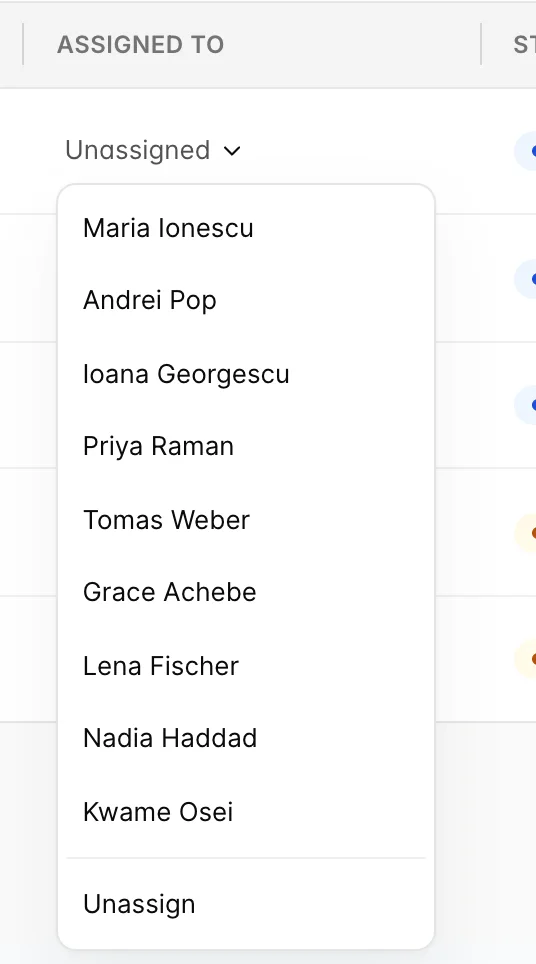
The picker offers the attendants marked as working today, which is the same list the board and the task sheets use. A request handed over from an earlier shift keeps the name it was saved with even though that person is no longer selectable, so the column stays honest about who took it.

Start moves an open request to in progress and is worth using on anything that takes more than a couple of minutes, because it is the only signal to the rest of the shift that somebody has picked the job up. Mark done stops the clock and writes Service request fulfilled: to the room's history. Cancel request is for a request that should not have been raised, a duplicate or one the guest has withdrawn. Both done and cancelled can be sent back with Reopen.
The distinction between done and cancelled matters more than it looks. The done today count is a measure of the work the department actually did, and cancelling a request you fulfilled quietly removes it from that number.
Lost & Found
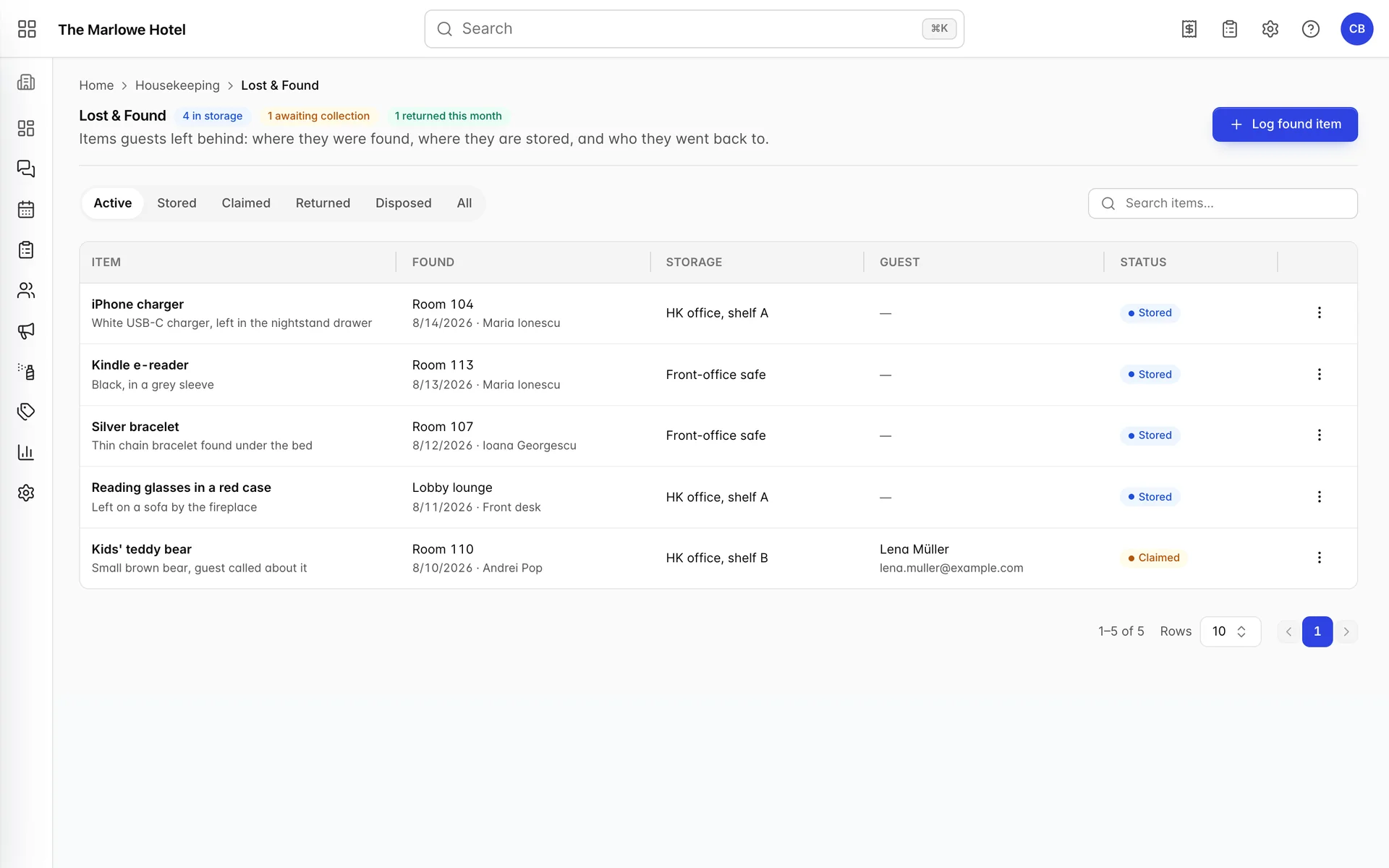
Lost & Found is a chain of custody. Everything in it belongs to somebody else, and the register exists so that a phone call three weeks later can be answered with more than "I think somebody found a charger".
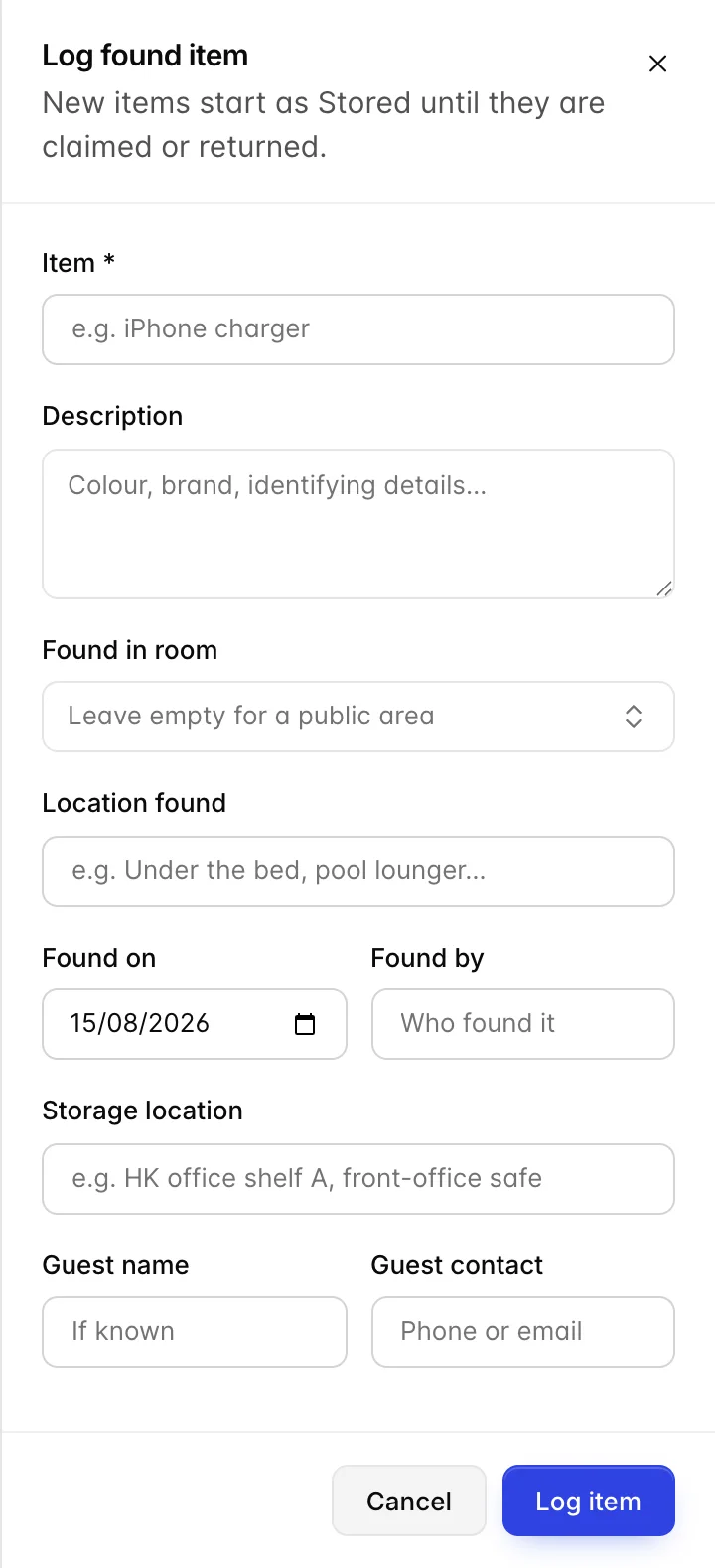
| Field | What it does |
|---|---|
| Item | Required. What it is, in the words a guest would use on the phone. |
| Description | Colour, brand, anything that separates this charger from the other nine. This is what you check a claim against, so write it before the item goes in the drawer. |
| Found in room | Leave it empty for a public area. Setting it also writes a line into that room's history. |
| Location found | Free text, and it is what the Found column shows. "Under the bed" or "Pool lounger" is more use than the room number alone. |
| Found on and Found by | Defaults to today. The finder's name is the start of the chain of custody, so fill it in even when it is obvious. |
| Storage location | Where the item physically is. An item logged without this is findable in the register and not in the building. |
| Guest name and Guest contact | Fill in if you already know whose it is. Both are free text and can be added later. |

| Status | What it means |
|---|---|
| Stored | In your possession, nobody has asked for it. Everything starts here. |
| Claimed | Someone has rung up and said it is theirs, and it is waiting for them. Still in the building, now promised. |
| Returned | Physically handed over or posted. Records who took it and stamps the date. |
| Disposed | Gone: binned, donated or given to the finder at the end of your holding period. |
The Active tab is stored plus claimed, which is everything you are still responsible for. Returned and Disposed both stamp a resolution date, and both can be undone with Back to stored if you close one off in error.
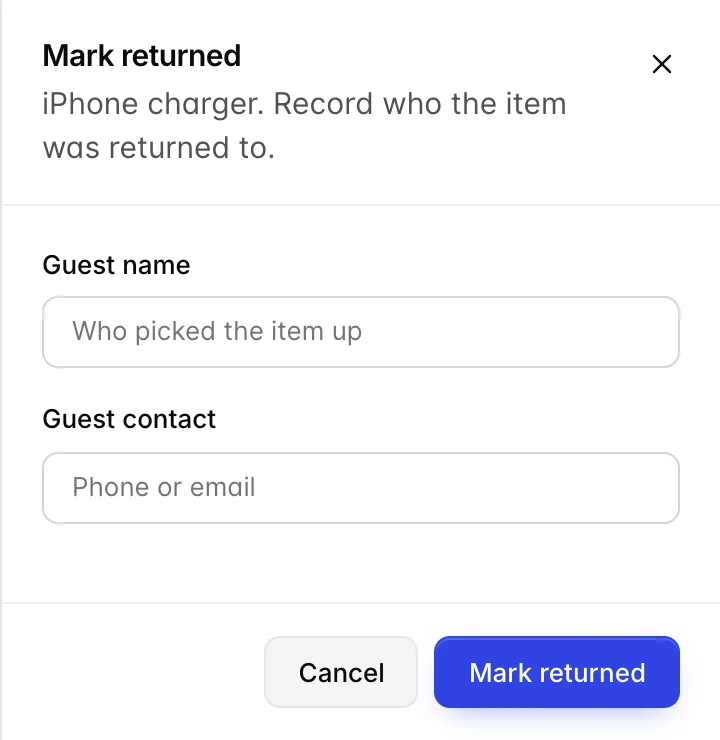
Mark returned is the only step that asks a question, and the question is who. Fill both fields in even for a guest who is standing in front of you, because in a dispute the register is the only evidence that the item left with the right person.
Matching an item to its owner
Two directions, and the register handles them differently.
Going from an item to a guest, use the room and the date. The Found column carries both, so the reservation that was in room 104 on 14 August is one lookup away in the reservation list, and the room's own history on the board shows who was in it. Copy the name and contact onto the item once you have them.
Going from a guest to an item, which is what a phone call actually gives you, use the search box. It looks across the item, the description, the room number, where it was found, who found it, the storage location and the guest name in one pass, so a caller who remembers only "a blue scarf, somewhere near the pool" is a single search away.
Things that catch people out
- Resolving an out of order work order does not make the room sellable. It hands it to housekeeping as dirty. If the front desk is waiting on that room, tell housekeeping it is coming, because nothing about resolving the work order puts it at the front of anybody's queue.
- Reopening does not restore the block. The room stays out of the block and can be sold with the defect still in it. Re-block it by hand.
- The room cannot be changed after a work order is created. There is no room field on the edit form, so a defect logged against the wrong room has to be raised again and the original resolved with a note.
- A schedule scoped to all rooms means one work order per room. At 120 rooms that is 120 rows in one morning. Scope by room type and stagger the due dates.
- The service request clock starts at creation. Not at assignment. Typing up a request from a note left at the desk hands somebody a deadline that has already half gone.
- Service requests belong to rooms, not bookings. One left open over a check-out is inherited by the next guest in the room, so close them off on the shift.
- Priority on a work order does nothing on its own. No escalation, no reminder, no reordering of the table. It is a note to the reader, and the due date is the field that actually shows.