The occupancy grid answers one question, for a fortnight at a time: how many are left. It is a report and nothing on it can be edited, which is what makes it safe to open on a busy morning and read out loud.
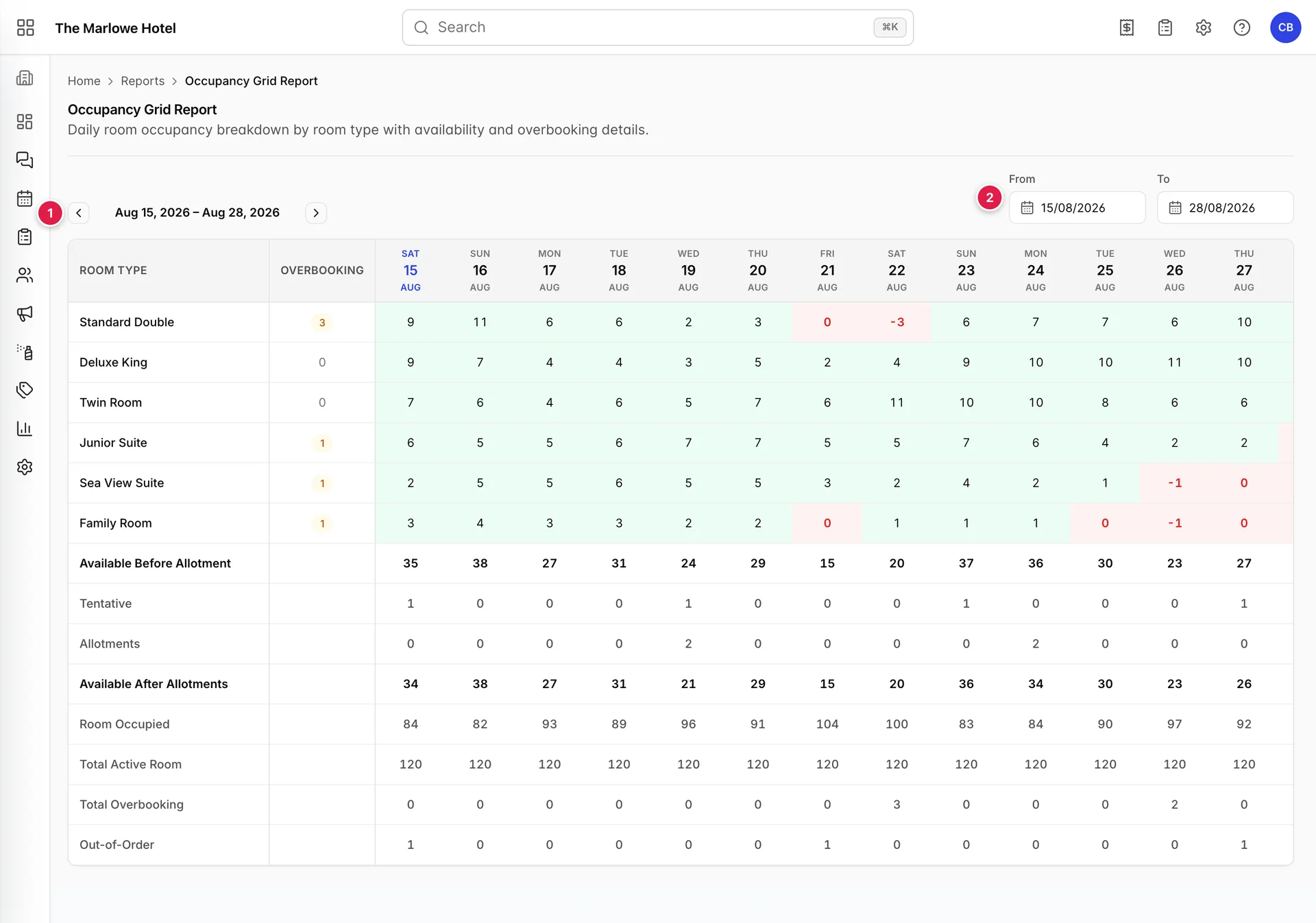
- The arrows. Step back or forward by the length of the range you are looking at, so a fortnight moves a fortnight.
- From and To. Set any range you like. The report reloads as soon as you pick a date.
Reading the grid
Every column is a night. The top block has one row per accommodation type and the bottom block is the property as a whole, over the same nights, so a number you are reading in the top block can always be checked against the totals underneath.
It opens on today and the thirteen nights after it. Nothing here is a forecast: it is what your reservations add up to at the moment you loaded the page.
The accommodation type rows
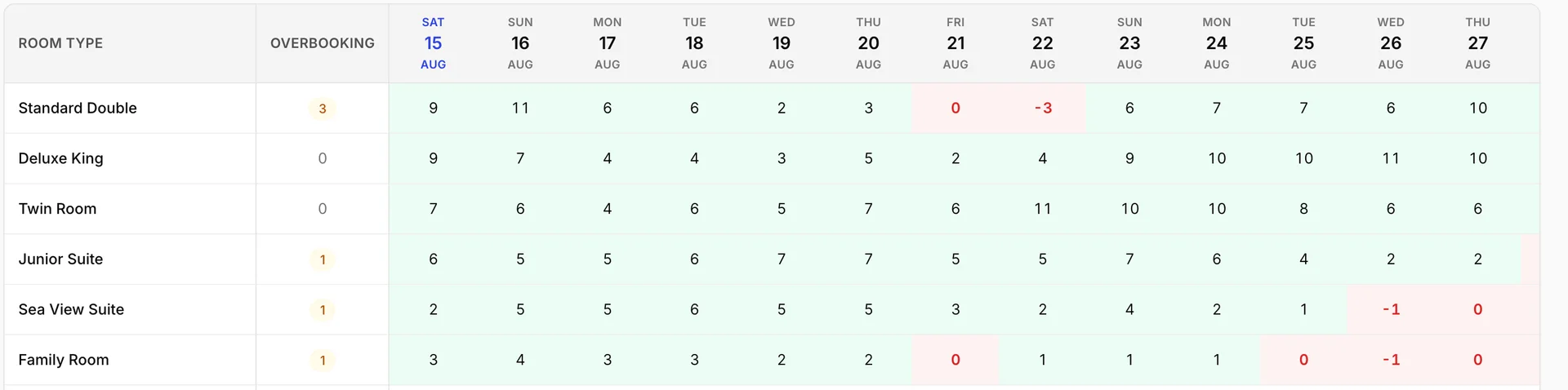
Each cell is how many units of that accommodation type are still free that night. Green means there is something to sell. Red means there is not, and red comes in two kinds worth telling apart:
| What the cell says | What it means |
|---|---|
| A green number | That many units of the type are free. Sell them. |
| A red 0 | The type is exactly full that night. Nothing is wrong, but there is nothing left either. |
| A red negative number | You have sold that many more than you have. Somebody is going to have to be moved or walked. |
A negative number is the one to act on. It does not clear itself, and nothing else in the product will interrupt you about it, so a night that goes unnoticed here is a night that gets discovered at the front desk.
The overbooking column
The Overbooking column sits between the type name and the first night, and it is a summary of the row beside it. An amber badge means that type is oversold somewhere in the dates on screen, and the number is the worst of it: a badge of 3 means that on the worst night of this range you are three units short.
A quiet 0 means the type is not oversold anywhere in this range. It says nothing about the range you are not looking at, which is the one thing to remember about the column. Move the dates and every badge is recalculated.
Use the badge to decide which rows deserve reading. Use the cells to find the night.
The eight property rows
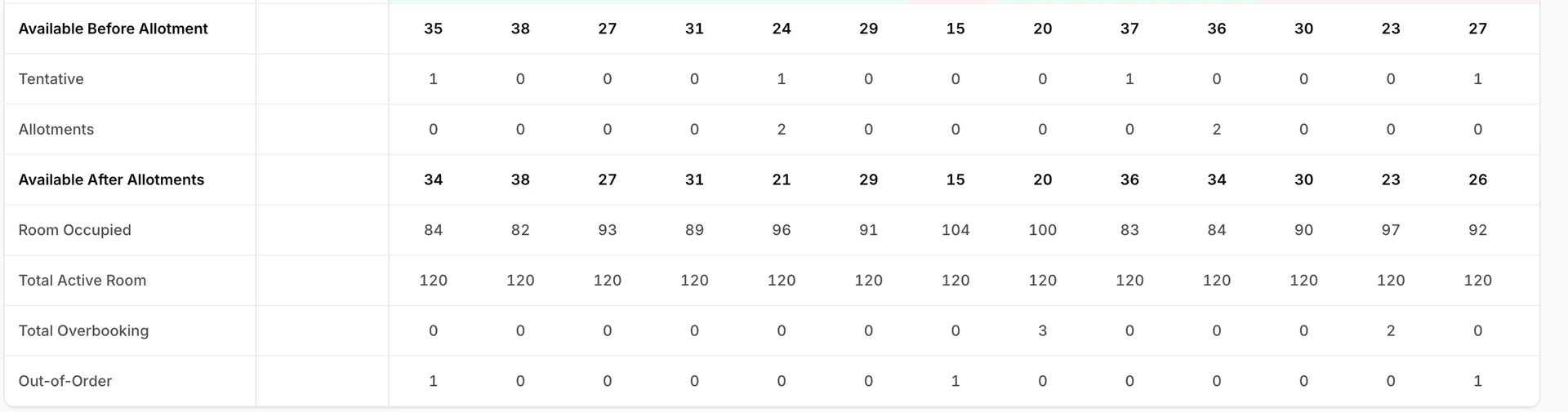
| Row | What it counts |
|---|---|
| Available Before Allotment | Rooms free that night: the property's active rooms, less what is occupied and what is out of order. Nothing held back has been taken off yet. |
| Tentative | Rooms held by bookings that are not confirmed. Real enough to keep off the shelf, not real enough to count as sold. |
| Allotments | Rooms held for a partner or a channel rather than for a named guest. |
| Available After Allotments | The row above, less the two rows between. This is the honest number: what you can sell to somebody walking in. |
| Room Occupied | Rooms sold that night across the whole property. |
| Total Active Room | How many rooms the property has in service. It is the same number every night unless your inventory changes. |
| Total Overbooking | How many rooms the property is oversold that night, added up across every accommodation type. |
| Out-of-Order | Rooms unavailable for maintenance. They are already taken out of the available rows above. |
A property can be oversold on one accommodation type and have rooms standing empty in another on the same night, so Available After Allotments can read comfortably while the grid above it is red. That is not a contradiction, it is the reason the type rows are there.
Changing the dates
The arrows move by the size of the range you are looking at, so a fortnight moves a fortnight and a week moves a week. From and To set the range directly, and the report reloads as soon as you pick a date. To cannot be earlier than From: those dates are not offered.
Long ranges scroll sideways rather than shrinking to fit, so a quarter is readable but slow to scan. A fortnight at a time is what this report is shaped for. If there are no reservations at all in the range you pick, the grid is replaced by No occupancy data.
Acting on what you find
Nothing on this screen can be changed, which is deliberate: it is a report, not a control panel. What you do next depends on what you found.
| What you found | Where to go |
|---|---|
| A night oversold on one accommodation type | The reservations for that night, to move a guest into a type that still has room. |
| A night you want to stop selling | The availability matrix, where you can block the type or lower what is allotted for sale. |
| A night you want to protect with a minimum stay | The availability matrix again. Minimum and maximum stay are set there, one night at a time. |
| A pattern rather than a night, such as every Saturday filling first | Your base rate intervals, where the weekend price lives: creating and editing base rate intervals. |
This report counts rooms. It says nothing about what they earned, so for occupancy percentages, average daily rate and revenue over a period, use the production reports in analytics rather than this grid.
Common pitfalls
| What you see | What is usually going on |
|---|---|
| An Overbooking badge but no red cell in the row | The oversold night is further along the range than the columns currently on screen. Scroll the grid sideways. |
| All the badges say 0 although you know a night is oversold | That night is outside the dates you are looking at. The column only counts the range on screen. |
| Availability that looks better than reality | You are reading Available Before Allotment. The row that reflects what you may actually sell is Available After Allotments. |
| A red 0 on a night you thought was free | Full is not the same as blocked. Check the type row rather than the property total, because a single type can fill while the property has plenty. |
| Nothing at all, just an empty state | There is no occupancy data in the range you picked. Move the dates back towards today. |