Which log is this
Prostay has two activity logs and they answer different questions.
| Log | Covers | Use it when |
|---|---|---|
| The Activity Log tab on a reservation | One booking, from creation to checkout. | You know which booking went wrong and want its history. |
| User Activity Log, this screen | The whole property: sign-ins, settings, users, housekeeping, the waiting list and reservations. | You know roughly when something happened, or who was on shift, but not which record it touched. |
If you have arrived here from the tab on a reservation, this is the other one. It is read only, it covers everybody, and it is the only place where an action that touched no reservation at all, such as somebody changing a role, is recorded.
Finding the screen
Open the module switcher, the grid button at the top left, and choose User Activity Log at the bottom of the list. It is not under Settings, which is where most people look first.
Reading the list
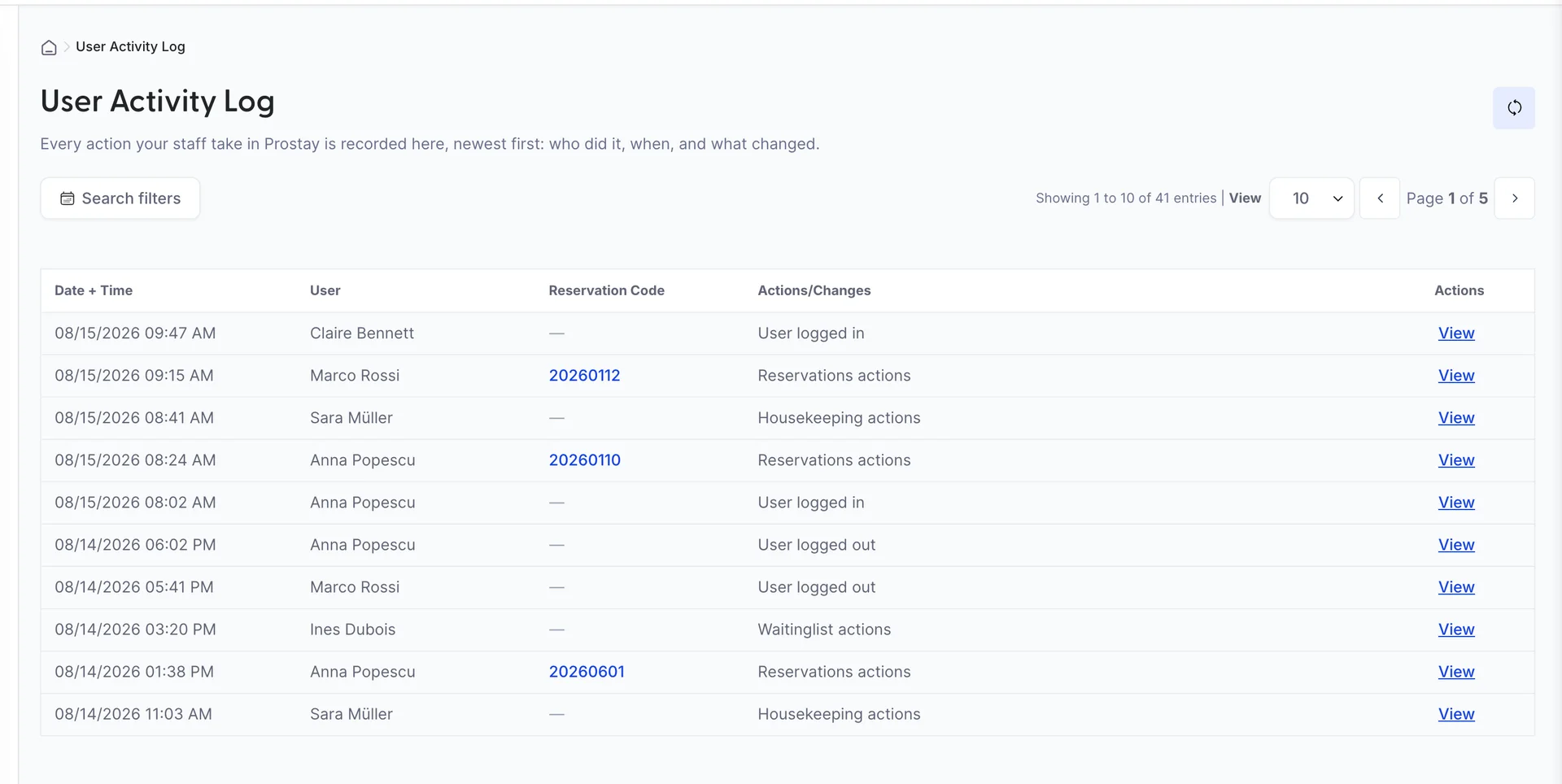
- Date + Time is when the action happened, shown in your property's date and time format.
- User is the person, by name. Their email address is in the entry itself.
- Reservation Code is a link to the booking, opened in a new tab so you keep your place in the log. A dash means the action was not about a booking.
- Actions/Changes is the category, not the detail. It is one of thirteen, and it is what the filter matches on.
Above the grid, View sets how many rows a page holds: 5, 10, 50 or 100. The count to its left and the page numbers to its right both respect whatever filters are applied, so they are a useful answer in themselves. Filter to one user and one day and the count is how many actions they took.
The circular button at the top right refetches the list. Once you have pressed it, List last updated appears beside it. That is a note of when you last pressed it in this browser rather than anything about the data, and the screen does not refresh on its own, so on a long shift it is worth pressing before you conclude that nothing has happened.
Opening an entry
View at the end of a row opens the entry. This is where the before and after live: the category in the grid says a reservation was changed, and the panel says which fields, from what, to what.
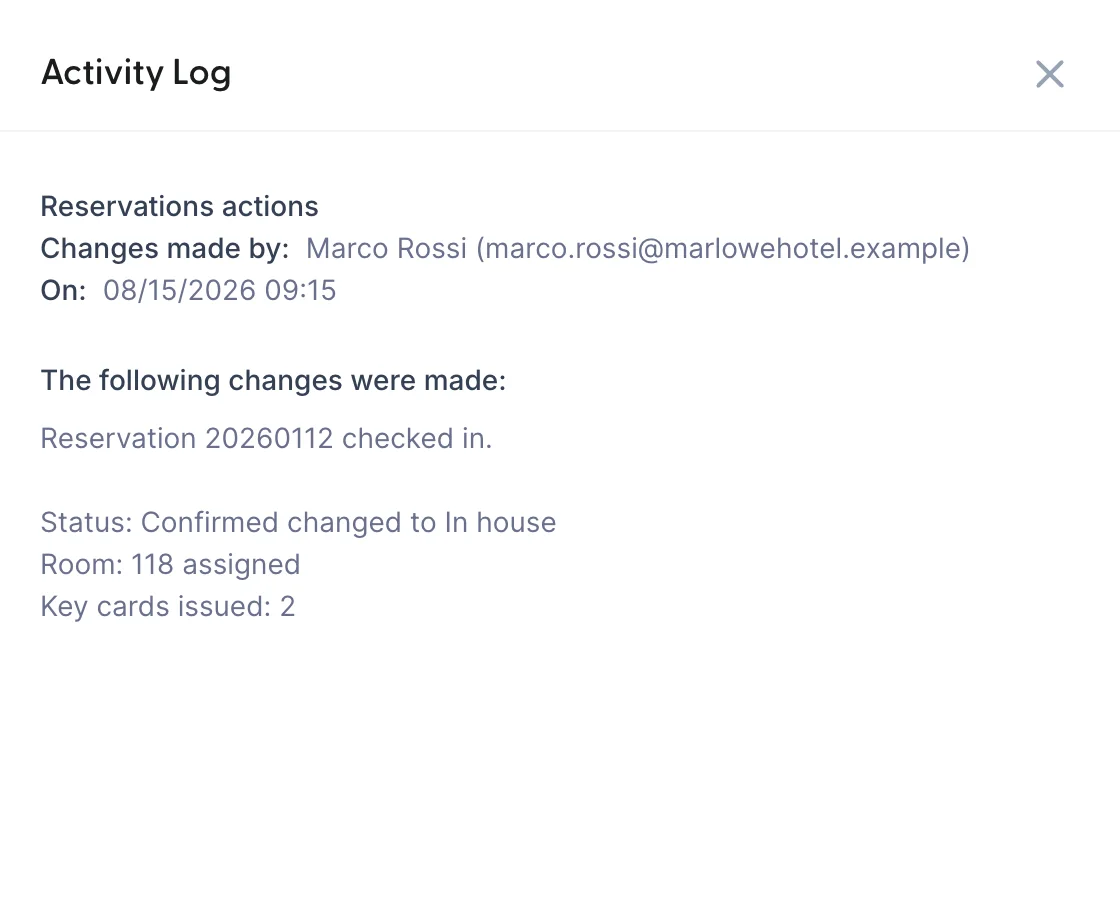
How much detail an entry carries depends on what was done. A sign-in records the address it came from. A reservation change records the fields that moved. A settings change records the setting and both values.
Narrowing it down
Search filters opens four filters at once. Nothing is applied until you press Apply Filters, and the button stays unavailable until you have set at least one.

- Date From and Date To bound the range. Leaving both empty means everything.
- Time From and Time To are a window inside each day of that range, not a second range. Set 22:00 to 06:00 across a fortnight and you get overnight activity on every one of those nights, which is the shape of question this filter exists for.
- Users is a list of everybody with a login. Several can be ticked.
- Actions/Changes is the thirteen categories. Several can be ticked.
Once applied, the button that opened the panel counts what is on, and a Clear active filters button appears beside it. Use that rather than reopening the panel to untick things one at a time.
| Category | What lands in it |
|---|---|
| User logged in, User logged out | Sessions starting and ending, including a session that ended by timing out. |
| Reservations actions | Bookings created, changed, checked in, checked out and cancelled. |
| Housekeeping actions | Room statuses and attendant assignments. |
| Waitinglist actions | Waiting list entries added, changed and converted. |
| Settings changed | Property settings, roles and permissions, email configuration. |
| User created, User updated, Delete user | Staff accounts being added, edited and removed. |
| Activated user, Deactivated user | An account being switched on or off without being deleted. |
| Password changed, Credit card password changed | A password being changed, and the separate password that guards stored card details. |
Answering the usual questions
- Who cancelled this booking? Filter to Reservations actions and the day, then look down the reservation code column. Or start from the booking itself, where its own Activity Log tab is quicker.
- Who changed this setting? Filter to Settings changed for the week you noticed it. Settings entries carry no reservation code, so this log is the only place they appear.
- Was anybody working at 3am? Filter the time window with no date range at all.
- What did this new starter do today? Filter to that user and today. The count above the grid is the answer to how much.
What this screen will not do
There is no export. What you can act on is what is on screen, so filter first and set the page size to 100 if you need to read a lot at once.
There is no retention setting here, and no way to delete an entry, which is the point of an audit trail. Deleting the user does not delete their history: their name stays on everything they did.
The log records actions taken inside Prostay by people signed in to it. A booking that arrives from a channel is not somebody's action and is recorded against the reservation rather than here.
Who can see it
The screen is gated on User activity log, which has a section of its own in the role editor headed User Activity Log. Turn the section on and tick View. Without it the screen names the permission and tells you where it is granted, and lists nothing. It is worth being careful with: the log is the record of who did what, so anybody who can read it can see every colleague's movements.
There is nothing to edit here, so the permission is effectively a yes or no.
Where to go next
- Diary notes, attachments and the activity log, for one booking's own history.
- How Prostay sends email to your guests, if what you are chasing is an email rather than an action.
- What Prostay is, and which part you are in, for the module switcher this screen lives in.