A source type is a category of business with a commission rate attached. OTA at 15 percent, Travel Agent at 10, Direct at nothing. You define a handful of them once, and then every booking source you set up points at one, which is how Prostay knows what a booking through Booking.com costs you without anybody typing a rate on the booking.
So this is a small screen with a long reach. Five rows here decide the commission on every reservation your property takes. The sources themselves are the list next door, covered in Reading the booking sources list.
The screen
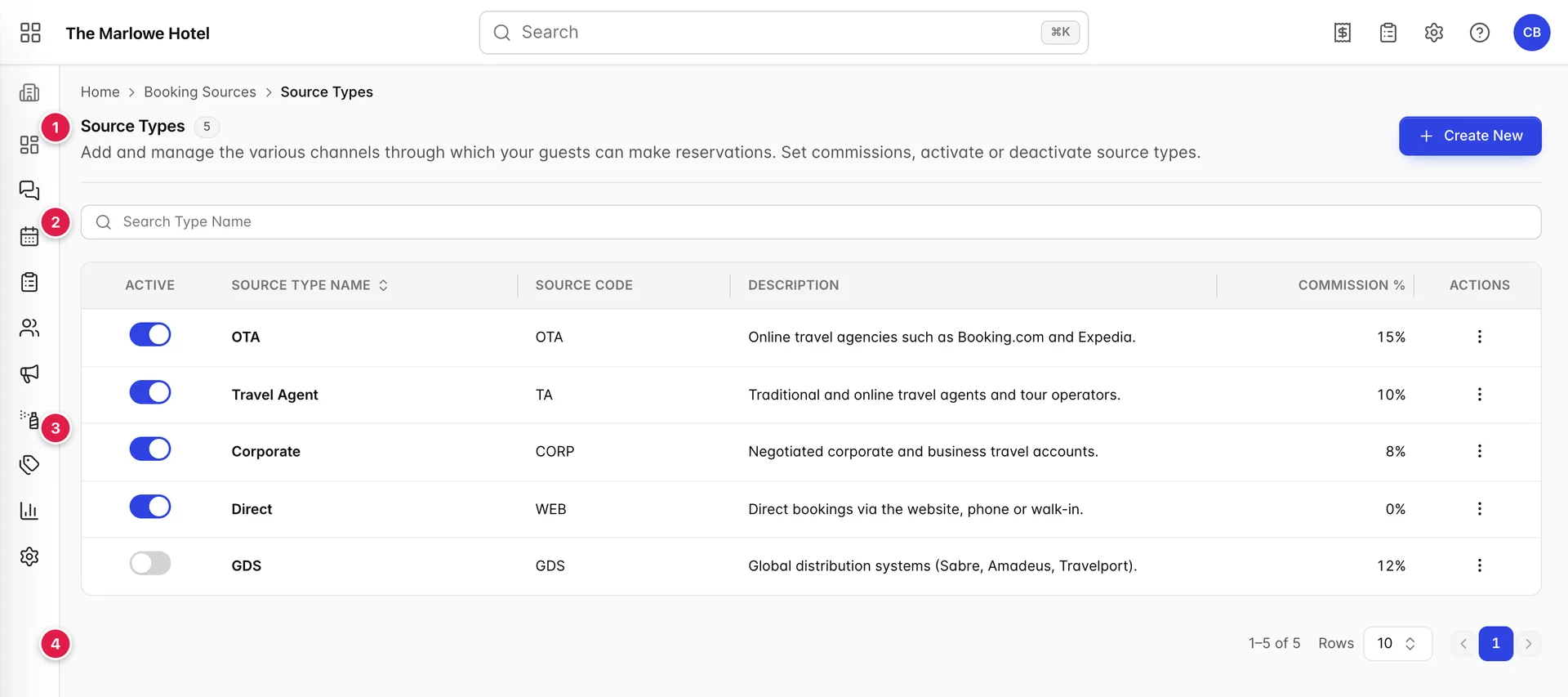
- The heading. The grey number is how many types match your search. Most properties end up with between four and eight.
- The search box. Matches the type name, and runs as you type. The cross at its right clears it, which the search on the sources list does not have.
- The table. One row per type, with the switch that turns it off on the left and the menu that edits it on the right.
- The pager. Rarely does anything on this screen, because five types fit on one page of ten.
The six columns
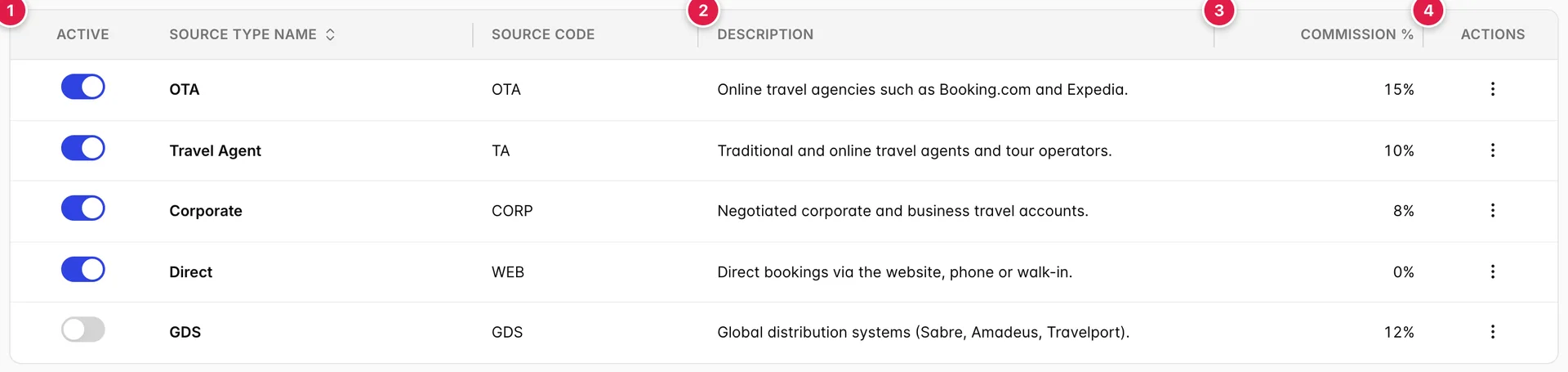
| Column | What it holds |
|---|---|
| Active | A switch, and it acts the moment you touch it: no confirmation, no Save. What it changes is covered further down, and it is less than you would expect. |
| Source Type Name | What the type is called. This is the name that appears in the Source Type column of the sources list, in the Source picker when you add a source, and in the type filter. The only column that sorts. |
| Source Code | A short code for the type, yours to choose. Sources have their own codes, so this one is for grouping rather than for identifying a particular partner. |
| Description | A line for whoever comes after you, explaining what belongs in this type. It appears nowhere else in Prostay, which makes it exactly the right place to write down the rule you agreed. |
| Commission % | The percentage this type costs you. A dash means nobody has set one, which is not the same as zero. |
| Actions | Edit and Delete. Unlike the sources list, every row here has both. |
What the commission percentage does
It records what you have agreed to pay the channel, as a percentage of the booking. It is the difference between what a booking is worth and what you keep, and Prostay uses it to work out the commission and the net revenue that the production reports show against each source.
Two things it does not do. It does not change the room rate the guest pays: raising the OTA commission from 15 to 18 does not raise your prices, it lowers what you keep. And it is not per source. Every source of a given type carries that type's rate, so Booking.com and Expedia at 15 percent cannot be split into 15 and 18 by editing the sources. If you genuinely pay two different rates, that is two types.
Adding a type
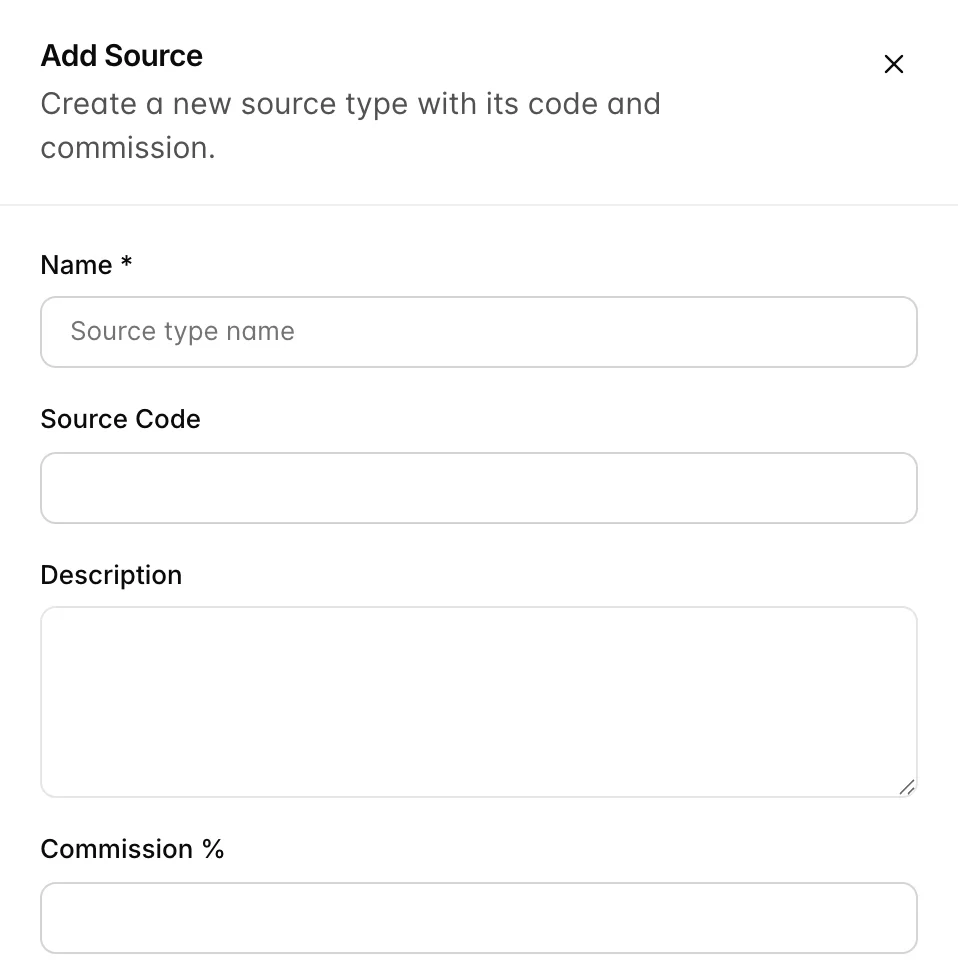
- Press Create New. The Add Source panel opens from the right.
- Name it. The only required field, and Save Changes stays greyed out until it has something in it. Use the name you want to see on reports.
- Give it a code and a description. Both optional, and both worth filling in. The description is the only place the rule for this type can live.
- Set Commission %. A number, without the percent sign. Leave it empty only if you genuinely do not know yet, and come back.
- Press Save Changes. The panel closes and the type appears in the table, switched on.
Changing a type
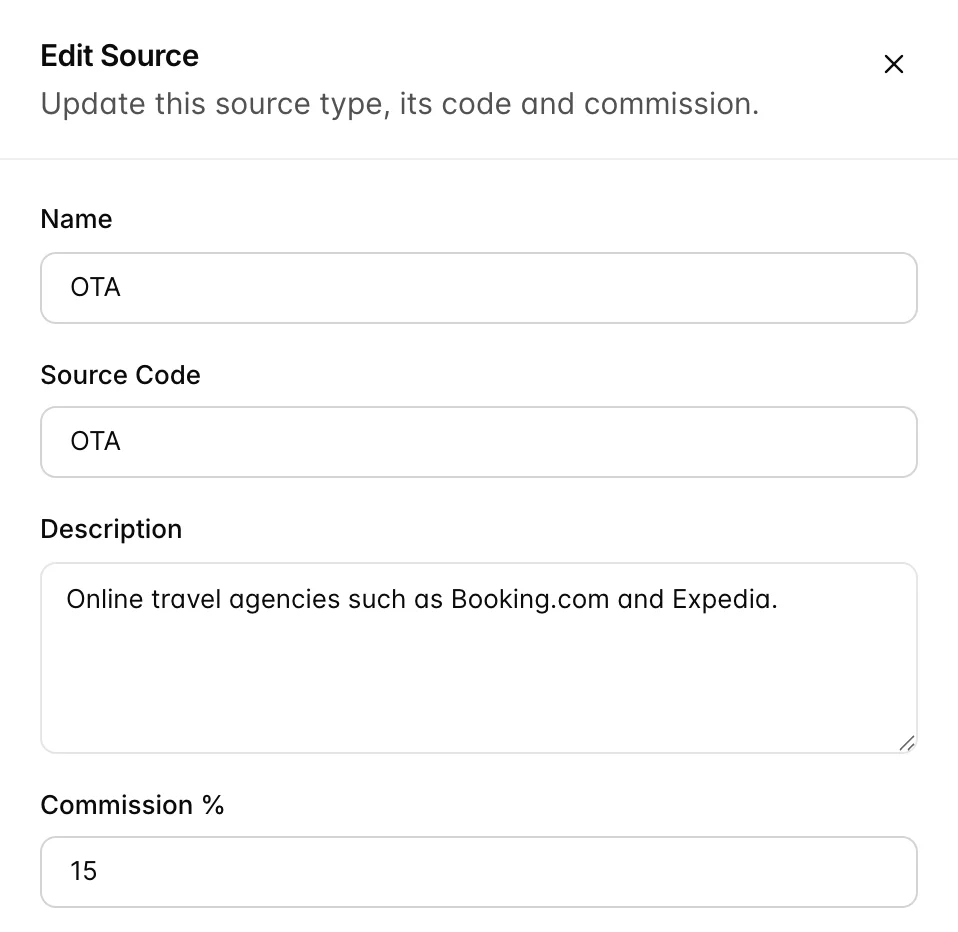
Edit in the row menu opens the same four fields with the type loaded. Save Changes is greyed out until you actually change something, so opening a type to read it cannot save it by accident.
Renaming a type renames it everywhere at once, because the sources read the name off the type rather than keeping their own copy. Rename Travel Agent to Tour Operator and the four sources using it show the new name the next time the list loads.
The Active switch

The switch takes effect immediately. There is no confirmation and no save, so a mis-click is a change, and switching it back is the undo.
What it does is narrower than the word suggests. Switching a type off does not detach the sources using it, does not change their commission, and does not stop bookings arriving against them. It also does not remove the type from the Source picker when somebody adds a booking source, or from the Source Type filter on the sources list.
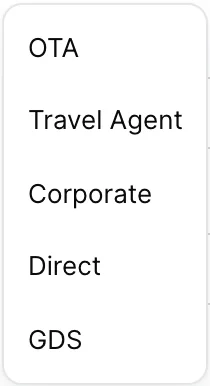
So treat the switch as a note to your own team rather than as a control. It says "we are not using this any more", it keeps the row and its history, and it is the right thing to reach for instead of Delete when a channel goes quiet. If you need to stop people choosing a type, the reliable way is to make sure no source uses it and to say so in the description.
How a type reaches your bookings
The chain is short, and knowing it tells you where to make a change.
- A type carries the commission. Set here, once.
- A booking source points at a type. Chosen in the Source field when the source is created, and changeable afterwards on the source itself.
- A reservation is attributed to a source. Picked in the reservation's source field, or set by the channel the booking arrived through.
- The reports read back up the chain. Production by source, and the commission and net revenue on it, all come from the percentage in step one.
Which means a commission is corrected in one place and appears everywhere, and it also means a source pointed at the wrong type is quietly wrong on every booking it takes. When a figure looks off, check the source's type before you doubt the report.
Deleting a type
Delete in the row menu asks for confirmation once, in a dialog that does not name the type and does not tell you how many sources are using it. Nothing on this screen shows you that count, so work it out first: open the sources list, filter Source Type to the type in question, and read the number beside the heading.
Things that catch people out
| What you see | Why |
|---|---|
| A switched-off type still offered when adding a source | The switch does not filter the picker. It is a label for your team, not a control. |
| Editing a source does not let you change its commission | Correct. Commission lives on the type. Change it here, or point the source at a different type. |
| Two sources you pay differently show the same commission | They share a type. Two rates means two types, however similar they look. |
| A dash in Commission % | Nobody set a value. It behaves as nothing payable, but it reads as an oversight, because usually it is one. |
| Save Changes greyed out on a type you just opened | It wakes up when you change a field. On the add panel it also needs a name. |
| A renamed type showing its old name on a source | Reload the sources list. The name is read from the type each time the list is fetched. |