Most of the calendar is about bookings that already have a room. Two counters at the top of the screen are about the ones that do not. Unallocated Bookings is a stay you have sold and nobody has chosen a room for yet. Waitinglist is somebody who asked for a room you did not have. They sit next to each other and look almost identical, which is unfortunate, because one is a promise you have already made and the other is a promise you have not.
The two counters

Neither counter is shown when it would read zero, so an empty toolbar is good news rather than a sign that something is switched off. If you have never seen the waitlist counter, it may also be that your role does not include waitlist access; in that case Prostay does not load the list at all, and the little dots that mark waitlisted nights under the date header do not appear either.
Unallocated bookings
A booking becomes unallocated when it is created without a room number. The reservation wizard allows this on purpose: on the room step you can leave a line on auto-assign rather than picking room 214, which is the sensible thing to do a month out when you do not yet know how the floor will look. Channel bookings arrive the same way. The booking is real, the guest is expecting to arrive, and the only thing missing is which door they walk through.
Clicking the counter opens the list.
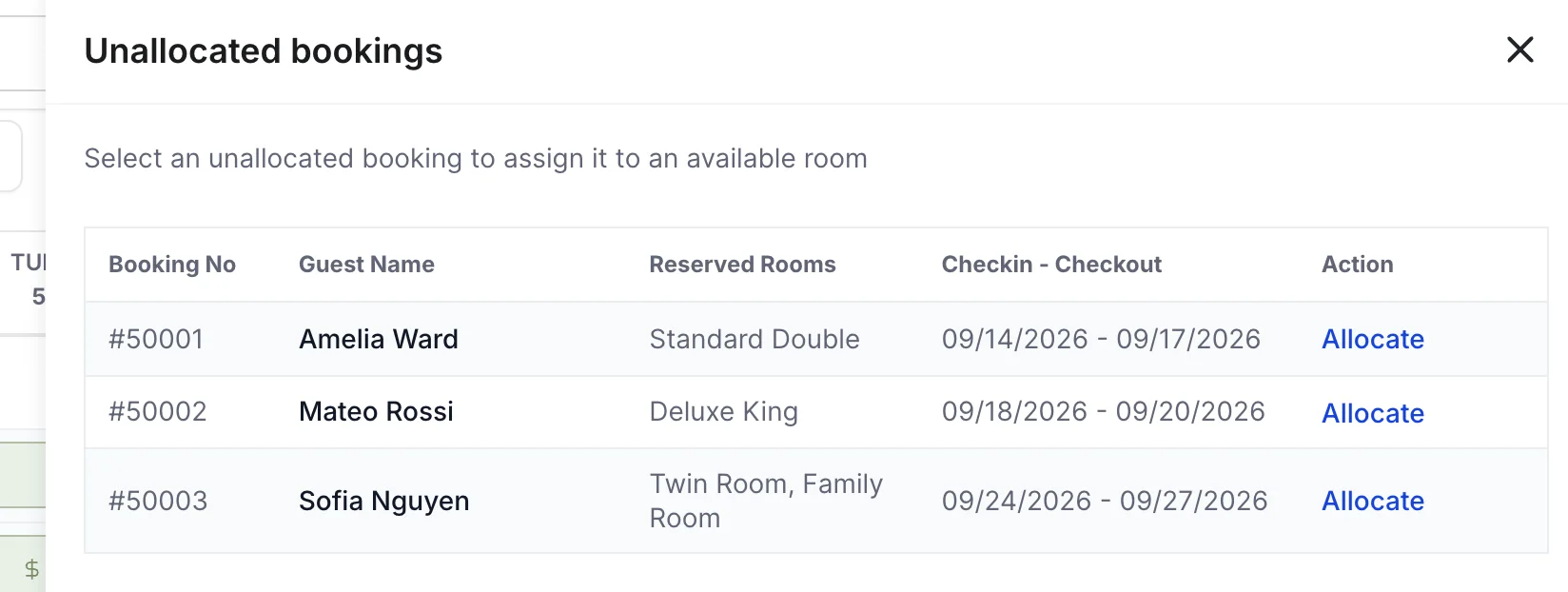
| Column | What it holds |
|---|---|
| Booking No | The confirmation number, the same one on the guest's email and on the reservation page. |
| Guest Name | The lead guest only. A booking with four rooms and four different names shows the one who made it. |
| Reserved Rooms | The room types sold, not room numbers, because there are no room numbers yet. Sofia Nguyen's row reads Twin Room, Family Room: that is one booking needing two rooms of different types. |
| Checkin - Checkout | Arrival and departure, in your property's date format. The property in these screenshots is set to month first, so Sofia Nguyen's stay reads 09/24/2026 - 09/27/2026. |
| Action | The Allocate link that starts the room search for that booking. |
Allocating a booking
Allocate does not simply open a list of rooms for you to choose from. Prostay first works out for itself which rooms could actually take that stay, and what it finds decides what you see next.
- It searches your rooms of the right type for the whole stay, and it treats a room as taken if anything at all sits on those nights: another booking, a courtesy hold, blocked dates, out of service, or out of order. A room that is free for four of five nights does not count as free.
- If nothing of the right type is free, it looks at bigger rooms that can still hold the party. This is why an allocation sometimes comes back proposing a room type the guest did not book.
- If the booking needs several rooms and there is more than one way to fit them, Prostay shows you the combinations first and asks which one you want.
- Then it shows you the proposal on a panel headed Allocate reservation, with the original booking on one side and the rooms it suggests on the other. The calendar behind scrolls to the rooms in question and highlights them, so you can see the neighbourhood you are putting the guest in before you agree to it.
What you press at the end depends on whether the proposal costs the same as what was sold:
| Button | When it appears | What it does |
|---|---|---|
| Confirm | Same room type and same rate. | Assigns the rooms. Nothing about the money changes. |
| Adjust Charge | A different type or a different rate. | Assigns the rooms and rewrites the booking total to match the new rate. Use this when the guest is paying for the change. |
| Keep Original | A different type or a different rate. | Assigns the rooms and leaves the total alone. This is the one for a free upgrade: better room, same price. |
The waitlist
The waitlist is the other side of the same coin: people who wanted something you could not sell them. Somebody rings in July asking for a sea view suite in August, you have none, and rather than losing the enquiry you write it down. Entries are added by hand, either from the waitlist page itself or from Create New on the reservations list.
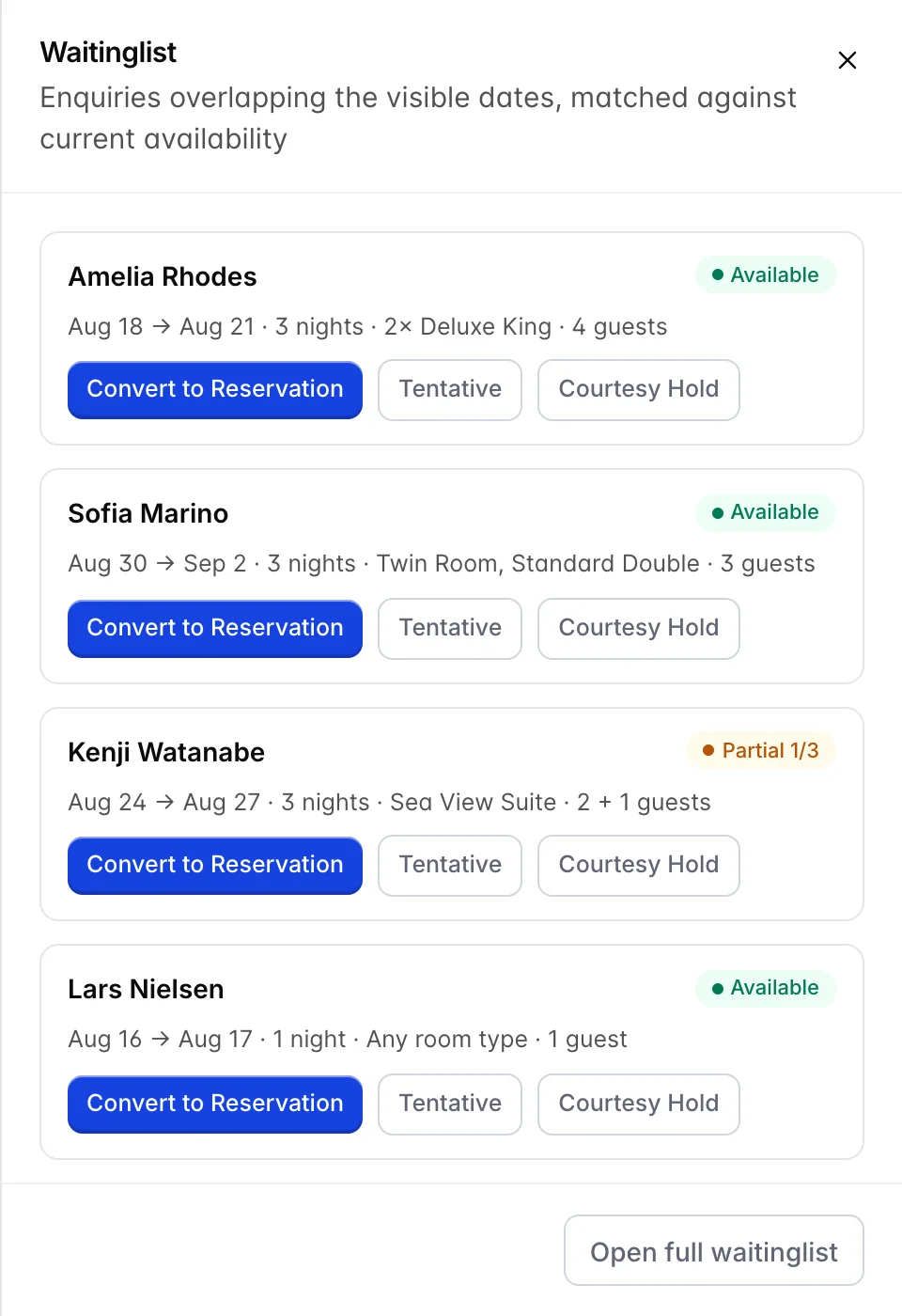
The panel is deliberately not the whole waitlist. It shows the enquiries whose dates overlap the part of the calendar you are currently looking at, which is why scrolling the grid to October changes what is in here. Open full waitinglist at the bottom takes you to the complete list, including entries you have already dealt with.
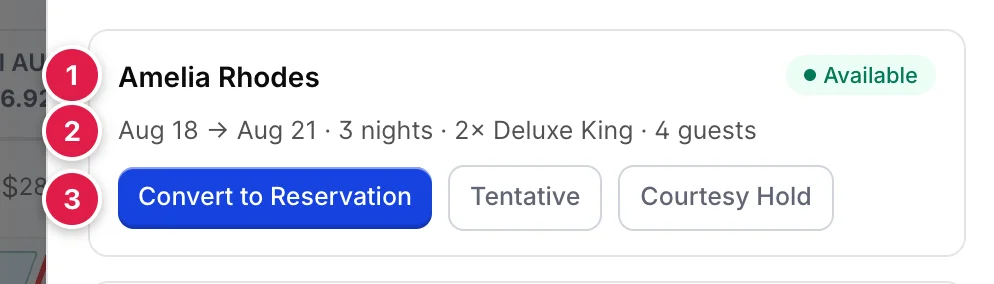
- Who asked. The name on the enquiry.
- What they asked for. Dates, how many nights that is, the room types wanted with a multiplier when they wanted more than one, and the party size. Any room type means the enquiry was taken without a preference, which makes it much easier to satisfy.
- What you can do about it. Three buttons, covered below.
What the availability badge means
The badge in the corner of each enquiry is the useful part. Prostay re-checks every enquiry against the calendar as it stands right now, night by night, and tells you whether you could satisfy it today. It is not a stored value from when the enquiry was taken: a cancellation five minutes ago can turn a red badge green.
| Badge | Meaning | What to do |
|---|---|---|
| Available | Every night of the stay has enough free rooms of the type they wanted. | Ring the guest. This one can be turned into a booking now. |
| Partial 2/3 | Two of the three nights work and one does not. The numbers are always nights that fit out of nights asked for. | Worth a call if the guest might shorten the stay or move a night. Not worth one if they cannot. |
| No availability | No night of the stay can be satisfied. | Leave it. The badge will change on its own if something frees up. |
Turning an enquiry into something
Three buttons, in decreasing order of commitment.
| Button | What happens | Use it when |
|---|---|---|
| Convert to Reservation | Opens the new-reservation wizard with the guest, dates, room types and party size already filled in from the enquiry. When you save, the enquiry is marked as converted and carries the new confirmation number. | The guest has said yes and you are taking the booking now. |
| Tentative | The same wizard, saving as a tentative rather than a confirmed booking. A tentative has an expiry date and shows on the calendar in its own colour. | The guest is fairly sure but you are waiting on a decision, a deposit or an approval. |
| Courtesy Hold | Closes the waitlist and opens the courtesy hold panel with the first room type from the enquiry filled in. The hold goes on the calendar; the enquiry is marked converted. | You want to take the room off the market for a few hours while the guest thinks, without creating a booking at all. |
All three actions require edit permission on the waitlist. A colleague with view-only access sees the same enquiries with the badges and none of the buttons, which is a reasonable way to give reception visibility without letting everyone convert enquiries.
Things that catch people out
An unallocated booking is not an enquiry
This is the one that costs money. An unallocated booking is sold. The guest has a confirmation number and is going to arrive whether or not anybody picks a room, and if nobody does before the night, the arrival becomes a scramble. A waitlist entry is the opposite: nothing has been promised, and letting it lapse costs you a sale but nothing else.
The waitlist panel is filtered by what you are looking at
If an enquiry you know exists is not in the panel, scroll the calendar to the dates it covers, or open the full waitlist. The panel only ever shows enquiries overlapping the visible date window, and only those still waiting or already contacted.
Allocating can quietly change the room type
When nothing of the booked type is free, Prostay proposes a larger room instead. That is usually the right answer, but it is worth reading the Allocate reservation panel rather than pressing the first button, because the choice between Adjust Charge and Keep Original is the difference between billing the guest for the upgrade and giving it away. The same choice appears whenever a guest changes room, and it is explained in full in room moves and rate overrides.