Two screens, one subject: what a bill looks like. Folio configuration decides how a stay's charges are grouped while the guest is still in the building. Invoicing decides what the document looks like when they leave, and how much they were asked for up front. They sit under different menu entries and are saved separately, but you cannot reason about one without the other.
What a folio configuration is
A folio is a bill. Most stays need one. Some need two, because somebody else is paying for part of it: a travel agent who has agreed the room rate but not the minibar, a company covering accommodation while the guest covers extras. A folio configuration is the rule that says which of those a reservation gets.
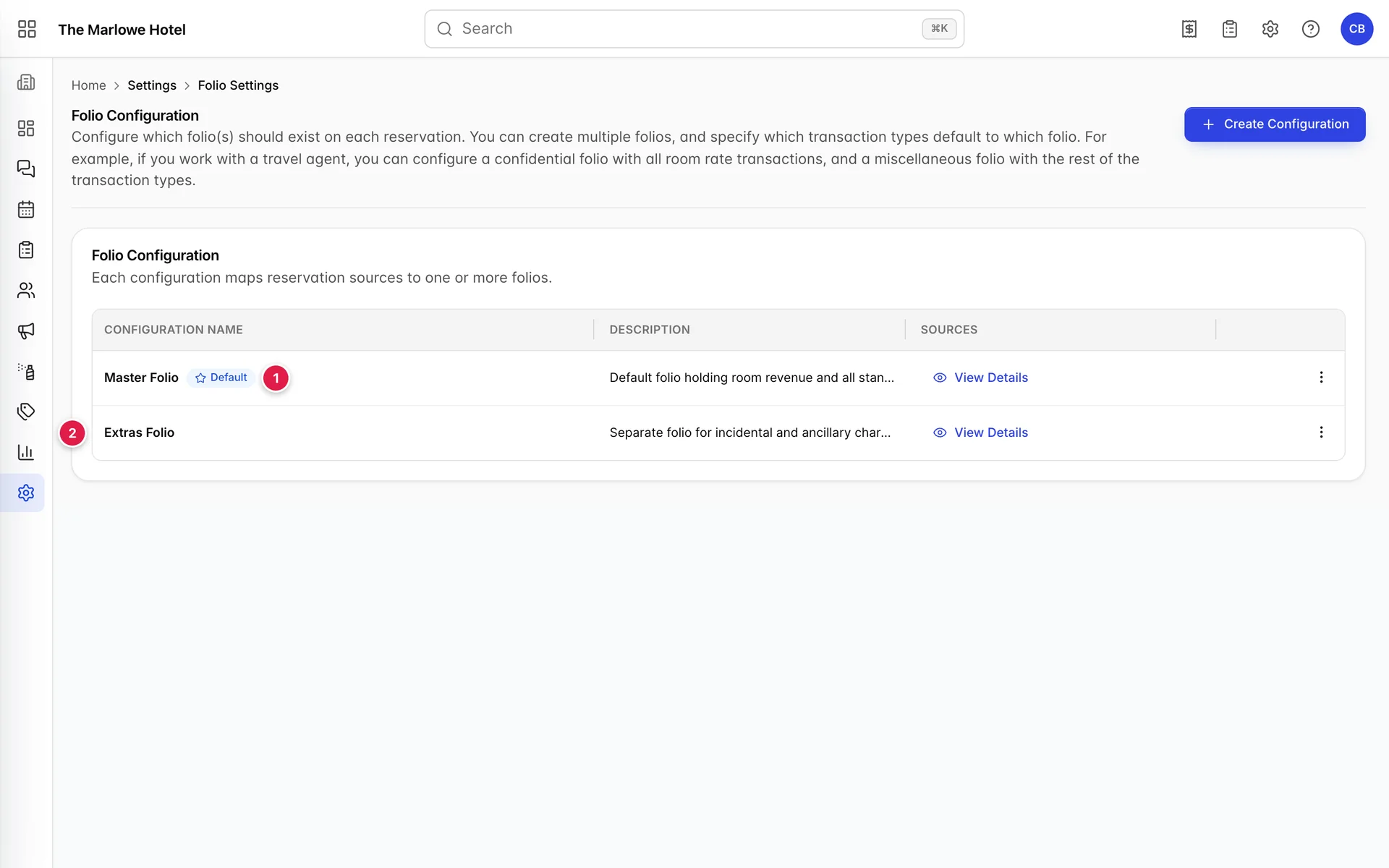
- The Default badge. The configuration used by any booking whose source is not claimed by another configuration.
- A second configuration. Applies only to the sources it lists, and takes precedence over the default for those.
The default is set from inside the drawer, and the switch is one-way: on the configuration that is already default it is greyed out, with a hint saying that the only way to change it is to make another configuration the default. You move the default by promoting a different configuration, not by demoting this one, which means you can never accidentally end up with no default at all.
If Create Configuration and the Edit action on a row are not on your screen, your role does not include the permission for them, and you are looking at the configurations as a reader rather than an editor. An administrator can add it from Users in System Settings, under Integrations › Folio configuration.
Sources are the matching rule
This is the part worth slowing down for. A configuration does not apply to a rate, a room type or a guest. It applies to a booking source, and the checklist in the drawer is the whole of the logic.
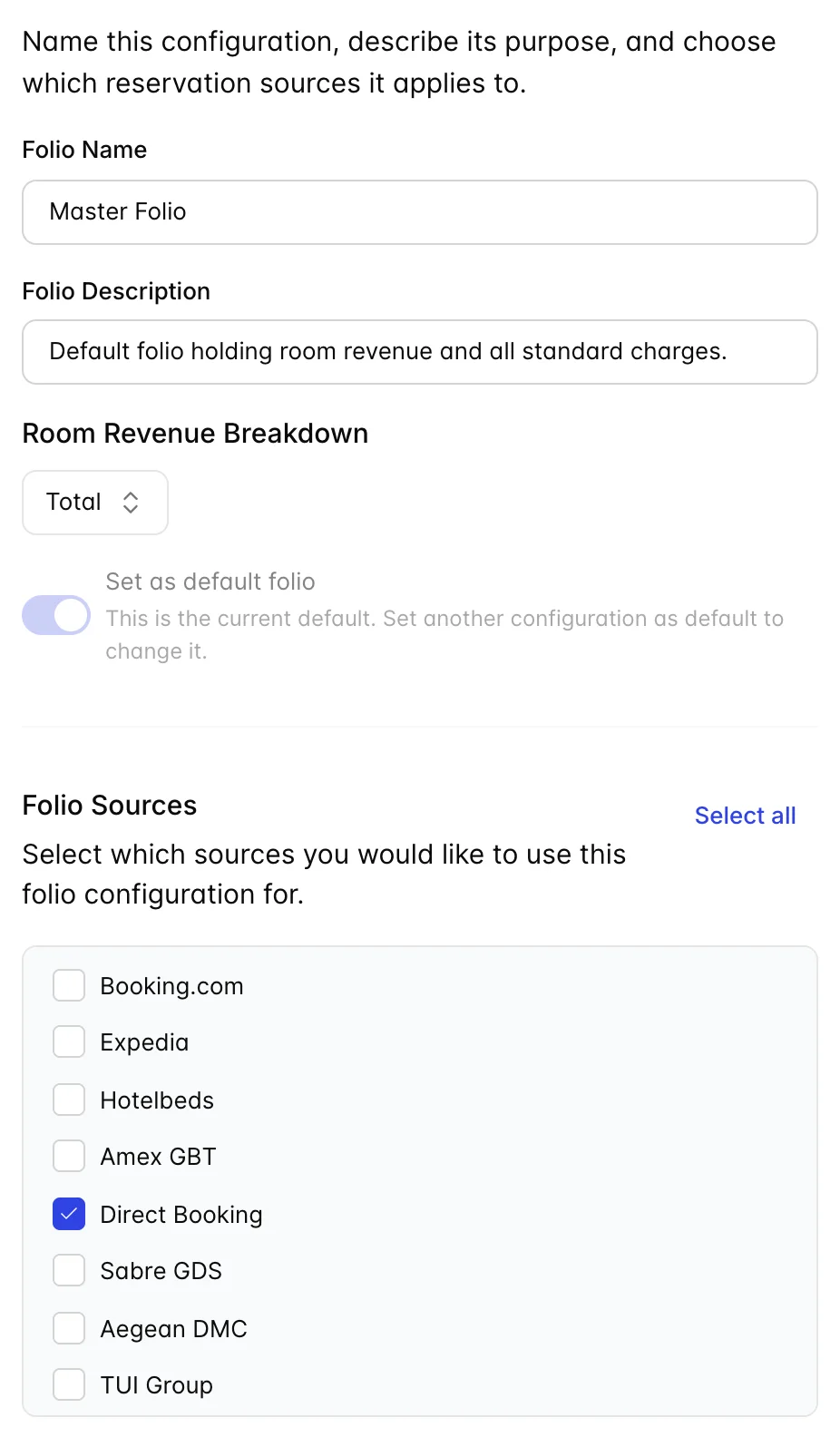
The checklist is its own scrolling box, so on a property with a long source list you will not see every tick at once. The quicker way to check what a configuration owns is View Details from its row, which shows the sources and the transaction types as chips.
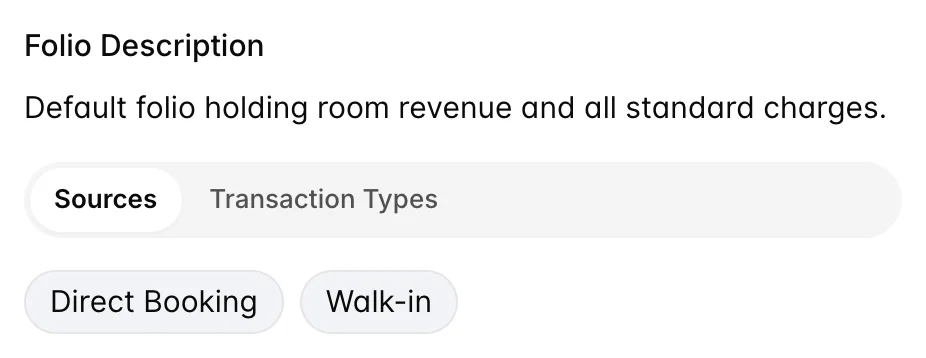
In the demo property, Master Folio claims Direct Booking and Walk-in, and Extras Folio claims Booking.com, Expedia and Travel Agent. Everything else falls through to the default. That is the shape most properties want: your own bookings get one straightforward bill, and the channels where somebody else is settling part of the stay get the split.
Room revenue breakdown
One dropdown with two options, and it changes how the room charge is written onto the folio rather than what it totals.
| Option | What lands on the folio |
|---|---|
| Total | One accommodation line for the whole stay. Compact, and the usual choice when the guest is paying their own bill. |
| Breakdown per room per night | One line per room per night. Long, and what you want when somebody is going to audit it: an agent reconciling a rate, or a company checking which nights it agreed to cover. |
Where an invoice number comes from
Over on Invoicing, the first tab is the document itself.
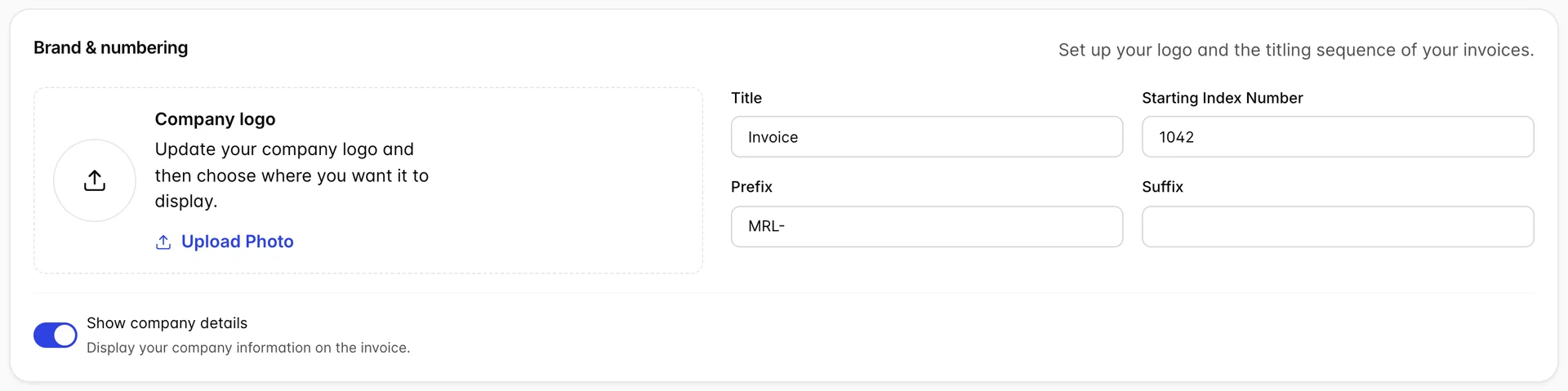
Prefix, Starting Index Number and Suffix are joined to make the reference on every invoice, so the demo property's next invoice is MRL-1042 and the one after it is MRL-1043. The index is a starting point rather than a counter you can reset safely: lowering it after invoices have been issued gives you two documents with the same number, which is the kind of thing an auditor notices.
Title is the word printed at the top, which matters more than it looks in jurisdictions that distinguish an invoice from a receipt or a proforma. The logo and Show company details control the header block. Preview invoice at the top right renders a sample with your current settings, and is much faster than saving and generating a real one.
Timing, layout and language
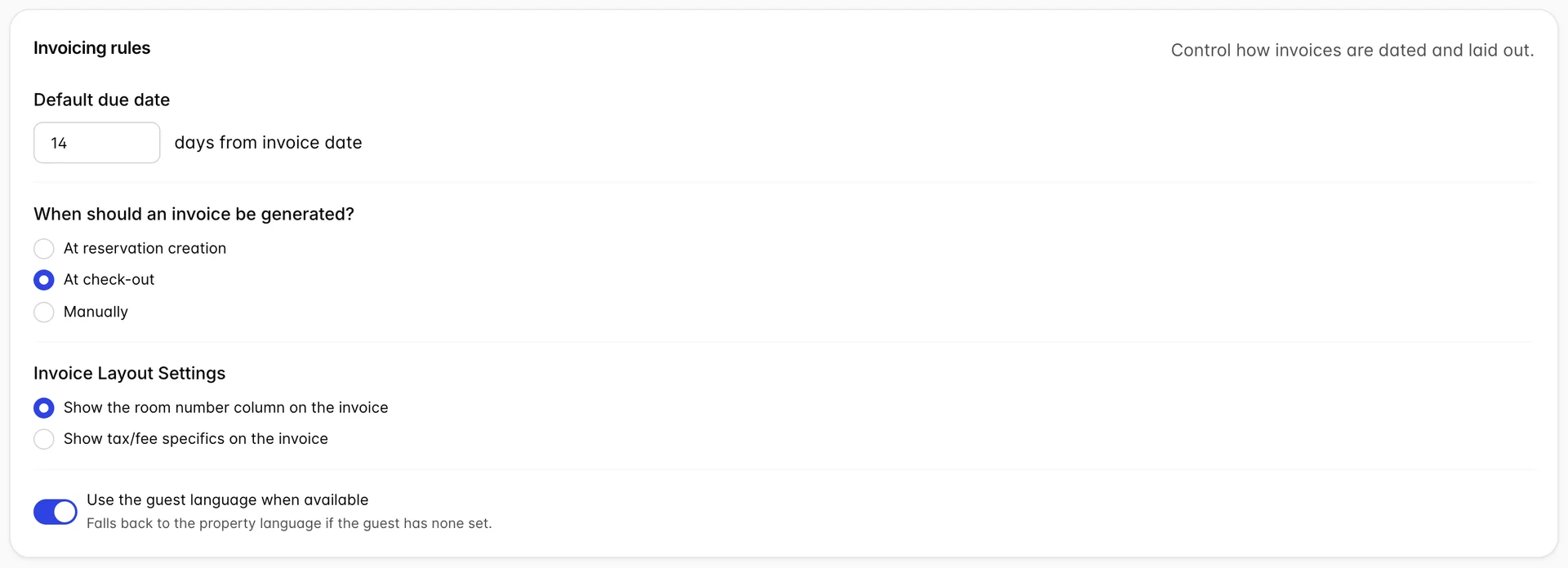
| Setting | What it changes |
|---|---|
| Default due date | How many days after the invoice date payment is due. Feeds the due date printed on the document and the ageing on any receivables report. |
| At reservation creation | An invoice exists from the moment the booking is made. Right for prepaid and for agents who need a document to raise a payment against. |
| At check-out | The invoice is produced when the guest leaves, so it reflects everything they actually spent. The usual choice. |
| Manually | Nothing is produced until somebody asks for it. Fewest surprises, most forgotten invoices. |
| Invoice Layout Settings | A choice, not two switches. You get the room number column or the tax and fee breakdown, not both. |
| Use the guest language when available | Renders the invoice in the language on the guest profile, falling back to the property language when the profile has none. |
Deposit policy
Sharing the Invoicing Settings tab, and the only setting on either of these two screens that changes what a guest is asked to pay at the point of booking.
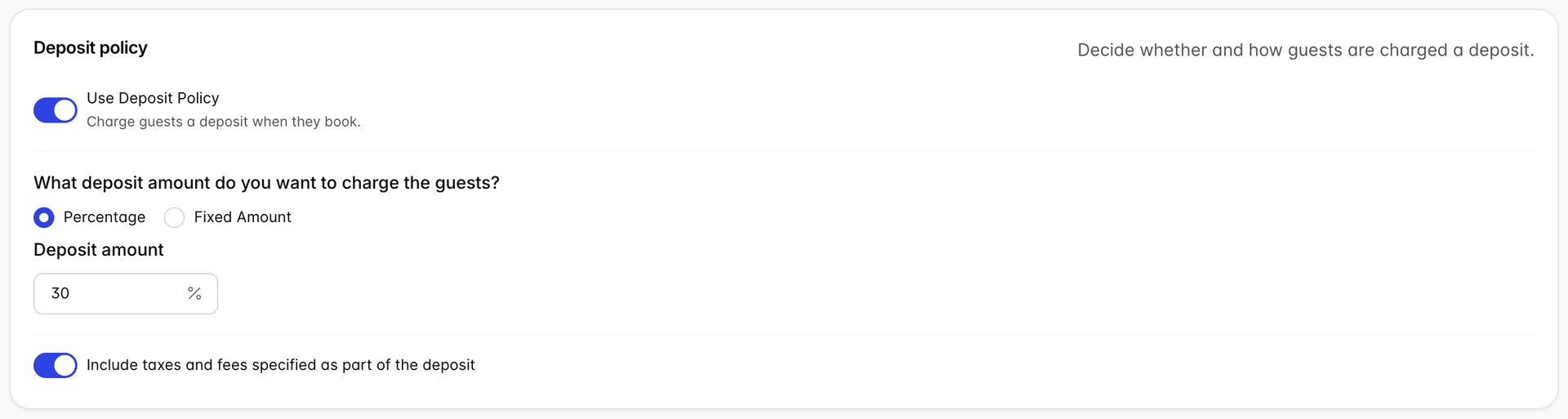
With the policy on, you choose a percentage or a fixed amount and give the number. A percentage is applied to the booking total; a fixed amount is that amount regardless of the size of the stay. The switch underneath is the one people miss: Include taxes and fees specified as part of the deposit decides whether the percentage is taken of the room subtotal or of the grand total with tax. On the demo property, 30 percent with taxes included on a 720.00 stay carrying 9 percent VAT is 235.44 rather than 216.00.
The deposit only applies to reservation types that require one, and it is skipped for tentative bookings. Whether a given booking asks for it is decided by the reservation type, so a policy set here with no reservation type requiring a deposit collects nothing.
Common pitfalls
| Symptom | Cause |
|---|---|
| A booking got the wrong folio setup | Its source is claimed by a configuration you did not expect, or by none, in which case it fell through to the default. |
| Save Changes will not enable on a new configuration | Name, description and at least one source are all required. The description is the one people leave blank. |
| Cannot turn off the default on the default configuration | By design. Set a different configuration as default and this one releases it. |
| Two invoices share a number | The starting index was lowered after invoices had been issued. It is a starting point, not a counter. |
| Tax is not itemised on the invoice | The layout is set to show the room number column instead. The two are mutually exclusive. |
| The deposit asked for is higher than expected | Taxes and fees are included in the deposit base. Turn the switch off to take the percentage of the room subtotal alone. |
| No deposit is requested despite the policy | The reservation type does not require one, or the booking is tentative. |