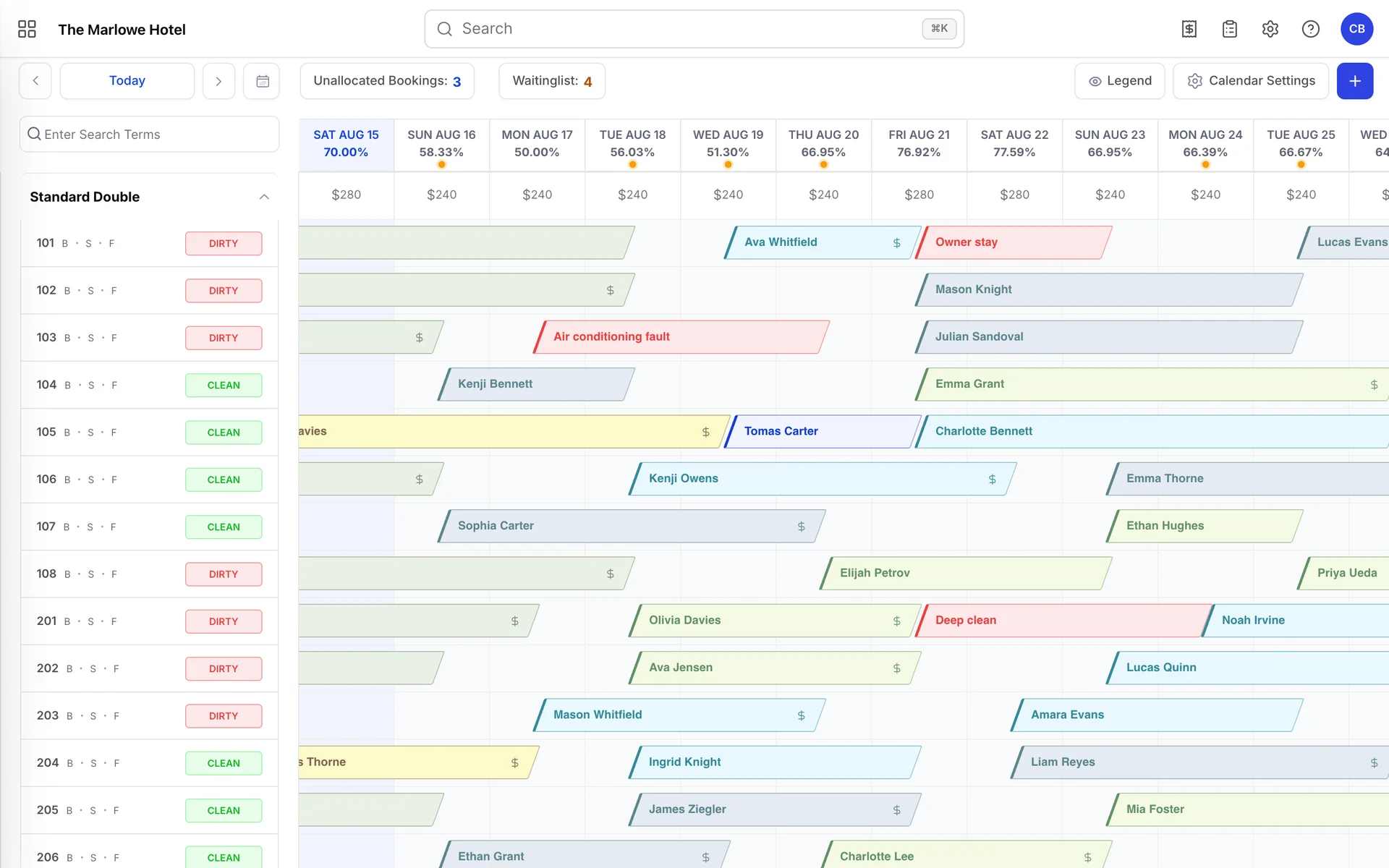
The calendar is the screen most front-desk work happens on. It is one row per room, one column per night, and one coloured tile per booking. Everything else on the screen exists to help you find the right tile or put a new one somewhere sensible.
How the grid is laid out
The rail down the left
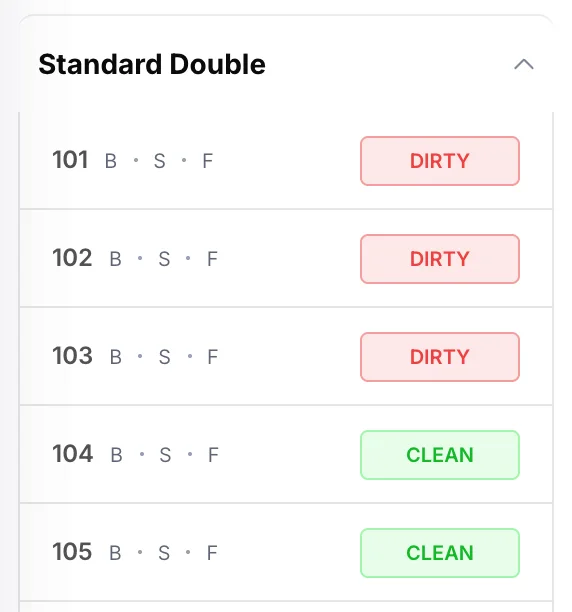
The bold heading is a room type, and clicking it collapses every room underneath into a single line. On a property with a few hundred rooms this is the fastest way to get the type you care about onto one screen. The rows beneath it are the actual rooms you can put a guest in.
Each room row carries three things:
- The room number, exactly as it appears on the door.
- B · S · F, three single letters standing for the building, section and floor the room sits in. They look cryptic because they are abbreviations, not codes: hover over any of them and a tooltip spells out the full name. A letter is missing when the room has not been assigned to that level of the hierarchy.
- The housekeeping badge, green for clean and red for dirty. This is live: it changes as housekeeping works through the building, and it is the same status the housekeeping board shows.
The dates across the top

The percentage under each date is the occupancy for that night across the whole property, counting rooms that are sold whether or not the guest has arrived yet. Today's column is tinted blue and its date is in blue text, which is the only marker for today anywhere on the grid.
The row of prices below the dates belongs to the room type immediately underneath it, not to the property as a whole. Every room type gets its own price row, so as you scroll down the grid the prices change. In the screenshot above, this type sells for $280 on Friday and Saturday and $240 the rest of the week, which is a weekend uplift on the rate plan rather than anything the calendar is doing.
Reading a booking
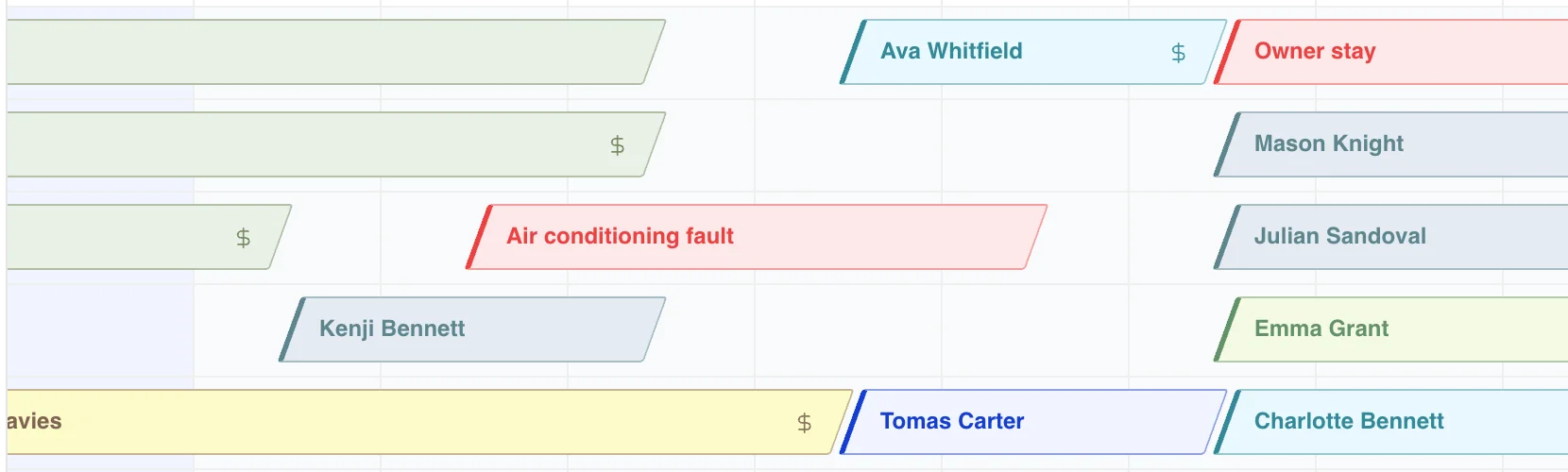
A tile carries four pieces of information at once, and it is worth learning to read all four, because doing so saves opening the booking.
- The name is the lead guest. On a booking with several rooms, the same name appears on each room's tile.
- The colour is the reservation status. There are sixteen of them and nobody memorises the list, which is what the legend is for.
- The slanted ends mark the arrival and departure days. A tile starts half way through the arrival column and finishes half way through the departure column, because both rooms are genuinely half-used on those days: the departing guest leaves in the morning, the arriving one comes in the afternoon. Two tiles meeting in the middle of one column is a same-day turnaround, not an overbooking.
- The markers at the right-hand end. A $ means there is still a balance due on the booking. A padlock means the booking is locked and cannot be changed by dragging. A chevron means this is one leg of a stay where the guest changes room part way through, and hovering shows which room they come from or go to next.
Two more labels appear on the tile itself rather than as icons. COMP marks a complimentary stay and HU marks house use, which is a room the hotel is using itself. Both occupy the room and both count against occupancy, which is the point of recording them rather than simply blocking the dates.
Not everything on the grid is a booking. Courtesy holds, blocked dates, out of service and out of order all draw tiles too, in their own colours, and they are listed in the legend alongside the reservation statuses.
The legend
Legend at the top right opens a panel listing every colour the grid can draw. Leave it open while you are learning; it does not block the calendar underneath.
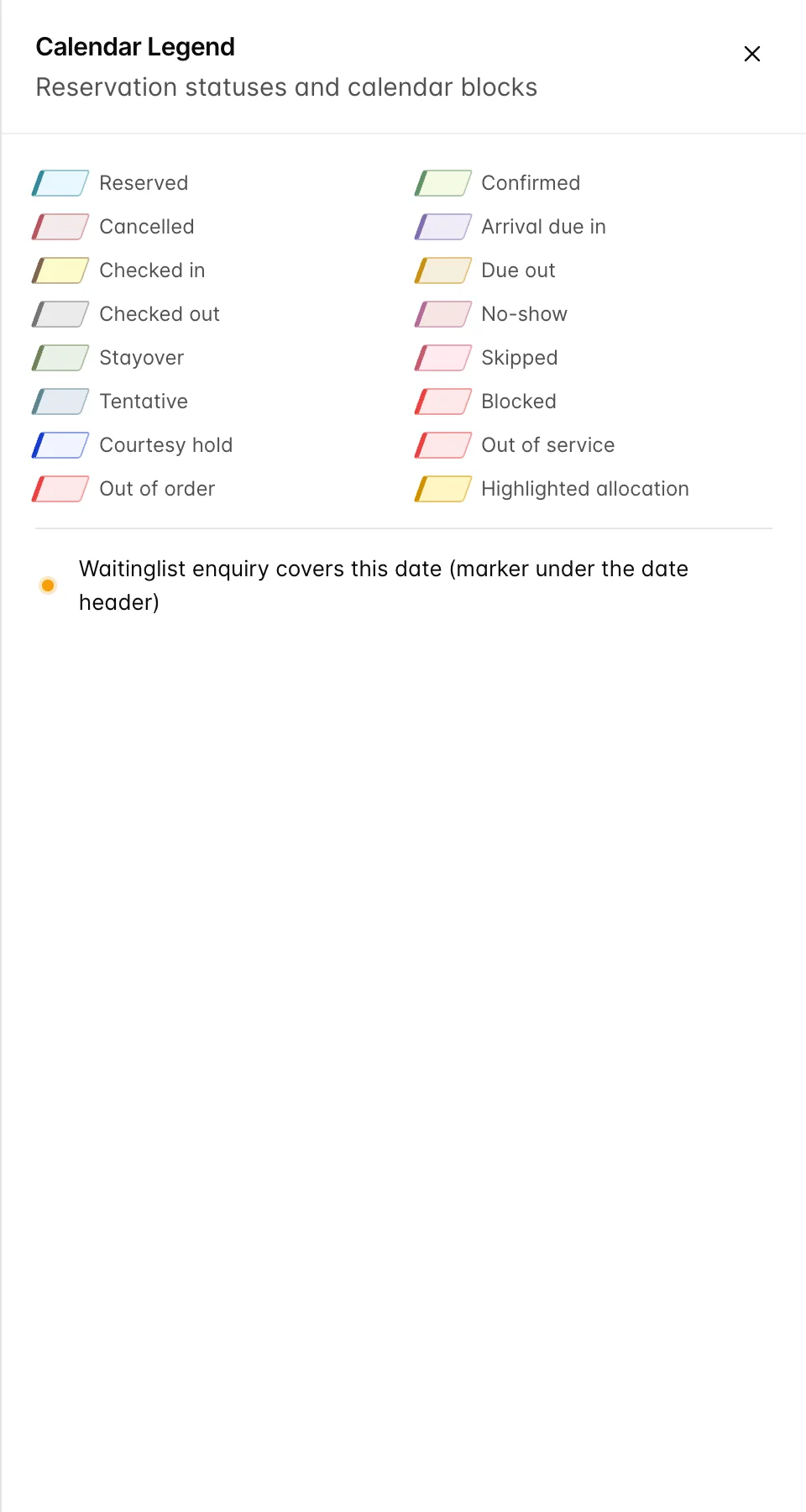
The statuses worth knowing before you need them:
| Status | What it means |
|---|---|
| Arrival due in | Expected today and not yet checked in. This is your arrivals work queue. |
| Checked in | The guest is in the building. |
| Stayover | In house tonight, and not leaving in the morning. |
| Due out | Leaving today and not yet checked out. Housekeeping is waiting on these. |
| Tentative | Held but not confirmed. It occupies the room so nobody sells it twice, which is exactly what you want for a group enquiry you expect to firm up, and exactly what you do not want left in place for a month. |
| No show | Expected and never arrived. |
| Skipped | Left without checking out. |
| Courtesy hold | A short hold for someone who is deciding. No guest is attached yet. |
| Blocked | Dates taken off sale, with a reason but no guest. |
| Out of service | The room cannot be sold but is physically fine, for example during a deep clean. |
| Out of order | The room is genuinely unusable. It still sits in your room count, so a room left out of order after the repair is done quietly understates how full you are. |
| Highlighted allocation | Not a status. It is the preview the calendar draws while you are choosing where to put an unallocated booking. |
Moving around the dates
The two arrows step one day at a time, which is more useful than it sounds when you are lining a booking up against the column next to it. Today jumps straight back to the current date, and the small calendar icon opens a date picker that jumps to any date you choose. You can also scroll the grid sideways with a trackpad or by dragging an empty part of it.
The calendar loads roughly three months of history behind today and a long stretch ahead, and it fetches more as you scroll toward either edge. It always opens on today.
The two counters

Unallocated Bookings counts reservations that have a room type but no specific room yet, which is normal for anything that arrived from a channel. They are real bookings and they do hold inventory, but nobody can check the guest in until a room number is attached. Click the counter and the calendar suggests where each one could go, highlighting the candidate rooms on the grid as you consider them.
Waitinglist counts enquiries you could not accommodate. These are the dots under the dates in the header. Neither counter appears when it would read zero, so an uncluttered toolbar means there is nothing waiting.
Opening a booking
Clicking a tile opens More Options, a panel on the right with the booking's essentials and a short list of the things people most often need to do next.
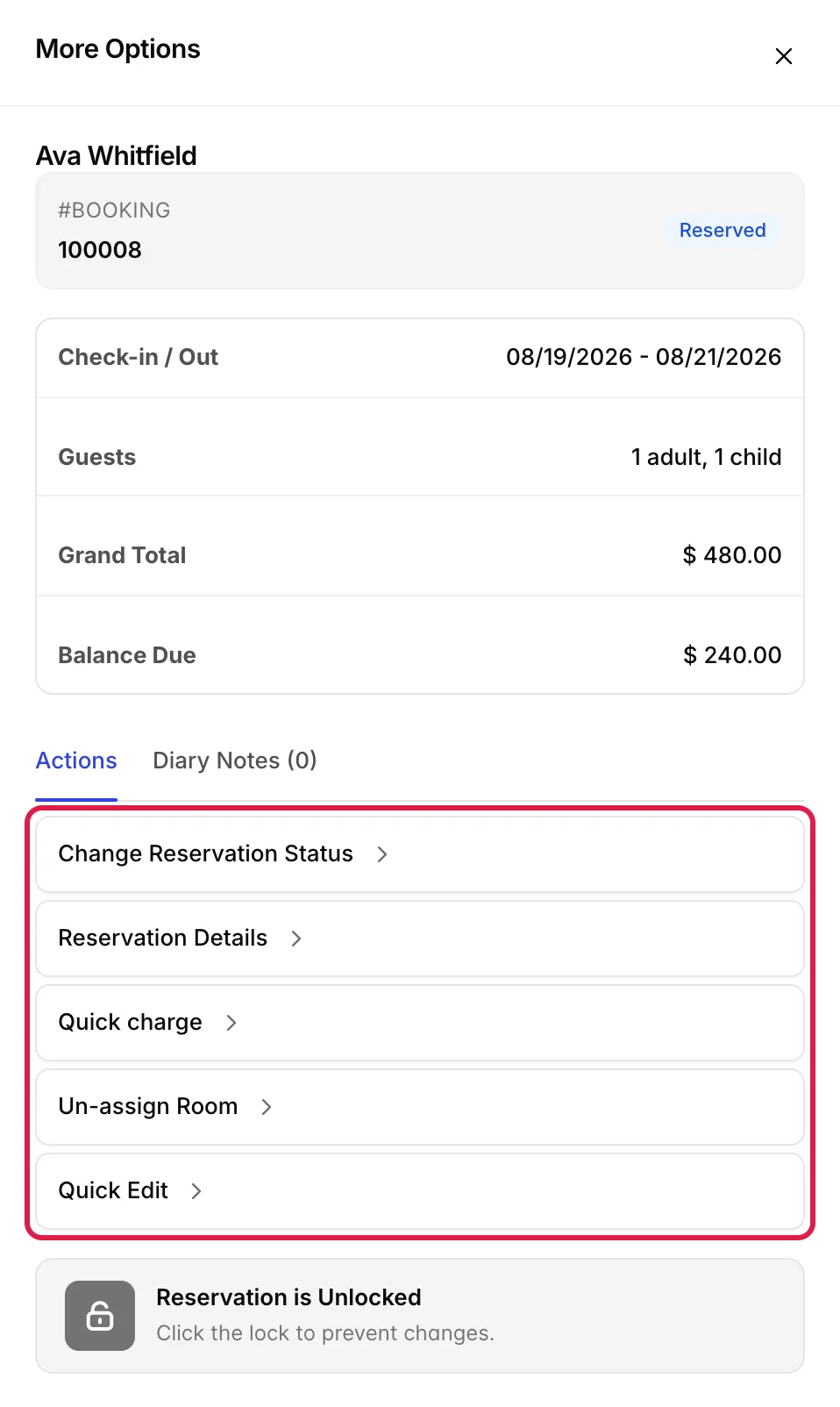
| Action | What it does |
|---|---|
| Change Reservation Status | Check in, check out, mark a no show, cancel. The everyday one. |
| Reservations Details | Leaves the calendar for the full reservation, where anything not listed here can be edited. |
| Quick charge | Puts a charge on the booking without opening the folio. |
| Un-assign Room | Takes the room number off the booking and returns it to Unallocated Bookings. The booking is not cancelled and the guest is not affected; the tile simply leaves the grid until you allocate it again. |
| Quick Edit | Dates and guest counts, in place. |
Diary Notes beside Actions is where shift-to-shift notes about the guest live, with the count of existing notes in the tab label.
At the bottom, Reservation is Unlocked is a button, not a status message. Clicking the padlock locks the booking, after which it cannot be moved by dragging and shows a padlock marker on its tile. It is the right thing to do for a booking that has been negotiated carefully and should not be nudged by accident.
Creating something on the grid
There are two ways in, and they are not identical.
Clicking an empty night
Click any free cell and a small menu opens, headed with the night you clicked and offering New Reservation, Courtesy Hold, Blocked Dates, Out of Service and Out of Order. Whichever you pick opens with that room and that date already filled in, which is the whole advantage of starting here rather than from a blank form.
The plus button

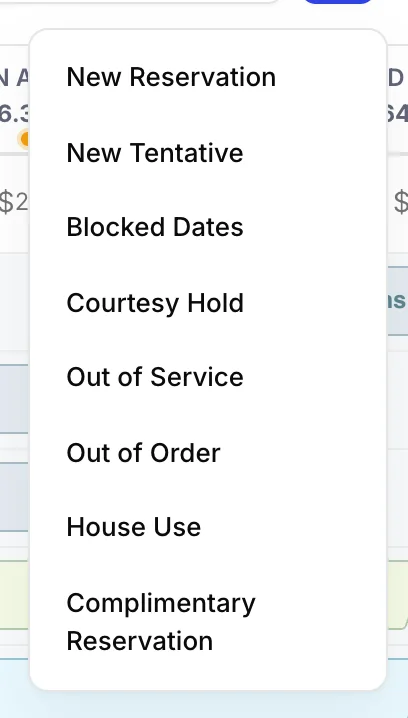
The plus button at the top right offers the same five, plus New Tentative, House Use and Complimentary Reservation. Nothing is pre-filled, because you have not told it a room or a date.
Dragging a booking somewhere else
When drag and drop is switched on, dragging a tile moves the booking. Drop it on a different room and the guest changes room. Drop it further along the same row and the whole stay shifts, keeping its length: a three-night booking dragged two columns right is still three nights.
Four things can stop a drag, each with its own message:
- The booking is locked. Unlock it from More Options first, deliberately.
- The booking covers several rooms. You can still move one of its rooms to a different room, but not to different dates. Changing the dates of a multi-room booking has to happen in the reservation itself, so that every room moves together.
- Something is already there. The calendar checks the destination against reservations, courtesy holds and blocked dates before it commits, so a drop that would overbook is refused rather than accepted and cleaned up afterwards.
- The price would change. This one is a question, not a refusal. See below.
When the price changes
Moving a guest between room types usually changes what the stay is worth. Rather than guess, the calendar works out both figures and asks you, showing the current room type, rate and grand total against the new ones.
- Keep Current Rate moves the guest and leaves the money alone. This is the one you want for a service recovery or an operational move the guest did not ask for.
- Use New Rate moves the guest and reprices the stay to the new room type. This is the one you want when the guest requested the upgrade.
When the two totals are identical the calendar does not ask; it just moves the booking and confirms.
Calendar settings
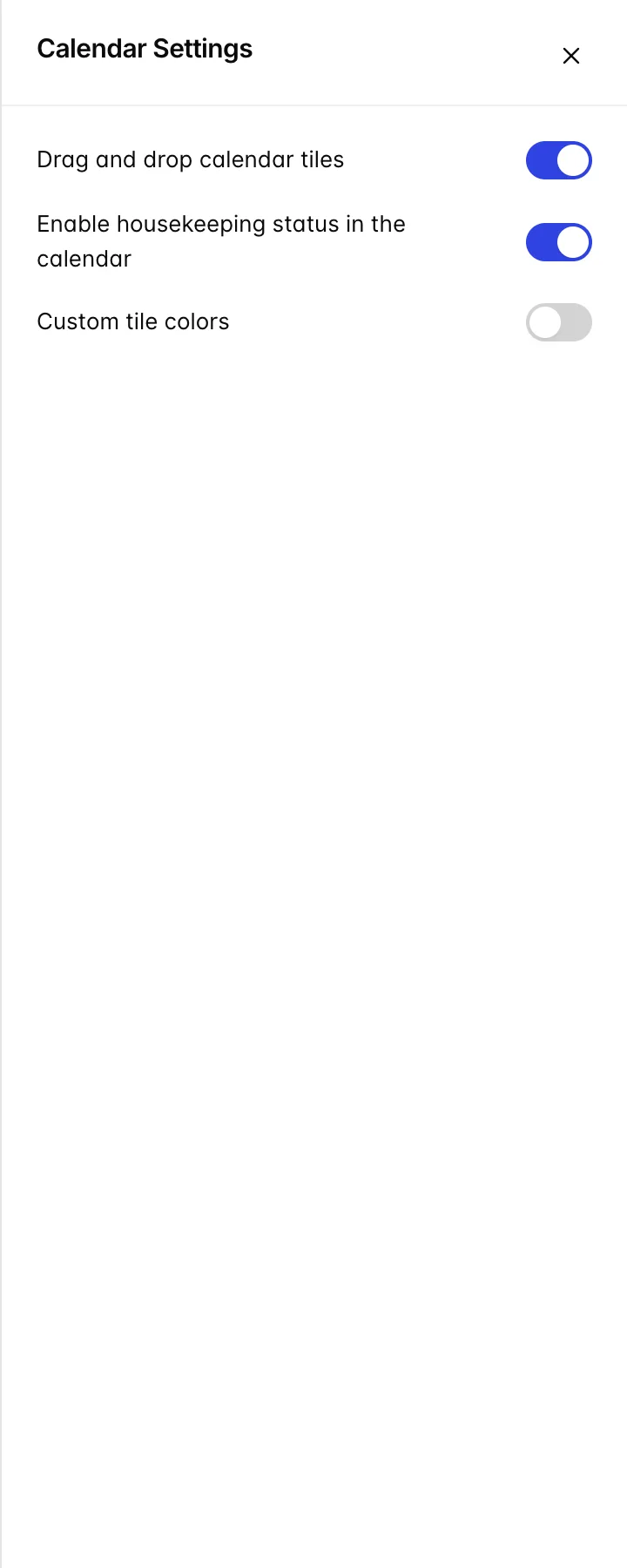
| Setting | What it changes |
|---|---|
| Drag and drop calendar tiles | Whether bookings can be moved by dragging at all. Properties that turn this off usually do so after somebody moved a booking with a stray click, and prefer moves to go through the reservation. |
| Enable housekeeping status in the calendar | Whether the green and red badges appear in the rail. Turning it off buys back some width on a narrow screen. |
| Custom tile colors | Reveals a colour chip per status so you can recolour the grid. Click a chip to pick a colour and the × on it to reset. Only the accent is set; the fill is derived so the text stays readable. |
Things that catch people out
An empty calendar usually means the search box
The most common "the calendar is broken" report is a search term still sitting in the box, filtering the grid down to nothing. Clear the box before you look for any other explanation.
Occupancy in the header counts sold rooms, not arrived guests
The percentage under each date includes rooms assigned to guests who have not checked in yet, which is the same basis the dashboard's TODAY figure uses. The two agree. What neither of them tells you is how many people are actually in the building.
Dragging sideways moves the stay, it does not extend it
Dragging keeps the length of the booking and changes when it starts. To make a stay longer, edit the dates in Quick Edit or in the reservation itself. Dragging a booking to a different row is a room move, and what that does to the rate is covered in room moves and rate overrides.
Un-assigning a room is not cancelling
Un-assign Room takes the tile off the grid, which looks a great deal like the booking disappearing. It has not: the booking has gone back to Unallocated Bookings, and the counter at the top of the calendar has gone up by one.