A card on file is a promise that the money can be collected later, at check-out, for a no-show, or for the minibar somebody found on the way to the airport. The Credit Cards tab is where that promise is recorded, and it is the most security-sensitive screen on the reservation, so it behaves differently from the rest of them.
The tab
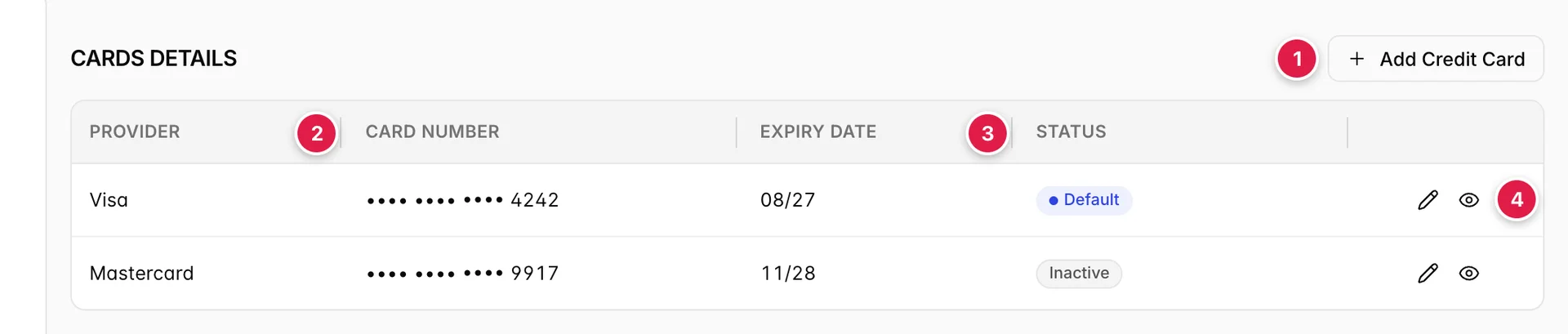
- Add Credit Card. Opens the form. Nothing else on this screen creates a card.
- The number, masked. Only the last four digits, always.
- Status. Which card is offered first, and which is switched off.
- Edit and View. Both behind a password.
The count on the tab chip is the number of stored cards. A booking with no cards shows the tab anyway, with an empty state, the absence of a card is itself worth knowing at check-in.
What the list shows
| Column | What it holds |
|---|---|
| PROVIDER | The card brand, Visa, Mastercard, American Express, Discover. Prostay works this out from the number rather than asking you. |
| CARD NUMBER | Dots and the last four digits. This is the whole number as far as this screen is concerned; see Viewing a card. |
| EXPIRY DATE | Month and two-digit year, the same MM/YY the forms use. |
| STATUS | A Default badge on the card to reach for first, and an Inactive badge on any card switched off. A card can carry neither, and an ordinary working card usually does. |
The last four digits are the identifier
On a booking with two cards, the last four digits are the only thing that tells them apart on the phone. "The Visa ending 4242" is a complete instruction; "the Visa" is not.
Adding a card
| Field | What to put in it |
|---|---|
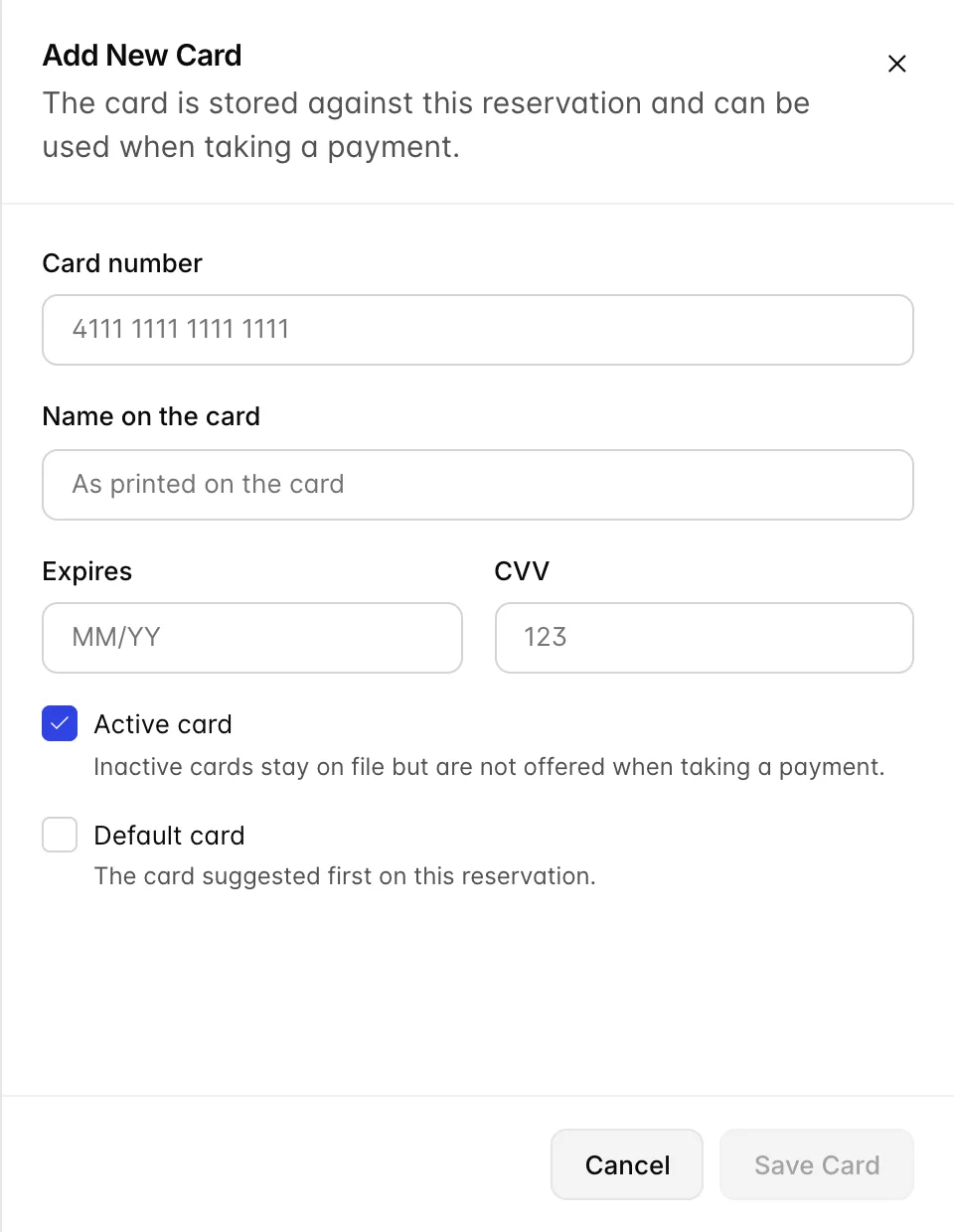
| Card number | Digits only; spaces and dashes are dropped as you type. 13 to 19 digits, and it has to look like a real brand. |
| Name on the card | As printed on the card, which is not always the guest's name, a company card or a partner's card is common. |
| Expires | MM/YY. The slash is typed for you. |
| CVV | Three digits, or four on American Express. |
| Active card | On by default. See Active and Default. |
| Default card | Off by default, unless this is the first card. |
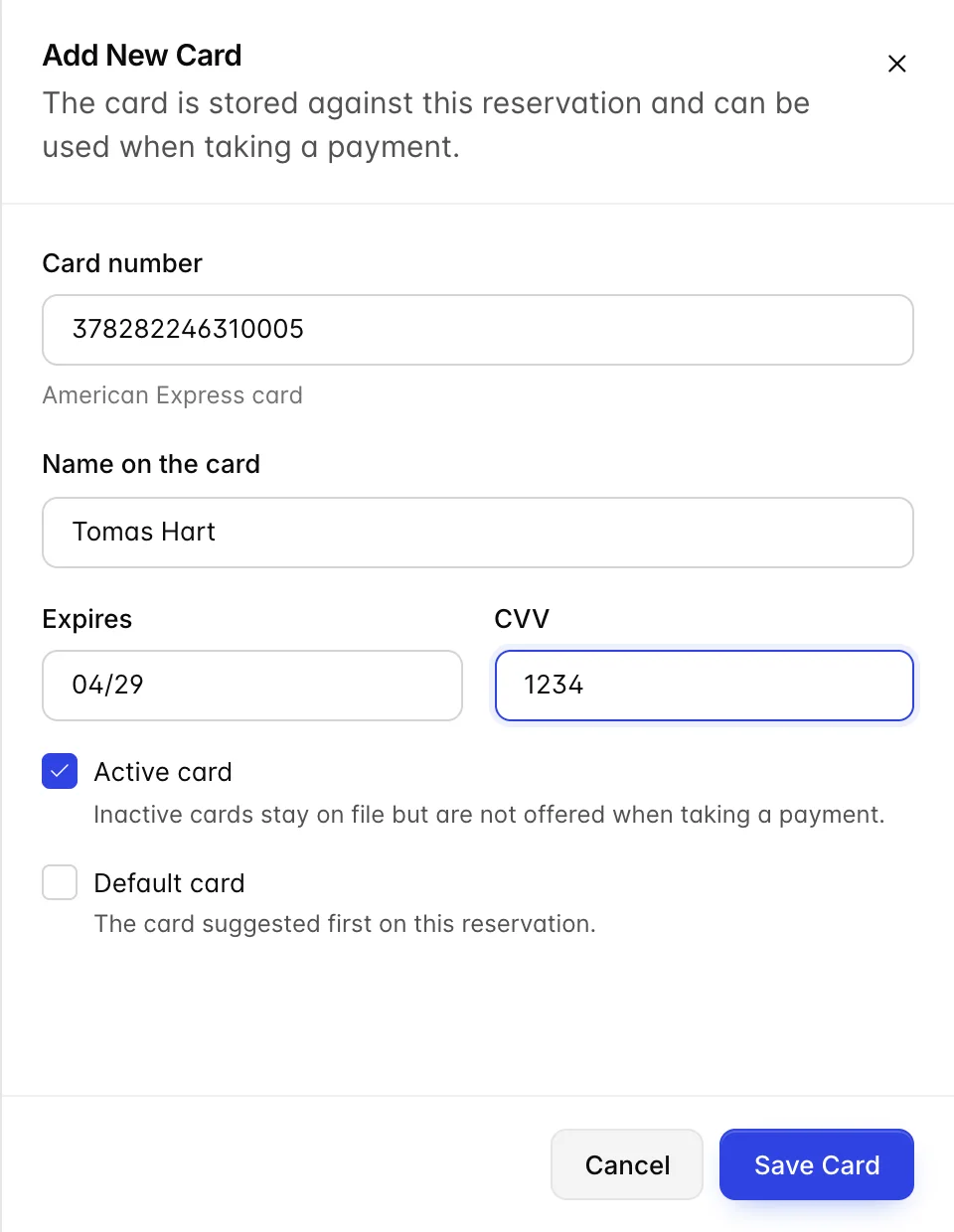
Watch that hint while you type. It appears as soon as the number is long enough to be recognised, and if it says Mastercard while you are holding a Visa, you have mistyped the first digit. It is faster than counting sixteen digits back.
What gets checked
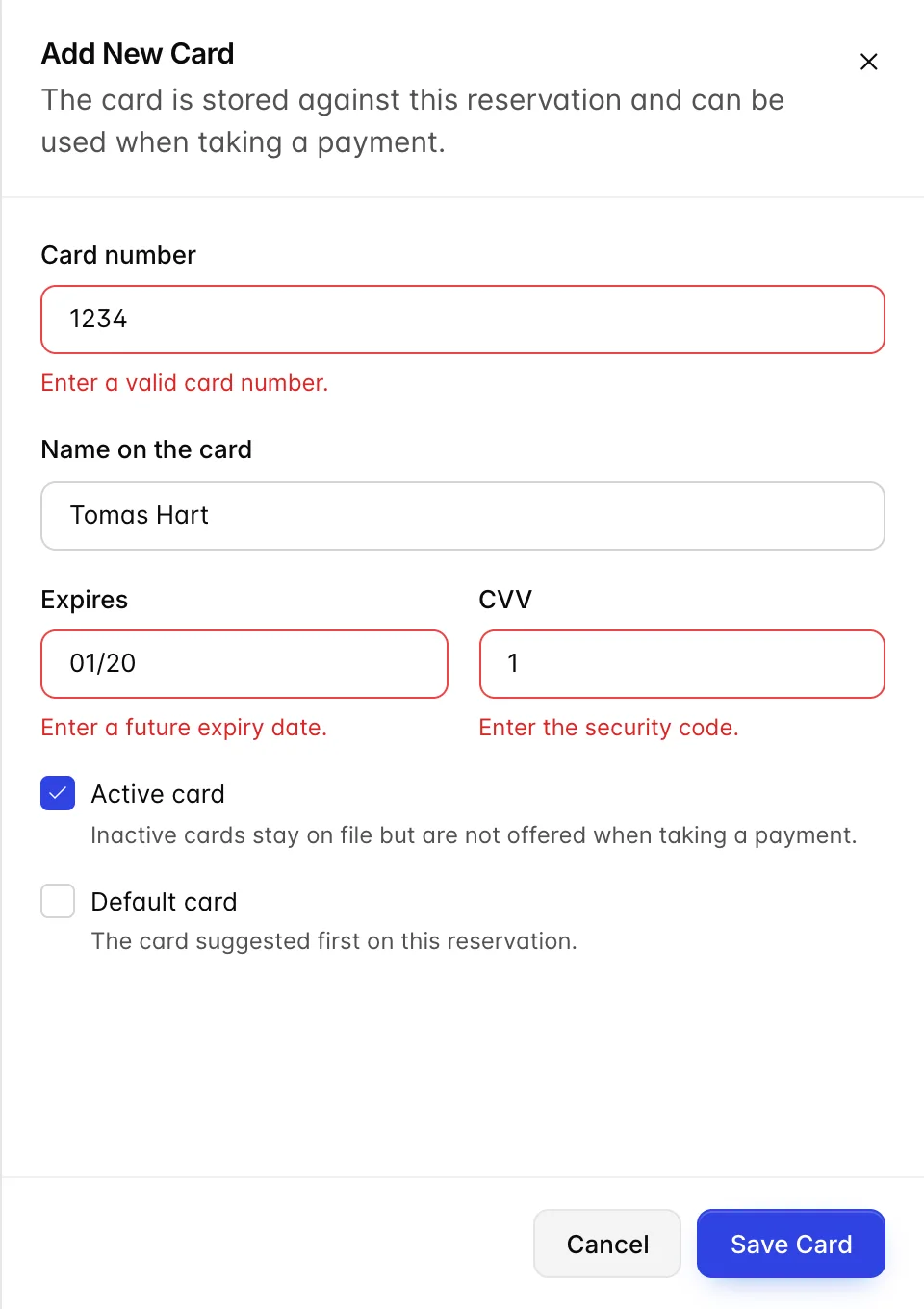
Save Card stays disabled while any of the four fields is empty. Once they all have something in them the button wakes up, and pressing it is what runs the checks, so you find out what is wrong by trying, not by guessing at a dead button.
| Message | What it means |
|---|---|
| Enter a valid card number. | The digits do not match any brand Prostay recognises. Usually a transposed pair or a missing digit. |
| Enter the cardholder name. | Fewer than three characters. Initials alone will not do. |
| Enter a future expiry date. | Not MM/YY, not a real month, or already past. An expired card cannot be stored. |
| Enter the security code. | Three digits, or four if the number is an American Express. This is checked against the brand, so it moves when the number does. |
Active and Default
Two checkboxes, two quite different jobs, and the difference matters at the moment somebody is trying to take money.
| Flag | What it changes | When to use it |
|---|---|---|
| Active card | An inactive card stays on file and stays readable, but is not offered when you go to take a payment. | Switch a card off when the guest says stop using it, or when it has been declined and a replacement has arrived. It keeps the record without keeping the risk. |
| Default card | The card suggested first on this reservation. Only one card can hold it: ticking it on a second card takes it off the first. | Set it on the card the guest expects to be charged. On a booking with a personal and a company card, this is the difference between a routine check-out and a complaint. |
Viewing a card
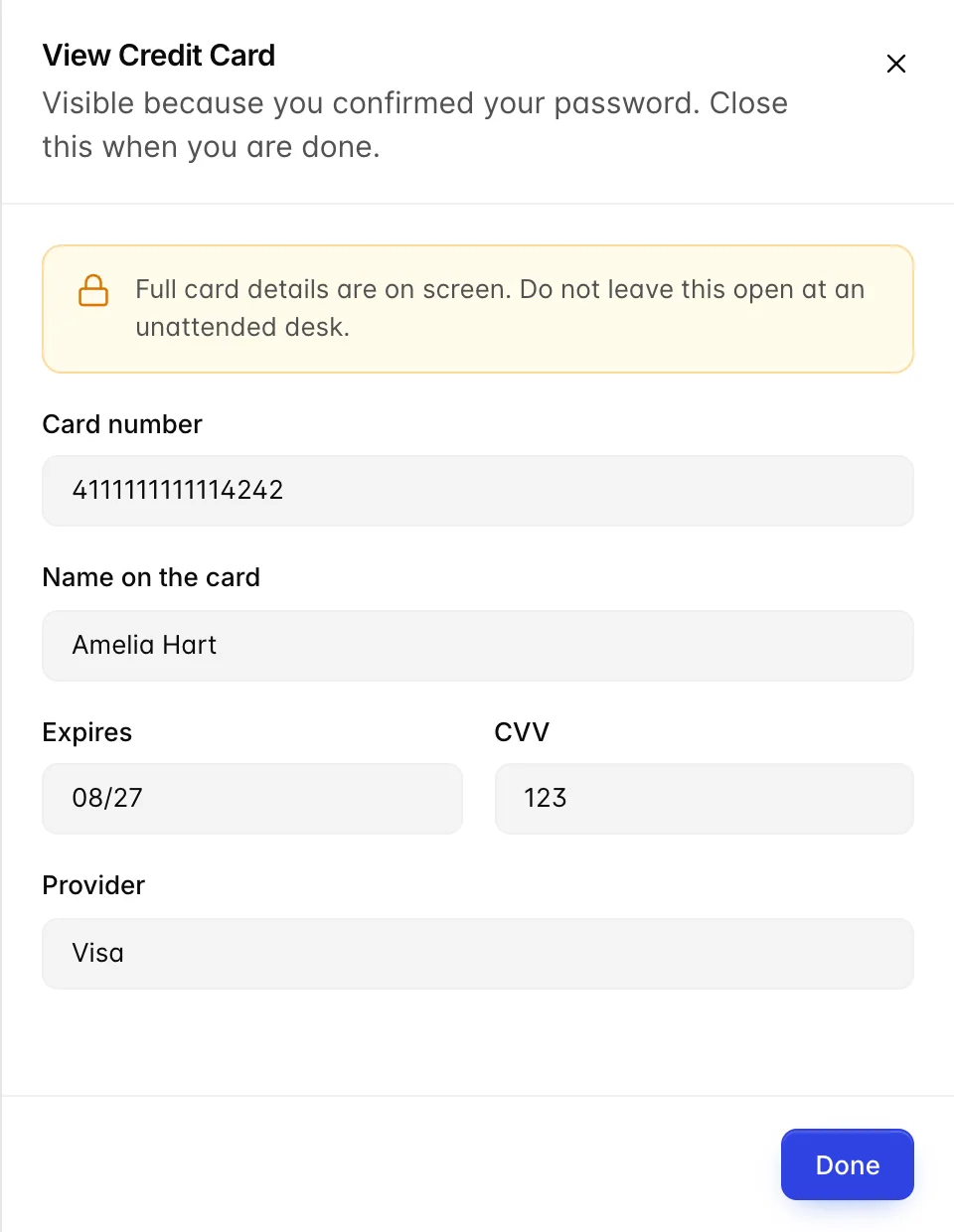
The list never holds a full card number. Neither does the page, the browser, or anything Prostay sent to it, the number simply is not there until somebody asks for it and proves who they are.
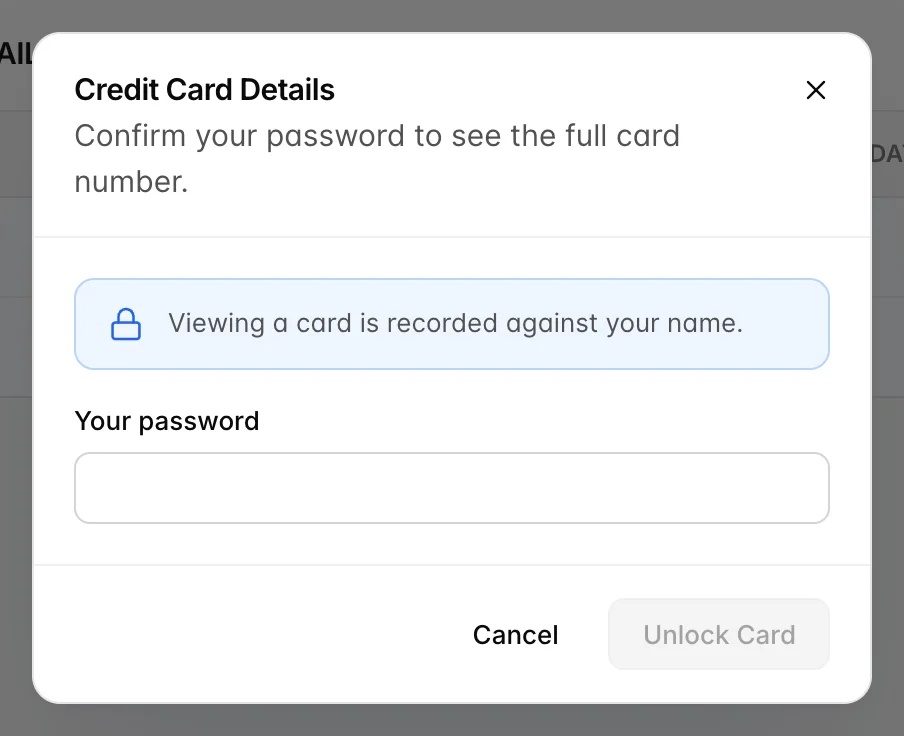
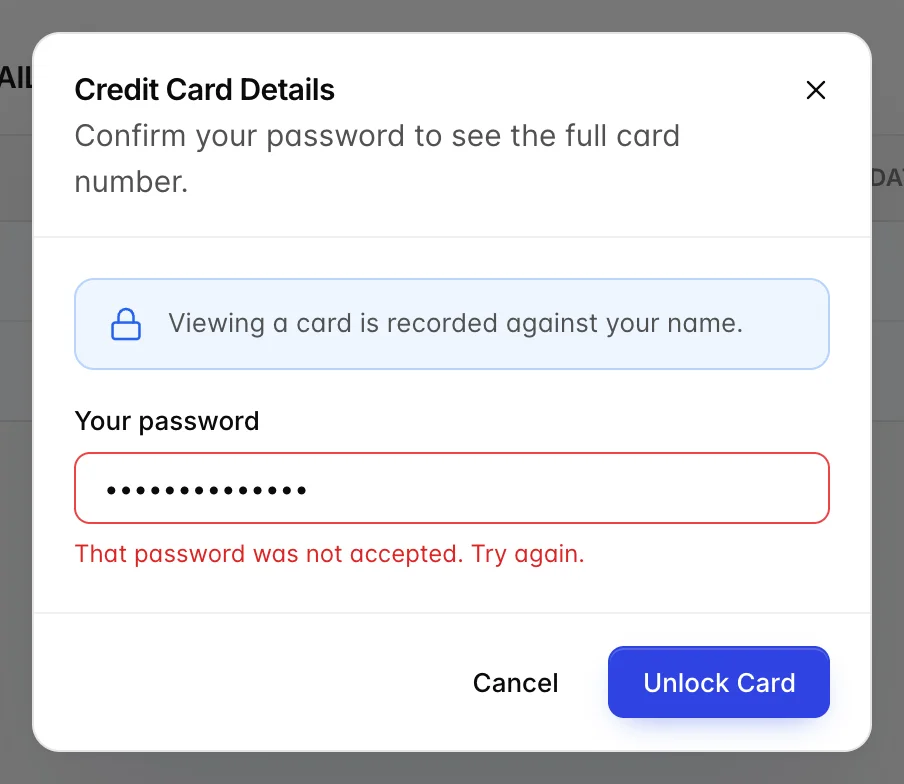
The password is your own login password, not a shared code and not the guest's. That is deliberate: the point of the gate is to attach a name to the disclosure, which a code everybody knows would not do.
Close it when you are done
An unlocked card is a full set of payment credentials on a screen at a front desk, in a lobby, usually with a queue in front of it. The drawer does not time out on its own. Press Done before you look away from it.
Editing a card
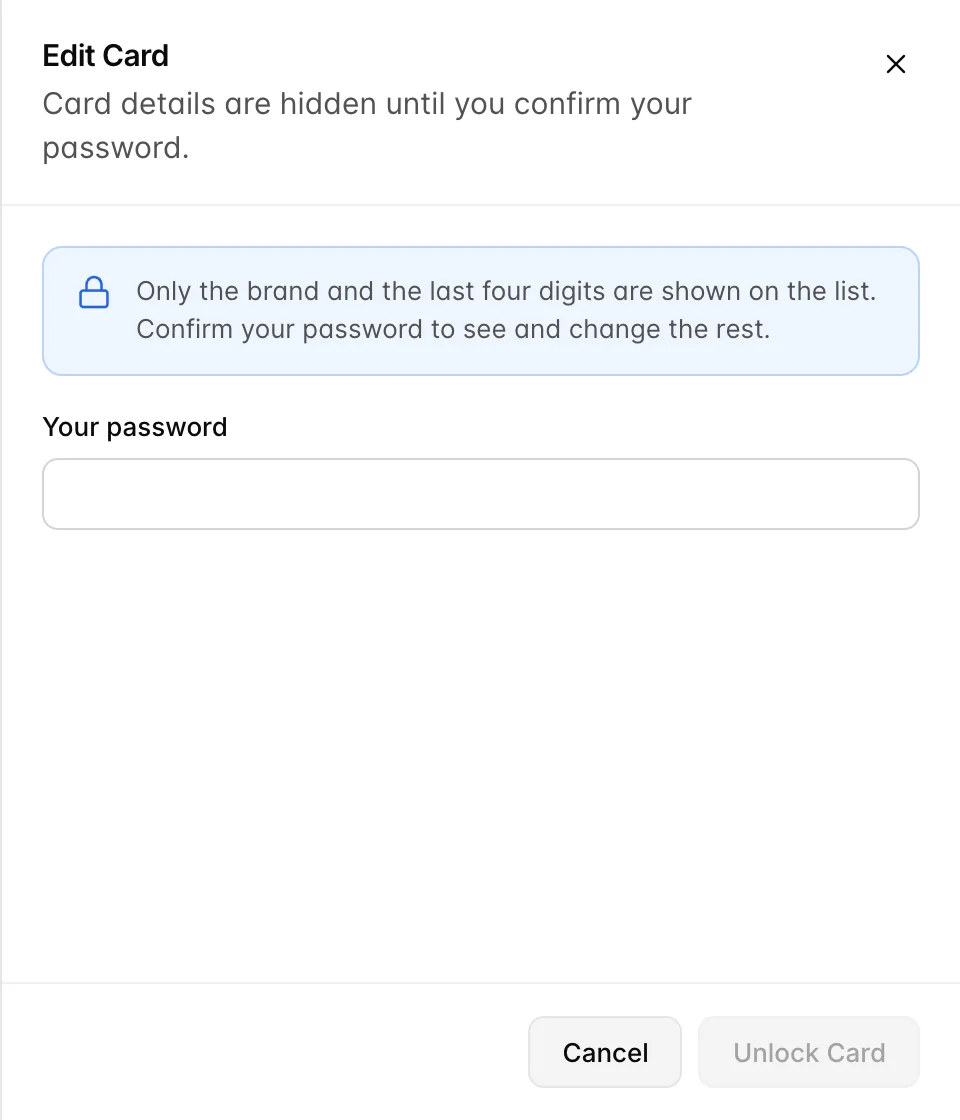
This is not a second lock for the sake of it. The form has to be filled in with the real card before you can change part of it, and the real card is what the password buys, so editing and viewing cost exactly the same.
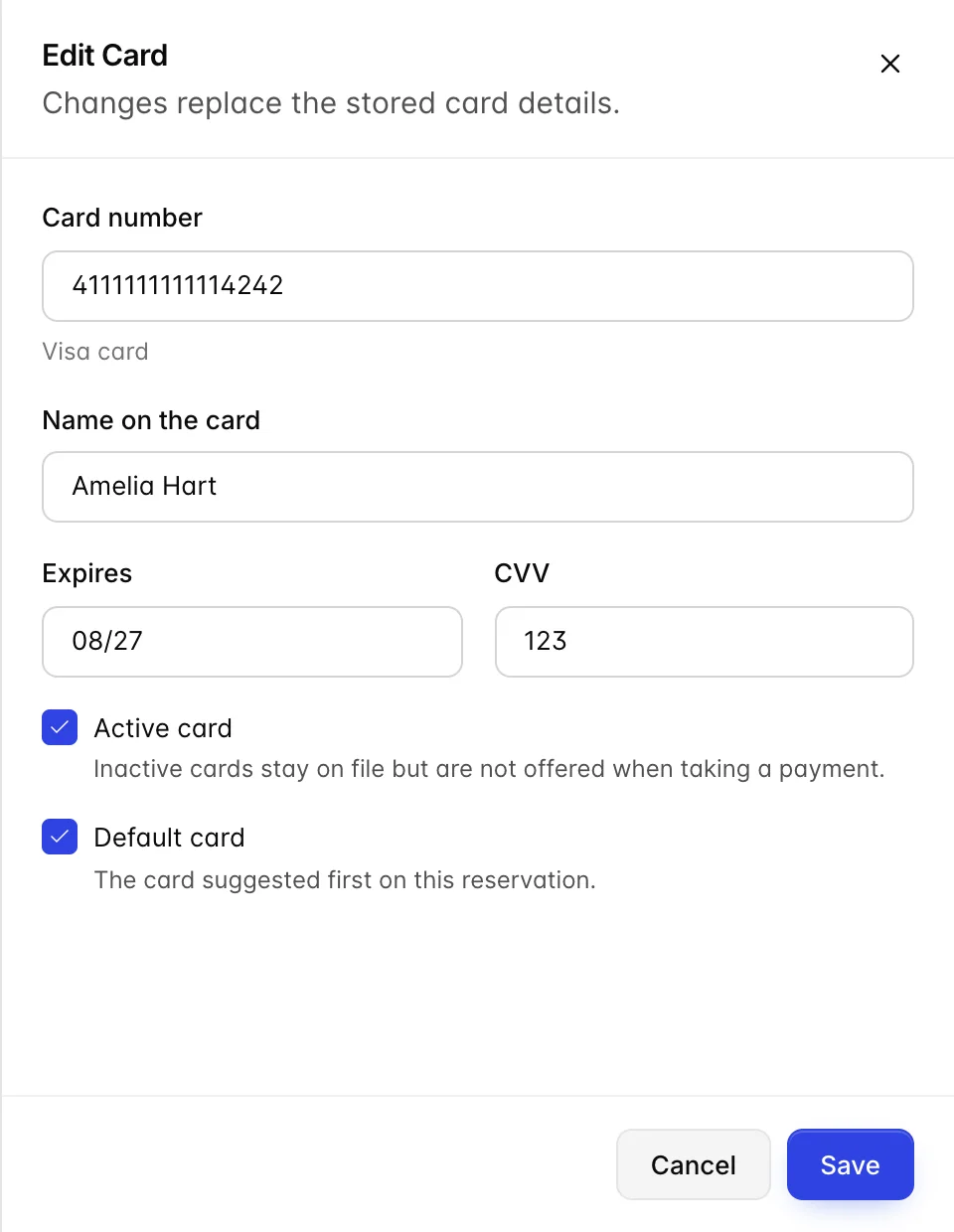
Everything is editable, including the number, and the same checks apply on save. The common edits are the small ones: a new expiry date when the guest's card is reissued, or the two checkboxes when a company card takes over.
Restricted reservations
A reservation can be restricted to specific users from Actions in the header. On a booking you are restricted from, this tab still lists the cards, brand, last four, expiry, status, but Add Credit Card and both row buttons disappear. You can see that a card is on file and you cannot touch it or reveal it.
What this tab does not do
- It does not charge anything. Storing a card and taking money are separate acts. Payments are posted on the Folio tab.
- It does not delete cards. There is no remove action. Untick Active card instead, which takes the card out of use without erasing the record of it.
- It does not need a payment gateway. The tab works the same whether or not one is configured; a gateway matters when you charge the card, not when you file it.
- It does not check the card with the bank. Nothing here contacts the issuer, so a stored card is not a verified one. A typo that happens to pass the format checks will not be caught until somebody tries to charge it.
Things that catch people out
- Storing is not authorising. A card on file proves nothing about whether there is money behind it.
- Default moves silently. Ticking Default card on one card unticks it on the other, with no confirmation.
- Inactive cards stay visible. Switching a card off does not hide it. Look at the STATUS column before assuming the first row is the one to use.
- Expired cards cannot be added, but they can sit there. The form refuses a past expiry date on the way in; a card that expires while the booking is still open is not flagged. On a long stay, check the expiry against the departure date.
- Every reveal is on your name. Unlocking somebody else's card because they asked you to is still your disclosure.