This screen is the property's own record: what it is called, how to reach it, where it is, what it looks like and how it describes itself. Almost nothing here changes how the PMS behaves. Nearly all of it changes what a guest sees, on the booking engine, on a printed folio or in an Instant Site page, which is a slower kind of mistake to notice.
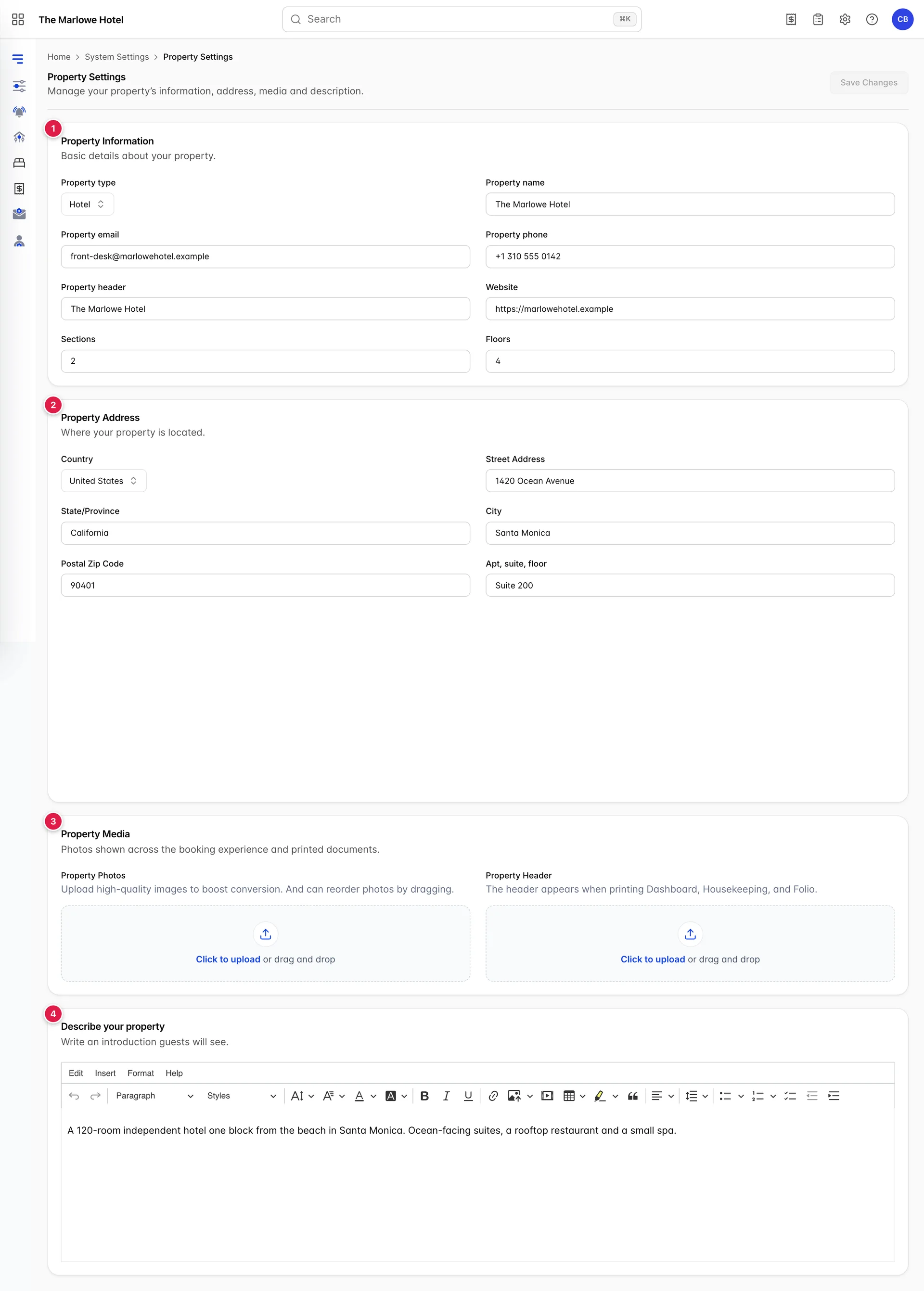
- Property Information. Name, type, contact details and the counts of sections and floors.
- Property Address. Six fields, and a map drawn from them.
- Property Media. Guest-facing photos, and the image printed at the top of internal documents.
- Describe your property. The introduction that appears on your booking pages.
Property information
| Field | What it changes |
|---|---|
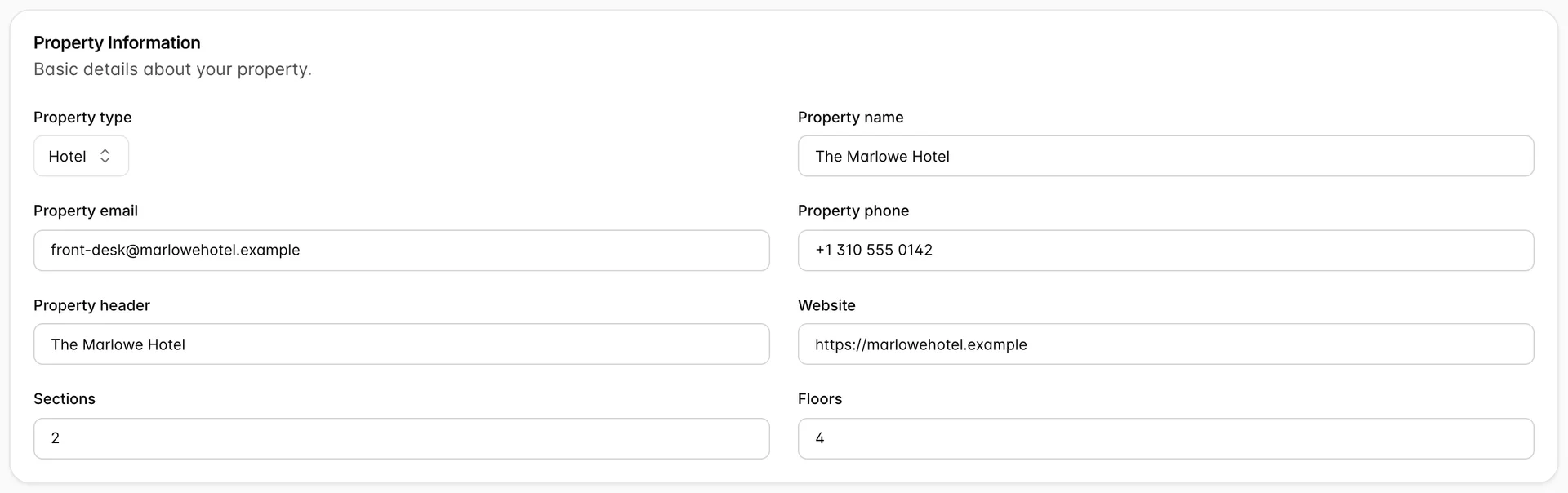
| Property type | One of Hotel, Motel, Resort, Bed&Breakfast or Airbnb. It describes the property to the booking surfaces; it does not switch any feature on or off inside the PMS. |
| Property name | The name in the top bar, in every browser tab title, and everywhere the property is named to a guest. Changing it reloads the app, described below. |
| Property email | The contact address published with the property. It is validated as you type and it blocks the save, so a typo here stops the whole screen from saving rather than just this field. |
| Property phone | The contact number published with the property. Free text, no format check, so it is stored exactly as typed. |
| Property header | A short text line, not an image. See below, because it shares its name with the upload two cards down. |
| Website | Your own site. Published alongside the contact details. |
| Sections and Floors | Two counts stored on the property record. They are not what rooms are mapped to; see below. |
The two things called header
Property header in this card is a text field. Property Header in the Property Media card is an image upload. They are two different settings with two different jobs and almost the same label, and the demo property has the text one set to the same string as the property name, which is what most properties end up doing.
The image is the one that gets printed. Its own hint says so, naming Dashboard, Housekeeping and Folio as the three things the header is printed on. It is also the hero image on an Instant Site page and the banner on the booking engine's room selection. If you are trying to get a logo onto a printed folio, you want the upload, not the text box.
Sections and floors are not the property tree
Keep them agreeing with the tree anyway. The demo property has 2 sections and 4 floors here, and a tree of one building holding North Wing and South Wing with two floors each, which is the same shape said twice. A reader who finds 6 here and four floors in the tree has no way to tell which is the mistake.
The address and the map

Under the fields sits a map with a pin on it. It is a read-out, not an input: there is nothing to drag and no coordinates to type. Every time you change an address field the map looks the address up again and moves the pin, so it is a live check that what you typed resolves to where you think it is.
It degrades quietly rather than failing. If the full address does not resolve, it drops a part and tries again, working back through city with state, then city with country, then state with country, then country on its own, and it zooms out as it goes. A pin sitting on the middle of a country with the whole country named in its label means the street address did not resolve, not that the map is broken.
Photos and the printed header
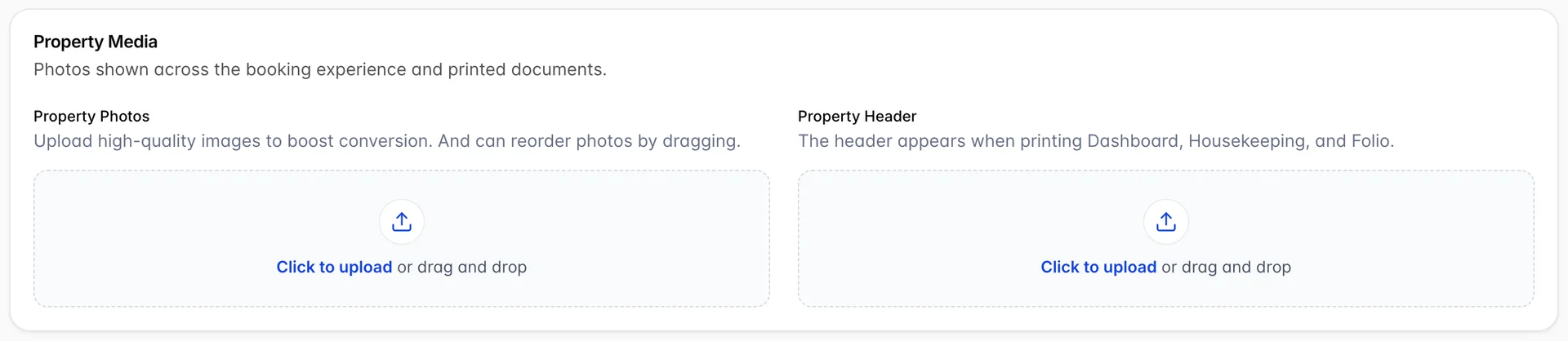
Property Photos takes as many images as you like and they are the property's own gallery, separate from the photographs attached to each accommodation type. Click the area or drop files onto it; each one appears as a thumbnail with a small remove button in its corner.
Property Header takes one image and replaces it rather than adding to it, because there is only ever one. This is the image that prints at the top of the dashboard, the housekeeping sheets and the folio, and the one that becomes the hero image on an Instant Site and the banner on the booking engine's room selection page. A tall photograph will be letterboxed into a strip on the printed documents, so a wide logo or a wide crop of the building is the shape that works on all four surfaces at once.
The description guests read
Describe your property is a rich text editor and its output is guest-facing: it is the introduction on your booking pages, and an Instant Site takes the first 120 characters of it, with the formatting stripped out, as the subheadline under the property name on the home page.
That 120 character cut is worth writing for. Open with what the property is and where it is, in one sentence, and put the detail after it. The demo property opens by calling itself a 120-room independent hotel one block from the beach in Santa Monica, which survives the truncation and still reads as a sentence.
Saving, and what a rename does
Save Changes is greyed out until something on the screen differs from what was loaded, and it covers all four cards at once. There is no per-card save and no autosave, so leaving the screen loses everything you changed on it.
One field behaves differently. Changing Property name and saving reloads the whole application, because the name is cached in the browser for the top bar and page titles and the cache has to be thrown away. Expect the page to blink and come back; you have not lost anything, and the save completed before the reload.
Common pitfalls
| What you see | What is usually going on |
|---|---|
| Save Changes will not press | Nothing on the screen has changed yet. The button enables itself on the first edit. |
| Save Changes presses and nothing happens | The email address failed validation. The error sits under Property email, which may be scrolled off screen. |
| The logo is not on the printed folio | It went into Property header, the text field, instead of Property Header, the upload in the Property Media card. |
| The floor count here disagrees with the property tree | They are separate. This number is a record on the property; the tree is what rooms map to. Fix the tree, then make this number match it. |
| The map pin is in the middle of the country | The street address did not resolve, so the lookup fell back to a coarser one. The pin's label tells you which fallback it used. |
| The app reloaded itself after saving | You changed the property name. The cached name has to be cleared for the top bar to pick it up. |