A rate plan is a named offer you sell on top of a room: a non-refundable rate, a corporate rate, a package with breakfast in it. Base rates say what a room costs. Rate plans are the different ways you sell that room, and unlike base rates there can be as many of them as you like, running side by side on the same nights.
What a rate plan is
Each plan is a wrapper around three things: an identity, the channels allowed to sell it, and one or more dated pricing intervals. This article covers the first two and the list that holds them. The intervals, which are where room types, weekday prices and derived pricing live, are covered in pricing intervals on rate plans.
A plan cannot exist without at least one interval. The form refuses to save otherwise, with Please add at least one interval. A plan with no prices would be an offer nobody could book, so the product simply does not allow one to be created.
Reading the list
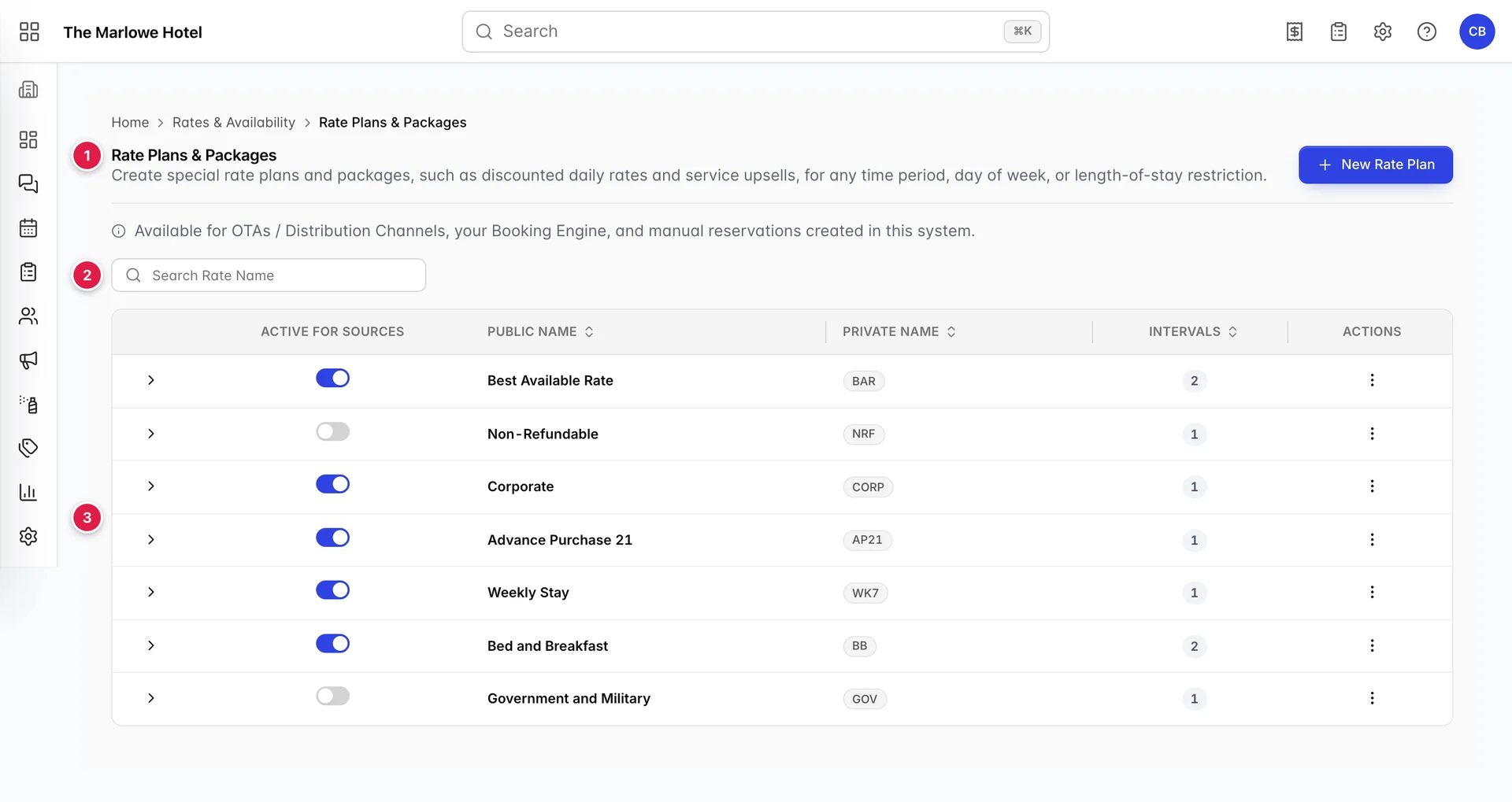
- New Rate Plan. Starts an empty plan. It will not save without both names, at least one source and at least one interval.
- Search Rate Name. Filters the list by name as you type. It matches the public name and the private one.
- The plans. Every plan the property has, active or not. There is no paging and no filter beyond the search box.
Note what is not here: the base rate. The price a room sells at with no plan attached lives on Base Rates, and never appears in this list.
What each column tells you

| Column | What it means |
|---|---|
| Active for Sources | Whether the plan is being offered at all. Off means no source can sell it, including your own booking engine and staff taking bookings by hand. |
| Public Name | What a guest sees. Sortable, and worth sorting when you are looking for a duplicate offer. |
| Private Name | The short internal code, shown as a badge. Staff-facing only. |
| Intervals | How many dated pricing periods the plan holds. This is the number to check when a plan stops selling: one interval means one date range, and outside it the plan quotes nothing. |
| Actions | Edit opens the plan, Delete removes it and its intervals after a confirmation. |
Opening a row
The chevron at the start of a row expands it in place and lists the plan's intervals without leaving the page. It is the quickest way to answer "does this plan cover Christmas" without opening the editor.

The nested table is read only, and it shows the same five things the base rate list shows: name, dates, minimum and maximum stay, and the days of the week the interval prices. The Low Season row above carries chips for Monday to Friday only, which means that plan is not sold for Saturday and Sunday nights in that period at all.
The two names
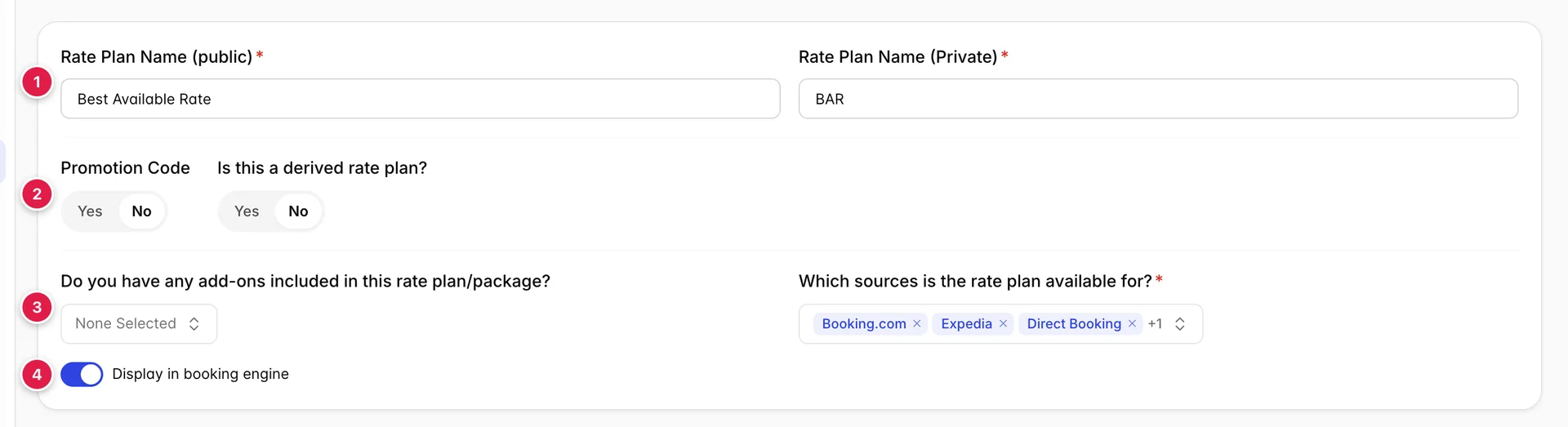
- The names. Public is the one guests read, private is the one your team uses. Both are required.
- Promotion Code and derived pricing. Two switches that change what the plan is: hidden behind a code, and priced off another rate rather than in its own right.
- Add-ons and sources. What comes with the plan, and who is allowed to sell it.
- Display in booking engine. Whether it appears on your own website.
The public name goes out to the world. It appears in your booking engine and travels to the channels you sell through, so Bed and Breakfast is a good public name and BB is not. The private name is the short code your team recognises on a reservation, and it is the one shown as a badge in the list.
Both names can be changed at any time. Changing the public name changes what new guests see; it does not rename the offer on bookings already taken, and channels pick the change up on their own schedule rather than instantly.
Which sources can sell it
Which sources is the rate plan available for? is required, and it is the setting that most often explains a plan that is not selling. A plan ticked for your booking engine only will never reach an OTA, however correct its prices are.
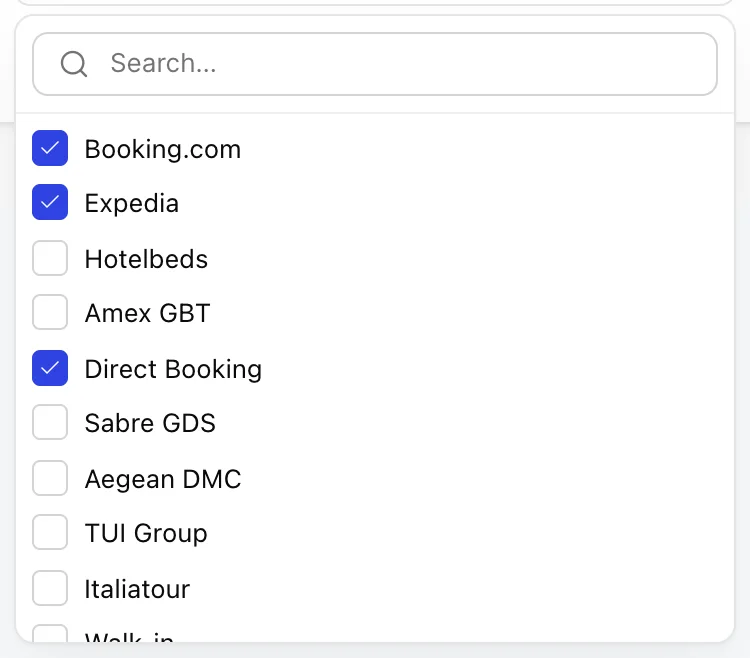
The list is every booking source configured for the property, so it holds direct booking, walk-ins and the phone alongside the channels. Tick the ones allowed to sell this plan. The small cross on a chip in the closed control removes that source, which is easy to do by accident when you meant to open the list, so use the arrows at the end of the control to open it.
Sources themselves, and how they connect to the Channel Manager, are covered in the booking sources articles.
Whether guests see it
Two settings decide whether a plan shows up on your own website, and they work together.
| Setting | Effect on the booking engine |
|---|---|
| Display in booking engine | Off keeps the plan out of your website entirely. It can still be sold through the sources ticked above, and by staff taking a booking by hand. |
| Promotion Code | Set to Yes, a code field appears. The plan is then hidden until a guest types that code. Without a code, every plan shown in the booking engine is visible to everybody, alongside your base rates. |
A negotiated corporate rate is the usual reason to reach for either one. Keep it out of the booking engine and let the corporate booking channel sell it, or leave it in the booking engine behind a code the company's travellers are given.
Switching a plan off
The Active for Sources switch in the list is the master control, and it takes effect the moment you click it. There is no confirmation and no save.
The same setting appears as Is active? in the header of the edit screen. They are one flag seen in two places: switch a plan off in the list and the edit screen opens showing No.
Editing and saving

The editor is one form split across three tabs, not three forms. Moving between tabs keeps your edits, and Save Rate writes all three at once. That is worth knowing in both directions: you can fix a name and a price in one pass, and you can also lose a name change by leaving the screen after editing an interval.
A save that works reports Successfully saved rate! and the values are held: reopen the plan and the names, sources, add-ons, booking engine switch, inclusions, policies and interval prices all come back as you left them. A save that fails says the plan could not be saved and that your changes are still on screen but have not been stored, which means you can correct and retry rather than start again.
Two things will stop a save with Please fill all the mandatory fields.: a missing public or private name, and no source ticked.
Finding a plan
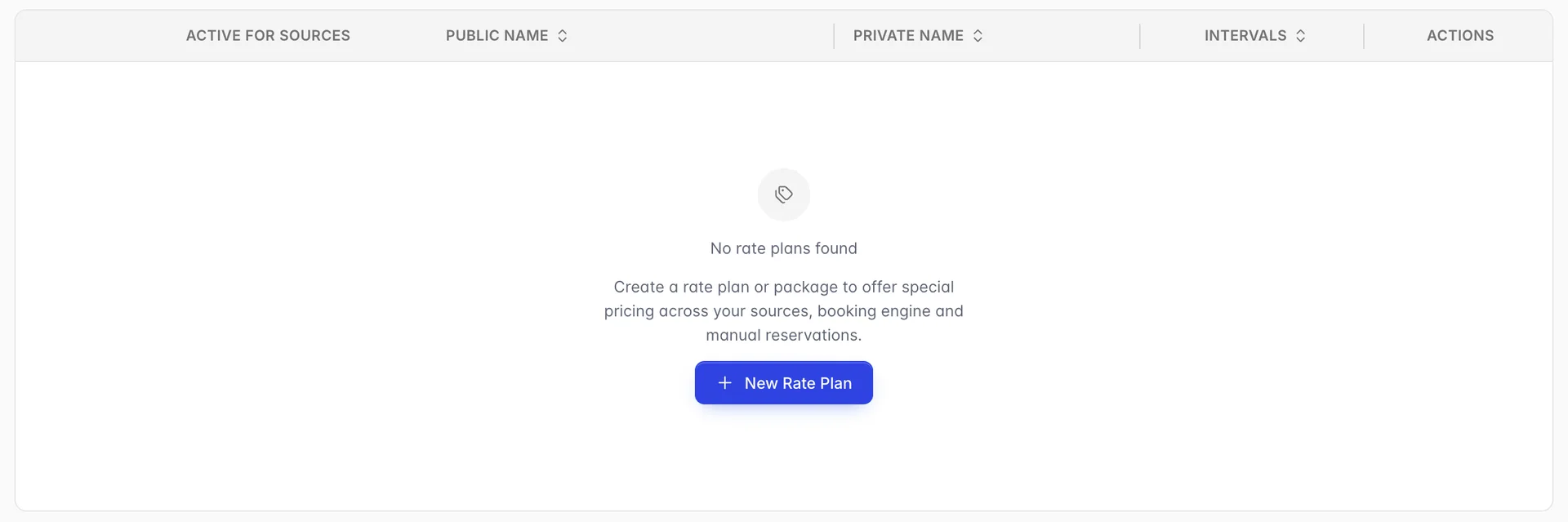
The search matches both names and nothing else. It does not look inside inclusions, policies, interval names or dates, so searching for Spa finds a plan called Spa Break and does not find a plan whose inclusions mention a spa treatment. If an offer is missing from this list entirely, it may be an add-on sold on top of a plan rather than a plan in its own right.
Deleting a plan
Delete asks Are you sure you want to delete this rate plan? and warns that the action cannot be undone. It removes the plan and every interval and price under it. Reservations already made on the plan keep their prices, but the offer itself is gone and cannot be rebuilt from anything on this screen.
For anything you might want back, switch it off instead. An inactive plan costs nothing, keeps its prices, and is one click from selling again.