Five tabs that share a screen and almost nothing else. What connects them is the sentence at the top: these terms constitute a legally binding agreement between you and your guest. That is a fair description of what is on offer, and it is also a warning, because most of what you set here is text a guest will be shown rather than arithmetic the system will perform. Knowing which is which is the whole point of this article.
Standardized or custom, pick one
The first card on the Cancellation Policy tab is a choice between two ways of expressing the same thing, and it changes what the third card on the page is.
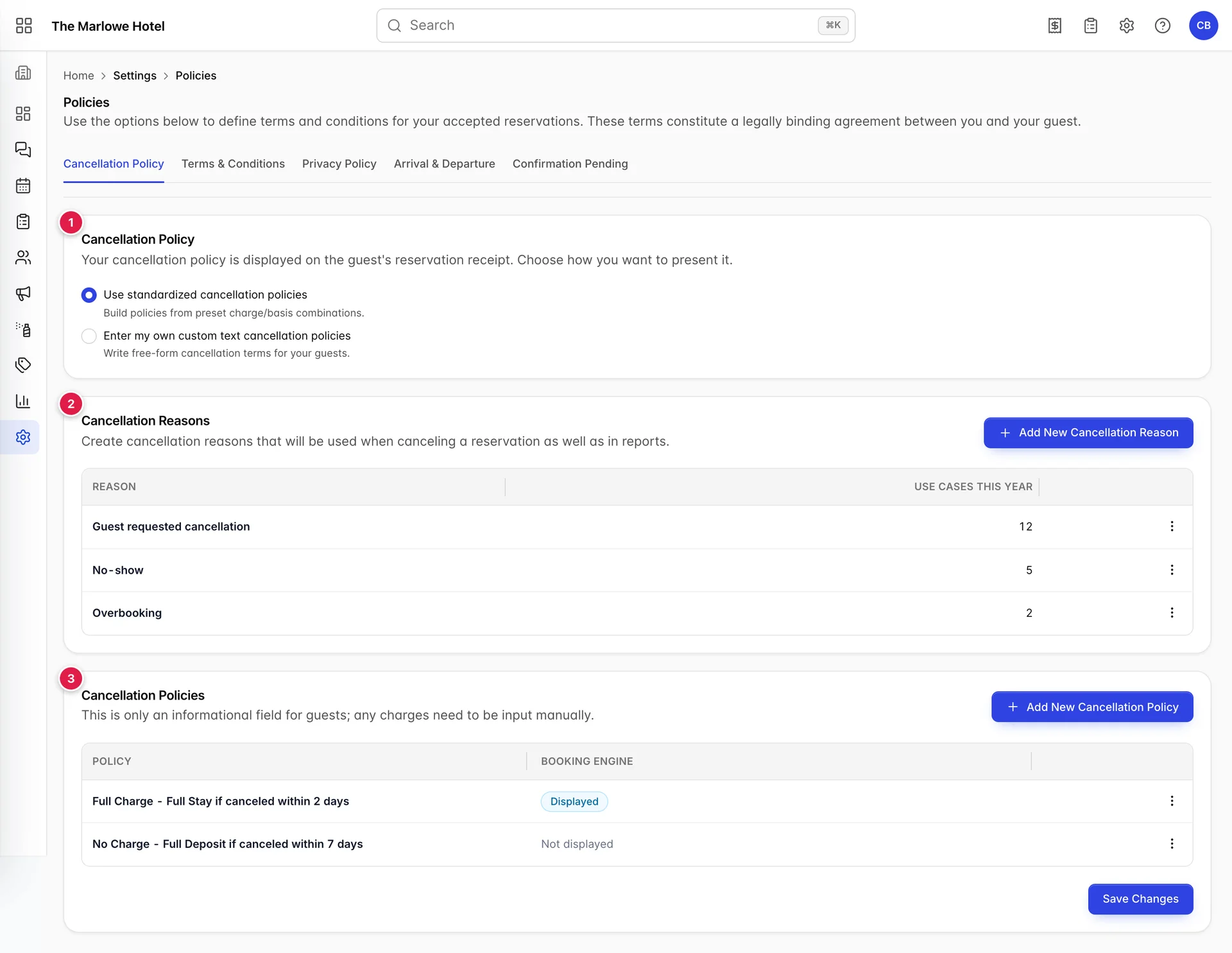
- The mode. Standardized builds policies from preset charge and basis combinations. Custom gives you a rich text editor and nothing else.
- Cancellation reasons. Independent of the mode. These exist whichever way you present your policy.
- The policies themselves. This card is the standardized table. Switch the mode to custom and it is replaced by an editor.
The two modes are mutually exclusive, and switching swaps the third card immediately, before you save. Your structured policies are not deleted when you switch to custom, and your custom text is not deleted when you switch back, but only one of them is what a guest sees. If you have spent an afternoon on structured policies and then flip to custom to try something, flip back before you leave.
Building a cancellation policy
Add New Cancellation Policy opens a drawer with two dropdowns whose labels are close enough to each other to cause trouble.
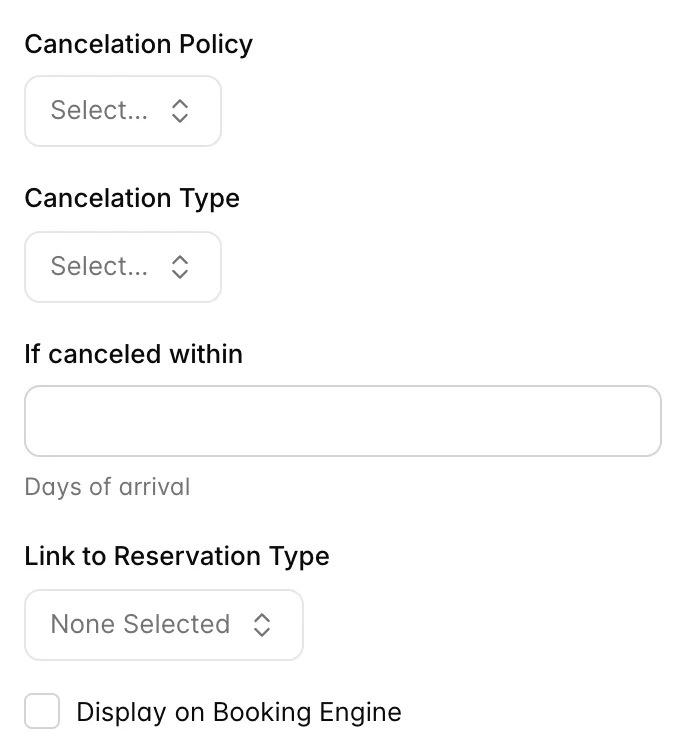
Cancelation Policy is how much you charge: Full Charge, Partial Charge or No Charge. Cancelation Type is what that charge is measured against: Full Deposit, Full Stay, First Night Stay, % of Deposit or % of Full stay. Read them in that order and the policy name the system generates makes sense. In the demo property, Full Charge plus Full Stay plus two days produces Full Charge - Full Stay if canceled within 2 days.
Picking either of the two percentage options adds an Amount field above the days field. That is the percentage. The days field underneath it, labelled If canceled within and hinted Days of arrival, is the window: cancel inside this many days of the arrival date and the policy applies.
Link to Reservation Type narrows a policy to particular reservation types, so a corporate rate can carry different terms from a walk-in. Leave it as None Selected and the policy is not restricted.
Only one policy reaches the booking engine
The Booking Engine column in the policies table has exactly one row reading Displayed, and that is enforced rather than merely conventional. Tick Display on Booking Engine on a new policy and every other policy has the flag cleared as part of the same save.
The drawer does tell you before it happens. Ticking the box when another policy already holds the slot shows a warning banner naming the current one, so you know what you are about to replace. It is worth reading, because the change is silent afterwards: nothing on the list explains why a policy stopped being displayed, only that it is now Not displayed.
Policies that are not displayed still exist and are still valid terms for staff to apply. The flag governs one thing only, which is what an online booker is shown at checkout.
Cancellation reasons feed the report
This is the one card on the tab with a genuine downstream effect, and it is a good one. The reasons you define here are the dropdown a user picks from when cancelling a reservation, and they are also the filter in the Cancellations Overview report. Which means the quality of that report is decided entirely by the list you write here.
Three reasons is a workable number. Thirty is not, because at thirty the person cancelling picks whichever one is nearest the top and the report becomes noise. The demo property runs Guest requested cancellation, No-show and Overbooking, which is enough to separate the cancellations you caused from the ones you did not.
The Use cases this year column is the running count of reservations cancelled under each reason. It is the fastest way to spot a reason nobody uses, and a reason nobody uses should be deleted rather than left to clutter the dropdown.
Terms and conditions, privacy policy
Two tabs, two rich text editors, one save. They share an endpoint, so Save Changes on either tab writes both. That is convenient and occasionally surprising: edit your terms, switch to the privacy tab to check something, save from there, and your terms edit is saved too.
The checkbox on the Terms tab, Require acceptance of terms and conditions, privacy policy, is the only control here that changes behaviour rather than content. Turn it on and the booking engine requires the guest to accept before payment. Turn it off and the text is still available to read but nobody is stopped.
Arrival and departure
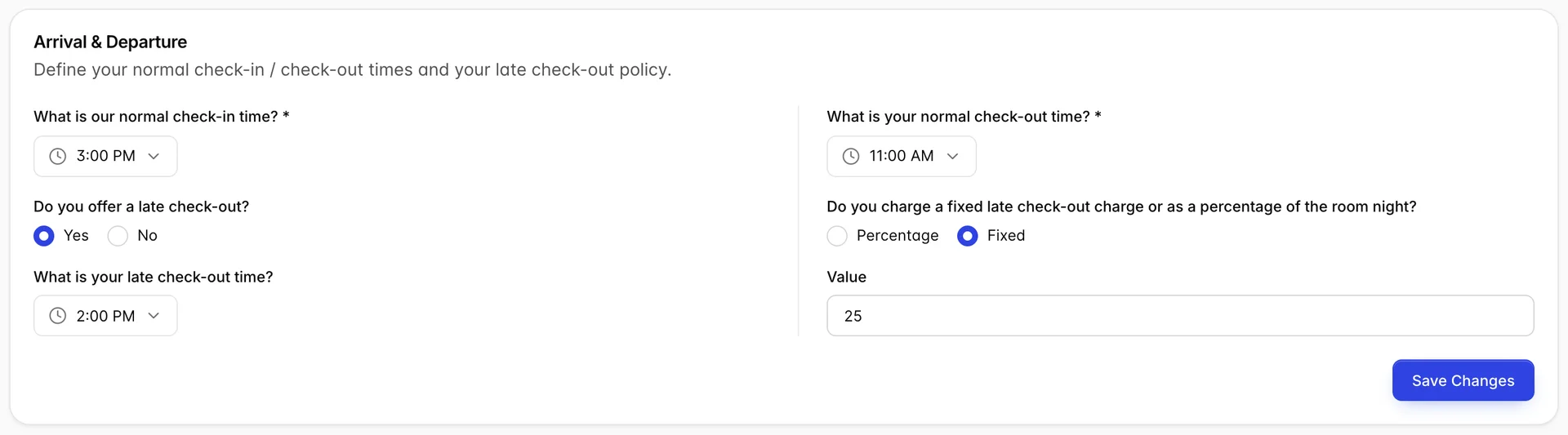
The normal check-in time is shown to guests on the booking engine checkout page, rendered as After: 3:00 PM. That is the field on this card with the clearest reach outside the PMS, and the reason to get it right before you open the booking engine to the public.
The late check-out settings are a record rather than a mechanism. The time, the fixed or percentage choice and the value are all stored on the property, and nothing in Prostay posts the charge when a guest leaves late. A late departure is a charge somebody adds to the folio by hand, the same as a cancellation fee. Fill these in so that everyone on the desk quotes the same number, not because the system will collect it.
Turning Do you offer a late check-out? to No greys out the late check-out time but leaves the charge fields editable, so a stale value can sit there unnoticed. Clear it if you stop offering the service.
Confirmation pending

These two decide the status a direct reservation is born with, and what moves it on. Set the default to Confirmation pending and a booking taken on the phone or through the booking engine is held rather than confirmed. Set it to Confirmed and it counts immediately.
The pairing that most properties want is the one in the screenshot: default to pending, and switch Auto change status to Confirmed when a payment is added on. A booking then confirms itself the moment a deposit lands, and anything unpaid stays visibly unconfirmed until somebody chases it. Turn the switch off and every confirmation becomes a manual step, which is only worth it if you have a genuine approval process.
Both settings apply to direct reservations. Bookings arriving through the channel manager carry the status the channel sent, so this card does not govern them.
Common pitfalls
- Reading the two dropdowns in the wrong order. Cancelation Policy is the charge and Cancelation Type is the basis, despite the labels suggesting the reverse. Check the generated policy name in the table afterwards: it reads charge first, then basis, then the window.
- Expecting a cancellation fee to appear on the folio. It will not. Post it yourself as a charge, and if you do it often, set up an item or fee for it so the wording and the accounting stay consistent.
- Assuming the second displayed policy is also displayed. Only one can be. If a policy you thought was live now reads Not displayed, somebody added or edited another policy with the box ticked.
- Letting the reasons list grow. Every reason you add dilutes the Cancellations Overview report. Delete the ones with a zero in the Use cases this year column.
- Applying your own policy to a channel booking. A reservation that came from Booking.com, Expedia, Airbnb or any other connected channel is governed by the policy the guest agreed to on that channel, not by anything on this screen. Cancelling such a booking in Prostay does not cancel it at the channel: the guest keeps their confirmation, the commission is not stopped, and the room you have just freed can be sold to somebody else while the original guest is still planning to arrive. Cancel it in the channel's own extranet and let the cancellation reach Prostay by itself.
- Saving from the wrong tab. Terms and privacy share a save. Arrival and departure, confirmation pending and cancellation each have their own. Moving between tabs does not save anything, so a change you made two tabs ago is gone.