An interval is one dated price for one accommodation type, and this is the form that creates it. Adding and editing use the same form, so everything below applies to both unless it says otherwise. If you are not yet sure what an interval is or why there is no seasons screen, read how base rates and seasons work first.
Choose the accommodation type first

The picker at the top of the form decides which accommodation type the interval is created against, and it opens on whichever type is first in your list rather than on the one you were looking at. Set it before you type anything: changing it after you have filled the prices in clears the extra adult and child rows, because those are worked out from the new type's occupancy.
The five required fields

- Interval Name. For your team only. Guests never see it, and the system never matches on it. Name it after the period it covers so the list stays readable.
- Start Date. The first night the price applies to.
- End Date. The last night it applies to. Both ends are included.
- Min Los. The shortest stay that may begin inside this range.
- Max Los. The longest stay that may begin inside this range.
Dates you are allowed to pick
Both date pickers grey out every day already covered by another interval on the same accommodation type, along with the day immediately before each one. You cannot start or end an interval inside an existing one, so the usual overlap is impossible by construction.
It is not a complete guard. A range that starts before an existing interval and ends after it has legal dates at both ends and covers the middle twice, and nothing warns you. When two intervals do cover a night, the price comes from whichever was created first.
Minimum and maximum stay
Min Los and Max Los are counted in nights and apply to stays that begin in the interval, not to every night of a stay that passes through it. A minimum of 2 on a summer interval turns away a guest asking for one Saturday night in July, and does not disturb a guest who arrived in June and is still in the room.
These two values are the defaults the availability matrix starts from. Every date in the interval shows them in its Min LOS and Max LOS rows until somebody types a different number into a particular date, which overrides the interval for that date only. See the availability matrix.
Closing arrivals and departures

| Toggle | What it does to a booking |
|---|---|
| Closed To Arrival | Set to Yes and no stay may begin on any date in this interval. Guests already staying are unaffected, and a stay that starts before the interval and runs into it is unaffected too. |
| Closed to Departure | Set to Yes and no stay may end on any date in this interval. This is the one that keeps a Saturday-to-Saturday pattern intact, by refusing mid-week checkouts. |
| Do you charge for additional adults and/or children? | Set to Yes and a per person pricing card appears below. Set to No and every guest the room can hold is included in the nightly price. |
A price for each day of the week

- Input Price and Apply To All. A shortcut. Type one figure, press the button, and all seven boxes take that value. It is a one-off copy: changing this box afterwards does nothing until you press the button again.
- The seven day boxes. The actual prices, in your property's currency. This is what a guest pays per night before any rate plan, tax or extra person charge.
The usual way to work is to press Apply To All with the weekday price and then raise Friday and Saturday by hand, which is exactly what the interval above holds: 480 from Sunday to Thursday and 500 at the weekend.
Properties that quote in more than one currency get a Multi-Currency Prices section under this grid, collapsed by default. That is covered in multi-currency base pricing.
Charging for extra guests
Answer Yes to the third toggle and a PER PERSON PRICING card appears. It holds one row per guest the base rate does not already cover, and it works those rows out from the accommodation type rather than asking you.

The rows come from the type's maximum occupancy minus the number of guests included in the base rate, both set on the accommodation type in general settings. The Junior Suite above holds three adults and includes two, so there is one chargeable adult; it holds two children and includes none, so there are two chargeable children. A Standard Double that includes both its adults shows no adult row at all, and that is correct rather than broken.
Each row has its own seven day prices, and the Save button beside a row is the same shortcut as Apply To All above: it copies the figure in that row's box into all seven days of that row. It does not save the interval. The only thing that does that is the Save button at the bottom of the page.
Saving, and why Save is greyed out
Save stays disabled until the interval has a name, a start date, an end date, a minimum stay, a maximum stay, and a non-zero price in every one of the seven day boxes. The last condition is the one that catches people, because a form that looks complete can still have a zero sitting in Sunday.
A save confirms and returns you to the Base Rates list after a moment. Check that the new interval is in that list, with the dates you set, before you rely on it: the list is what the availability matrix and the booking engine read.
One setting can keep this price away from guests without touching the interval. Hide the base rate on the booking engine, in booking engine settings, drops base rates out of the prices the engine offers, so online guests choose between your rate plans only. The interval still governs staff bookings and still feeds the plans built on top of it, which is why a base rate that looks unused online is usually still the number doing the work.
Editing an interval later
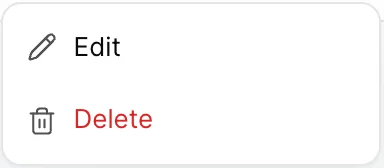
Open the menu at the end of a row and choose Edit. The form is the one described above with two differences: the accommodation type is fixed, and the interval's own dates are selectable again so you can move its start or end.
Changes take effect from the moment you save. Bookings already taken keep the price they were made at, so raising a rate does not reprice existing reservations, and it does not repair one that was taken at the wrong price either. That correction belongs on the booking itself.
Copying a set of intervals to another type
Copy Interval at the top of the Base Rates list copies every interval from another accommodation type into the one you are currently looking at, dates, stay rules, day prices and all.
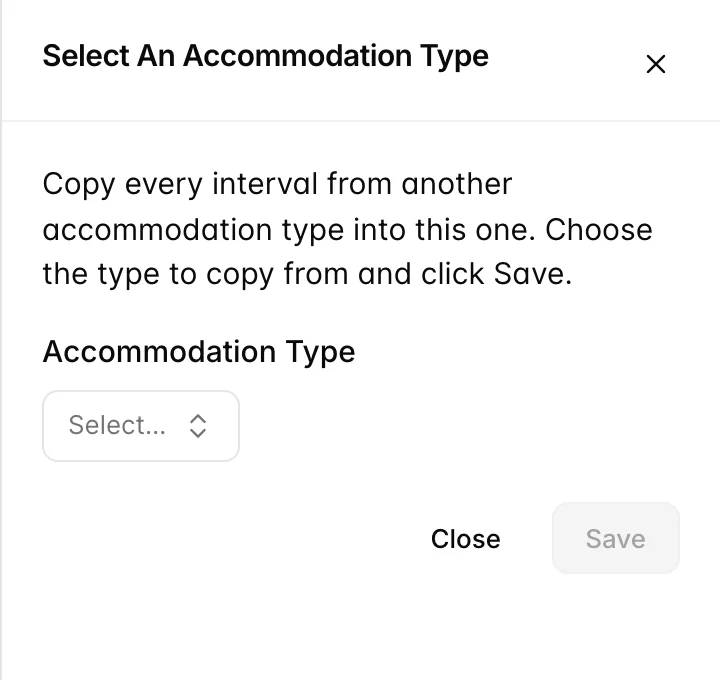
- On the Base Rates list, set the accommodation type filter to the type you want to copy into.
- Press Copy Interval.
- Choose the type you want to copy from.
- Press Save, then confirm.
The prices come across unchanged, so a copy is a starting point rather than a finished job. Copy a Standard Double's seasons onto a Sea View Suite and the suite is priced like a standard double until you go through the intervals and raise them.
Deleting an interval
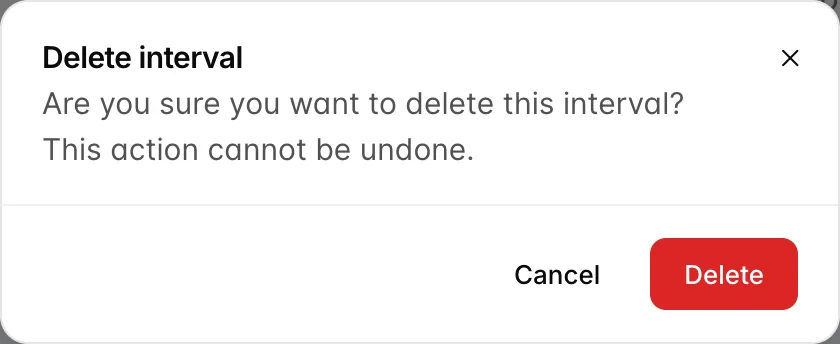
Deleting removes the price for those dates immediately. The nights it covered do not fall back to another rate, because there is nothing to fall back to: they simply have no base rate, and the availability matrix starts showing $0 for them while the rooms stay bookable. If the aim is to change a season rather than remove one, edit it instead.