The calendar shows you the next few weeks. The reservation list shows you everything. It is the screen you use when a guest rings up quoting a booking number, when you need every arrival for a coach party in October, and when the owner wants to know how many bookings came through the website this quarter. One table, nine columns, six filters.
The screen
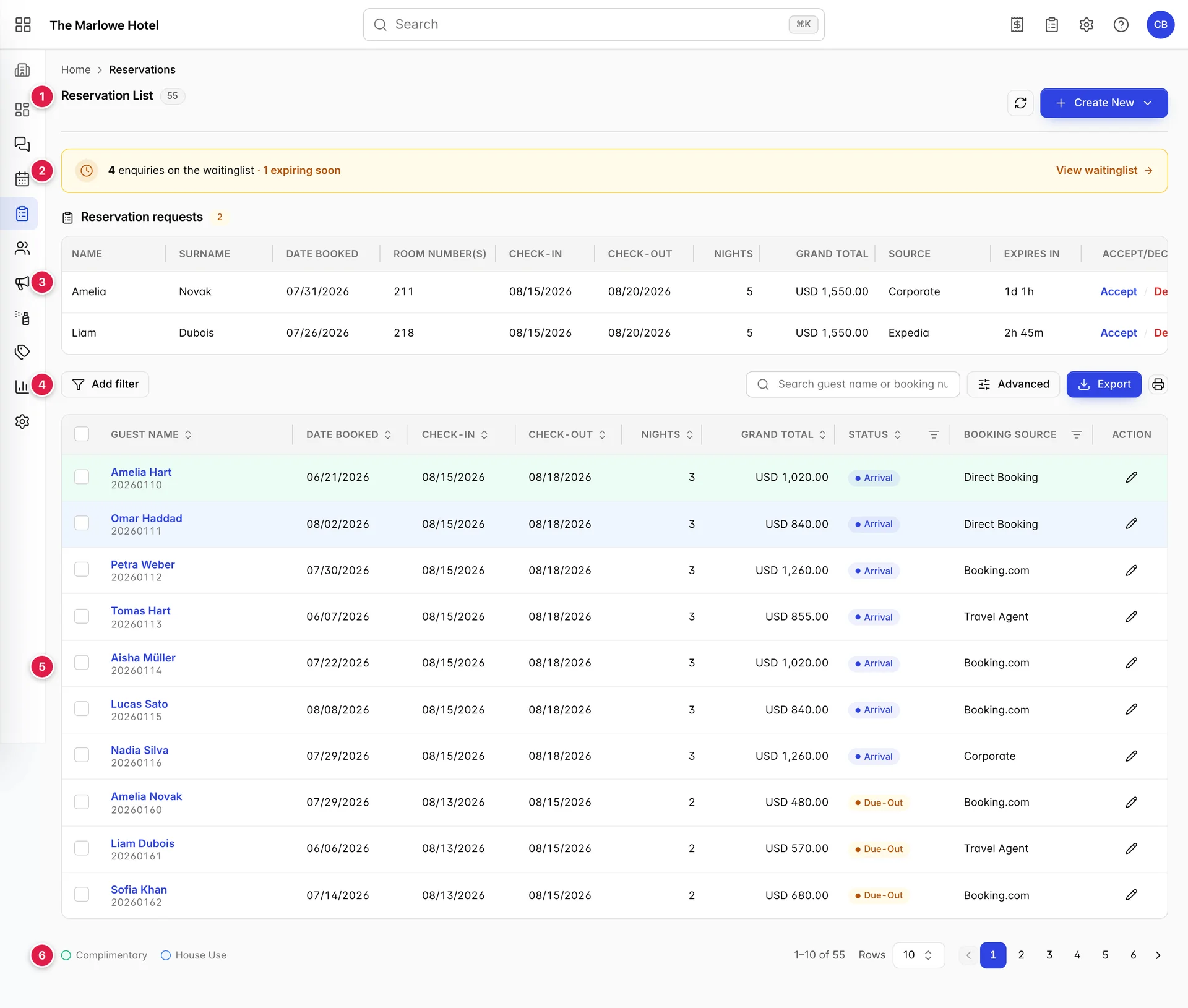
- The heading. The grey number beside Reservation List is how many bookings match what you have filtered to, not how many the property has ever taken. Set a filter and it drops.
- The waitlist banner. Only appears when somebody is waiting. It is a shortcut to the waitlist, covered in Unallocated bookings and the waitlist.
- Reservation requests. Bookings that need a yes or a no from you. Also only appears when there are some.
- The filter row. Filters on the left, search and export on the right.
- The table. Ten rows at a time by default.
- The foot. The colour key, the row count and the pager.
The columns

| Column | What it holds |
|---|---|
| Guest Name | The lead guest, with the booking number in grey underneath. A booking with four rooms and four names shows only the person who made it. This is why the column is narrower than you would expect and still holds two things. |
| Date Booked | When the reservation was created, which is almost never the same as when the guest arrives. This is the column that answers "how much did we sell last week". |
| Check-in and Check-out | Arrival and departure. Both follow the date format set for your property, so a colleague in another country may see the same booking written the other way round. |
| Nights | Calculated from the two dates rather than stored, and never shown as zero: a same-day booking counts as one night. |
| Grand Total | What the whole stay comes to, in your property's currency, including every room on the booking. It is not what the guest still owes; for that you need to open the reservation. |
| Status | Where the booking is in its life, as a coloured badge. The full list is in the next section. |
| Booking Source | Which channel it came through, matched against the sources set up under booking sources. A dash means the booking was created without one. |
| Action | A pencil that opens the reservation. Clicking anywhere else on the row does the same thing. |
What each status means
Eleven statuses, and the colour is doing as much work as the word. Green is fine, amber wants attention today, red is a problem, grey is finished with.
| Badge | Colour | Meaning |
|---|---|---|
| Reserved | Blue | Taken, but not yet confirmed to the guest. |
| Confirmed | Green | Confirmed and in the future. The ordinary resting state of a booking. |
| Tentative | Amber | A hold with an expiry date. It occupies the room until it lapses. |
| Arrival | Blue | Due in today and not checked in yet. |
| Checked-In | Green | In the building. |
| Stayover | Blue | In the building and not leaving today. |
| Due-Out | Amber | Leaving today and not checked out yet. Housekeeping is waiting on this one. |
| Checked-Out | Grey | Gone. The stay is history. |
| Canceled | Red | Cancelled. The booking stays in the list forever so the cancellation itself can be reported on. |
| No-Show | Red | Never arrived. Kept separate from cancelled because a no-show usually still gets charged. |
| Skipped | Grey | Left without going through check-out. Rare, and worth chasing when it happens. |
Green and blue rows

Two kinds of booking get a tinted row, and both mean money is not changing hands. Complimentary is green: a real guest in a real room who is not being charged, such as a journalist or a compensated guest. House Use is blue: the room is being used by the property itself, for a staff member, a contractor or an office.
The distinction matters at the end of the month. Both occupy a room and both count towards occupancy, but only house use should be taken out of the rooms available for sale when you are working out average rate. Creating either requires its own permission, which is why the two entries at the bottom of Create New are missing for most staff.
Finding one booking

- Search. Matches the lead guest's name or the booking number. Partial words are fine: typing hart finds Amelia Hart and Tomas Hart.
- Advanced. Opens all six filters in one panel.
- Export. Downloads the bookings you have ticked.
- Print. The same thing, straight to the printer.
Filtering
Search finds a booking you already know about. Filters answer questions about groups of bookings. There are six, and they combine: set two and you get only the bookings that match both.
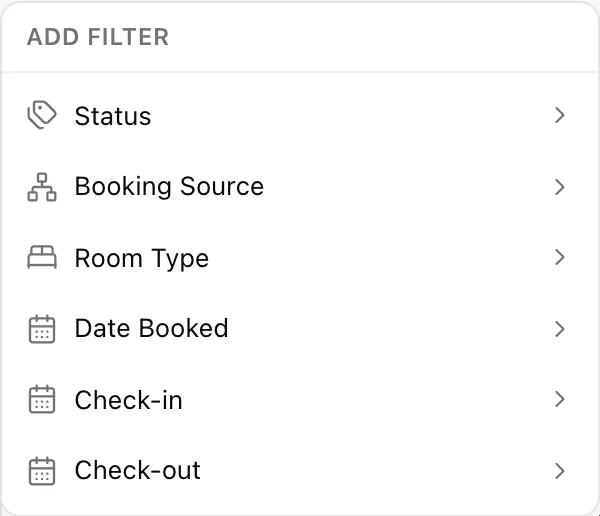
| Filter | What it does | Useful for |
|---|---|---|
| Status | Tick any number of the eleven statuses. | Every cancellation this month. Every no-show. Everything still tentative. |
| Booking Source | Tick one or more channels. | Checking what one OTA actually delivered before you argue about commission. |
| Room Type | Tick one or more accommodation types. | Seeing whether the suites are selling or only the doubles. |
| Date Booked | A range, from and to. Filters on when the booking was made. | "How much did we sell in the first week of August?" |
| Check-in | A single date. Bookings arriving that day. | Building an arrivals list for a specific date. |
| Check-out | A single date. Bookings leaving that day. | Working out how many rooms housekeeping gets back. |
There are three ways into the same six filters, and which you use is purely a matter of taste. Add filter on the left of the bar picks them one at a time and leaves a chip behind for each; the chip is editable, and Clear all beside them removes the lot.
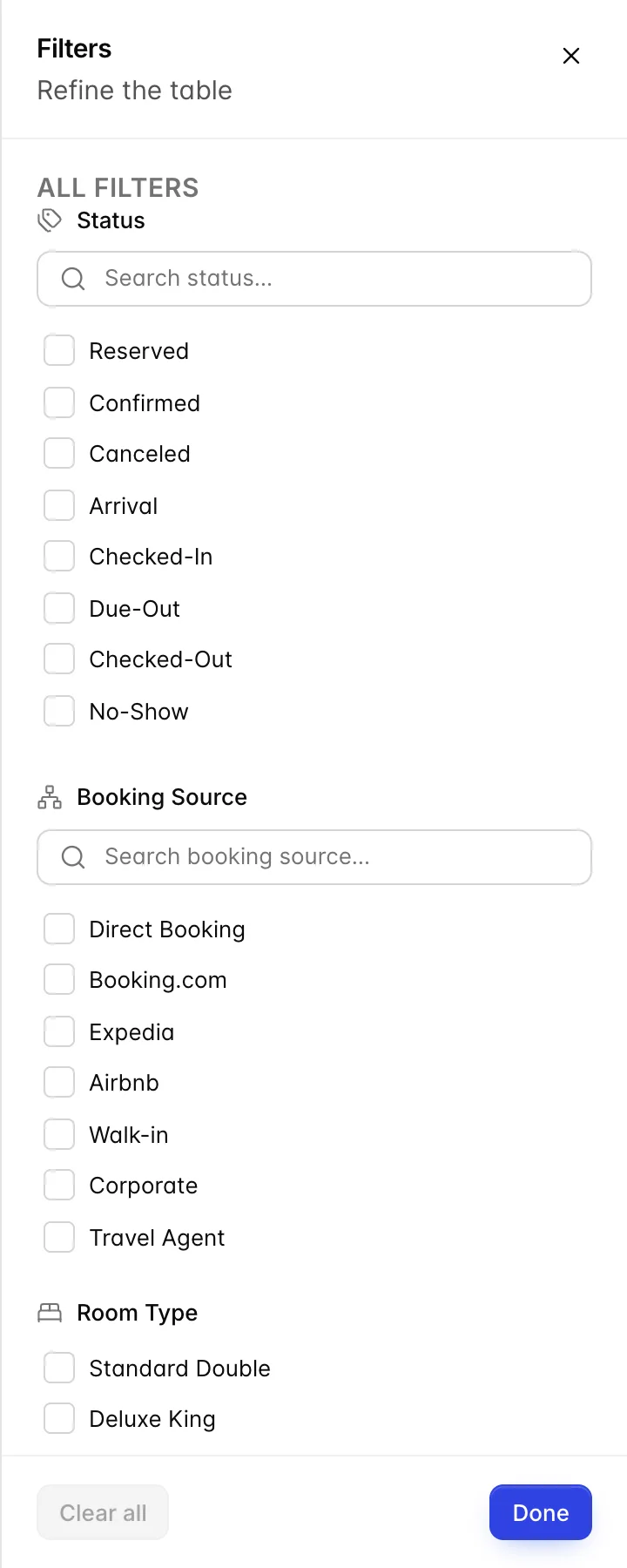
Advanced opens all six as a panel, which is quicker when you are setting three or four at once. The number on the button tells you how many are currently applied.
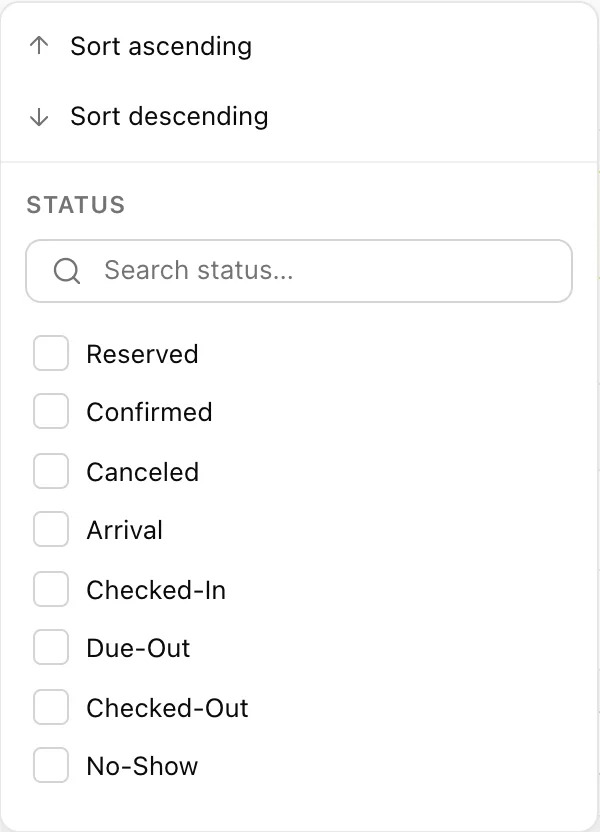
The third way is the small funnel in the Status and Booking Source column headers, which combines sorting and filtering for that one column. All three routes drive the same filter, so a status set from the column header shows up as a chip on the bar as well.
Sorting and paging

Seven of the nine columns sort; click the header once for ascending and again for descending. Rows at the foot switches between ten, fifty and a hundred bookings per page.
Reservation requests

A block above the main table appears when there are bookings waiting on a decision. These are requests rather than reservations: the room is held, the guest has been told nothing, and it is on you to say yes or no.
- Expires in. A live countdown. When it runs out the request lapses and the room goes back on sale, so this is the column to scan.
- Accept / Decline. Accept turns the request into a confirmed booking and it joins the main table. Decline rejects it and releases the room. Both ask you to confirm first.
Creating something new
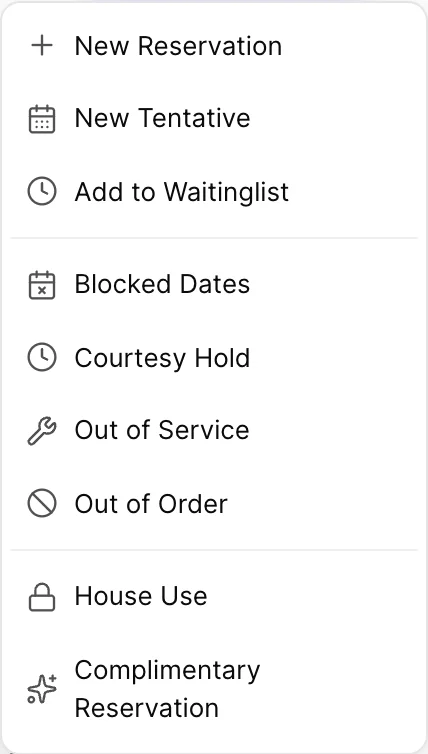
The blue button at the top right does rather more than create reservations. The menu is in three groups, and the grouping is the explanation.
| Group | Entries | What they have in common |
|---|---|---|
| Bookings | New Reservation, New Tentative, Add to Waitinglist | A guest is involved. The first two open the booking form; the third records an enquiry you cannot satisfy. |
| Blocks and holds | Blocked Dates, Courtesy Hold, Out of Service, Out of Order | A room is taken out of circulation without a booking. Covered in Blocked dates, holds, and rooms out of service. |
| Non-revenue | House Use, Complimentary Reservation | The tinted rows from earlier. Both need a permission most staff do not have, so these two entries are often absent. |
Exporting and printing
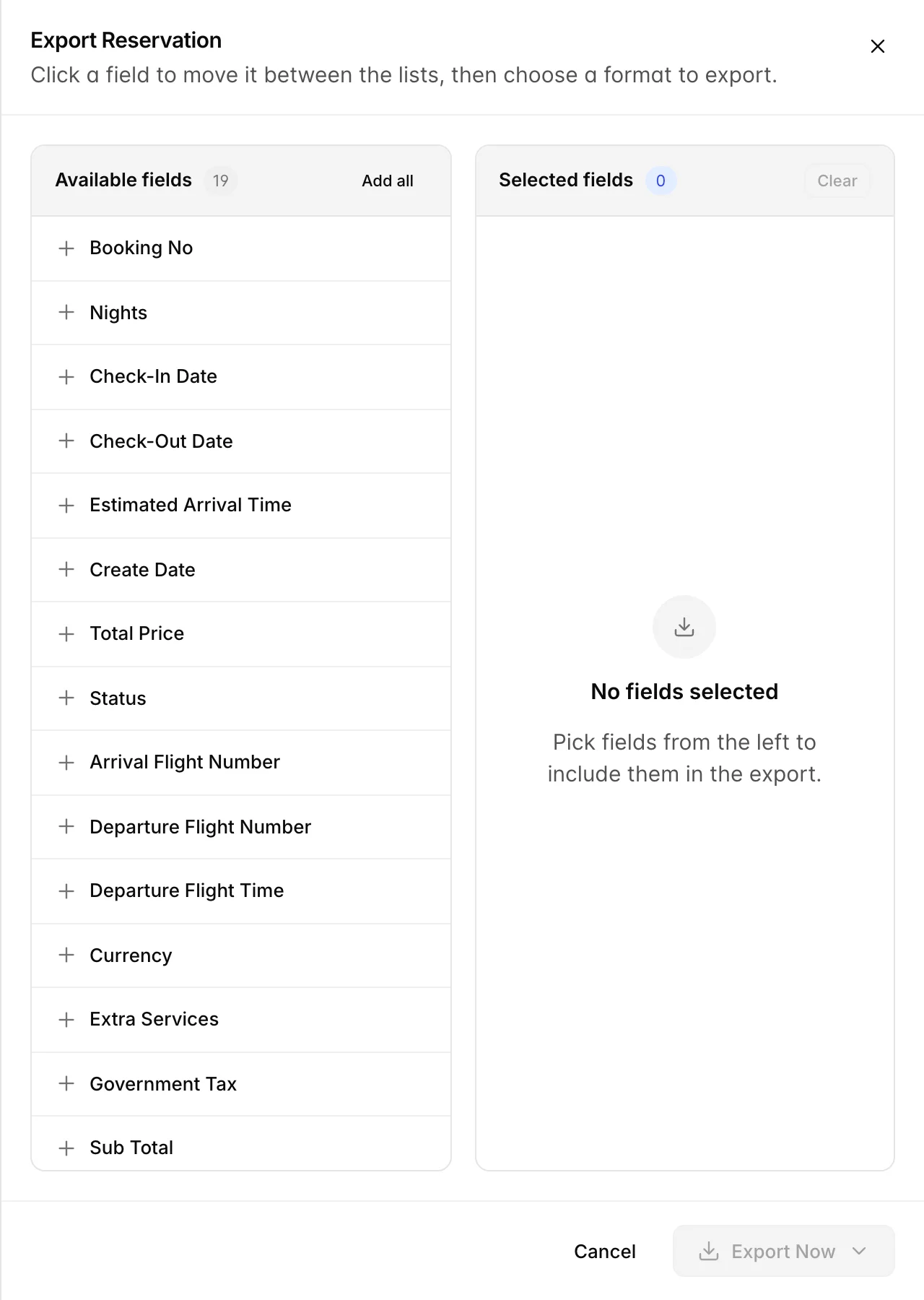
- Tick the bookings you want. Use the checkbox in each row, or the one in the header to take the whole page. Nothing ticked means nothing to export, and Prostay will say so rather than exporting everything.
- Press Export. The panel opens with every available field on the left and an empty list on the right.
- Click fields to move them across. Left to right adds, right to left removes, and Add all takes the lot. The order you add them is the column order in the file.
- Press Export Now and choose a format. PDF for something to hand somebody, Excel for something to work with.
The printer icon beside Export is the same operation aimed at a printer instead of a download, and it needs rows ticked in exactly the same way.
Things that catch people out
The count beside the title follows your filters
It is a count of matches, not a count of bookings. If somebody quotes you a total from this screen, ask what they had filtered.
Grand Total is not the balance
The money column is what the stay costs in full. A guest who paid a deposit six months ago still shows the whole amount here. What they actually owe is on the reservation itself.
A cancelled booking never leaves the list
Cancellations and no-shows stay forever, which is deliberate: you cannot report on a cancellation rate if the cancellations have been deleted. If your list looks fuller than your hotel, filter the two red statuses out.
The list and the calendar disagree about what is interesting
The calendar only draws bookings that have a room. A booking still waiting for a room number appears in this list like any other and is nowhere on the grid. That is not a fault in either screen, but it does mean the list is the more complete of the two.