A guest profile is what Prostay remembers about one person across every stay they have ever had with you: how to reach them, where they live, what document they were registered on, what they have spent, and what your team has written down. It is the record a returning guest arrives with, which is why the state it is in decides how much of their history the desk can see at seven on a Friday evening.
The page
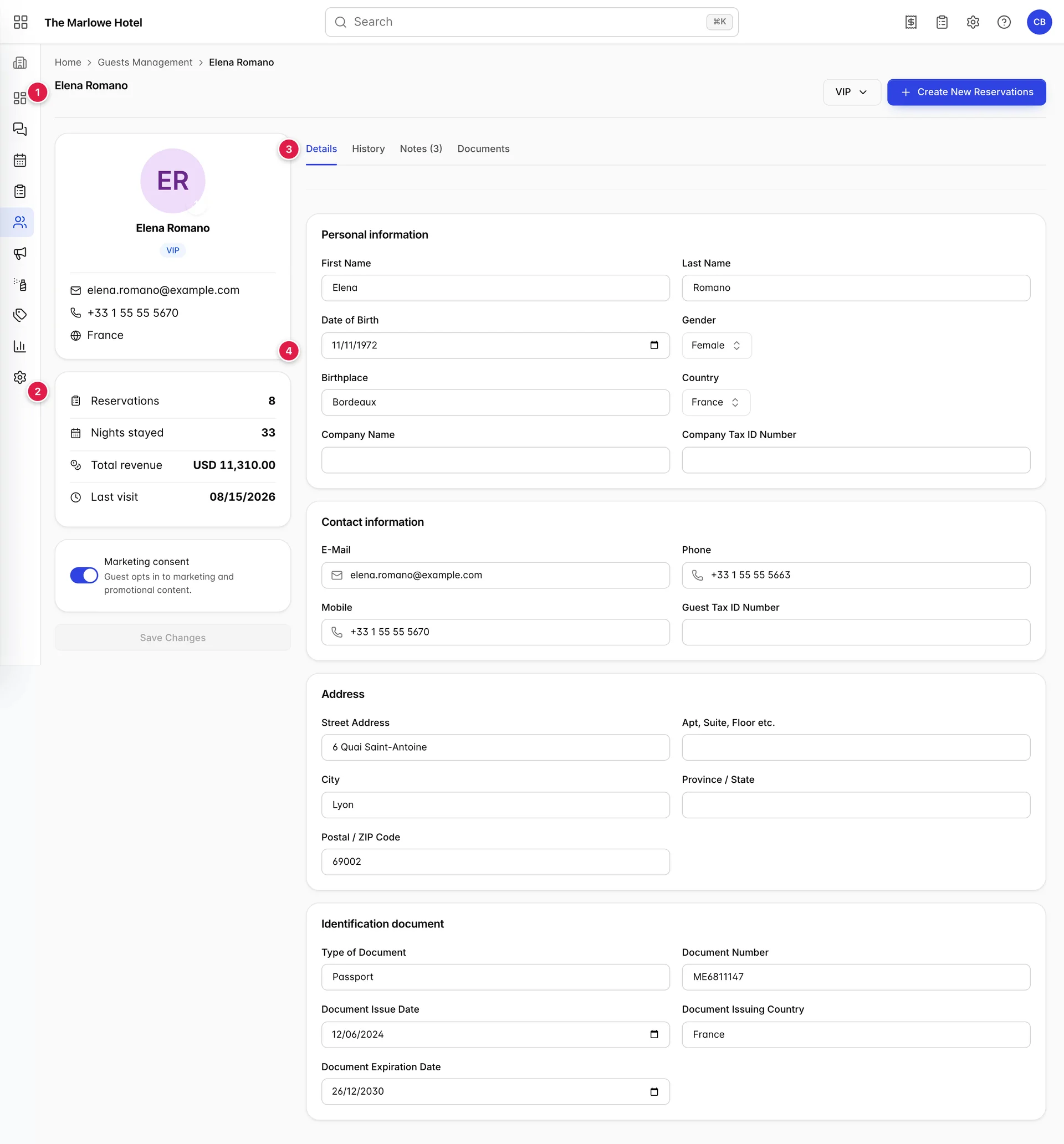
- The header. Their name, the guest status button, and Create New Reservations, which starts a booking with this guest already attached to it.
- The rail. Who they are and what they are worth: contact details, four lifetime figures and the marketing consent switch, with Save Changes underneath.
- The tabs. Details, History, Notes with a count on it, and Documents.
- The panel. Opens on Details, which is a form in four cards.
The contact rows in the rail are the short version of the Contact information card: the email address as a live mail link, the mobile number if there is one and the landline if there is not, and the country. Everything in the rail except the tiles is editable somewhere on the page.
The four tiles
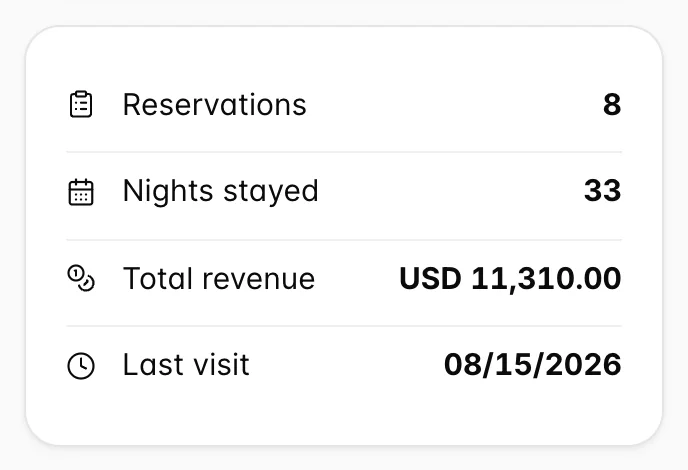
| Tile | What it counts |
|---|---|
| Reservations | Every stay this guest has that was not cancelled, for as long as they have been coming. This is the same count that decides whether the directory marks them a repeat guest. |
| Nights stayed | The nights on those same stays added together. A cancelled week does not appear here either. |
| Total revenue | What those stays came to in full, in your property's currency. It is what was charged for the stays, not what has been paid, and not their bar spend unless that was posted to the room. |
| Last visit | The arrival date of the most recent stay that has already started. A booking for next month does not move it, so this tile answers "when did we last see them" rather than "when are they next in". |
Guest status
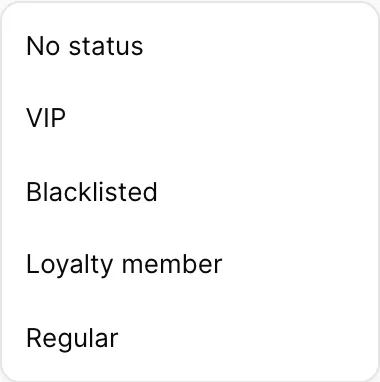
The button at the top right carries whatever status this guest has, or Select Guest Status when they have none. The list underneath is the set of active statuses your property has defined in general settings, so what you see here depends on how your property has set it up.
A status is a judgement somebody made, not something Prostay works out. It sticks until a person changes it, it shows as a badge beside the guest's name in the directory, and it is one of the filters there, which is what makes it useful: VIP is only worth setting if somebody is going to pull the VIP list before a busy weekend.
The Details tab
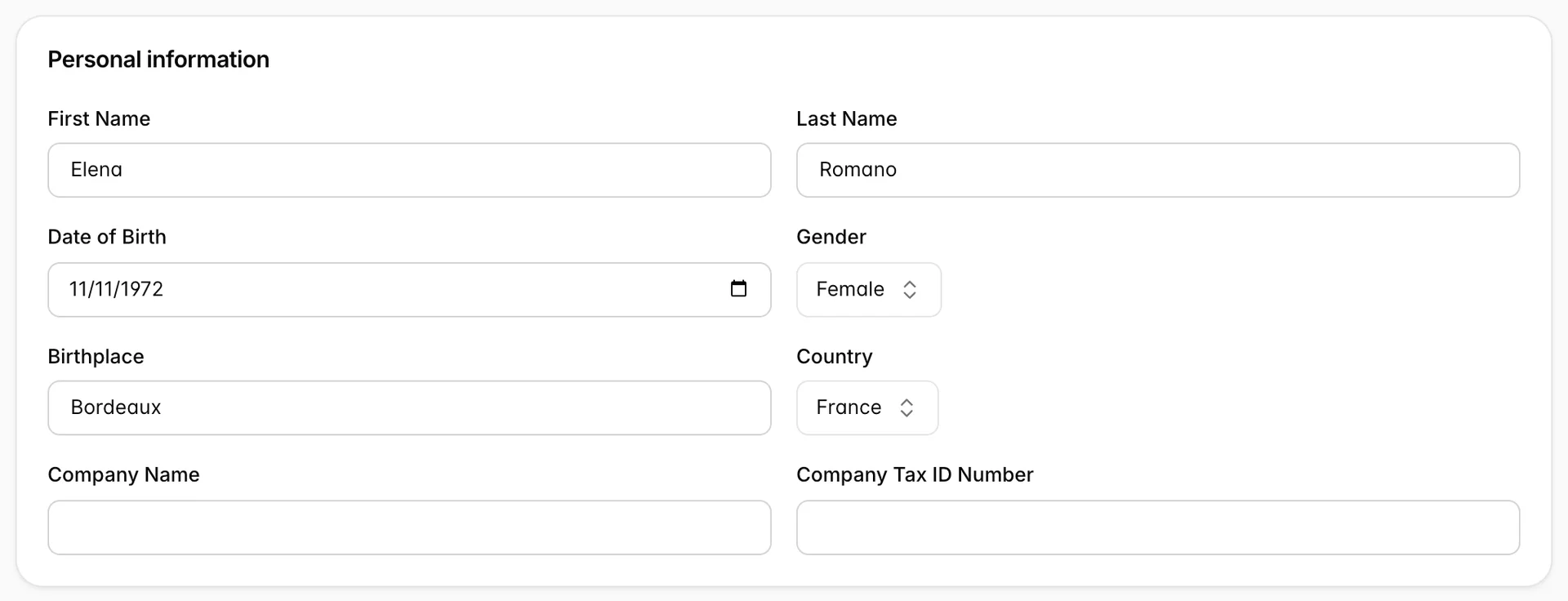
Four cards, and every field on all four is editable in place. Nothing is written until you press Save Changes in the rail, which stays greyed out until you have actually changed something.
| Card | Fields | What they feed |
|---|---|---|
| Personal information | First Name, Last Name, Date of Birth, Gender, Birthplace, Country, Company Name, Company Tax ID Number | The name is what appears on bookings, invoices and the directory. Country is nationality as well as country, and it is what the Country filter in the directory matches. The two company fields are for a guest whose employer is being invoiced. |
| Contact information | E-Mail, Phone, Mobile, Guest Tax ID Number | The address is where confirmations go, and it is the field Prostay uses to recognise a returning guest. The two number fields accept digits and a leading plus and nothing else, so spaces and brackets are refused as you type. |
| Address | Street Address, Apt, Suite, Floor etc., City, Province / State, Postal / ZIP Code | The billing address on an invoice. Worth filling in for anybody travelling on business, because it is the thing their finance department will reject the invoice over. |
| Identification document | Type of Document, Document Number, Document Issue Date, Document Issuing Country, Document Expiration Date | The document the guest was registered on, typed out. In most jurisdictions this is the part of the record a police or tourism return is filed from. |
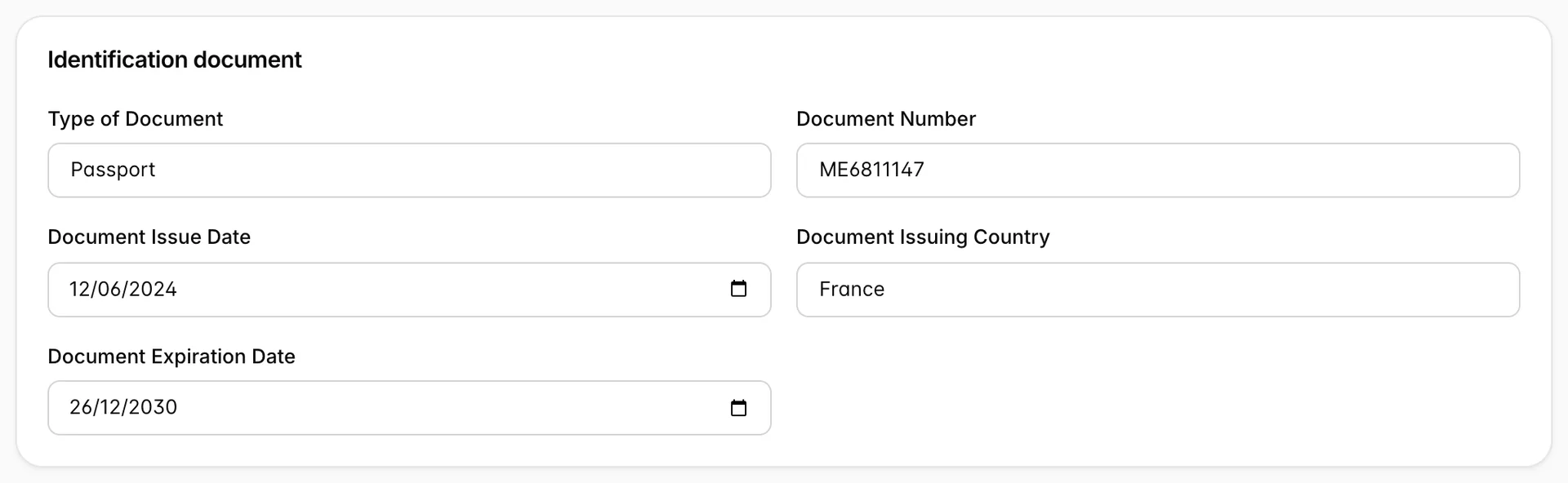
These five fields are text and dates. The scan or photograph of the document is a separate thing and lives on the Documents tab. A profile can easily have one without the other, and the passport number being present here is no guarantee that anybody kept a copy.
Marketing consent
The switch under the tiles records whether this guest has opted in to marketing and promotional content. It is a record of their answer, not a setting you choose on their behalf, and it is the field that decides whether they can lawfully be included in a mailing.
It behaves like the rest of the form rather than like the status menu: flipping it turns on Save Changes, and the change is not written until you press it. Leave the page without saving and the switch goes back to where it was.
The History tab
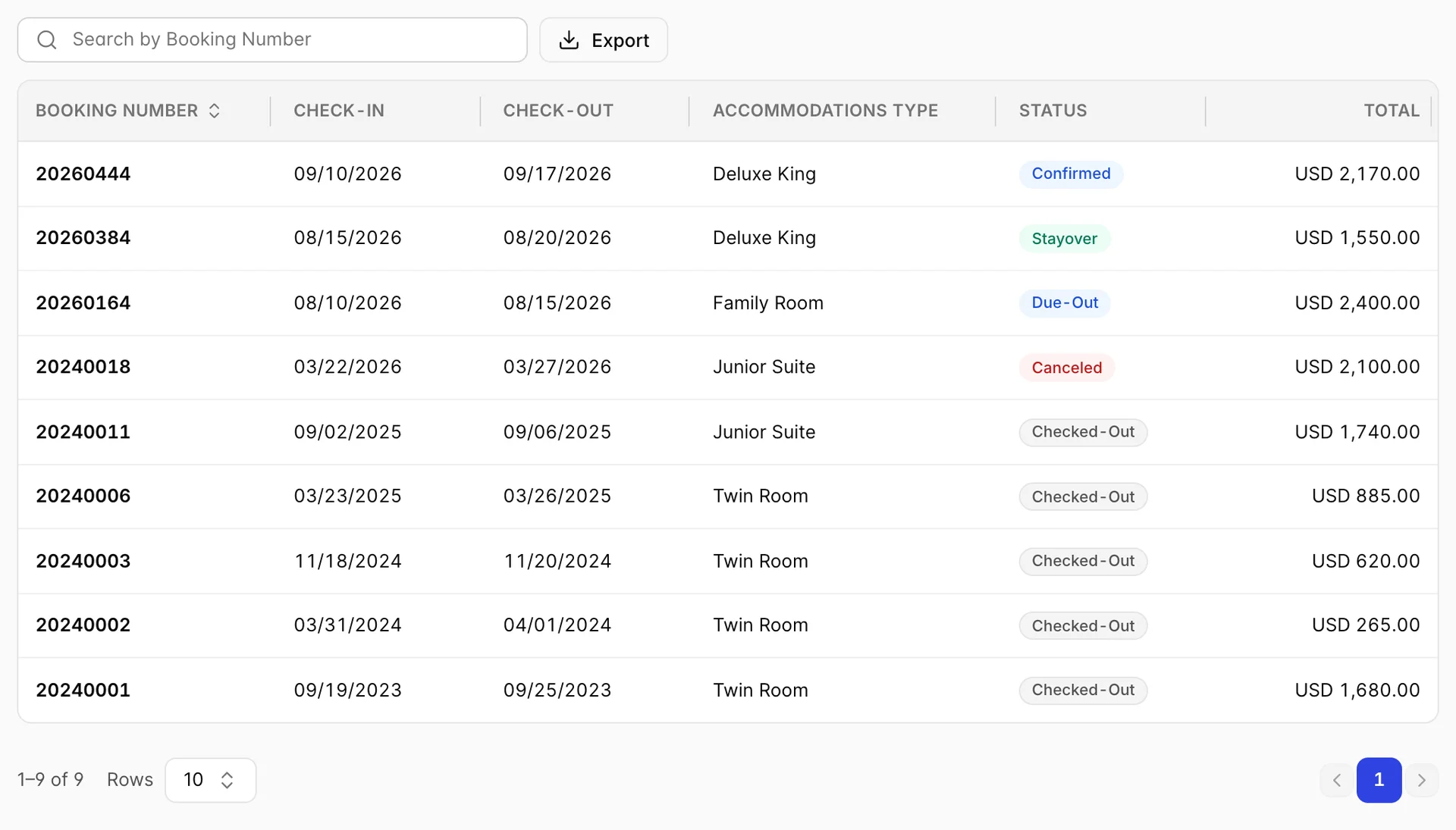
Every booking this person is on, newest arrival first, with the booking number, the dates, the accommodation type, the status and what the stay came to. Future bookings are in the list as well as past ones, which is why the column is a status badge rather than a tick.
The search box matches booking numbers only, not dates or room types. Rows do not open: to work on one of these bookings, take the booking number and open it from the reservation list, which is also where everything you can do to a booking is documented.
Export writes this guest's history to PDF or Excel through the same field picker used elsewhere in Prostay. It exports the whole history rather than the page you are looking at, and it respects the search box, so a booking number typed in the search narrows the file as well as the table.
The Notes tab
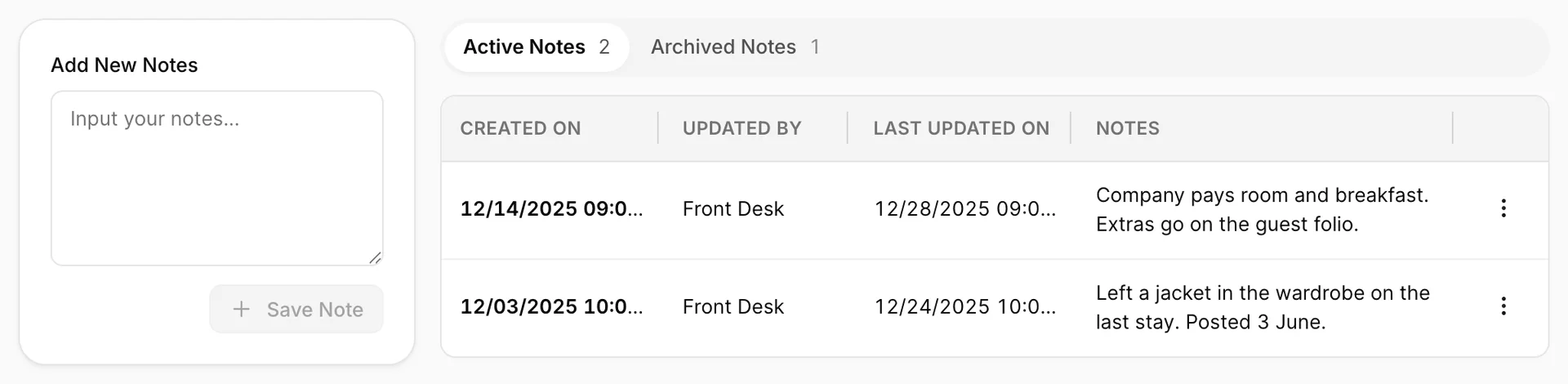
This is the part of the profile that earns its keep. A note here is attached to the person, so it is waiting for whoever opens their profile in two years: the firm mattress, the late arrival, the anniversary. The count on the Notes tab is active and archived notes together, while the counts on the two segments split them.
- Type the note in Add New Notes. Save Note stays greyed out while the box is empty or holds only spaces.
- Press Save Note. The note appears at the top of Active Notes straight away, stamped with the date and time.
| Column | What it holds |
|---|---|
| Created on | When the note was first written. The list is ordered by this, newest first. |
| Updated by | Who last changed it. Prostay fills this in from the account that made the change; you never type it. |
| Last updated on | When that happened. On a note nobody has edited it matches Created on. Archiving or restoring a note counts as an update and moves this date. |
| Notes | The text itself, wrapped rather than truncated, so a long note makes its row taller. |
Archiving, restoring and deleting a note
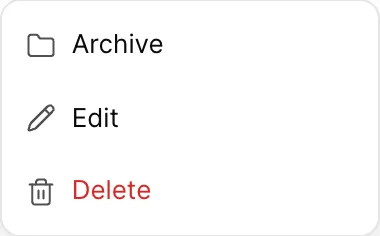
Archive takes a note off the active list without losing it. Use it for anything that has stopped being true: the cot they needed when the baby was small, the corporate rate that has since changed. Edit opens the text for changes and stamps the note with the time and whoever made them.
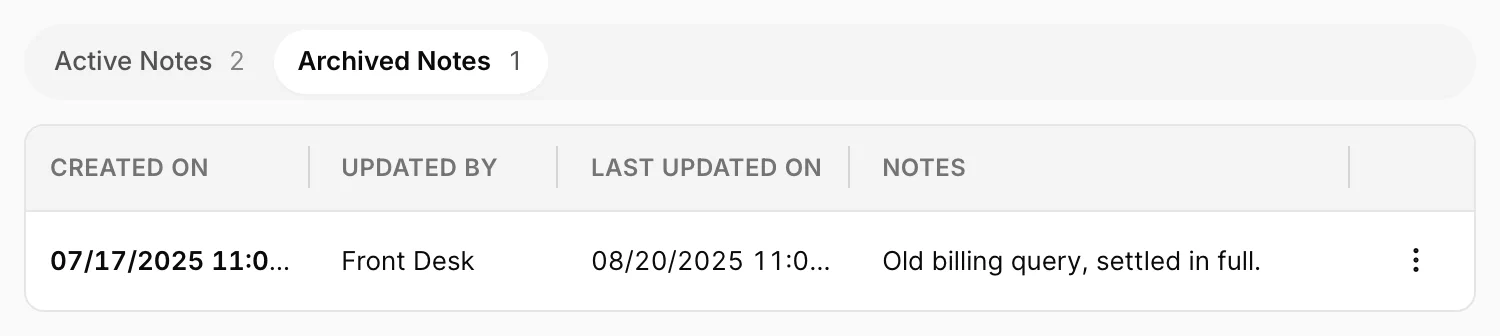
Switch to Archived Notes to read them, and use Restore in the row menu to put one back on the active list. The round trip is lossless: the text, the author and the original date all come back.
The Documents tab
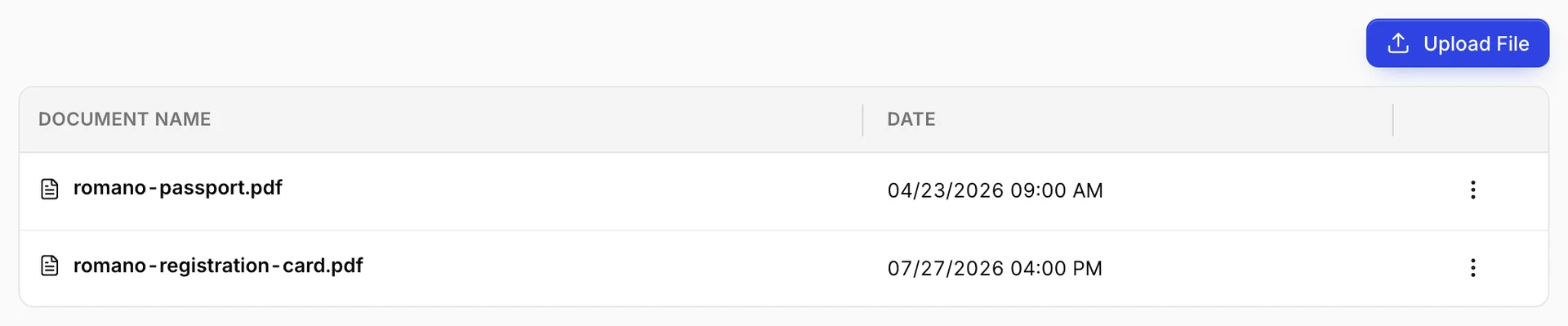
Files kept against the guest rather than against one stay: passport and ID scans, a signed registration card, a company letter authorising billing. Any passport or ID image uploaded from a booking appears in this same list, which is the point of it. A returning guest arrives with their documents already on file.
- Press Upload File and pick a file. It uploads as soon as you choose it, without a separate save.
- Check the row. The file name and the upload time appear in the table. The row menu holds Download, which opens the file in a new tab.
There is no delete on this tab, so treat an upload here as permanent from the desk's point of view. ID scans can be removed from the Passport panel on a booking the guest is on, described in Guests on a reservation.
The profile and the guests on a booking
These are two views of the same person and it is worth being clear about which one you are in. This page is the person: one record, every stay, the notes and the documents. The Guest tab of a reservation is the party travelling on one booking, which may be four people of whom only one made the reservation.
They are joined at the guest record. Edit somebody from a booking and you are editing this profile, so the correction shows up on their next stay as well. Add a guest to a booking by typing them in from scratch, though, and Prostay has no way of knowing they are the same person as an existing profile, and you get two records with half a history each. The existing-guest picker on the booking is what prevents that, and the duplicate filter described in Finding a guest is what finds it after the fact.
Create New Reservations in the header works the other way round: it starts a booking with this guest already attached, which is the safe way to take a repeat booking over the phone.
Things that catch people out
| What you see | Why |
|---|---|
| Save Changes is greyed out | Nothing on the form has changed yet. It turns on as soon as any field or the marketing switch differs from what was loaded. |
| You pressed Save Changes and nothing happened | The email address is not valid, so the save was refused. The field itself shows the error; nothing else on the page does. |
| The status changed before you saved | The status menu writes immediately and on purpose. It is the only control on the page that does. |
| Reservations does not match the number of rows in History | Cancelled bookings are in the history and out of the tiles. Read the Status column. |
| Last visit is older than a booking you can see on the History tab | That booking has not started yet. The tile only counts stays that have already arrived. |
| A document number on Details but nothing on Documents | Somebody typed the passport details in and nobody kept a copy. The two are recorded independently. |
| A red banner saying the profile did not load | The record could not be fetched. Nothing has been saved or changed. Reload, and if it keeps failing the guest record may have been deleted. |