A source's own page answers one question your list cannot: is this partner worth what they cost you. It puts the production figures beside the contract, the notes from the last renegotiation and a log of who changed what, so the conversation before a rate call happens on one screen.
Getting to a source
From the booking sources list, open the three dot menu at the end of a row and choose Edit. Rows are not clickable, and the sources Prostay maintains itself have no menu, so Walk-in has no page to open. Reading the list is covered in Reading the booking sources list.
The page opens on Source Details, which is the editable form. That tab, and the Save Changes button that goes with it, are covered in Adding and editing a booking source. This article is about everything else on the page.
The four figures on the left
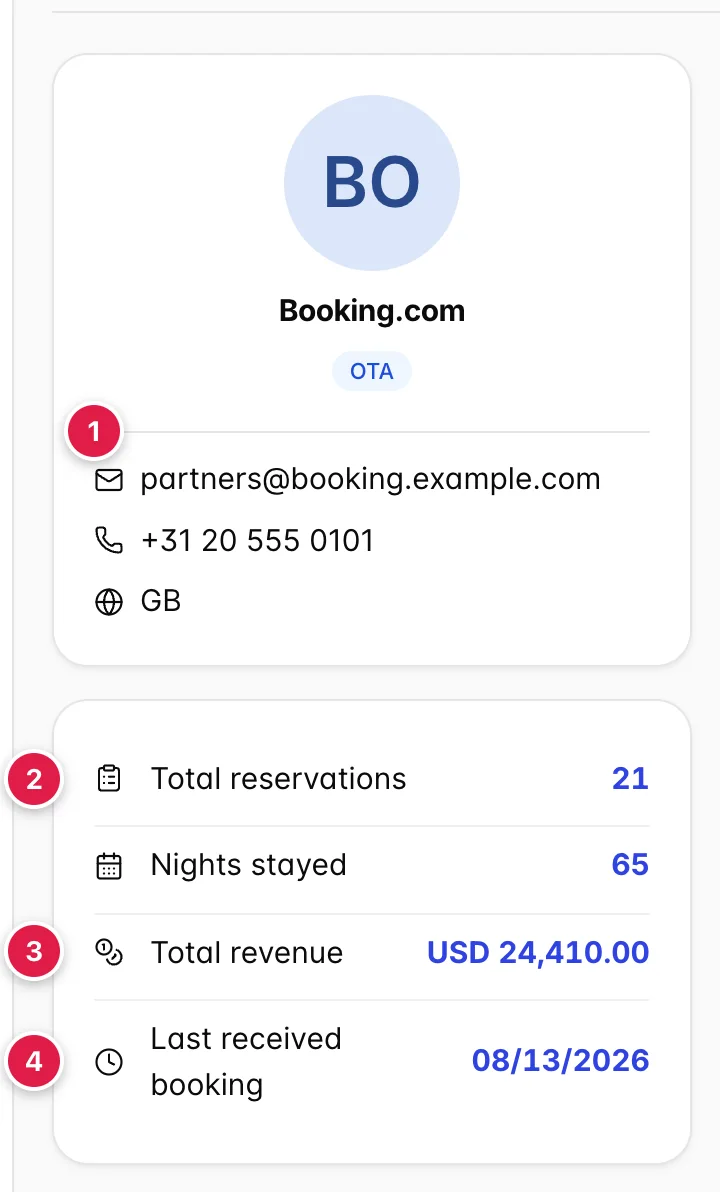
- The contact block. Email, phone and country, taken from the source's own fields. The email is a working link. The number shown is the Mobile field, falling back to Phone when there is no mobile.
- Total reservations and Nights stayed. Every booking attributed to this source and every night those bookings cover, not just the page of history showing on the right. A source with twenty-one bookings reads 21 here while the table beside it says 1 to 10 of 21.
- Total revenue. The sum of those bookings' totals, in your property's currency. This is gross: it is what the guests are paying, before the commission this source's type costs you.
- Last received booking. When a booking from this source last came in, which is the date the booking was made rather than a date anybody stayed. It is the fastest way to spot a channel that has gone quiet.
The six tabs

| Tab | What it holds |
|---|---|
| Source Details | The editable form: contact, company and address. |
| History | Every reservation attributed to this source, with a link into each one. |
| Notes | Notes your team has left on this partner, active and archived. The number in brackets counts both. |
| Documents | Files uploaded against this source. Contracts, commission schedules, signed amendments. |
| Activity Logs | Who changed this record, when, and what the values were before. |
| System Access | Logins that let the partner see your availability. Only appears if your role has the booking source system access permission, so not everybody sees this tab. |
History: what this source produced
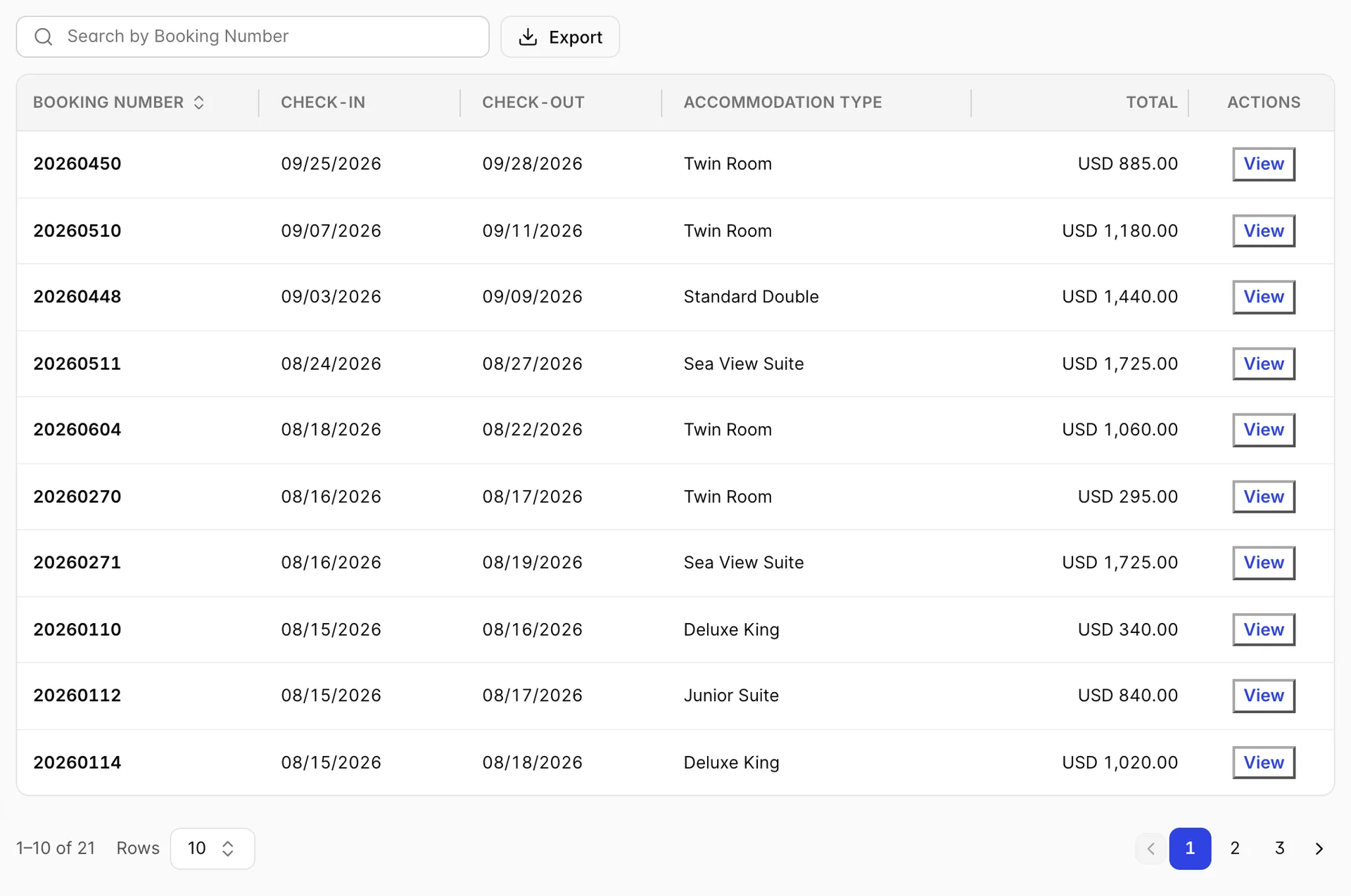
Six columns, and one of them is the point of the tab. Booking Number identifies the reservation and sorts. Check-in and Check-out are the stay dates. The fourth column lists the room types on the booking. Total is what the booking is worth, and it is the column that adds up to Total revenue in the rail. View opens the reservation itself.
The list is ordered by arrival date, latest first, so a source with bookings on the books shows its future stays at the top and its history further down. The search box takes a booking number. The pager at the foot runs from five rows to a hundred, which matters here because the totals in the rail are the only place you see this source's whole production without paging through it.
Export opens a field picker and gives you a PDF or a spreadsheet of the reservations on the page you are looking at, not the whole history. The field list goes well beyond the six columns: nights, create date, status, flight details, taxes, service charge, amount paid. If you want a proper production comparison across sources rather than one source's bookings, the production reports are the tool for that.
Notes
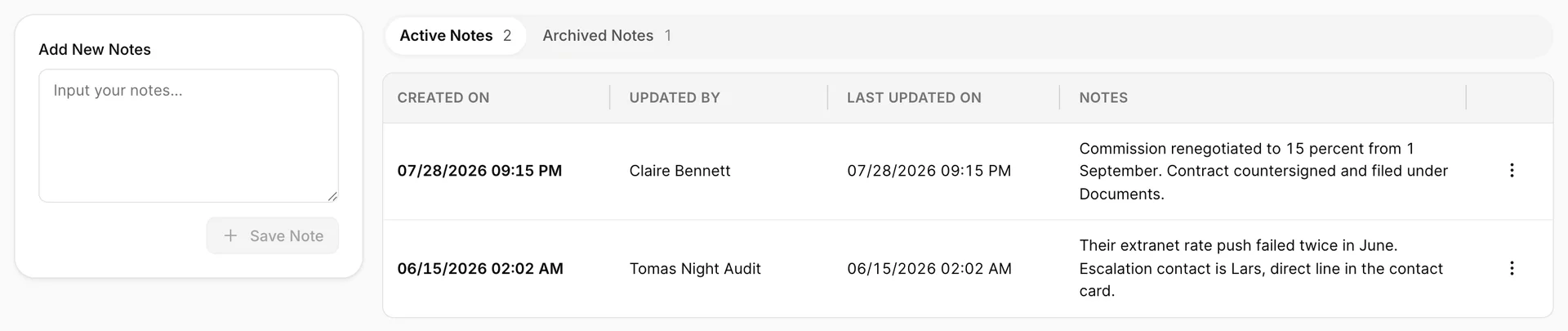
Type into Add New Notes and press Save Note. The button stays greyed out until there is something to save, and the note appears at the top of the list stamped with your name and the time. This is where the agreement behind the numbers belongs: what was renegotiated, when, who signed it, which extranet contact actually answers.
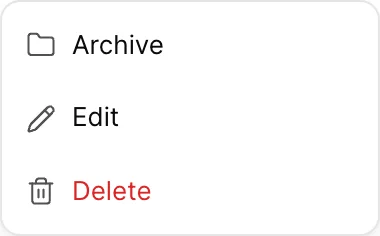
| Action | What it does |
|---|---|
| Archive | Moves the note to Archived Notes, where it stays readable and can be restored. The right choice for anything superseded rather than wrong. |
| Edit | Reopens the text. The Last updated on column is how somebody later knows the note was changed after it was written. |
| Delete | Removes it, with no confirmation. Archived notes offer Restore and Delete rather than these three. |
Documents
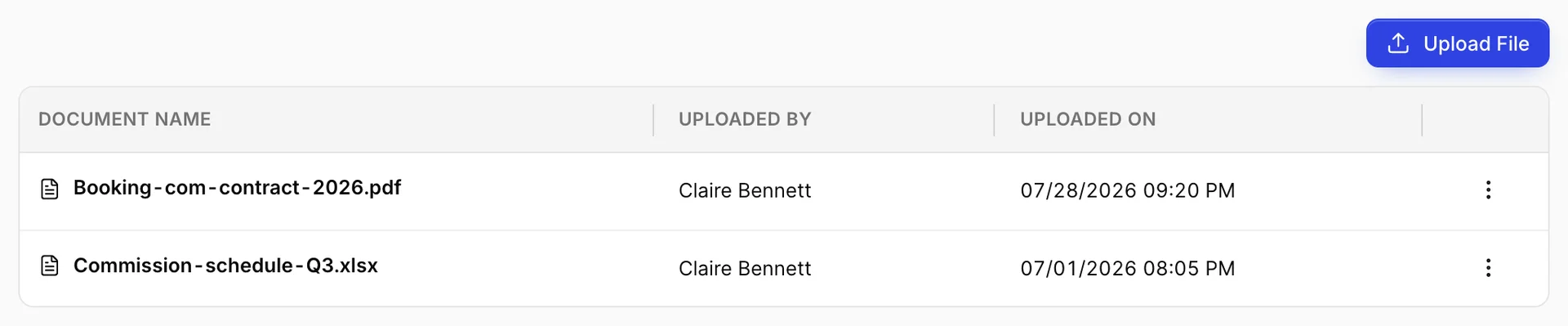
Upload File takes one or several files at once and lists them with who uploaded them and when. The row menu offers Download and Delete. Deleting goes through immediately, with no confirmation, and is recorded in Activity Logs by file name.
Name files so that the list is readable a year from now. Commission-schedule-Q3.xlsx tells the next person what they are opening; scan_0043.pdf makes them open all of them.
Activity Logs
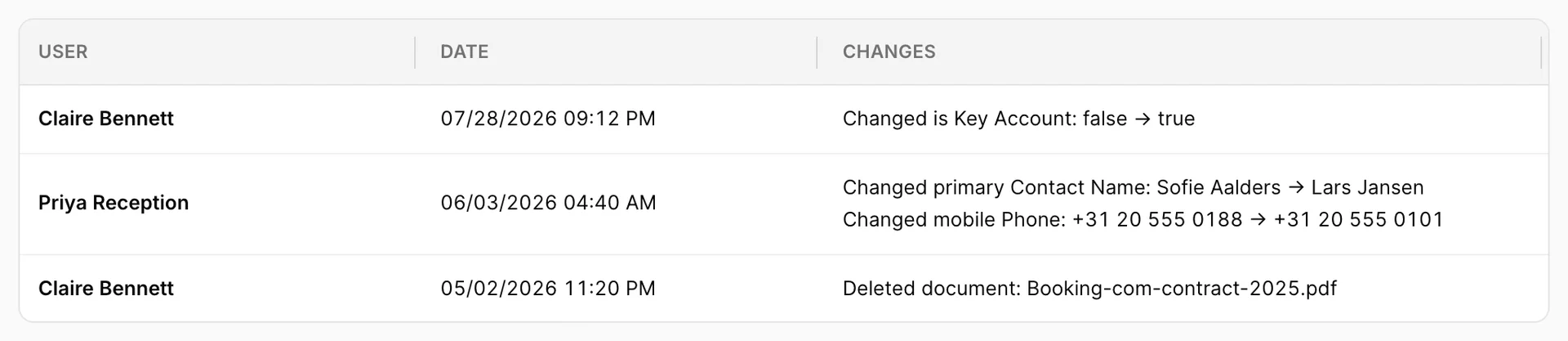
One row per save, and one line inside that row per field the save changed: the word Changed, then the field name, then the old value and the new one. The field names are the product's internal ones with the capitals spaced out, which is why the first letter after Changed is lowercase.
Deletions are logged as well. A deleted document is named in full, while a deleted note is recorded only as Deleted note, with a dash where the user's name should be. So the log tells you a note went, and neither which one nor who took it.
What it does not record is a change of Source. Moving a source from one type to another saves, and the badge in the rail changes, but the log stays as it was. Since that is the edit that changes the commission on everything this partner sends you, leave a note on the Notes tab when you do it.
System Access
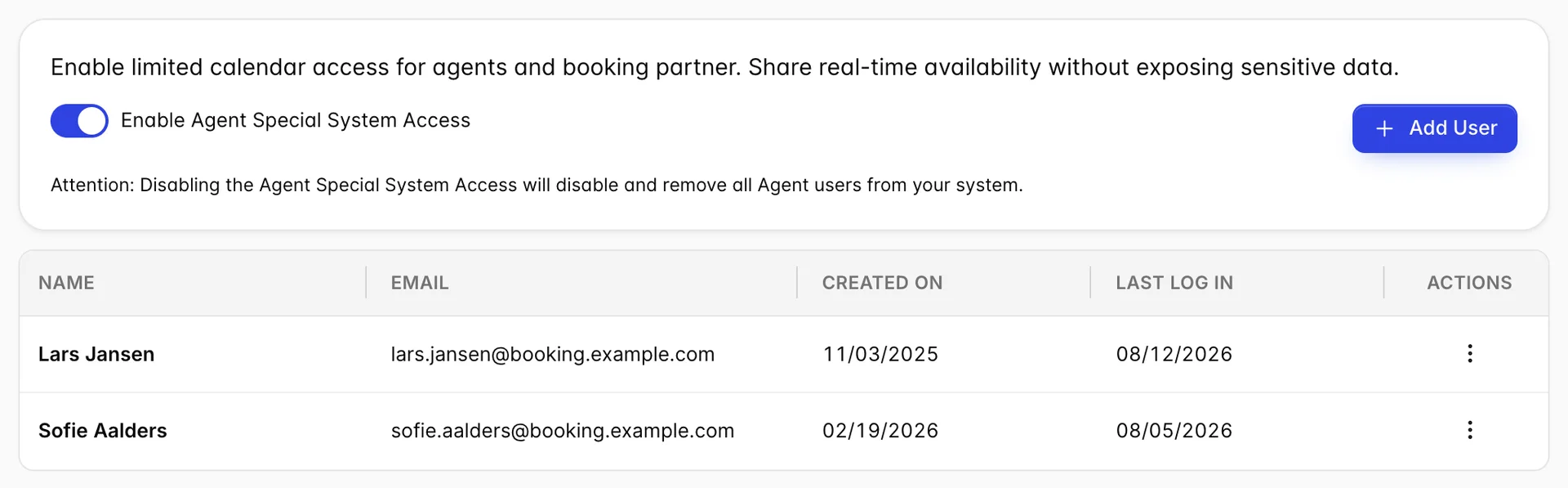
Enable Agent Special System Access gives this partner logins that show your availability without exposing the rest of your data. With the switch on, Add User creates a login and the table lists each one with its email, when it was created and when it last signed in. Last log in is the column worth reading: an agent login nobody has used in six months is one to remove.
This tab only exists if your role carries the booking source system access permission. If a colleague is describing a tab you cannot see, that is why, and it is a permissions conversation rather than a fault.
Things that catch people out
| What you see | Why |
|---|---|
| The rail's totals do not match a report | The rail is all time and gross. The report is almost certainly filtered to a date range, and may be net of commission. |
| Total reservations higher than the rows in History | The table is paged. The rail counts the whole source, the table shows one page of it. |
| Notes says 3 but you can only see 2 | The count includes archived notes. The third is under Archived Notes. |
| A booking you expected missing from History | It is attributed to another source. Open the reservation and check its source field. |
| An export that only holds ten rows | It exports the page you are on. Raise the page size first, or use a production report. |
| No System Access tab | Your role does not have the permission for it. |
| Agent logins gone after you touched the switch | Switching the access off deletes them, with no confirmation and no undo. |
| Last received booking older than the last stay in History | They are different dates. One is when a booking arrived, the other is when somebody is staying. |