The Marlowe has 120 rooms and, on a Saturday, nine people to clean them. Somebody has to decide which rooms each of those nine walks into, in what order, and whether the person given the four suites is being asked to do twice as much as the person given four standard doubles. Task sheets are where that decision is made, and cleaning credits are the unit it is made in.
The shape of a housekeeping day
Three screens sit behind the board, and they answer three different questions.
- Attendants. Who cleans, which days they work, and which floors are theirs. Set up once and edited rarely.
- Task sheets. What each of them is doing today. Generated each morning, worked through during the shift.
- Forecast. How much work the next week holds, and therefore how many people to roster for it.
The board is the fourth screen and the one everybody looks at, but it is about rooms rather than people. It is covered in the housekeeping board, and this article assumes you have read it.
The attendant list
Under Housekeeping, Attendants. One row per person who cleans rooms, and every column on it changes what generation does with them.
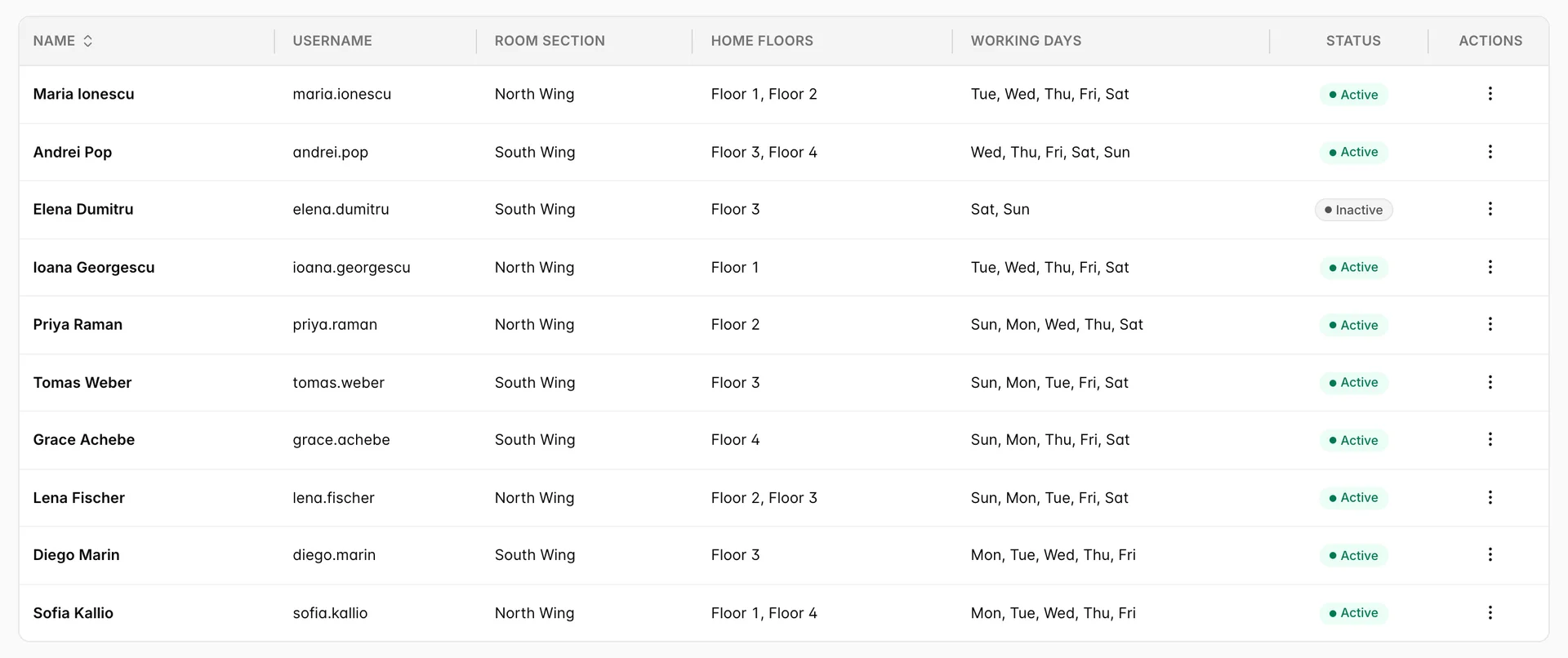
An attendant record is not a user account. It is a housekeeping identity that can be pointed at a user account, and the two are separate on purpose: agency staff and casual cover often clean rooms without ever signing in to Prostay. Fifteen people are on the list at The Marlowe and nine of them work Saturdays.
This page has its own permission, Housekeeping attendant management, separate from the one covering sheets, My Tasks and the forecast. A supervisor who generates sheets every morning may well not be able to edit the roster, which is usually deliberate.
Adding somebody
Add New Attendant opens a drawer with five required fields and a switch.
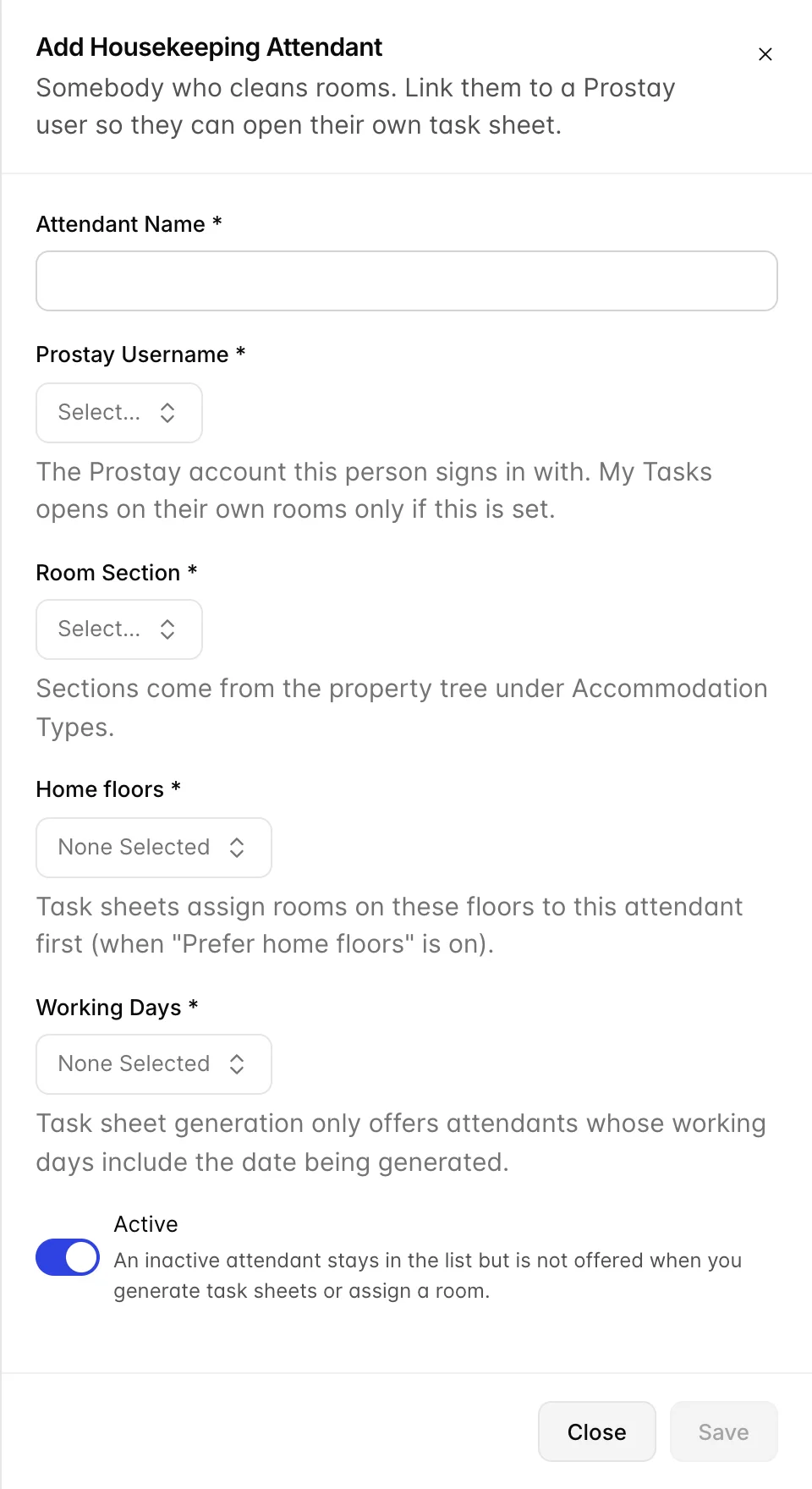
| Field | What it actually changes |
|---|---|
| Attendant Name | The name on the sheet, in the board's attendant picker and in the room history line when a clean is completed. Use the name the team uses. |
| Prostay Username | The Prostay account this person signs in with, chosen from the property's users. This is the only link between the two records, and it is what makes My Tasks open on their own rooms rather than somebody else's. |
| Room Section | Which part of the house they belong to, taken from the property tree under Accommodation Types. It is recorded on the sheet and shown in the list, but generation does not currently use it. Home floors are what move rooms around. |
| Home floors | One or more floors. With Prefer home floors on, every task on one of these floors goes to this attendant before anything else is dealt out, which is what stops people crossing the building all morning. |
| Working Days | The weekdays this person is on. Generation only offers attendants whose working days include the date you are generating for, so this is a roster, not a note. |
| Active | Off means the record stays in the list but is never offered, on the sheets or on the board. This is the control for maternity leave, a long holiday or somebody who has moved to another department. |
Why a name does not appear
The single most common support question on this screen is why somebody who is plainly on the list is not offered when you generate. There are two reasons and they look nothing alike in the table.
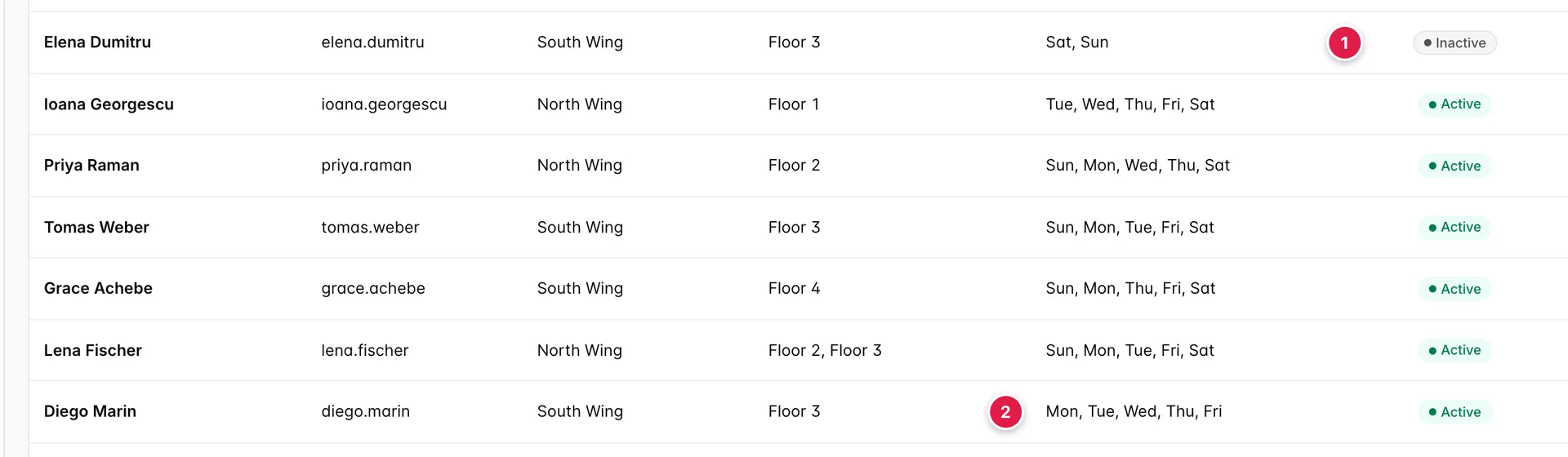
- Inactive. Elena Dumitru works weekends, but the record is switched off, so she is never offered on any date.
- Wrong weekday. Diego Marin is active, but Saturday is not in his working days, so he is offered from Monday to Friday and not today.
Both are deliberate, and both are fixed by editing the record rather than by working around it on the day. If nobody at all is rostered on the date you have chosen, the generate drawer says so in a banner instead of letting you produce an empty day.
Taking somebody off
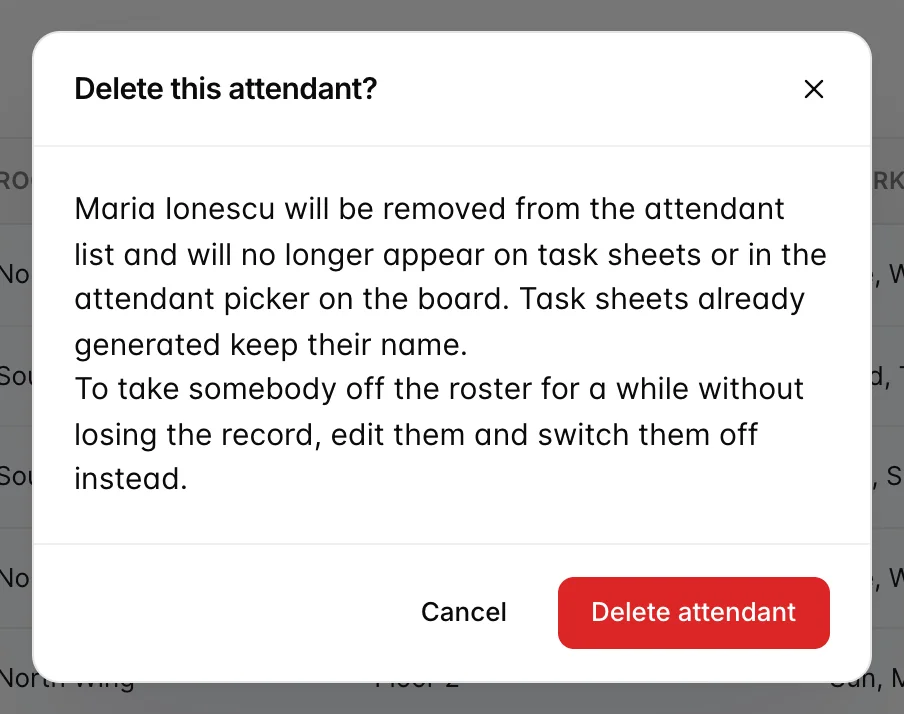
Deleting removes the record. Sheets already generated keep the name on them, because a sheet is a record of what happened that day, but the person is gone from the picker and from every future generation. For anything temporary, switch the record off instead: it comes back with its floors, its section and its working days intact.
What a credit is
A credit is a unit of expected work. Not minutes, not rooms: a made-up number your property agrees on, so that different kinds of clean can be compared and added up. A sea view suite after a departure is worth five, a standard double after a departure is worth two, and that ratio is the whole point. Twelve rooms is not a workload. Twenty-one credits is.
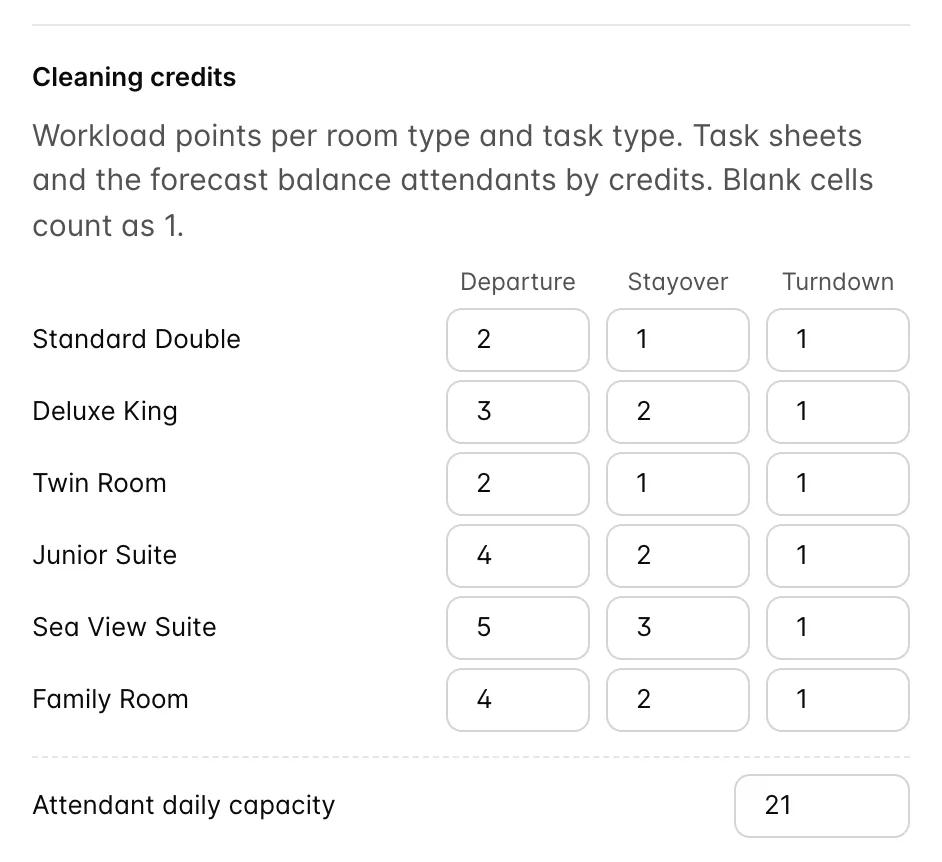
The matrix lives in the housekeeping settings drawer, opened from the settings icon on the board. Every accommodation type you sell gets a row, and every row gets three numbers, because the same room costs different amounts of work depending on what is being done to it. Stripping a suite after a departure is a morning's job; freshening it while the guest is still in it is not; turning down a bed is five minutes either way, which is why the turndown column is 1 for everything.
| Setting | What it does |
|---|---|
| Cleaning credits | Three numbers per room type: departure, stayover, turndown. A blank cell counts as 1, which is how an unpriced suite ends up on a sheet costing the same as a twin. |
| Attendant daily capacity | How many credits one person is expected to get through in a shift. Twenty-one at The Marlowe. This number does not cap anything on the sheet; it is the divisor the forecast uses to turn credits into a number of people. |
| Linen cycle | Stayovers get a Linen change flag every N nights of the stay. Set 0 to switch it off. The flag is a warning on the task, not an extra credit. |
Set capacity by watching what your team actually achieves for a fortnight, not by aspiration. It is the number that decides whether the forecast tells you to call somebody in, so an optimistic capacity produces a roster that is quietly short every day.
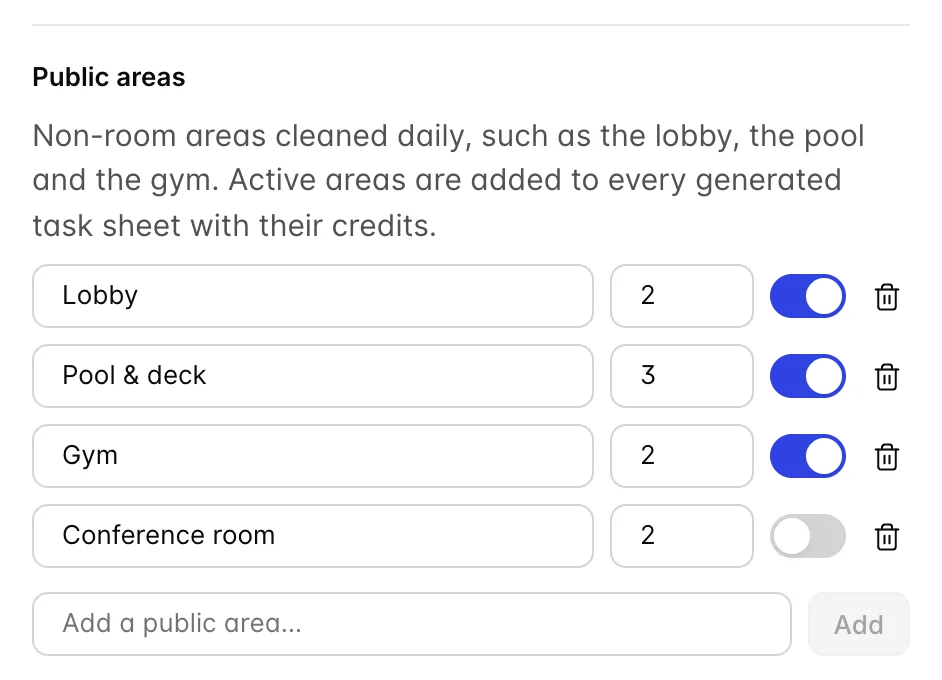
Public areas are the parts of the property with no room number: the lobby, the pool deck, the gym. Each active one becomes a task on somebody's sheet every day with the credits you give it, and they sort to the bottom of the sheet because they have no room number to sort by. Switching one off leaves it in the list for the season it comes back.
Generating a day's sheets
A date has no sheets until somebody makes them. Nothing runs overnight.
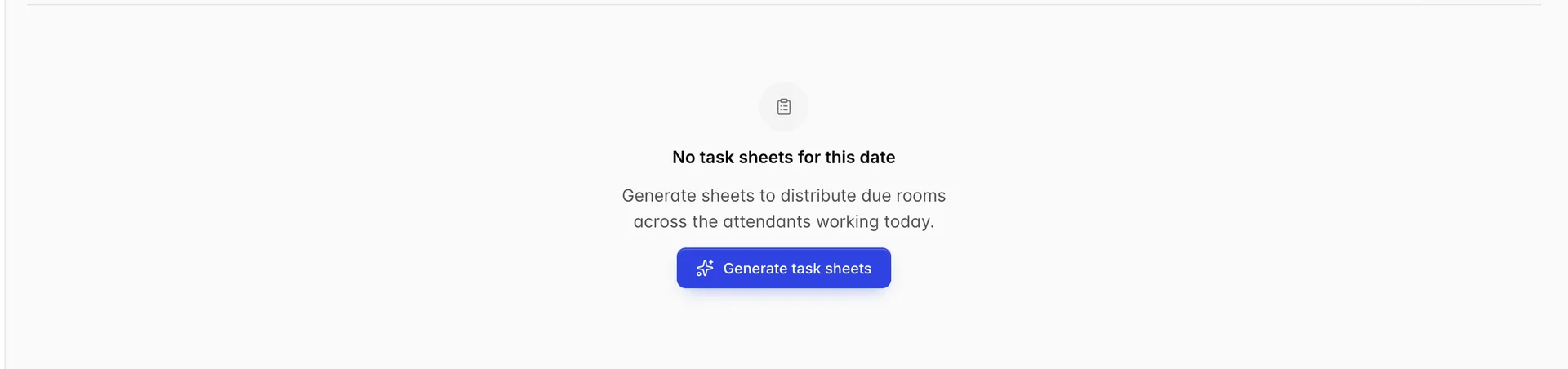
The date picker in the page header controls which day you are looking at, and it is worth setting it before you press anything: the roster it offers and the rooms it deals out both follow that date.
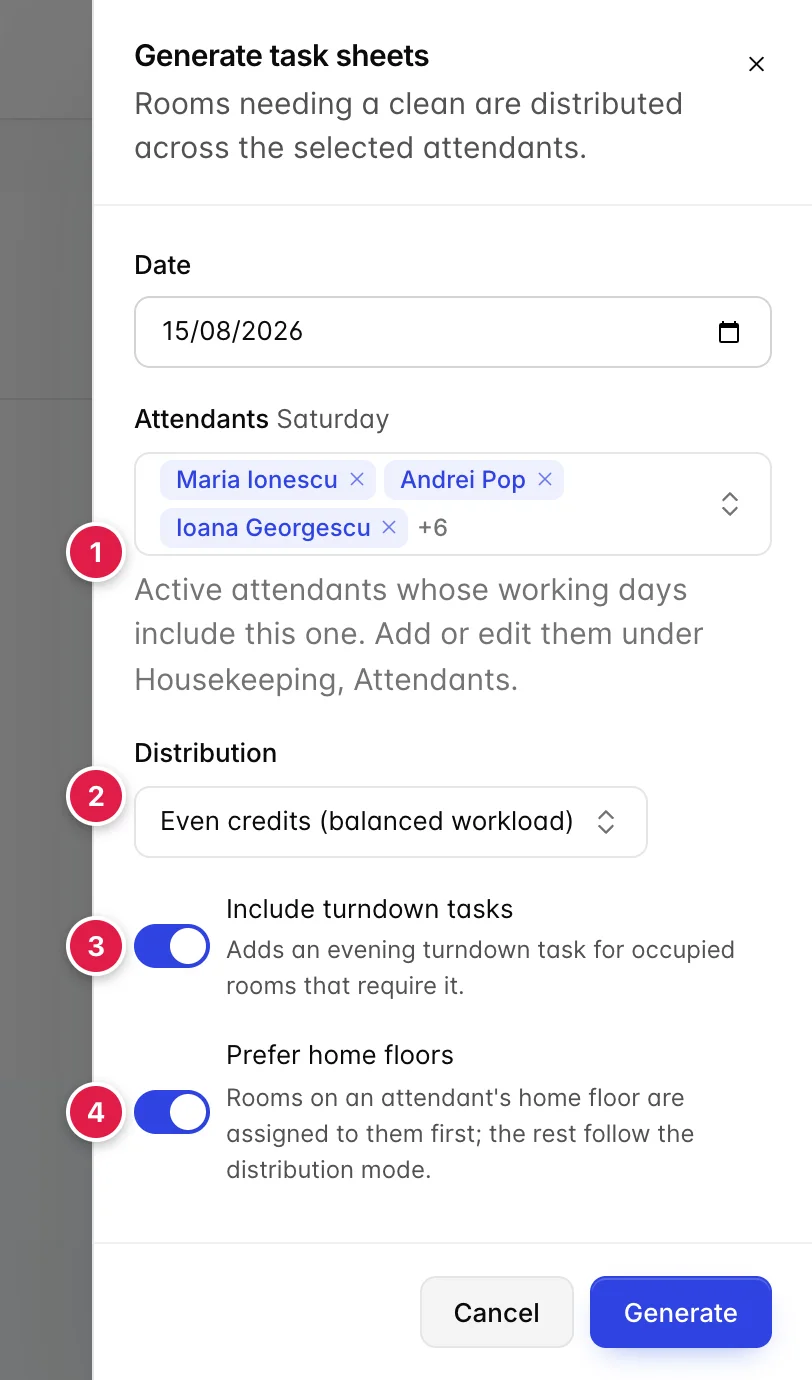
- Attendants. Prefilled with everybody active whose working days include that weekday, and the weekday is printed beside the label so you can see which one you are rostering. Take names out for anybody who has called in sick.
- Distribution. How the work is split. Three modes, described below.
- Include turndown tasks. Adds an evening turndown task for occupied rooms that need one. Off if your property does not turn down, or if turndown is run by a separate evening shift you sheet separately.
- Prefer home floors. Deals every task on an attendant's home floor to that attendant first, then splits what is left by the distribution mode.
| Distribution mode | What it does | When to use it |
|---|---|---|
| Even credits (balanced workload) | Deals the heaviest task to whoever currently has the fewest credits, over and over. Sheets end up close in credits and often uneven in room count. | The default, and right for most properties. Fairness measured in work rather than doors. |
| Even room count | Deals tasks round the team one at a time. Everybody gets the same number of rooms, and whoever draws the suites has a much longer day. | Rarely. Mostly where all your rooms are near enough identical. |
| By floor (keep floors together) | Keeps whole floors together and gives each floor to whoever is lightest, heaviest floor first. | Tall buildings with slow lifts, where walking is a real cost and credit fairness is worth trading for it. |
Only rooms that need work are dealt out. Rooms that are out of order or out of service are skipped entirely, because maintenance owns them, and a room that is already clean and staying clean does not generate a task at all.
Reading the sheets
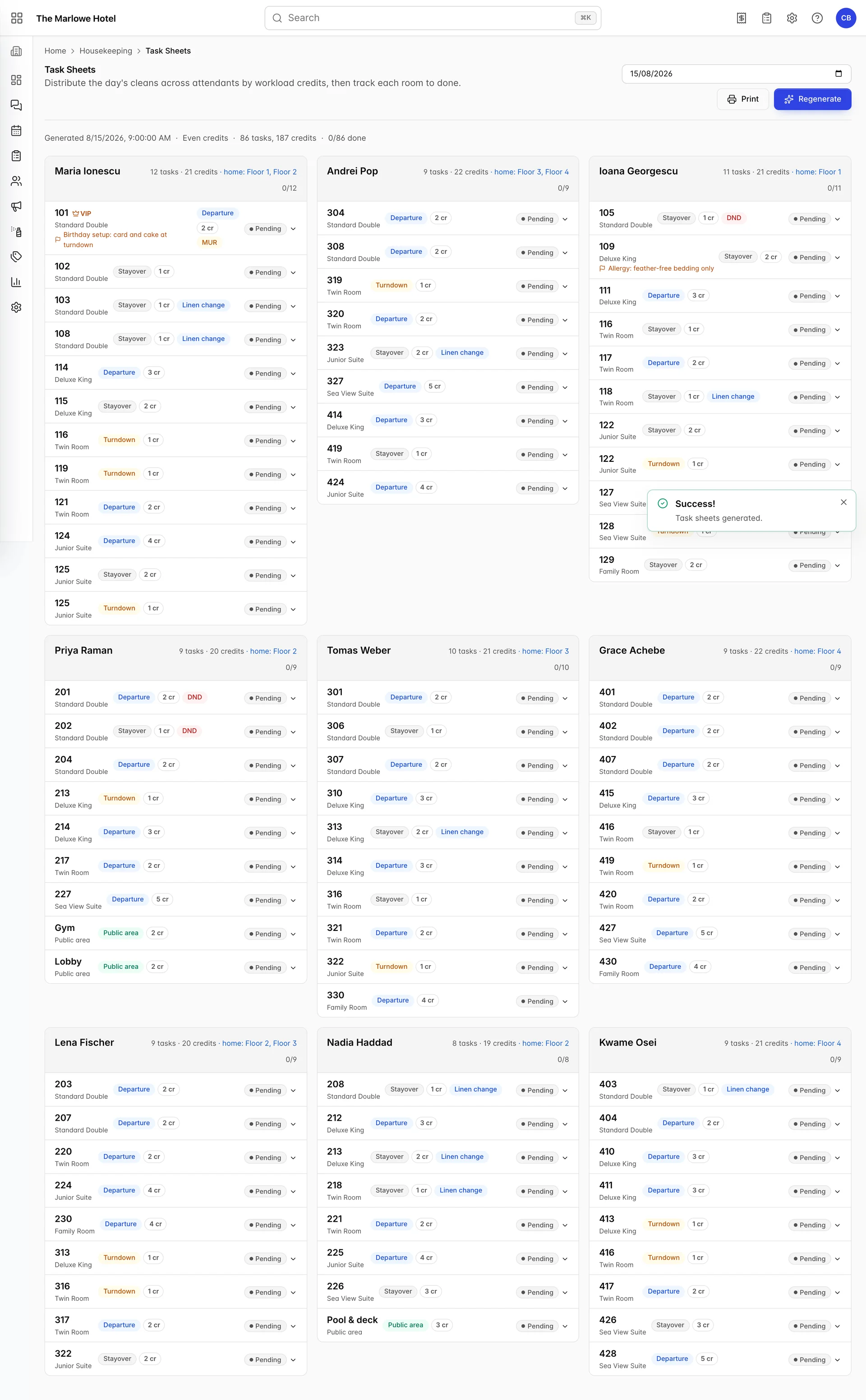
One card per attendant, in the order they were dealt. The Print button in the header prints the page one sheet per page, which is still how most housekeeping teams hand the day out.

The summary line is the day in one row: when it was generated, which distribution mode produced it, the totals, and progress. Eighty-six tasks and 187 credits across nine people is a little under 21 credits each, which is exactly the capacity set in settings. That is not a coincidence; it is what balanced generation is for.

- The attendant. Whose sheet this is.
- The load. Tasks and credits, then the home floors if the sheet was generated with Prefer home floors on. Compare credits between cards, not tasks.
- Progress. Tasks finished out of tasks given. The bar beside it fills by credits rather than by count, so a sheet of suites moves more slowly than the number suggests.
What a task is
A task is one room, one job to be done in it, and what that job is worth. Not one room: a room being turned down as well as cleaned carries two tasks, and they can sit on two different sheets.
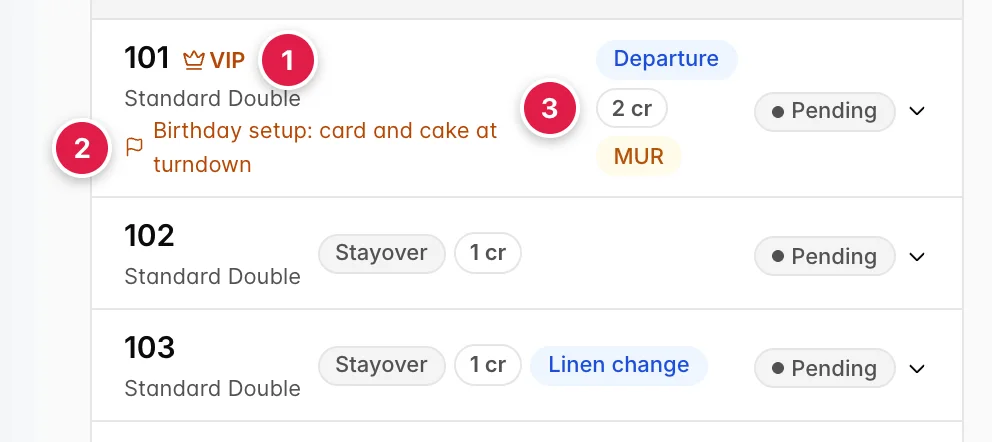
- VIP. The guest in the room is flagged VIP. It changes nothing automatically; it is there so the attendant knows before they open the door.
- Traces. Instructions carried over from the reservation, such as a birthday setup. These come from the booking, so they are the one part of the task that somebody at the front desk wrote.
- Badges. The task type, the credits, and any warnings: MUR for a make-up-room request, DND for do not disturb, Linen change, Room move.
| Task type | Raised for | Finishing it |
|---|---|---|
| Departure | Rooms due out today, and vacant rooms left dirty or on pick-up. A guest moving to another room mid-stay also raises one, with the destination in a note. | Sets the room CLEAN. |
| Stayover | Occupied rooms not due out that are dirty, on pick-up, or flagged make up room. | Sets the room CLEAN. |
| Turndown | Occupied rooms not due out whose turndown is required, when the switch was on at generation. | Sets turndown Completed. The room status is untouched. |
| Public area | Every active public area, once a day. | Nothing. There is no room to update. |
Within a sheet, rooms asking for a make-up-room come first and the rest run in room number order, with public areas last. It is a running order, not a rule: an attendant who can see room 214 has its door open and 212 does not should clean 212 first.
Working through the day
Every task carries a status, and the badge at the end of the line is the menu that changes it.
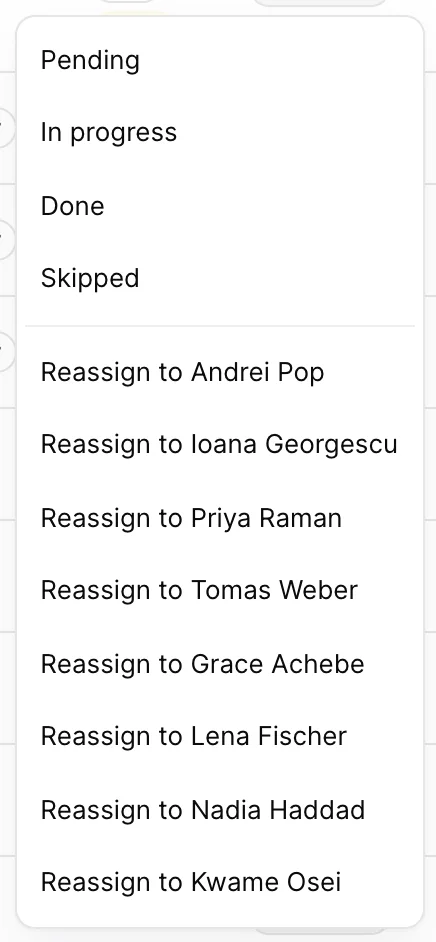
- Status. Pending, In progress, Done, Skipped. Supervisors use this on the desktop sheet; attendants use the buttons in My Tasks instead.
- Reassign. Everybody else with a sheet today. Moving a task moves its credits too, so both headers change and you can see immediately whether you have made somebody's day unfair.
Done is the status with consequences. Completing a departure or a stayover sets the room CLEAN on the board and writes a line into the room's history naming the attendant and, if the task was started before it was finished, how long it took. Skipped is for a room that could not be cleaned: the guest refused entry, the door was chained. It changes nothing about the room, which is the point, and it leaves a visible gap on the sheet for somebody to deal with.
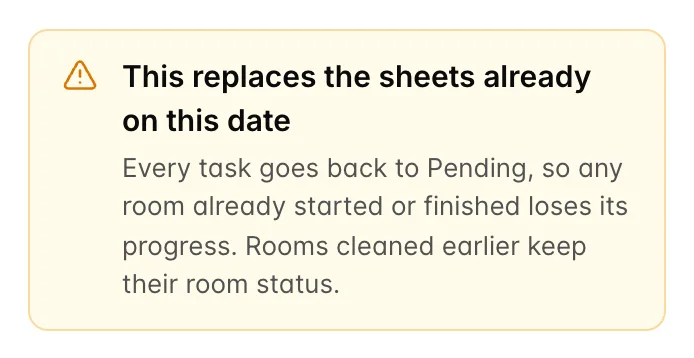
Once a date has sheets, the button reads Regenerate, and it replaces them. Every task goes back to Pending, including the ones somebody finished an hour ago, and the sheets are dealt again from the board as it stands now. Rooms already cleaned keep their clean status, so nothing is undone in the house, but the record of who did what this morning is gone. Regenerate first thing when the roster changes, and reassign rather than regenerate after that.
My Tasks, the attendant view
Housekeeping, My Tasks is the same sheet, in one column, sized for a phone. It always shows today.
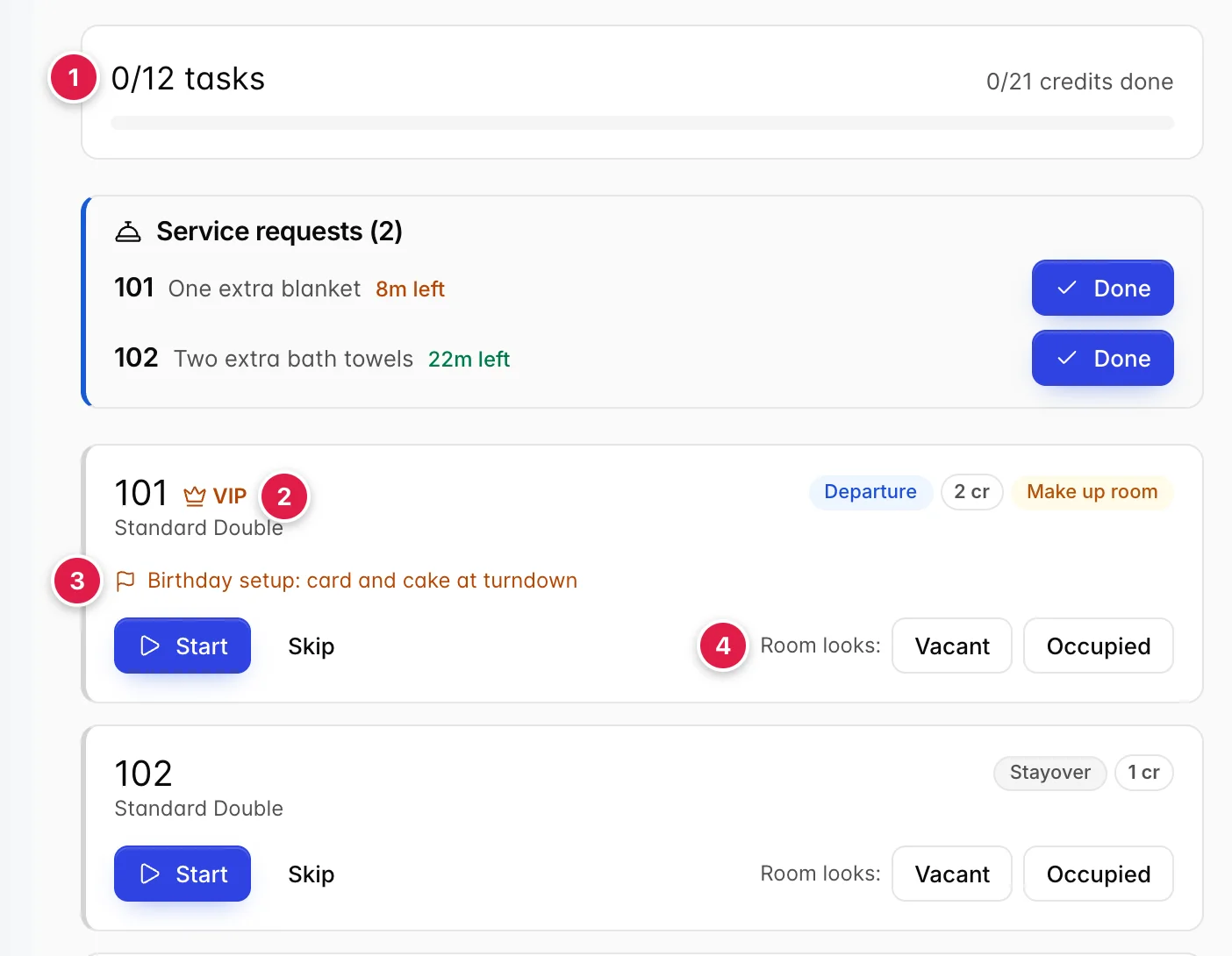
- Progress. Tasks done over tasks given, with credits done underneath. The bar tracks the credits, so it is a fairer picture of how far through the day somebody is.
- VIP and badges. The same flags as the desktop sheet, larger.
- Traces. The instruction from the booking, in front of the person who has to carry it out.
- Room looks. What the attendant found. Vacant or Occupied, reported against what the front desk believes, and a disagreement raises a skip or sleep discrepancy for the desk to investigate.
Guest service requests assigned to that attendant appear above the rooms with a countdown against their target time, so a request for towels does not sit unseen behind twelve room cards. Marking one Done closes it.
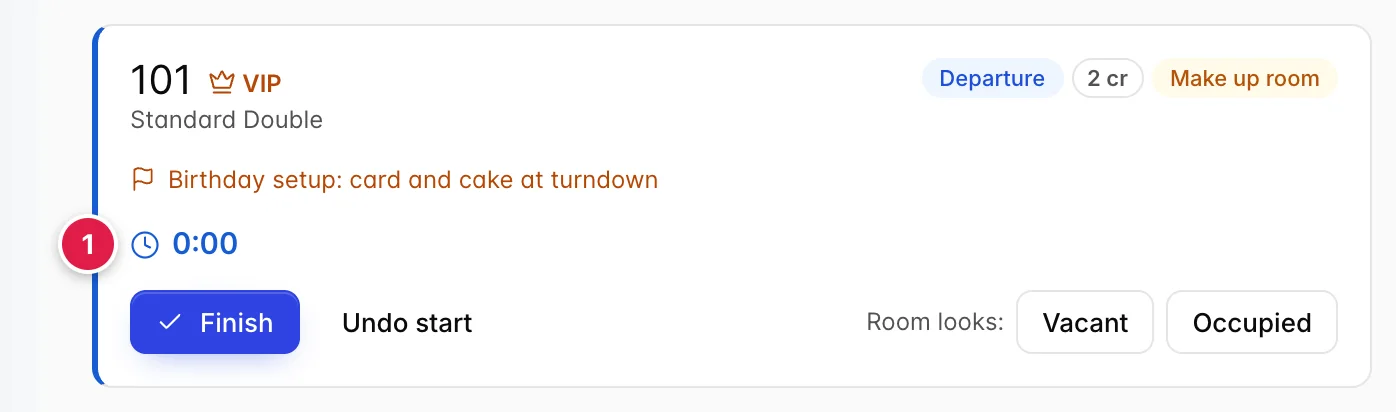
- The timer. Starts when the attendant presses Start and runs until they press Finish. The elapsed time is written to the room history with the completed clean, which over a few weeks is the only honest data you have about how long your rooms really take.
Undo start is not a pause. It puts the task back to pending and discards the elapsed time, which is right when somebody started the wrong room and wrong when they are taking a break.
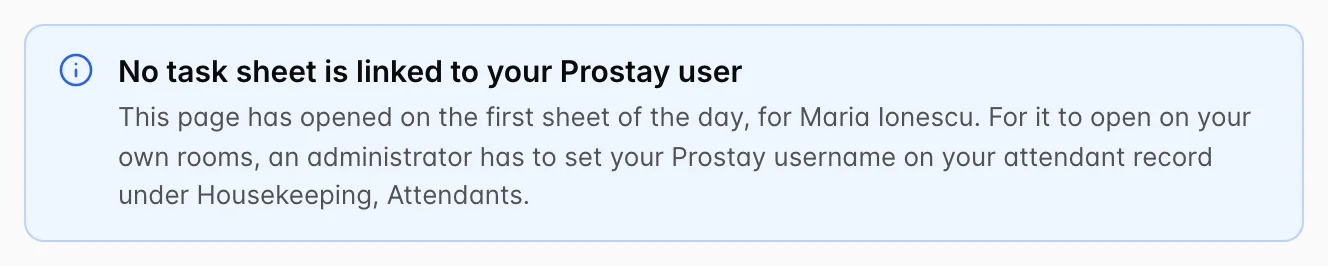
This banner means the signed-in account does not match the Prostay Username on any attendant record with a sheet today, so the page has fallen back to the first sheet of the day. The fix is on the attendant record, not here.
A supervisor checking on somebody uses the same picker, which is the intended reading of it: look at a sheet rather than work it.
The forecast
Housekeeping, Forecast answers the only question a head housekeeper asks about next week: how many people do I need. It takes arrivals, departures and stayovers for each of the next seven or fourteen days, prices them with the same credit matrix the sheets use, and divides by the daily capacity.
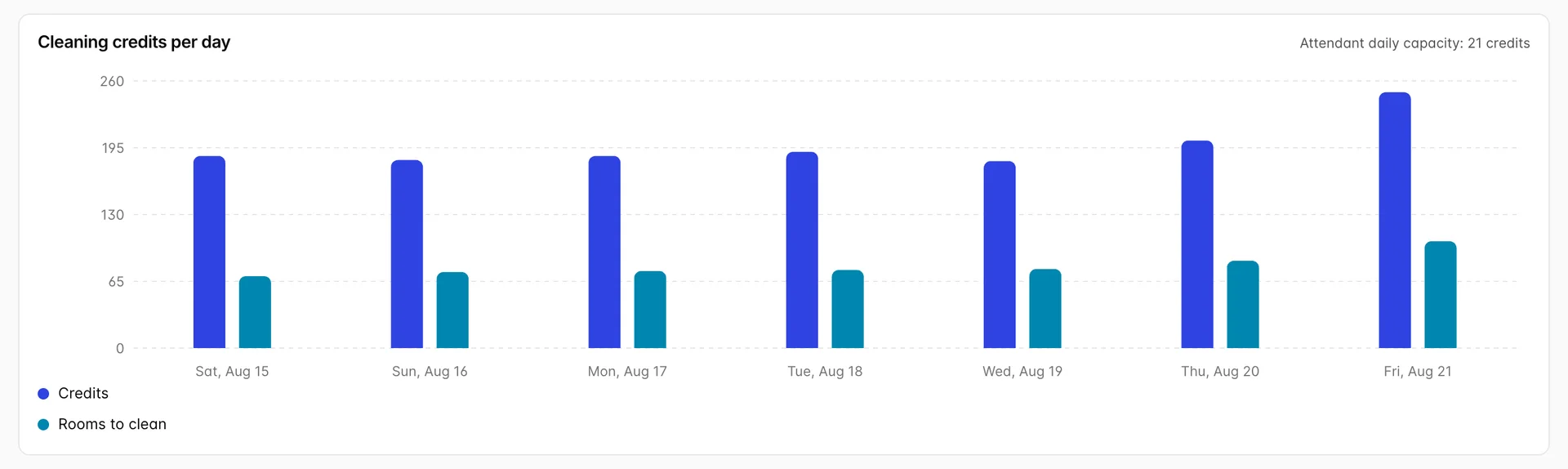
Two bars per day: credits and rooms to clean. Watch the gap between them. Days where credits rise faster than rooms are days the suites are turning over, and those are the days a team of the usual size runs late even though the room count looks ordinary.
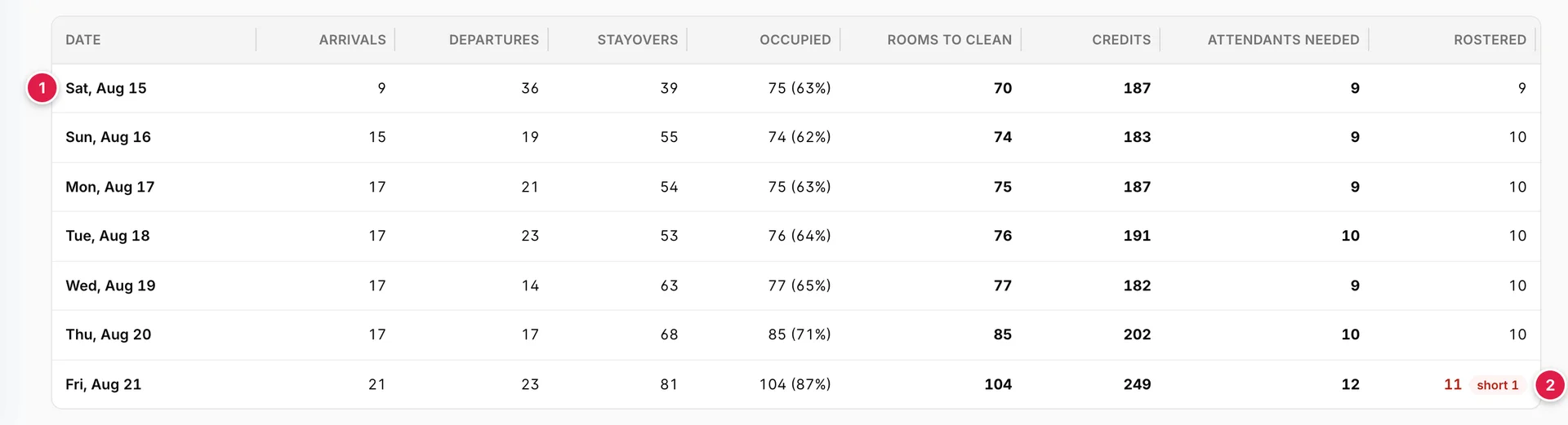
- Today. The first row is not a projection. It reports the board as it stands, so it should agree with the sheets you generated this morning.
- Short. Rostered is how many active attendants have that weekday in their working days. When it falls below what the day needs, the cell turns red and says by how much. Friday is short one person.
Read it right to left. The last two columns are the decision, and everything before them is the reasoning behind it: how many rooms, at what weight, from which mix of arrivals and departures. A day that needs twelve and has eleven rostered is a call to make on Wednesday, not a discovery on Friday morning.
The projection is a projection. It works from bookings on the books today, so a week that fills late will forecast light, and it assumes your credit matrix is honest. It is a planning tool for the roster, not a promise.
Things that catch people out
- Board assignments and task sheets are separate. Assigning a room to somebody in the board's attendant column does not put it on their sheet, and vice versa. Pick one as your source of truth for the day.
- Regenerating throws away progress. Every task returns to pending, including finished ones. After the shift has started, reassign individual tasks instead.
- Working days are a roster, not a preference. An attendant whose weekday is missing is not offered at all on that date, however active the record is.
- A blank credit counts as one. Add a new accommodation type and it prices at a single credit per clean until somebody fills the row in, which quietly makes whoever gets those rooms the busiest person on the floor.
- Room Section does not steer generation. It is required on the form and shown in the list, but only home floors move rooms towards a particular attendant today.
- Reopening a task leaves the room clean. The sheet and the room status are separate records. Change both if the room really does need doing again.