Almost everything else in Prostay can wait. These two presses cannot: they happen with the guest standing in front of you, and they are what the rest of the system reads to decide whether a room is occupied, whether housekeeping should clean it, and whether tonight's revenue is real. This article covers the whole arc of a stay from the desk's point of view.
Where it happens
On the reservation itself, in the header. The dashboard gives you today's arrivals and departures, and the calendar gives you the same bookings laid out against rooms, but both are ways of finding the booking. Neither checks anybody in. Open the reservation and the header offers exactly the actions that make sense for the state it is in.
Checking a guest in

- The status badge. ARRIVAL means due in today and not yet here.
- Check In. The whole action. One press.
- The status dropdown. The manual route, for the states that have no button.
Press Check In and the guest is in house. There is no wizard, no confirmation and no form: Prostay takes the view that you already did the work of checking them in at the desk, and the button records it.

The header rewrites itself around the new state. The badge goes green, Check In is replaced by Check Out, and Check-out early appears alongside it because the guest now has nights they could give back.
Check-in does not check the room
Prostay will not stop you checking a guest into a booking with no room assigned, an unsigned registration card or an unpaid balance. None of those are conditions of check-in. If your desk requires them, that is a procedure your team follows, not a gate the software enforces.
When Check In is not there
Two conditions have to hold, and the button is simply absent when either fails.
| Condition | What it means in practice |
|---|---|
| The booking has not arrived yet | Status is Reserved, Confirmed, Arrival or Tentative. A booking already checked in, cancelled or checked out has nothing to check in. |
| Today falls inside the stay | From the arrival date up to but not including the departure date. This is what stops you checking in tomorrow's arrivals a day early, which would put a guest in house who is not in the building. |
A guest turning up a day early is the common case, and the answer is not to force the check-in. Change the arrival date on the booking first, which reprices the stay correctly, and the button appears on its own.
Checking a guest out

Check Out is offered on any booking with the guest in the building, which is three states rather than one: checked in, still here on a later night, and due out today. The last of those is the ordinary case at eleven in the morning, and it is the one the departures list is full of.
Notice what is missing from that header: Check-out early. There is nothing early about leaving on your departure date, so the button is not offered.
Checking out with money owing
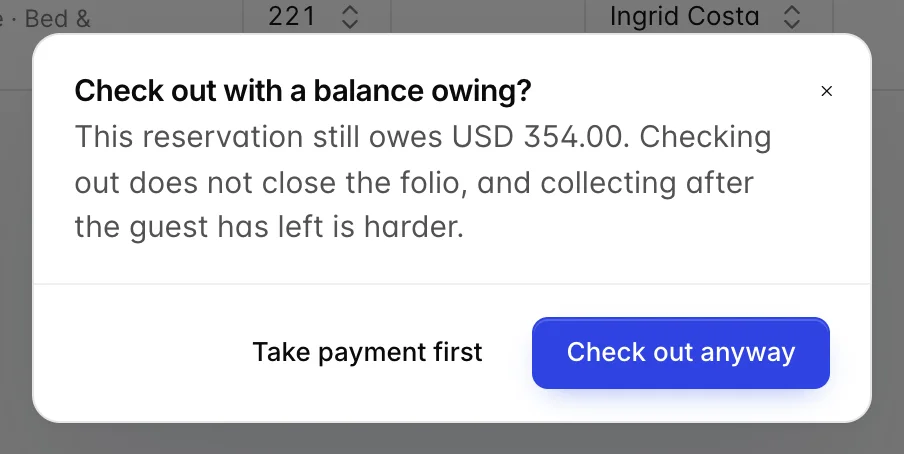
Prostay warns rather than blocks, because checking out with a balance is a legitimate thing to do: a company is being invoiced, a deposit is being chased, a channel settles monthly. What it will not do is let it happen by accident, because the moment the guest is out of the building the money is much harder to collect.
| Choice | What happens |
|---|---|
| Take payment first | Nothing changes. Go to the Folio tab, settle the balance, then come back. |
| Check out anyway | The guest is checked out and the folio stays open with the balance on it. The debt is not written off and the booking still shows what is owed. |
Leaving early
A guest booked until Friday who leaves on Wednesday is not an ordinary check-out, because two nights they were going to be charged for are not going to happen. Check-out early handles that: it ends the stay and moves the departure date to today, so the booking, the calendar and the room all agree that the room is free again.
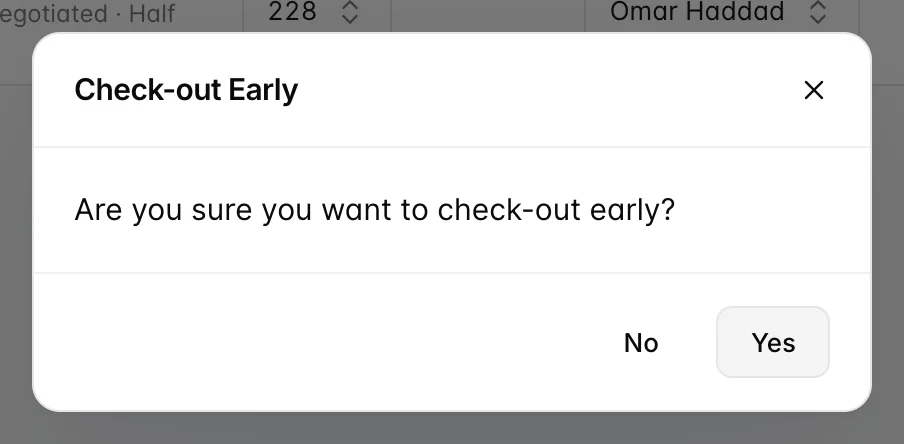
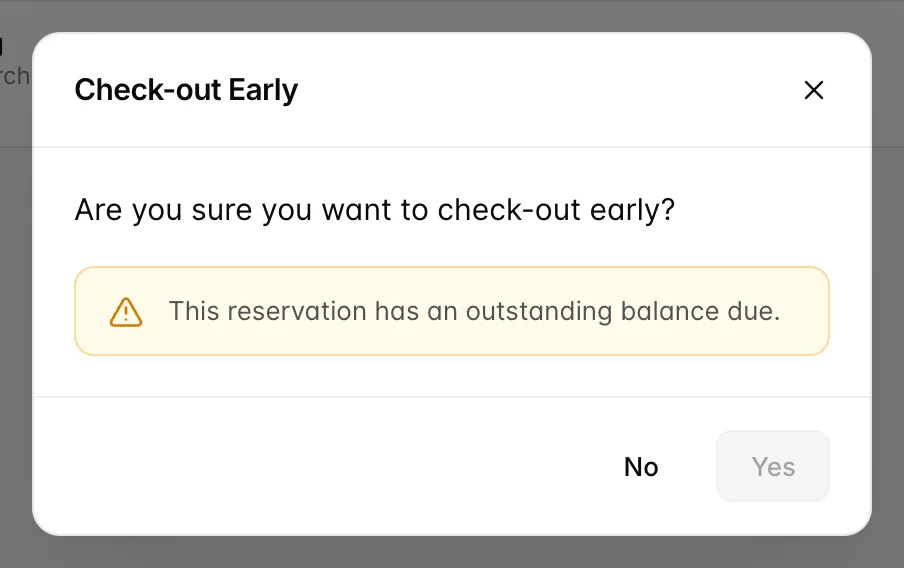
This is the one place a balance is a hard stop rather than a warning, and the reason is that an early departure changes what the guest owes. Settle the folio first and the dialog lets you through. If the guest genuinely is not paying today, use the ordinary Check Out and its warning instead.
The departure date moves
Early check-out rewrites the booking's departure date to today and tags the header with a Checked-out early badge. That is deliberate: it is what frees the room on the calendar for the nights the guest is no longer staying, and what lets the departures report tell a truthful story afterwards.
Undoing a check-in
Checking in the wrong booking is easy to do when two guests arrive together, and it is worth undoing properly rather than flipping the status back by hand, because a check-in touches the room as well as the reservation.
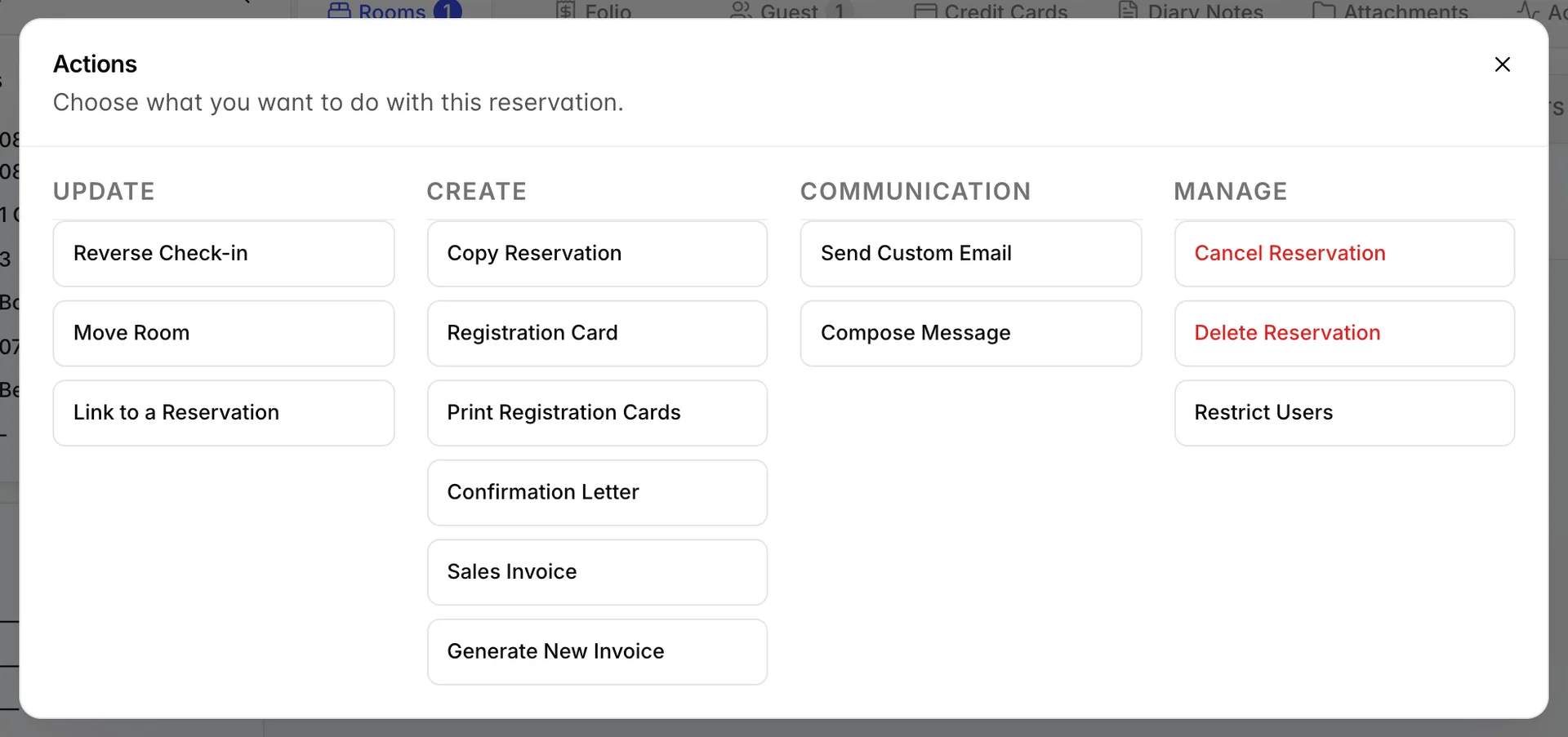
It is offered while the guest arrived today and nothing has been posted to the folio for a later date. Once the stay has moved on, the option disappears, and at that point the right correction is a room move or an adjustment rather than pretending the check-in never happened.
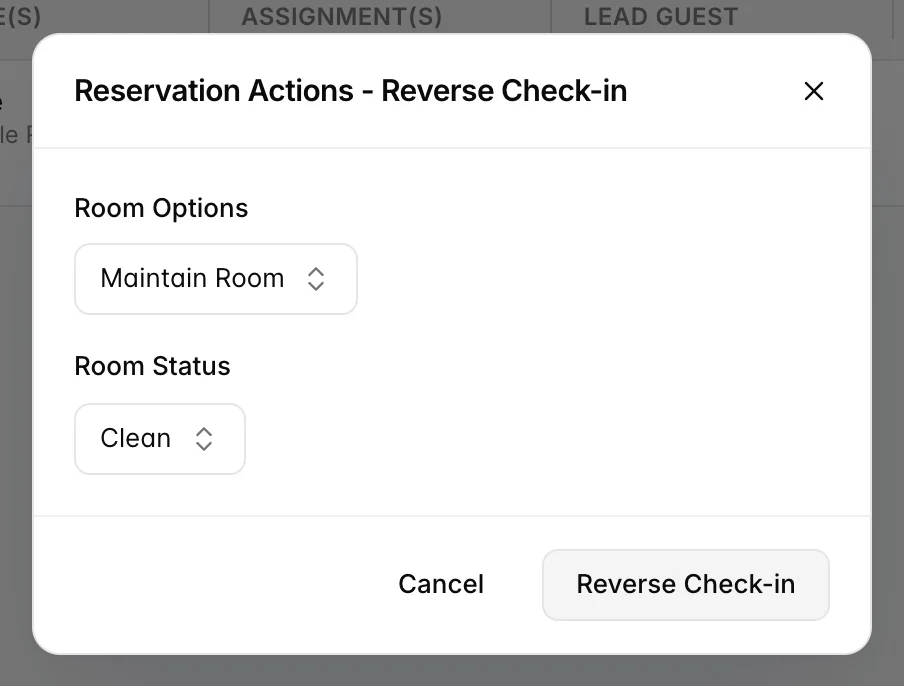
| Question | How to answer it |
|---|---|
| Room Options | Maintain Room keeps the room on the booking, which is what you want when the check-in was simply premature. Remove Room takes it off and returns the booking to unassigned, which is what you want when you checked the guest into the wrong room. |
| Room Status | What housekeeping should think of the room now. Clean if nobody ever got through the door, Dirty if they did. This is the field people skip, and it is the one that decides whether the room gets cleaned again before the next guest. |
The booking goes back to ARRIVAL, ready to be checked in again, correctly this time. There is no equivalent for check-out: to undo one, set the status back with the dropdown.
Bookings with several rooms
Check-in and check-out apply to the whole booking, not to individual rooms. A family on one reservation with two rooms is checked in once, and both rooms become occupied together.
When that is not what you want, because half the party arrives on Thursday and half on Friday, the booking should be split into separate reservations so each can be checked in on its own day. That is covered in splitting a stay and moving rooms.
The statuses you will actually see
Eleven statuses exist and the dropdown lists all of them; the full table is in the reservation page. Five of them make up the working life of a normal stay.
| Status | What it means |
|---|---|
| ARRIVAL | Due in today, not here yet. This is what Check In acts on. |
| CHECKED-IN | In house. |
| DUE-OUT | In house and leaving today. Still offers Check Out. |
| CHECKED-OUT | Gone. The room is released for housekeeping. |
| NO-SHOW | Due in and never arrived. Set from the dropdown, not a button. |
Mark a no-show rather than cancelling or deleting it. Cancelling says the guest told you; a no-show says they did not, and the two mean different things for your no-show rate and for whether you charge the card on file.
Things that catch people out
- Tomorrow's arrivals cannot be checked in today. The button is absent, not disabled, so there is nothing to hover for an explanation. Move the arrival date if the guest is genuinely early.
- Check-out does not settle the folio. It changes the status. A balance survives check-out untouched.
- Early check-out changes the departure date. Ordinary check-out does not. If you use the wrong one, the calendar will hold a room that nobody is in.
- Reverse Check-in expires. It is gone the next day. Undo the mistake while you are still thinking about it.
- On a restricted booking the buttons are greyed out. Nothing explains why. It means you are not on the list of users allowed to work on that reservation; an administrator sets that under Actions.