A booking source is the record of a partner who sends you business: Booking.com, a corporate account, the agent down the road. Creating one takes two fields. Everything else in the panel is contact detail and paperwork that your team will thank you for later, and none of it changes what a booking is worth.
The one field that does is Source, which points the source at a source type, and the type is what carries the commission. If you have not set your types up yet, do that first in Source types and their commissions, because you cannot save a source without choosing one.
Before you add one
Search the list for the partner's name first. Duplicates are the one mistake here that is genuinely annoying to undo: two records for the same agent split that agent's production between two rows, so neither one tells you what they are worth, and merging them is not something Prostay offers. Reading the list is covered in Reading the booking sources list.
Check as well that the partner is not already arriving through a connected channel. Sources for channels you have connected are created for you, and adding a second record by hand gives you the split you were trying to avoid.
Adding a source
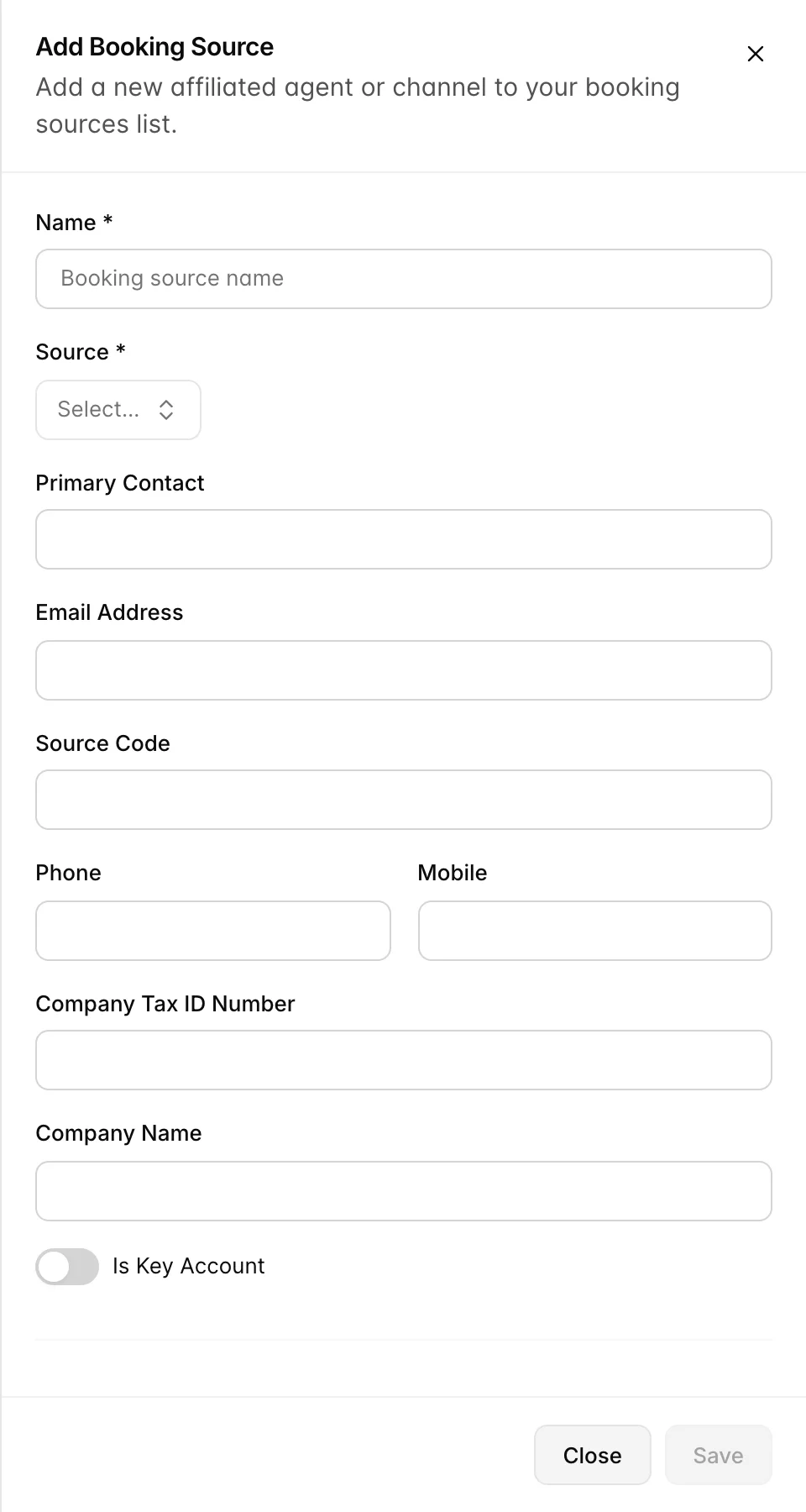
- Press Create New. Top right of the booking sources list. The Add Booking Source panel opens from the right.
- Type the Name. Required. This is the name that appears on the list, in the source picker when your team takes a booking, and on every production report, so use the name your colleagues would say out loud rather than a legal entity. The company's formal name has its own field further down.
- Pick a Source. Required, and this is the source type. It sets the commission on everything this partner sends you. The list is every type you have defined, whether or not it is switched on.
- Fill in the contact details. All optional. Whoever has to chase an invoice in eight months is the person to write these for.
- Decide on Is Key Account. Off by default. It is a flag you can filter the list by, nothing more, and you can turn it on later.
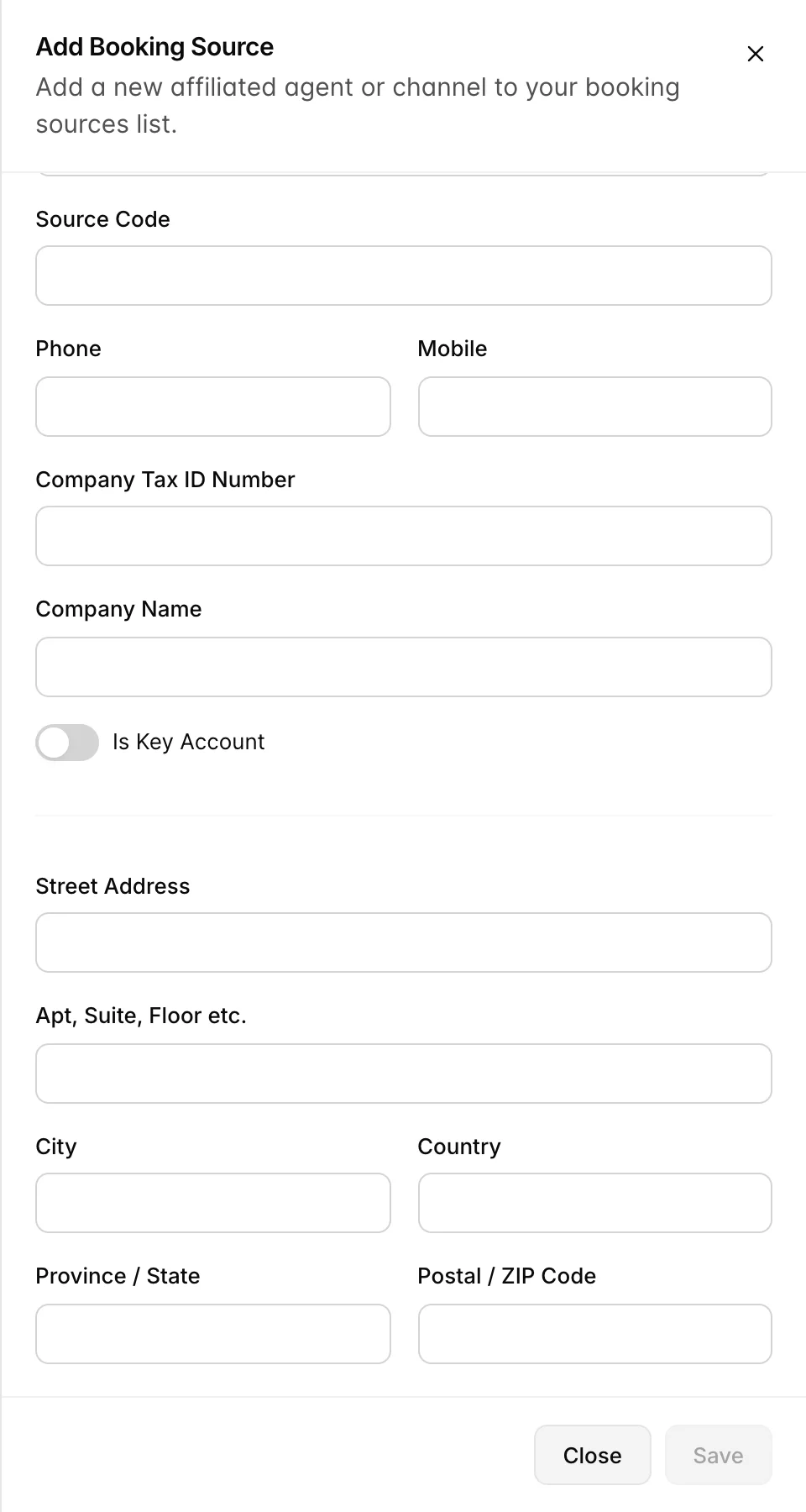
- Scroll down for the address, then press Save. The panel closes and the source appears in the list.
What each field is for
Sixteen fields, and they are not equally useful. The ones that appear on the list are the ones your team will actually read; the rest are there for when somebody needs the paperwork.
| Field | What it is for, and where it shows up |
|---|---|
| Name, required | The partner's working name. Shows on the list, in the source picker on a reservation, and on production reports. Changing it later changes it everywhere, including on bookings already taken. |
| Source, required | The source type, and with it the commission. Shows on the list as Source Type and as a badge on the source's own page. |
| Primary Contact | The person you deal with. Shows on the list as its own column, which makes it the fastest way to answer "who do we call about this one". |
| Email Address | One address. Shows on the list as a working mail link, and in the contact block on the source's page. Nothing checks that it is a valid address, so read it back before you save. |
| Source Code | A short code of your own for this partner. Shows on the list. Set it now if you want it, because the source's own page has no field for it afterwards. |
| Phone | The switchboard or landline. Appears on the source's own page only. The list's Phone column does not show this field. |
| Mobile | The number that reaches a person. This is what the list's Phone column shows, and what the contact block on the source's page shows. If you only fill in one number, fill in this one. |
| Company Tax ID Number | The registration number your finance team needs on an invoice. Stored on the source's page, and nowhere on the list. |
| Company Name | The legal entity, where it differs from the working name. Same place: on the source's page only. |
| Is Key Account | A switch. Shows as Yes or No in the list's Key Account column and can be filtered on. It gives the source no special treatment. |
| Street Address, Apt, Suite, Floor etc., City, Province / State, Postal / ZIP Code | The billing address, kept on the source's page. Worth filling in for anyone you invoice, ignorable for a channel you never post anything to. |
| Country | A text box, and the list's Country column shows exactly what you type. The list's country filter works on two letter codes, so type DE rather than Germany if you want this source to turn up when somebody filters by it. |
Editing a source afterwards
Open the list, press the three dot menu at the end of the row, and choose Edit. That opens the source's own page on its Source Details tab, which is the same set of fields as the add panel laid out in two cards. Rows have no menu when the source is one Prostay maintains itself, such as Walk-in, and those cannot be edited at all.
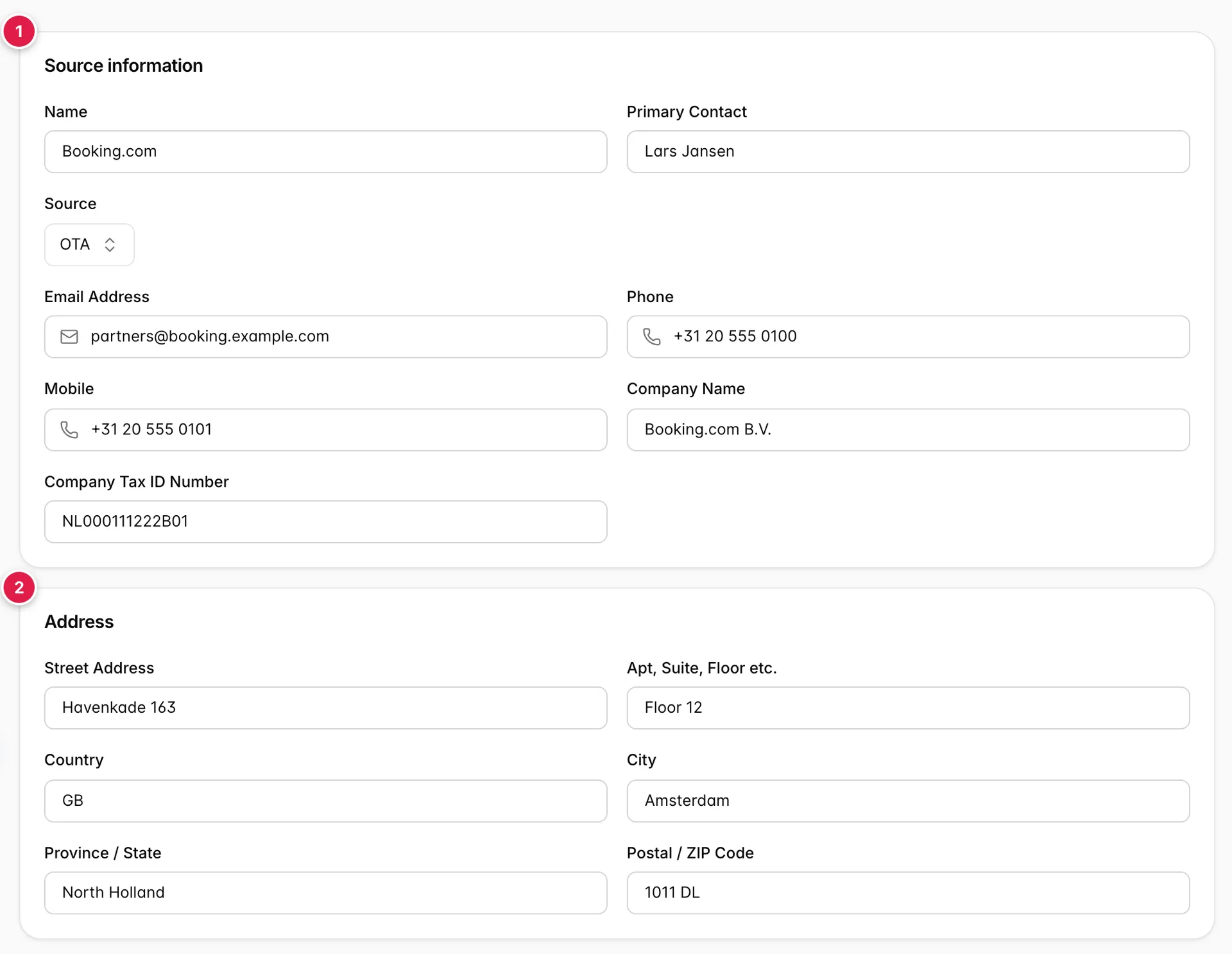
- Source information. Name, contact, numbers, company details, and the Source dropdown. Everything here is editable in place, with no asterisks and no validation.
- Address. The billing address. The fields are the same as the add panel's, though Country comes before City here and after it there, which is worth a second look before you type into the wrong box.
The rest of the page is the source's history: what it has produced, notes your team has left, documents, and a log of who changed what. That is covered in The source profile and its production.
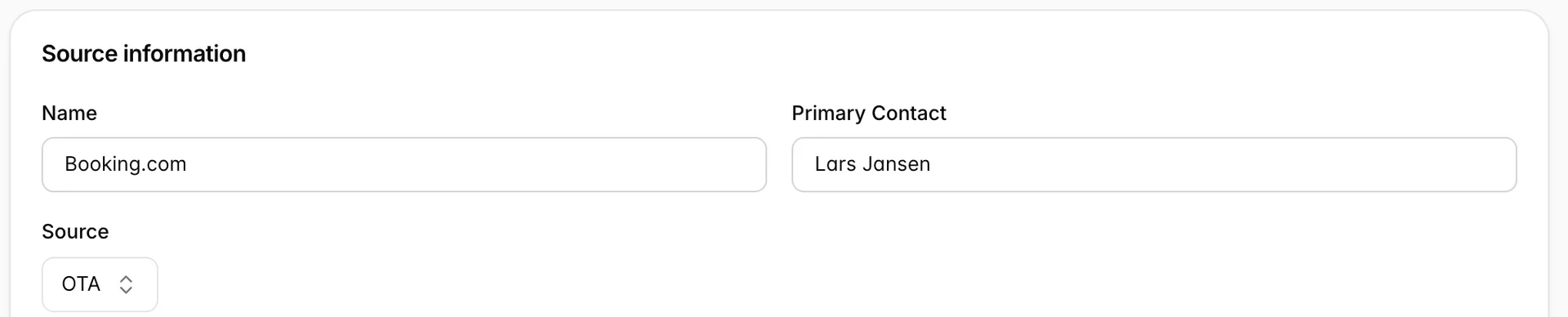
Moving a source to a different type changes the commission on the bookings it takes from that point on. It is the right move when a partner renegotiates, and it is a quiet mistake when somebody picks the wrong type on a busy morning, because nothing else on the page looks different afterwards. If a source's production looks wrong on a report, this dropdown is the first thing to check.
What Save Changes does
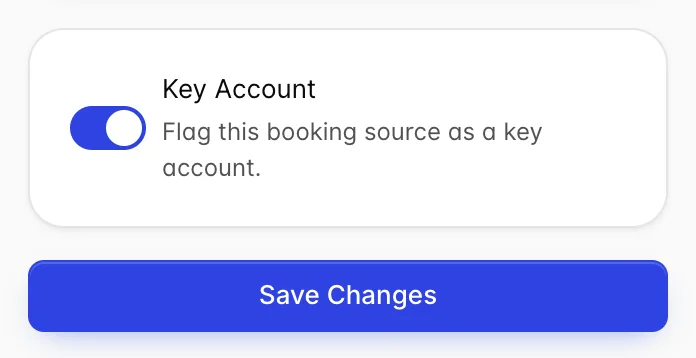
There is one Save Changes button, at the foot of the panel on the left, and it saves both cards and the Key Account switch together. You get Successfully updated booking source! when it lands. Prostay also writes a line into the source's Activity Logs tab naming each field you changed, its old value and its new one, stamped with your name and the time.
Leaving the page without saving loses your edits, and nothing warns you. Switching between the tabs on the page is safe, because they are all one page; it is navigating away from the source that discards them.
What you cannot change here
| Thing | Where it actually lives |
|---|---|
| The commission on this source | On its source type. Change the type's percentage, or point the source at a different type. |
| The source's Source Code | Only settable when the source is created. The page has no field for it, so a code typed in wrong stays wrong. |
| Which bookings are attributed to this source | On each reservation. The source's History tab lists them but does not reassign them. |
| Deleting the source | The row menu on the list. There is no delete on the source's own page. |
| Anything about Walk-in and the other system sources | Nothing. Prostay maintains them, and they have no row menu to open. |
Things that catch people out
| What you see | Why |
|---|---|
| Save greyed out on a panel you have filled in | Source is still on Select. It is required, and it is easy to scroll past. |
| A dash in the list's Phone column on a source with a phone number | The number went into Phone. The column shows Mobile. |
| A source missing from the list's country filter | Its Country holds a name rather than a two letter code. The filter matches codes. |
| No Source Code field on the source's page | There is not one. The code is set when the source is created and cannot be edited afterwards. |
| An obviously wrong email address saving without complaint | The field does not check what you type. Read it back yourself, because mail to a wrong address will not arrive and nothing will tell you. |
| Your edits gone when you come back to the source | You left the page without pressing Save Changes. Nothing warns you on the way out. |
| A type change missing from the Activity Logs tab | The log records the text fields and the switch. Moving a source to a different type saves, but does not appear in the log, so note it somewhere if it matters. |