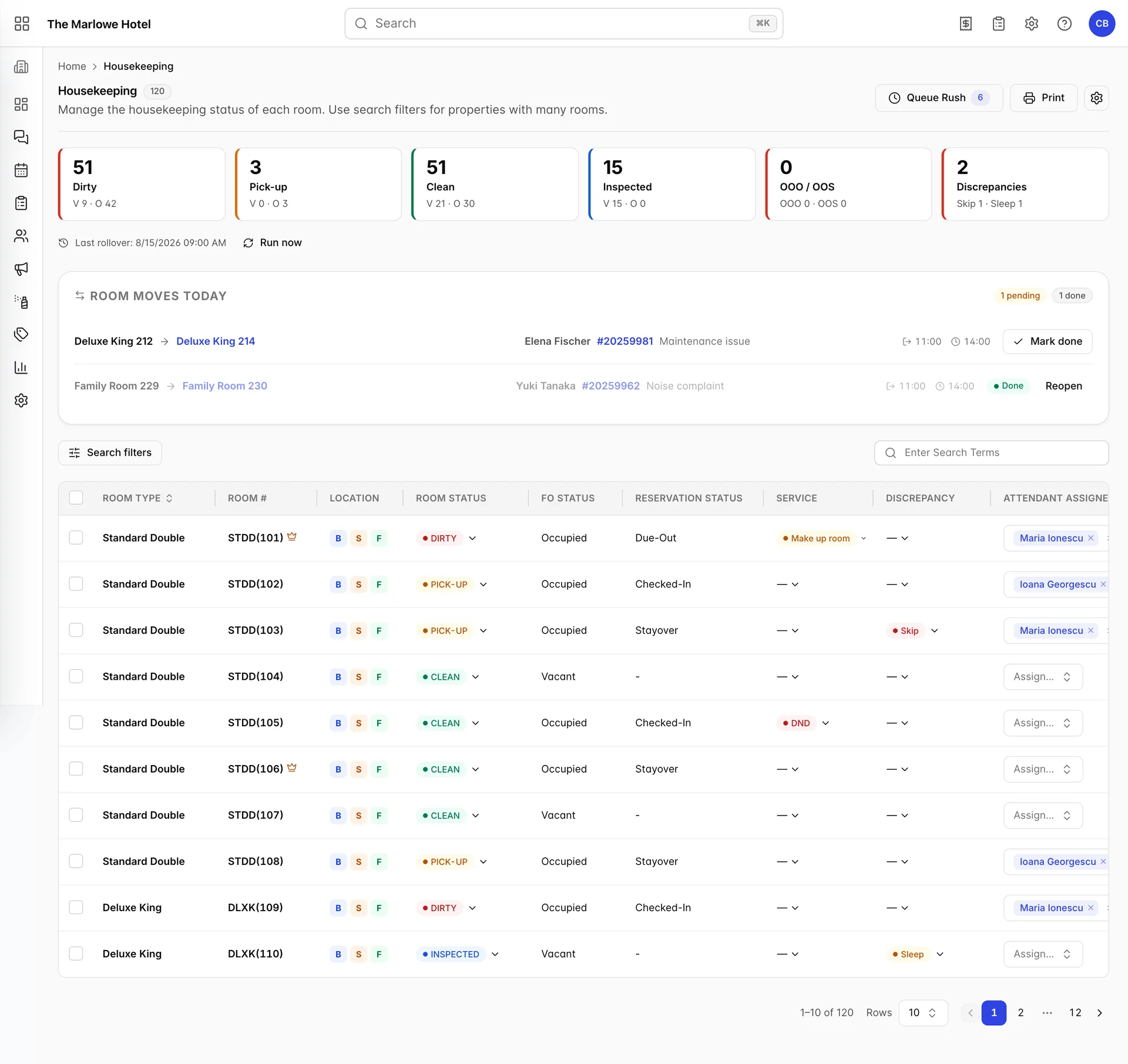
The housekeeping board is the one screen in Prostay that is about rooms rather than bookings. Everywhere else in the PMS a room is an attribute of a reservation, something the guest happens to be in. Here it is the subject: 120 rows, one per room, each carrying the state it is in, who is responsible for it, and whether anybody needs to do anything about it today.
What the board is for
Two questions, asked several times a day by different people. The head housekeeper asks how much work is left. The front desk asks whether a particular room is ready to give to the guest standing in reception. The board answers both, which is why it leads with counts and then gives you the individual rooms underneath.
The six tiles

- Dirty. Rooms needing a clean. The biggest number in the morning and the one that should be falling all day.
- Pick-up. Cleaned, but needing a quick second visit. Usually a stayover that was serviced while the guest was out.
- Clean. Serviced and ready to sell, unless your property also inspects.
- Inspected. Cleaned and then signed off by a supervisor.
- OOO / OOS. Rooms blocked out of order or out of service. These are not sellable and not cleanable.
- Discrepancies. Rooms where housekeeping and the front desk disagree about whether anybody is in them.
The small line under each count splits it into V for vacant and O for occupied. That split is the useful part. Fifty-one dirty rooms is a number; nine dirty and vacant is a work queue, because those are the rooms you can sell the moment they are clean.
Every tile is a button. Pressing one filters the table to the rooms it counts, which is almost always faster than opening the filter drawer and choosing the same thing by hand.
Finding the rooms you want

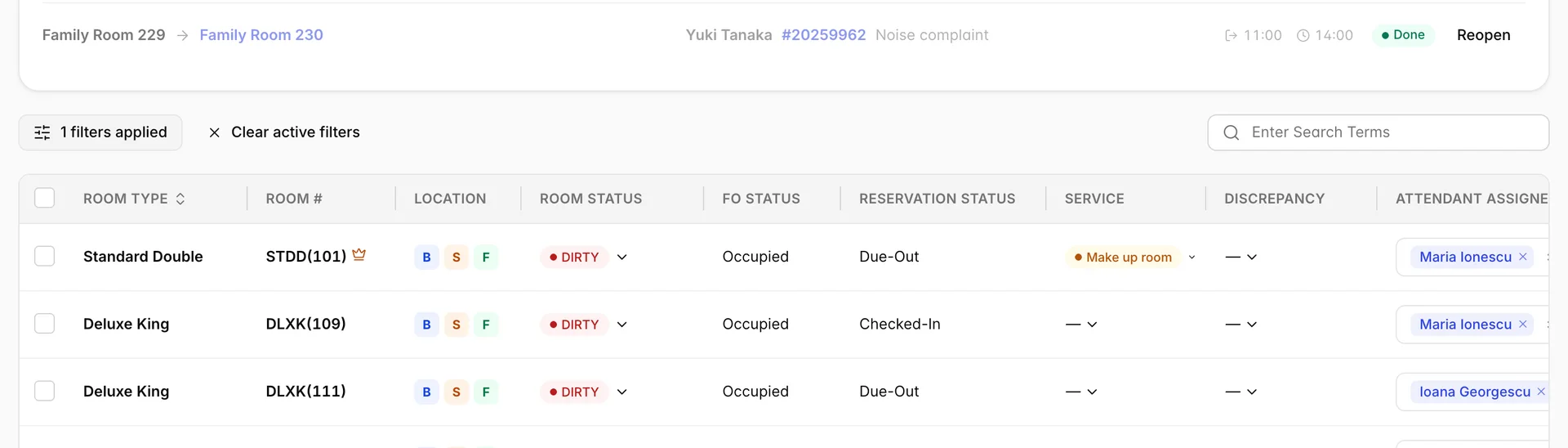
- Search filters. Opens the drawer below. Once anything is applied the button changes to a count, and a Clear active filters button appears beside it.
- Search. Free text against the room number and room type. Use it when you know the room and just want that one line.
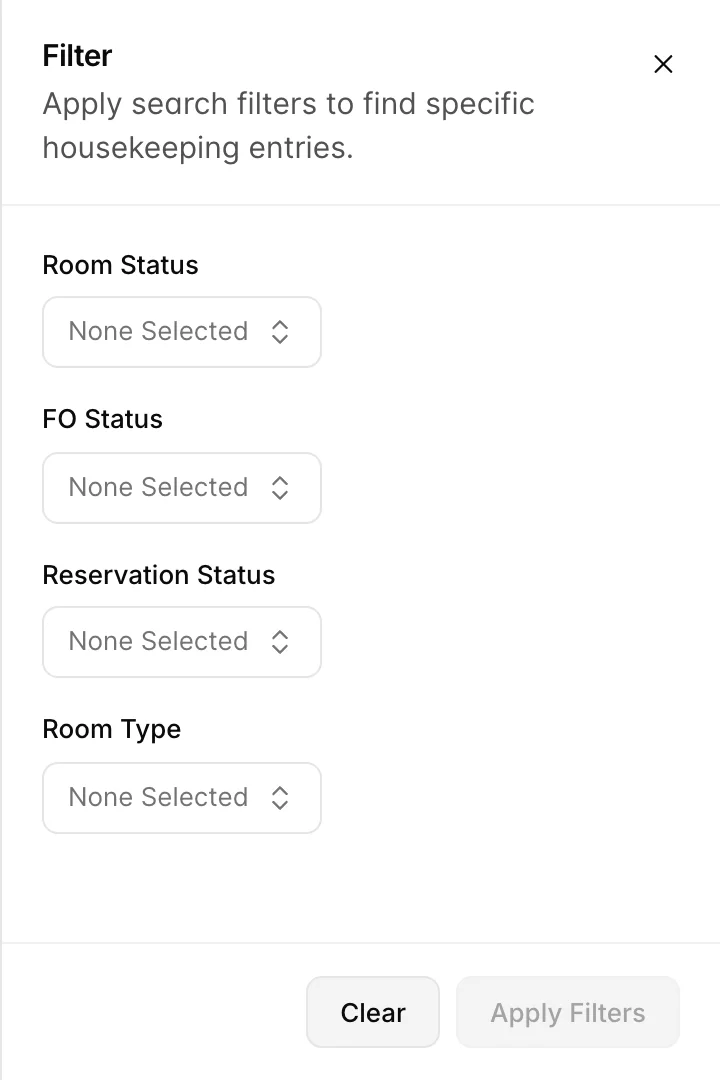
Each filter takes several values at once, so Dirty plus Pick-up is a legitimate answer to the first question. Combining filters narrows: dirty rooms that are also vacant that are also suites. Nothing is applied until you press Apply Filters, and the button stays disabled until you have chosen something.
Reading a row

- Room Type. What is being sold, for example Standard Double. The only sortable column on the board.
- Room #. The room, written as the type abbreviation and then the number: STDD(101). A crown beside it means the guest in the room is flagged VIP.
- Location. Three chips for building, section and floor. Hover any of them for the full name. They are chips rather than words because a property with four buildings would otherwise lose half the table to this column.
- Room Status. The housekeeping state, and a dropdown rather than a label. This is the column the whole screen exists for.
Scroll the table sideways and the rest of the row appears: what the guest has asked for, whether anybody has queried the occupancy, the attendant, turndown, the room note and the rush flag.
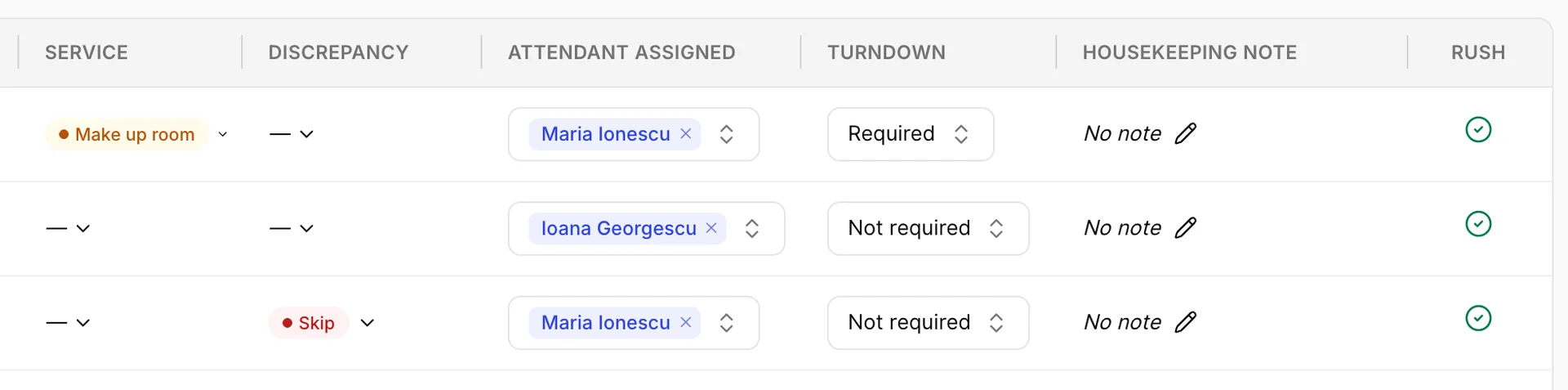
| Column | What it holds |
|---|---|
| Service | What the guest has asked for: DND for do not disturb, Make up room for the opposite. Set from the door hanger, the phone or the app, and it overrides the schedule. Covered in the discrepancies and service article. |
| Discrepancy | Where housekeeping's account of the room and the front desk's disagree. Skip and Sleep are the two directions that can go. |
| Attendant Assigned | Who is cleaning it. More than one name is allowed. |
| Turndown | Evening service: Required, Not required or Completed. Only present if turndown is switched on in housekeeping settings. |
| Housekeeping Note | A standing note about the room or the guest in it. |
| Rush | Adds the room to the queue rush list, which is the running order for rooms somebody is waiting on. A green tick means it is already in the queue. |
The three status columns
Three columns in the middle of the board all end in the word status, sit next to each other, and mean entirely different things. This is the single most common source of confusion on this screen, so it is worth being precise.
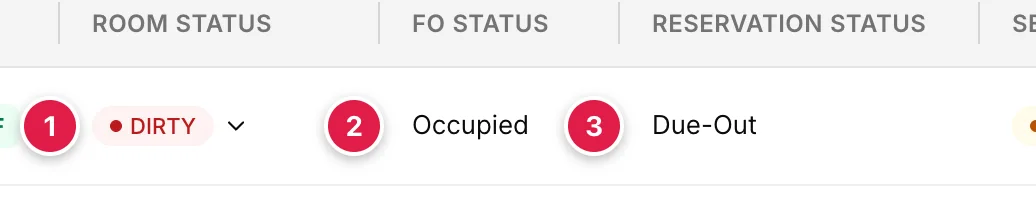
- Room Status. Is the room physically clean? This is housekeeping's answer, and the only one of the three you can change here.
- FO Status. Does the front office believe somebody is in the room tonight? Only ever Occupied or Vacant.
- Reservation Status. Where the booking in the room has got to: Checked-In, Due-Out, Stayover and so on. Blank when no booking is in the room.
A room can be dirty and occupied, which is normal at breakfast time. It can be clean and occupied, which means it has been serviced today. It can be dirty and vacant, which is a departure waiting to be turned around, and it is the combination the front desk cares about most. What it should not be is clean and occupied with a reservation status of Checked-Out: that means the guest has gone and nothing has caught up yet.
Changing a room status
Click the status badge on any row. It looks like a label but it is a dropdown.
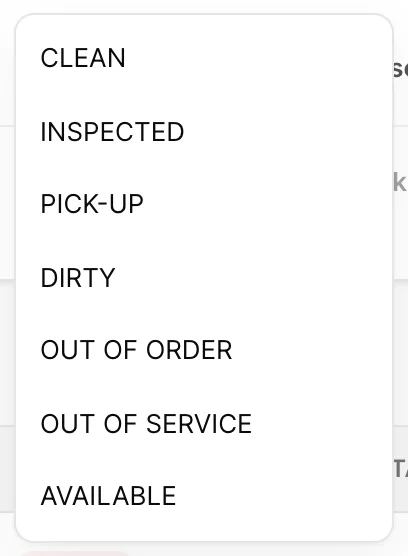
Pick one and it saves immediately, with a Successfully changed room status! confirmation. There is no save button and no undo, but every change is written to the room's history with your name against it, so a wrong entry is traceable and correctable rather than lost.
What each status means
| Status | Meaning | Can it be sold? |
|---|---|---|
| CLEAN | Serviced and ready. | Yes |
| INSPECTED | Serviced and then checked by a supervisor. Properties that inspect treat this, not Clean, as ready. | Yes |
| PICK-UP | Broadly clean but needs a short second visit. Typically a stayover tidied while the guest was out. | Not until it is done |
| DIRTY | Needs a full clean. Set automatically at the night audit for occupied rooms and at check-out for departures. | No |
| OUT OF ORDER | Unusable, and out of your room count. Use it when the room genuinely cannot take a guest. | No |
| OUT OF SERVICE | Held back deliberately but still countable. Use it when the room could take a guest but you would rather it did not. | No |
| AVAILABLE | Ready and not allocated to anybody. Rarely set by hand. | Yes |
The distinction between out of order and out of service is the one worth learning, because it changes your occupancy percentage. An out-of-order room leaves the denominator; an out-of-service room stays in it and counts against you.
Turning over a floor at once
Changing 40 rooms one dropdown at a time is not a plan. Tick the checkbox at the start of each row, or the one in the header to take everything on the page, and a bar appears above the table.

- The count. How many rooms the next press will affect. Worth reading before you press anything.
- Set status. One status applied to all of them.
- Assign attendant. One attendant given all of them, or Unassign all to clear.
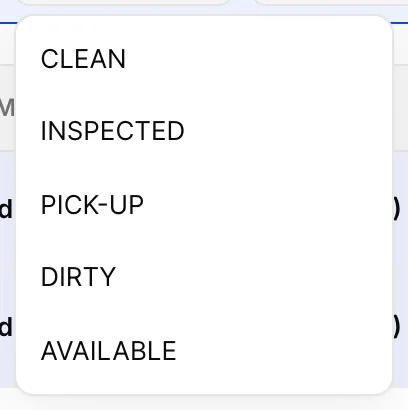
Out of order and out of service are missing from the bulk menu on purpose: each one needs its own dates and reason, so there is nothing sensible to apply to twenty rooms at once. Any blocked rooms caught up in a bulk selection are skipped rather than overwritten, and the confirmation tells you which: Updated 18 room(s). Skipped OOO/OOS rooms: 214, 216.
Who is cleaning what
The Attendant Assigned column is a picker on every row, listing the attendants marked as working today. Assign more than one to a room when two people are sharing it. Clearing the cell unassigns the room, which is the correct thing to do when somebody goes home sick, rather than leaving their name on rooms nobody is cleaning.
Assigning here is the quick, room-by-room route. For a whole shift planned in advance, balanced by credits and printable, use task sheets instead.
Notes on a room
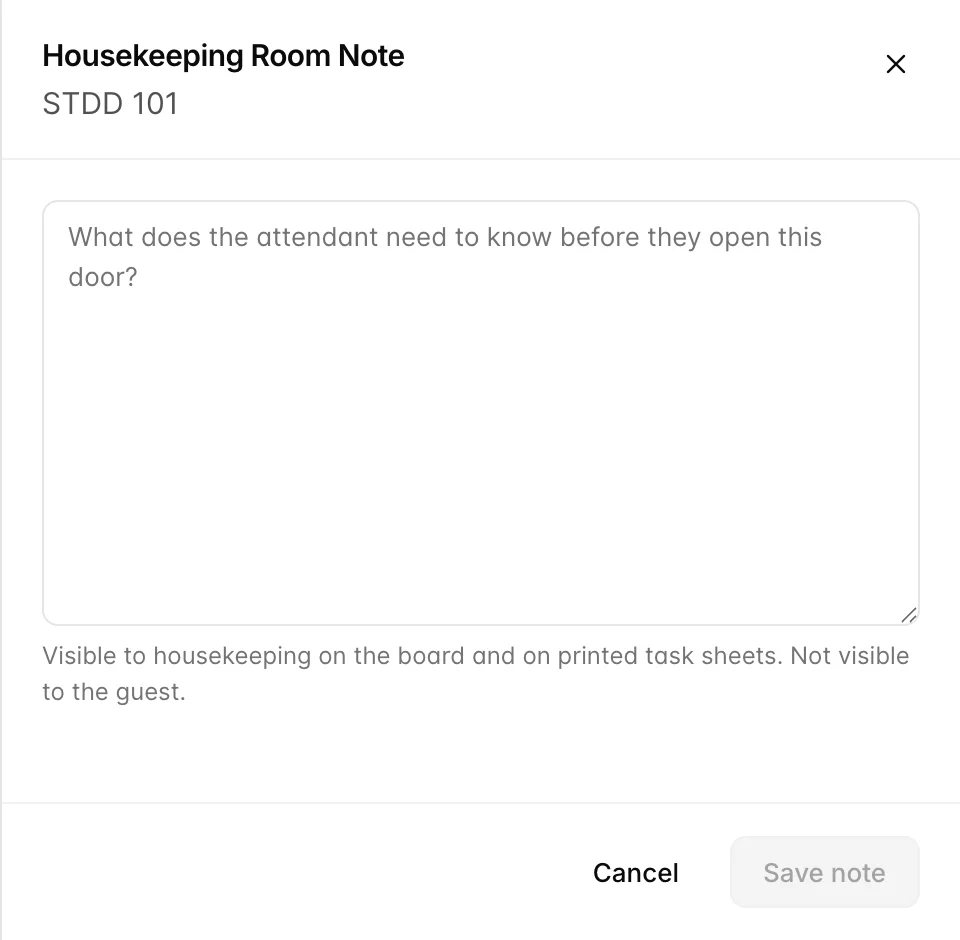
One note per room, edited with the pencil in the Housekeeping Note column. It shows on the board and on printed task sheets, so it is the right place for anything the attendant needs to know before they open the door: a broken blind, a guest who works nights, a dog in the room.
It is the wrong place for anything about the booking. The note belongs to the room and outlives the guest, so a note saying "late checkout agreed" will still be there in three weeks, misleading somebody. Put that on the reservation instead, under diary notes.
What happened to this room
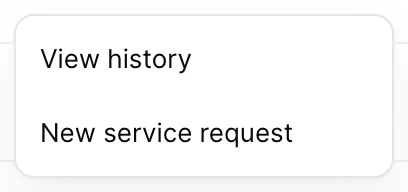
The menu at the end of each row has two entries: View history and New service request.
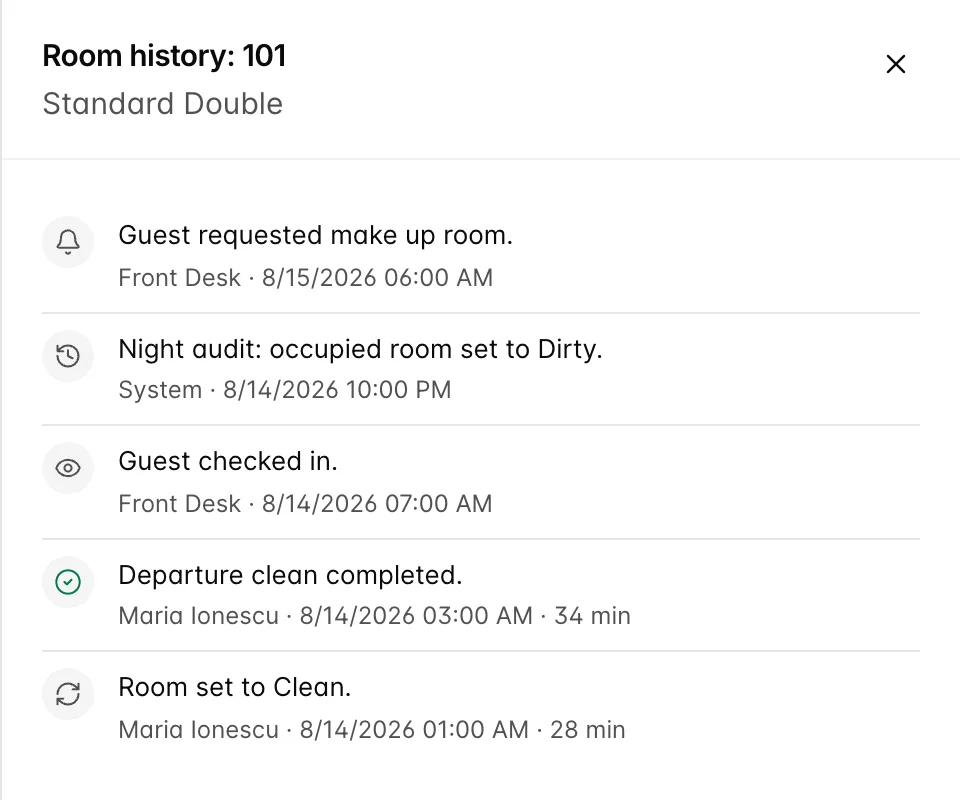
History is the answer to "who marked this room clean?", and it is complete: manual changes, bulk updates, the night rollover, completed tasks, occupancy reports, blocks and resolved work orders all land here, newest first, with the name of whoever or whatever did it. Cleaning tasks also record how long they took.
Paging through the house

Ten rows by default, and 120 rooms is twelve pages of that. Filtering to the rooms you actually care about beats paging through the house, which is what the tiles are for.
Things that catch people out
- Clean does not mean sellable everywhere. If your property inspects, a clean room is still waiting for a supervisor and INSPECTED is the state the front desk should be looking for. Agree which one means ready and be consistent, because the board will not decide for you.
- Columns disappear based on your permissions. A board missing the attendant column or the note column is not broken; your user is not allowed those features. The same is true of the whole Housekeeping menu.
- Bulk selection stops at the page boundary. Ten rows at a time unless you raise it.
- A block is not undone by picking another status. Moving a room off out of order asks whether the work really is finished, because the answer changes what your downtime reporting says.
- Room notes outlive guests. Anything specific to the person in the room belongs on the reservation, not here.
The board is today. For how long rooms are taking and who is clearing them, read the housekeeping productivity report, which is built from the status changes made here.