A rate plan is a name, a list of sources and a set of dated intervals. Everything a guest is actually charged sits in those intervals, so this is the tab where a plan stops being an idea and starts being a price. The plan itself, its two names and who is allowed to sell it, is covered in rate plans and packages.
Where the prices actually live
Open a plan from Rate Plans & Packages and pick the Intervals & Pricing tab. The card lists every interval the plan holds.

Outside the dates listed here the plan quotes nothing at all. It does not fall back to the previous interval, and it does not fall back to your base rate: the plan is simply not offered for those nights, while the base rate carries on selling as usual. A plan that has stopped appearing is far more often out of dates than switched off.
A plan with no intervals cannot be saved. The form refuses with Please add at least one interval., because an offer with no prices could not be booked by anybody.
What an interval decides

- Select Room Types. The accommodation types this interval prices. Each one selected gets its own grid of daily prices further down the form.
- Interval Name. Staff-facing only. Guests never see it, so name it for the period rather than for the offer.
- Start Date and End Date. The nights the interval answers for. The end date must be at least one day after the start.
| Field | What it does to the price a guest sees |
|---|---|
| Select Room Types | Required. A type left unticked is not sold on this plan for these dates, at any price. |
| Interval Name | Required. Appears in the interval list and in the expanded row on the plans list. Nothing else uses it. |
| Start Date and End Date | Required. Nights outside the range get no quote from this plan. |
| Min Los | Required. The shortest stay the plan will sell in this period. A minimum of 7 hides the plan from anyone searching for three nights. |
| Max Los | Required. The longest stay the plan will sell. A stay past the maximum does not get a partial quote, it gets nothing. |
| Closed To Arrival | Yes stops a stay starting on the days this interval covers, while stays passing through are unaffected. |
| Closed to Departure | Yes stops a stay ending on those days. |
| Do you charge for additional adults and/or children? | Yes adds the per person grid described below. No means the daily price covers everybody the accommodation type can hold. |
| Select Week Days | Which nights of the week the interval prices. Unticked days are not sold on this plan at all. |
Accommodation types
One interval can price several accommodation types at once, and each type ticked gets its own price grid. That is convenient and it is also the most common way a plan ends up half sold: tick four of your six types and the other two quietly stop being offered on this plan, with nothing on the interval list to show it.
The types themselves, their capacities and how many guests the base rate includes, are set up in accommodation types under general settings.
Dates and length of stay
Two intervals on the same plan cannot overlap. Try it and the form says The selected date range overlaps with an existing interval. and refuses to add the interval. Gaps, on the other hand, are allowed and silent, which is why the interval list is worth reading end to end before a season starts.
Min Los and Max Los are filters, not prices. They decide whether this plan is offered for a stay of that length, and they are how a weekly rate is built: a minimum of 7 makes the plan invisible to anyone booking a weekend, without needing a promotion code or a separate source.
Closures and days of the week

Select Week Days does more than it looks like it does. The days ticked here are the columns of every price grid below, so a plan sold Monday to Friday has five price boxes per accommodation type rather than seven, and quotes nothing for Saturday and Sunday nights. Untick a day after you have typed prices and that day's price goes with it.
The price for each day
Below the restrictions, each accommodation type you ticked gets a block with its own name on it, headed by a hint asking you to pick which days of the week it is available on and to give a price for each of them.

- Input Price and Apply To All. A shortcut. Type one number, press the button, and every day box for that type is filled with it.
These are the nightly prices the plan sells at. They are absolute amounts, not adjustments to your base rate, so a plan priced at 525 charges 525 a night whatever the base rate for that accommodation type happens to be. If you want a plan that follows the base rate instead, that is a derived plan, described below.
Apply To All fills the boxes, it does not link them. Change the Friday box afterwards and it stays changed; press Apply To All again and it is overwritten. Every day box has to hold a price above zero before the interval can be added, which is the product refusing to let you sell a night for nothing by accident.
If the property sells in more than one currency, each type also has a collapsible Multi-Currency Prices panel under its grid. It works exactly as it does on base rates, including the exchange rate helper, and is covered in multi-currency base pricing.
Charging for extra guests
Answer Yes to Do you charge for additional adults and/or children? and a per person block appears under each accommodation type.
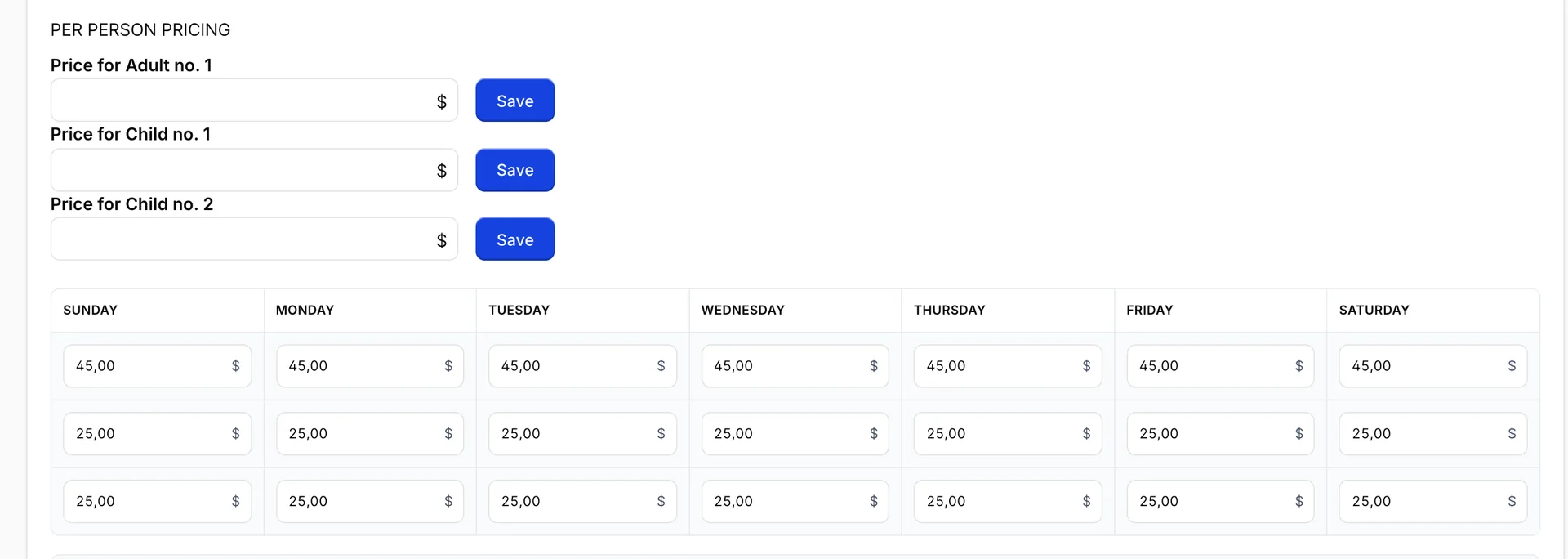
The rows are not a choice you make. They are worked out from the accommodation type: the adults it can hold minus the adults the rate already includes, then the same for children. A Junior Suite that sleeps three adults and includes two gets one adult row, and its two children are not included in the rate, so it gets two child rows. A type that includes everybody it can hold gets no rows at all.
These amounts are supplements added to the nightly price, not replacements for it. A Junior Suite at 525 with a third adult and one child is 525 plus 45 plus 25 for that night. Each row is priced per day of the week, so a weekend supplement can differ from a midweek one.
The small box with a Save button beside each label is the same shortcut as Apply To All above: it fills that row across all its days. It does not save anything to the server, whatever the button says.
Derived plans
A derived plan is one that does not carry prices at all. It carries an adjustment, and follows whatever it is derived from. Set Is this a derived rate plan? to Yes on the Details tab and three fields appear.

| Field | What it means |
|---|---|
| Method | Minus or plus. Minus makes the plan cheaper, plus makes it dearer. |
| Rate Calculation Method | A percentage, or a fixed amount in your property currency. |
| Value | The size of the adjustment: 15 with minus and percent is fifteen percent off. |
The interval builder then changes shape. Every accommodation type still gets a grid, but the boxes are gone and each day prints the adjustment instead.

This is the point of a derived plan, and the reason to use one. Put your prices up for the summer on the plan you derive from, and the derived plan moves with it. Nothing has to be retyped, and the two cannot drift apart.
A derived interval still needs its dates, its stay lengths and its accommodation types, because those are decisions the adjustment cannot make for you. Multi-currency prices do not appear on a derived plan: there is no typed amount to convert, so the foreign price follows from the adjustment too.
Inclusions and policies
The Inclusions & Policies tab belongs to the plan, not to an interval, so what you write here applies to every date the plan sells.
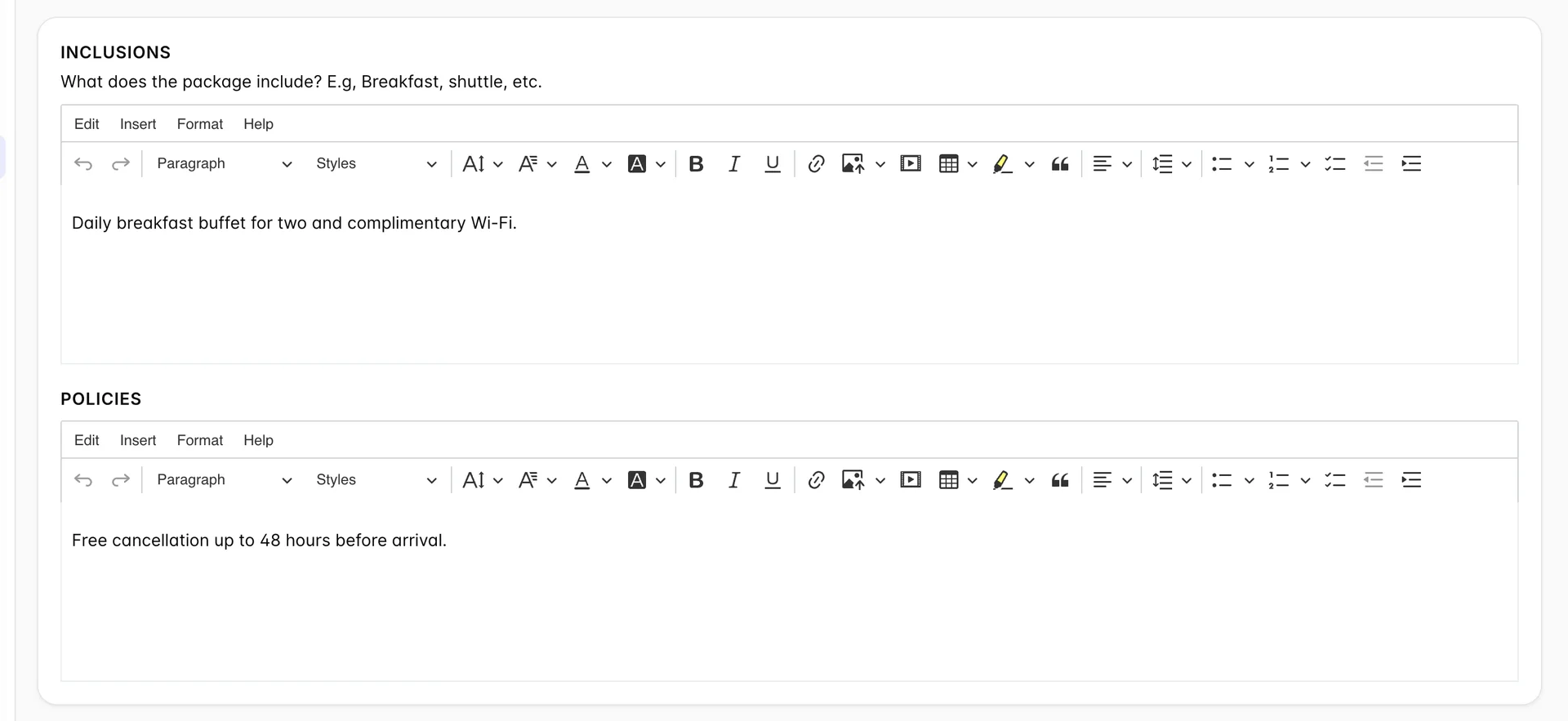
Inclusions is what the package contains, in the guest's words: breakfast, a shuttle, a bottle on arrival. Policies is the cancellation and payment wording. Both are guest facing, so keep them short and specific, and keep them honest about the cancellation deadline, because this is the text a guest will quote back to you.
Writing breakfast into the inclusions describes it. It does not add it to the folio. If the breakfast should appear as a line on the bill, add it as an add-on on the Details tab as well, which is covered in the add-ons articles.
Adding, editing and saving
Add Interval opens the builder empty. The button at the bottom stays disabled until every required field is filled and every day box holds a price above zero, so a disabled button is the form telling you something below is still blank. Pressing it puts the interval in the list on this tab.
The actions menu on an interval row offers Edit, which reopens the builder with everything filled in, and Delete, which removes the row at once with no confirmation.
After a successful save, reopening the plan brings back the intervals, their dates and stay lengths, the days of the week, the daily prices and the per person supplements as you left them. It is worth doing once on a plan you care about, because reading the numbers back is the only proof that what you typed is what will be sold.
Common pitfalls
| What you see | What is usually going on |
|---|---|
| The plan sells for part of the year and then stops | The intervals have a gap, or the last one has ended. There is no fallback to the previous interval or to the base rate. |
| The plan never appears for weekend stays | Either Saturday and Sunday are unticked in Select Week Days, or Min Los is longer than the stay being searched. |
| One accommodation type is never offered on the plan | It was not ticked in Select Room Types when the interval was built. Nothing on the interval list shows which types are covered. |
| The Add button will not enable | A required field is empty, or one of the day boxes is still zero. Scroll every accommodation type block, not just the first. |
| An extra guest is not being charged | Do you charge for additional adults and/or children? is set to No on that interval, or the accommodation type already includes that guest in the rate. |
| Interval changes vanished | The screen was left without pressing Save Rate. The interval list on this tab is unsaved work until then. |