An accommodation type is a thing you sell: Standard Double, Sea View Suite. A room is a thing you hand a key to: 101, 214. Every rate, every column of the availability matrix and every listing on the booking engine hangs off the type. Every assignment, housekeeping task and room move hangs off the room. This screen is where both are defined, and getting the relationship between them right is most of the work.
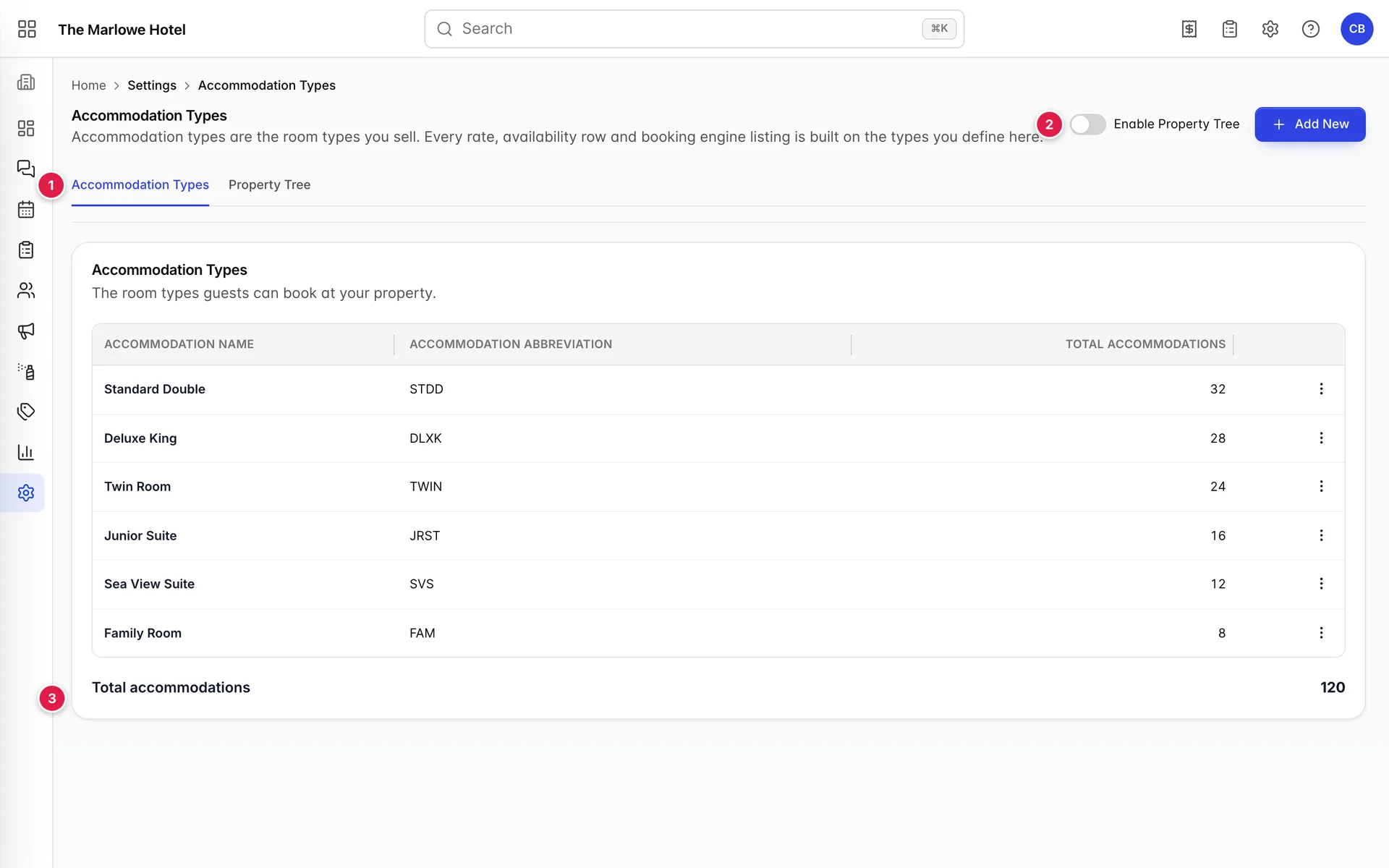
- Two tabs. The types themselves, and the buildings and floors they sit in.
- Enable Property Tree. Off by default. Turning it off again deletes the structure.
- Total accommodations. The sum of every type's units, and the number every occupancy figure in Prostay divides by.
The list, and the number in the footer
Each row is one type, with the short code you gave it and how many rooms it has. Accommodation Abbreviation is not decoration: it is the prefix Prostay uses when it names new rooms for you, so a type abbreviated STDD gets rooms called STDD 1, STDD 2 and so on unless you rename them.
Total accommodations in the footer is the property's room count, and it is a derived number rather than one anybody typed. It is what the occupancy percentage on the dashboard divides by, what the housekeeping board counts against, and what the occupancy grid measures a night against. If it disagrees with the number of rooms you actually have, every one of those screens is wrong by the same amount.
Occupancy and what the rate includes
Open a type with Edit from its row menu. Six cards, and the second one is the one that changes what guests are charged.

| Field | What it does |
|---|---|
| Maximum Occupancy | The most bodies the room takes, of any kind. A booking for more than this cannot be made against the type. |
| Max Adults Per Room and Max Children Per Room | The ceiling for each kind separately. Both are capped again by maximum occupancy, so 2 adults and 1 child in a room with a maximum of 3 is the real limit here, not 3 of each. |
| Adults included in rate | How many adults the nightly price already covers. The adult after this one is charged the per person supplement. |
| Children included in rate | The same for children. Set to 0, as in the demo Standard Double, the first child costs extra. |
The two "included" numbers are the ones that surprise people, because they do not appear as money anywhere on this screen. They decide which guests trigger the per person prices set on the base rate, and those are what actually change the folio. The rows for them appear per accommodation type in the availability matrix, which is also where you can override a supplement for a single night. A type that includes everybody it can hold shows no per person rows at all, and that is this setting doing it.
All five are required, along with Accommodation Title and Accommodation Abbreviation. Save stays disabled until every one of the seven holds something.
Rooms are rows, not a number
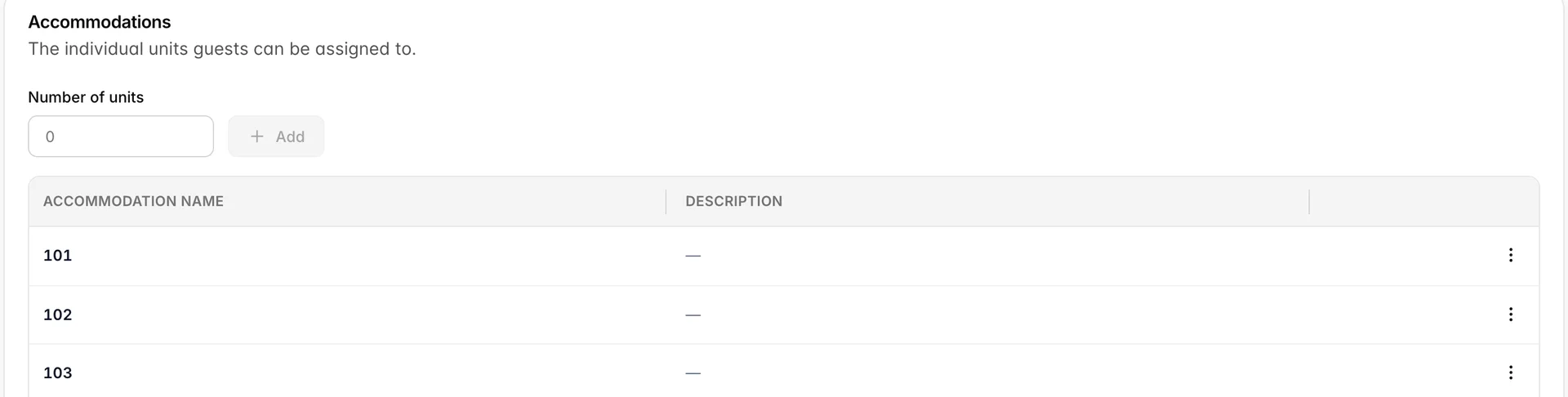
Number of units is not the room count. It is how many rooms to create the next time you press Add. Type 5, press Add, and five rows appear underneath, numbered on from whatever the type already had. The count saved against the type is the number of rows in that table, so the way to make a type bigger is to add rows and the way to make it smaller is to delete them.
Rooms created this way are named from the abbreviation and a running number. Rename them to your real room numbers with Edit on the row, because those names are what the calendar, the housekeeping board and every room move print. The demo property's Standard Doubles are 101 to 130 rather than STDD 1 to STDD 30 for exactly that reason.
The property tree
The Property Tree tab describes the building the rooms are in: buildings, then sections inside them, then floors inside those. Rooms are mapped to the floor, which is the only level that ever holds one.

Each row shows what is under it: a building counts its sections and every floor beneath it however deep, a section counts its floors, and a floor counts the rooms mapped to it or says No rooms mapped. A floor reading no rooms in a property where every room is assigned somewhere means those rooms are mapped to a different floor, not that the floor is empty.
A building does not have to have sections. Add floors straight to it from its Add Floor menu item and they sit at the same level a section would. Sections are for when a floor number alone is ambiguous, which is the case as soon as there is more than one wing.
With the tree switched on, the unit builder on each accommodation type grows Building, Section and Floor pickers, and every room you add is stamped with the three. Rooms added before you turned the tree on keep no location and have to be edited one at a time.
Two different amenity lists
Prostay has two things called amenities and they are not connected. Knowing which one you are looking at saves an afternoon.
| List | What it is |
|---|---|
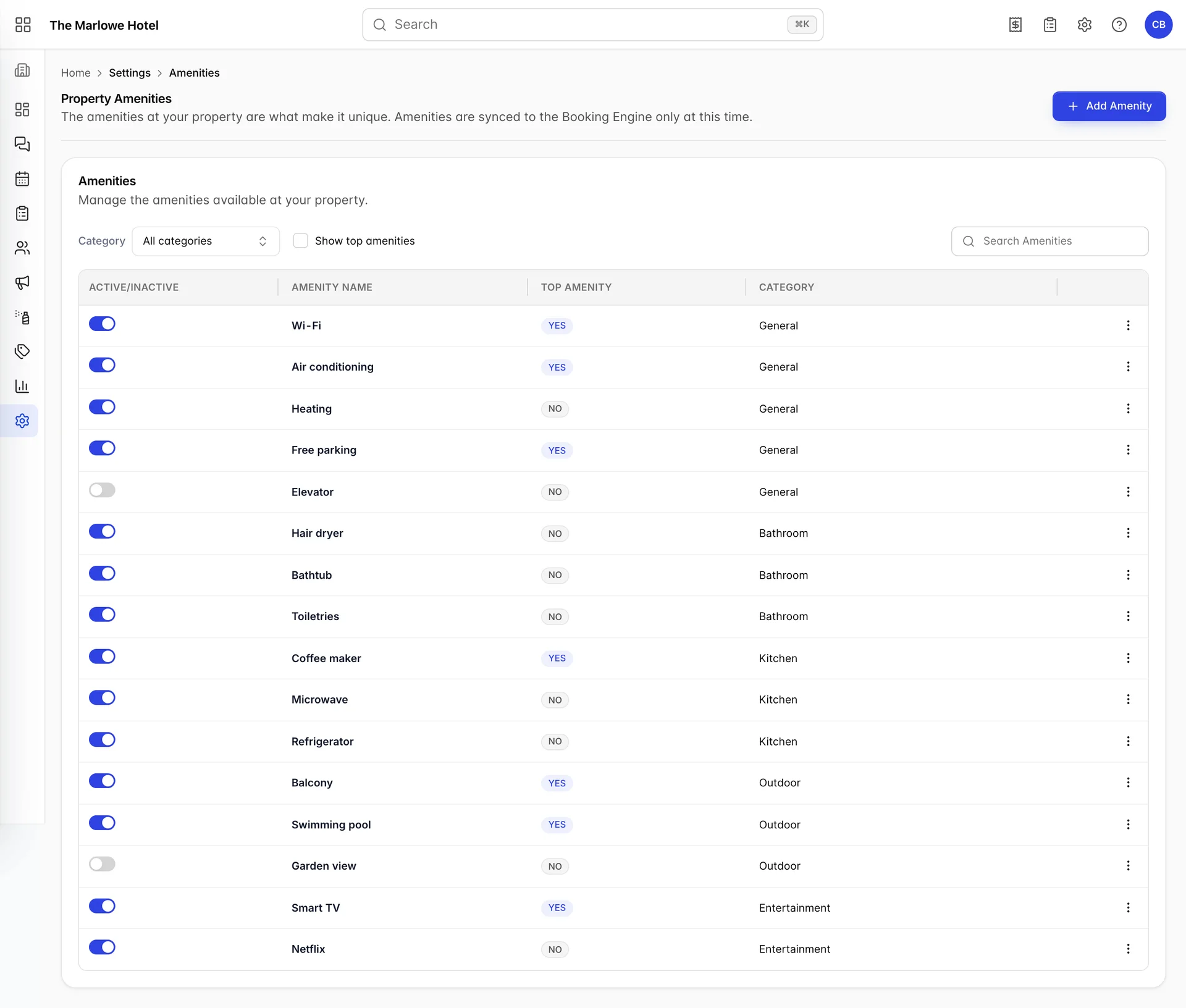
| Property Amenities, under Settings | What the whole property offers. Each one has a category, an active switch and a top amenity flag. The screen says what it drives: “Amenities are synced to the Booking Engine only at this time.” |
| The Amenities card on an accommodation type | What one room type offers. It is a free text box: you type a word, press Add, and it becomes a line. It does not read the property list and the property list does not read it. |
So adding Balcony to the property amenities does not offer it on any room type, and typing Balcony into the Sea View Suite does not add it to the property list. Spelling is yours to keep consistent, and two types spelt Wi-Fi and WiFi will show as two different things to a guest comparing them.
On the property list, three controls change what a guest sees. Active/Inactive takes an amenity off the booking engine without deleting it, which is the right move for a lift that is out for three months. Top amenity promotes it into the short list shown before a guest expands the full one, so it is worth reserving for things that win the booking. Category is the heading it is grouped under, and the filters above the table search only what you can already see.
Deleting a type, and what it takes with it
Delete on a type's row menu asks you to confirm the type by name, and warns that “This action cannot be undone.” It means the whole type: its rooms, and its place in every rate and availability row that names it.
Deactivating is usually what is wanted instead. The Active switch at the top of the edit form takes the type off sale and leaves everything about it intact, so it can come back in a season without being rebuilt.
Common pitfalls
| What you see | What is usually going on |
|---|---|
| Save on the edit form will not press | One of the seven required fields is empty. Five of them are in the Occupancy card, which is easy to scroll past. |
| Typing a number into Number of units changed nothing | It is how many rooms to create, not the count. Press Add, and the rows that appear are the count. |
| Rooms are called STDD 1, STDD 2 on the calendar | They were generated from the abbreviation and never renamed. Rename each row to the real room number. |
| The occupancy percentage looks wrong across the whole product | Check Total accommodations in the footer here. Every occupancy figure divides by it. |
| An amenity added under Settings is not on any room type | The two lists are separate. Add it again in the Amenities card of each type that has it. |
| A guest was charged extra for the second adult | Adults included in rate on that type is 1. Raise it, or price the supplement deliberately on the base rate. |
| The building and floor pickers are missing when adding rooms | Enable Property Tree is off. It is off by default. |