The Guest tab is the list of people, as distinct from the list of rooms. Everybody travelling on the booking goes here, whichever room they are sleeping in, and the count on the tab is how many of them there are.
Two reasons to keep it accurate beyond good manners. Guest registration is a legal requirement in most jurisdictions, and this is the record that satisfies it. And a name that is on the booking can be given a key, charged to the room and named on an invoice; a name that is not, cannot.
The tab
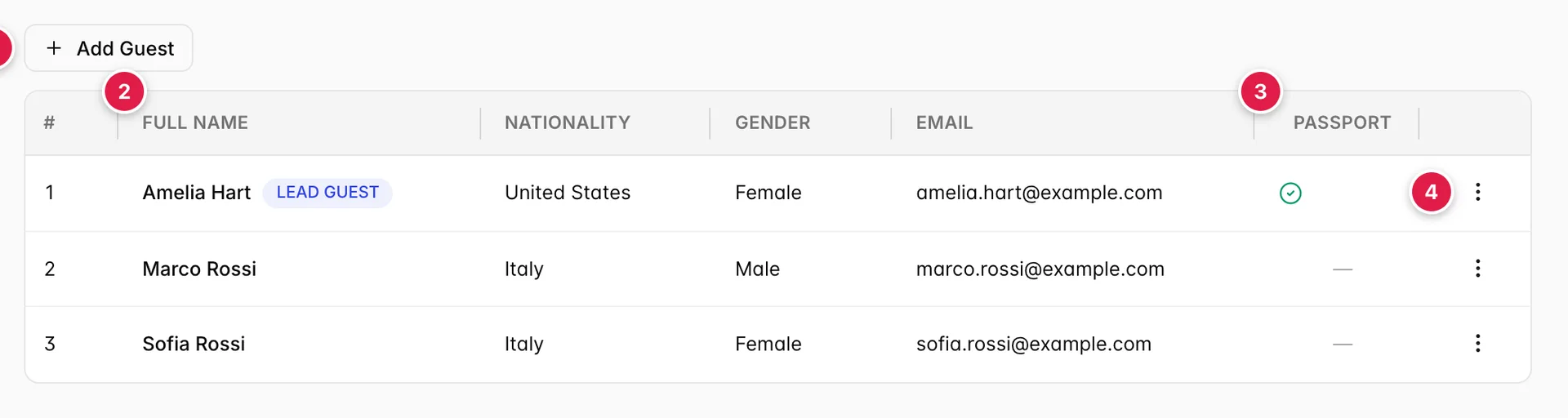
- Add Guest. The only button on the tab.
- Who they are. Name, nationality, gender, email.
- Whether we have their ID. A tick or a dash, nothing in between.
- Everything you can do to one of them. Behind the three dots.
The columns
| Column | What it holds |
|---|---|
| # | Position in the list, not an identifier. Delete somebody and the numbers below them shift up. |
| Full Name | First and last name, with a LEAD GUEST badge on whoever holds that role. |
| Nationality | As recorded on the guest profile. Often what your local guest-registration return is filed on. |
| Gender | Male, Female, or N/A when nobody has filled it in. |
| The address on the guest's profile. The lead guest's address is where the confirmation goes. | |
| Passport | A green tick if at least one ID document is on file for that guest, a dash if not. It says nothing about which document, or whether it has expired, open Passport from the row menu to see that. |
No column here is sortable, and there is no search. The list is short by nature: it is one booking's party, not your guest database. The database is the Guests screen, which is where the View action in the row menu takes you.
The lead guest
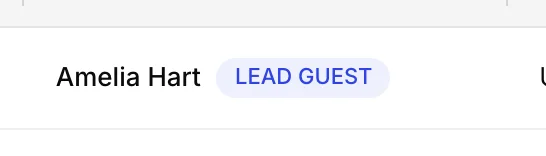
The lead guest is the booking's primary contact: the name the reservation is listed under everywhere else in Prostay, and the email address confirmations and pre-arrival messages are sent to. Exactly one guest holds it, and setting it on somebody else takes it off whoever had it, the Make Lead Guest checkbox in the guest drawer is how you move it.
The row menu
| Item | What it does |
|---|---|
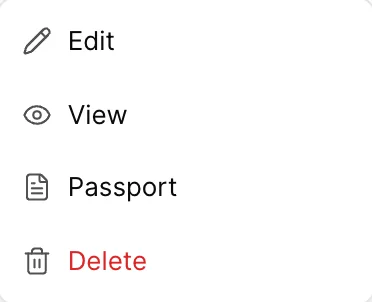
| Edit | Opens the guest drawer on this guest's details. Changes are saved against the guest, so they show on this booking and on the guest's profile. |
| View | Leaves the reservation and opens the guest on the Guests screen, their full history, every stay, every note. Use it when the question is about the person rather than this booking. |
| Passport | Opens the document panel. See Passports and ID documents. |
| Delete | Takes the guest off this booking. Hidden when there is only one guest left, because a reservation with nobody on it is not a reservation. |
Adding a guest
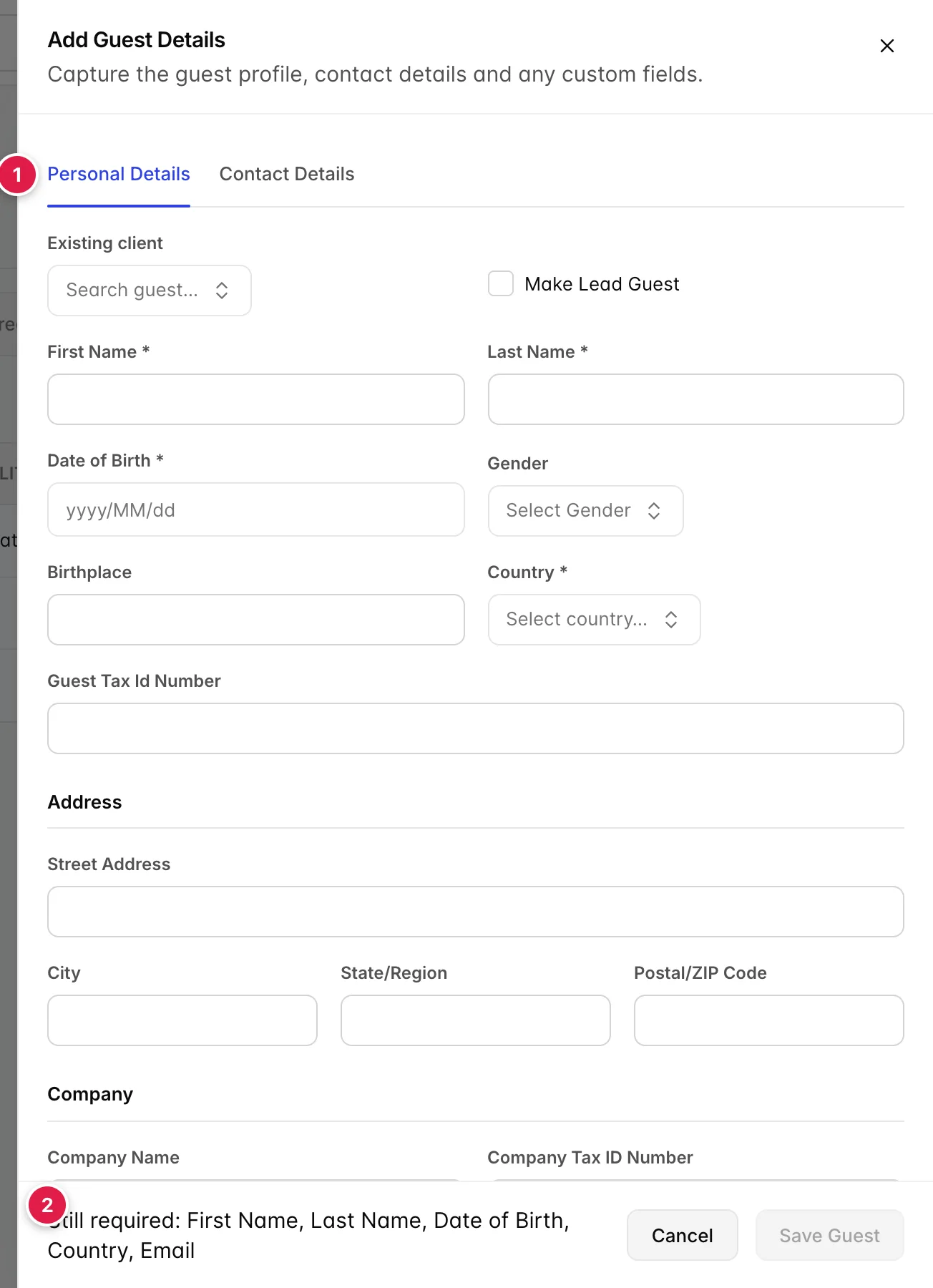
- Two tabs. Personal Details and Contact Details, plus Custom Fields if your property has defined any for guests.
- What is still missing. Named in the footer, updating as you type, so you never have to hunt for the field holding up the save.
| Field | Required | Notes |
|---|---|---|
| Existing client | No | Fills the whole form from a guest you already have. See below. |
| Make Lead Guest | No | Ticking it takes the role off whoever holds it now. |
| First Name, Last Name | Yes | As on the document you are registering them with, not as they prefer to be called. |
| Date of Birth | Yes | Entered as yyyy/MM/dd. Required because guest registration and age-restricted services both need it. |
| Gender | No | Leave it alone and the tab shows N/A, which is the honest answer. |
| Birthplace | No | Required by police registration in some countries, ignored in most. |
| Country | Yes | The guest's nationality. This is what fills the Nationality column. |
| Guest Tax Id Number | No | For jurisdictions where a personal tax number goes on the invoice. |
| Address block | No | Street, city, state or region, postcode. Worth filling for anybody who will want an invoice. |
| Company Name, Company Tax ID Number | No | For a guest billing to their employer. The company details go on the invoice, not the guest's own. |
| Yes | On the Contact Details tab, which is why the footer can list a required field you cannot see. |
Save and the guest appears in the table straight away. Adding a guest does not change the occupancy the rooms were priced on (that is the # GUESTS column on the Rooms tab), and if a fourth person has genuinely joined the party, that needs changing too or the rate will be wrong.
Using a guest you already have
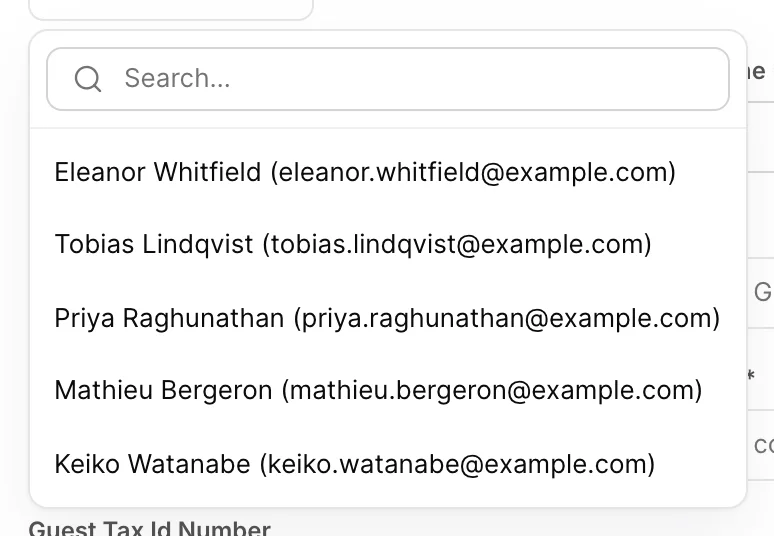
The dropdown at the top of the drawer searches every guest profile in the property, by name and by email. Picking one fills the whole form, name, date of birth, nationality, address, contact details, from the saved record.
Use it for anybody who has stayed before. Retyping a returning guest creates a second profile for the same person, and once that has happened their history is split across two records: half their stays under one, half under the other, and neither one telling you they are a regular.
Contact details
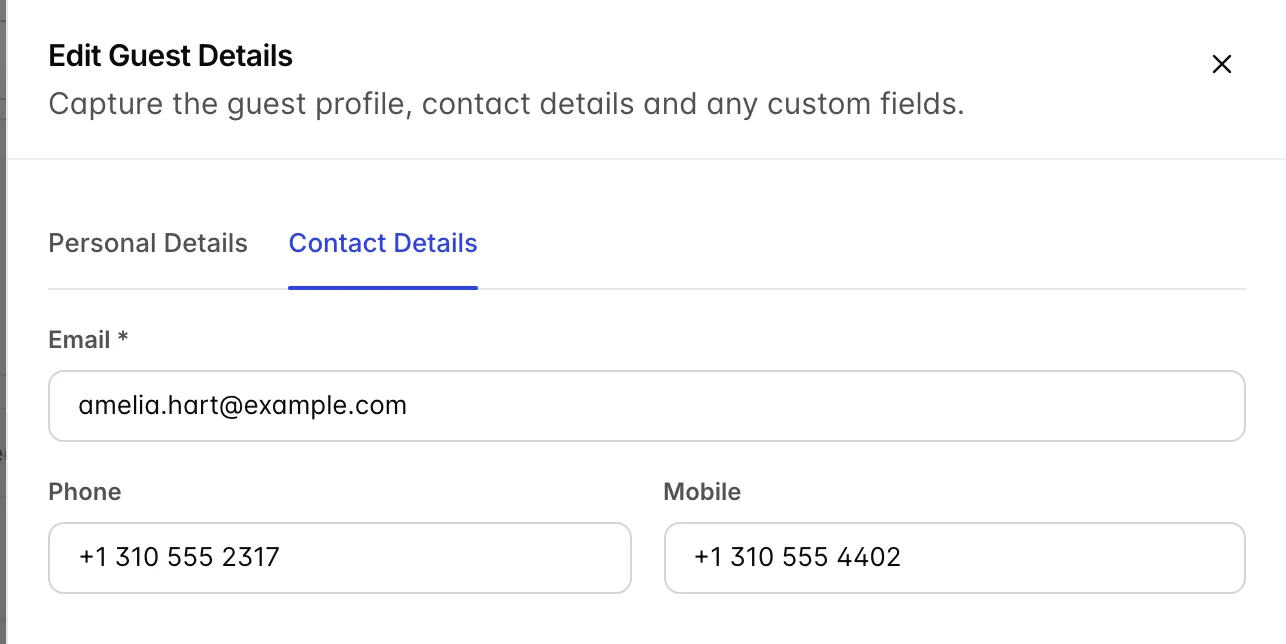
Email is required on every guest, not only the lead. It is the address the confirmation, any pre-arrival message and the emailed invoice go to, and a booking with no address on the lead guest is a booking nobody outside your building knows about.
Phone and Mobile are optional here. Fill the mobile in anyway for arrivals: it is what you have when a guest has not turned up by eight o'clock and you are deciding whether to hold the room.
Passports and ID documents
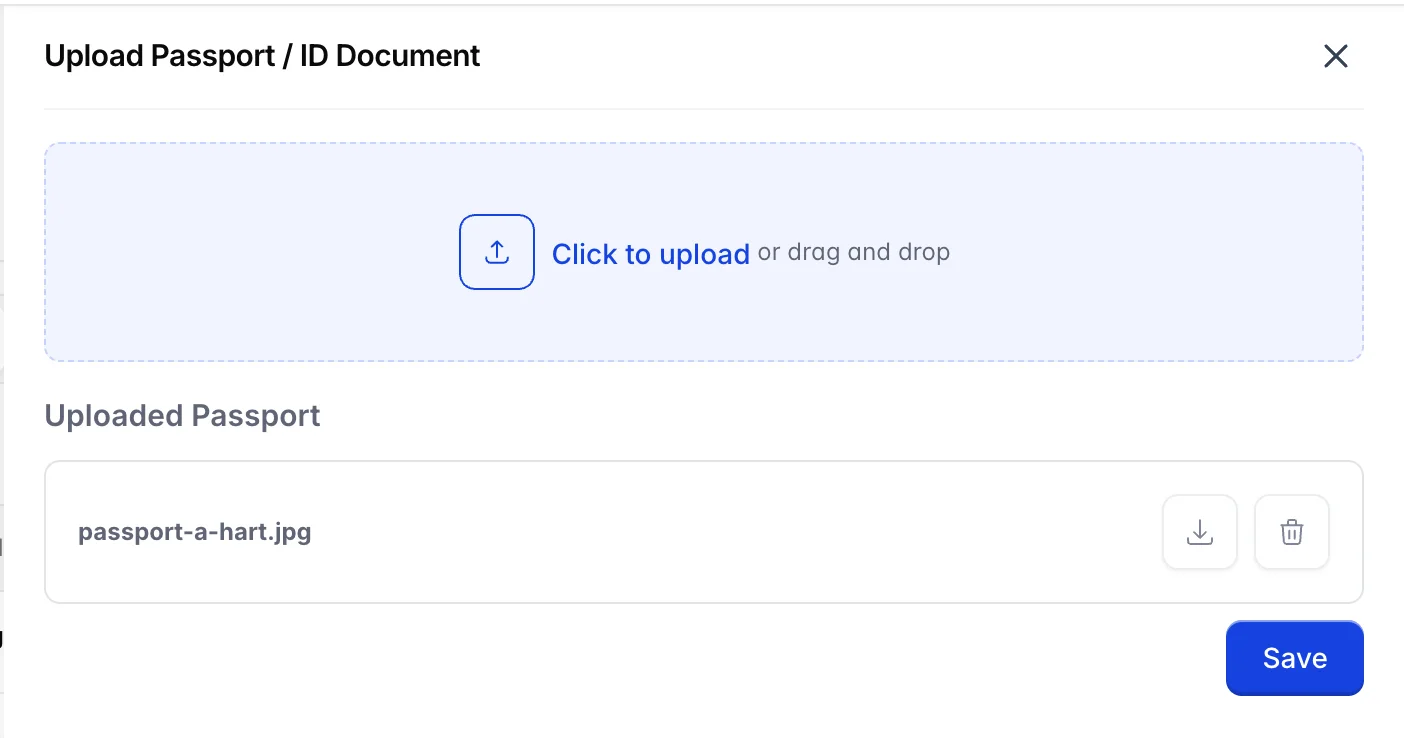
Drop an image in, or click to browse. Anything already on file is listed underneath with a download button and a bin, and the bin asks before it removes anything. Nothing is stored until you press Save, closing the panel with an unsaved file in it throws the file away.
The documents belong to the guest profile rather than to this stay, so a returning guest arrives with their passport already on file and the Passport column already ticked. That is the point of picking them out of Existing client rather than typing them in fresh.
Removing a guest
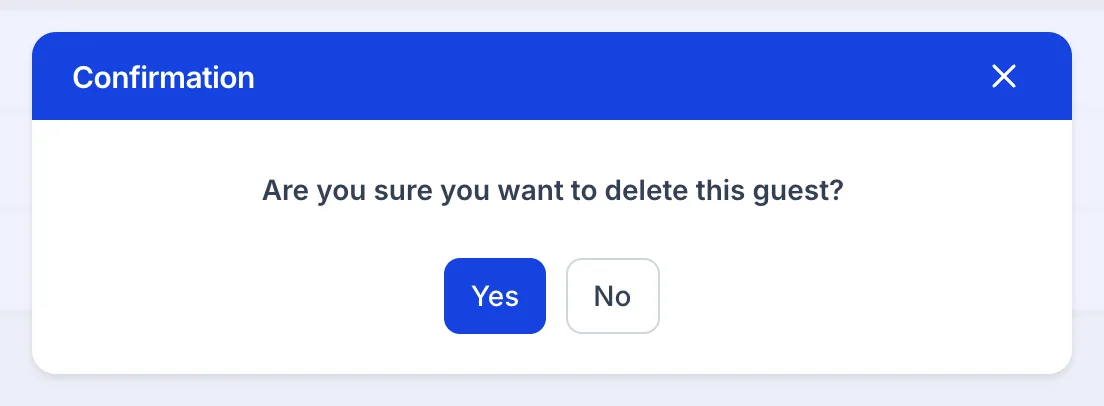
Delete takes the guest off this reservation. It does not delete the person: their profile, their history and their documents stay on the Guests screen, and they can be added back or attached to another booking.
Charges already assigned to them do not follow them out. A folio line in a removed guest's name stays on the folio, still owed, now belonging to nobody in particular, so reassign or move those lines first if the bill is going to be split.
Things that catch people out
| What you see | Why |
|---|---|
| The footer lists a required field that is not on screen | Email lives on the Contact Details tab. The footer counts both tabs; the form only shows you one at a time. |
| No Add Guest button and no row menus | Your user is on the booking's restricted list. Restricted users can read this tab but cannot change it. An administrator manages the list from the booking's Actions dialog. |
| No Delete in the row menu | There is only one guest on the booking. Add the replacement first, then remove the original. |
| Gender reads N/A | Nobody filled it in. It is an optional field and this is what an empty one looks like, rather than an error. |
| The same guest twice on the Guests screen | Somebody typed them in instead of picking them from Existing client. Merge the profiles on the Guests screen, and use the picker next time. |
| A guest here who is not on any room | Normal, and often correct. Guests are attached to the booking; only the lead guest of each room is named on the Rooms tab. |