Everything Prostay knows about one booking is on this page. It is the screen you land on when a guest arrives at the desk, when somebody rings up about a charge they do not recognise, and when you need to find out who moved a room last Tuesday and why. The layout never changes: a summary down the left that stays put, and a panel on the right with eight tabs across the top.
Getting here
Every route into a booking ends here. Click a guest name in the reservation list, click a booking tile on the calendar and choose Reservation Details, click an arrival or a departure on the dashboard, or search a booking number in the top bar.
The tab you are on is part of the address. Copying the URL out of the browser and sending it to a colleague opens them on the same tab, not on the top of the page.
The page
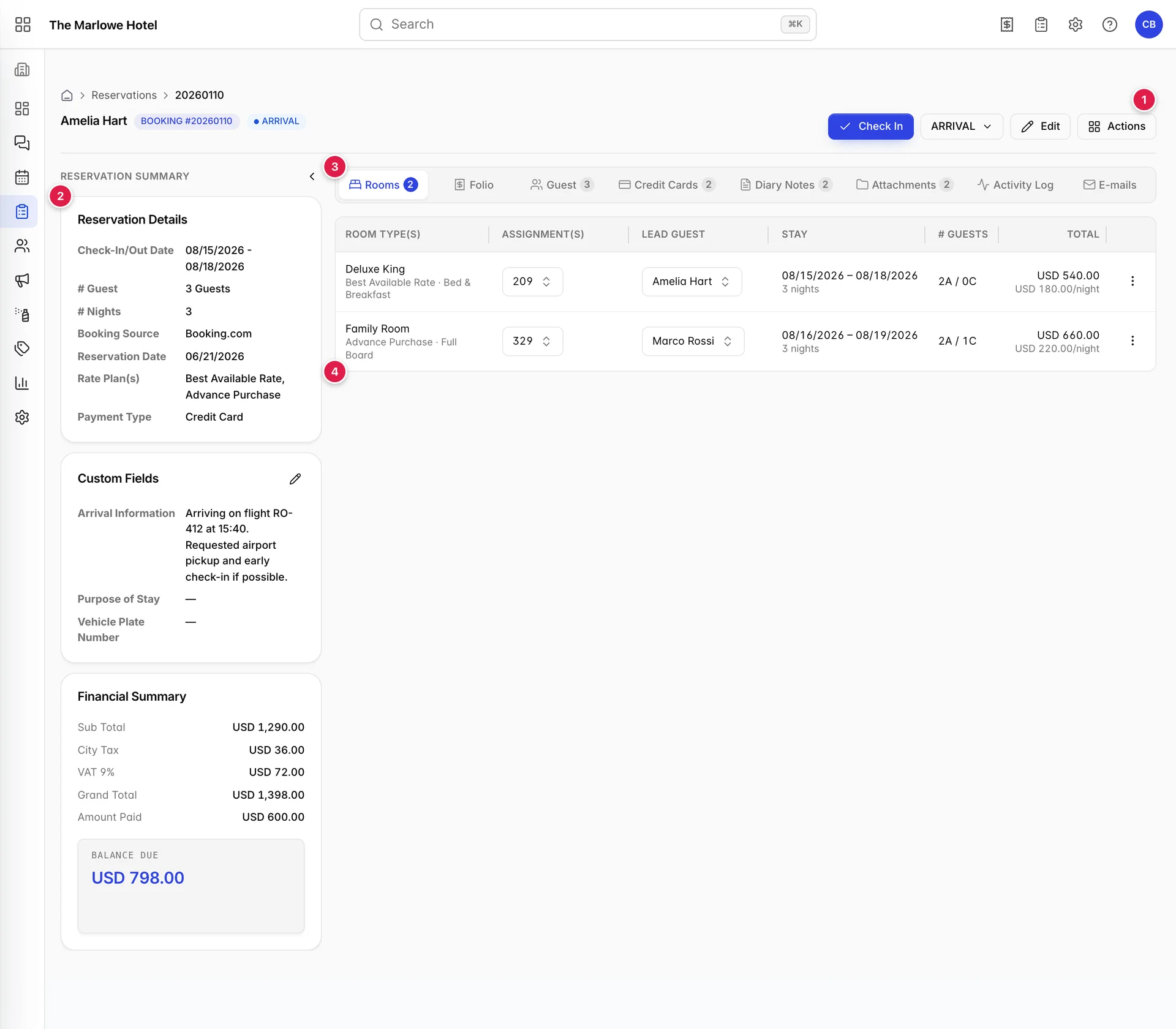
- The header. Who the booking is for, what state it is in, and every action you can take on it.
- The summary rail. What was booked and what is owed. It stays on screen whichever tab you open, which is the point of it.
- The tabs. Eight of them, several carrying a count.
- The tab panel. Whatever the open tab holds. The page opens on Rooms.
The chevron at the top of the rail collapses it to a thin strip, which buys the panel about 350 extra pixels. Worth doing on the Folio and Activity Log tabs, which are the two widest.
The header

- The lead guest's name. Not the name of everyone staying. A booking with three guests is titled with the one who made it.
- The badges. The booking number, then the status in a colour that matches it: blue for reserved and arrival, green for checked-in and stayover, amber for due-out and tentative, grey for checked-out, red for cancelled and no-show. A house-use booking gets a third badge, and a booking linked to another gets a chain icon you can click.
- The stay button. This one changes with the booking. Check In on the day a pre-arrival guest is due; Check Out once they are in house; nothing at all on a booking that is neither. See Things that catch people out if it is missing when you expect it.
- The status dropdown. The current status, and every status you can move it to. Covered below.
- Edit. Reopens the booking in the reservation wizard, on the same screens you used to create it. Use this to change dates, rooms, rates or occupancy, the things that affect availability and price. Everything else on this page is edited in place.
- Actions. A dialog holding the fifteen or so things you can do to the booking that are not simply typing in a field.
On a booking that is in house you get one extra button, Check-out early, which checks the guest out before the departure date on the booking and asks you to confirm first.
Changing the status
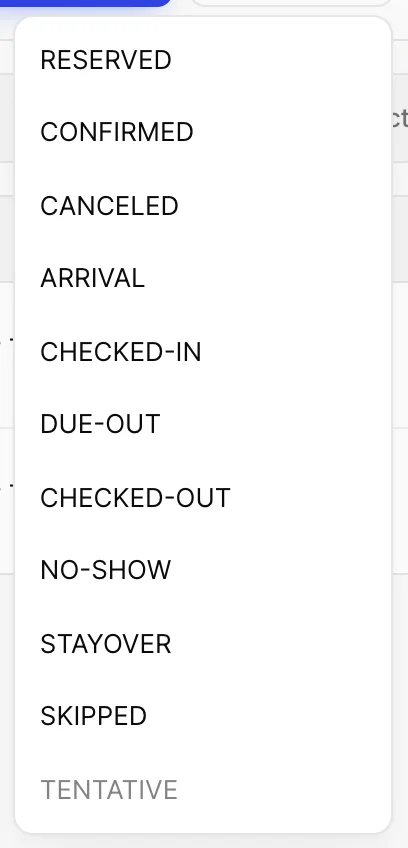
Picking a status from this list saves it straight away. There is no confirmation step and no undo, so it is worth knowing what each one means before you use it.
| Status | What it means |
|---|---|
| RESERVED | Booked, not yet confirmed. The starting point for a booking taken without a deposit. |
| CONFIRMED | Booked and confirmed. The normal state of a future booking. |
| CANCELED | Cancelled. Choosing this opens the cancellation dialog rather than applying immediately, because a cancellation wants a reason and may involve a fee. |
| ARRIVAL | Due in today and not yet at the desk. |
| CHECKED-IN | In house. This is what the Check In button sets. |
| DUE-OUT | In house and leaving today. |
| CHECKED-OUT | Gone. The room goes to housekeeping as dirty. |
| NO-SHOW | Due in and never arrived. Kept rather than deleted so it counts towards your no-show rate. |
| STAYOVER | In house and staying another night. |
| SKIPPED | Left without going through checkout. |
| TENTATIVE | A soft hold. Prostay will not let you set this on a booking that is already confirmed or reserved, or on one that has taken a payment. |
CHECKED-IN is hidden from this list unless today falls inside the stay. You cannot check somebody in three days early by picking it from the dropdown, which is deliberate.
The summary rail
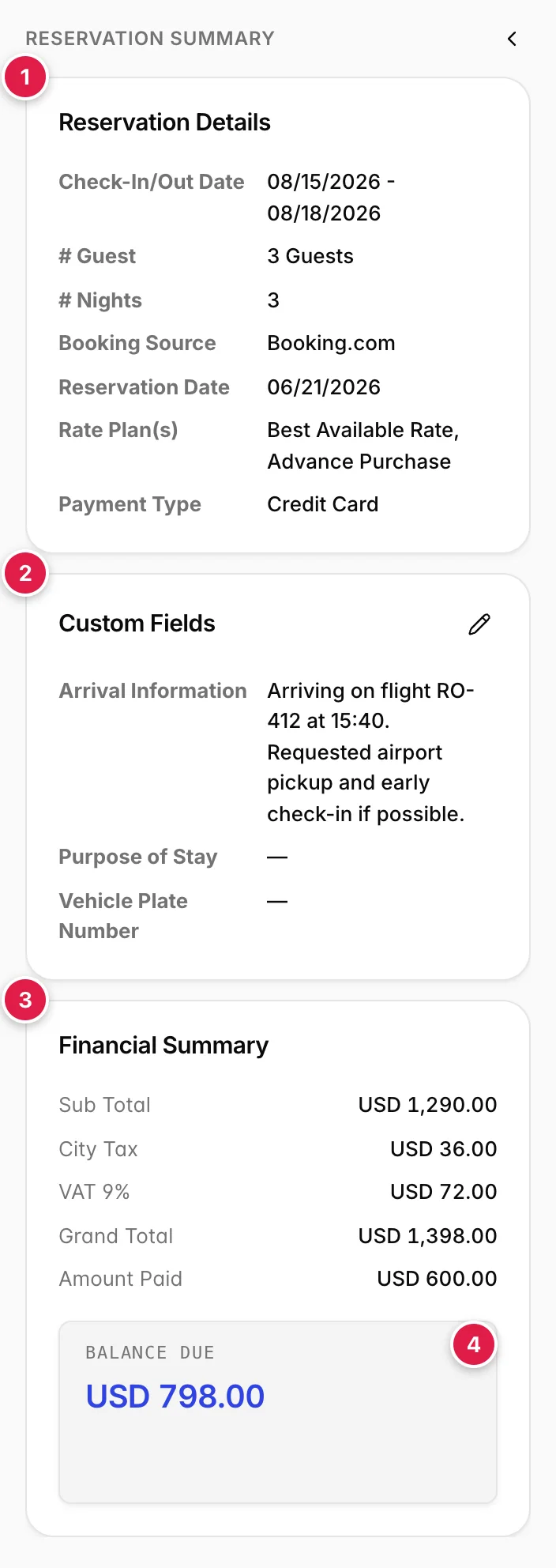
- Reservation Details. The shape of the booking: the dates, the head count, the number of nights, where it came from, when it was taken, which rate plans it is on and how it is being paid for. A booking on two rooms with two different rate plans lists both.
- Custom Fields. The extra questions your property asks on every booking, flight numbers, purpose of stay, vehicle registrations. Your admin decides what appears here, so this card looks different at every property, and an em dash means nobody has filled that one in. The pencil edits them.
- Financial Summary. Sub total, then each tax as its own line, then the grand total and what has been paid.
- Balance Due. The one number the desk actually needs: grand total minus payments. This is the figure to quote a guest asking what they owe.
Reservation Date is when the booking was taken, not when the guest arrives. It is easy to misread next to the check-in date directly above it.
The eight tabs

Five tabs carry a count: Rooms, Guest, Credit Cards, Diary Notes and Attachments. The other three do not, because they are running records rather than lists you add to. The Diary Notes count is of active notes only, so a tab reading 2 can still have archived notes behind it.
Rooms
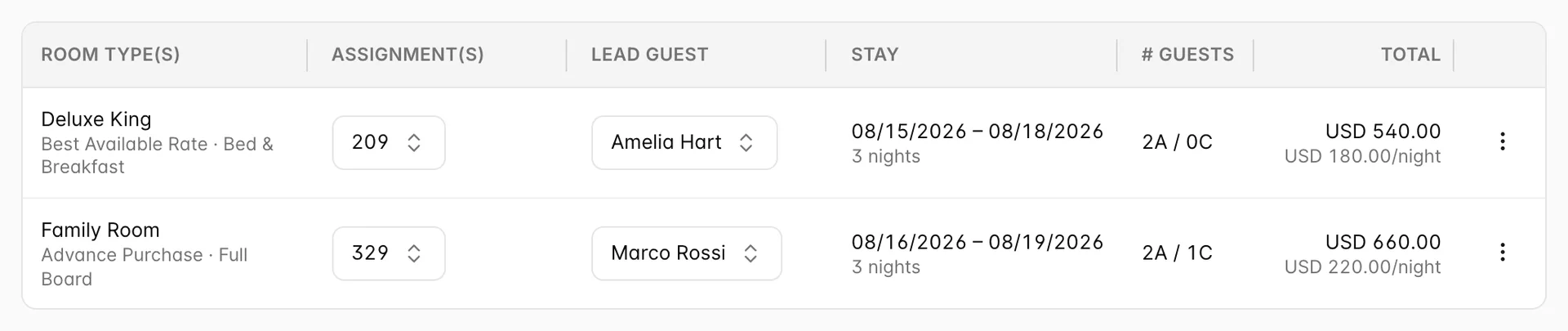
This is the tab that makes multi-room bookings make sense. A family taking two rooms for slightly different nights is one booking with two rows here, and each row keeps its own everything.
| Column | What it holds |
|---|---|
| ROOM TYPE(s) | The type booked, with the rate plan and the board basis underneath. Type, not room number, the number is the next column along. |
| ASSIGNMENT(s) | The actual room, as a dropdown. Change it here to move the guest to a different room of the same type. An empty dropdown means the booking has not been given a room yet, which is what puts it on the unallocated list. |
| LEAD GUEST | Which of the booking's guests is in this room. On a two-room booking this is how you say who sleeps where. |
| STAY | This room's dates and night count, which need not match the booking's overall dates. |
| # GUESTS | Adults and children, written as 2A / 1C. |
| TOTAL | What this room costs across the whole stay, with the nightly rate in grey underneath. |
The menu at the end of each row holds the per-room actions, including splitting a stay across two rooms and removing a room from the booking.
Guest
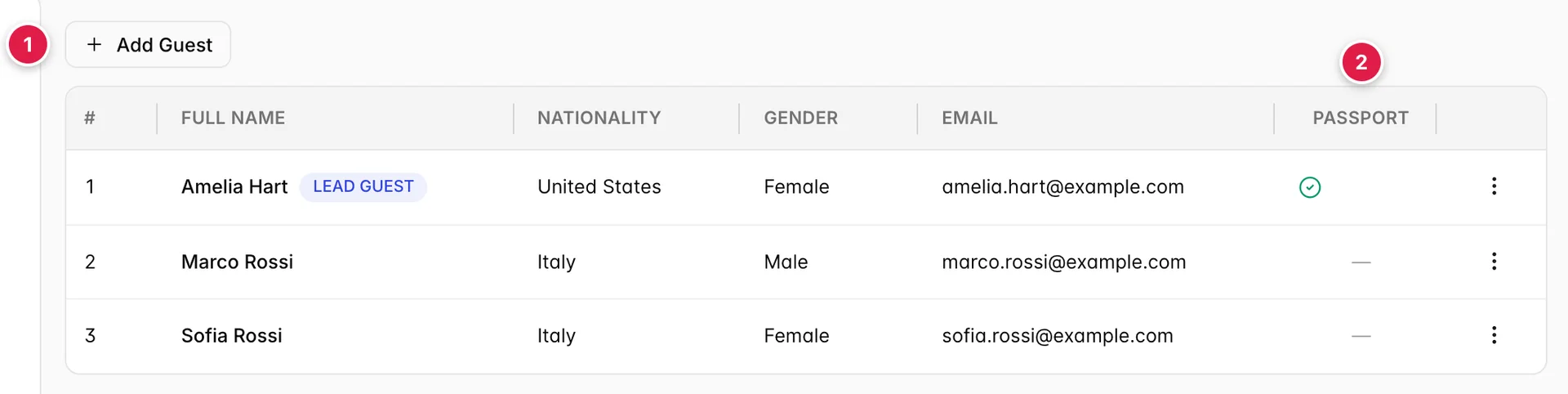
- Add Guest. Opens a panel for a new guest. Adding somebody here does not change the occupancy on the Rooms tab or the price, those are set in the wizard behind Edit.
- PASSPORT. A green tick means an ID document has been uploaded for that guest; an em dash means it has not. Upload one from the row menu. This is the column to scan if your country requires ID on file.
Exactly one guest carries the LEAD GUEST badge. That is the person the booking is titled after, the one the confirmation letter goes to, and the name that appears in the reservation list. The row menu lets you promote a different guest to lead.
Credit Cards
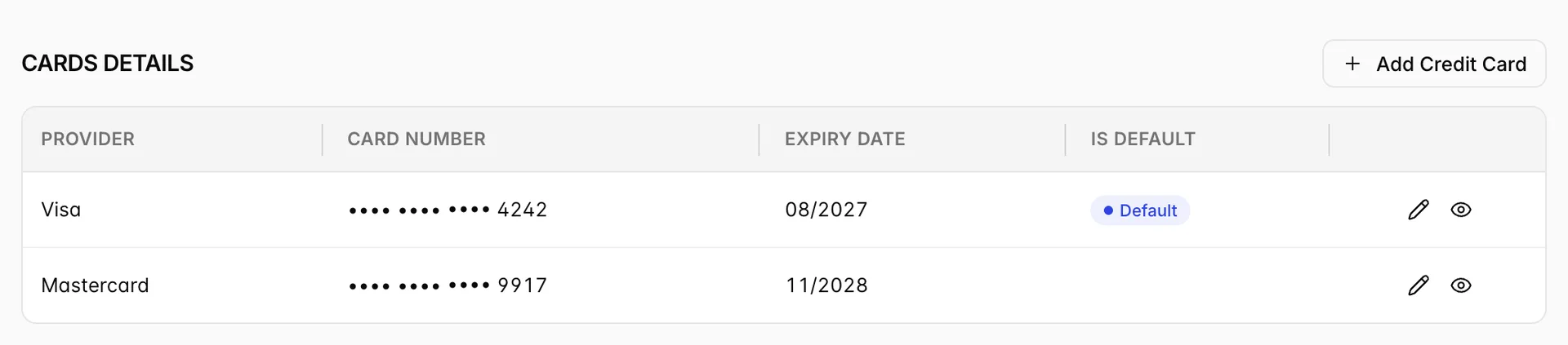
You see the brand, the last four digits and the expiry date. The full number is behind the eye icon, and clicking it asks for your Prostay password before it will show anything, every reveal is a deliberate act by a named user.
The Default badge marks the card a payment is taken against unless you say otherwise. A booking can hold several cards; only one can be the default.
Diary Notes
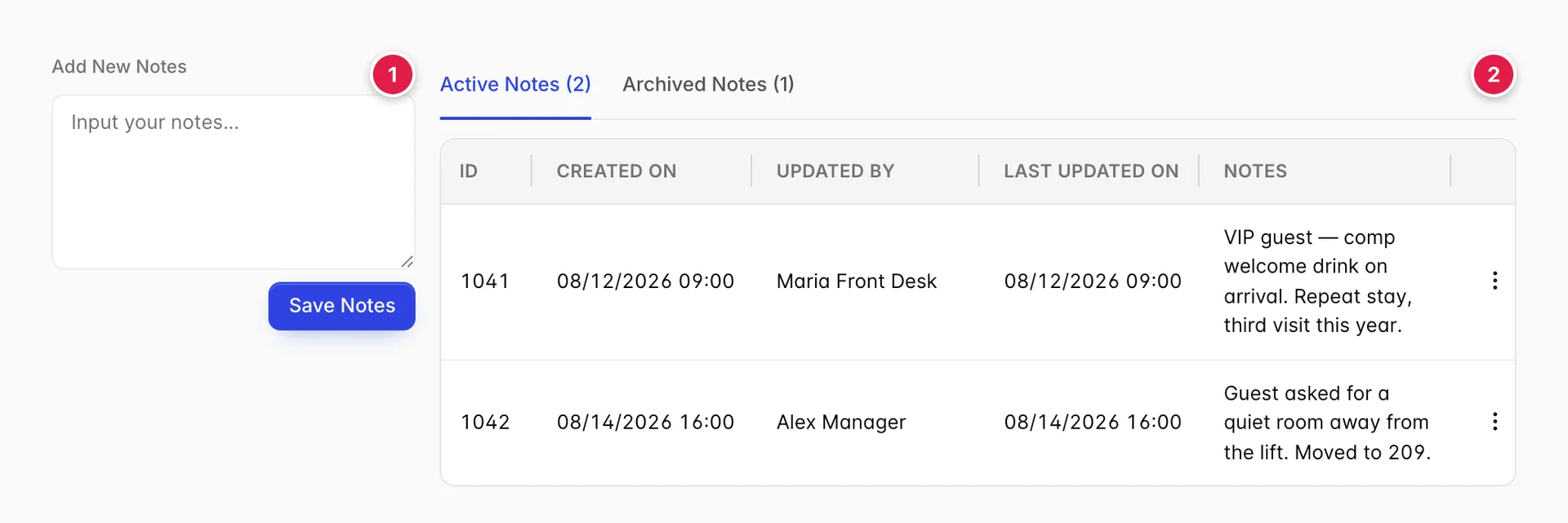
- The compose box. Type and press Save Notes. The note is stamped with your name and the time.
- Active and Archived. Notes you archive move to the second tab rather than disappearing, and can be brought back. Delete removes one for good.
Use this for anything the next person on shift needs to know: the guest is a repeat visitor, the room was changed and why, somebody is waiting on a flight number. It is the difference between a handover and a rumour.
Attachments
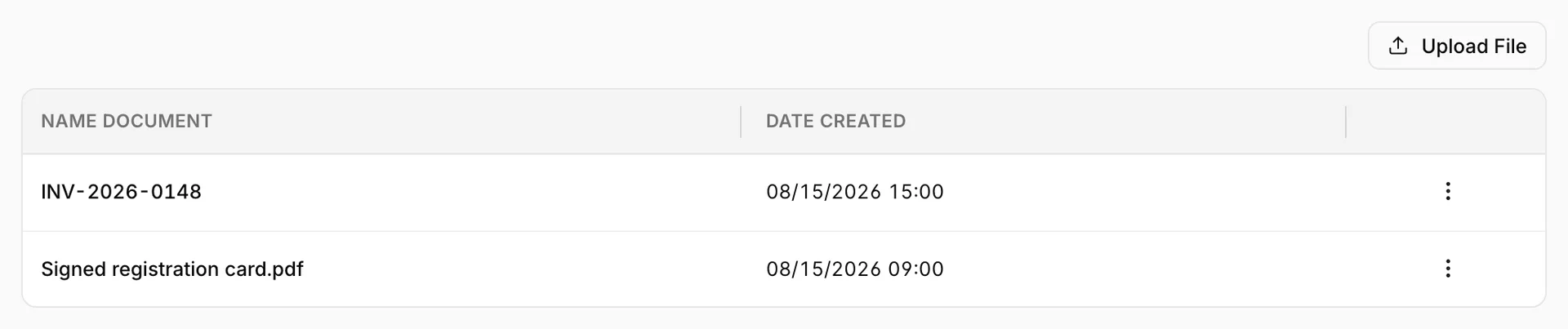
Both kinds sit in one table, so a row named like an invoice number is an invoice and a row named like a filename is an upload. The row menu differs accordingly: an invoice can be marked paid or unpaid and can be voided with a credit note, while an upload can only be viewed or emailed.
Upload File attaches anything you like, a signed registration card, a purchase order from a company, a scan of a damage waiver.
Activity Log
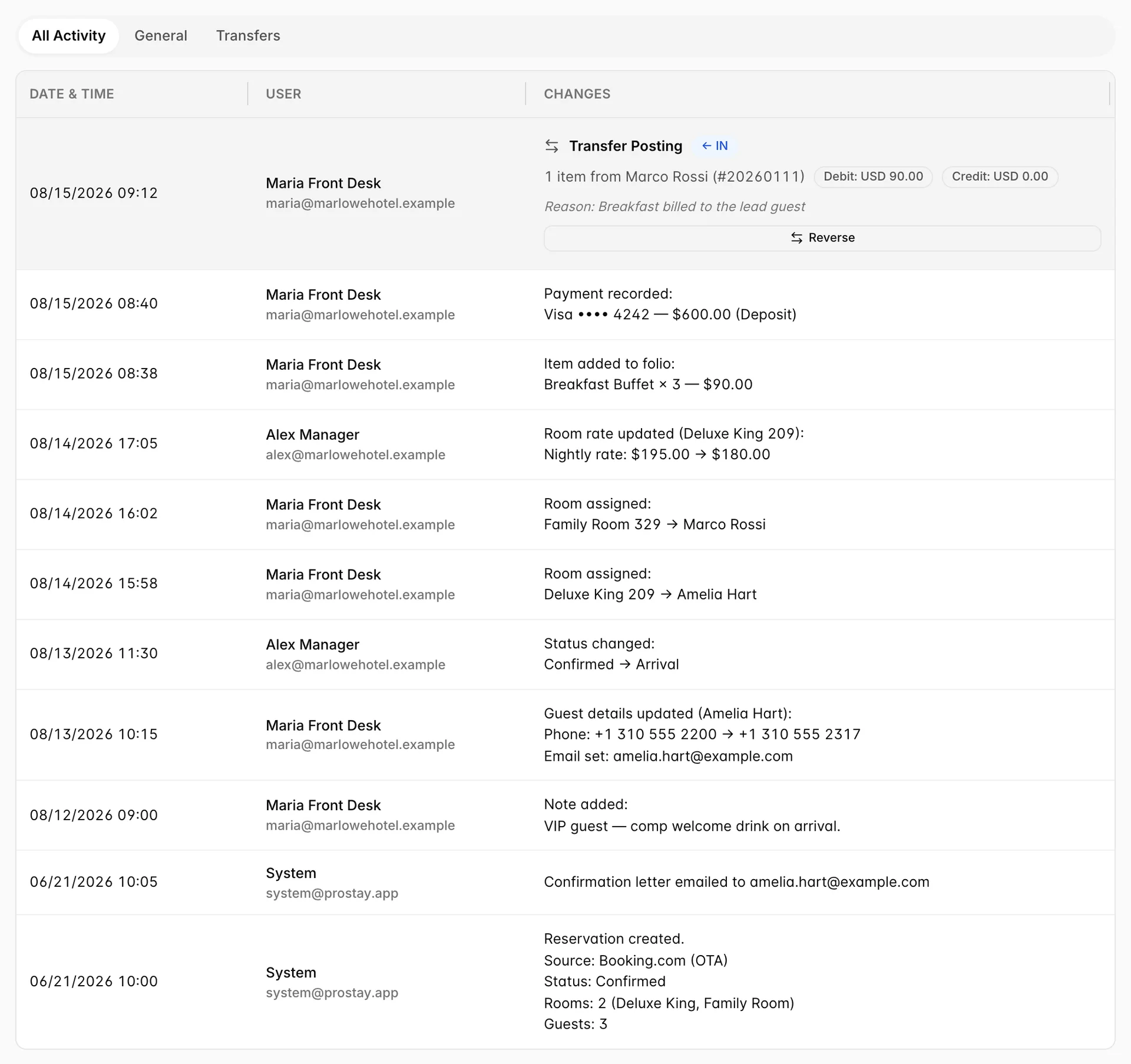
This is the tab that settles arguments. Every status change, every room assignment, every rate edit, every payment and every note is recorded with a timestamp and a user. Entries made by Prostay itself, a confirmation letter going out, for instance, are attributed to System.
The three chips at the top filter the list. All Activity shows everything, General hides transfers, and Transfers shows only them.
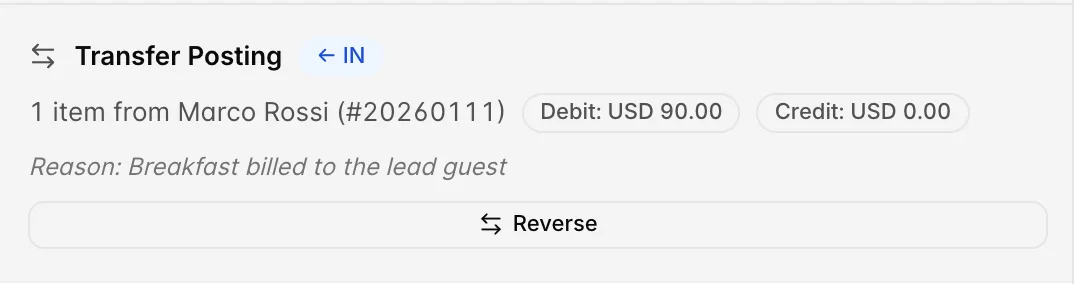
A transfer is a charge moved between two bookings, one guest picking up another's bar bill, say. The card names the other reservation, the direction the charge went (IN means it landed on this booking, OUT means it left), the amounts and the reason given. Reverse undoes it on both bookings at once; a reversed transfer keeps its card and gains a red Reversed badge, so the history of the mistake stays visible.
E-mails
A log of messages sent to the guest about this booking. The tab is built and the columns are there, but nothing writes to it, so whatever it shows is sample content rather than a record: a row on a booking that has never had an email is furniture. Confirmation letters and custom emails you send from Actions do go out, and they are recorded on the Activity Log tab, not here.
The Actions dialog
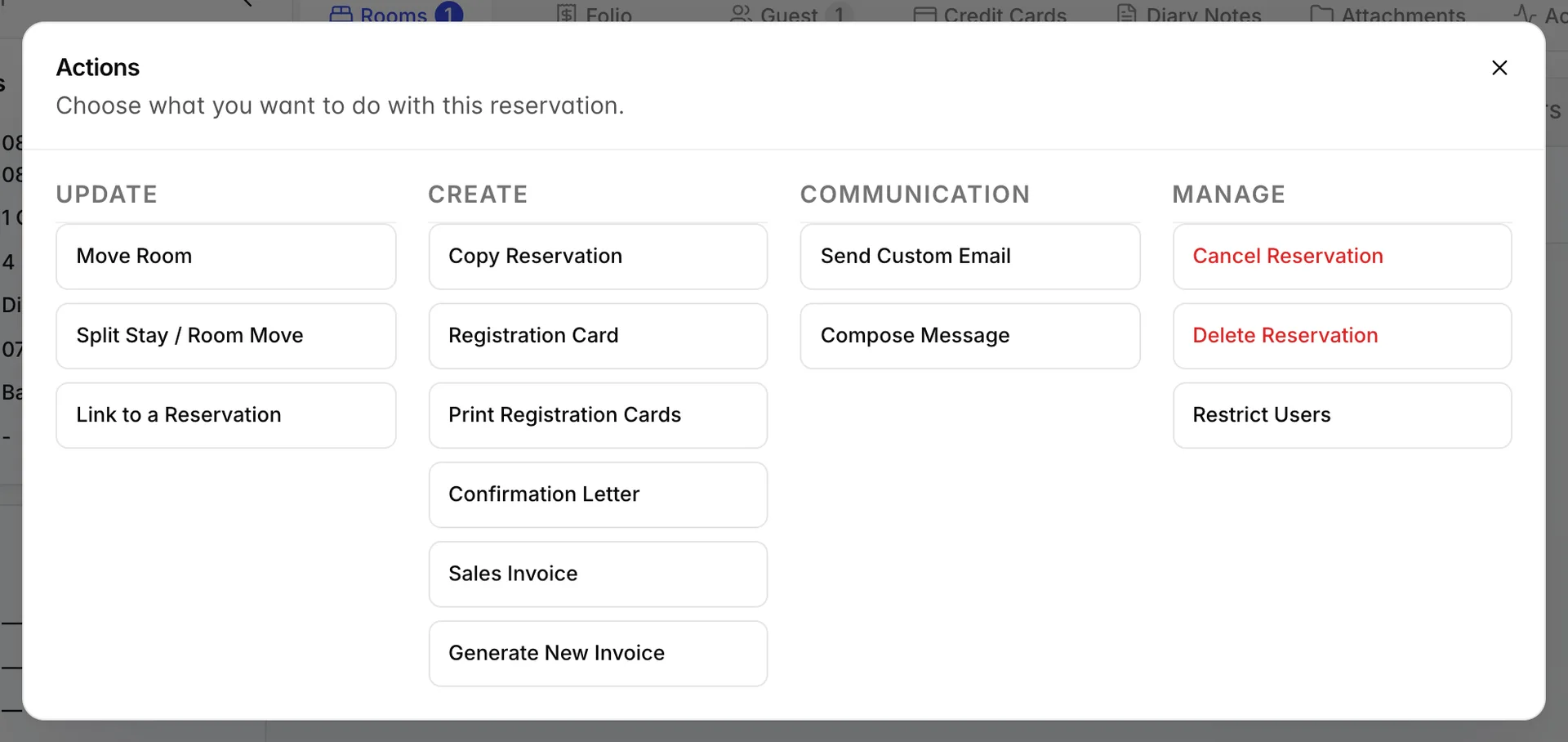
| Group | What is in it |
|---|---|
| UPDATE | Structural changes: move the guest to another room, split a stay across two rooms, split a multi-room booking into separate reservations, undo a split, reverse a check-in made in error, or link this booking to another. This is the group that varies, see below. |
| CREATE | Paperwork: copy the booking, produce a registration card, print registration cards for every guest, produce a confirmation letter, produce a sales invoice, or generate a new invoice. |
| COMMUNICATION | Send the guest a custom email, or compose a message from one of your templates. |
| MANAGE | Cancel the booking, delete it, or restrict which users can see it. The first two are red because they are hard to undo. Restrict Users only appears for administrators. |
Cancel Reservation opens the same dialog as picking CANCELED from the status dropdown: it asks for a reason and lets you apply a cancellation fee. Cancelling keeps the booking and its history. Delete Reservation removes it, which breaks your cancellation reporting, cancel rather than delete unless the booking was created by mistake.
Things that catch people out
The Actions list is shorter on some bookings
The UPDATE group is built from the booking in front of you. Move Room only appears once the guest is in house. Reverse Check-in only appears on a guest checked in today with nothing posted to the folio since. Split Reservation needs more than one room. Splitting of any kind is switched off entirely on bookings that came from an OTA, because the channel owns those dates. An action you used yesterday and cannot find today is almost always one of these.
Check In is missing when you expect it
The button only shows on a booking that has not yet arrived and whose stay includes today. A guest turning up a day early has no Check In button, because as far as the booking is concerned they are not due. Move their arrival date with Edit first.
Edit and the tabs do different jobs
Anything that affects availability or price, dates, room types, occupancy, rate plans, lives in the wizard behind Edit, because those changes have to be re-checked against what the property has free. Everything else, from guest details to notes to which room a guest is in, is edited on the tabs and saves as you go.
The rail's totals are the whole booking
On a two-room booking, Grand Total and Balance Due cover both rooms. If you need the figure for one room, the TOTAL column on the Rooms tab has it.
Status changes save immediately
There is no Save on the status dropdown and no confirmation step. Setting a guest to NO-SHOW by mis-clicking is a real risk on a busy morning; if it happens, set the status back and leave a diary note, because both the mistake and the correction are in the activity log either way.