Most of your bookings arrive on their own, through a channel or the booking engine. This screen is for the ones that do not: the phone call, the walk-in, the regular who emails you directly. It is a five-step form with a running total pinned to the right, and it will not let you finish until it has what it needs.
The whole thing takes about a minute once you know it. What follows is what each field is for, and which handful of them actually change the outcome.
Before you start
Have three things to hand: the dates, the guest's name and email, and a phone number. Those are the fields Prostay will refuse to move past. Everything else, address, passport number, company details, can be filled in later from the reservation itself.
You can start a booking from Create New on the reservation list, from the same button on the calendar, or by clicking an empty night in the calendar grid, which fills the dates and the room type in for you. All three land in the same place.
Step 0: choosing a reservation type
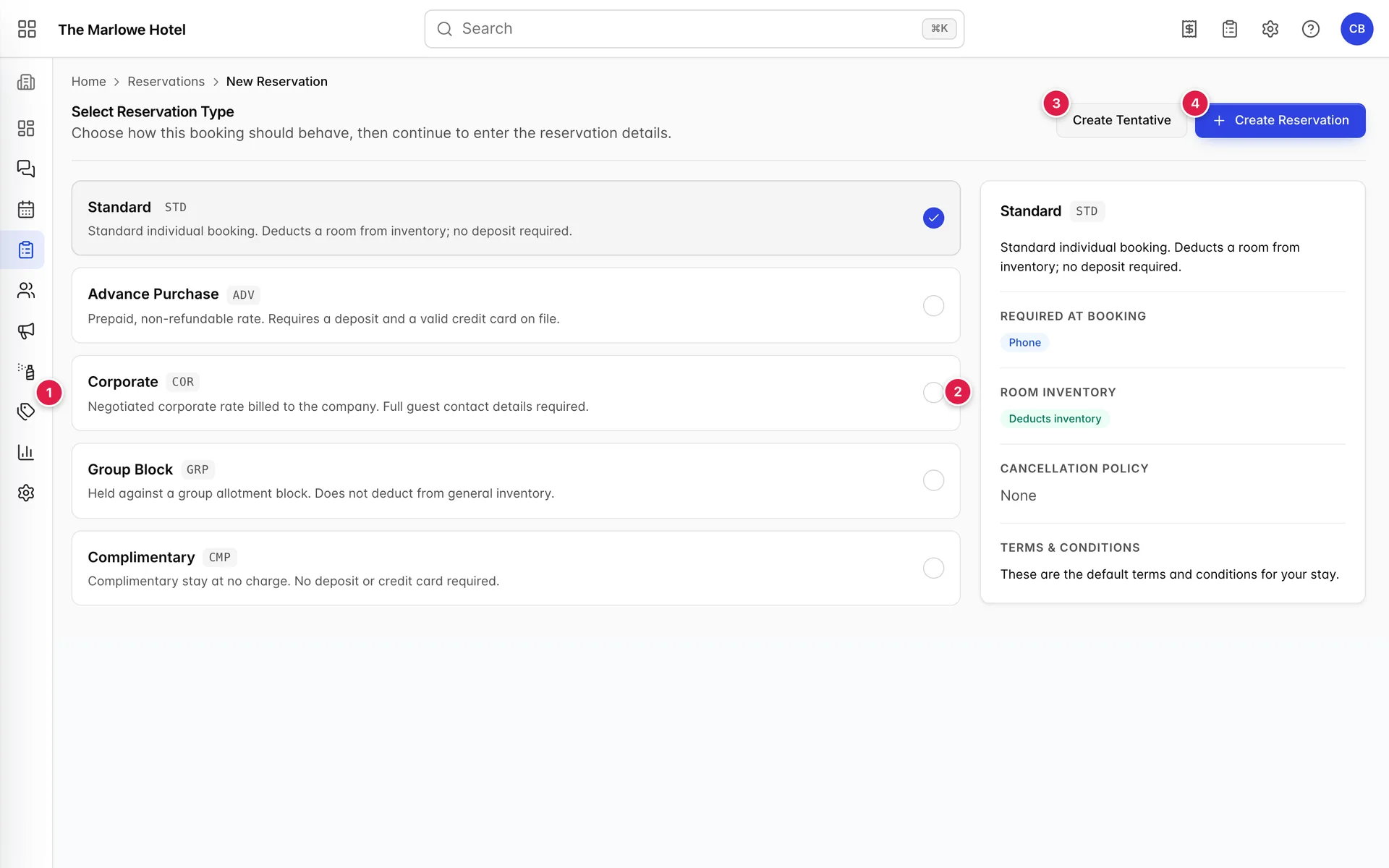
- The list of types. Set up by your property, so yours may differ. Standard is the ordinary case and is selected for you.
- The detail panel. What the highlighted type actually does. Read it before you commit; it is the only place this information appears.
- Create Tentative. Starts a booking that expires on its own if nobody confirms it. Covered further down.
- Create Reservation. Starts an ordinary booking and takes you to step one.
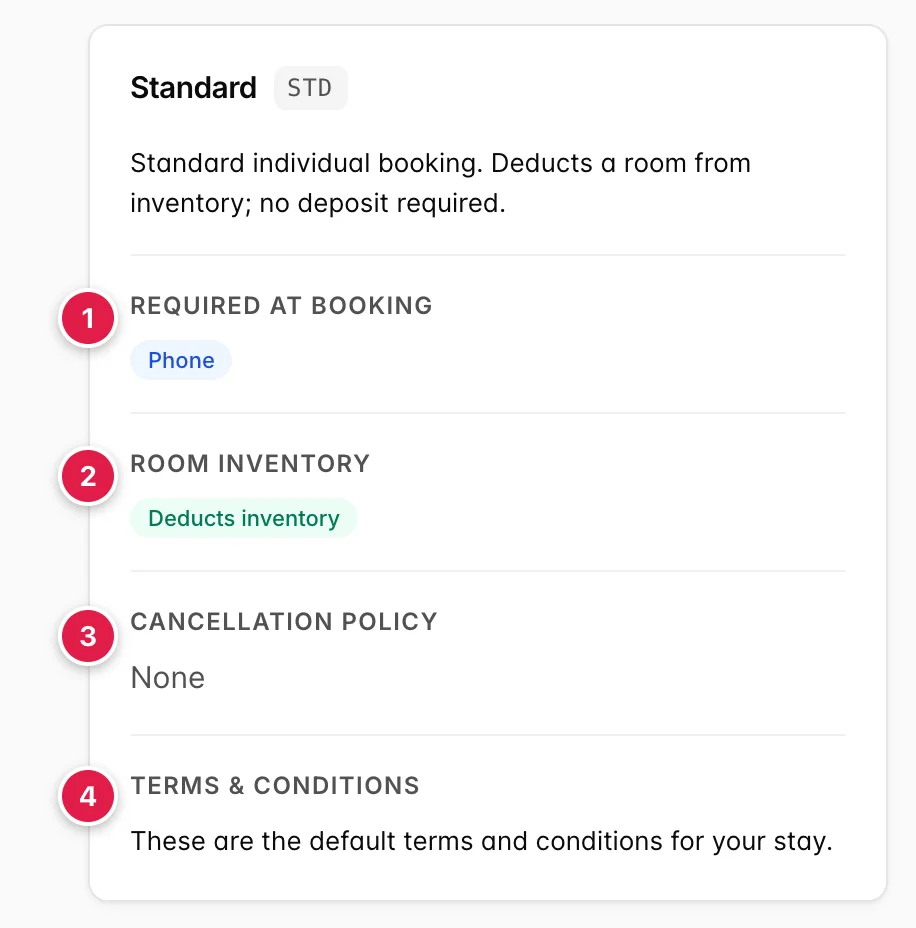
- Required at booking. Extra fields this type makes mandatory on the guest form. Standard asks for a phone number; a corporate type usually also demands a full address.
- Room inventory. Deducts inventory means the room comes off sale the moment you confirm. A type that does not deduct, a group block, typically, holds the room against an allotment instead, and the room stays sellable.
- Cancellation policy. The policy attached to bookings of this type. None means no automatic penalty.
- Terms & conditions. The wording the guest is agreeing to, and the wording that goes on their confirmation.
Step 1: stay and availability
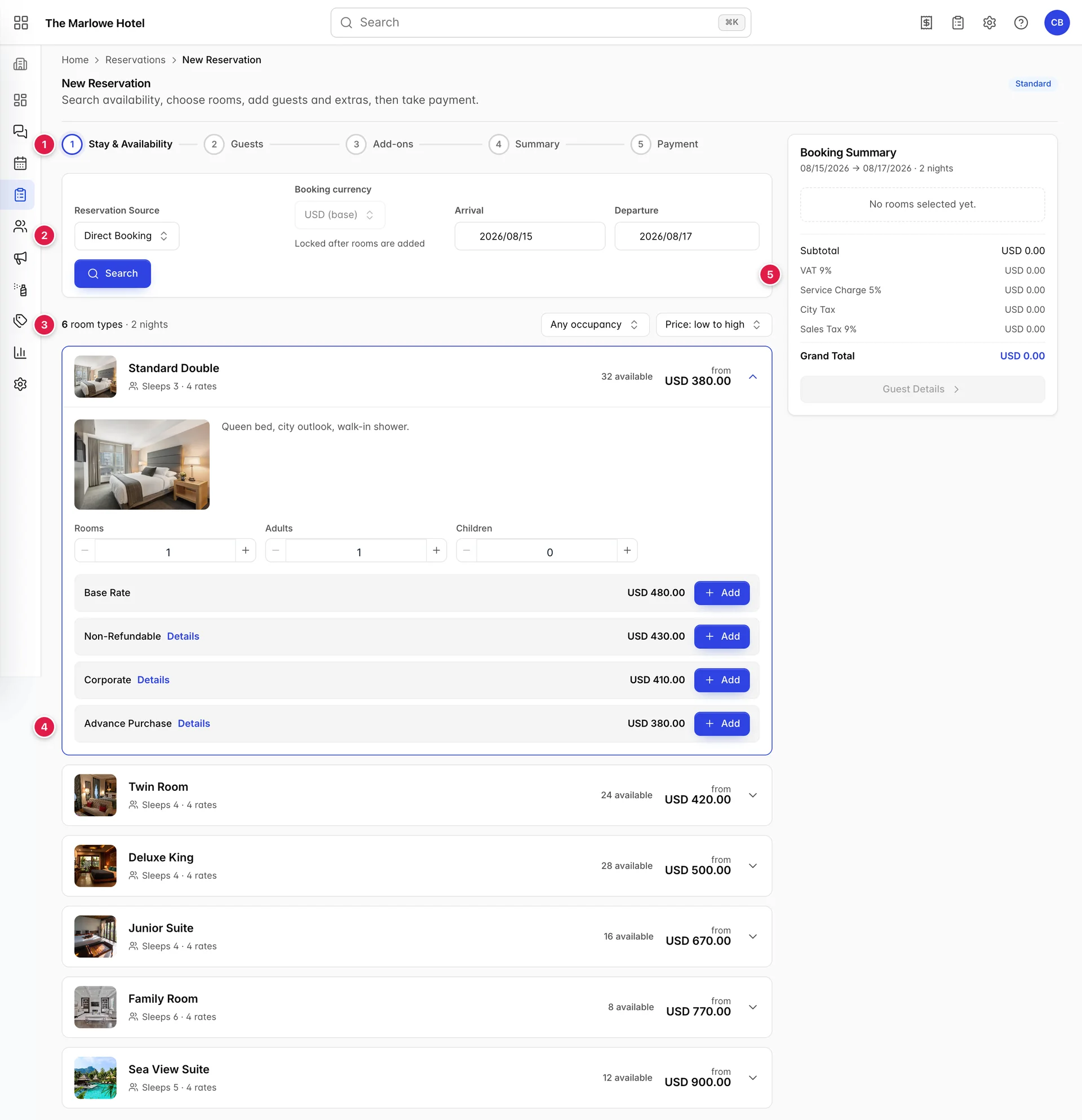
- The step bar. Five steps. You can click back to a step you have already completed, but not forward past one you have not.
- The search bar. Dates and source. Explained below.
- The results bar. How many room types came back, and two controls for narrowing them down.
- The room types. One row each, cheapest first.
- The booking summary. Empty until you add a room, then it follows you through all five steps.

- Reservation Source. Where the booking came from: a phone call, the website, a travel agent. There is no default, and nothing forces you to set one.
- Booking currency. Your property's own currency unless you change it. Once a room is in the cart this field greys out, because every price already quoted would otherwise be wrong.
- Arrival. The night the guest arrives.
- Departure. The morning they leave. Two nights means arrival on the 15th and departure on the 17th.
- Search. Nothing appears until you press this, and it has to be pressed again after any change to the dates.
Choosing a room and a rate

- The count. How many room types have something free for those dates. A room type with nothing available does not appear at all.
- Occupancy. Hides room types too small for the party: Sleeps 2+, 3+ or 4+. Set it to four and the doubles disappear.
- Sort. Price low to high, or high to low. Low to high is the default and is usually what you want when a guest asks for your cheapest room.
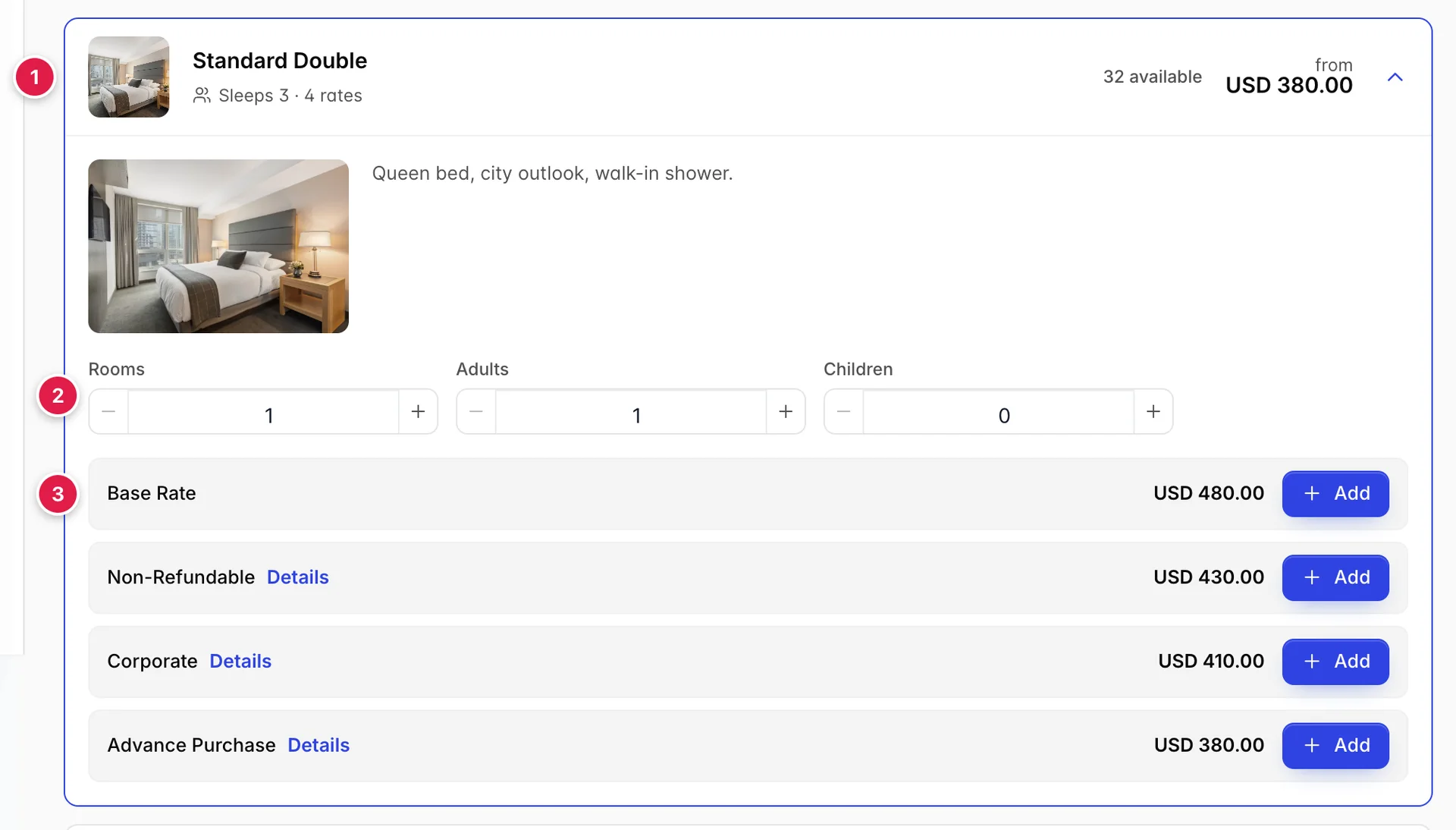
- The header row. The room type's name, how many it sleeps and how many rates it has, then two numbers on the right: 32 available is how many rooms of this type are free for the whole stay, and the from price is the cheapest of its rates for the whole stay, not per night. Click anywhere on this row to fold the type open or shut.
- Rooms, adults and children. Change these before you add, because they change the prices underneath. Two rooms means two lines in the summary, not one line at double the price.
- The rate rows. One per rate plan, each with its own price for the whole stay. Details beside a rate name spells out what makes it cheaper, usually a cancellation restriction. Add puts that rate in the summary.
The booking summary
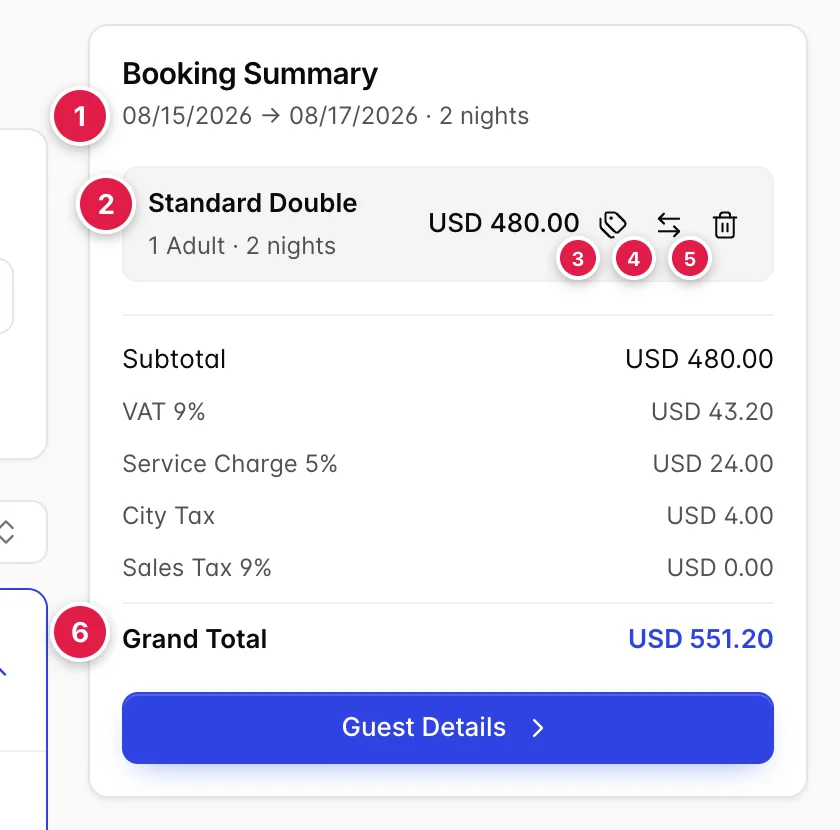
- The dates. Arrival, departure and the night count, so you can check the stay without scrolling back.
- The room line. One per room, with its occupancy, its nights and its price before tax.
- Edit rate. Overrides the price for this room, night by night if you want. Only available at step one, and only if your role is allowed to change prices.
- Split stay. Moves the guest between rooms partway through. Use it when nothing is free for the whole stay but two rooms together cover it. The booking then shows as two segments.
- Remove. Takes the room out of the booking. No confirmation.
- Grand Total. Rooms, plus extras, plus every tax. This is the number to quote.
The tax lines between the subtotal and the grand total are not editable and are not optional. They come from the tax rules configured for the property, and each one applies to a different base: a percentage tax on reservations is worked out on the room subtotal, a per-person-per-night fee multiplies out by guests and nights, and an item tax only touches add-ons. That is why the sales tax line sits at zero until you add an extra.
Step 2: guests
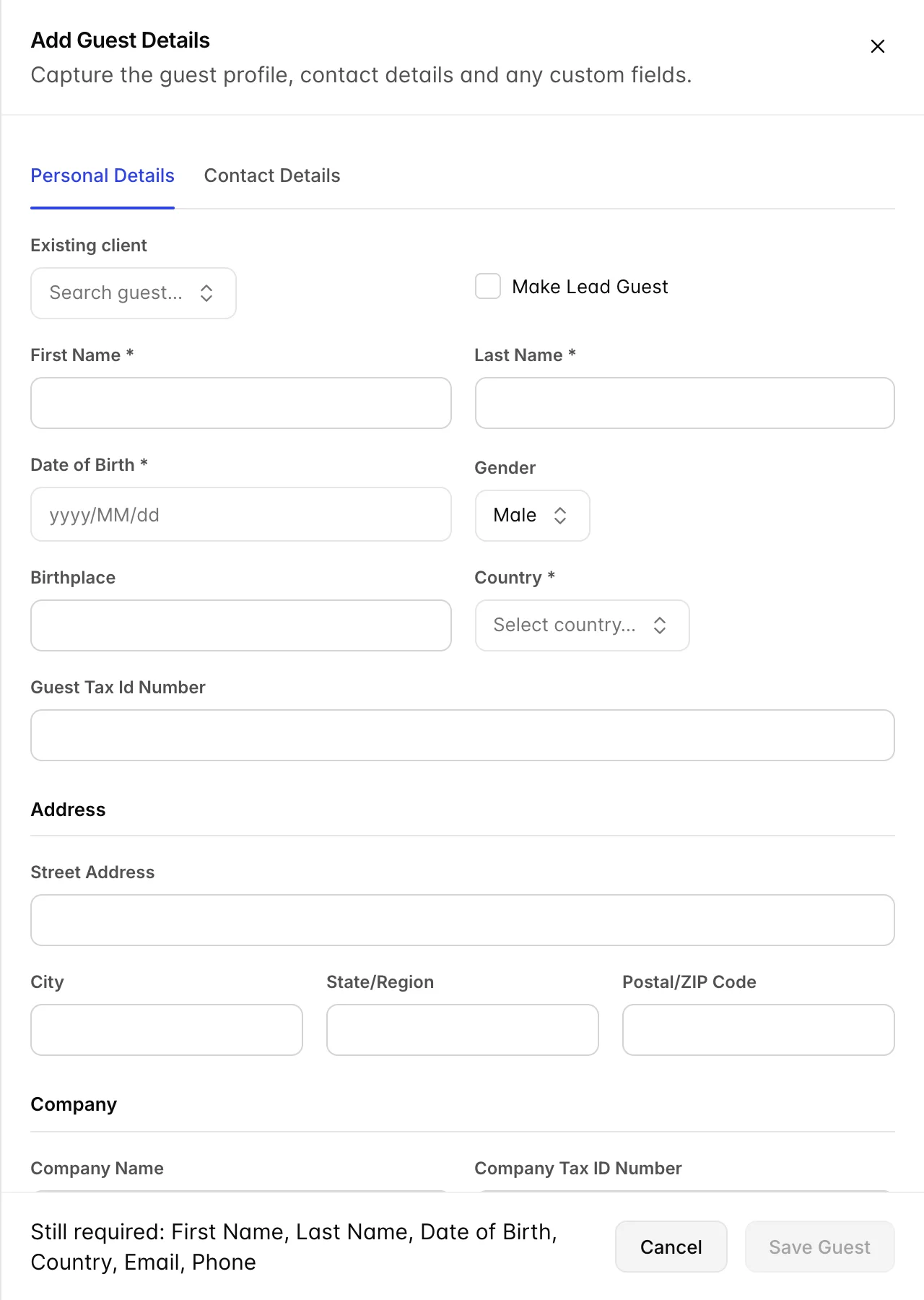
Add Guests opens this drawer. If the guest has stayed before, use Existing client at the top and the rest fills itself in, worth trying every time, because it keeps one guest record instead of creating a second one with the same name.
| Field | Required | What it is for |
|---|---|---|
| Existing client | No | Searches guests you already have. Picking one fills the whole form and links the stay to their history. |
| Make Lead Guest | No | Whose name the booking is under. The first guest you add becomes the lead automatically. |
| First Name, Last Name | Yes | As they appear on the identification the guest will present. |
| Date of Birth | Yes | Often a legal requirement for guest registration. Typed as year, month, day. |
| Country | Yes | Nationality, not where they live. Some tourist-tax rules key off it. |
| Gender, Birthplace, Guest Tax Id Number | No | Only needed where local registration rules ask for them. |
| Address block | Depends on the type | Optional for a standard booking, compulsory for a type whose detail panel said an address is required at booking. |
| Company block | No | For invoicing a company rather than the guest. |
| Yes | Where the confirmation goes. Checked for a valid shape when you save. | |
| Phone | Depends on the type | Required whenever the reservation type says so, which most do. Spaces, dashes and brackets are all accepted. |
| Mobile | No | A second number. |
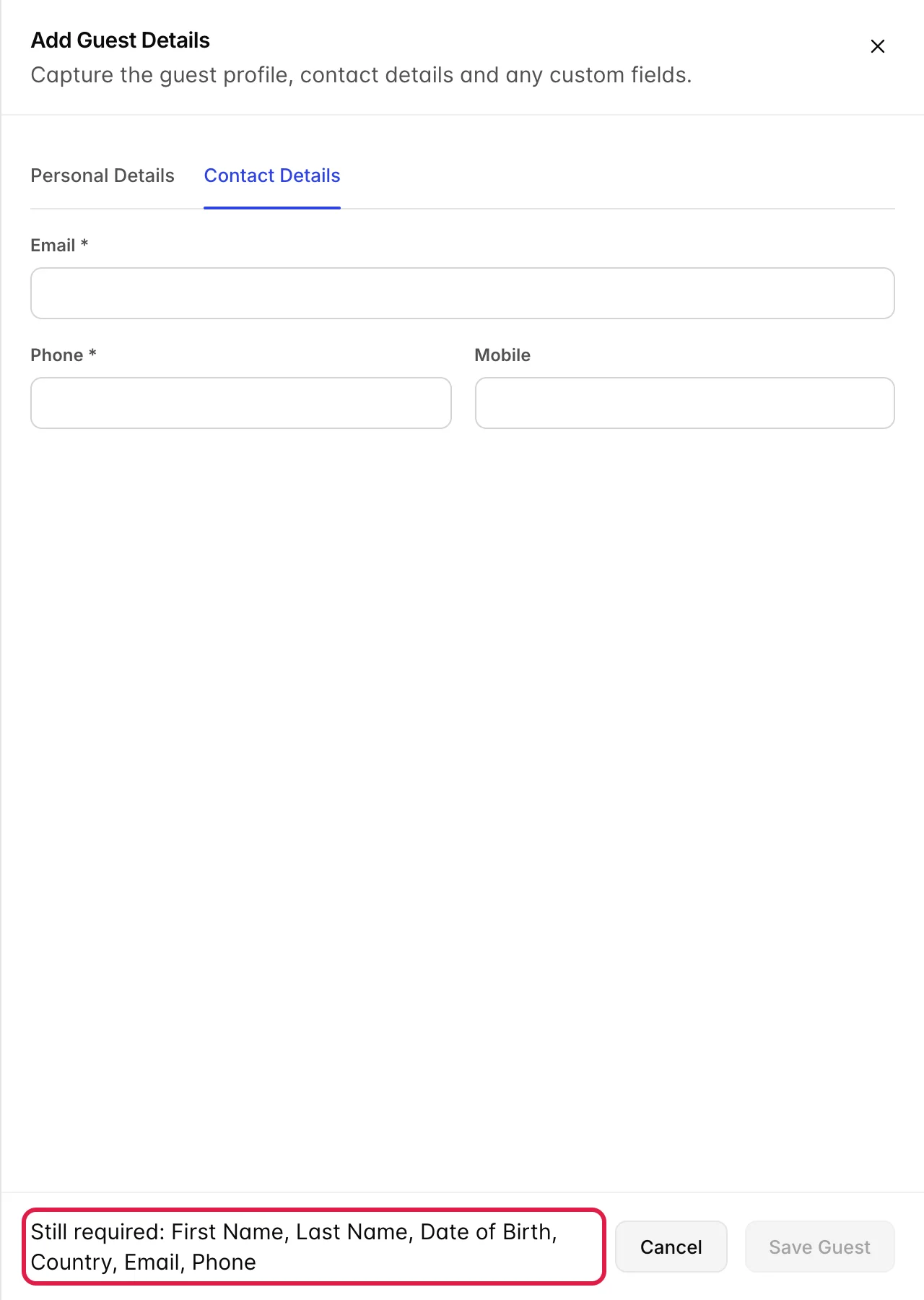
The required fields are spread across both tabs, which is why Save Guest can stay grey when the tab in front of you looks complete. The line along the bottom of the drawer lists exactly what is still missing, and it updates as you type. When it disappears, the button turns blue.

Saved guests land in a table. Room Assign. shows which room they are attached to and whether it has a number yet, Auto means the front desk will pick one later. The blue LEAD badge marks the lead guest, and the three dots at the end of the row edit or remove them.
You need at least one guest to move on. Add one per person only if you need their details on file; for a couple, one guest record and an occupancy of two is normal.
Step 3: add-ons
Extras attach to a room, not to the booking, which matters when there is more than one room. Pick the room from the strip at the top, then add to it.
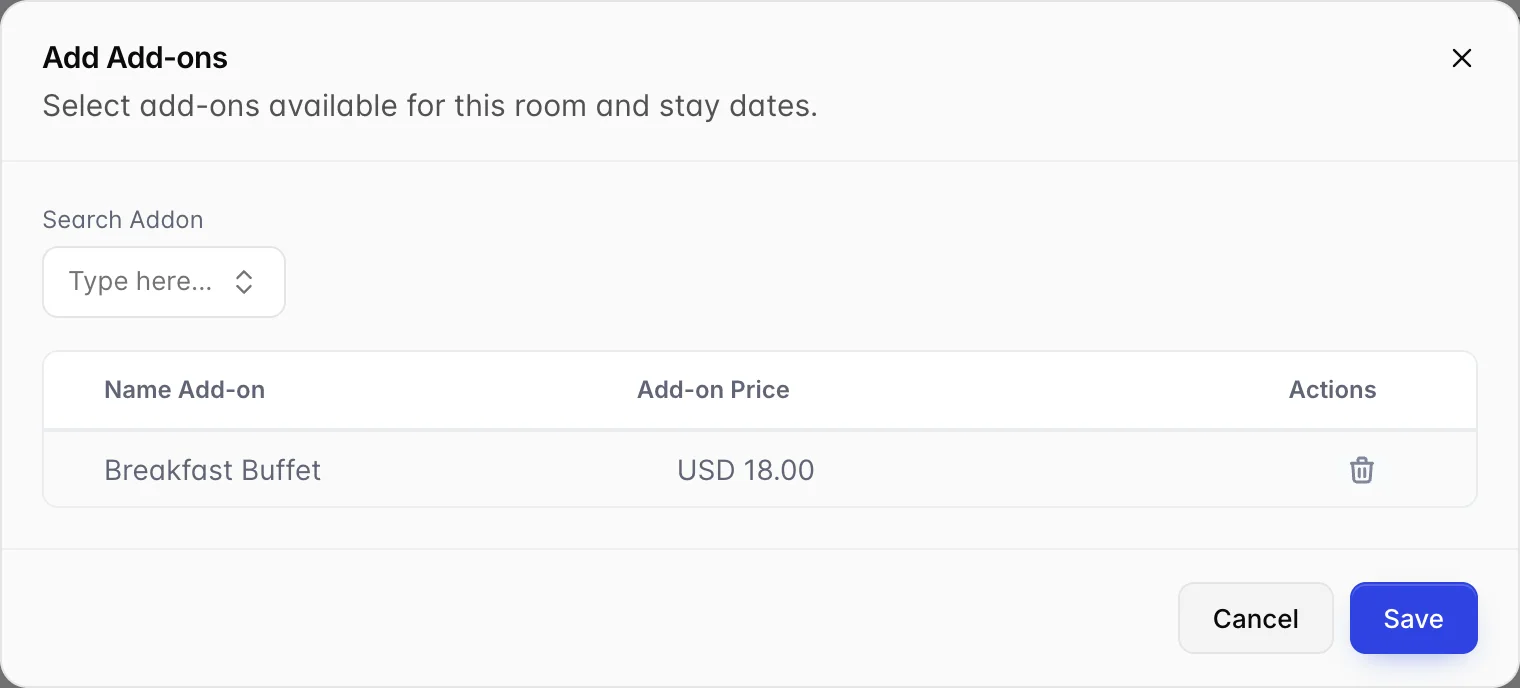
Add Add-on opens this dialog. Type into Search Addon or open it to see everything available for this room type and these dates; the catalogue is set up in settings, and an extra only appears if it is valid for both. Choose as many as you like, then Save.
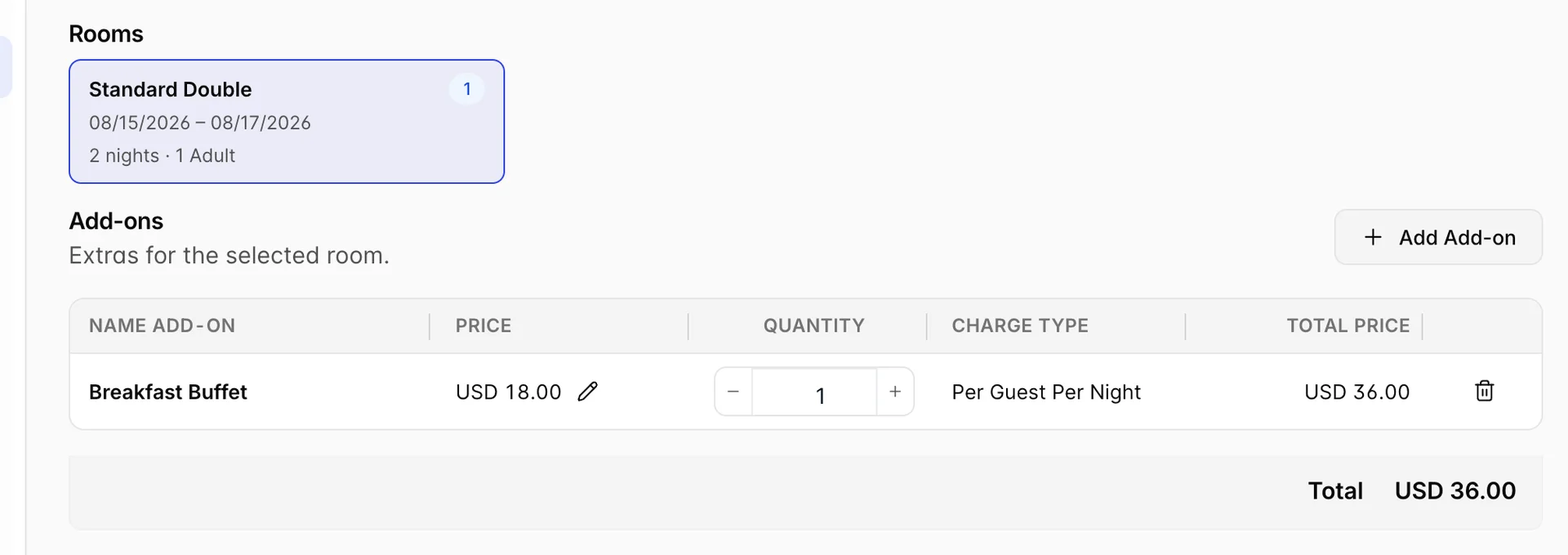
The table is where the arithmetic becomes visible. Price is the unit price and can be overridden with the pencil beside it. Charge Type is the rule that turns that unit price into a total, and it is set on the extra itself rather than chosen here:
| Charge type | Multiplied by | Typical use |
|---|---|---|
| Per Reservation | Nothing. Charged once. | An airport transfer, a welcome bottle. |
| Per Night | Nights | Parking. |
| Per Guest | Guests in the room | A one-off spa entry. |
| Per Guest Per Night | Guests × nights | Breakfast. |
| Per Room/Bed | Rooms on the line | A cleaning fee on each room. |
| Per Room/Bed Per Night | Rooms × nights | A nightly cot hire. |
| Quantity | The quantity you type | Anything counted, such as late checkouts. |
So an 18 dollar breakfast on Per Guest Per Night comes to 36 dollars for one guest over two nights, and would come to 72 for two guests. The Quantity stepper multiplies on top of whatever the charge type already worked out, so leave it at one unless you genuinely want two of the thing.
Step 4: summary
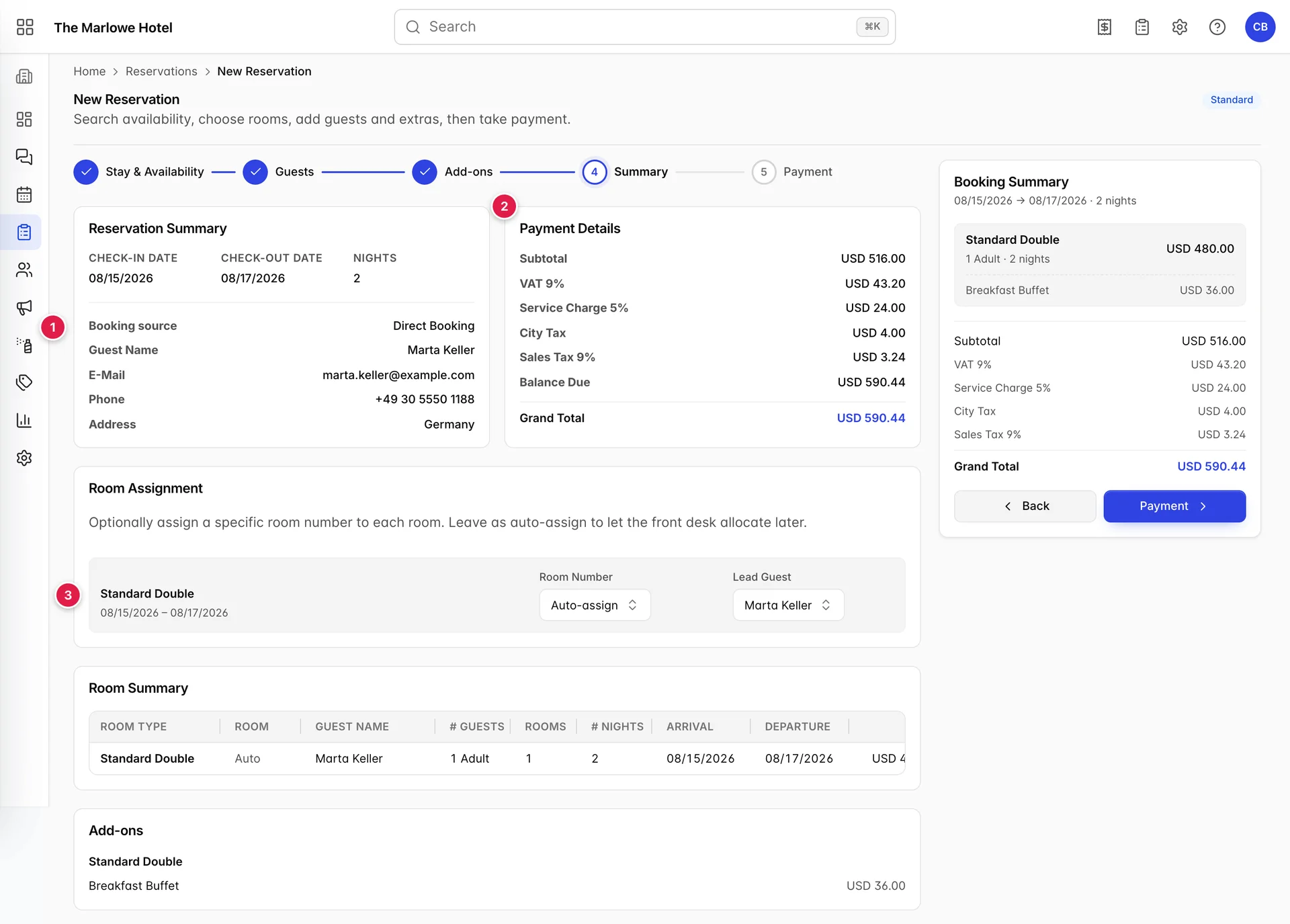
- Reservation Summary. Dates, nights, source, and the lead guest's contact details in one block. This is the one to read back over the phone.
- Payment Details. The same figures as the summary on the right, itemised. Balance Due is what is still owed; with nothing paid yet it equals the grand total.
- Room Assignment. The only part of this screen you can change.

- Room Number. Auto-assign leaves the choice to whoever is on the desk at check-in, which is almost always the right answer. Pin a specific room only when the guest has asked for one; a pinned room is one less room the desk can shuffle.
- Lead Guest. Which of the guests on the booking this particular room is under. With one guest there is nothing to decide.
Below the panels, Room Summary repeats the booking as a table, one line per room, with guests, nights, dates and total. An add-ons block lists the extras. Both are read-only.
Step 5: payment
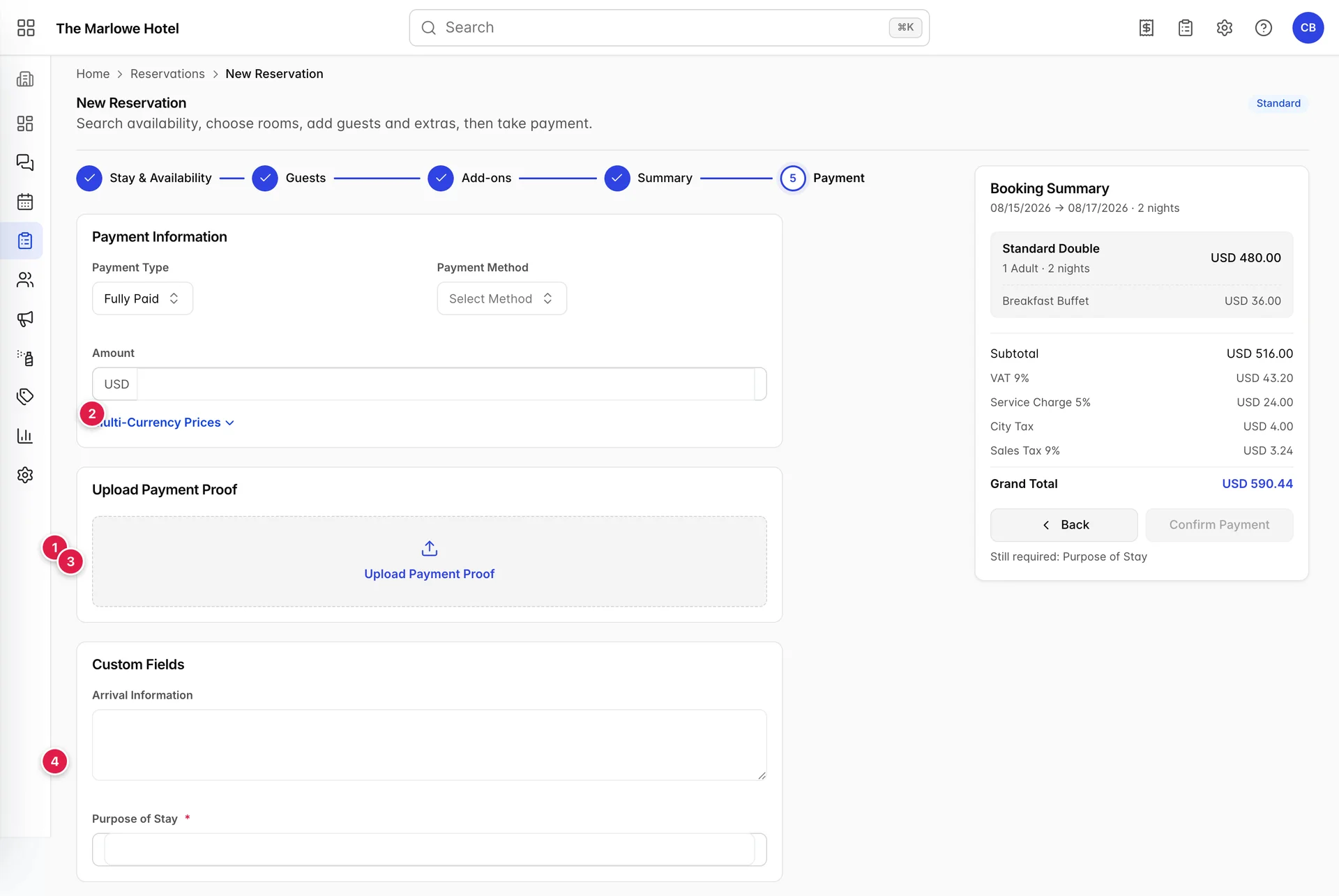
- Payment Information. How the guest is paying. Payment Type offers Fully Paid, and Deposit as well if your property uses deposit policies. Choosing Deposit adds a card underneath for when the deposit and the balance fall due. Payment Method and Amount record what you actually took; both can be left empty if you are taking nothing now.
- Multi-Currency Prices. Only appears when your property sells in more than one currency. Opens the equivalent in each.
- Upload Payment Proof. Attach a receipt, a bank transfer screenshot or a signed authorisation. It stays with the booking.
- Custom Fields. Extra questions your property added. Anything with a red asterisk has to be answered before you can confirm.
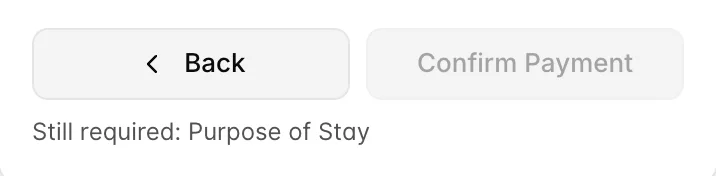
Confirm Payment creates the booking. If it is grey, the line under it says why, usually a required custom field further down the page, or a deposit schedule whose due date works out in the past. Fix what it names and the button comes alive.
Tentative bookings
A tentative is a booking with a clock on it. The room is held, the guest is pencilled in, and if nobody confirms before the expiry date the hold lapses and the room goes back on sale. Use it for the group organiser who needs to check with their committee, or the guest who will ring back with a card number.
Start one with Create Tentative on the type picker, or New Tentative in the Create New menu. The wizard is the same one, with a single difference at step five: where an ordinary booking offers Upload Payment Proof, a tentative offers Tentative Preferences instead, holding two fields.
- Tentative Expiry Date is compulsory. The booking lapses at the end of that day. Prostay refuses to save without it.
- Deduct from room inventory decides whether the held room comes off sale in the meantime, across the room count, the channel manager and the booking engine. Answer Yes if you genuinely expect the booking to land; No if you would rather sell the room to the first person who pays and risk having to disappoint the enquirer.
Tentatives appear in the Reservation requests block at the top of the reservation list, with a live countdown, where they can be accepted or declined.
Things that catch people out
The source is empty unless you set it
Worth repeating, because it is the single most common thing to get wrong here and the most annoying to fix later. Nothing in the wizard insists on a reservation source, and a booking without one is missing from every report that splits revenue by channel.
Changing the dates after adding a room does not re-price it
Prices are worked out when you press Add. If you then change the arrival or departure date, search again and add the room again rather than trusting the figure already in the summary.
The currency cannot be changed once a room is in the cart
Booking currency locks as soon as the summary has something in it. If you picked the wrong one, remove every room, set the currency, and add them back.
Two rooms means two lines, not a bigger number
Setting Rooms to two before pressing Add puts two separate lines in the summary. Each can be assigned to a different room number and given a different lead guest at step four. That is deliberate, and it is what makes a two-room family booking work.
Add-on quantity multiplies on top of the charge type
A breakfast on Per Guest Per Night at quantity two charges two breakfasts per guest per night. If the total in the right-hand column looks twice what you expected, quantity is the first place to look.