Your base rate decides what a night costs. The availability matrix decides whether that night is sold at all, how many of it you are willing to sell, and what a guest has to do to qualify for it. It is a grid of one row per accommodation type and one column per night, and everything on it is set for a single night at a time.
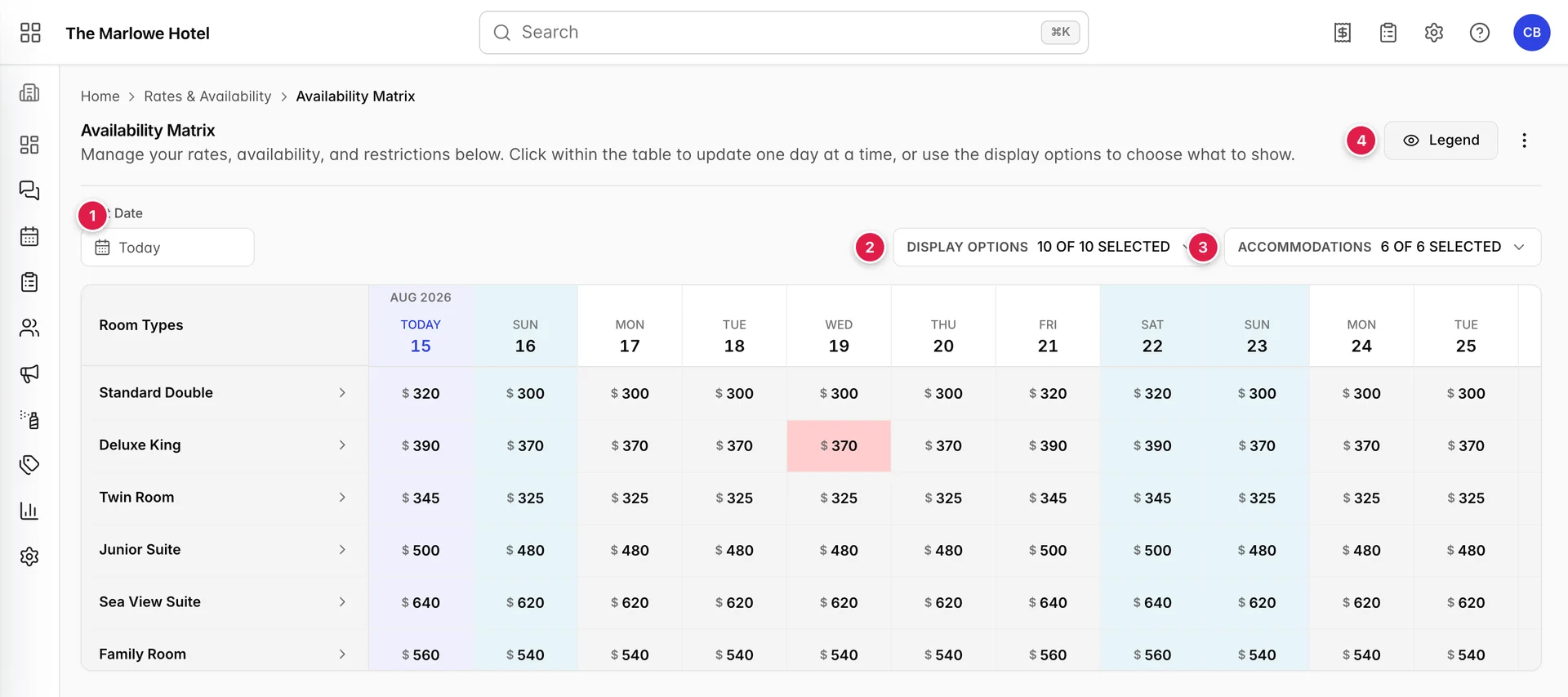
- Start Date. The first column. The grid runs from there ten years forward, so pick a date rather than scrolling to it.
- Display Options. Which rows appear under an expanded accommodation type.
- Accommodations. Which types appear at all. Untick them all and the grid is replaced by an empty state.
- Legend. The four colours the grid paints, described below.
Reading the grid
Collapsed, each accommodation type shows one thing: the nightly rate. Click the type name to expand it and the rest of the rows appear underneath, one for each thing you can set on a night. Click it again to collapse it. Only one column of dates is visible at a time, so drag the grid sideways, or set a Start Date and let the grid start there.
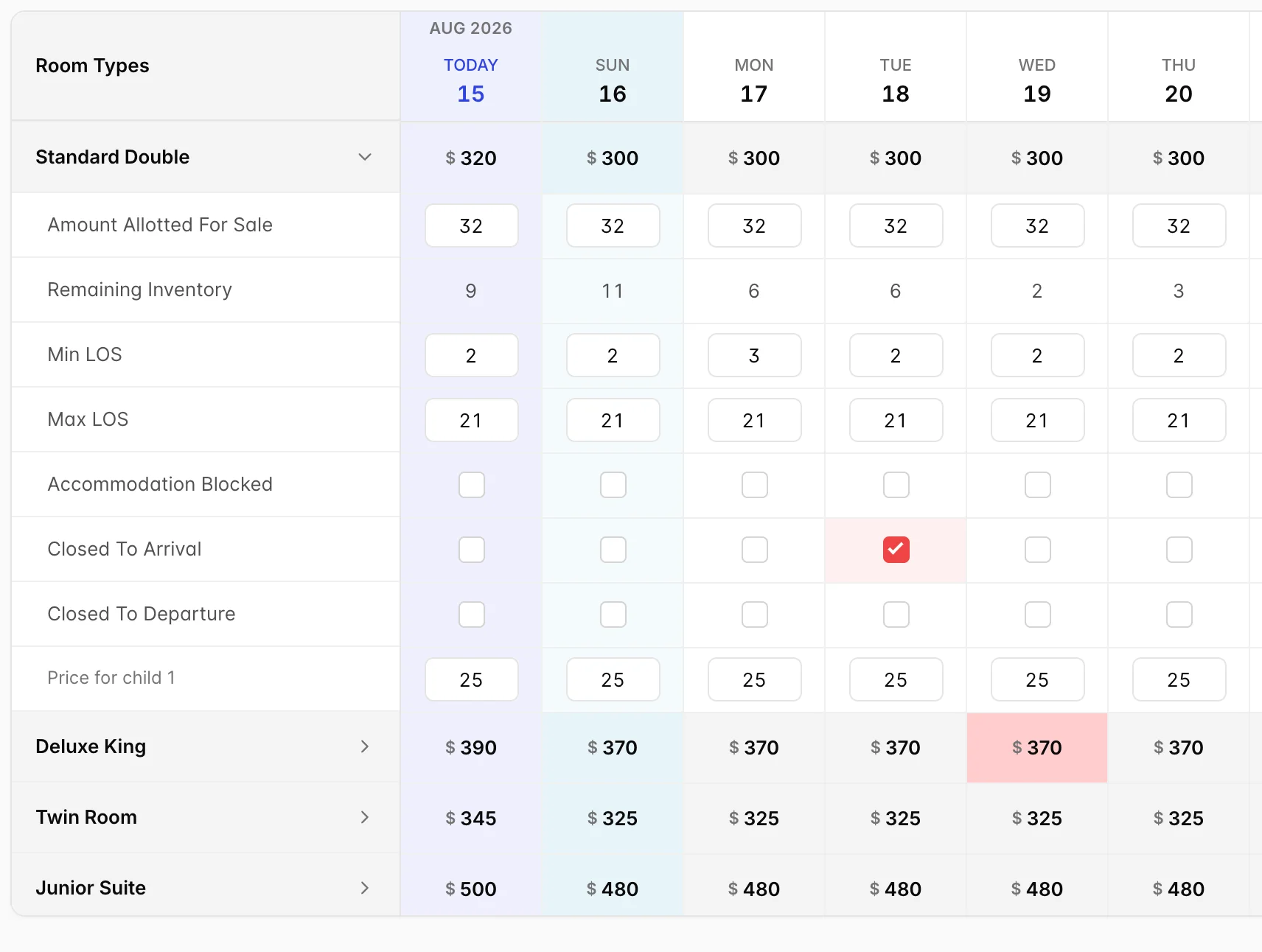
A cell with a box around it can be typed into. A cell without one is calculated, and the only way to change it is to change something else.
What each row does
| Row | What it does to what a guest can book |
|---|---|
| The rate | Read only. The price this accommodation type sells at that night, taken from your base rate. |
| Amount Allotted For Sale | How many units of that type you are willing to sell that night. Starts at the number the type has. |
| Remaining Inventory | Read only. The allotted amount minus what is already sold for that night. |
| Min LOS | The shortest stay that may include this night. A 3 turns away a two night booking that would have touched it. |
| Max LOS | The longest stay that may include this night. |
| Accommodation Blocked | Takes the type off sale for that night entirely, whatever the numbers above say. |
| Closed To Arrival | Stays may not start on that night. Stays already under way pass through it. |
| Closed To Departure | Stays may not end on that night, so a guest already in house has to stay one more. |
| Price for adult and Price for child | What an extra guest adds to that night, one row per extra guest the type can take. |
The rate row is read only
The top row of every accommodation type is the price, and you cannot type in it. It is not a field with an edit you have not found: the matrix reads it from the base rate interval covering that night, and there is nowhere here to write it back.
So the matrix is not where you change a price. To move a nightly rate, edit the base rate interval that covers those dates, described in creating and editing base rate intervals. If the rate showing for a night is not what you expect, the interval is the place to look, and how base rates and seasons work explains which interval answers for which night.
How many you are willing to sell
Amount Allotted For Sale starts at the number of units the accommodation type has, and lowering it holds units back. Twelve Standard Doubles allotted at 10 for a Saturday means the two you kept are not sold to anybody: not on the booking engine, not through a channel, not by your own front desk. Raise it again and they come back.
Remaining Inventory underneath is the allotted amount minus what is already sold for that night, and it is the number to read when you want to know whether you can take one more. It is calculated, so it changes on its own as reservations arrive and as you edit the row above it.
Minimum and maximum stay
Min LOS and Max LOS arrive filled in, taken from the base rate interval covering that night. Typing over one of them applies to that accommodation type on that night only, and it holds until you clear it, whatever the interval says.
These are rules about the whole stay, not about the night. A three night minimum on the Saturday of a busy weekend turns away a guest arriving Friday for two nights, because their stay would include the Saturday and is too short for it. That is usually the point: it is how a weekend gets protected without touching the price. It is also why a stay can be refused on a night that looks perfectly available.
Blocking a night and closing arrivals
Three tick boxes sit under the stay lengths, and they are the strongest controls on the screen.
| Tick box | What happens |
|---|---|
| Accommodation Blocked | The type is off sale for that night. The tick turns amber and the rate cell above turns pink, so a blocked night is visible with the row collapsed. |
| Closed To Arrival | No stay may begin that night. Stays that started earlier and run through it are unaffected. |
| Closed To Departure | No stay may end that night. Use it to stop a busy Sunday emptying out before the following night is sold. |
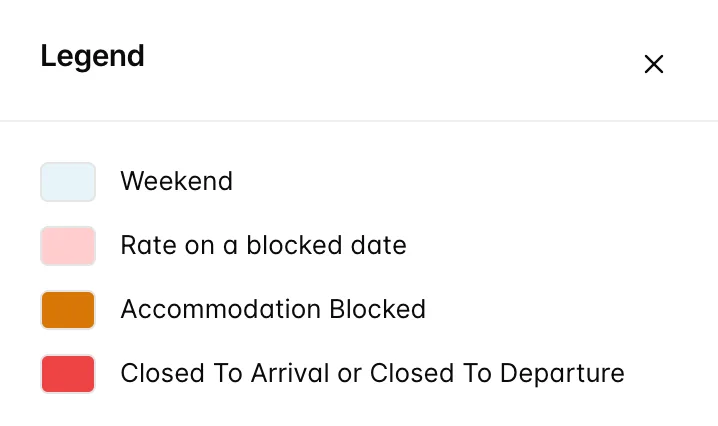
The pale blue columns are weekends, which are tinted only to help you find them. The other three colours mean something is restricted, and the pink rate cell is the useful one: it is how you spot a blocked night while every accommodation type is collapsed.
Rate plans carry their own arrival and departure closures, set on each pricing interval and described in pricing intervals on rate plans. Those apply to one plan. The ones here apply to the accommodation type, so they close every plan that sells it. When both are in force the stricter one wins.
Per person overrides
Under the tick boxes, an accommodation type shows one row per extra guest it can take, labelled Price for adult 1, Price for child 1 and so on. A type that includes everybody it can hold in its base rate shows no rows here at all, which is why some types have several and others have none.
The amounts arrive from the base rate, from the per person prices set for that day of the week. Typing over one changes what an extra guest adds on that night only, for that accommodation type, and leaves every other night alone. It is the quickest way to price a supplement up for one busy date without opening the base rate at all.
Overbooking
Whether the property may be sold past its allotment is a single decision, made once for the whole property rather than per night. Open the actions menu beside Legend and choose Settings.
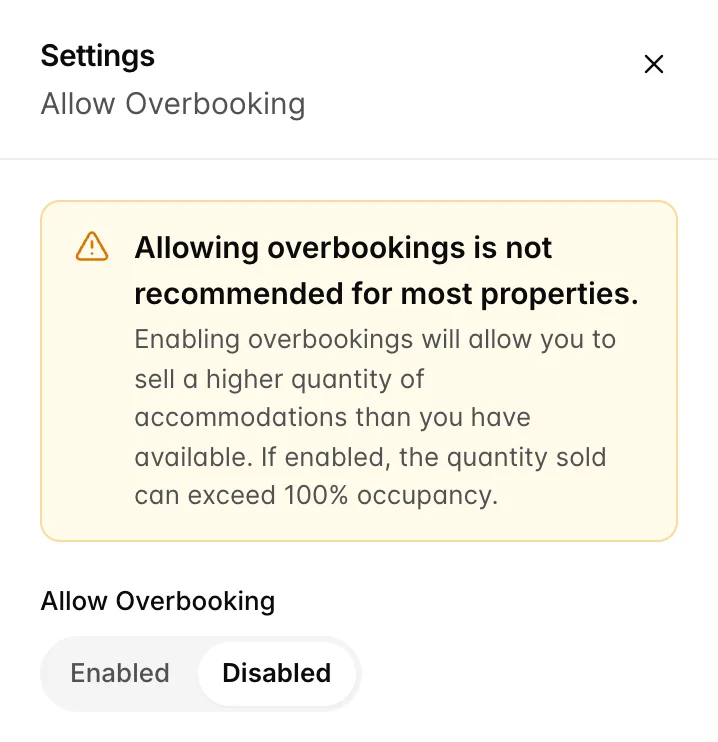
Disabled is the safe setting and the usual one: a night that has sold out cannot be sold again. Enabled lets the quantity sold pass what you have, which properties with reliable cancellation patterns sometimes want and everyone else regrets on a Friday afternoon. Press Save to apply it, or Close to leave it as it was.
The switch decides what is allowed. It does not tell you what has happened, and neither does Remaining Inventory, which stops at zero. For that, read the occupancy grid, which counts oversold nights per accommodation type.
Choosing what to show
A full stack of rows under every accommodation type is a lot to read when you came in to change one thing. Display Options turns rows off.
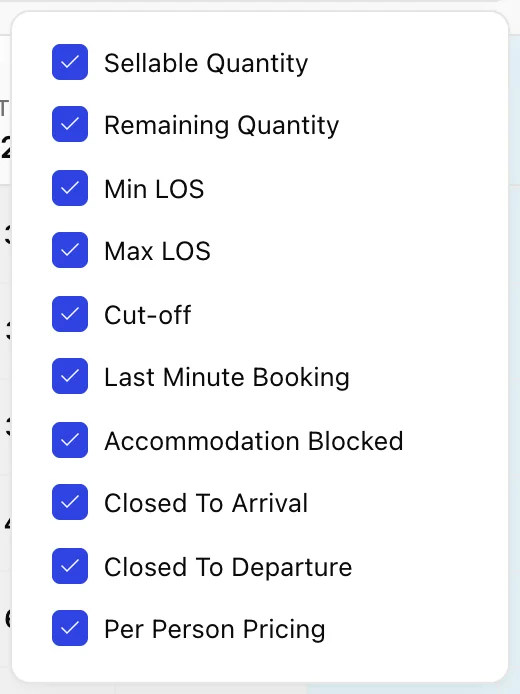
Unticking a row hides it, it does not clear it. A minimum stay you set last week is still in force with Min LOS hidden, so a grid someone else has tidied is worth a look at this list before you conclude a restriction is not there.
Accommodations beside it filters the types themselves, which is how you get a single type across a long stretch of dates on one screen. Untick every type and the grid is replaced by No accommodations selected. Neither filter changes anything you sell; both are just ways of looking.
Every cell saves itself
There is no Save button on this screen and there is not meant to be. A number is saved when you click away from the box, and a tick box is saved the moment you click it. The change is written for that accommodation type on that night, and nothing else moves with it.
That also means there is no undo. A minimum stay typed into the wrong column is in force straight away, and putting it back means typing the old value over it.
Because everything is per night and per type, a long change is a lot of clicks. Closing a fortnight to arrivals across six accommodation types is eighty four tick boxes, and there is no date range editor here. If the same restriction should apply to a whole season, set it on the base rate interval instead and leave the matrix for the exceptions.
Common pitfalls
| What you see | What is usually going on |
|---|---|
| A night will not sell although units are free | Accommodation Blocked is ticked, or Amount Allotted For Sale has been lowered to what is already sold. |
| A short stay is refused on an empty night | Min LOS on one of the nights of the stay is longer than the stay. Every night the stay touches has to accept it. |
| A guest cannot book a stay starting on a date | Closed To Arrival is ticked on that night, either here or on the rate plan interval they are booking. |
| The rate cell is pink | The accommodation type is blocked that night. The tick is on the row underneath, in the same column. |
| The price is wrong and there is no way to type it | The rate row is read only by design. Change the base rate interval covering those dates. |
| Remaining Inventory shows 0 on a night you know is oversold | The row stops at zero. Read the occupancy grid to see how far past the allotment the night has gone. |
| A restriction you set has disappeared | Its row is unticked in Display Options. Hiding a row does not clear it. |