Every booking in Prostay came from somewhere, and this is the list of the somewheres. One row is one place business arrives from: an OTA, a travel agent, a corporate account, your own website, or the person who walks up to the desk with no reservation at all. The name in the first column is the name that will appear against a booking, on the production reports, and in the source picker when somebody creates a reservation by hand.
Two things this screen is not. It is not where commission is set: commission belongs to the source's Source Type, which is Source types and their commissions. And it is not where a channel connection is made. Adding a row called Booking.com here does not connect you to Booking.com; it gives you somewhere to attribute a booking to.
The screen
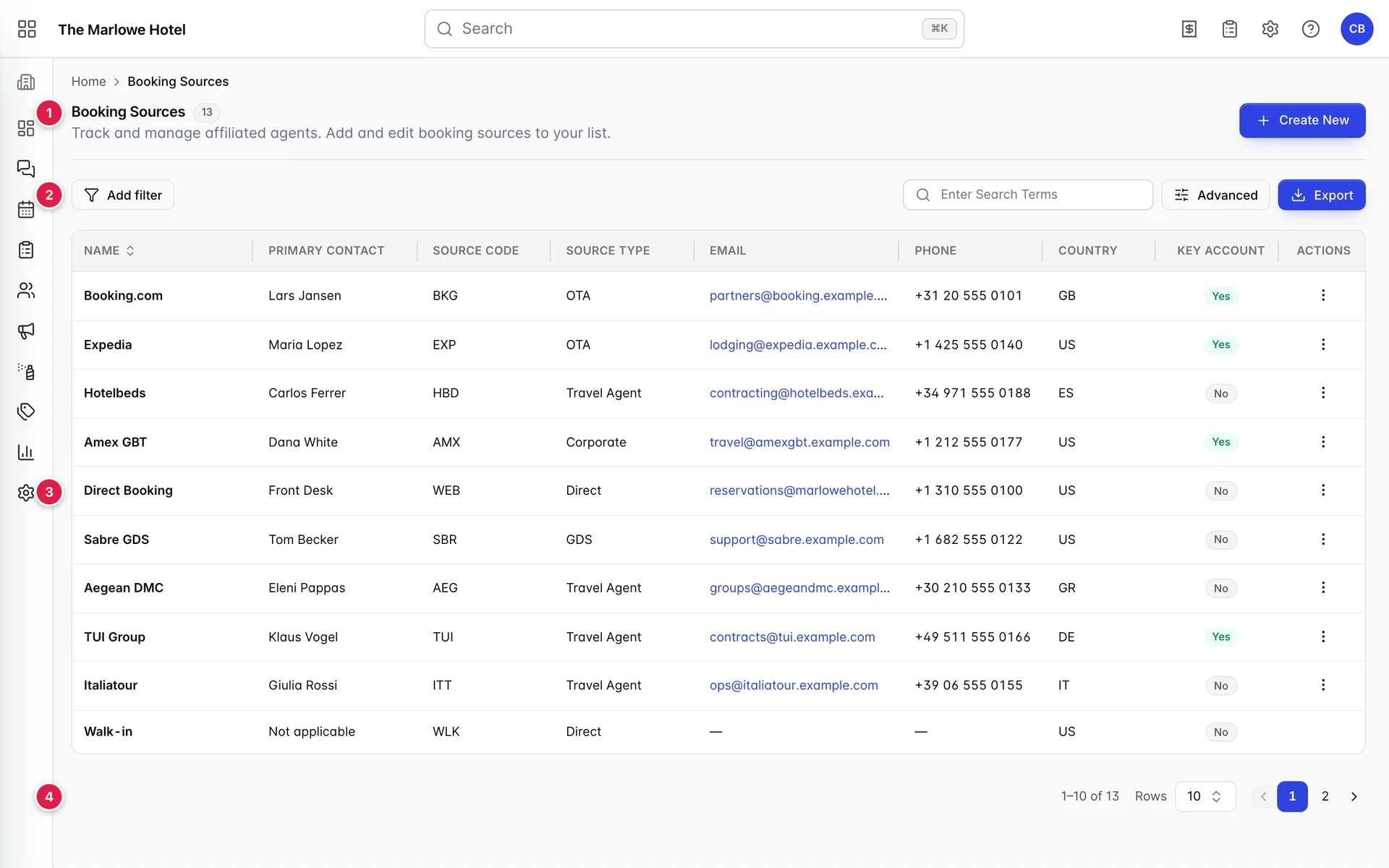
- The heading. The grey number beside Booking Sources is how many sources match what you have filtered to, not how many you have. With nothing filtered it is the size of your list.
- The filter row. Add filter and its chips on the left; search, Advanced and Export on the right.
- The table. Ten sources at a time. Rows are not clickable; the menu at the end of each one is the way in.
- The pager. How many matched, and where you are in them.
Create New at the top right opens the add panel, which is covered in Adding and editing a booking source.
The nine columns

| Column | What it holds |
|---|---|
| Name | What this source is called everywhere else in Prostay: on the booking, in the reservation editor's source picker, and down the left of the production reports. The only column that sorts. |
| Primary Contact | The person you deal with. A name only; their email and phone are the two columns after next. |
| Source Code | Your short code for the source, three or four characters by convention. Yours to choose, and useful when a report or an export has no room for the full name. |
| Source Type | Which type this source belongs to. The type is what carries the commission percentage, so this column is how you tell what a booking through this source costs you. |
| A live mail link: clicking it opens your mail client rather than the source. Long addresses are cut off with an ellipsis, and the full address is on the source's own page. | |
| Phone | The mobile number from the source's contact details. The company landline is a separate field and does not appear here. |
| Country | The two-letter country code, shown as a code rather than a name. It drives the Country filter, which does list countries by name. |
| Key Account | Yes in green or No in grey. Somebody set this by hand. See the next section. |
| Actions | A three dot menu holding Edit and Delete. Some rows have no menu, which is covered further down. |
A dash in a cell means the field is empty on the source, not that the column does not apply. Only Name is required when a source is created, so a source added in a hurry can legitimately show dashes across most of its row.
What Key Account means
Nothing, until you decide what it means. It is a flag somebody ticked on the source, not a figure Prostay works out, and it changes no behaviour: a key account gets no different commission, no different rates and no priority anywhere in the product. Its whole value is that you can filter the list by it.
That makes it useful as a label for the accounts your team has agreed to treat as relationships rather than as plumbing, and it makes it dangerous to read as performance. In the screenshot above, Booking.com and Amex GBT are both flagged, but one of them has brought in seventeen bookings this quarter and the other has brought in none. If you want the sources that are actually producing, that is Source Production further down this page, or the production reports.
Finding one source

- Search. Runs as you type, a request per keystroke, and it does not wait for Enter. It matches more than the name: the contact, the source code, the type, the email, the phone number and the country code are all searchable, so agent brings back every travel agent and GB brings back the sources in the United Kingdom.
- Advanced. Opens all four filters in one panel, with a count of how many are applied.
- Export. Writes what you are looking at to a file. Covered at the end of this page.
Searching narrows what is already narrowed. The search box and the filters are sent together, so a chip left on the bar from ten minutes ago can hide a source that certainly exists.
The four filters
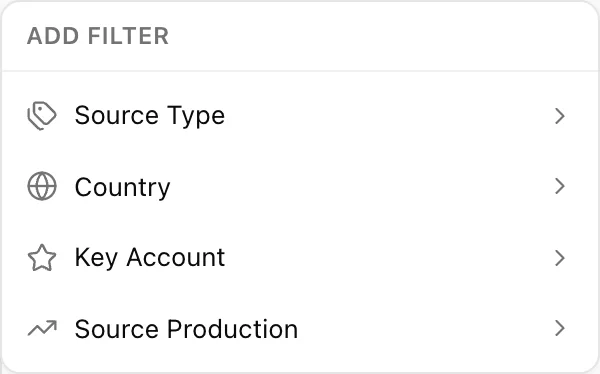
| Filter | What it does | Useful for |
|---|---|---|
| Source Type | Tick any number of your source types. Sources matching any ticked type are kept. | Seeing your OTAs as a group, or every travel agent at once. |
| Country | Tick one or more countries, matched against the country on the source. | Finding the agents in one market before a sales trip. |
| Key Account | Yes or No, one or the other. Clicking the option again unsets it. | Pulling the list of accounts your team owns. |
| Source Production | Highest Performing or Lowest Performing. Reorders rather than removes. See the next section. | Finding out which sources earn their commission and which do not. |
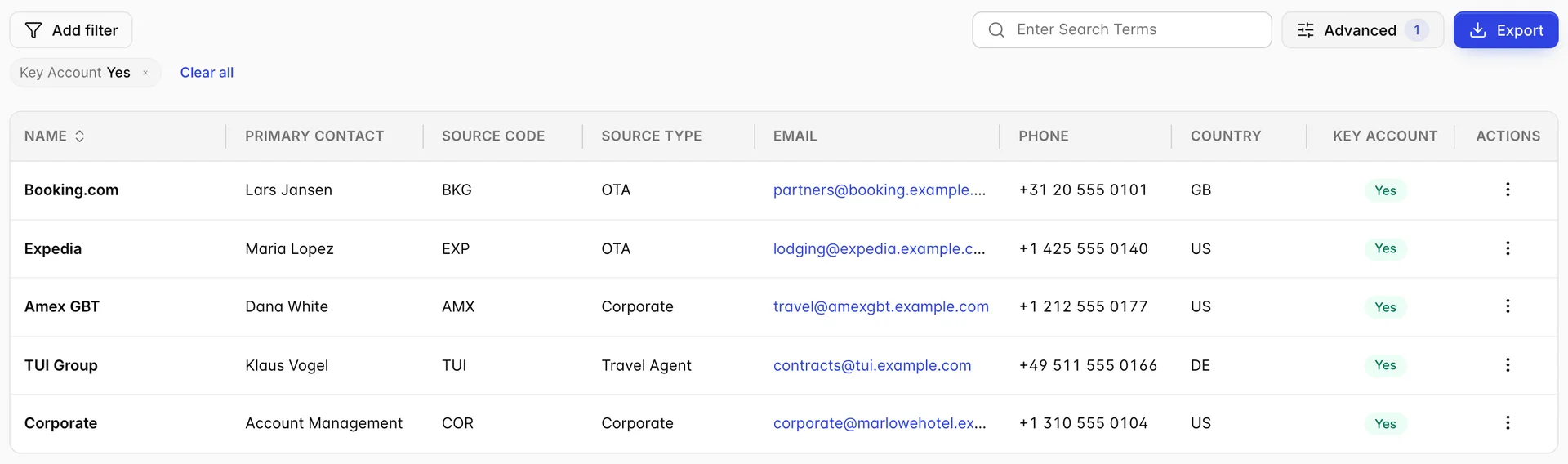
Filters combine: set two and you get the sources that satisfy both. Each one leaves a chip on the bar that you can click to edit or cross out to remove, the number on Advanced counts what is applied, and changing anything takes you back to page one.
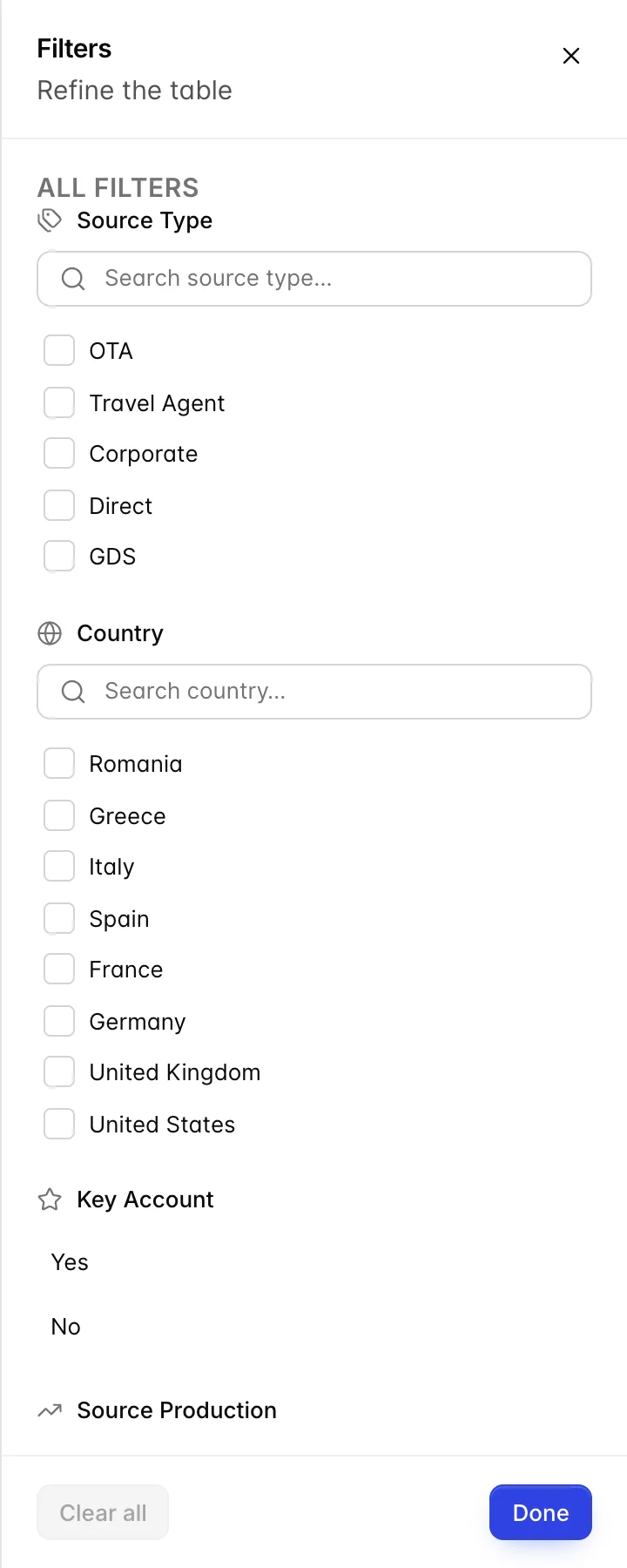
Advanced opens the same four filters stacked in one panel, which is quicker when you are setting several. It is the same filter either way: a country ticked in the panel is a chip on the bar when you close it.
Highest and Lowest Performing
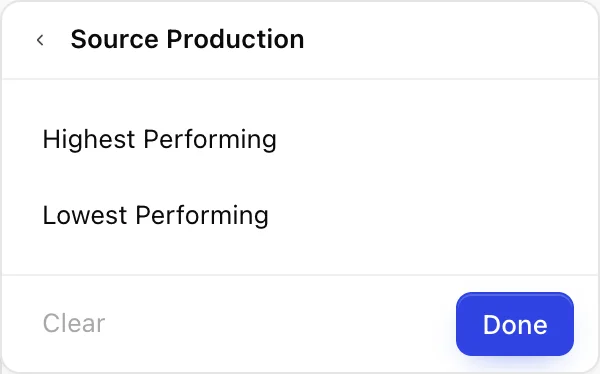
This one behaves differently from the other three. It removes nothing: the same sources stay in the list, reordered by the revenue attributed to each of them. Highest Performing puts your best producers on page one, Lowest Performing puts the sources you are maintaining for nothing there instead.
The count beside the heading therefore does not change when you apply it, which is the giveaway that it is a sort wearing a filter's clothes. Sources with no bookings at all sit at the bottom under Highest Performing, and they are the ones worth looking at: a source with a contact, a code and a contract, and nothing ever booked against it, is usually a source somebody set up and nobody ever selected.
For the figures behind the order, rather than just the order, open the source and read its History tab, described in The source profile and its production, or run the production reports from Finding a report and using its filters.
Sorting and paging

One column sorts, Name. Click the header once for A to Z and again for Z to A. The other eight headers do nothing when clicked.
Rows at the foot switches between 5, 10, 50 and 100 a page and returns you to page one. The range on the left counts what your filters matched, so it is the honest answer to "how many sources do we have".
Editing and deleting a source
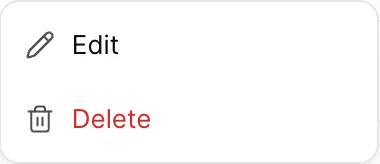
Edit opens the source's own page, where the contact details, the company and address fields, the notes, the documents and the booking history all live. Nothing else on the row navigates: the name is not a link, and clicking the row does nothing at all.
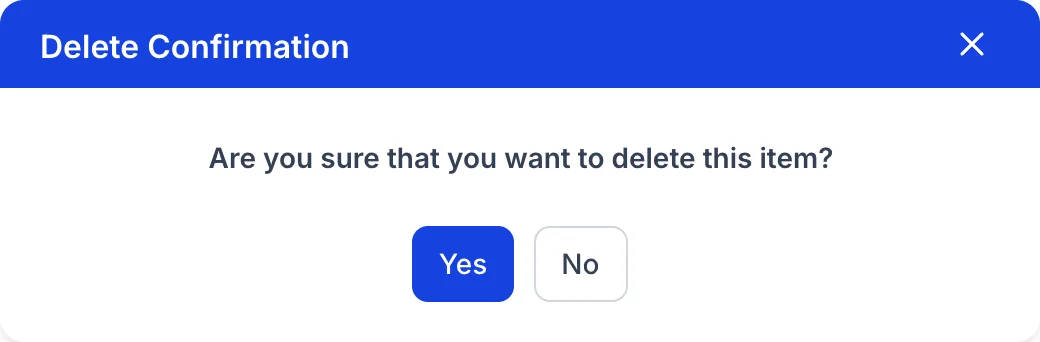
Delete asks once, in a dialog that does not name the source you are about to remove. Read the row before you open the menu, because the dialog will not remind you.
The row with no menu

Walk-in has no three dot menu. It is a system source: Prostay needs somewhere to attribute a booking taken from somebody standing at the desk, so the row cannot be renamed, edited or deleted, and because there is no Edit action there is no way to open it either. The dashes in its Email and Phone columns are correct rather than missing data; nobody to email is the point.
It still counts. Walk-in bookings appear in the production reports beside every other source, and its Source Type is Direct like your website, which is what makes the commission on those bookings nil.
Exporting the list
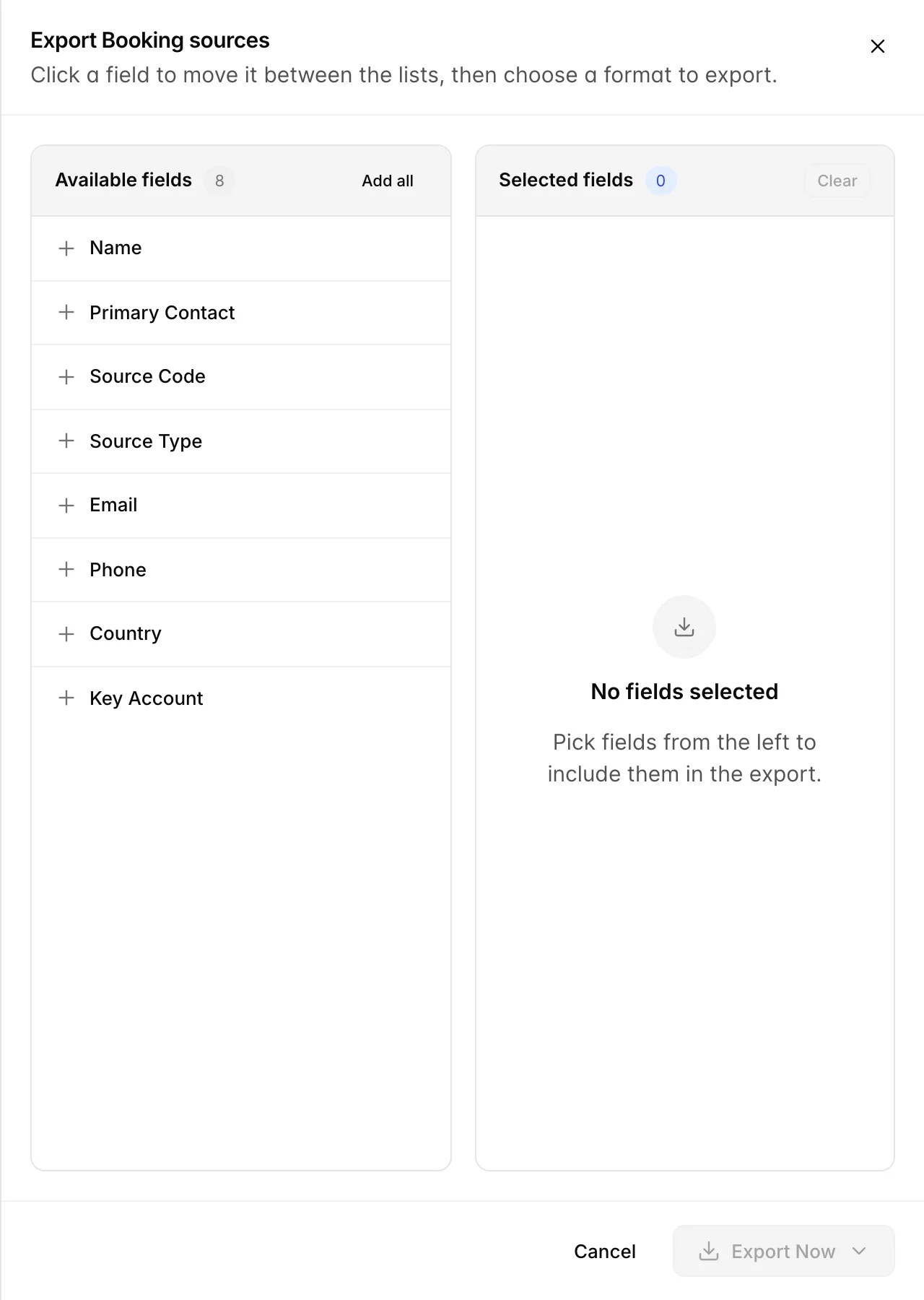
- Filter the list to what you want first. The export carries your filters, your search and the page you are on, so set Rows to 100 if you want all of your sources rather than the ten in front of you.
- Press Export. The panel opens with the eight columns on the left and nothing chosen on the right.
- Click fields to move them across. Left to right adds, right to left removes, and Add all takes all eight. The order you add them is the column order in the file.
- Press Export Now and choose a format. Export as PDF to hand to somebody, Export as Excel to work with. The file arrives as BookingSources.
There is no tick box on the rows here, so you cannot export a hand picked set of sources. The file is always whatever the list is currently showing you.
Things that catch people out
| What you see | Why |
|---|---|
| No booking sources found for a source you are sure about | A filter chip is still applied, or there is still something in the search box. Clear all only clears the chips. |
| One row has no three dot menu | Walk-in is a system source and cannot be edited or deleted. Nothing is broken. |
| Clicking a source does nothing | By design. Edit in the row menu is the only way in. |
| The count beside the heading did not change when you filtered | You applied Source Production, which reorders the list instead of shortening it. |
| Sorting by Name did not put A at the top | It did, for the page you are on. The sort only reaches the rows already loaded. |
| A source flagged Key Account with no bookings | The flag is a label somebody applied, not a measure of production. The two are unrelated. |
| The commission is nowhere on this screen | Commission is a property of the Source Type, not of the source. The Source Type column is the pointer. |