This screen is where you decide what your booking engine is allowed to sell, how it prices what it sells, what it asks a guest for on the way through, and what happens once they have booked. Everything on it takes effect on the public engine the moment you save, with no separate publish step.
How the screen is laid out
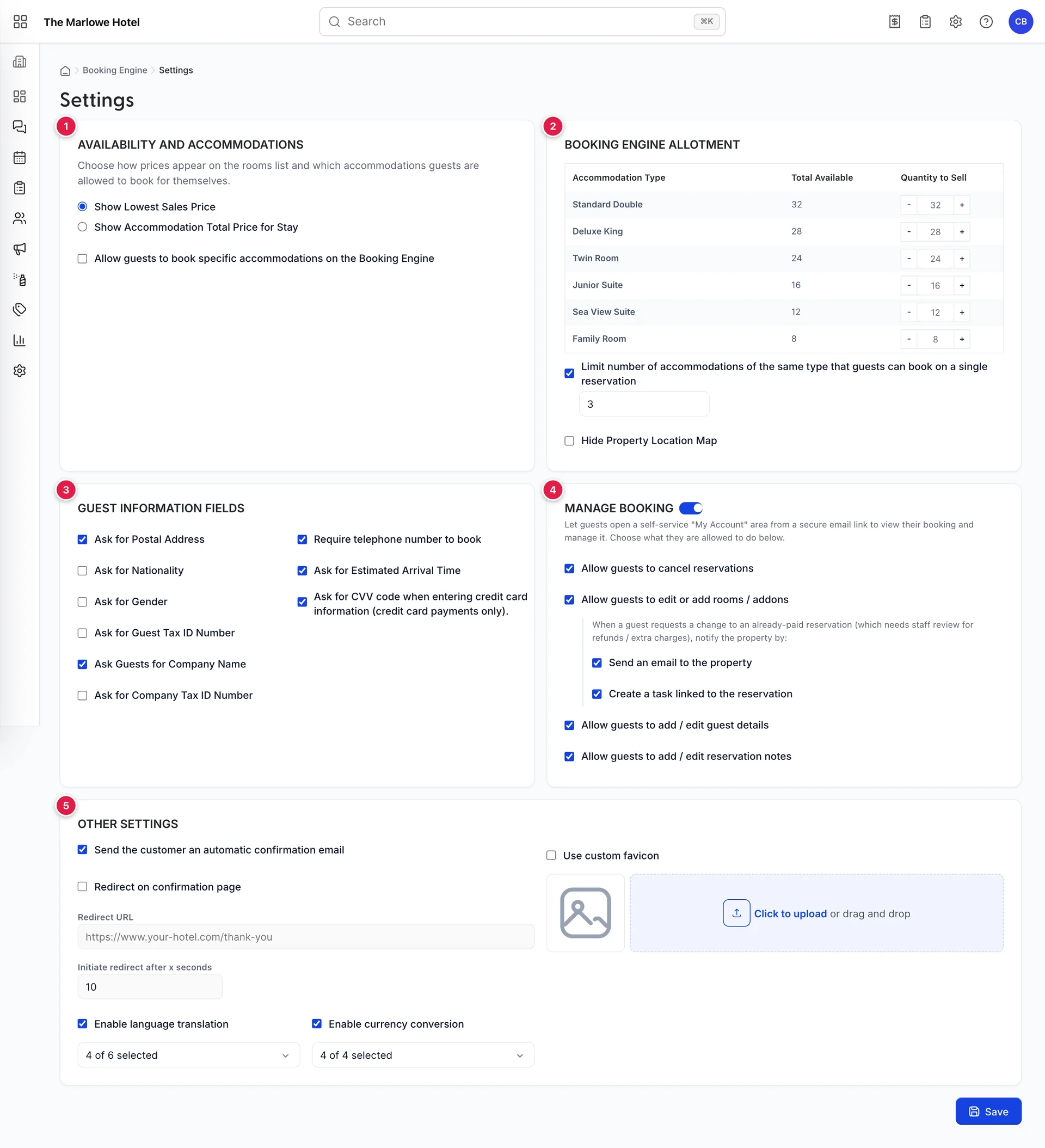
- Availability and Accommodations. How prices are shown, and whether the engine may sell every accommodation type.
- Booking Engine Allotment. A cap per accommodation type on what the engine may sell, and how many of one type fit on a reservation.
- Guest Information Fields. What the checkout form asks for beyond the compulsory minimum.
- Manage Booking. The self-service area and its four permissions, covered in its own article.
- Other Settings. Confirmation email, redirect, languages, currencies and favicon.
There is one Save button, at the foot of the page, and it saves everything. Leaving the screen without pressing it discards the lot.
Availability and accommodations
| Control | What it does to your engine |
|---|---|
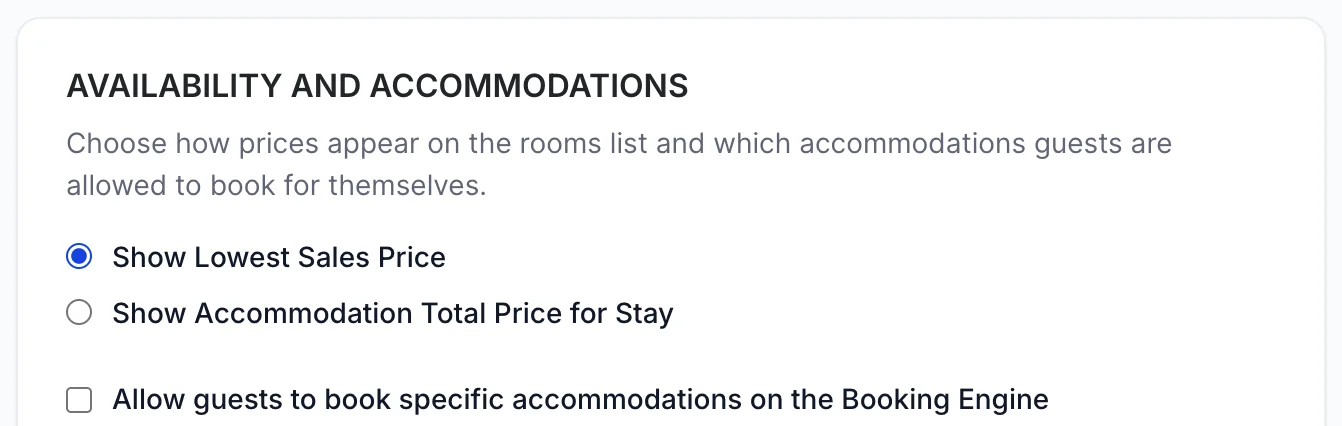
| Show Lowest Sales Price | The headline on each room card is the cheapest rate divided by the nights, labelled / night. Reads cheapest and compares directly against an OTA listing. |
| Show Accommodation Total Price for Stay | The headline is what the whole stay costs, labelled with the night count. Fewer people abandon between the rooms list and the cart, because the number does not change. |
| Hide the base rate on the booking engine | The engine sells your rate plans and nothing else, so a guest never sees the bare room-only price the plans are built from. A room type with no rate plan of its own is left with nothing to sell and drops off the engine entirely. |
| Allow guests to book specific accommodations on the Booking Engine | Turns on a picker of your accommodation types, and once you have chosen some, the engine sells only those. Leave the picker empty and nothing is restricted. |
The two price options are a genuine commercial choice rather than a matter of taste. Per night wins the click from a guest comparing you against an OTA tab. Per stay wins the booking from a guest who has already decided, because the number they see first is the number they pay. A property with a two-night minimum at the weekend is usually better off with per stay, since its per-night headline is a price nobody can actually buy.
The accommodation restriction is worth using narrowly. Its normal use is to keep a handful of unusual units, a long-stay apartment or a room you only sell to groups, off a public engine that cannot explain them. Using it to hide a type you simply have not priced hides the symptom instead of fixing the rate.
Hide the base rate on the booking engine changes what the engine will sell rather than how it prices what it sells. Turn it on and the engine offers your rate plans and nothing else, so a guest never sees the bare room-only price the plans are built from. That suits a property whose base rate is not a thing it means to sell, a full-board house whose real products are the plans. Two consequences are worth knowing before you tick it. The base rate is filtered out where the prices are calculated rather than hidden on the page, so it is gone from every room card, not just the ones you were thinking of. And a room type with no rate plan of its own has only the base rate to sell, so it stops appearing online altogether rather than appearing at its base price. Left alone the setting is off and the engine behaves as it always has.
Booking engine allotment
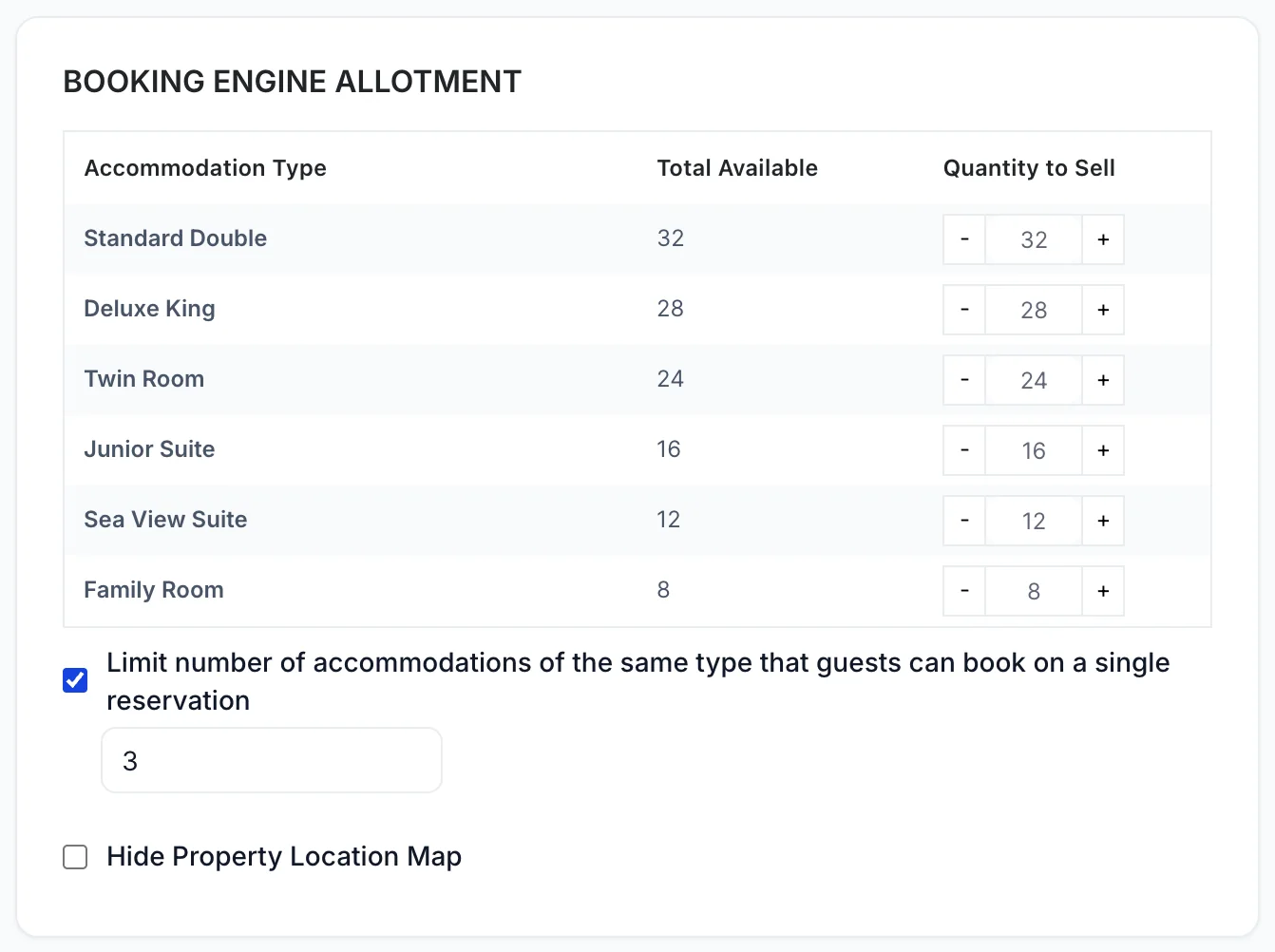
Total Available is how many units of that type the property has, and it is not editable here. Quantity to Sell is how many of them this engine may sell, and it is a ceiling rather than a reservation: setting the Standard Double to 20 out of 32 means the engine will stop offering it once 20 are sold on any channel, not that 20 are held back for it.
Most properties should leave every row at the full number. Capping is for a property that has been burned by an overbooking and wants a buffer it controls, or for one that keeps a fixed number of rooms for walk-ins. A cap of zero takes the type off the engine entirely while leaving it bookable by your own staff, which is a blunter version of the accommodation restriction above.
| Control | What it does to your engine |
|---|---|
| Limit number of accommodations of the same type that guests can book on a single reservation | Tick it and a number field appears. That number is the most rooms of one type the quantity stepper on a room card will go to. Three is a reasonable default: it lets a family take two rooms and stops a coach party booking twenty rooms at your public rate without speaking to anyone. |
| Hide Property Location Map | Removes the map from the Property Information block at the foot of the rooms page. Worth ticking for a property whose address geocodes badly, and for a serviced-apartment operator who would rather not publish the door number. |
Guest information fields
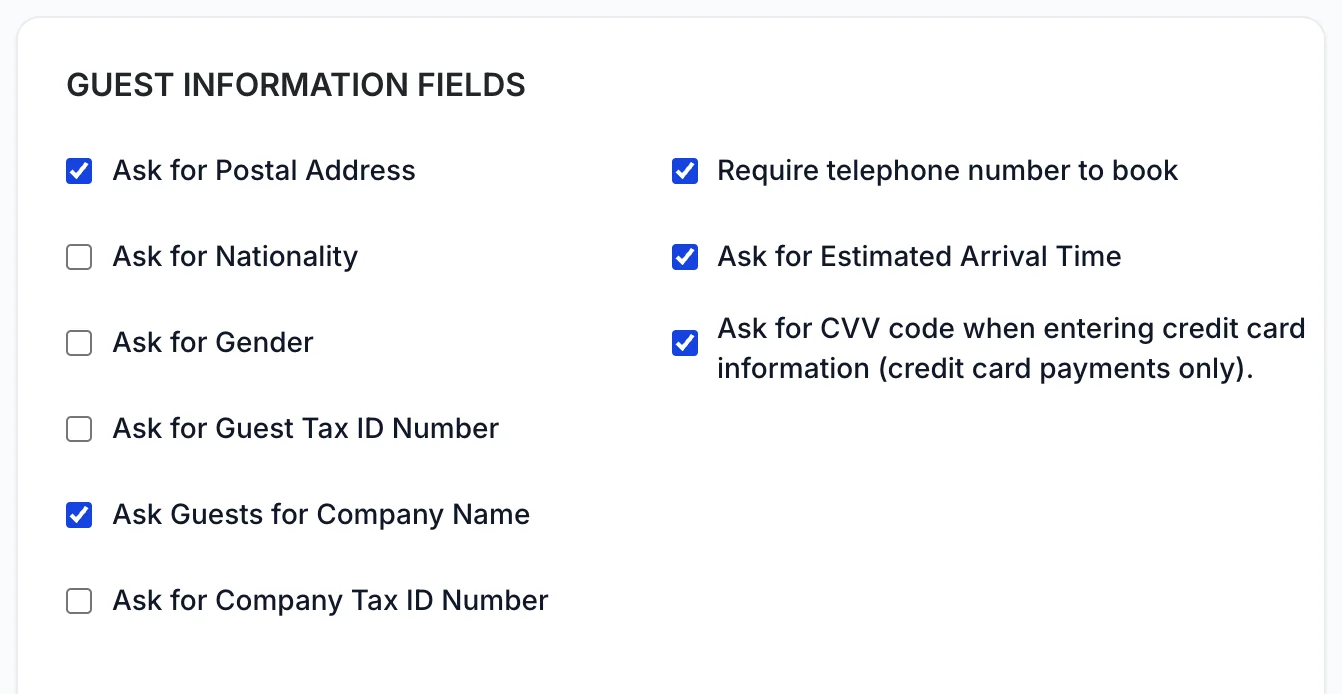
First name, last name, email and date of birth are always asked for and always compulsory. Everything here is in addition to those.
| Box | What appears at checkout |
|---|---|
| Ask for Postal Address | A whole extra card: street, apartment, city, state or region, postal code and country. The most expensive box on this screen in abandoned bookings, and the one you need if you invoice. |
| Ask for Nationality | One more field on the guest details form, and it is required once you ask for it. Properties in jurisdictions with police registration need it; most others do not. |
| Ask for Gender | A dropdown on the guest details form, and a short list of options rather than a free-text box. Only ask if a statutory return requires it. |
| Ask for Guest Tax ID Number | A free-text field for the guest's personal tax identifier. Required for compliant invoicing in several markets, pointless everywhere else. |
| Ask Guests for Company Name | A free-text field. Cheap to ask for, and useful for spotting corporate demand you are not yet contracting. |
| Ask for Company Tax ID Number | A free-text field for a VAT or company registration number. Pair it with the company name or neither is much use. |
| Require telephone number to book | Adds an asterisk to the phone field and blocks Continue until it is filled. The phone box is drawn either way; this decides whether it is compulsory. |
| Ask for Estimated Arrival Time | A time field. Genuinely useful if you staff the desk differently for late arrivals, and noise if you do not. |
| Ask for CVV code when entering credit card information | The only box here that is not about the guest details step, and the only one you can leave alone. Card payments are taken in the card processor's own fields, which ask for the security code as part of the card, so the guest is asked for it whether this is ticked or not. Nothing on the payment step reads this setting. |
Manage booking
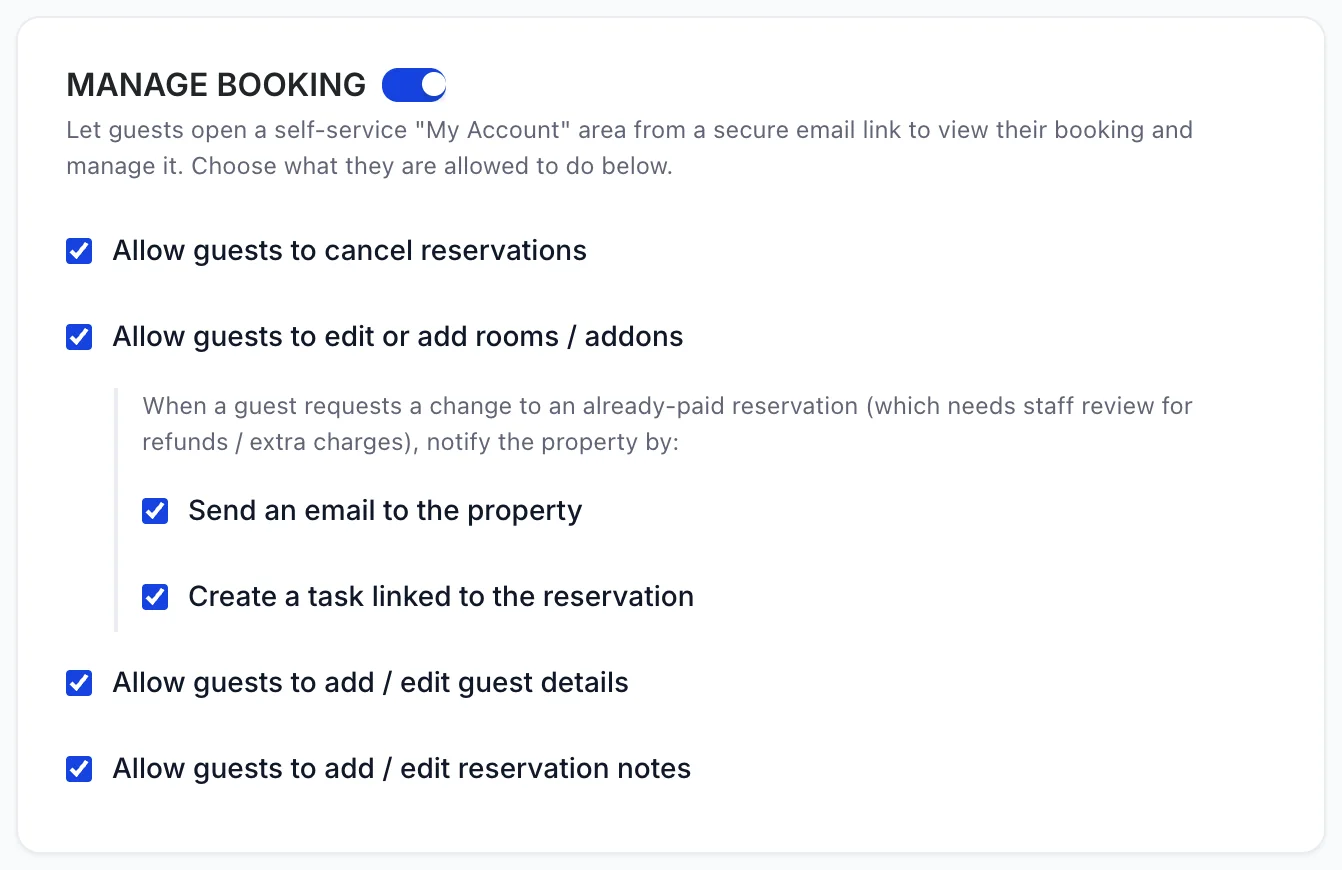
The switch beside the heading turns the self-service area on, and the four permissions under it are hidden until it is on. The two indented boxes under the rooms permission decide how a change request on a paid booking reaches you, and at least one of them should be ticked. All of it is covered in letting guests manage their own booking.
Other settings
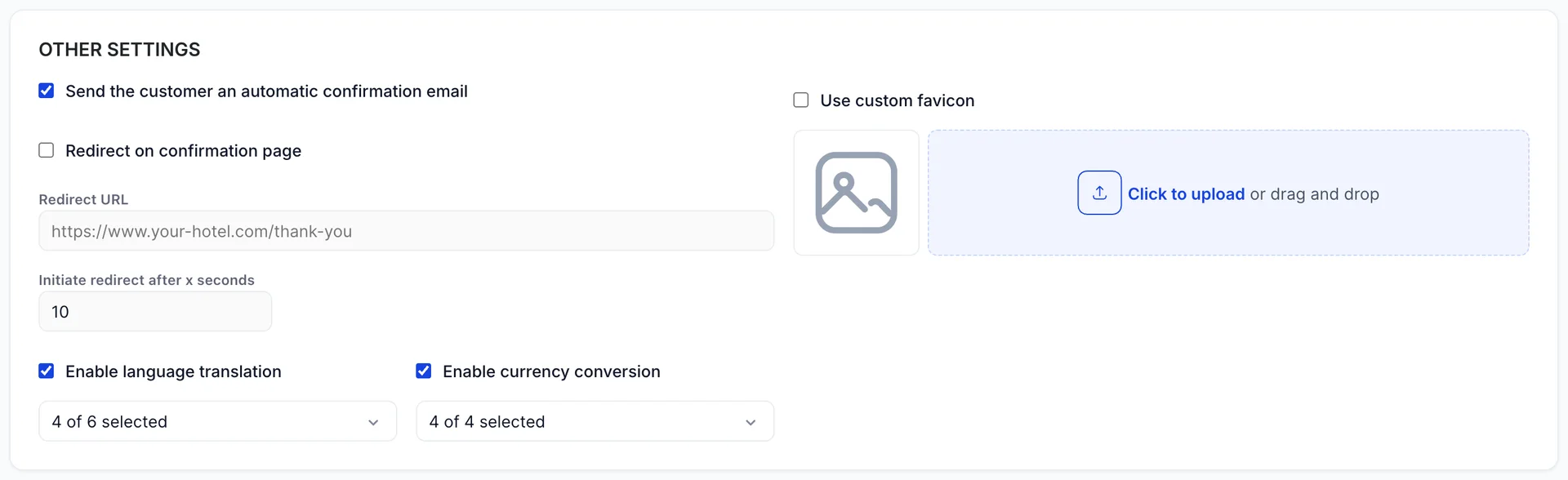
| Control | What it does to your engine |
|---|---|
| Send the customer an automatic confirmation email | Emails the guest their confirmation the moment the booking lands. Leave it on. A guest who books direct and receives nothing assumes it failed and books again somewhere else. |
| Redirect on confirmation page | After the guest has seen their confirmation, sends them to an address of yours. Until it is ticked, the two fields under it stay greyed out. |
| Redirect URL | Where they go. Point it at a thank-you page on your own site carrying your conversion tag: that is how a direct booking gets counted in your own analytics rather than only in Prostay. |
| The delay field beneath Redirect URL | How long the guest gets with the confirmation first. Ten seconds is enough to read a confirmation number. Anything under five moves the page while they are still reading it. |
| Enable language translation | Shows the language chip in the engine's header bar. The picker below chooses which languages are offered, and the engine is English until a guest changes it. |
| Enable currency conversion | Shows the currency chip in the header bar. The picker lists the currencies you have activated. See currencies on the booking engine. |
| Use custom favicon | Replaces the icon in the browser tab with an image you upload. A small thing that makes a booking page in a background tab identifiably yours. |
Saving
Save writes every card at once and takes effect on the public engine immediately. Open the engine in another tab and reload it to check: the header chips, the price labels on the room cards and the fields at checkout are all visible without booking anything.
The one change worth checking on the engine itself is a change to Quantity to Sell, because its effect only shows on a search where the type is close to sold out. Search a date you know is busy rather than a quiet one.