A purchase order is what you send a supplier before they deliver: this is what we want, this is the price we agreed, this is where to send it. It commits the hotel to a cost without recording one.
What an order is, and what it is not
An order posts nothing to your accounts. It does not appear in your profit and loss, it does not add to the supplier's balance, and it does not appear on the payables ageing. The only place it shows up as a number is the Purchase orders tile above the supplier list, which counts open orders precisely because they are money committed and not yet owed.
The cost appears when the invoice does, and the order becomes a bill. Until then, what you have is a record of an agreement, which is worth having for three reasons: the supplier knows exactly what was ordered and at what price, whoever receives the delivery can check it against something, and when the invoice arrives at a different figure you have the evidence rather than a memory.
Reading the list
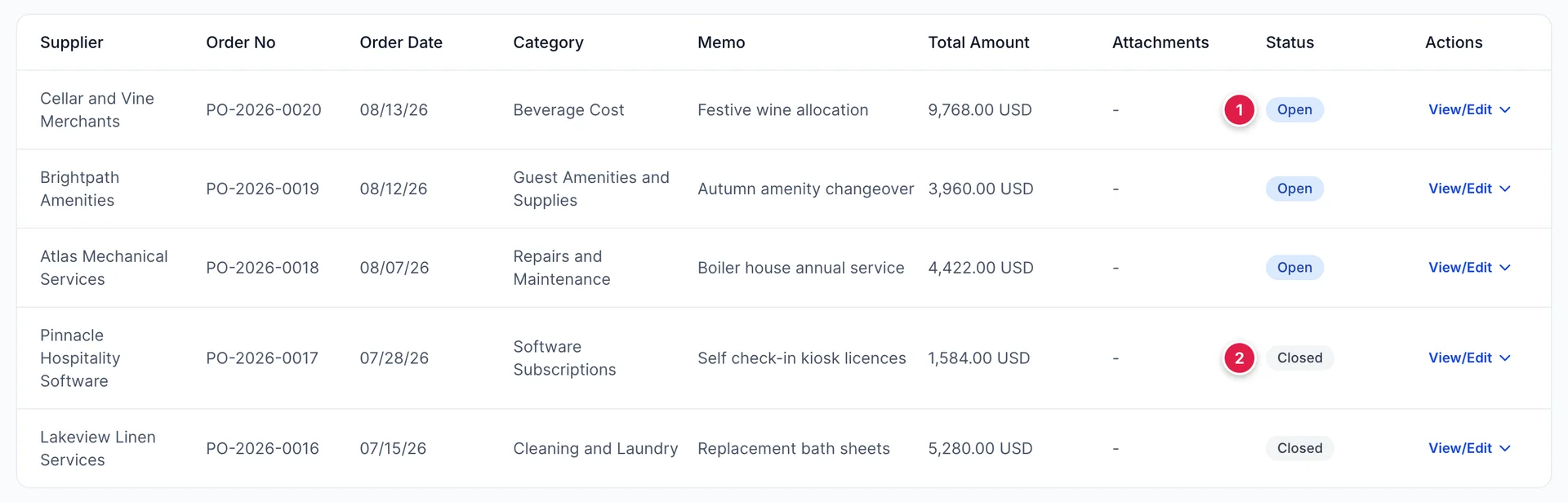
- Open. The order stands and nothing has been billed against it. These are the ones counted on the supplier tile, and the ones worth reading down when you are wondering what is still on its way.
- Closed. The order has done its job. A closed order no longer offers Copy to Bill, because copying it again would bill you twice for the same delivery.
The dropdown above the table filters to Open or Closed, and the search box matches order number, memo and supplier name. Memo is the column that makes this list readable, so write one on every order: "Boiler house annual service" tells you more at a glance than any amount does.
Raising an order
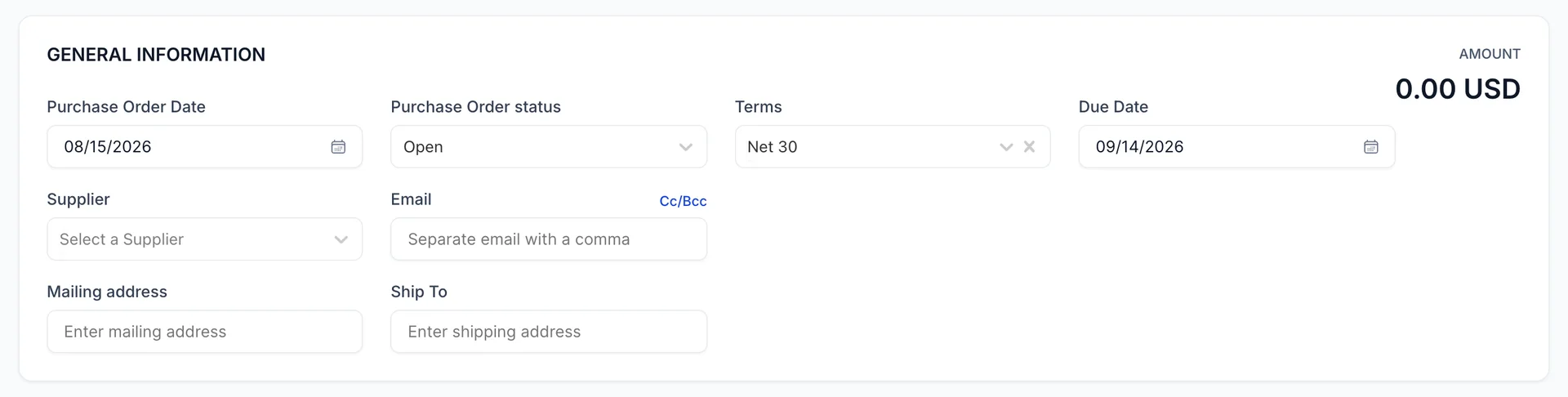
Most of this is the same header as every other purchase form: a date, terms that drive the due date, a supplier, and the email and mailing address that come from the supplier's record. Three fields behave differently enough to name.
| Field | What it changes |
|---|---|
| Purchase Order status | Open or Closed, and it starts Open. Close an order by hand only when it is finished without being billed, for instance because you cancelled it. Billing it through Copy to Bill is the normal way an order closes. |
| Ship To | Where the goods go, which for a hotel is frequently not the billing address: a loading bay, a rear entrance, a linen store. This is the field the supplier's driver ends up reading, and the only one on the form that the bill has no equivalent of. |
| Your message to vendor | Prints on the order and is included when you send it. Delivery windows, gate codes and who to ask for belong here rather than in the memo, which the supplier never sees. |
The order number is filled in for you from the next in the series. As with a bill, you can overtype it, and consistency matters more than the particular convention.
The lines

The two grids are the ones you already know: a category grid pointing at accounts, and an item grid pointing at the products and services catalogue, with sales tax added underneath at the property's rate. An order is priced the way the bill it becomes will be priced, which is the point: a surprise at invoice time should be the supplier's doing, not the form's.
Write the lines the way you want them to read on the bill, because that is where they are going.
Sending it to the supplier
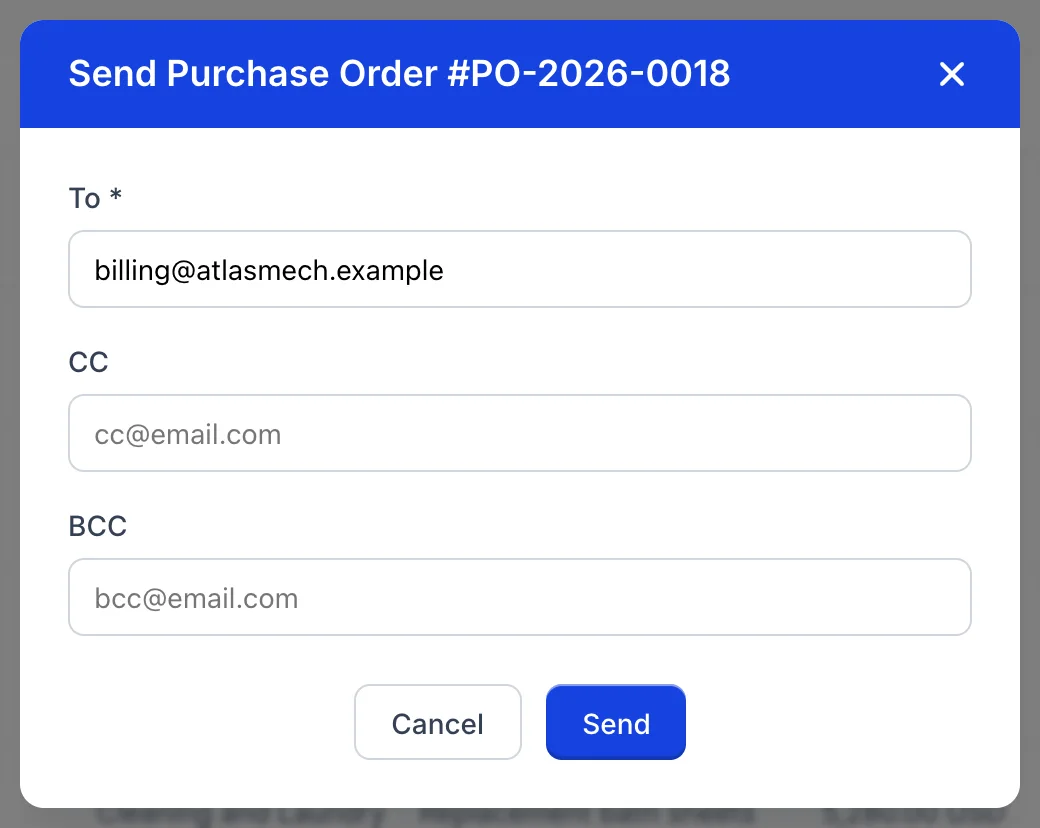
Send from the row menu emails the order. All three boxes open empty, including To, which is worth knowing before you reach for this in a hurry: the supplier's address is on their record but it is not carried across, so you type it. CC and BCC are there for your own accounts inbox and for whoever is receiving the delivery. The Send button stays greyed out until there is something in To. What you type here sends this one order and leaves the supplier record alone.
From inside the form the same thing is Save and Send, which saves first, so a change you made on the way past goes out with it.
Turning an order into a bill
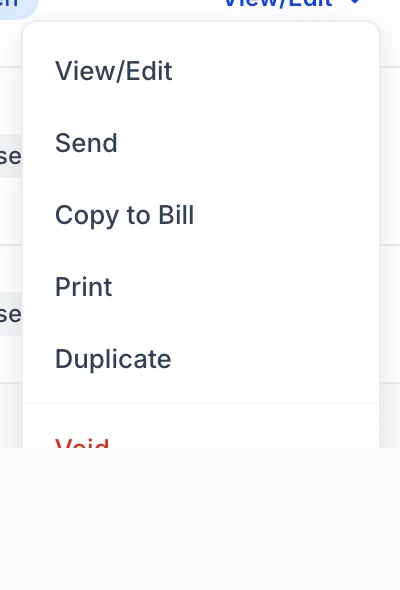
Copy to Bill opens a new bill with the supplier, the memo and every line already on it. Check the figures against the invoice in front of you, correct anything the supplier has charged differently, and save. The bill is what posts to your accounts; the order never did.
You can also start from the other end. On a blank bill, choosing a supplier who has open orders makes the form say so and offer Add from PO, which lists their open orders and copies the lines from the one you pick. Use whichever end you are standing at, but use one of them rather than retyping, because copying is the only thing that connects the two documents.
Copying an order you place every month
Duplicate makes a fresh copy of an order: same supplier, same lines, same amounts, with the next number in the series and today's date, opened as a new Open order. For a standing monthly order it is faster and safer than starting blank, because the lines and their coding come with it.
Duplicating does nothing to the original. Two open orders for the same thing will both be counted as committed spend, so if you are replacing an order rather than repeating it, void the one you are replacing.
Voiding and deleting
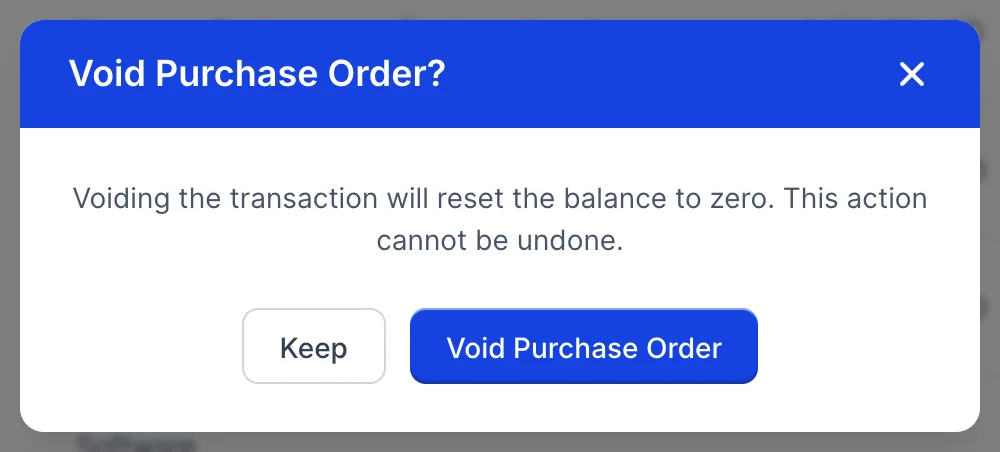
Void an order that was raised and then cancelled. It stays in the list at zero, marked Voided, and stops counting toward committed spend. The number stays used, which is what you want: a gap in a numbered series is a question somebody will have to answer later.
Delete removes the order entirely and cannot be undone. It is for an order raised by mistake and caught immediately. Anything a supplier has already seen should be voided rather than deleted, because they will refer to a number that no longer exists.
A menu with Void and no Delete is a permission rather than a fault: your role does not include the one that allows deleting an order. It cannot be added from Users in System Settings today, because the screen checks for a right the role editor has no setting for, so deleting is available only to accounts with unrestricted access. Voiding is the better habit anyway, for the reason above.
Where to go next
The bill an order becomes is covered in recording what you spend, and settling it in paying bills. The supplier's own page, in suppliers, lists their orders alongside everything else you have raised against them.