A customer in Prostay Accounting is whoever receives an invoice. For a hotel that is usually not the person in the room: it is the company that booked the room, the agency that sent them, the university running a conference, the couple's parents paying for the wedding.
Customers are not guests
This is the single most important thing to understand before you add anything, and it catches almost everybody.
The guest list in the Property Management System and the customer list here are separate. Nothing copies between them. Checking a guest in does not create a customer, and adding a customer here does not give you a guest profile, a reservation or a folio. The two lists are not even trying to hold the same thing: a guest is someone who sleeps in a room, a customer is someone who settles an account.
Most guests should never appear here at all. A guest who pays their own bill at checkout is handled entirely on the folio, on the PMS side, and adding them here would give you a second record of a person you are already tracking.
Reading the list
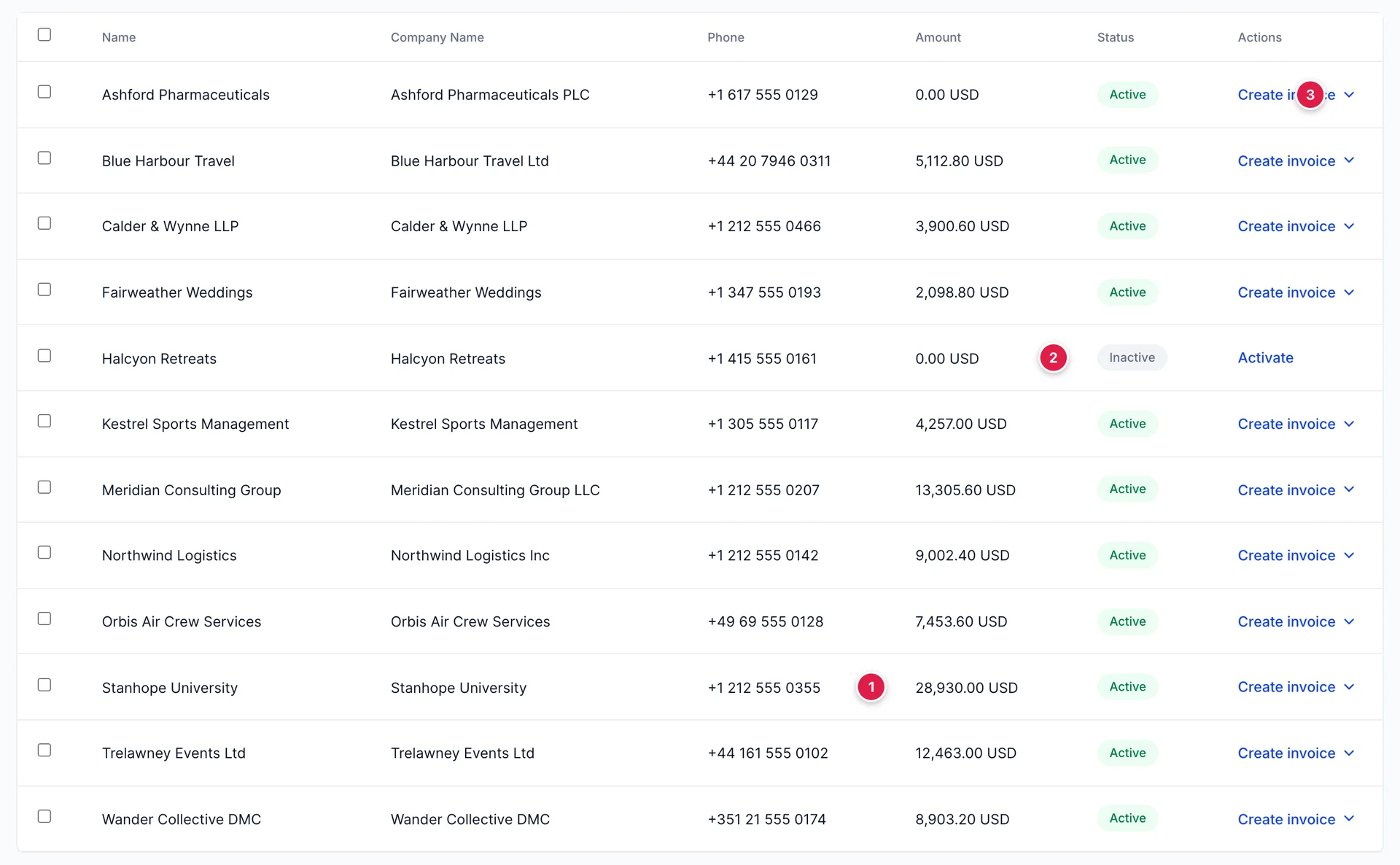
- Amount, which is what this customer still owes across every unpaid invoice. It is not what they have ever spent with you, and it drops to zero when they pay.
- The status. An inactive customer stays in the list, greyed, and offers Activate where the others offer actions.
- The chevron beside Create invoice, which holds ten more things you can start for this customer.
The list is sorted by name and searched by name, company, email or phone. There is no filter for "owes us something", so if you are chasing money, the receivable ageing on the accounting dashboard is the better starting point: it groups what is owed by how late it is, which this screen does not.
Adding a customer
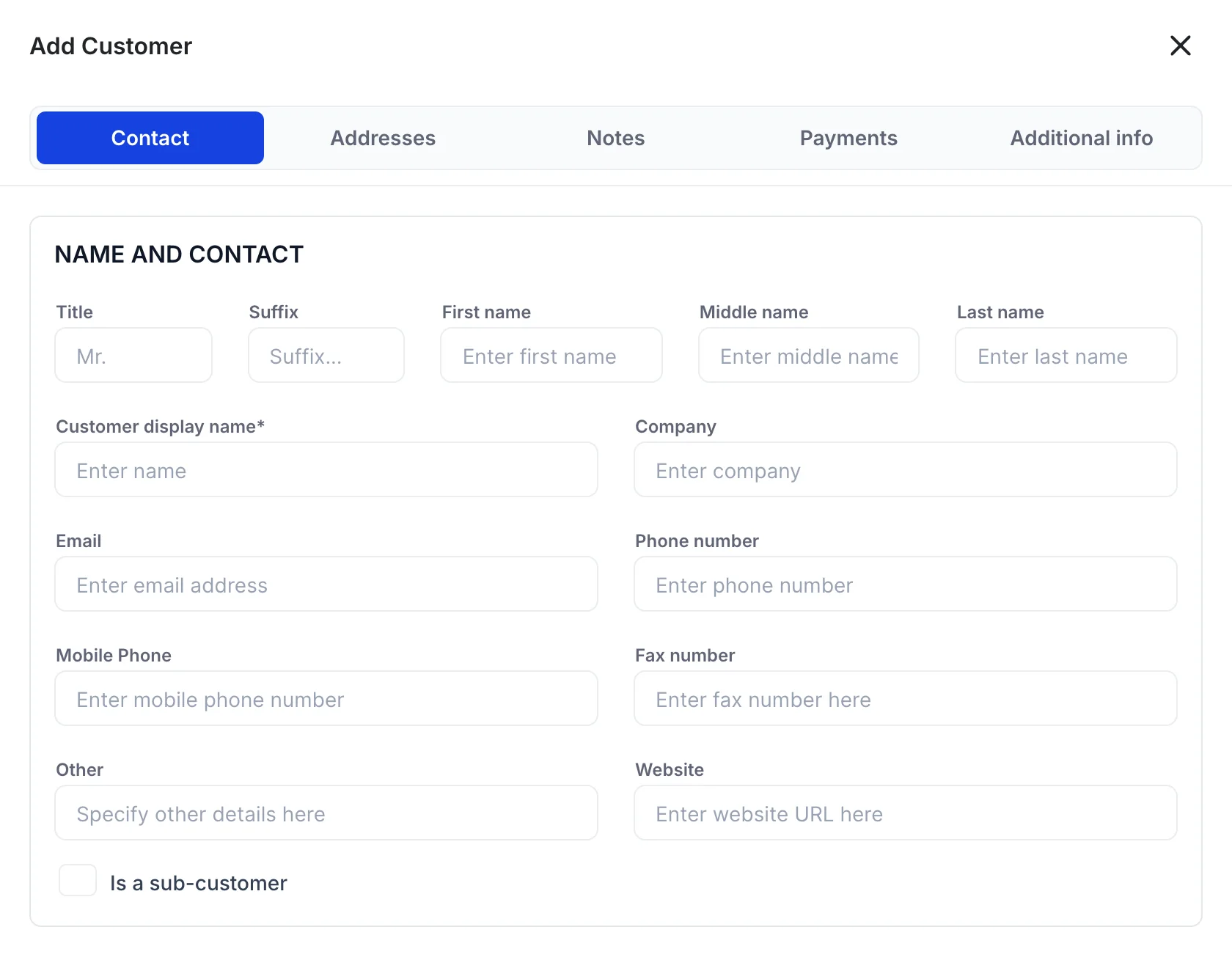
New Customer opens a panel with five tabs. Only one field across all five is required.
| Tab | What it holds and whether it matters |
|---|---|
| Contact | Names, company, and every way of reaching them. The one required field, Customer display name, lives here. |
| Addresses | A billing address and a shipping address. The billing address is the one that prints on an invoice, so fill it in for anyone who will receive one. |
| Notes | Free text for the account, plus attachments. Useful for the purchase order number a corporate client insists on, or who to chase when an invoice goes quiet. |
| Payments | Four preferences. Read the section below before you rely on them. |
| Additional info | Tax details and any custom fields your property has set up. |
Customer display name
This is the name every list, invoice, statement and dropdown will use, and it is the only field the panel insists on. It does not build itself out of the name fields above it, so a panel with the first and last name filled in and this one blank will not save.
Type the name you want to see on an invoice. For a company that is the company name, not the contact's name, even when you have filled in a contact above. You will be picking from this list under time pressure while raising a document, so a display name of Meridian Consulting Group is worth more than one reading Sarah.
The Payments tab records preferences and nothing more
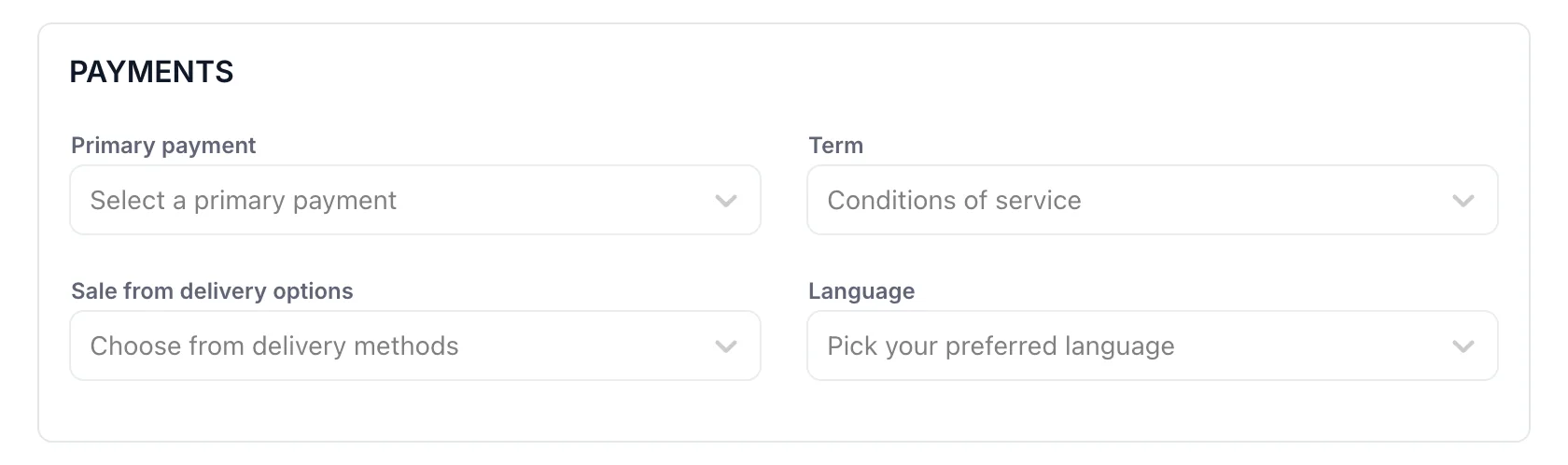
Four dropdowns, and their labels promise more than the product currently delivers. All four are saved against the customer and shown back on the customer page. None of them changes what any other screen does.
| Field | What it actually does |
|---|---|
| Primary payment | Records how this customer usually pays: cash, cheque, credit card or direct debit. Nothing preselects it when you take a payment. |
| Term | Records their credit terms, from due on receipt to Net 60. It does not set the due date on their invoices; see the warning below. |
| Sale from delivery options | Records whether documents for this customer are usually printed or emailed. It does not change what happens when you save one. |
| Language | Records a preferred language. Documents are produced in the property's language regardless. |
Sub-customers
Is a sub-customer, at the bottom of the Contact tab, puts this customer underneath another one. It suits a group of companies billed separately but reported together, or a single client running several events that each need their own invoices and their own balance.
Each sub-customer keeps its own invoices and its own balance. Use it only when you genuinely want the two split, because merging them back later is possible but not tidy.
Starting something from a row
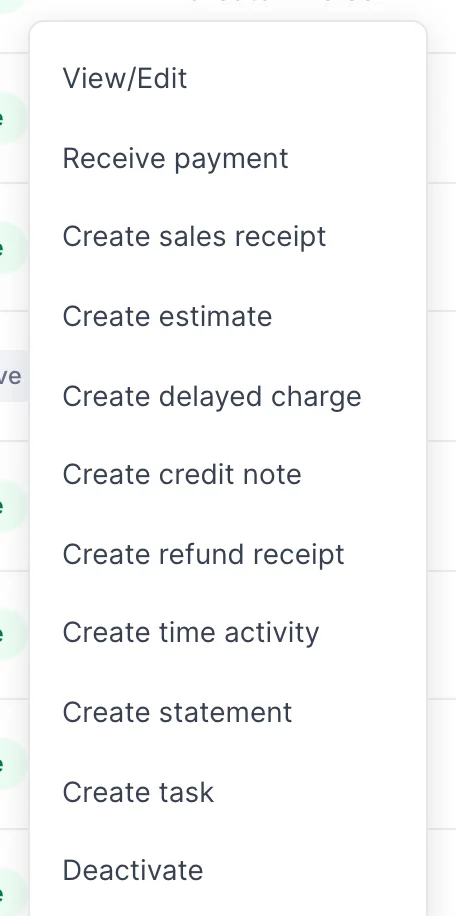
The blue Create invoice link raises an invoice already addressed to that customer. The chevron beside it opens the rest, and the saving over starting from a blank form is that you never pick the wrong customer.
- View/Edit opens the customer page.
- Receive payment is the one to reach for when money arrives against an invoice you already sent.
- Create sales receipt is for money taken at the moment of sale, with no invoice in between.
- Create estimate, Create delayed charge, Create credit note and Create refund receipt each start their own document type.
- Create statement produces a summary of everything outstanding, which is what you send when several invoices are late rather than chasing each one.
- Create task adds a reminder against this customer.
- Deactivate closes the account. See below.
If the menu on your rows has no Deactivate, your role does not include the permission for it. This one cannot be added from Users in System Settings today, because the screen checks for a right the role editor has no setting for, so closing a customer account is available only to accounts with unrestricted access. Everything else in the menu is unaffected.
The customer page

Clicking a customer's name opens their page. The financial summary at the top gives you two figures, and the difference between them is the point.
Open balance is everything unpaid, whether or not it is due yet. Overdue payment is the part of that which has passed its due date. A customer with a large open balance and nothing overdue is behaving perfectly. A customer whose two figures match, as above, has not paid anything that was due, and the bar underneath turns red to say so.
Below the summary sit four tabs.
| Tab | What it shows |
|---|---|
| Transaction List | Every document raised for this customer, filterable by type, by status and by date. This is where you check what an invoice was for before ringing about it. |
| Statements | Statements already produced for this customer. |
| Customer Details | Everything from the five tabs of the panel, read only, including the terms and payment method you recorded. |
| Notes | The running notes on the account. |
New transaction at the top of the page starts any of eight document types for this customer, and Edit holds Edit customer and Merge contacts.
Merging duplicates
Duplicate customers happen: the same agency added twice with slightly different names, each holding half the history. Merge contacts, under Edit on the customer page, fixes it. You choose a source and a target, and everything belonging to the source moves to the target.
Deactivating a customer
Customers cannot be deleted, only deactivated, which is right: deleting one would take its invoices with it. Deactivate, from the row menu or the customer page, takes them out of every picker while leaving every document they were ever on exactly where it is.
A deactivated customer stays in the list, marked Inactive, with Activate in place of the usual actions. Nothing is hidden and nothing is lost.
Prostay checks before it acts. Confirming asks you to agree by name, and if the customer still owes money it says so and shows the amount. Read that figure rather than clicking through it: deactivating does not write the debt off, and it does not stop the amount counting toward your receivables. It only stops you raising anything new for them, which means a customer who owes you money and has been deactivated is easy to lose track of. Collect first, deactivate afterwards.
Where to go next
A customer on its own cannot be billed for anything. The products and services catalogue is what an invoice line points at, and each item in it points at one of the income accounts from the chart of accounts, which is what makes a sale land in the right place.