A supplier is anyone your hotel pays: the food wholesaler, the linen company, the power utility, the agency that sends you guests and takes a commission, the accountant who does your quarterly filing. Every bill, expense, cheque and purchase order in the module points at one of them.
Who belongs in this list
Anyone you will owe money to, even once. If the payment is going out of the hotel's bank account and it is not payroll, it belongs to a supplier here.
Two things this list is not. It is not the customer list from the sales side, even where the same company sits on both: a travel agency that sends you guests and takes commission is a customer for what it books and a supplier for what it charges, and it needs a record on each side. And it is not a directory of contacts. Adding a supplier you never buy from does no harm beyond making the picker on every purchase form longer, which is a real cost when somebody is coding an invoice in a hurry.
The four figures above the list

These four cover every supplier, not the ten in front of you, and they do not change when you search or turn a page. Each counts something different, and the differences matter.
| Tile | What it counts |
|---|---|
| Purchase orders | Open orders only, at their full value. This is money you have committed to spend and not yet been billed for, so it appears in none of the other three. |
| Overdue | The unpaid part of every bill whose due date has passed. This is the figure to read first, because it is the one your suppliers are already chasing. |
| Open Bills | The unpaid part of every bill, late or not. Overdue is a subset of it, so the two are never added together. |
| Paid Last 30 Days | What has actually left the hotel over the last thirty days against bills. It is the only backward-looking figure of the four. |
Reading the list
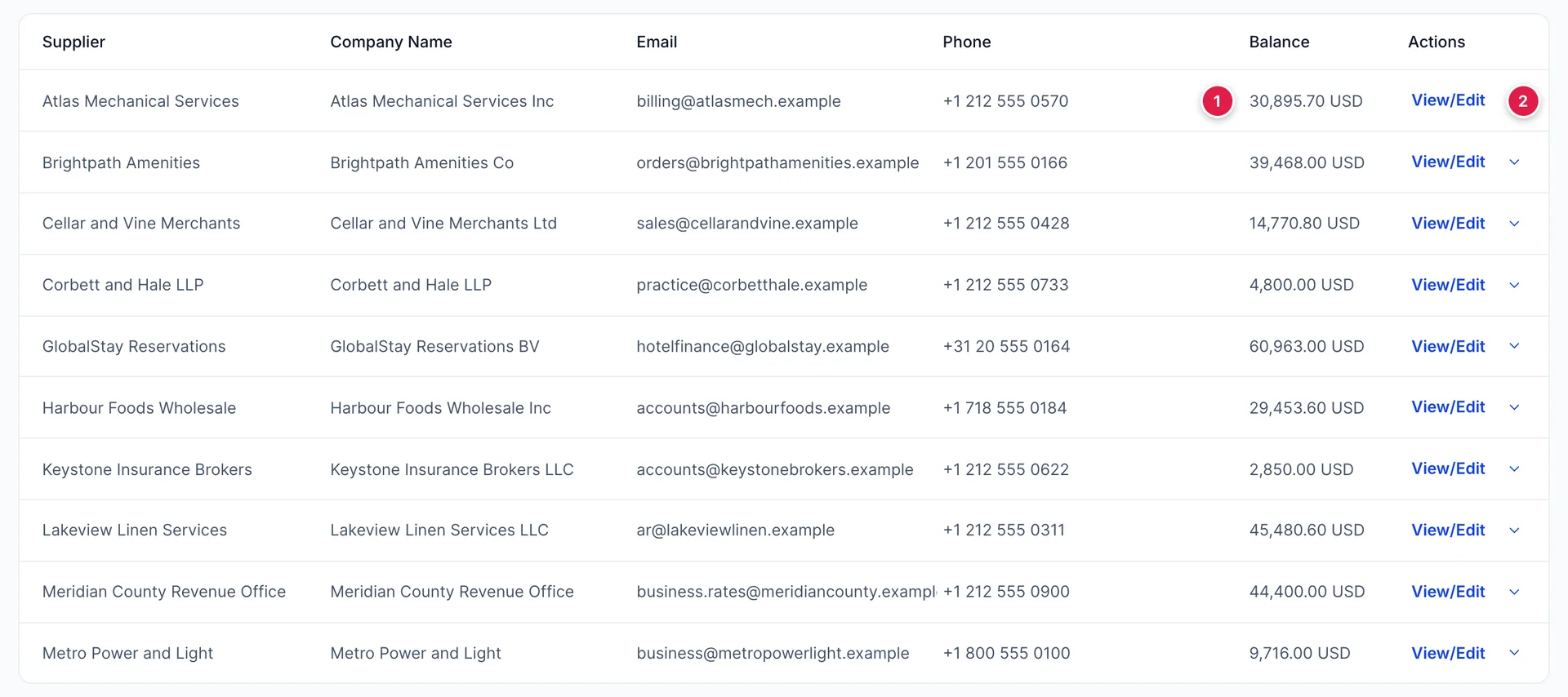
- Balance is what this supplier is still owed across every unpaid bill. It is not what you have spent with them, and it falls to zero when you pay. A supplier you buy from weekly and settle weekly sits at zero all year.
- View/Edit opens the supplier page, and the chevron beside it holds the rest of the actions.

The list is sorted by name and searched by name, company, email or phone. Include inactive brings back the suppliers you have retired; leave it off and a deactivated supplier is invisible, which is the usual reason somebody adds a second record for a company that is already here.
The two buttons on the right export the list as a PDF or a spreadsheet. They export what the list currently holds, so a search narrows the export too.
Adding a supplier
New supplier opens a panel with six tabs. One field across all six is required.
If New supplier is not on your screen, and no row offers Edit, your role does not include the permission for them. Neither can be added from Users in System Settings today, because the screen checks for rights the role editor has no settings for, so adding and editing suppliers is available only to accounts with unrestricted access. Reading the list, its tiles and a supplier's transactions is unaffected.
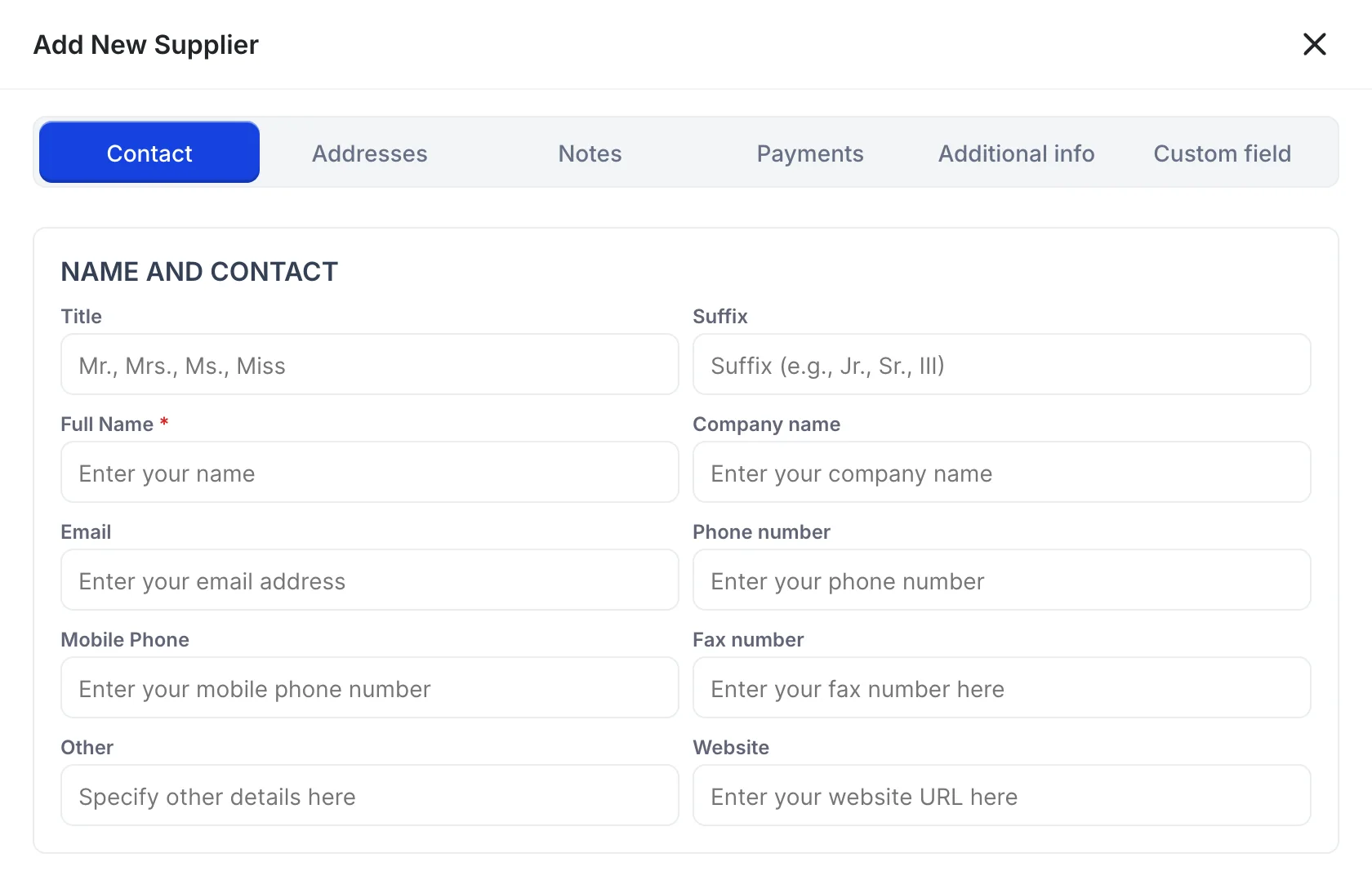
| Tab | What it holds and whether it matters |
|---|---|
| Contact | Names, company and every way of reaching them. Full Name, the one required field, is what every list and every picker will show, so type the trading name rather than the name of your account manager. |
| Addresses | A billing address and a shipping address. The billing address is what a purchase order prints, so fill it in for anyone you will send one to. |
| Notes | Free text about the account. See the notes section below, because this is the most useful tab here and the least used. |
| Payments | How they usually take payment, their credit terms and their language. All three are recorded and shown back on the supplier page. None of them prefills a purchase form. |
| Additional info | Sales tax registration, an hourly expense rate, the account number they know you by, and an opening balance with the date it was true. Fill the opening balance in only when you are moving an existing supplier onto Prostay mid-year. |
| Custom field | Whatever your property has set up. Empty until somebody defines one in the accounting settings. |
Starting a document from a row
The chevron beside View/Edit starts any purchase document already addressed to that supplier: Create Bill, Create Expense, Create Cheque, Create Purchase Order, Create Supplier Credit and Create CC Credit. Starting here rather than from a blank form is worth the extra click, because it is the one way to guarantee you have not coded an invoice to the wrong company.
The same menu holds View supplier, Edit supplier and Deactivate.
The supplier page
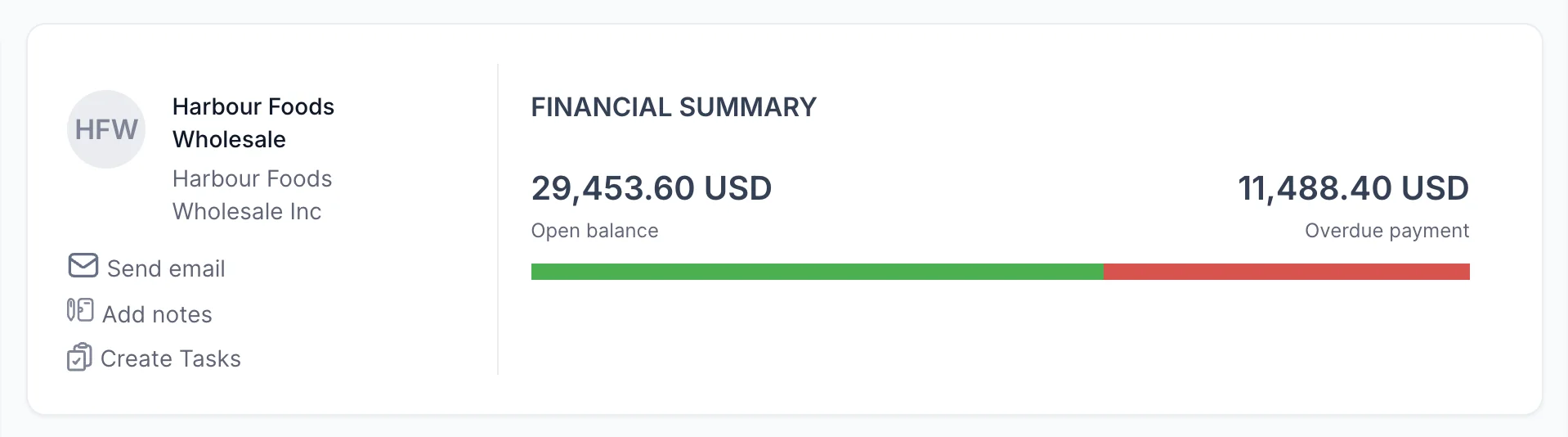
Two figures, and the gap between them is the story. Open balance is everything unpaid, whether or not it is due yet. Overdue payment is the part that has passed its due date. A supplier with a large open balance and nothing overdue is a supplier you are paying properly on terms. When the two match, nothing you owe them has been paid on time.
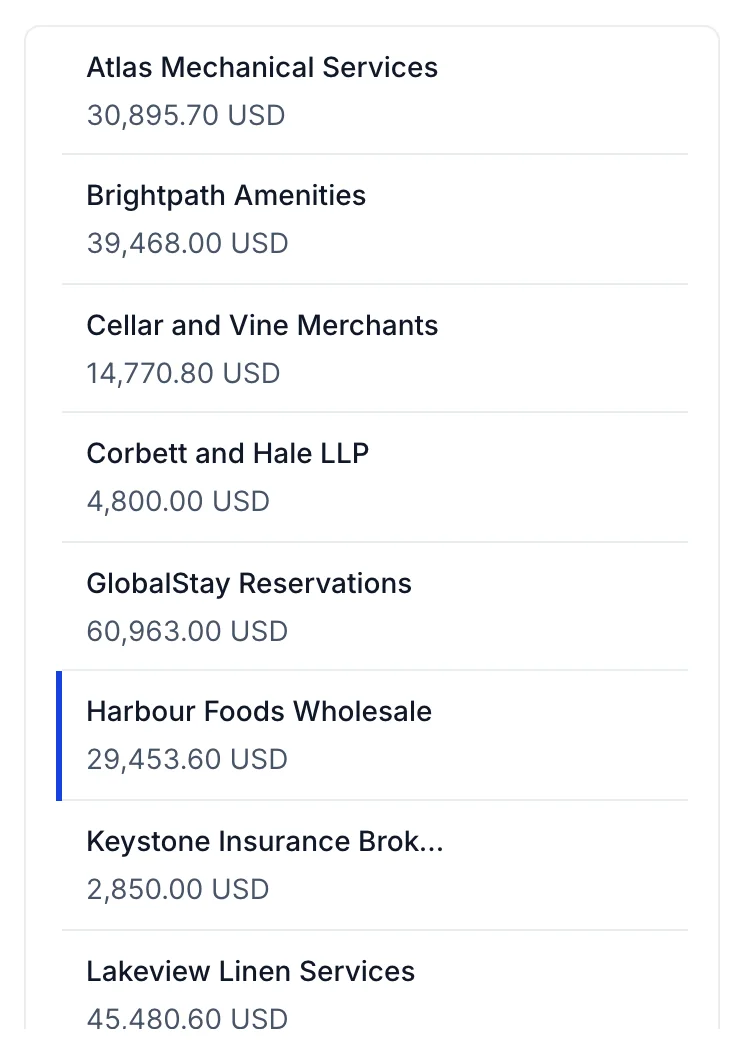
The rail down the left is the whole supplier list with balances, and clicking a name switches the page under it without going back. It has its own search and a Sort by name control, which by default leaves the biggest balances at the top. That default is what you want when you are working out who to pay this week.

New transaction at the top of the page starts any of the six purchase documents for this supplier, and Edit holds Edit, Deactivate and Merge contacts.
The transaction list
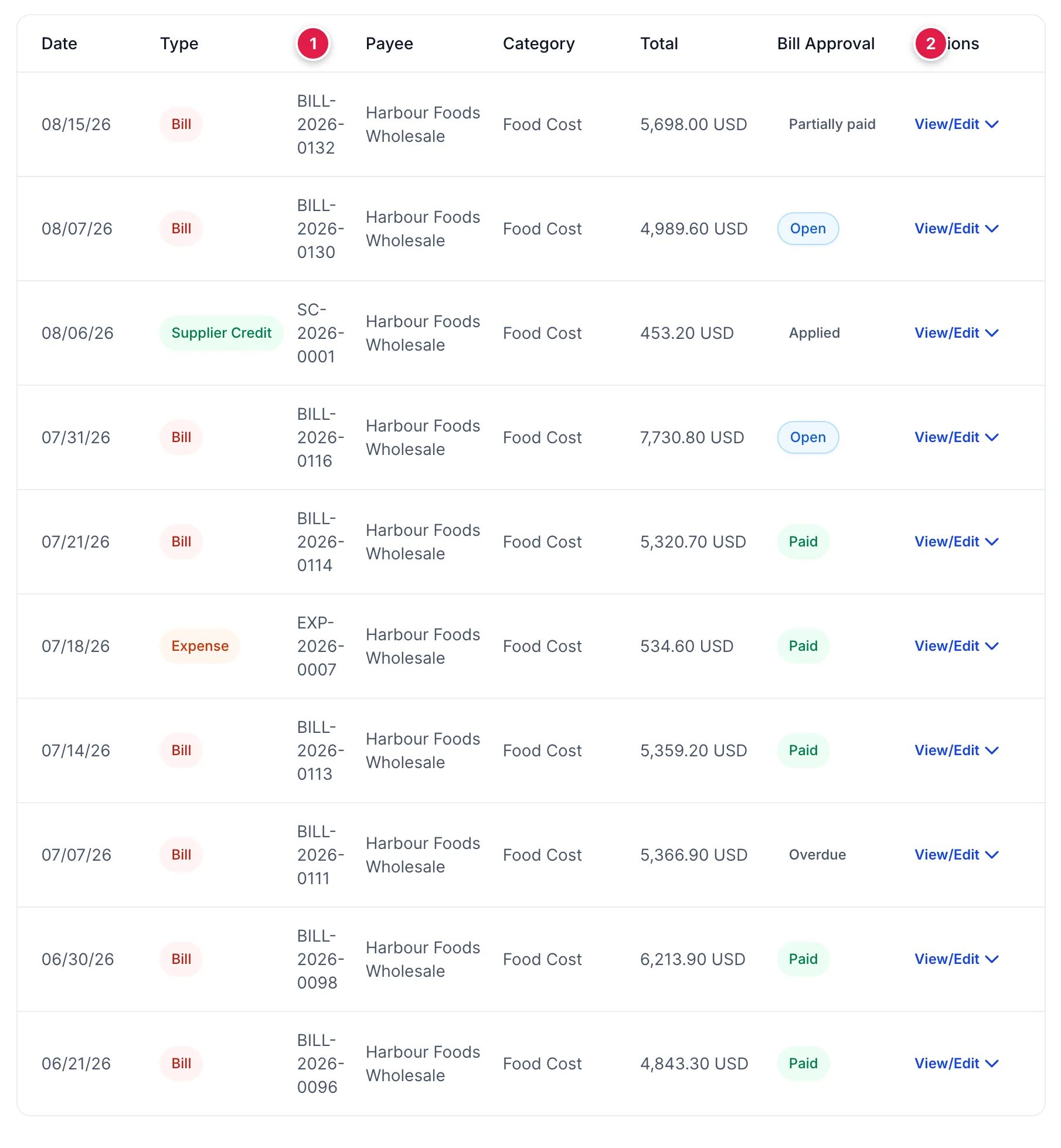
- Type, which is how a bill, an expense, a cheque, a purchase order and a supplier credit end up legible in one list. A purchase order in this column has cost you nothing yet.
- Bill Approval, the status. Open means unpaid and not yet late, Overdue unpaid and late, Partially paid settled in part, Paid finished, and Applied belongs to a credit that has been used against a bill.
The date filter above the list runs from Last day to All, and each row carries the same action menu as the Expenses list, so you can open, print, duplicate or void a document without leaving the supplier.
This tab is what to open before you ring a supplier about an invoice. It holds every document either side of the argument: the bill, the credit they issued, and the payment you made.
Notes and attachments
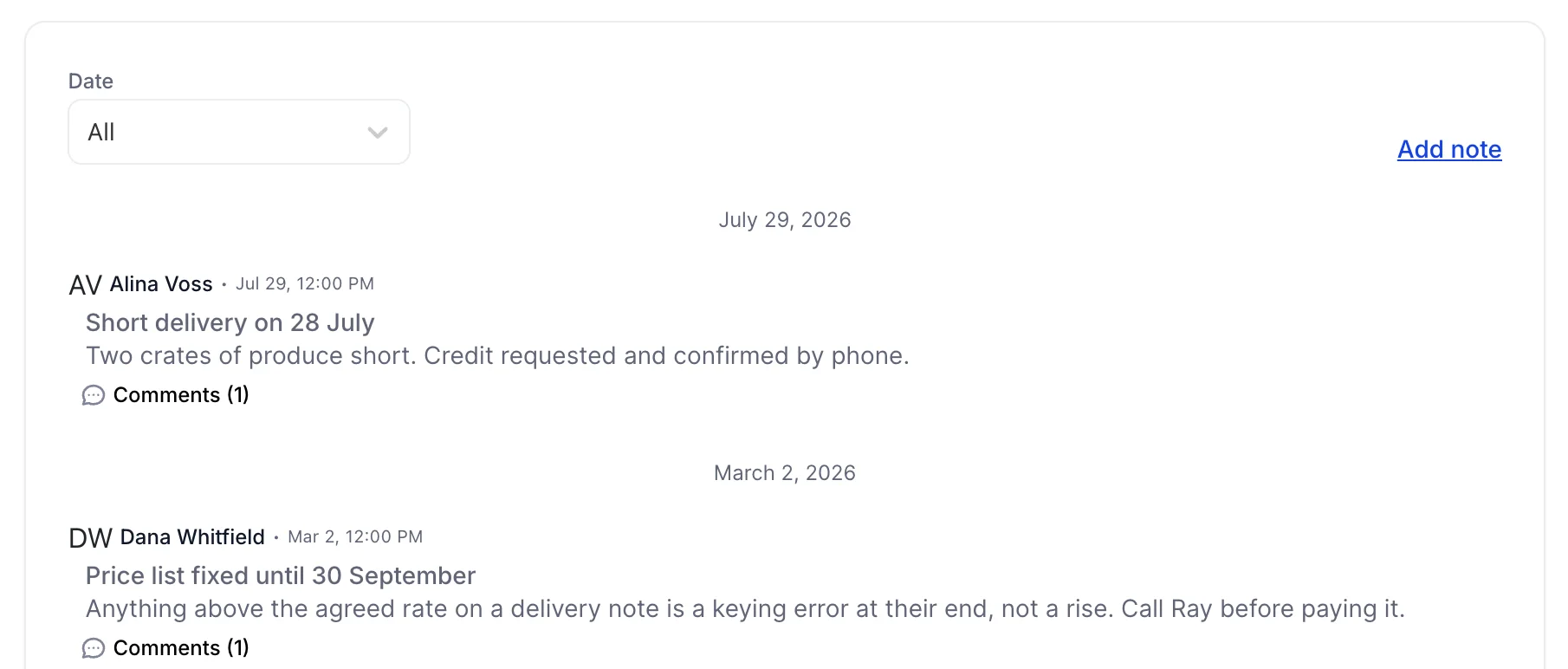
A note takes a title and a body, records who wrote it and when, and can be commented on afterwards. That last part is what makes it worth using: a query raised in March and answered in June reads as one conversation rather than two orphaned notes.
Write down the things that are true of the supplier rather than of one document. Agreed rates and how long they hold. Who to ring when a delivery is short. Which day their statement arrives, and what period it covers. The account number they want quoted on a payment. All of that is invisible in the ledger and expensive to work out again from scratch.
The Attachments tab takes files against the supplier rather than against a document: the signed rate agreement, the insurance certificate, the contract. A supplier invoice PDF belongs on the bill instead, where whoever queries it will look for it.
Merging duplicates
The same company added twice, once as Harbour Foods and once as Harbour Foods Wholesale, with half the history on each, is the most common mess in this list. Merge contacts, under Edit on the supplier page, moves the transactions from the supplier you are looking at into one you choose, then deactivates the one you moved out of.
Deactivating and bringing one back
Suppliers cannot be deleted, which is right, because deleting one would take its bills with it and change last year's accounts. Deactivate takes them out of every picker and leaves every document exactly where it is.
If the supplier still owes you nothing but you still owe them, the confirmation says so and names the outstanding balance rather than letting you past quietly. Read that figure. Deactivating does not write the debt off and does not remove it from your payables; it only stops you raising anything new, which makes a forgotten balance harder to see. Settle first, deactivate after.
To find one again, tick Include inactive on the list. A deactivated supplier appears greyed with Activate in place of its usual actions, and reactivating puts it back in the pickers with its history intact.
Where to go next
A supplier on its own costs nothing. Recording what you spend covers the six forms that turn one into an amount you owe, and each line of those forms points at an account from the chart of accounts. When it is time to settle, paying bills is the screen that does several at once.