The chart of accounts is the list of buckets that every figure in Prostay Accounting ends up in. An invoice line lands in an income account, an expense lands in an expense account, and the money itself lands in a bank account. Nothing else in the module works until this list matches how your hotel actually thinks about its money, which is why it is the first screen to set up and the reason most of the other articles link back here.
Prostay ships a starting chart. It is a general one rather than a hotel one, so expect to add to it: rooms, food and beverage, spa and events all want their own income accounts if you want to see them apart later.
What the chart of accounts is for
Two things, and they pull in different directions.
The first is bookkeeping. Every document you raise has to post somewhere, and the account you pick decides which total it joins. The second is reporting to yourself. If room revenue and spa revenue share one income account, no amount of later work will separate them, because the detail was never recorded. Splitting an account after the fact does not reach back through the documents already posted to the old one.
So the useful question when you are deciding whether to add an account is not "is this a different kind of money" but "will I ever want to see this on its own line". If the answer is yes, it needs its own account now.
Reading the list
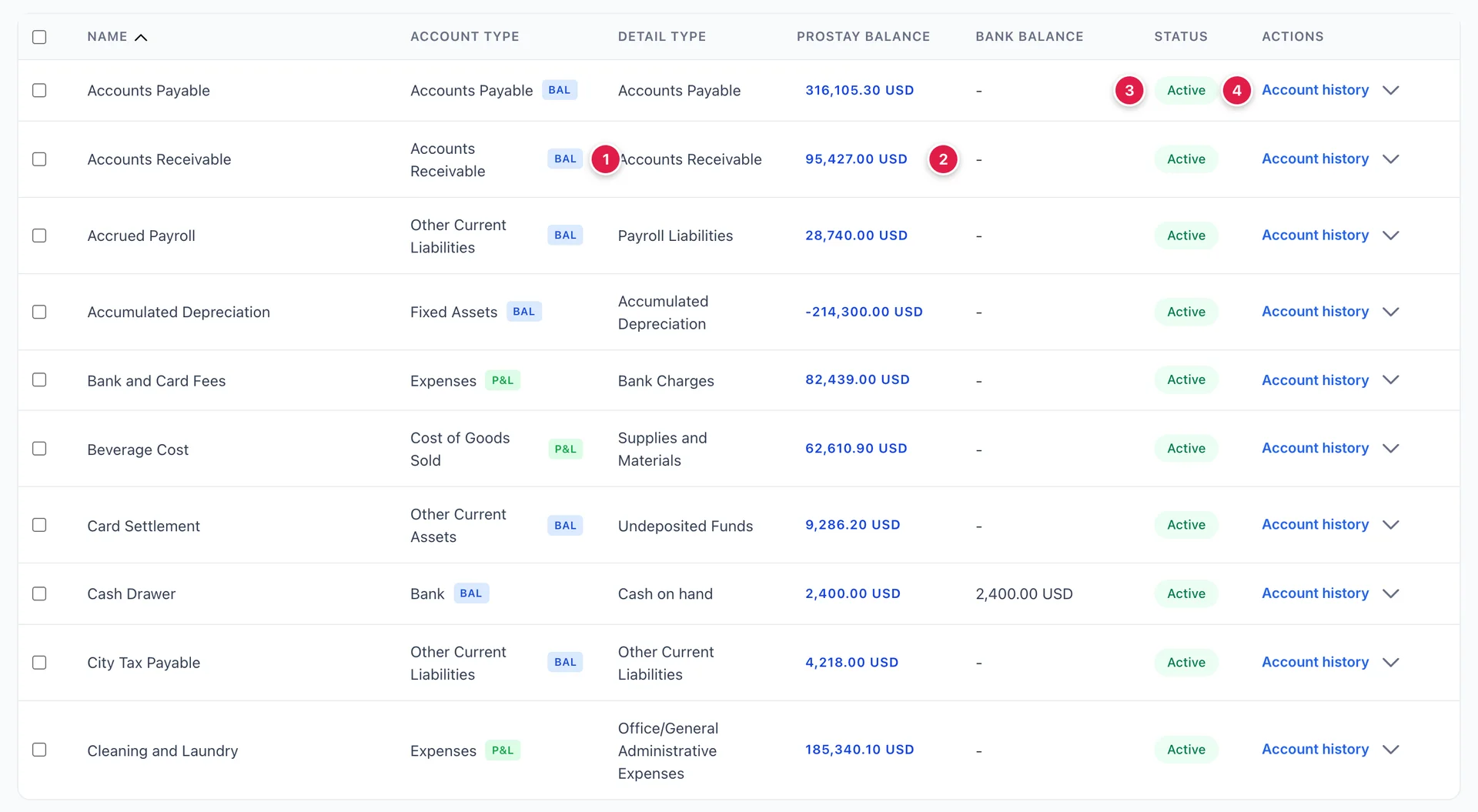
- The badge beside the account type, either BAL or P&L. Explained in the next section.
- The balance. It is a link, not just a figure, and it opens every posting that made it.
- The status, Active or Inactive. Inactive accounts are hidden from this list until you ask for them.
- Account history, which opens the same panel as the balance, and a chevron that holds Edit, Run report and Make inactive.
The list is sorted alphabetically by name, not by account number, and the number is not one of the columns you see by default. If you are used to reading a chart of accounts in numerical order, turn the Account number column on through the settings icon at the end of the toolbar and sort on it.
| Column | What it tells you |
|---|---|
| Name | What you will pick from every dropdown in the module. Worth being specific: Room Revenue beats Sales when there are six income accounts in the list. |
| Account type | The category the account belongs to, and the thing that decides whether it appears on the balance sheet or in profit and loss. Fixed at creation in practice; see below. |
| Detail type | A narrower label inside the type. It does not change any calculation. It exists so an accountant can tell two similar accounts apart, and so the printed report can group sensibly. |
| Prostay Balance | What the account holds according to the documents raised in Prostay. Click it to see them. |
| Bank balance | Only bank accounts have one, so every other row shows a dash. When the two differ on a bank account, that difference is what reconciliation exists to explain. |
| Status | Whether the account can still be picked when you raise something. Inactive accounts keep their history. |
BAL and P&L
The badge beside each account type is the single most useful thing on the screen once you know what it means.
BAL means the account sits on the balance sheet. It carries its balance forward for as long as the hotel exists. Your bank account, what guests owe you, what you owe suppliers, the building, the loan on it. A balance sheet account answers "what do we have and what do we owe, right now".
P&L means the account sits in profit and loss. It measures a period and starts again at zero in the next one. Room revenue, laundry costs, salaries. A profit and loss account answers "how did we do over these months".
The badge is worked out from the account type, not stored separately, so it is never out of step with the type beside it. Bank, Accounts Receivable, Accounts Payable, Credit Card, Fixed Assets, the two Other Current families, Long Term Liabilities and Equity are all BAL. Income, Cost of Goods Sold, Expenses, Other Income and Other Expense are all P&L.
Adding an account
New Account at the top right opens the form. The chevron beside it holds Import, for bringing a chart in from another system.
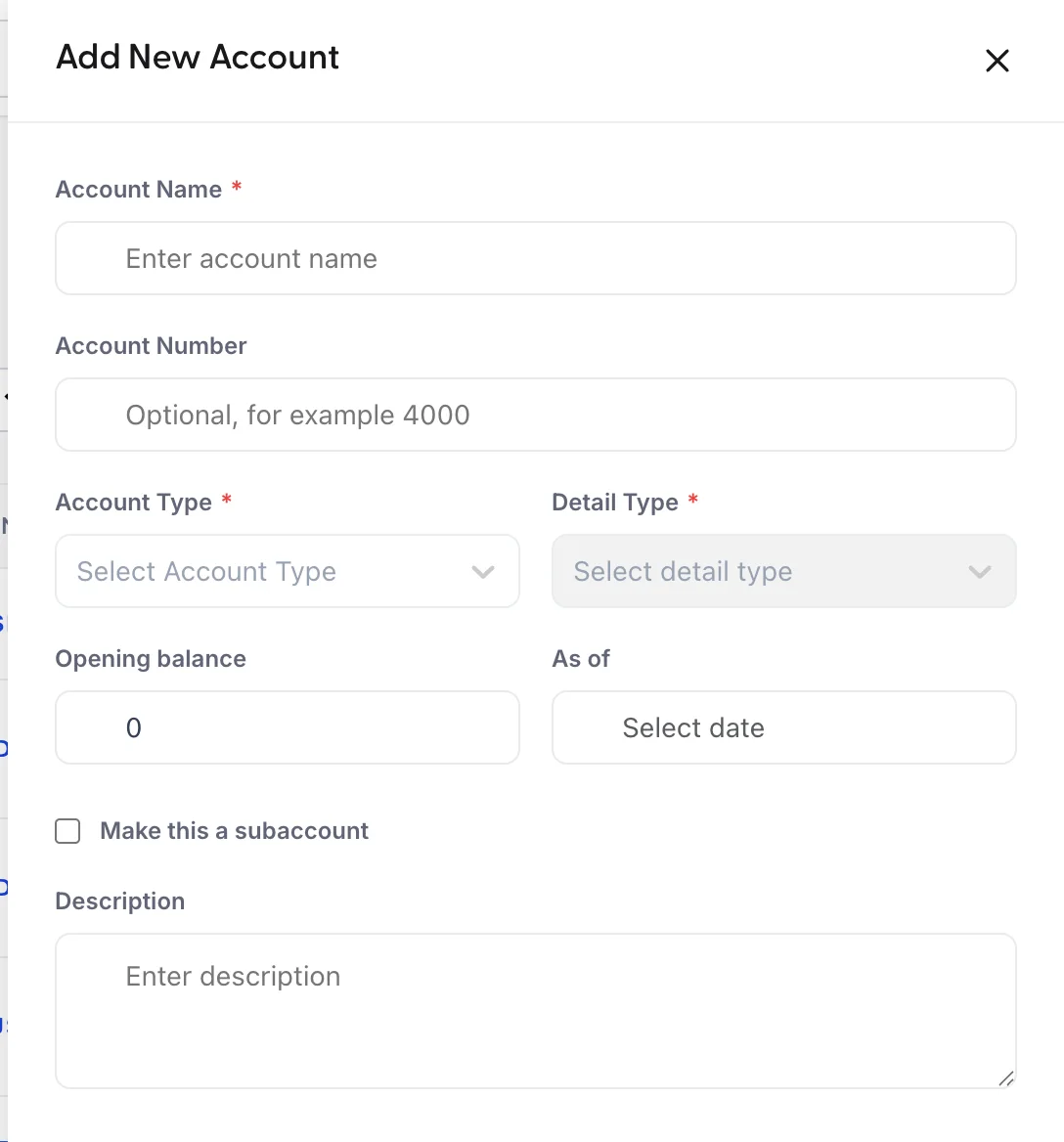
- Type an Account Name. This is the only field the form insists on besides the two types.
- Give it an Account Number if your hotel numbers its accounts. It is optional, and if you use one, keep to a convention: assets in the 1000s, liabilities in the 2000s, equity 3000s, income 4000s, costs 5000s and expenses 6000s is the usual one.
- Pick the Account Type. Read the next section before you do.
- Pick the Detail Type. It is greyed out until the type above it is set, because the list it offers depends on it.
- Leave Opening balance at zero unless you are bringing a real balance across from another system.
- Tick Make this a subaccount only if this account belongs underneath another one.
- Save.
Choosing the account type
Fourteen types are offered, and between them they carry anywhere from one to ten detail types. The ones a hotel reaches for most:
| Account type | Use it for |
|---|---|
| Bank | Anywhere real money sits: the current account, the deposit account, the cash drawer at reception. These are the accounts reconciliation works on. |
| Accounts Receivable | What customers owe you. You will almost never add one: invoices post to it automatically and one is enough. |
| Other Current Assets | Value you hold that is not cash and not a building. Card settlements in transit, prepayments, stock. |
| Fixed Assets | The building, the vehicles, the kitchen equipment. Paired with an accumulated depreciation account that runs negative. |
| Accounts Payable and Credit Card | What you owe suppliers, and what is sitting on the company card. |
| Other Current Liabilities | Money you are holding that is not yours to keep: sales tax collected, city tax, guest deposits, unused gift vouchers, payroll owed but not yet paid. |
| Income | What you sell. Split it the way you want to read it later: rooms, food and beverage, spa, events, parking. |
| Cost of Goods Sold | What a sale costs you directly. Food and beverage cost, spa products, the linen you launder because a room was slept in. |
| Expenses | Running the hotel whether anyone stays or not. Salaries, utilities, insurance, marketing, commissions. |
Opening balances
Opening balance and As of exist for one situation: you are moving to Prostay from something else and the account already holds money. The figure you enter is what the account held on the date you give.
Leave it at zero for every account you create from now on. An account that starts life inside Prostay builds its balance from the documents posted to it, and typing an opening balance on top of that gives you a figure that no document explains, which is the hardest kind of discrepancy to chase later.
Subaccounts
Ticking Make this a subaccount reveals a parent picker. A subaccount is a detail line underneath a heading: Utilities as the parent, with electricity, water and gas beneath it. You post to the children, and the parent shows the total.
The form will not let you save a subaccount without naming a parent. Use one level and stop there. Charts nested three deep are hard to read on a screen and harder to pick from correctly at the moment you are raising an invoice.
Finding an account

The demo hotel above has 46 accounts across five pages, and a real one will have more. Four controls narrow it down.
- The All dropdown filters to one account type. This is the fastest way to answer "which income accounts do we have".
- The search box matches on name.
- The page size dropdown goes up to a whole page of accounts at once, which is often easier than paging.
- The settings icon at the far right opens the column list, where you can turn the Account number column on, hide columns you do not use, switch the BAL and P&L badges off, choose Compact or Cozy row height, and tick Include inactive to bring retired accounts back into view.
The pencil icon puts the list into an inline edit mode where you can rename several accounts in place and save them together. It is for tidying names, not for changing types.
Deactivating an account
You cannot delete an account, and that is correct: deleting one would orphan every document that posted to it. You make it inactive instead, which removes it from every picker while leaving its history intact.
Two ways. On a single account, the chevron at the end of the row holds Make inactive. On several, tick their checkboxes and choose Mark inactive from Batch actions, which stays greyed out until at least one row is ticked and which holds no other action.
What is behind a balance
Every balance in the Prostay Balance column is a link, and Account history at the end of the row opens the same thing: every posting that made that figure, with a date, the document it came from, a debit or credit column and a running balance. You can narrow it to a date range and export it as CSV or PDF.
This is the screen to open when a figure looks wrong. Accounting is double-entry, so every posting you see here has a matching one somewhere else: an invoice for 500 puts 500 into receivables and 500 into an income account at the same moment. If a total surprises you, the history tells you which document is responsible rather than leaving you to guess.
Run report
Run report, at the top of the screen, produces a printable listing of the whole chart as of a date you choose: every account with its type, detail type and balance, grouped and subtotalled, with a summary showing total assets, liabilities and equity, and total income and net income. It opens in a new tab ready to print, and it can be exported.
The same action sits in each row's chevron menu for a single account.
Where to go next
With the chart set up, the two lists that use it most are customers, which is who you bill, and the products and services catalogue, which is what you bill them for and which points each item at one of the income accounts you have just created.
Worth knowing if you also run the PMS side: the accounts your folio posts room revenue, taxes and payments to are chosen in folio configuration and invoicing, and they are picked from this same list. That is the one place the two sides of Prostay share a setting, so an account you make inactive here can disappear from a folio mapping there.