Every line of every sales document points at something in this catalogue. An invoice for a conference names a Day Delegate Package here; a bill for wine names House Wine, bottle here. The item carries the price, the description and, more importantly than either, the account the money lands in.
What belongs in this catalogue
This is an accounting catalogue and it is separate from everything the Property Management System sells. Your rate plans, your spa treatments, your minibar items in the room posting screen and your extras in the booking engine are all defined elsewhere and none of them appear here. Nothing copies between the two.
What belongs here is whatever you need to put on a line of an invoice, a bill, a purchase order or a sales receipt raised in this module. In practice that is a short list, and it is much shorter than the PMS catalogue: a handful of room night types you invoice companies for, your meeting and event packages, the things you buy from suppliers, and any stock you hold.
The four item types
New asks which type before it asks anything else, and that is the one decision on this screen worth slowing down for. The type decides which fields the panel shows you and whether the item counts anything.
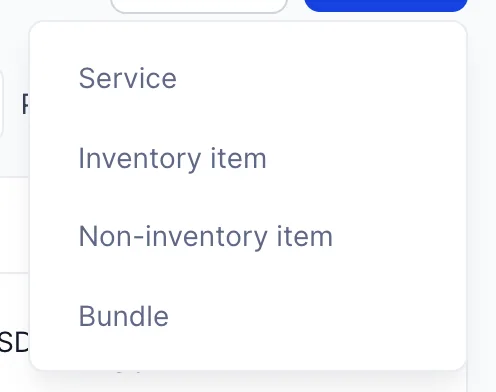
| Type | Use it for |
|---|---|
| Service | Something you sell that has no stock behind it. A room night, a day delegate package, meeting room hire, a spa day pass. This is most of a hotel's catalogue. |
| Inventory item | Something you buy, hold and sell, and want a count of. A bottle of house wine, a branded bathrobe. Only this type carries a quantity, a reorder point and an inventory asset account. |
| Non-inventory item | Something you buy or sell but do not count. Outsourced guest laundry, an airport transfer, flowers for an event. Use this whenever counting the thing would cost more effort than knowing the number is worth. |
| Bundle | Several of the above sold as one line. A conference day that is really room hire plus delegate packages plus audio visual. |
When you are unsure between inventory and non-inventory, ask whether anybody will ever act on the count. Stock you reorder from a supplier when it runs low is an inventory item. Stock nobody counts is a non-inventory item, and making it one is not a shortcut, it is the honest answer.
Reading the list
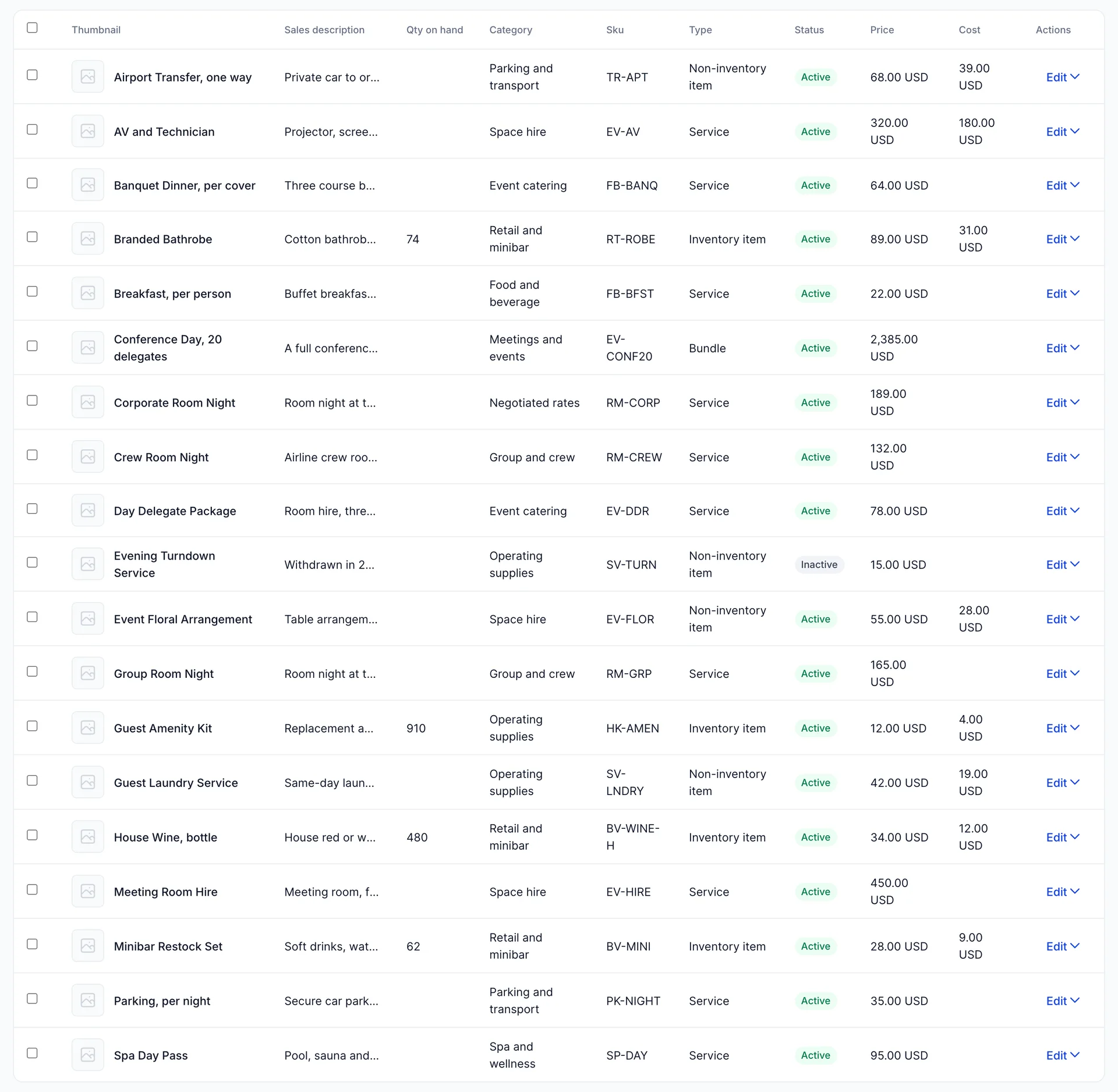
The list is sorted by name and searched by name, SKU, description or category. Four columns are worth knowing before you read anything else.
| Column | What it holds |
|---|---|
| Qty on hand | Filled in for inventory items and empty for everything else. Read the section below before you trust it as a live number. |
| Type | Which of the four this is, which is also which fields its panel will show. |
| Price | What you charge. On a bundle it is the sum of the items inside it rather than a figure of its own. |
| Cost | What you pay a supplier. Empty on anything you do not buy, which is why most of the services are blank here rather than zero. |
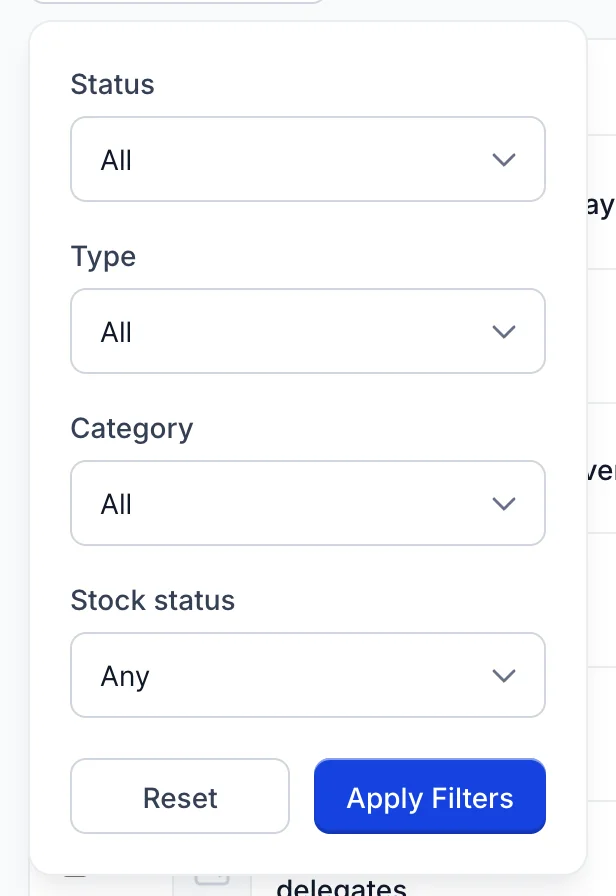
Search Filters narrows by status, type, category and stock. Two of them behave in ways worth knowing. Choosing a parent category returns everything filed under it, including items sitting in its subcategories, so Rooms finds the three room night types even though each is filed a level deeper. And Low on stock means at or below the reorder point you set on the item, so an item with no reorder point can never appear in it however little is left.
What Qty on hand actually counts
This matters most for the Low on stock filter, which compares that same opening figure against the reorder point. The filter is consistent with the column, which means both are telling you about the day you took the count. Reorder points are still worth setting, because they are what the filter reads once you update a count, but nothing here will warn you that the wine is running out.
Adding an item
Pick a type from New and a panel opens with the sections that type needs. Name is the only field the panel insists on, though an item saved with nothing else is not much use.
If no row offers Edit, your role does not include the permission for it, and the catalogue is readable without being editable. This one cannot be added from Users in System Settings today, because the screen checks for a right the role editor has no setting for, so editing an item is available only to accounts with unrestricted access. Bundles and the sales-and-purchasing panel behave the same way, for the same reason.
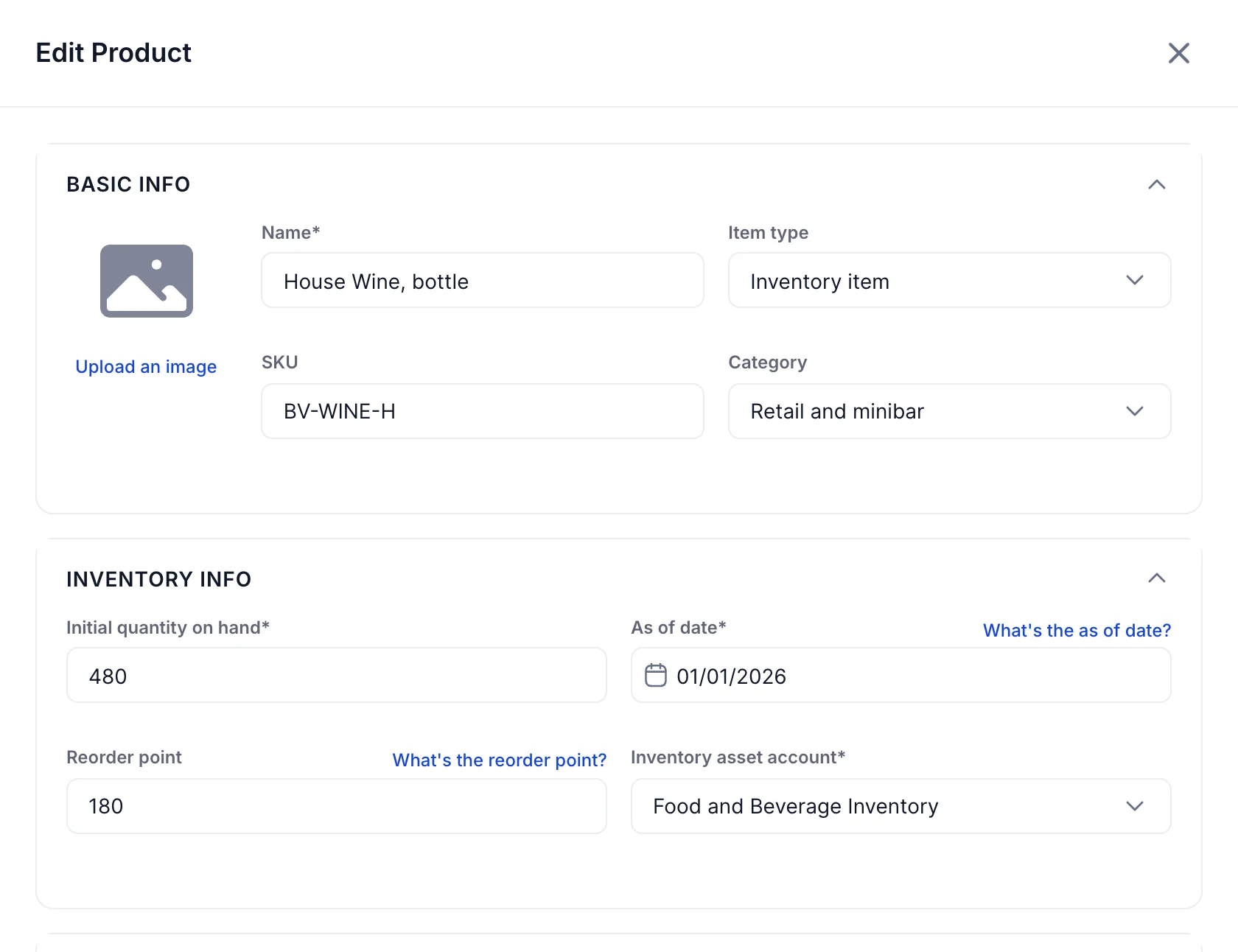
BASIC INFO is the same for all four types: a name, an optional image, an SKU and a category. The name is what appears on a document line and in every picker, so write it the way you want a customer to read it. The SKU is yours to use as you like; it is searched, so a consistent prefix per area makes the catalogue quick to filter by typing.
The two accounts are the whole point
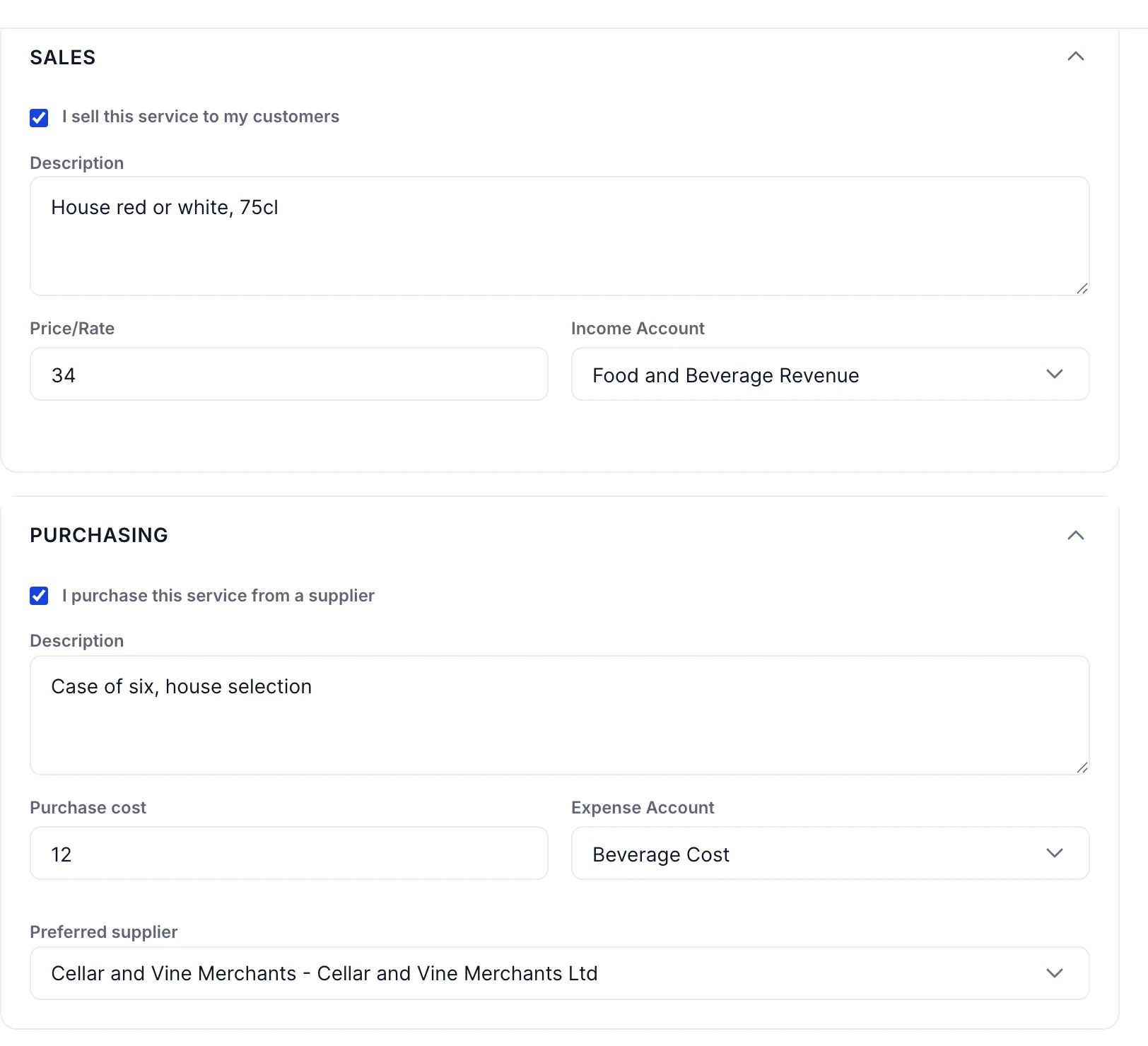
An item is worth setting up carefully for one reason: it decides where money goes without anybody thinking about it again. Put a bottle of wine on an invoice and the sale lands in Food and Beverage Revenue because the item says so. Put it on a bill and the cost lands in Beverage Cost for the same reason.
| Section | What to fill in |
|---|---|
| SALES | Tick I sell this ... to my customers for anything that will appear on an invoice. The description becomes the default line text, Price/Rate the default price, and Income Account the account the sale posts to. |
| PURCHASING | Tick I purchase this ... from a supplier for anything you buy. Purchase cost is what you pay, Expense Account is where the cost posts, and Preferred supplier is who you usually buy it from. |
Both accounts come from the chart of accounts, and the pickers only offer accounts of a suitable type: income accounts for the sale, expense and cost of goods sold accounts for the purchase. If the account you want is not in the list, it does not exist yet; Add new at the top of either picker creates it without leaving the panel.
Prices set here are defaults rather than rules. Whoever raises the document can type over the rate on the line, which is what you want for a negotiated corporate rate or a discounted group. What they should not have to change is the account.
Setting up an inventory item
An inventory item shows an extra section with four fields, and all four matter.
| Field | What it does |
|---|---|
| Initial quantity on hand | How many you had when you counted. This is the number the list shows. |
| As of date | The date of that count. Anything the item did before this date is not the accounts' business, which is why it is required. |
| Reorder point | The level you want to be told about. Optional, and the Low on stock filter is the only thing that reads it. |
| Inventory asset account | Where the value of the stock sits until it is sold. Stock you have paid for and not yet sold is an asset, not a cost, and this is the account that holds it. |
The last one is the one people get wrong. The cost of a case of wine does not become an expense when you buy it; it becomes an expense when the wine is sold. Until then it is money sitting in a cellar, and the inventory asset account is where your balance sheet says so. That is also why an inventory item has three accounts rather than two: income for the sale, an asset account for the stock, and an expense account for the cost once it moves.
Bundles
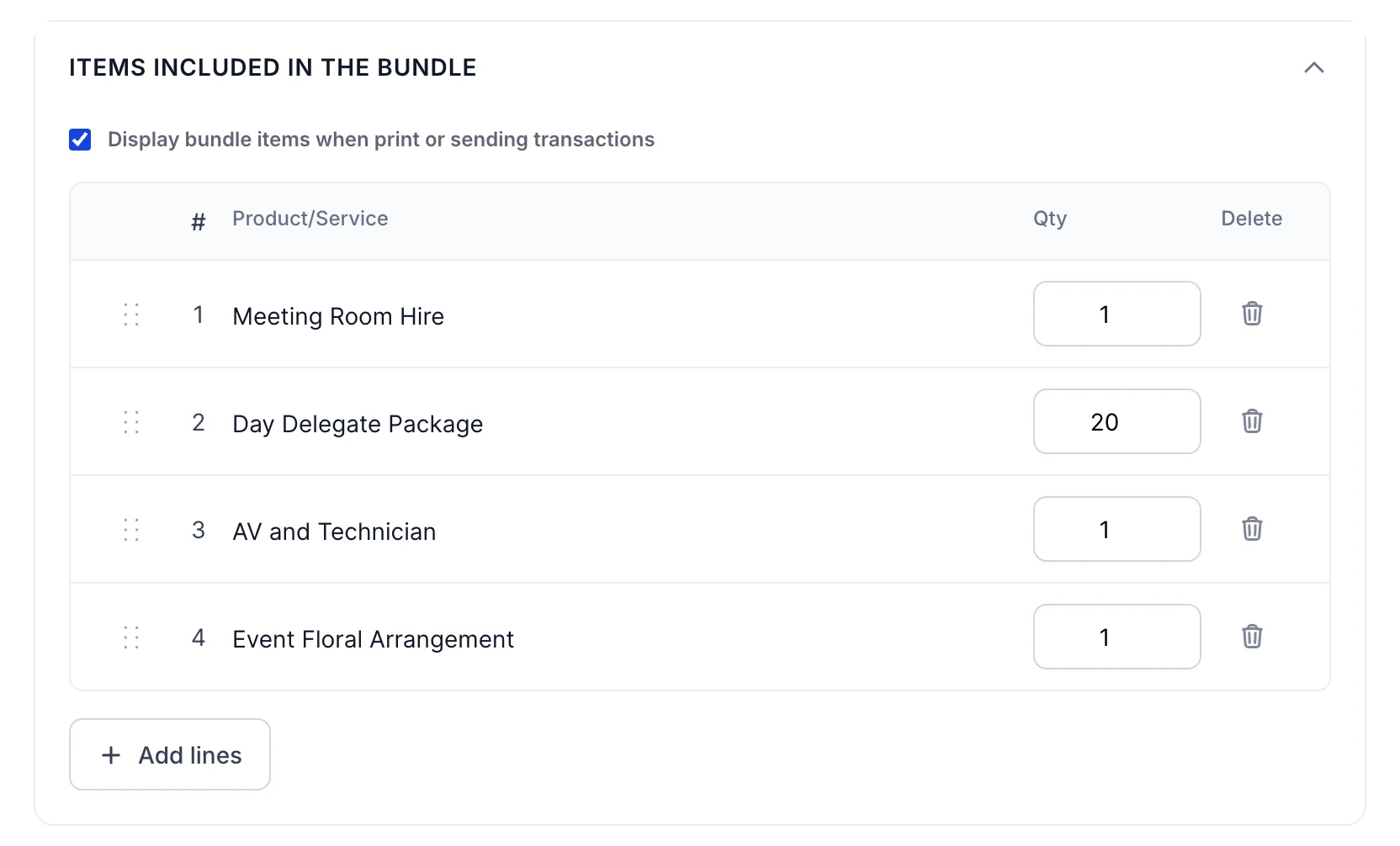
A bundle is a shortcut for a combination you sell repeatedly. Add the items and a quantity for each, and one line on a document brings all of them in.
Two things follow from a bundle having no price and no accounts of its own. Its price is whatever its contents add up to, so changing the price of the delegate package changes every conference day sold afterwards. And each item inside posts to its own income account, so a conference day splits itself between room hire, catering and audio visual without anybody apportioning anything.
Display bundle items when print or sending transactions decides what the customer sees. Leave it ticked and the invoice itemises the bundle; untick it and they see one line with one price. Corporate clients usually want the detail, and wedding clients usually do not.
Categories
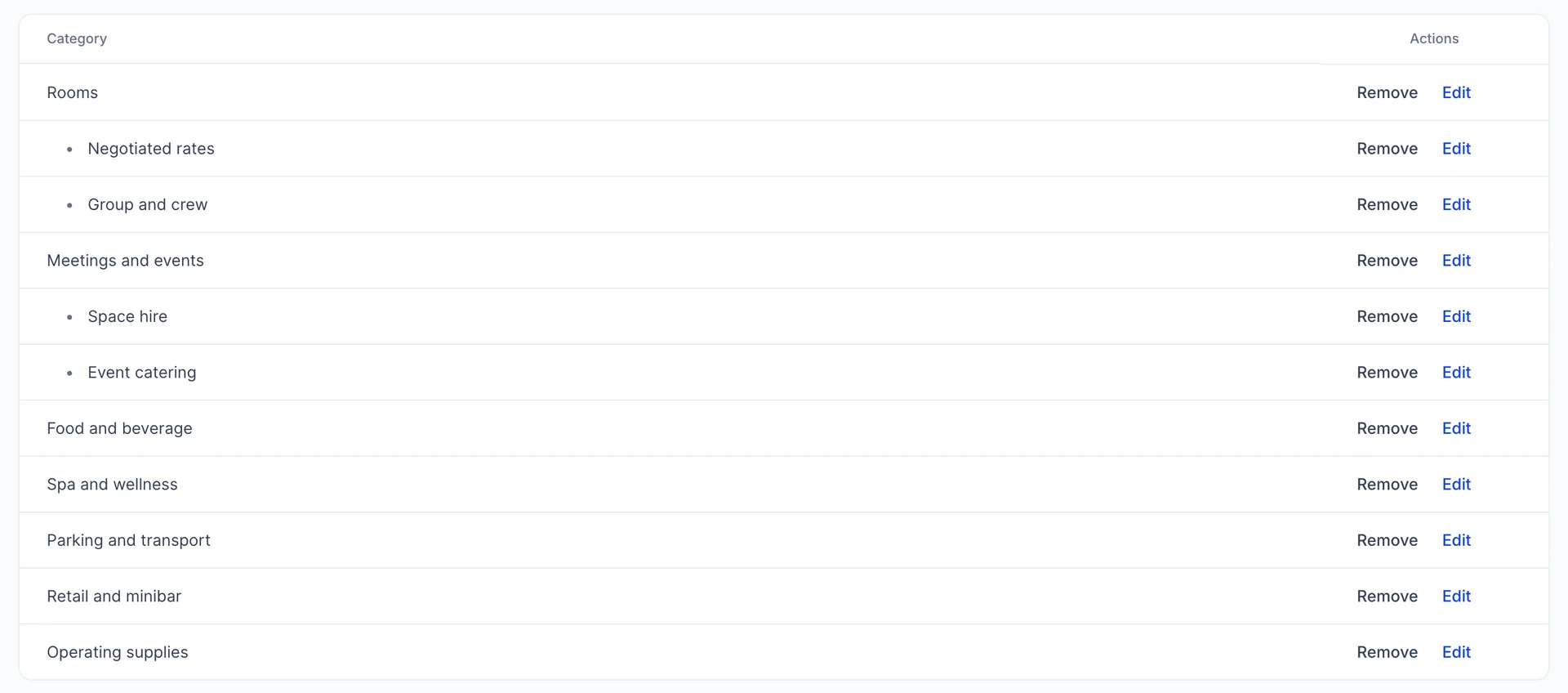
Manage categories, under More, opens the tree. Create New Category adds one, and ticking Is a subcategory while adding puts it under a parent you choose.
Categories group the catalogue for filtering and nothing else. They do not decide which account anything posts to, they do not appear on a document, and they are not the same thing as an account. Group items the way the people using this screen think about them, not the way your chart of accounts is organised.
Inventory starting value
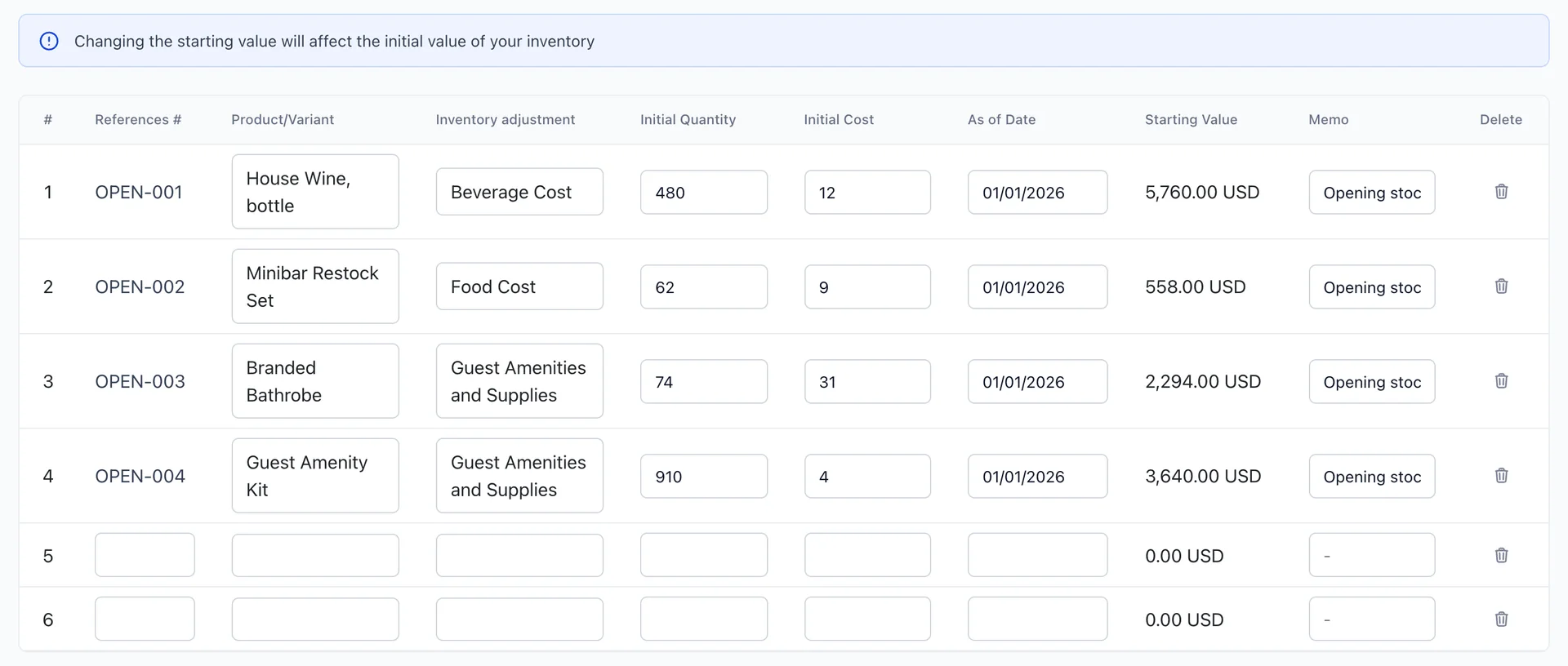
Starting value, also under More, is where the opening stock of every inventory item is recorded in one grid rather than item by item. Each row is a product, a quantity, a unit cost and a date, and the value on the right is simply the two multiplied.
This is the entry that puts stock on your balance sheet. Add the four rows in the picture up and you have exactly what the two inventory accounts in the chart of accounts show, because they are the same figures seen from two directions.
Inventory adjustment on each row is the account a correction would land in, which is the cost account the stock was bought into. You are naming where a mistake goes, not where the stock lives.
Adding many at once
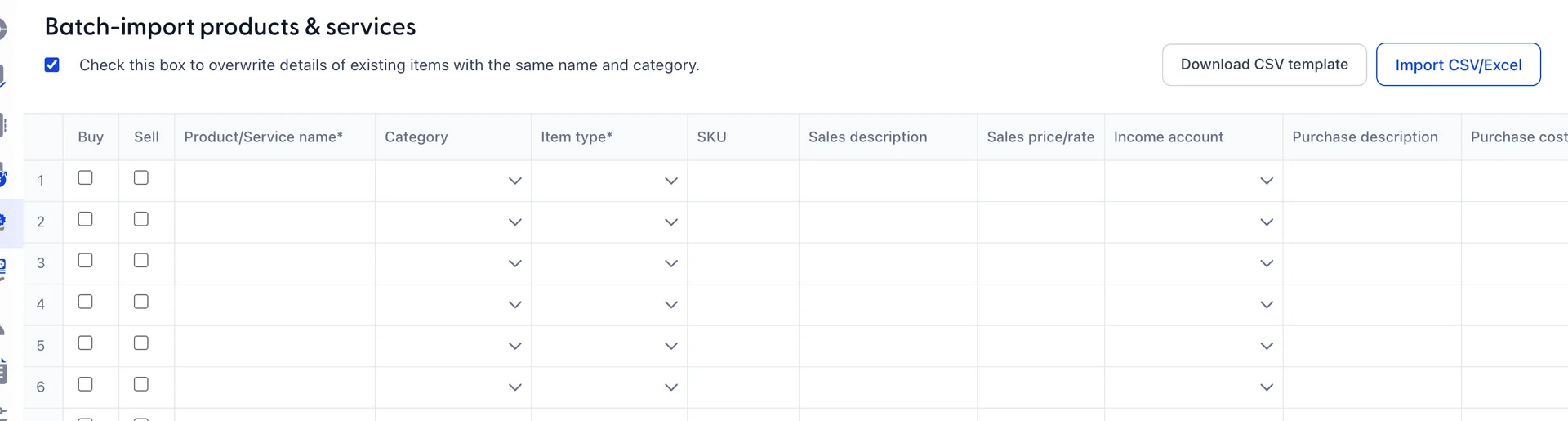
Batch import, the last item under More, is a spreadsheet holding the same fields as the panel. Type straight into it, or download the template, fill it in wherever you keep your catalogue today and import the file back.
The checkbox at the top decides what happens when a row matches something you already have. Ticked, a row with the same name and category overwrites the existing item. Unticked, it is added alongside. Leave it ticked when you are correcting a catalogue you exported earlier, and untick it when you are adding genuinely new items, because two items with the same name and different prices is a problem you will meet again on every document.
This is the fastest way to set the catalogue up on day one. It is a poor way to maintain it afterwards, because a spreadsheet does not show you what is already there.
Editing, duplicating and retiring an item
Edit at the end of a row opens four actions. Edit reopens the panel. Duplicate copies the item, appends "(Copy)" to the name and "-COPY" to the SKU, and opens the copy for you to change, which is the quick way to build a variant of something you have already set up properly.
Make inactive retires an item you no longer sell. It stays in the list marked Inactive, out of the pickers on new documents, and every document it has ever been on is untouched. This is what you want for a service you have withdrawn, and it is reversible.
Where to go next
With a customer to bill and a catalogue to bill them from, the next thing is the document itself. Everything set up here shows up there as a default that can be typed over on the line, apart from the accounts, which are the part you set up once so nobody has to think about them again.