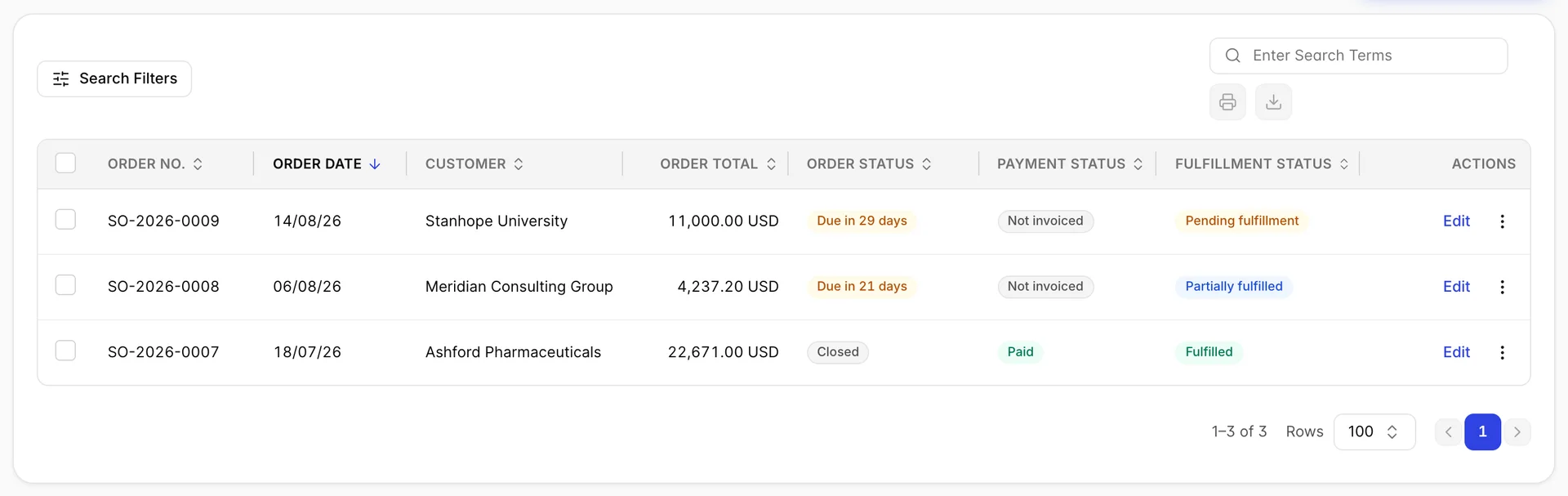
A sales order is an agreement: the customer has said yes, and you have not billed them yet. This screen is the list of those agreements, and it exists to answer two questions you cannot answer from an invoice list, because the invoice does not exist yet. What have we promised and not yet delivered, and what have we delivered and not yet billed.
What this screen is for
Sales orders also appear in All Sales, alongside every other document. The difference is what each list is good at. All Sales is where you go when you are chasing money and want everything about a customer in one place. This screen is where you go when you are working the orders themselves, because it carries three columns All Sales has no room for: whether the order is still live, whether it has been billed, and how much of it has been delivered.
Raising one is the same form as every other sales document, covered in raising a sales document. Create Sales Order at the top right opens it, and Edit on any row reopens it.
One thing worth knowing before you rely on this list for anything financial: a sales order posts nothing to your accounts. It is a promise, not a transaction, and it does not appear in profit and loss or in what customers owe you until you convert it. Which sales document to use explains which documents post and which do not.
Three statuses, not one
The three status columns are independent, and that is the point of them. An order can be open, unbilled and half-delivered at the same time, and no single word would tell you that.
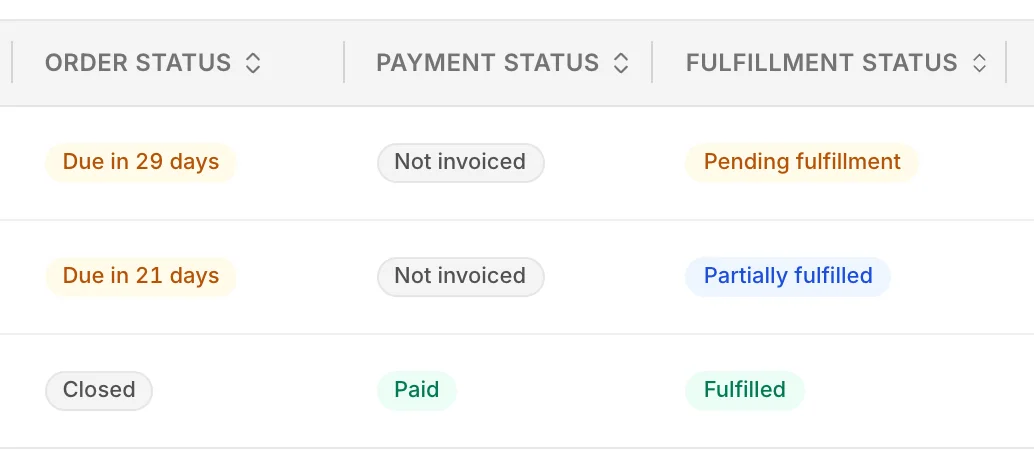
- Order Status is whether the agreement is still live: open, Closed or Cancelled.
- Payment Status is how far along the billing is: Not invoiced, Invoiced or Paid. This is the column that tells you whether the money has started moving.
- Fulfillment Status is how much you have actually delivered: Pending fulfillment, Partially fulfilled or Fulfilled.
Reading them together is how you spot the two states that cost money. An order that is Fulfilled and still Not invoiced is work you have done and not charged for. An order that is Paid and still Pending fulfillment is something you owe a customer who has already paid.
Why the Order Status column counts days
The Order Status column usually does not say Open. On an order that is still live it shows how long until payment is due instead, counting down as Due in 29 days and then, once the date passes, upward in red as overdue. It only prints Open for an order with no due date at all, which in practice means one raised without payment terms.
This matters when you filter. Order status in the filter panel offers Open, and it works correctly, but the orders it returns will show a countdown in the column rather than the word you filtered for. If you are looking for live orders, filter for Open and read the countdowns; do not scan the column for the word.
What you can do to one order
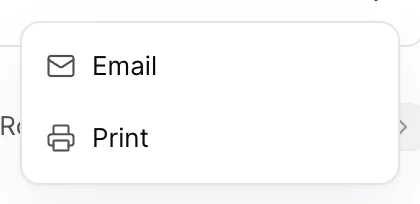
The menu at the end of a row changes with the order. Entries are not greyed out when they no longer apply, they are absent, so the menu on a new order and the menu on a finished one are different lengths.
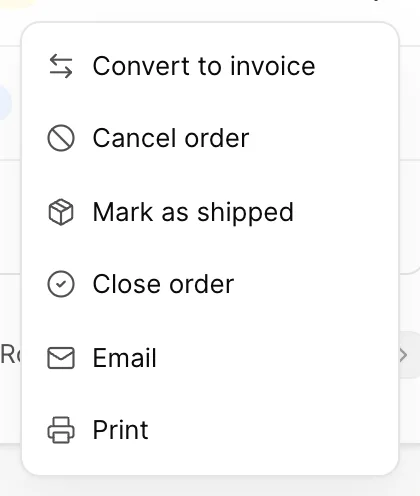
- Convert to invoice appears while the order has not been invoiced or paid. See below.
- Cancel order and Close order appear while the order is neither closed nor cancelled already.
- Mark as shipped appears while there is something left to deliver and the order is still live. It sets the order to Fulfilled outright rather than advancing it a step, so on a Partially fulfilled order it means "the rest has gone too", not "another part has gone".
- Email and Print are always there, including on cancelled orders, because you may still need to send somebody a copy of what was agreed.
Close order and Cancel order both end the agreement, and the difference is what you are recording. Close it when it ran its course. Cancel it when it did not happen. Neither reverses an invoice you have already raised from it, because the invoice is its own document once created.
Turning an order into an invoice
Convert to invoice is the action this screen exists for. It opens the invoice form with the order's customer, addresses, note and lines already filled in, so you check it and save rather than retyping it. The order keeps its own number and stays in this list; you end up with two documents that know about each other, not one document that changed type.
The entry disappears once the order's Payment Status reaches Invoiced or Paid, which is what stops you billing the same agreement twice.
Only the invoice affects your accounts. Until you convert, nothing in this list appears in what your customers owe you, which is why an order sitting at Fulfilled and Not invoiced is the one to chase.
Finding an order
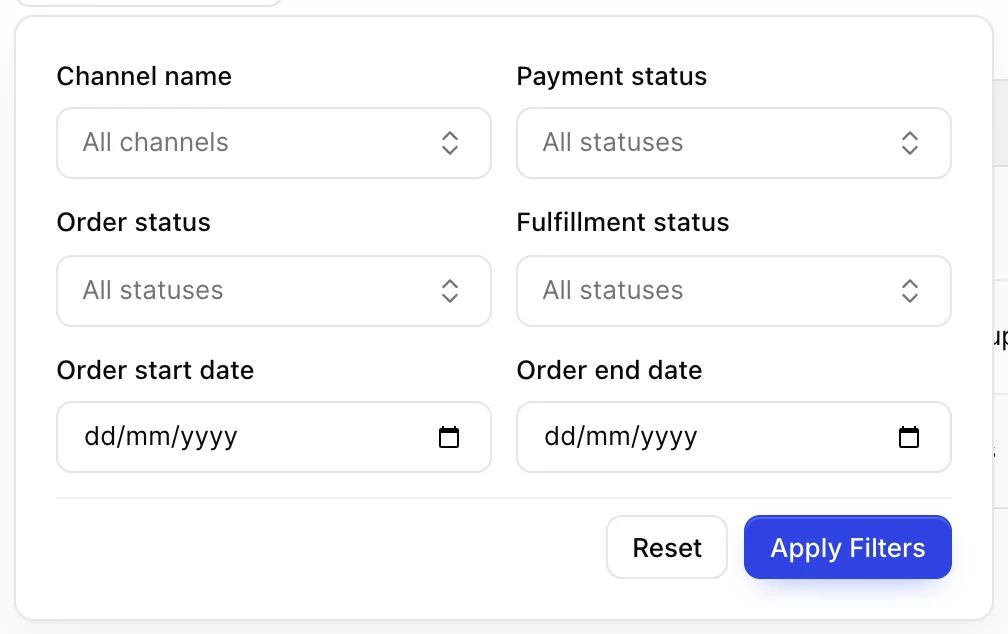
Search Filters opens the panel. The three status filters take the same values as the three columns, and Order start date with Order end date narrow by the order's own date rather than by its due date. Choices do not apply until you press Apply Filters; Reset empties the panel, and Clear active filters appears beside the button once something is applied.
Channel name does nothing. It has one option, All channels, and no other value exists to pick, so there is nothing to set it to and nothing happens when you leave it alone. Ignore it.
The search box beside the table matches an order's number, its memo and its customer name. It searches as you type and searches the whole list rather than the page you are looking at.
Sorting and paging
Every column except Actions sorts, including the three status columns, and the list arrives newest first by order date. Sorting is done across the whole list rather than within the current page, so sorting by Order Total and looking at page one really does give you the largest orders.
The footer counts what you are looking at out of what the filters matched, and Rows sets the page size to 10, 25, 50 or 100.
Printing and downloading
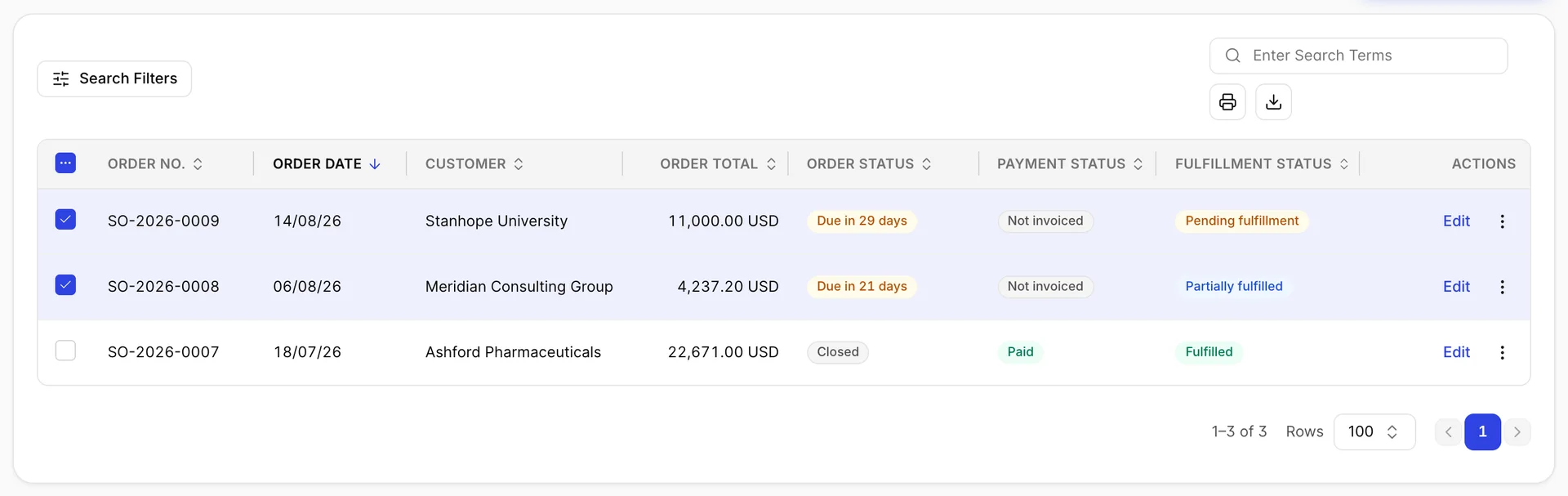
The printer and download buttons above the table are inactive until you tick at least one row, which is the usual reason they appear to do nothing. Tick rows and both come alive: the printer opens a print view of the selected orders, one after another, and the download saves the same thing as a file.
The tickbox in the header selects everything the filters are currently showing, not everything you have. Filtering first is what makes it safe, and it is the difference between printing this month's orders for one customer and printing all of them.
Where to go next
Once an order becomes an invoice it leaves this screen's job and joins the money you are owed, which is getting paid. If you are not sure a sales order was the right document in the first place, which sales document to use is the shorter read.