Prostay Accounting has nine forms that sell something: an invoice, an estimate, a sales order, a sales receipt, a credit note, a refund receipt, a delayed charge, a delayed credit and a statement. They look like nine screens to learn. They are one screen with fields hidden, and once you can raise an invoice you can raise any of them.
This article is that one screen. Which of the nine to reach for is a separate question, and it is the next article.
Nine documents, one form
Every one of the nine has the same four parts in the same order: a header naming the customer and the dates, a grid of lines saying what you sold, a totals block, and a footer of messages, attachments and save buttons. The differences are all subtractions. A sales receipt drops the due date, because the money is already in. A delayed charge drops the customer's email, because nothing is being sent. A statement drops the line grid entirely, because it reports on documents rather than creating one.
Starting one
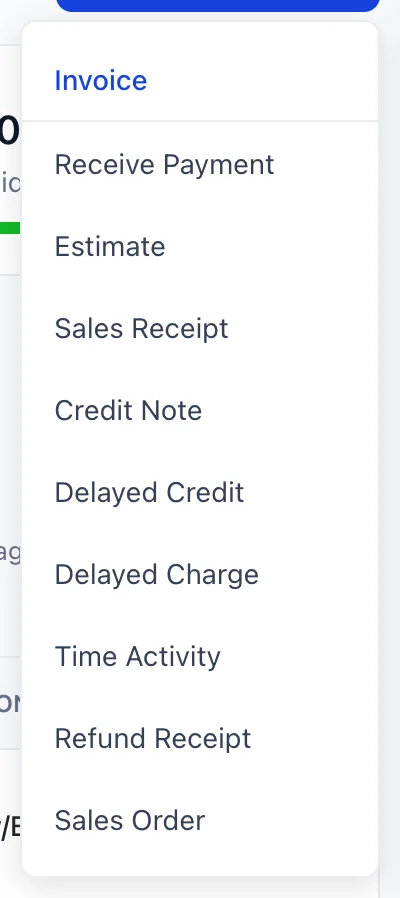
New Transaction at the top right of All Sales is the fastest way to any of them, and it is worth using rather than hunting for a screen in the module menu. Two entries in it are not sales documents at all: Receive Payment collects money against invoices you have already raised, which is its own article, and Time Activity records somebody's hours for billing later.
The header: date, number, terms
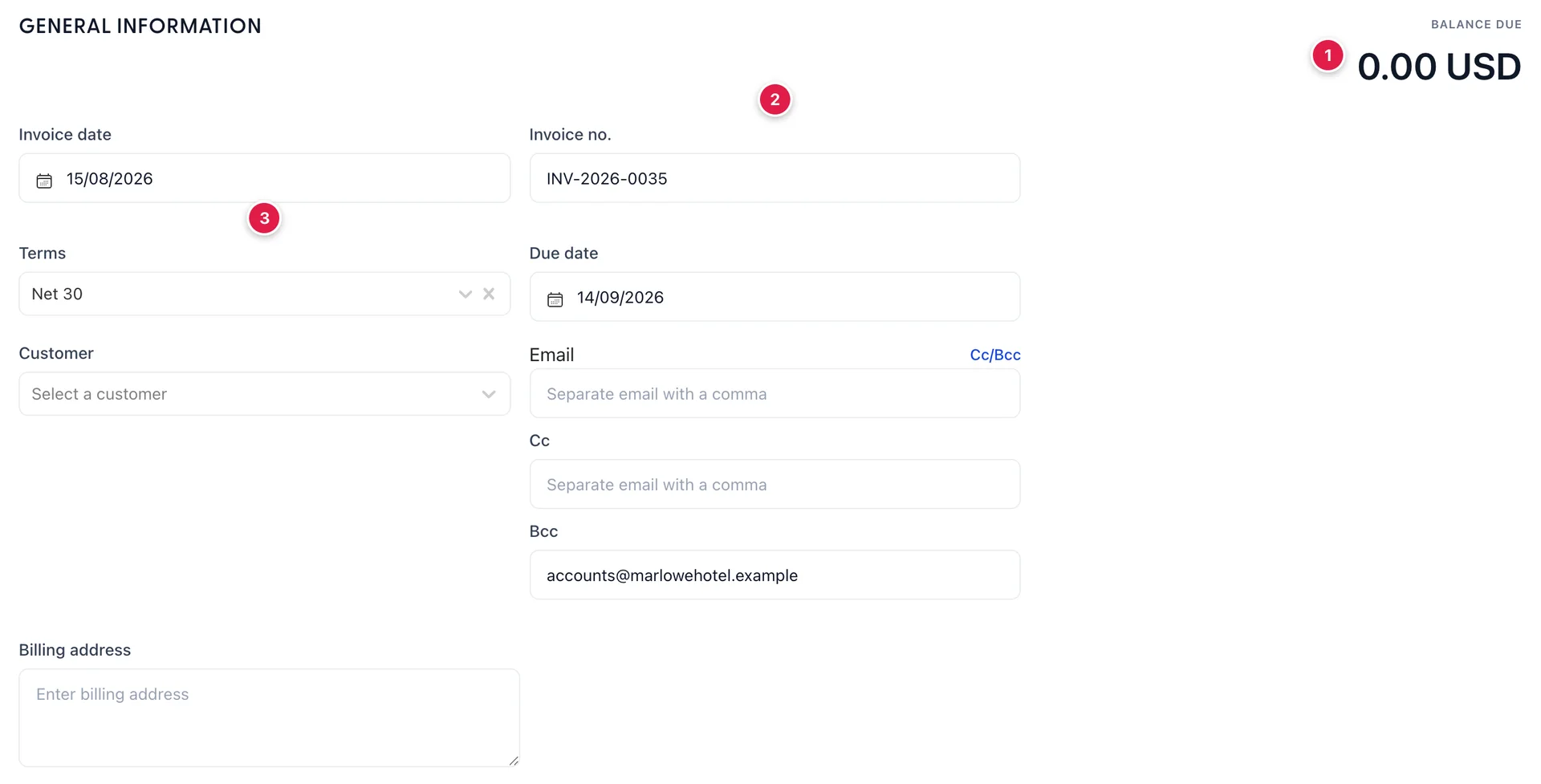
A blank form is not empty. Three things are already decided:
- Invoice no. is the next number in the series, taken from the last one you raised. INV-2026-0035 in the picture means 0034 exists. You can type over it, and there is almost never a reason to.
- Terms comes from your accounting settings, so if your house standard is Net 30 you never set it on a document again.
- Due date is worked out from the terms and the invoice date, and it moves when either changes. Net 30 on 15 August gives 14 September.
The figure in the top right corner, BALANCE DUE, is what this document will leave the customer owing. It follows the lines as you add them, and on an invoice it is the number the whole document exists to communicate. On the five forms that bill nobody it reads TOTAL instead, which is the honest word for a quotation.
Choosing the customer
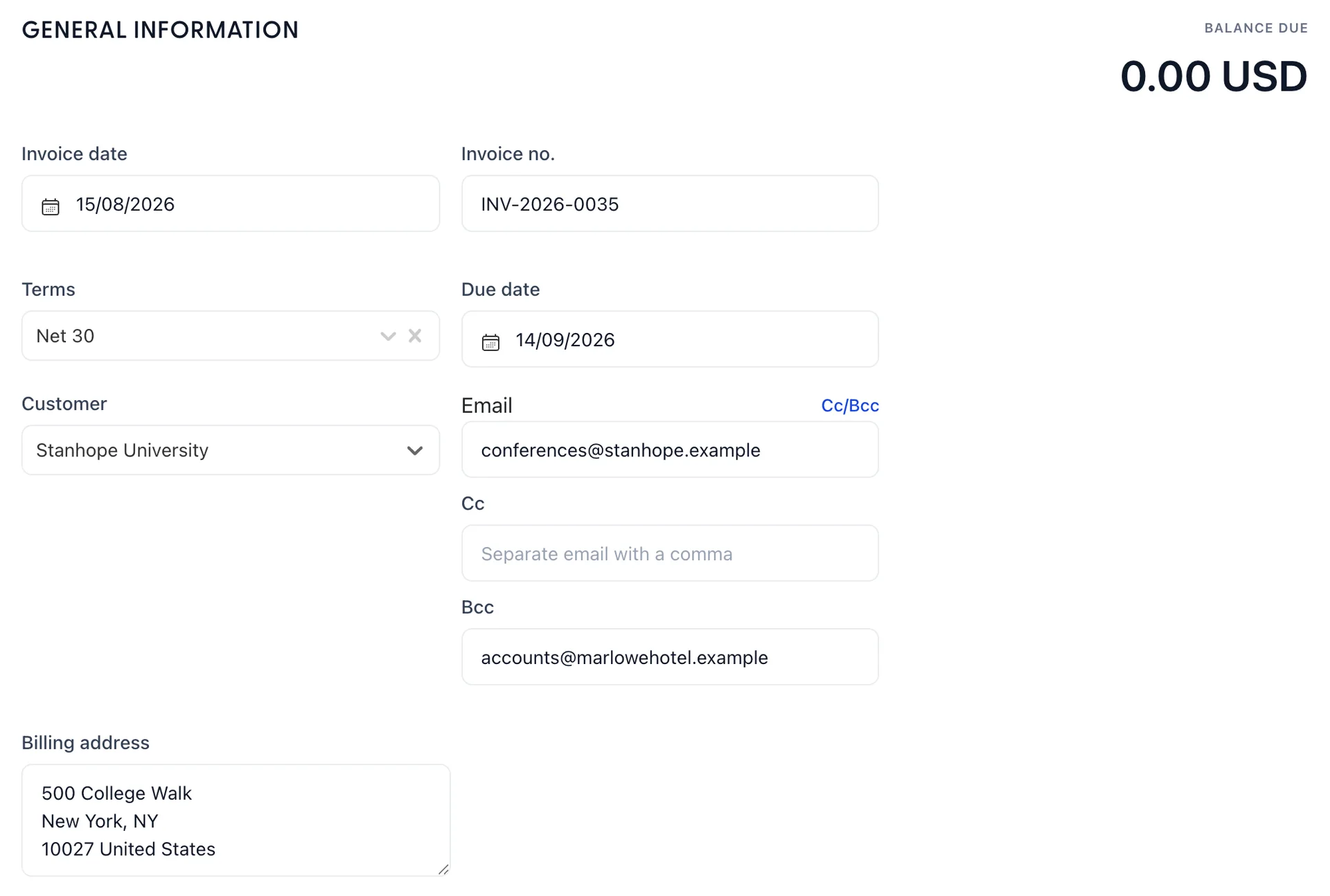
Picking the customer fills in the email and the billing address from their customer record. Both are editable on the document, and this is the trap: editing them here changes this document only. If an address is wrong, it is wrong on the record, and it will be wrong on the next document too. Fix it there.
Cc/Bcc opens two more boxes. The Bcc usually arrives already filled with your own accounts address, because that comes from settings as well: it is how a copy of everything you send reaches your own inbox.
The lines
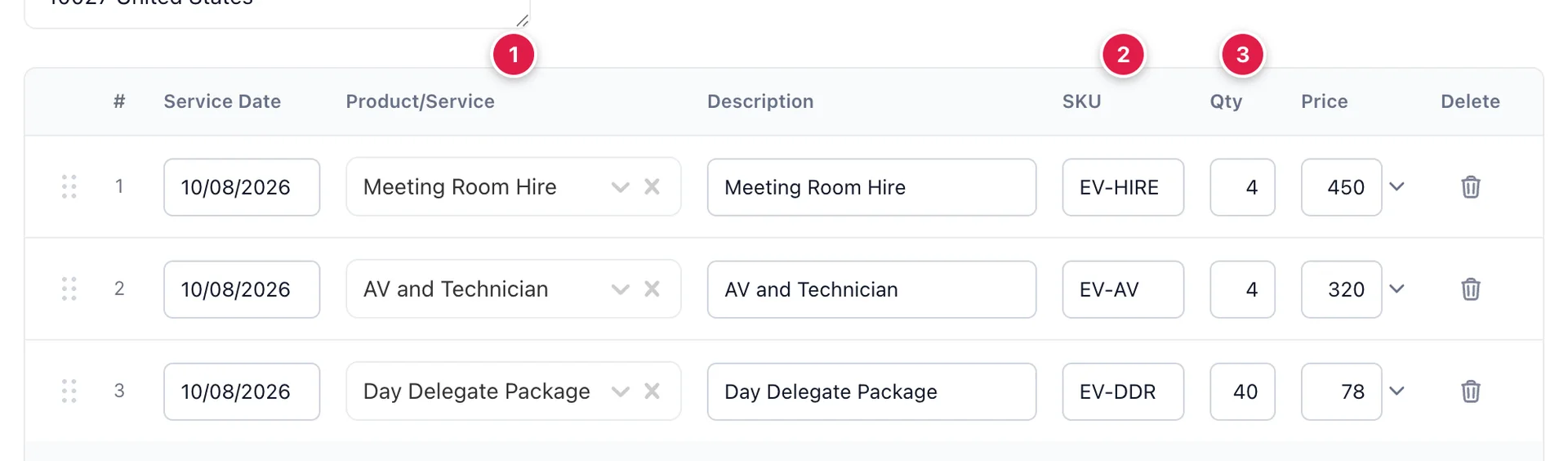
One line per thing sold. Choose the product and four cells fill themselves: the description, the SKU, the price and, invisibly, the income account the money will land in. Type the quantity and the line is done.
Three columns are worth knowing about:
- Service Date is when the thing was delivered, not when you are billing for it. On an invoice raised in September for a conference held in August, the service date says August. It is what makes a late invoice land in the right month when somebody reads your income by period.
- Description starts as the catalogue name and is meant to be typed over. "Day Delegate Package" tells the customer nothing; "Day delegate package, 40 delegates, 12 September" tells them everything, and it is the line they will query if they query anything.
- Price is the catalogue rate and can be changed on the line. Changing it here changes this line, not the catalogue.
The handle at the left of a row drags it, which matters more than it sounds: the order of the lines is the order the customer reads them, and a document that leads with the room nights and follows with the extras is easier to approve than one in the order you happened to think of things.
Why the picker matters more than the price
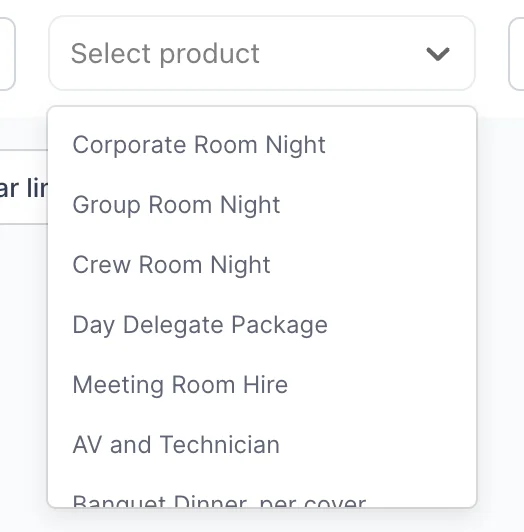
The picker is your products and services catalogue, and the item you choose decides which income account this money counts as. That is the part nobody sees on the document and everybody sees in the reports: room revenue against food revenue against room hire, all of it decided by which line of the picker somebody clicked while typing an invoice.
Changing a price on one line
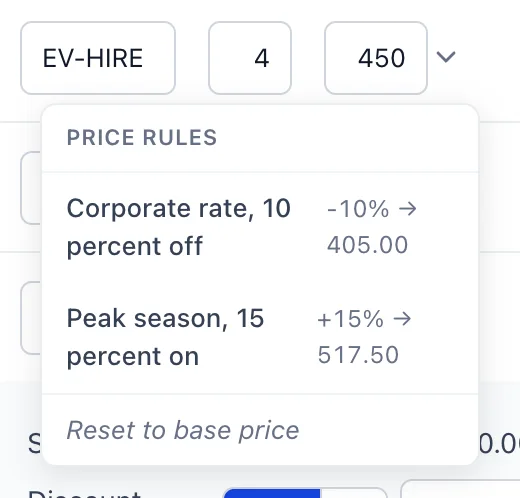
The chevron beside Price opens any price rules that apply to this item, each showing what the new rate would be before you commit to it. A rule is a saved adjustment with a name, which is the whole advantage over typing 405 into the box: the next person to read the invoice can see that a corporate discount was applied rather than wondering why one line is priced oddly.
Reset to base price at the foot of the menu puts the catalogue rate back.
Discount, tax and the total
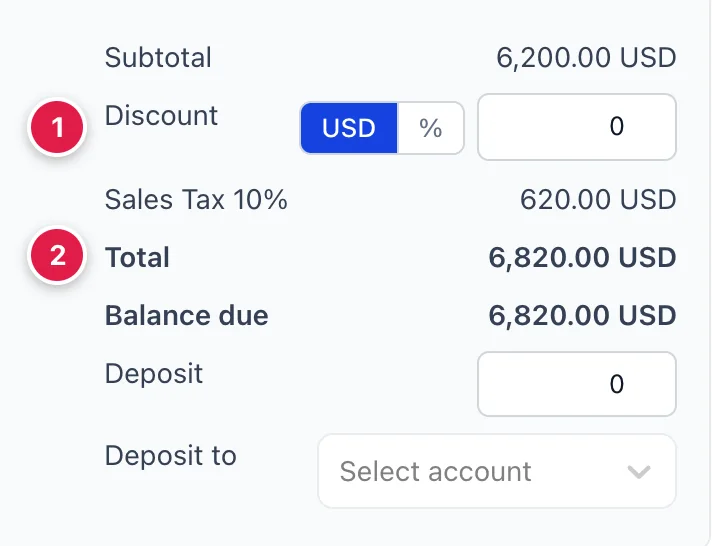
The totals block runs in the order the arithmetic happens, and it is worth reading downwards once:
- Subtotal is the lines added up.
- Discount takes either an amount or a percentage, chosen with the two small buttons. It comes off the whole document rather than a line, so a discount on one item is better done by changing that line's price.
- Sales Tax is named with its own rate, and it is worked out on the taxable lines after the discount. A document never chooses its own rate: it takes whichever of the property's rates is marked as the default, set in Tax rates.
- Total is the subtotal less the discount plus the tax. 6,200.00 and 620.00 make 6,820.00.
- Deposit is money already taken against this invoice. Enter it here and the balance due drops by that much, which is how a part-prepaid booking gets one invoice rather than two.
Balance due is the total less the deposit, and it is the same figure as the one in the top right corner. On a document nobody owes anything on, the row is not shown at all.
Pulling in what is already waiting
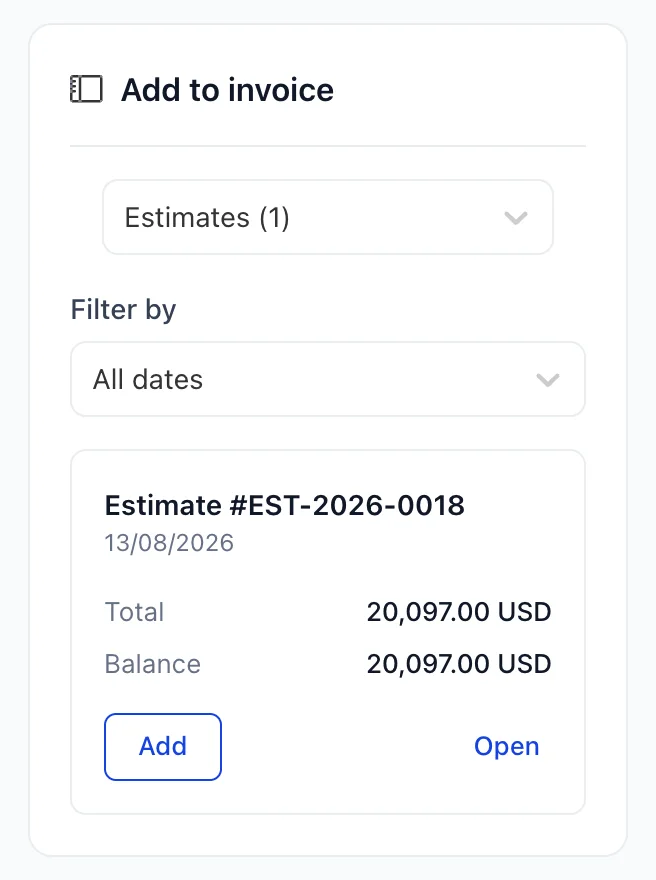
The panel down the right of an invoice is the reason for raising most of the other eight documents. Pick the customer and it offers everything of theirs that is waiting to be billed, with a count beside each kind: estimates they accepted, delayed charges nobody has invoiced yet, credits they are holding, expenses you agreed to pass on, hours recorded against them.
Add turns the document into lines on this invoice. Open shows you it first. This is the payoff for having raised an estimate properly two weeks ago: the invoice is one click rather than a retyping exercise.
Messages and attachments
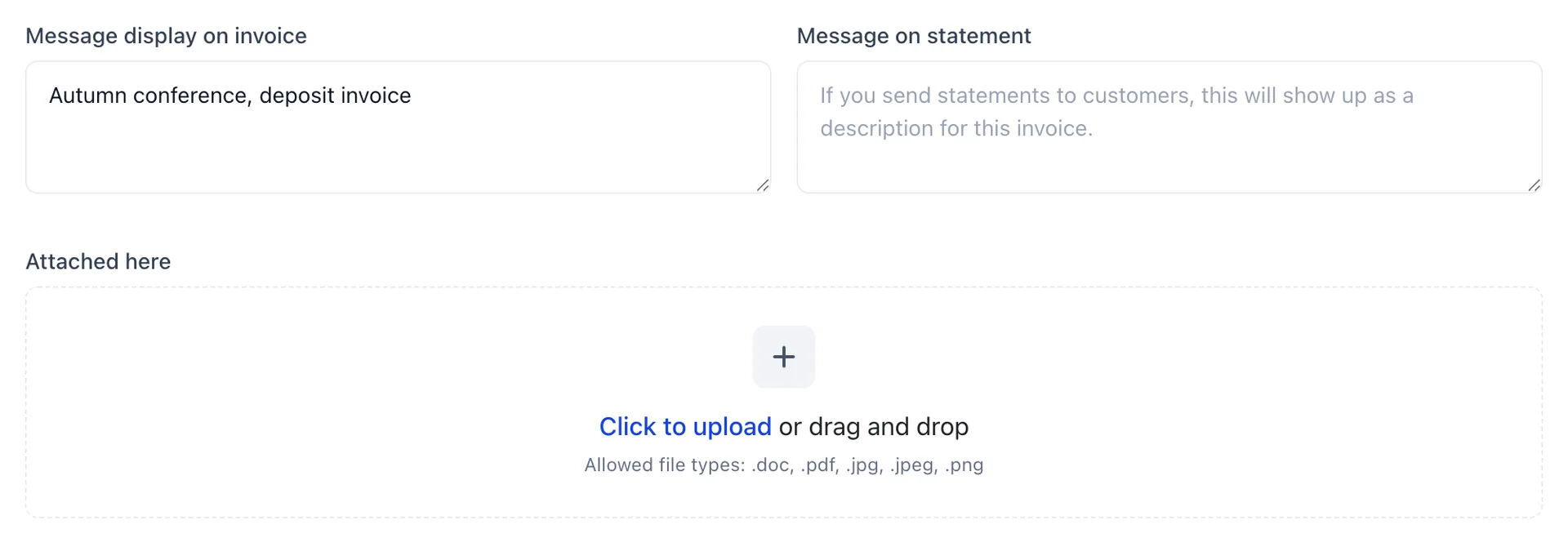
Two message boxes, and they go to different places. Message display on invoice is printed on the document the customer reads. Message on statement is the one line that describes this document when it appears on a statement weeks later, which is where "Autumn conference, deposit invoice" earns its keep: a statement of eleven rows all reading "Invoice" helps nobody.
Attachments ride along with the document. A signed function sheet attached to the invoice it relates to is the cheapest possible answer to a query in November.
Save, Save and Send, and preview

Save keeps the document without telling anybody. Save and Send keeps it and emails it to the address in the header. The chevron beside it offers to save and share a link, or to save and close.
The eye icon on the left is preview, and it is worth one click the first time you send anything to a customer. It shows the same page they will open, so a message that reads oddly or a description that says nothing is caught before it leaves rather than afterwards.
What the customer receives
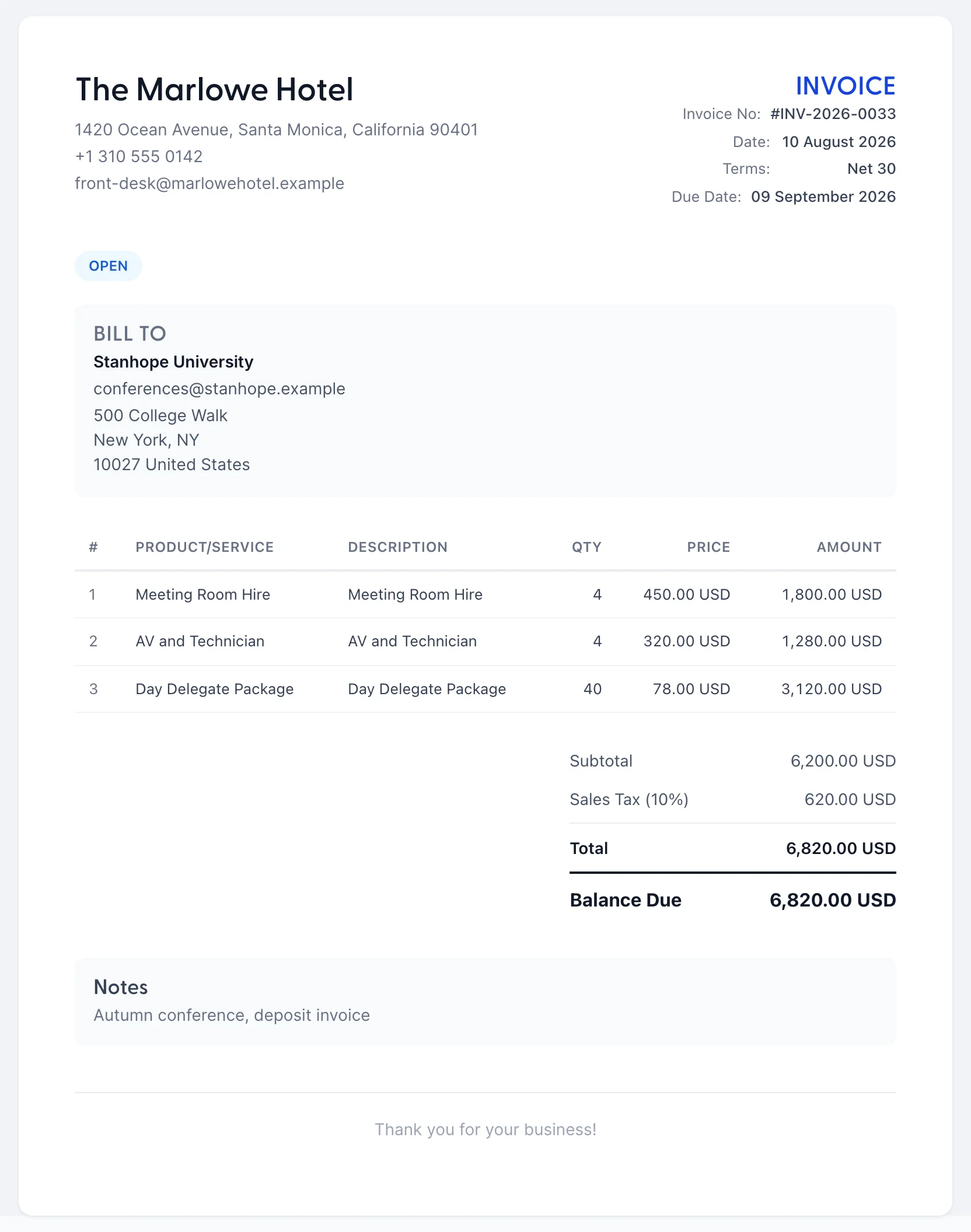
The email carries a link, and this is the page behind it. It is your hotel's details, their details, the lines with their descriptions and prices, the tax named with its rate, and what is still owed. Nothing about your accounts is on it: not the income accounts the lines post to, not your other customers, not what any of it cost you.
The two things worth checking here are the descriptions and the message, because they are the two the customer will read closely and the two you can improve. Everything else came from the catalogue and the customer record. In this example the descriptions are still the catalogue names, which is exactly the invoice that generates a query.
Changing it afterwards
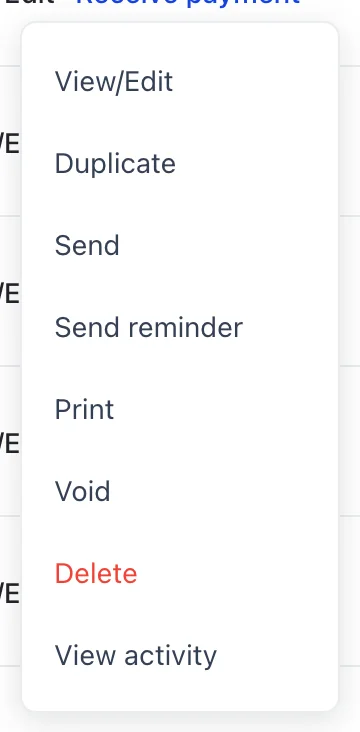
A saved document is edited from the list it appears in. The menu at the end of its row holds everything: reopen it, duplicate it as the basis of the next one, send it again, send a reminder, print it, or look at its history with View activity.
The two are held separately by permission, so a menu can offer one and not the other. If Void or Delete is missing from yours, your role does not include the permission for it, and an administrator can add it from Users in System Settings, under Accounting › Invoices.
Where to go next
That is the form. The harder question is which of the nine to open, and the answer changes what reaches your accounts and when, so it is worth reading before you raise anything unusual.