Accounting keeps its own list of the people who work for you. It is not the list of people who can sign in, and it is not a payroll system. It exists for two narrow purposes: somewhere to hold an employment record, and somewhere to record the hours a member of staff spent on work a customer is going to be charged for.
Employees are not users
This is the thing to settle first, because the two lists look similar and overlap in real life. A user is a login: an email address, a role, and a set of permissions in Prostay. An employee is a personnel record: a hire date, a department, a government ID, an emergency contact.
Most of your room attendants will never be users. Your general manager will be both, and will appear twice, once in each list, with no connection between the two entries. Adding somebody here gives them no access to anything, and removing them takes none away.
Reading the list
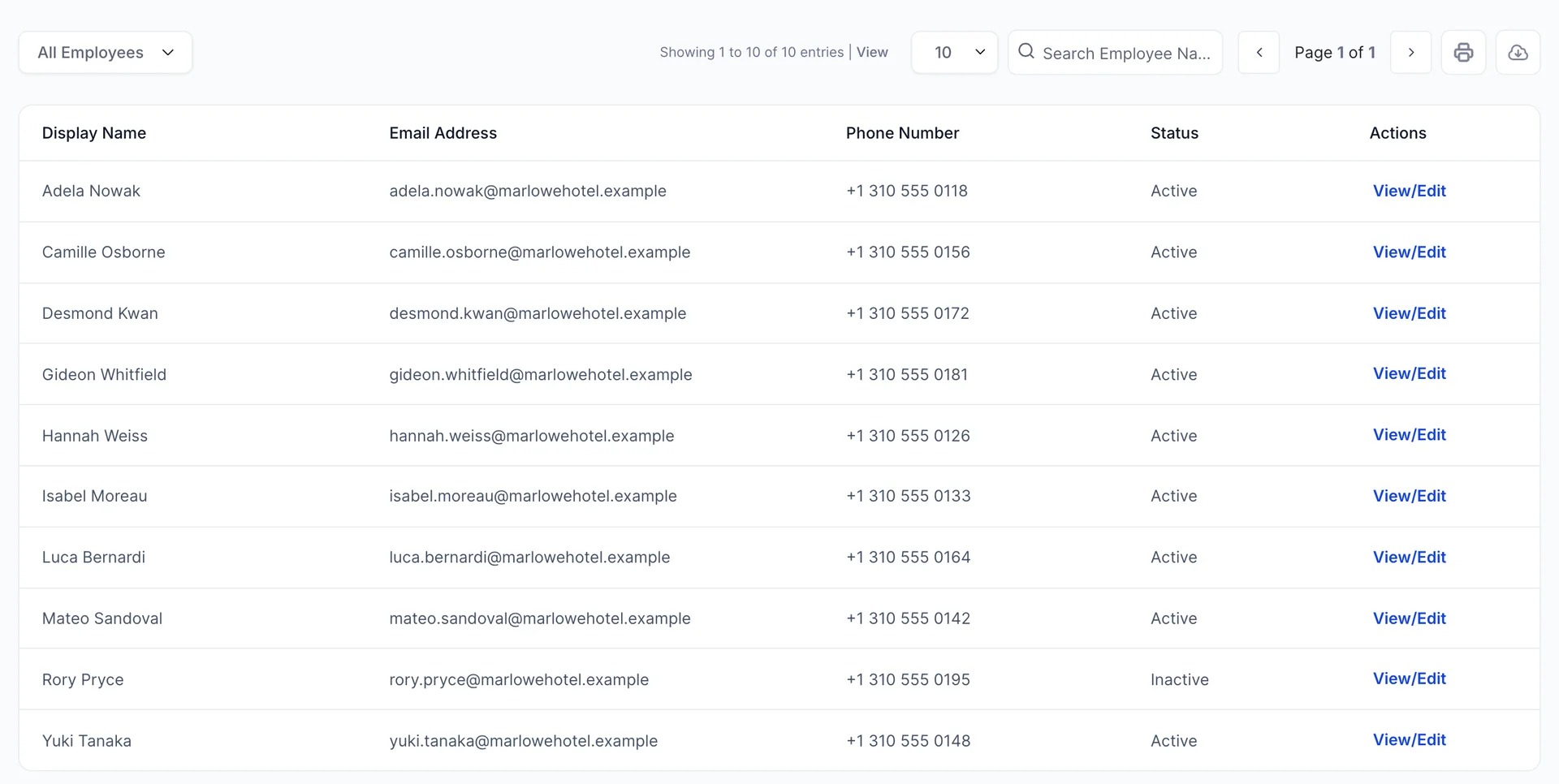
Five columns, and only one of them needs explaining. Status is either Active or Inactive, and it decides whether somebody can be given new work: only active employees are offered on the time activity form. Everything else on the row is contact detail.
The dropdown at the top left switches between All Employees, Active Employees and Inactive Employees. Search Employee Name beside it matches names, and the page size next to it takes 2, 10, 50 or 100 rows at a time.
View/Edit at the end of each row opens a small menu: View employee for the full record, Edit employee for the panel, and Delete employee. The two icon buttons above the table print the list and export it as a PDF or a spreadsheet.
Adding somebody
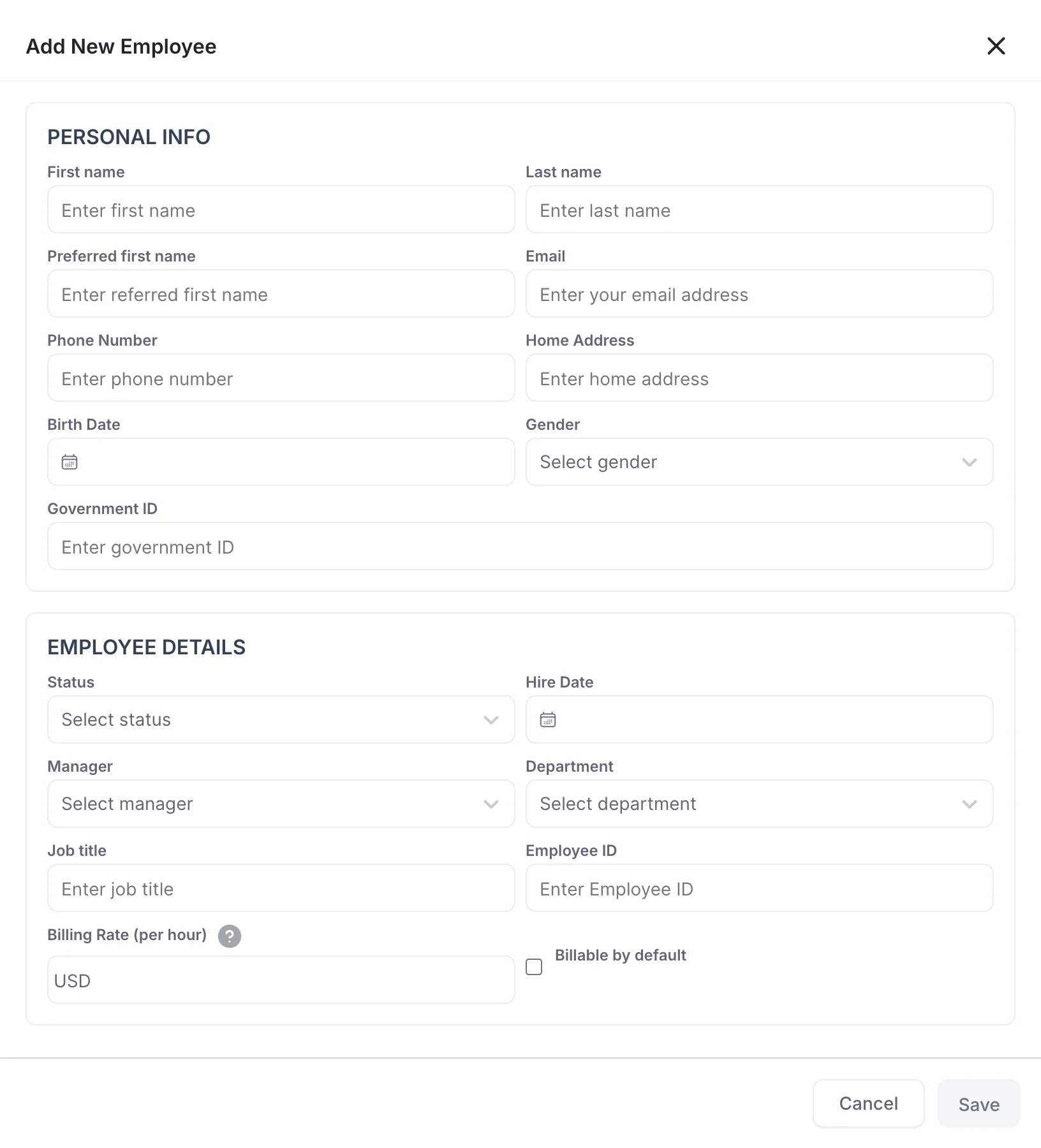
Add an employee opens a panel with three sections. Personal information, employment details, and an emergency contact below the fold. Save stays grey until the record is complete enough to be useful: both names, email, phone, home address, birth date, gender, government ID, status, hire date, department, job title and employee ID.
Employee ID is yours to decide. It is the reference your own paperwork uses, and the product neither generates it nor checks it, so whatever scheme your files already use is the right one to type here.
Manager, billing rate and the emergency contact are all optional. So is Preferred first name, which is worth filling in anyway when somebody goes by a different name from the one on their documents, because it is the only place that difference gets recorded.
Departments and managers
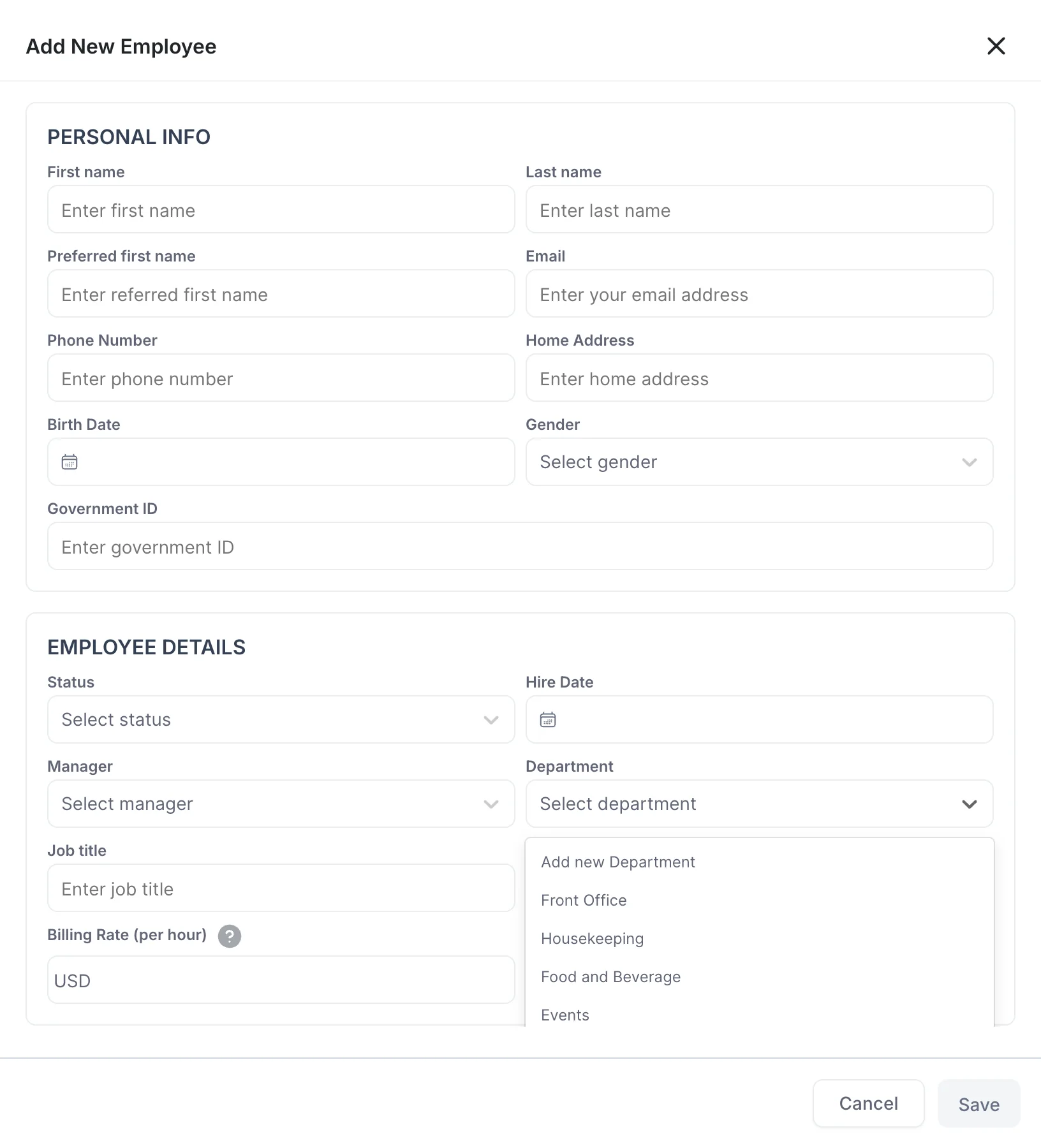
Department reads from a list the property keeps, and Add new Department at the top of the dropdown adds to that list rather than to this one employee. It is the same list every time afterwards, so it pays to agree on the names once. Front Office and Reception as separate entries is the sort of thing nobody notices until somebody sorts by department.
Manager lists your Prostay users, because the person somebody reports to is usually somebody who signs in. It is a label on the record and nothing else reads it: setting it grants no approval rights and sends nobody a notification.
The billing rate
Billing Rate (per hour) is what a customer is charged for an hour of this person's time. Not their wage. An AV technician on 85.00 USD an hour here might cost you a third of that; the difference is the point of charging for the work.
Billable by default ticks the billable box automatically whenever this person is picked on a time activity. Tick it for the people whose work is normally chargeable, such as event and AV staff, and leave it clear for everybody whose hours are an internal cost.
One person's record
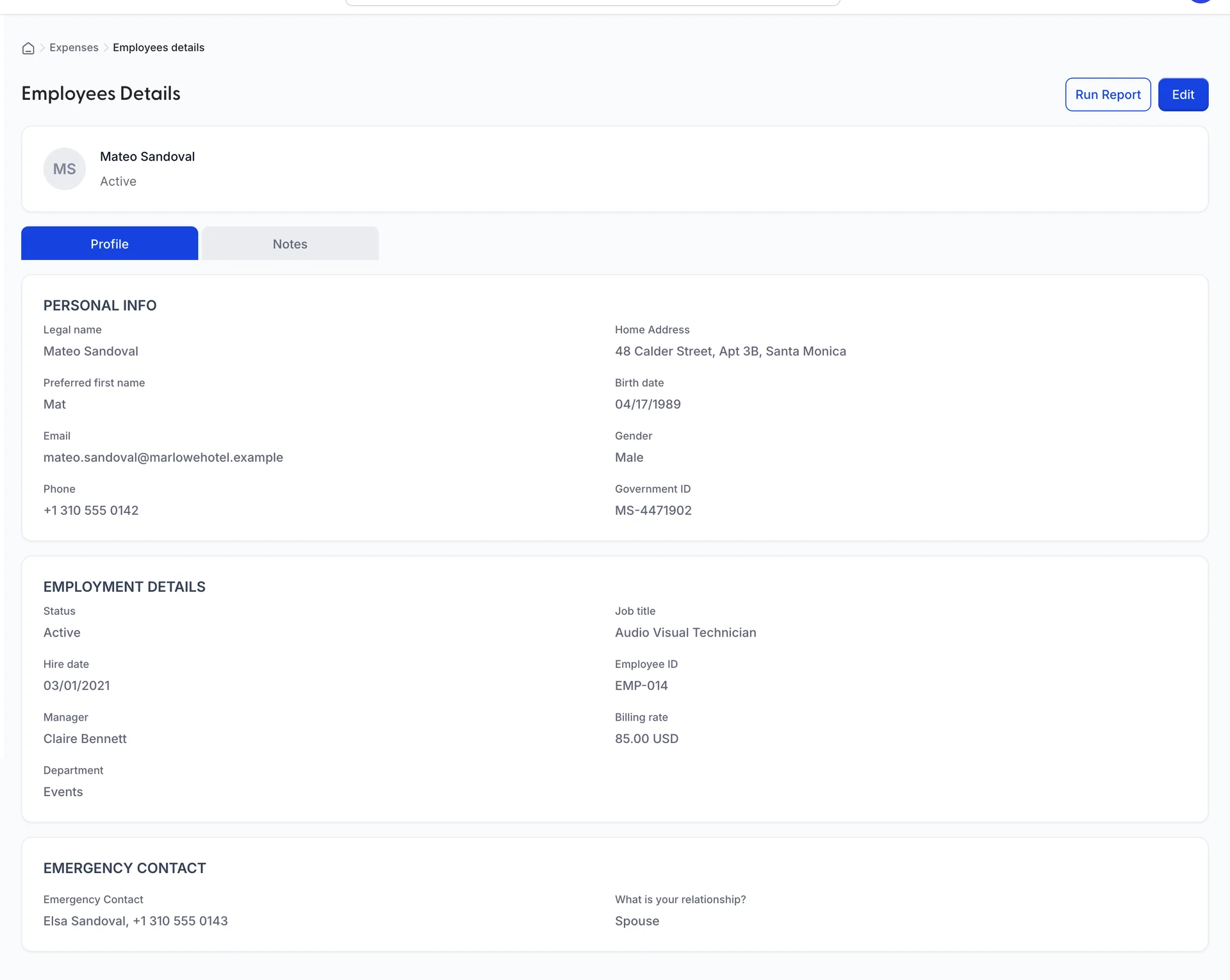
View employee opens the whole record on one screen, split into a Profile tab and a Notes tab. Profile is everything the panel collected, laid out to be read rather than edited, and Edit at the top right reopens the panel over it.
Notes and comments
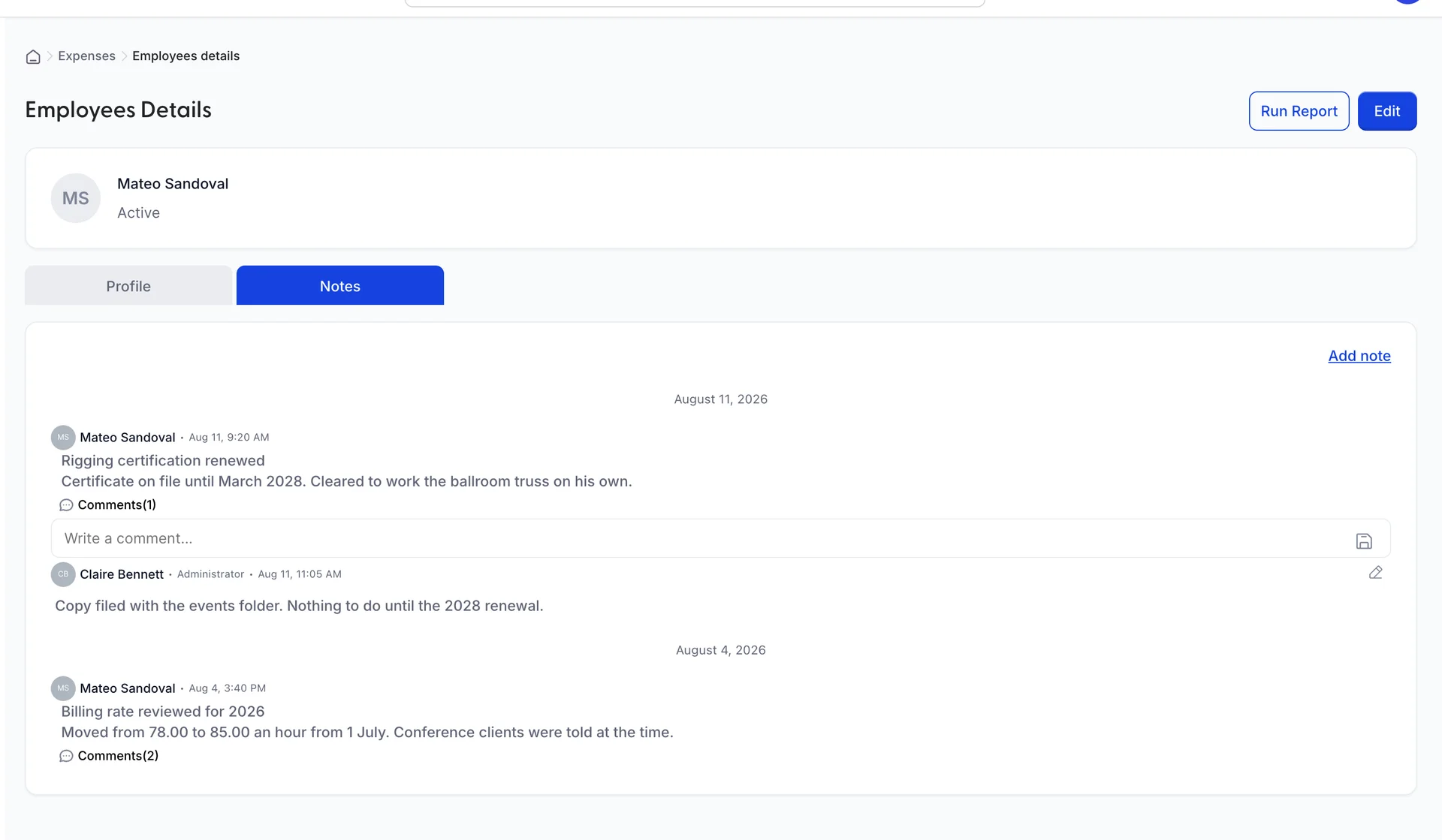
A note is a title and a body, and it is the right place for the things an employment record accumulates: a certificate that expires, a rate that changed in July, a conversation about hours. Add note writes one and the notes stack up under the day they were written.
Comments under a note opens a thread on it. Each comment carries the name and role of whoever posted it and how long ago, and you can edit your own afterwards using the pencil beside it. Somebody else's comments you cannot edit, which is what makes the thread worth keeping.
When somebody leaves
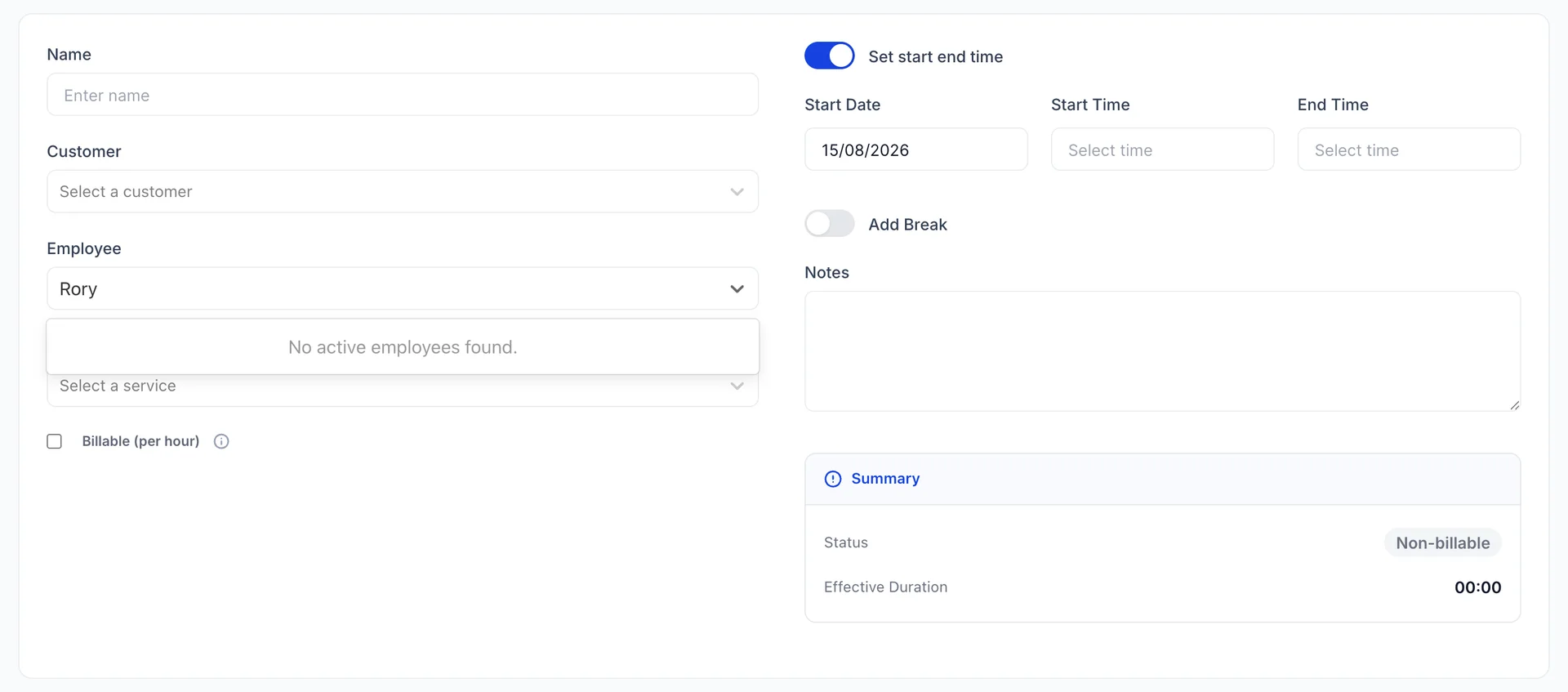
Set their status to Inactive rather than deleting them. An inactive employee drops out of the picker on the time activity form, so no new hours can be recorded against them, while everything they already worked stays on the invoices it was billed on.
Delete employee removes the record outright, which is worth doing only for a row created by mistake. Deleting somebody who has worked billable hours takes the person off the list while their time stays on your customers' invoices, and the next person to ask who did that work will not be able to find out.
Time activities
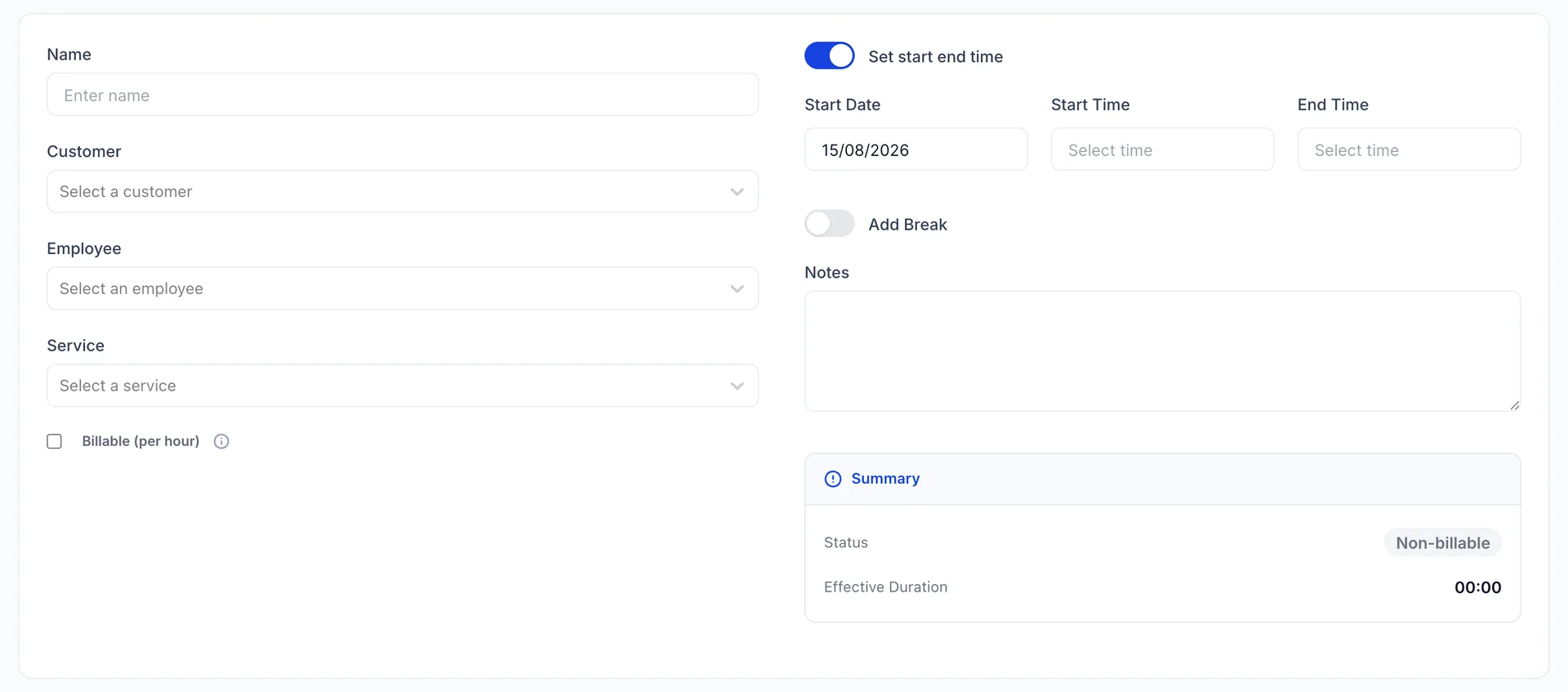
A time activity is one person's work on one day, recorded so it can be charged for. It is reached from New in the top bar, under Create time activity, and the screen it opens is called Single day entry.
It is the right tool for work you sell by the hour rather than by the item: an AV technician on a conference, a chef running a private dinner, a therapist on a group takeover. Work you sell as a package belongs on an invoice line against a service from your catalogue instead, with no time recorded at all.
Recording a day
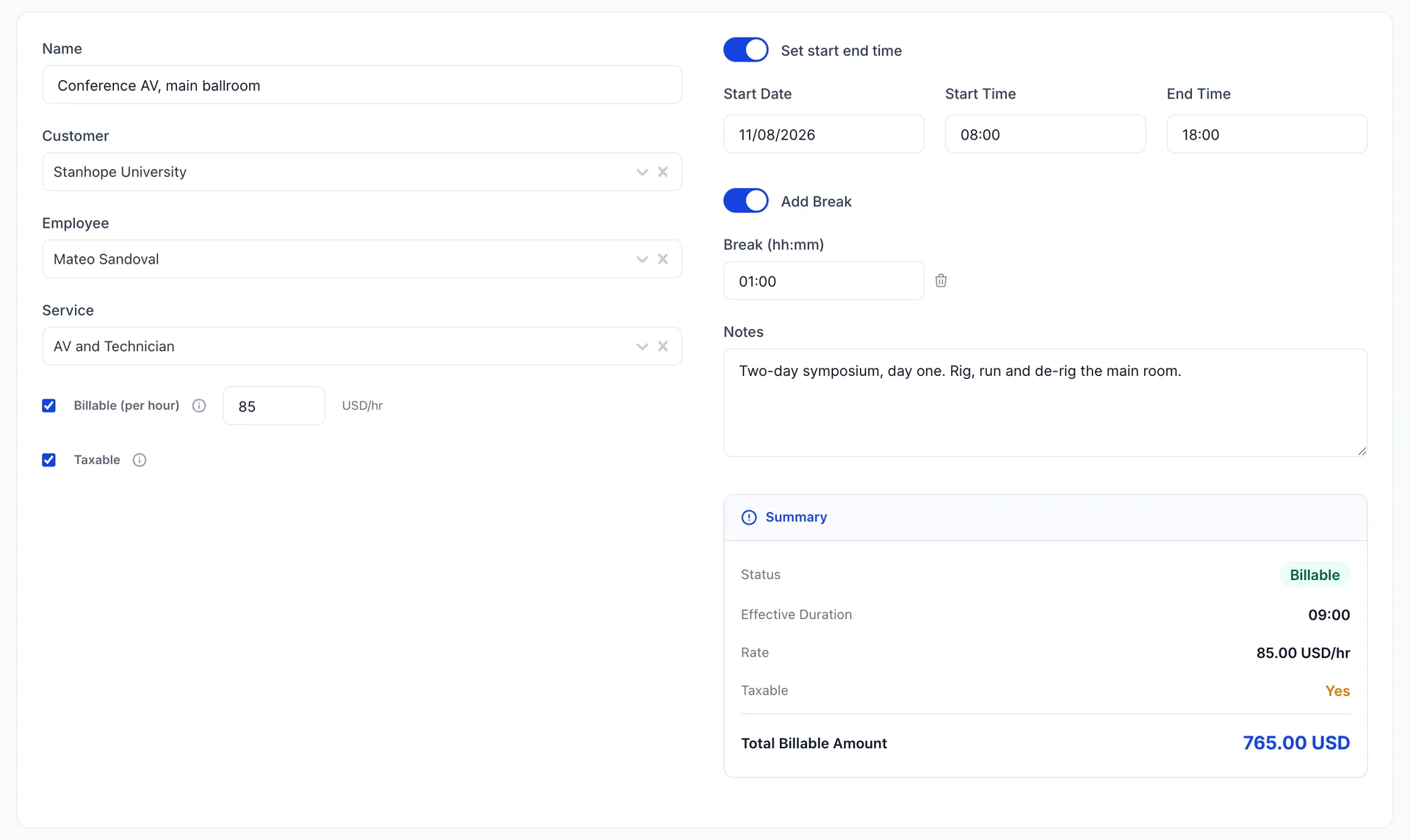
Five things make an activity worth having. A Name that says what the work was, because it is what appears on the invoice line. A Customer to charge. An Employee who did it. A Service from your catalogue, which is what tells the accounts where the income belongs. And the time itself.
With Set start end time on, you give a start and an end. Add Break adds a field for unpaid time in the middle, in hours and minutes, and the summary takes it off before working anything out. Ten hours on site less an hour for lunch is nine hours at 85.00 USD, which is the 765.00 USD in the picture.
Taxable decides whether sales tax is added when the activity reaches an invoice. It follows the same rule as any other line: it depends on what is being sold and where, not on who did the work.
When you did not clock it
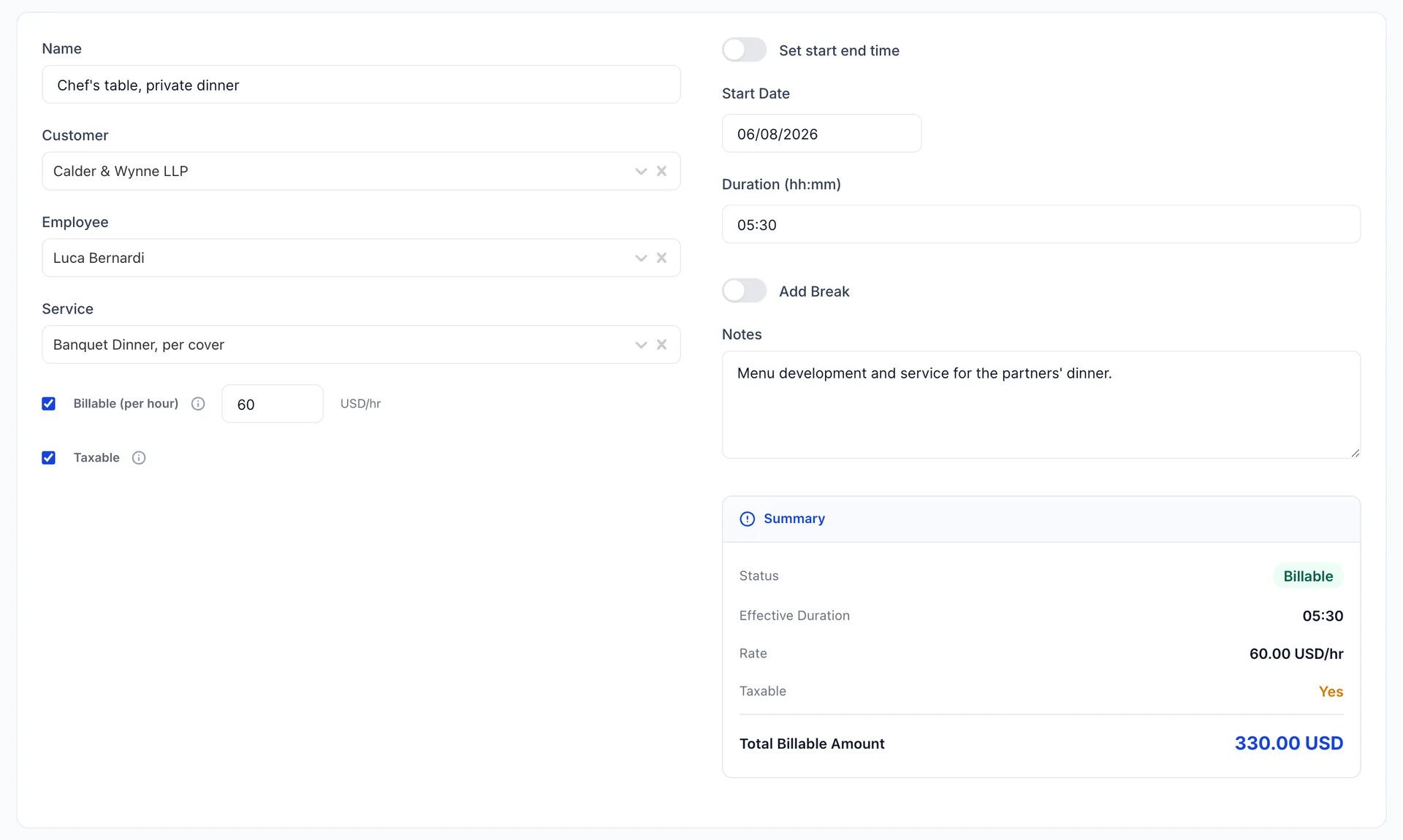
Turn Set start end time off and the two clock fields are replaced by a single Duration in hours and minutes. Use it when you are writing up work after the fact and nobody wrote down when it started, which is most of the time.
Both ways price identically: five and a half hours at 60.00 USD is 330.00 USD whether you typed 05:30 or a start and an end an hour apart from it. The clock version is worth the extra typing only when the times themselves might be questioned.
Getting the time onto an invoice
Saving a billable activity does not charge anybody. It puts the work on the list of things waiting to be billed, and it is raising the invoice that turns it into money. Until then the hours sit against the customer, priced and ready.
An activity that is not billable never becomes anything. That is the point of recording it: four hours of fault finding on the ballroom air handling is worth knowing about even though nobody is paying for it, and leaving Billable (per hour) clear is how you say so.
Where to go next
The catalogue behind the Service dropdown is in products and services, and it is worth a look if the service you want to bill an hour against does not exist yet: only services can be billed by the hour. The customer you are charging comes from customers.
Whether time can be billed at all, and whether the person entering it sees the rate, are two switches on the Time screen in accounting settings.