A rule you create here becomes an entry in a menu beside the price on every sales form, so a rate you agree once is a rate everybody afterwards applies the same way. This screen is the whole list, and it is the only place a rule can be changed or taken out of circulation.
Applying one is the other half, and it is written up in raising a sales document, along with what a rule does and does not leave behind on the document afterwards. This article is everything that happens before that: what a rule keys on, how one is created, and what decides whether it is offered at all.
Getting to the screen
You get here by typing the address. It is your property's name followed by /accounting/price-rules, so if your accounting dashboard is at /marlowe-hotel/accounting, the rules are at /marlowe-hotel/accounting/price-rules. There is no menu entry, no button and nothing on any other screen that will take you there.
That is worth stating rather than leaving you to find out, because the screen gives no sign of being hard to reach once you are on it. It works, it saves, and the invoice form reads what you put in it. Nothing points at it. If you expect to maintain these, bookmark it now.
What a rule is made of
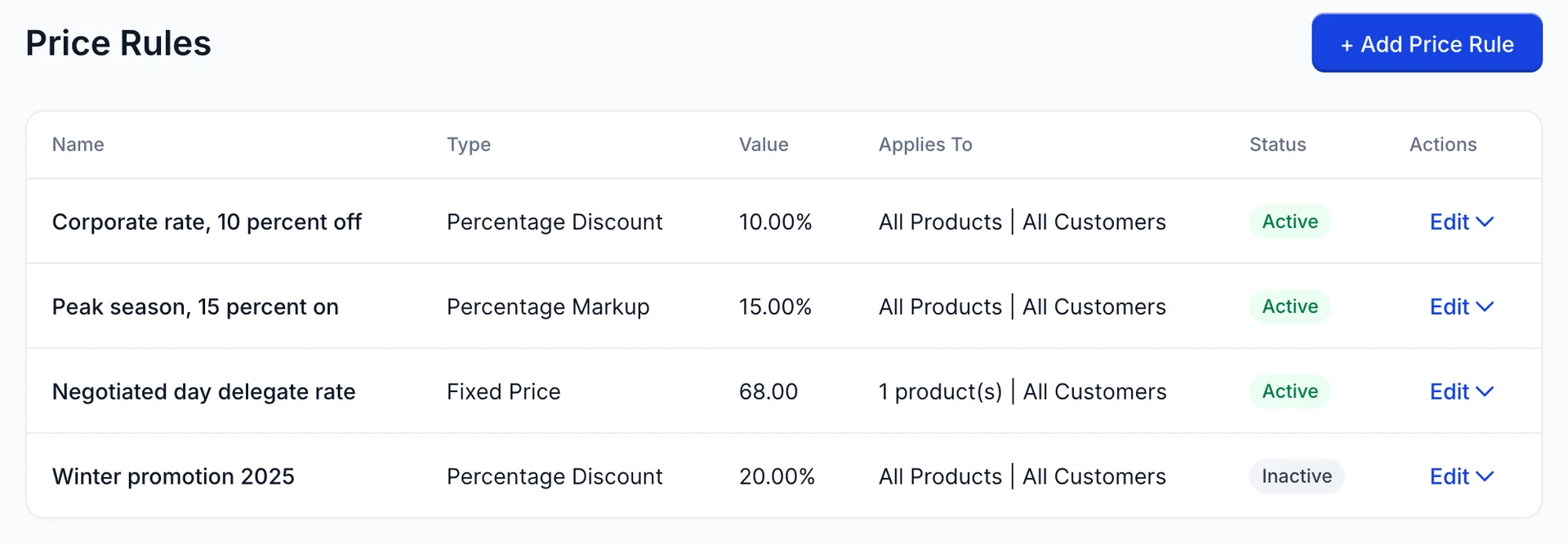
A rule is five things and no more: a name, a type, a value, a scope saying which products and customers it is for, and a switch saying whether it is live. The list shows all five, one rule per row.
| Column | What it tells you |
|---|---|
| Name | The only part of the rule the person raising a document sees. It is what they choose from, so it has to say what the adjustment is for rather than what it does arithmetically. "Corporate rate, 10 percent off" is a good name; "Discount 2" is not. |
| Type | One of three, covered below. It decides whether the value is read as a percentage or as an amount. |
| Value | Shown to two decimal places, with a per cent sign on the two percentage types and without any currency on Fixed Price. A fixed price of 68.00 in the picture is 68.00 in your property's currency. |
| Applies To | The product scope and the customer scope, separated by a bar. It counts rather than names, so a rule narrowed to three catalogue items reads as three products and you have to open it to see which. |
| Status | Active in green or Inactive in grey. Only the active ones are offered on a document. |
Rules belong to one property. If you run several, each has its own list, and a corporate rate agreed across the group has to be created in each of them.
Creating one
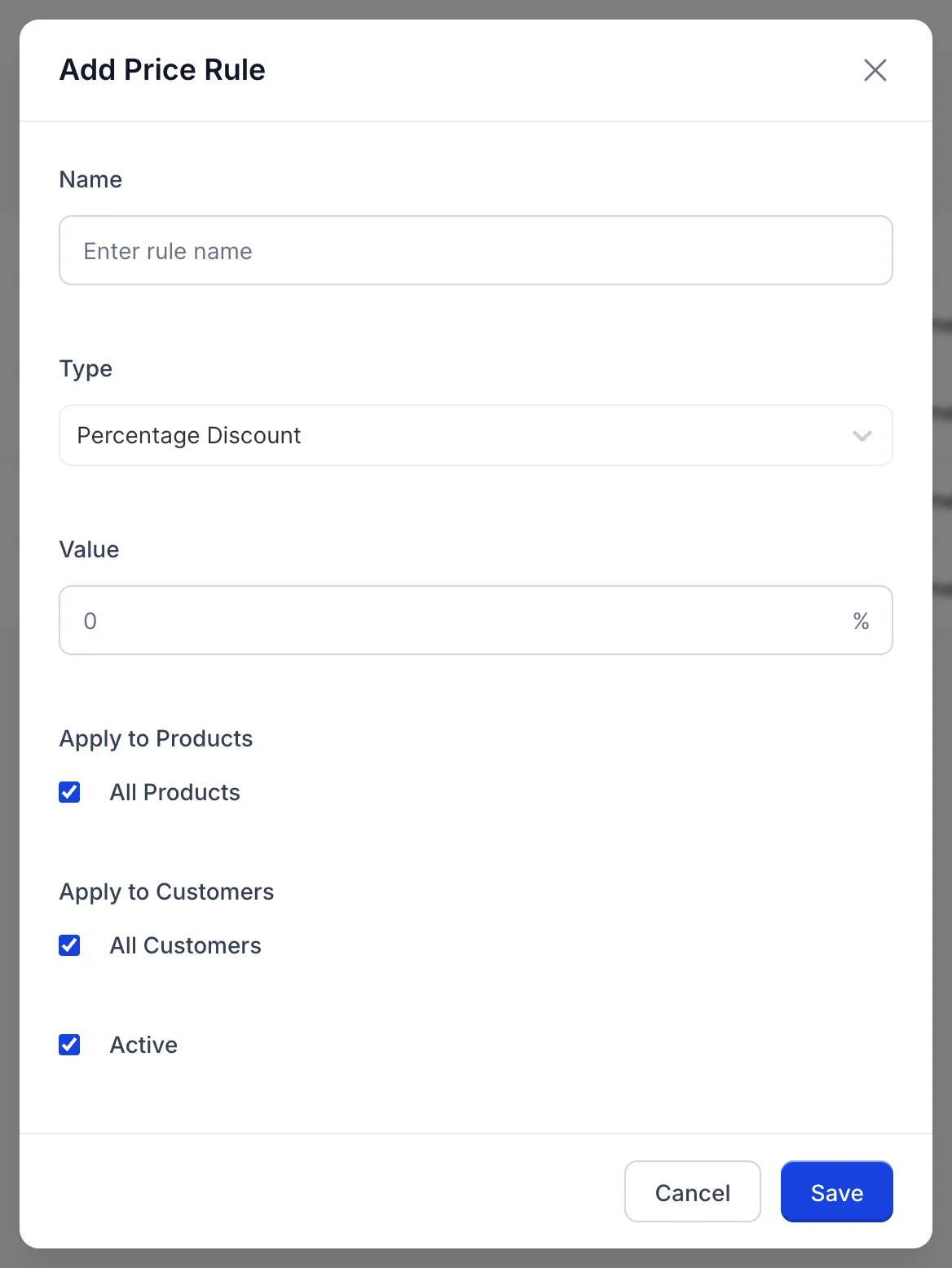
- Click + Add Price Rule.
- Give it a name. This is the one field that has to be filled in, and an empty one stops the save without saying so.
- Choose the Type, which changes the sign at the end of the Value box from a per cent sign to a dollar sign. That sign is fixed and does not follow your property's currency, so read it as "an amount" rather than as dollars.
- Enter the Value.
- Narrow the scope, or leave both boxes ticked to offer the rule everywhere.
- Leave Active ticked and click Save.
The three types
The type decides what happens to the catalogue price when somebody picks the rule on a line.
| Type | What it does to the price |
|---|---|
| Percentage Discount | Takes the value off the catalogue price. 10 against a 450.00 rate offers 405.00. |
| Percentage Markup | Adds it on. 15 against the same 450.00 offers 517.50. |
| Fixed Price | Ignores the catalogue price and offers the value itself, as a rate per unit rather than a line total. This is the one for a negotiated rate: an account that has agreed 68.00 a delegate gets 68.00 whatever the catalogue does afterwards. |
The difference that matters is between the two percentage types and Fixed Price. A percentage follows the catalogue: put the rack rate up and every percentage rule quietly follows it up. A fixed price does not, and that is usually the point of agreeing one, but it also means a rate you negotiated two years ago holds until somebody changes it here.
Choosing what a rule applies to
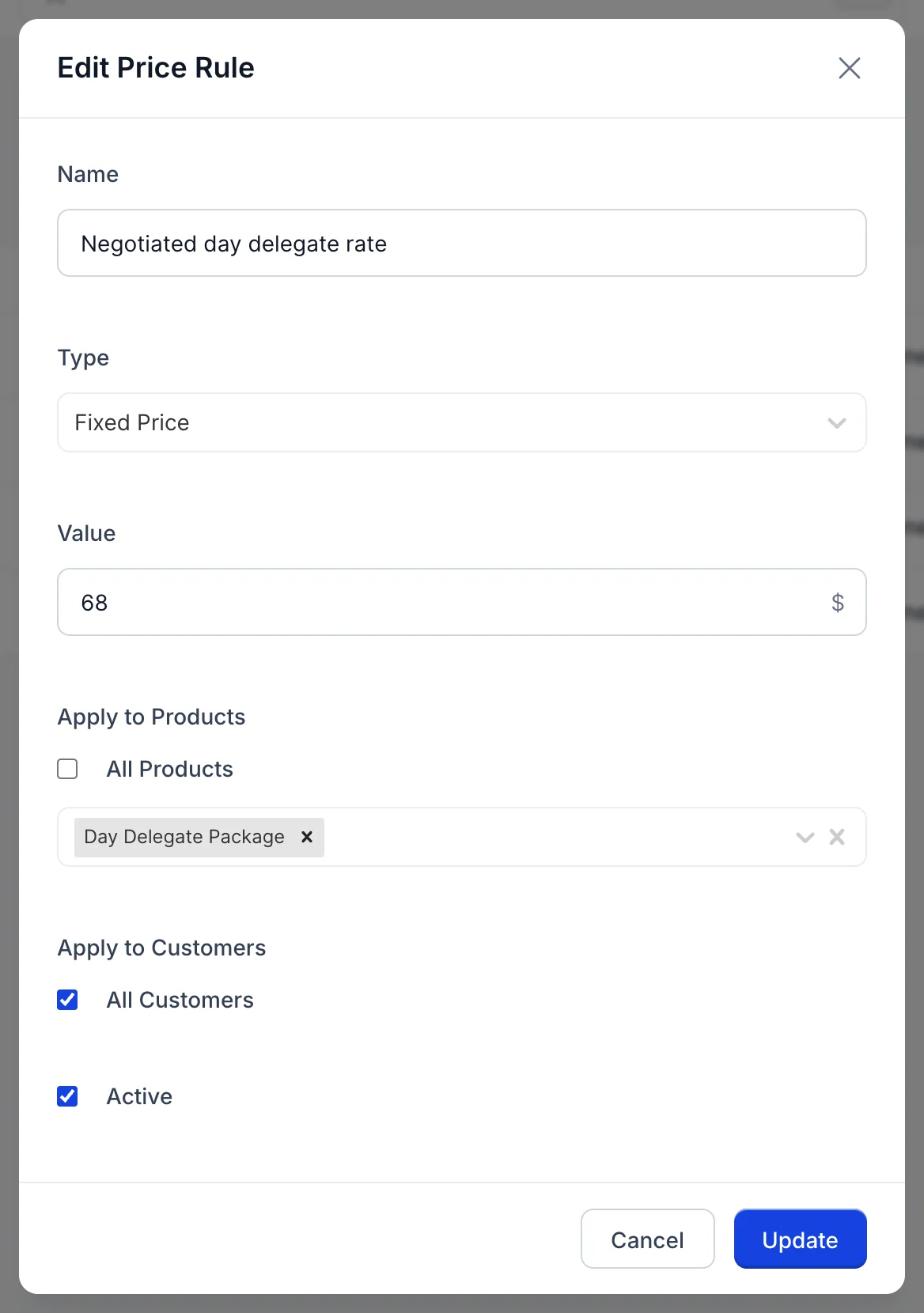
Untick All Products and a picker appears for choosing catalogue items one at a time. A rule scoped this way is offered only on lines holding one of those items, which is what makes a negotiated delegate rate safe to leave switched on: it cannot be applied to a room night by somebody working quickly.
The two scopes are read together, not separately. A rule is offered on a line only when the product matches and the customer matches, so narrowing both makes a rule that appears very rarely.
In practice the product scope is the one to use. The customer picker does not fill with your customers, so there is nothing in it to choose, and by the warning above that makes unticking All Customers a way to break a rule rather than a way to narrow one. Leave it ticked. Where you need a rate that belongs to one account, the honest version today is a clearly named rule the team knows to apply to that account's documents, which is what "Corporate rate" is doing in the picture.
Two rules do not add up
A percentage is always worked out from the catalogue price, never from the number currently in the box. Applying a second rule to a line therefore replaces the first rather than compounding with it: a 10 per cent discount followed by a 15 per cent markup on a 450.00 item leaves 517.50, not 465.75.
This is the behaviour you want, and it is worth knowing because it is not what "apply" suggests. It also means there is no way to combine two rules on one line. If you need a discount and a seasonal uplift together, that is one rule with the combined figure in it, not two.
Nothing here has a date
A rule has no start and no end. It is live from the moment you save it until somebody unticks Active, and no season, quarter or contract end will do that for you.
Editing, switching off and deleting
Edit at the end of a row opens the same dialog with the rule's values in it, and the blue button reads Update instead of Save. What that changes is which rules are offered from now on. Documents you have already raised are not affected, and raising a sales document explains why.
Unticking Active takes a rule off the menu on every sales form while leaving it here, which is what you want for anything seasonal or for a rate you may go back to. It is also the reversible version of deleting.
Who can change these
Three permissions cover this screen, and they behave differently from one another:
- accounting.price-rules.edit is the one that matters. Without it the Edit item is greyed out and does nothing, and the Save button in the dialog is disabled, so a rule can be read but not created or changed.
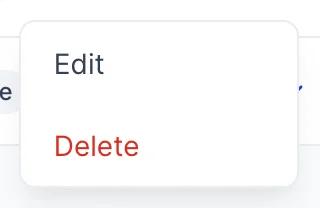
- accounting.price-rules.delete is held separately, and without it Delete is not drawn in the row menu at all. A colleague's menu offering one item where yours offers two is this, not a fault.
- accounting.price-rules.view exists in your roles screen and does not currently gate anything. Taking it away does not hide the screen or the rules on it.
All three are set per role under Users in System Settings. Because the screen has no menu entry, granting them does not put anything in anybody's navigation, so a colleague who needs to maintain rules needs the address as well as the permission.
Where to go next
Both percentage types are worked out from the catalogue price, so the products and services catalogue is the thing to get right first: a rule can only ever be as correct as the rate it adjusts.
After that, the half of this feature your colleagues touch is the menu on the invoice line, in raising a sales document.