An invoice says money is owed. This article is about the money arriving, which is a separate document, and about the two things that go wrong most often: a payment that does not know which invoice it belongs to, and a credit nobody ever used.
What a payment is, and is not
Receiving a payment does two things at once. It records money arriving in one of your accounts, and it reduces what a customer owes by saying which invoices it covers. The second half is the one worth caring about: a payment recorded against the customer but not matched to any invoice leaves them owing money they have already paid, and leaves you chasing them for it.
The form
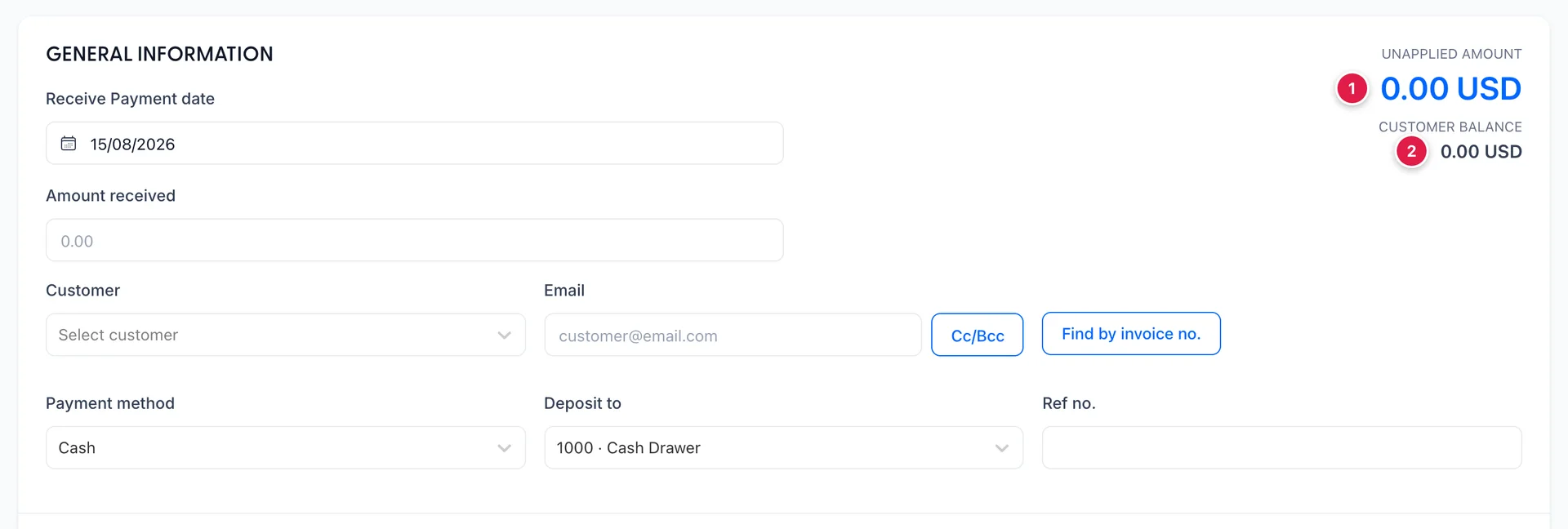
Five fields decide everything:
- Customer decides which invoices you will be offered.
- Amount Received is what actually arrived. Type what the bank says, not what the invoice says.
- Payment method is cash, card, transfer or cheque, and it is what you will filter on when somebody asks about card takings.
- Deposit to names the account the money landed in. This is the field that makes your bank account reconcile later, and the one people leave on its default.
- Reference no. is the transfer or cheque reference, and it is what turns "a payment for 6,820" into "this payment, this line on the bank statement".
The two figures in the top right are worth reading before you start. UNAPPLIED AMOUNT is the part of this payment you have not yet put against anything, so it should be 0.00 by the time you save. CUSTOMER BALANCE is everything that customer owes, across all their invoices.
Outstanding transactions
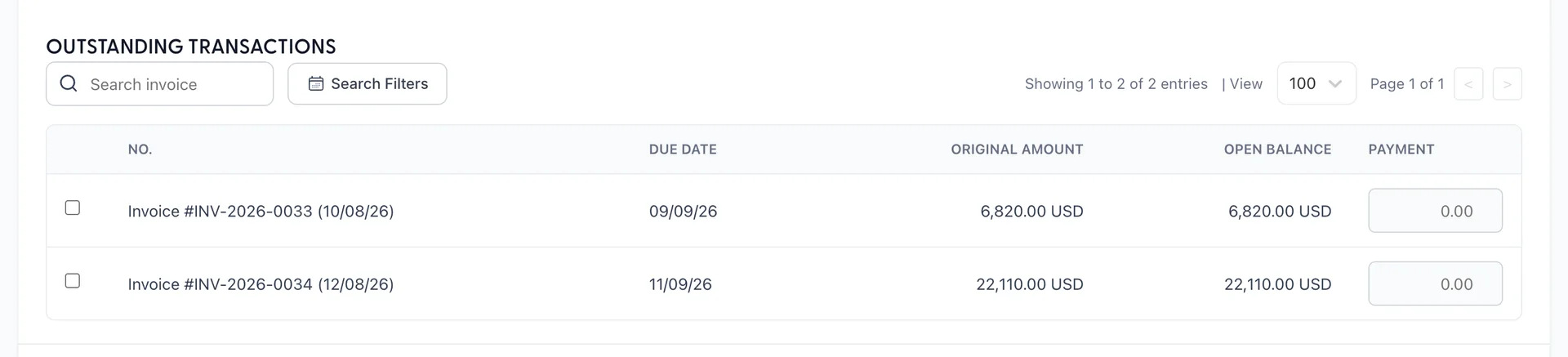
Pick the customer and every invoice of theirs with anything still owed on it appears here, with its date, its due date, what it was for and what is still open. Original amount and Open balance differ whenever an invoice has been part paid before.
Ticking a row fills its Payment box with the whole open balance, which is the common case: one transfer settling one invoice. Where a payment covers several invoices, tick each one, and where it covers part of one, type the amount over what the tick put there.
Part payments and overpayments
A part payment is ordinary: type the amount in the Payment box against the invoice it belongs to. The invoice goes to Partially paid and keeps a balance, so it stays in your receivables and stays chaseable, which is what you want. It also stays in this list next time, showing a smaller open balance.
An overpayment leaves an unapplied amount once every invoice is settled. That sits on the customer's account as money you owe them, and the next invoice you raise for them can use it. Nothing about that is automatic, so if the overpayment is a mistake it is better handled now, with a refund receipt, than left to be discovered in December.
Applying a credit
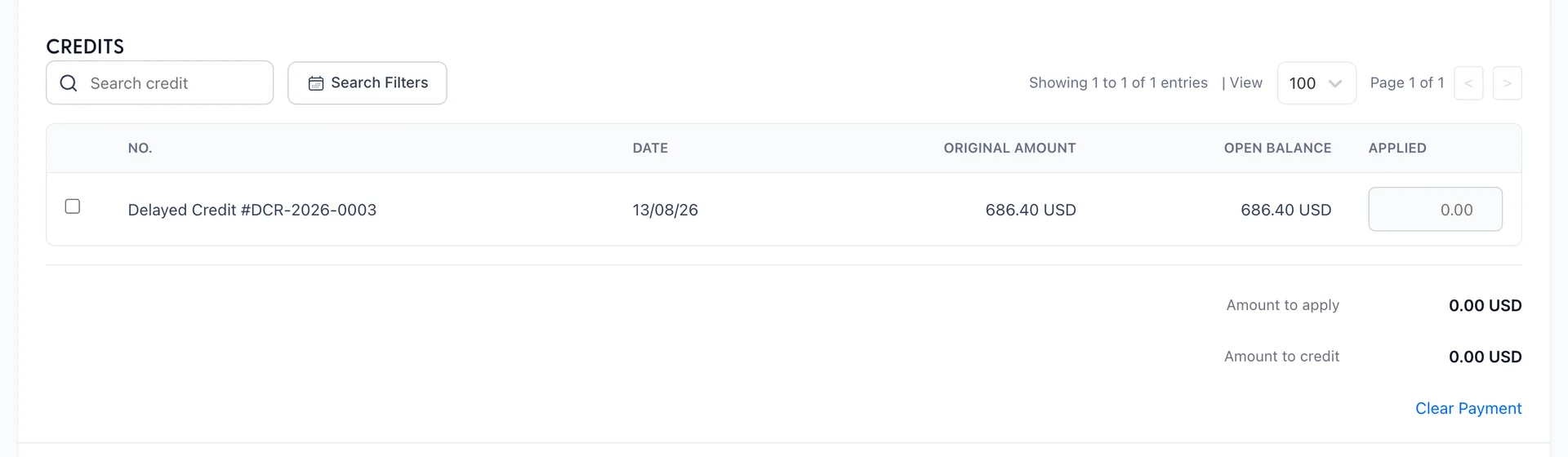
Under the invoices sits everything the customer holds in their favour: credit notes not yet used up, delayed credits, and any overpayment from before. Type an amount in Applied and it counts towards settling the invoices you have ticked, so a 6,820.00 USD invoice with a 686.40 USD credit against it needs 6,133.60 USD of actual money.
The two figures under the table are the arithmetic of the whole screen: Amount to apply is money plus credits, and Amount to credit is what is left over.
The customer balance
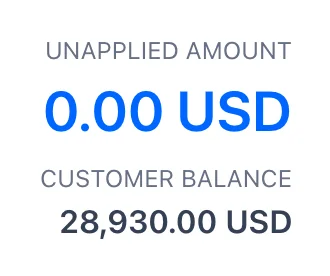
The balance is the sum of that customer's open invoices, nothing else. In the picture, Stanhope University's two open invoices come to 28,930.00 USD. Save a payment of 6,820.00 USD against one of them and the balance becomes 22,110.00 USD, the total of your receivables drops by the same amount, and both changes are the same event seen from two ends.
That is why the balance is a useful sanity check. If it does not move by what you just received, the payment went somewhere you did not intend.
What the payment becomes

A saved payment is a numbered document like any other, and it appears in All Sales with a type of Receive Payment. Its status is Closed once all of it has been applied. Filtering the list by that type gives you every payment you have taken, which is the quickest answer to "when did they pay that".
To correct a payment, open it from the list and change it. Untick an invoice and its balance goes back up; that invoice returns to being owed, in your receivables, and in this list next time.
Statements
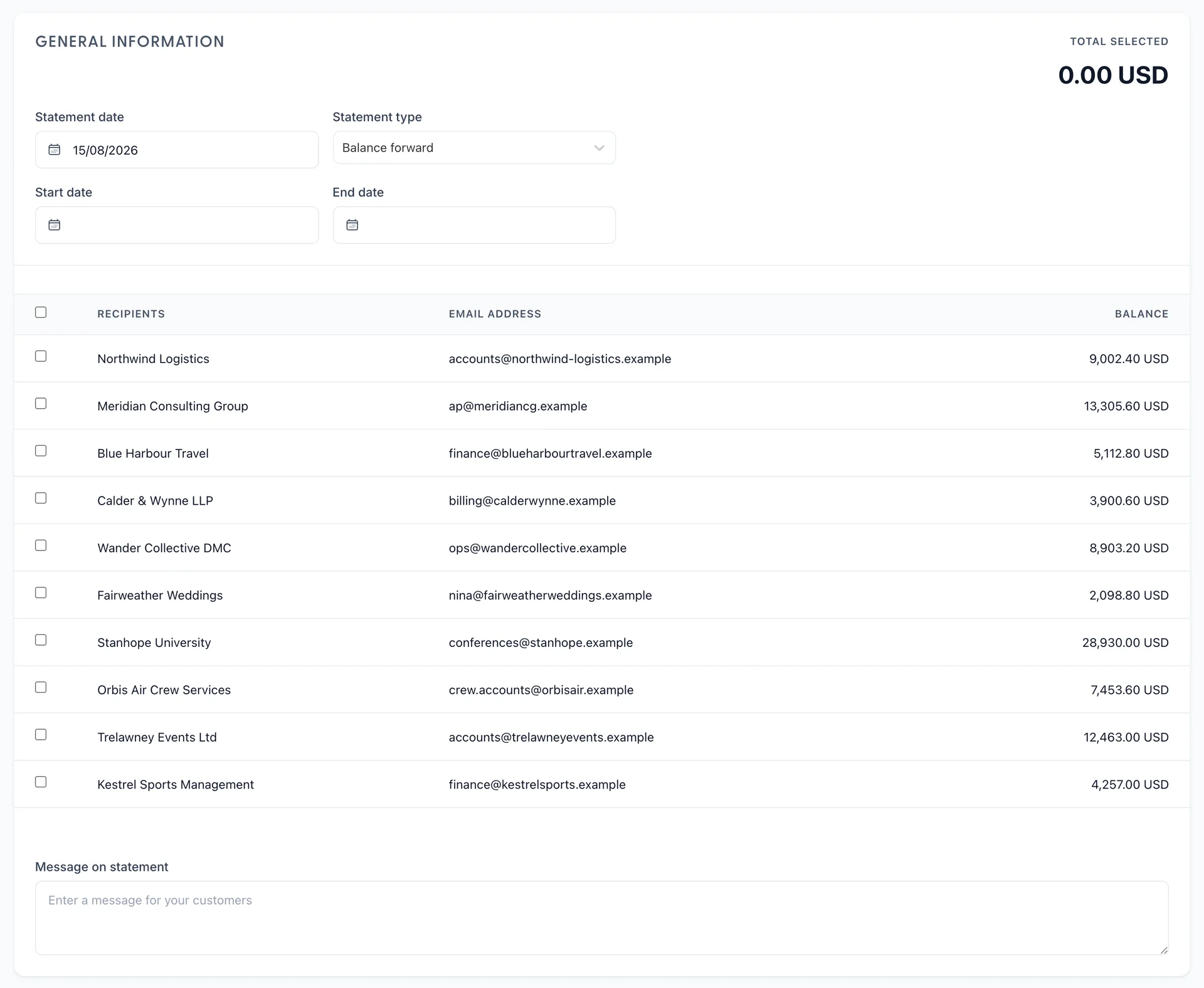
A statement summarises what a customer's account looks like and sends it to them. It creates no transaction and posts nothing: everything on it already exists, which is why you can send one to eleven customers at once without a moment's anxiety.
The form lists every customer with a balance and their email address, and you tick the ones to send to. Two things to choose:
- Statement type. Balance forward shows what was owed at the start of the period, what has happened since, and what is owed now. Open item lists only the invoices that are still open. Balance forward is the better reminder for an account that pays monthly; open item is the better answer to "which of these have we not paid?".
- Start date and End date set the period a balance forward statement covers.
The Message on statement box at the foot goes to everybody you have ticked, so it wants to be the sort of thing you would say to all of them. The per-document line that appears beside each transaction comes from the Message on statement field on that document, back when you raised it, which is the reason to fill that in.
Chasing, in order
When an account has gone quiet, the module gives you four steps and they are worth taking in this order:
- Look at the invoice. In All Sales, an overdue invoice says how overdue it is. Thirty days and no contact is a different conversation from three days.
- Send a reminder. Send reminder in the row menu emails the invoice again. Most silence is an invoice that never reached the person who pays it.
- Send a statement. Once there are several invoices, a statement is more use than another copy of one of them, because it shows the shape of the account.
- Check your own end. Before escalating, look for an unapplied payment or an unused credit on the account. It is not rare, and it is a bad thing to discover after a phone call.
Where to go next
All of these documents, the invoices and the payments and the statements, live in one list with one set of filters, and finding things in it is the last article in this group.