Everything in this article is a default. None of it moves money, and none of it changes a document you have already raised. What it decides is what the next invoice, bill or purchase order arrives on your screen already filled in with, and what a customer reads in the email that carries it.
That makes these screens worth an hour once, early, and almost no attention afterwards.
Six screens, set once
Five of them are under Account & Settings at the bottom of the accounting menu: Company, Sale, Expense, Time and Advance. Taxes sits above it as a menu item of its own, because it is a short wizard rather than a form.
Each of the five saves with a Save Changes button at the top right, and each saves the whole screen at once. There is no per-section save, so a change you make and then think better of is undone by leaving the screen rather than by pressing anything.
If Save Changes is not on your screen, your role does not include the permission for it, and you are reading the settings rather than changing them. An administrator can add it from Users in System Settings, under Accounting › Account & company settings.
Company: who the invoice comes from
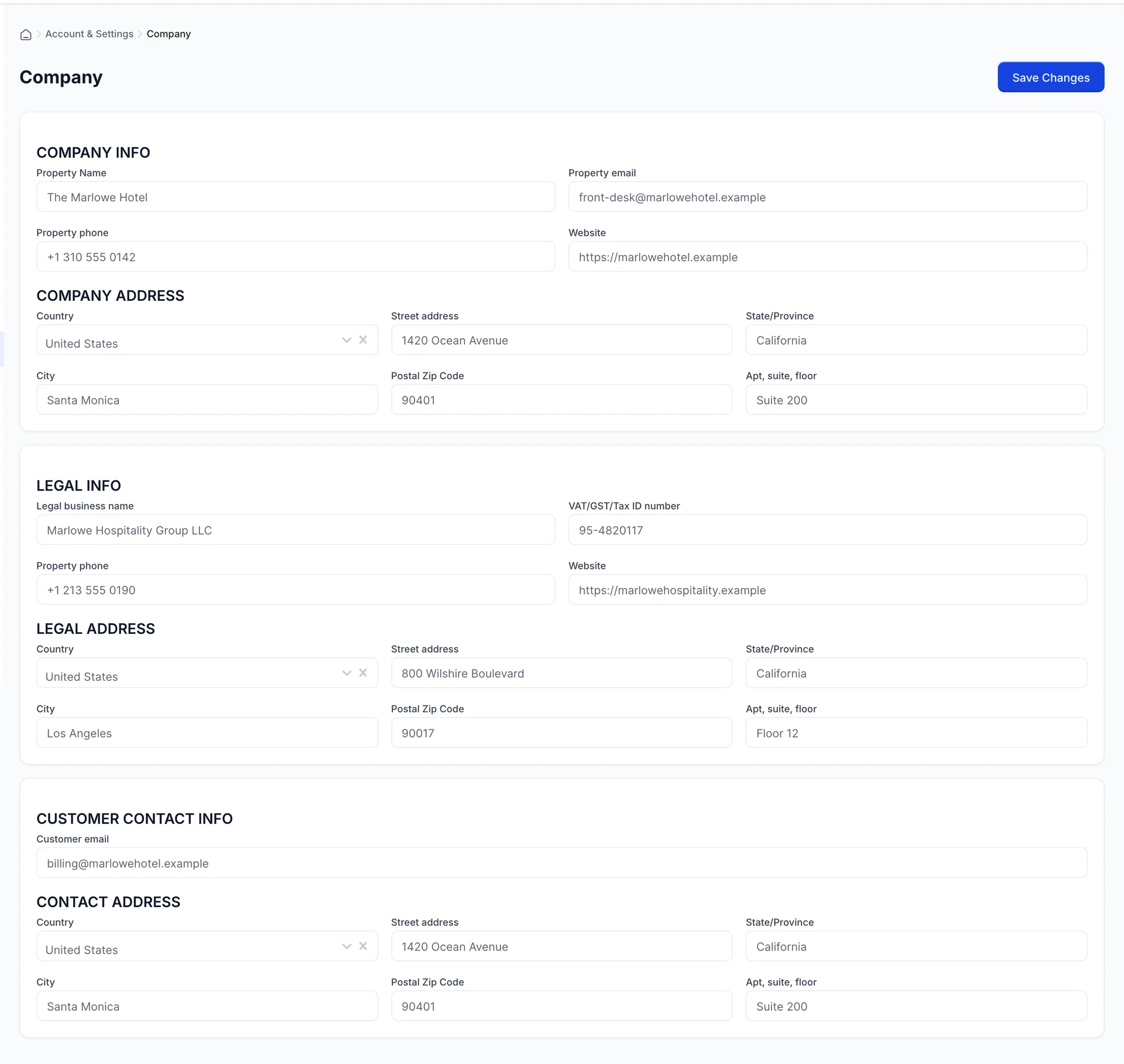
The screen asks for an address three times, which looks like duplication until you have a group structure. They answer three different questions.
Company address is where the hotel is. It is the one a guest recognises. Legal address is where the company that owns the hotel is registered, together with its Legal business name and its VAT/GST/Tax ID number; at a single independent property these are the same as the hotel's, and in a group they are a head office two hundred miles away. Customer contact info is where a customer's reply should land, which is normally accounts rather than the front desk.
What a new invoice starts as
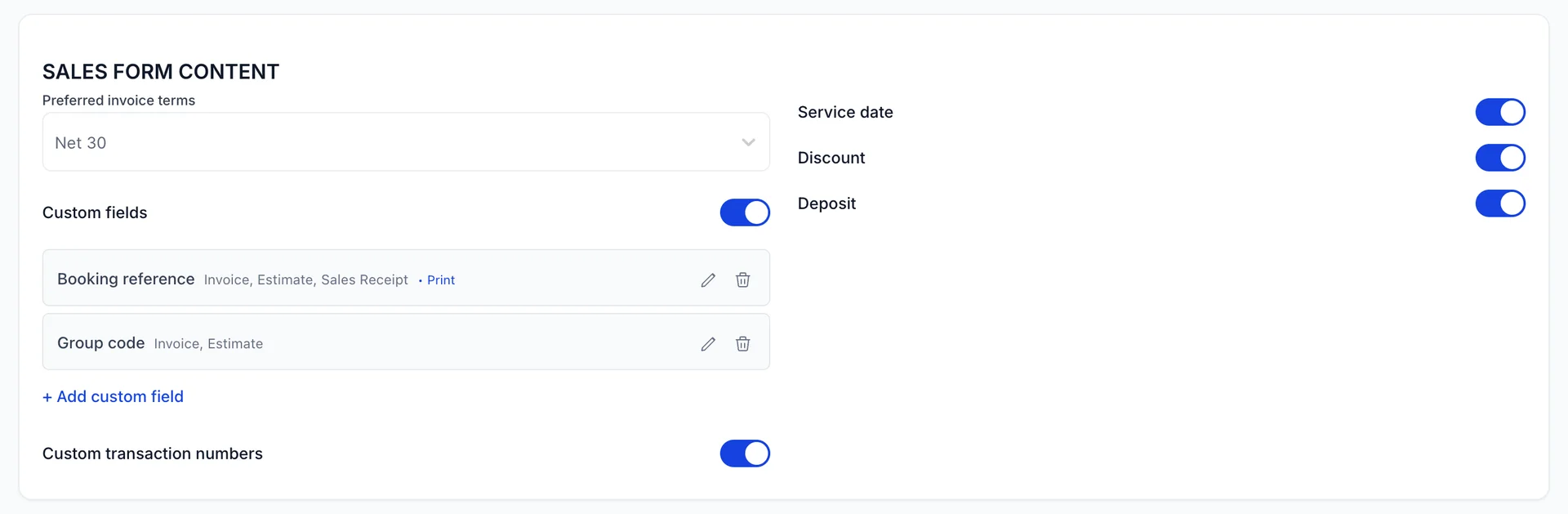
Preferred invoice terms is the one to get right. It is what every new invoice opens on, and the terms are what set the due date: Net 30 means the invoice you raise today is due in thirty days, and everything that depends on a due date, from the overdue column to the ageing table, follows from it. You can still change the terms on an individual invoice.
The toggles on the right add or remove fields from the sales forms. Service date adds a column for when the work happened, which matters when you invoice in arrears for a stay that ended last month. Discount and Deposit add the two lines of the same name to the totals block. Turn off what you never use: the forms are long enough already.
Custom fields
A custom field adds a box to the sales forms you choose, and the same value then travels with the document. The two in the picture are the ones a hotel actually wants: a Booking reference so a finance department can match your invoice to their reservation, and a Group code for internal grouping.
The difference between them is Print. Booking reference is marked to print, so it appears on the PDF the customer receives. Group code is not, so it exists on the form and in your own records and never leaves the building. Choose deliberately: a field that prints is a promise to the customer that the value in it is right.
The email your customer opens
![The MESSAGES card on the Sale screen. A Use greeting checkbox is ticked above Dear and [Full Name] dropdowns. Under SALES FORM (EMAIL) six tabs read Invoice, Estimate, Credit Note, Sale Receipt, Statement and Refund Receipt, with Invoice selected. Email subject line reads "Invoice [Invoice No.] from The Marlowe Hotel" and the message below thanks the guest for staying and points at the pay online button. Email me a copy at front-desk@marlowehotel.example is ticked, Bcc holds accounts@marlowehotel.example, and Use standard email and Save Changes sit at the bottom.](/images/help/prostay-accounting/accounting-settings/sale-email.webp)
Six tabs, six templates, and they are separate on purpose: the sentence that suits an invoice is wrong on a refund receipt. Write each one in the voice you would use at the desk, because for a corporate customer this email is most of the contact they have with you.
The words in square brackets are substituted when the email goes out. [Invoice No.] becomes the invoice number, [Full Name] in the greeting becomes the customer's name. Leave them exactly as they are, brackets and all: anything else is sent as literal text, which is how a customer ends up reading "Invoice [Invoice Number]".
Email me a copy sends a copy to the property address. Cc and Bcc take comma-separated addresses and apply to every sales email, so the usual use is a Bcc to your own accounts inbox rather than anything customer-facing.
Chasing an invoice without doing it yourself
![The REMINDER EMAILS card on the Sale screen. Enable automatic reminders is on. Use greeting is ticked with Dear and [Full Name]. Days before due date reads 3 and Days after due date reads 7. The subject line reads "Reminder: invoice [Invoice No.] from The Marlowe Hotel" and the message says the invoice is due and can be paid online. Email me a copy is unticked.](/images/help/prostay-accounting/accounting-settings/sale-reminders.webp)
Turn Enable automatic reminders on and an unpaid invoice is chased on a schedule: Days before due date is the polite nudge, Days after due date is the chase. Three and seven is a reasonable pair for corporate customers on Net 30.
Write the reminder to be sendable to somebody who has already paid, because sooner or later it will be. "If you have already paid, please ignore this message" costs a line and saves a phone call.
Costs, markup and bill terms
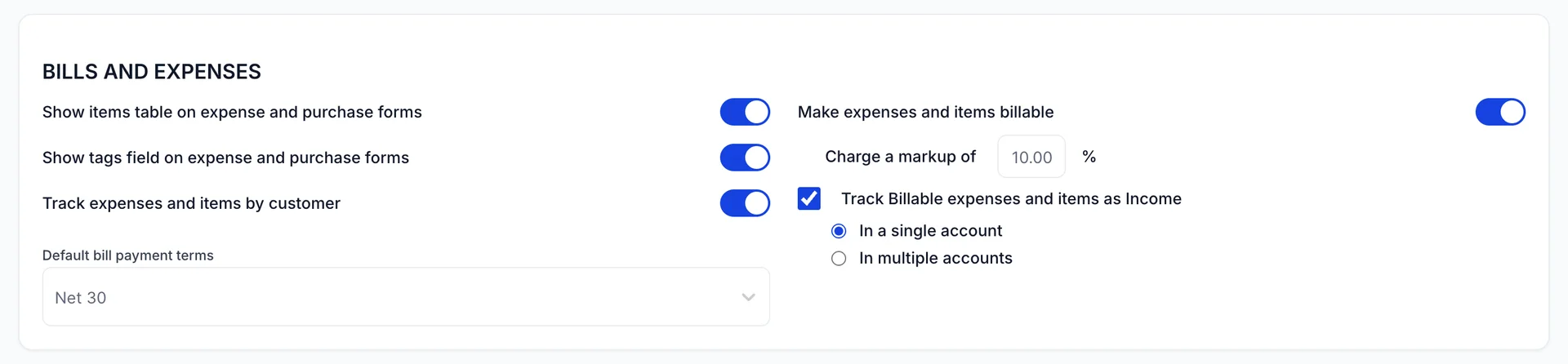
Default bill payment terms is the mirror of the invoice terms: what a new supplier bill opens on, and therefore when your own payment run thinks it is due.
The right-hand column is about re-charging. Turn on Make expenses and items billable and a cost can be marked billable to a customer when you enter it, which puts it on the list of things waiting to go onto their next invoice. Charge a markup of is the percentage added on the way through, and it is how a hire you paid 200.00 for reaches the customer at 220.00.
Track Billable expenses and items as Income decides whether that re-charge is booked as income or as a reduction of the cost. Ask your accountant which they want before you change it; the answer is usually income, and usually to a single account.
Purchase orders
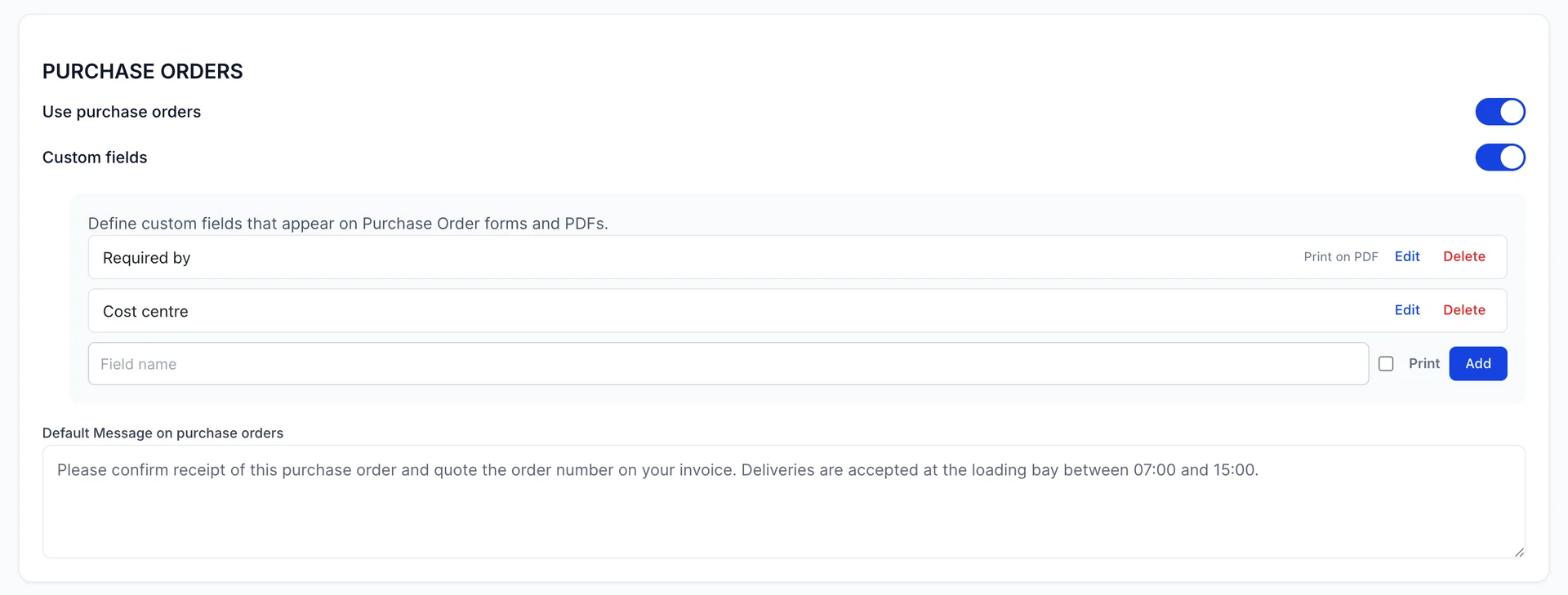
Use purchase orders is the switch for the whole feature. If you never raise one, turn it off and the forms stop offering it.
Purchase order custom fields work like the sales ones, and the two in the picture are worth copying: Required by, printed, so the supplier can see the delivery date without reading the covering email, and Cost centre, not printed, so you can report on it later without explaining your internal structure to a supplier.
The Default Message on purchase orders is the place for the standing instructions every supplier needs and nobody remembers to type: quote the order number, deliver to the loading bay, these are the hours.
Time: one toggle that matters
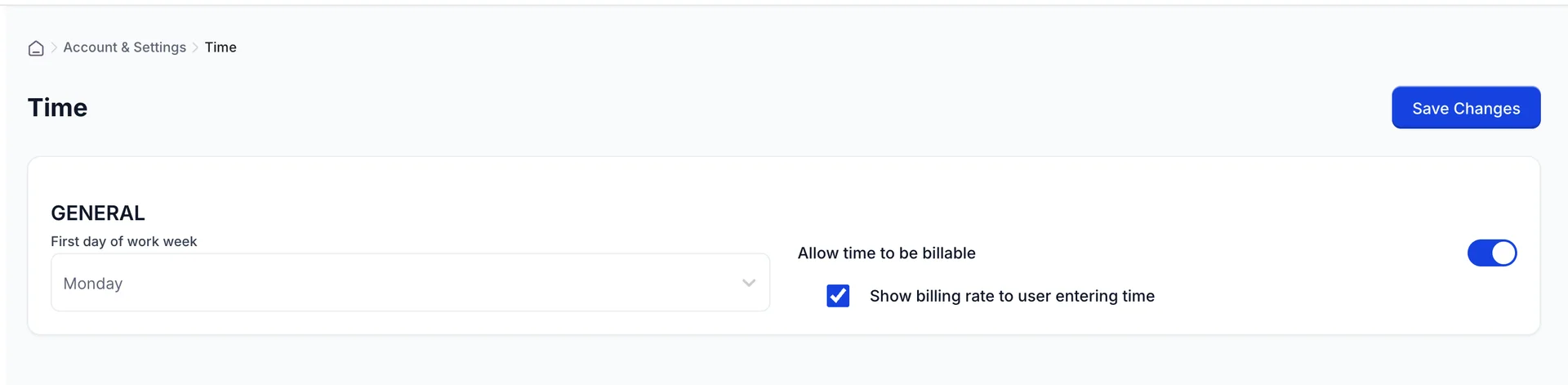
Allow time to be billable is what makes time activities chargeable at all. With it off, time can still be recorded, but there is nothing to price it with and nothing reaches an invoice.
Show billing rate to user entering time is a judgement call about your own staff. Leaving it on lets whoever writes up the hours see what the customer is charged for them, which is fine in a small finance team and less comfortable when the person entering time is the person who worked them.
The basis your books are kept on
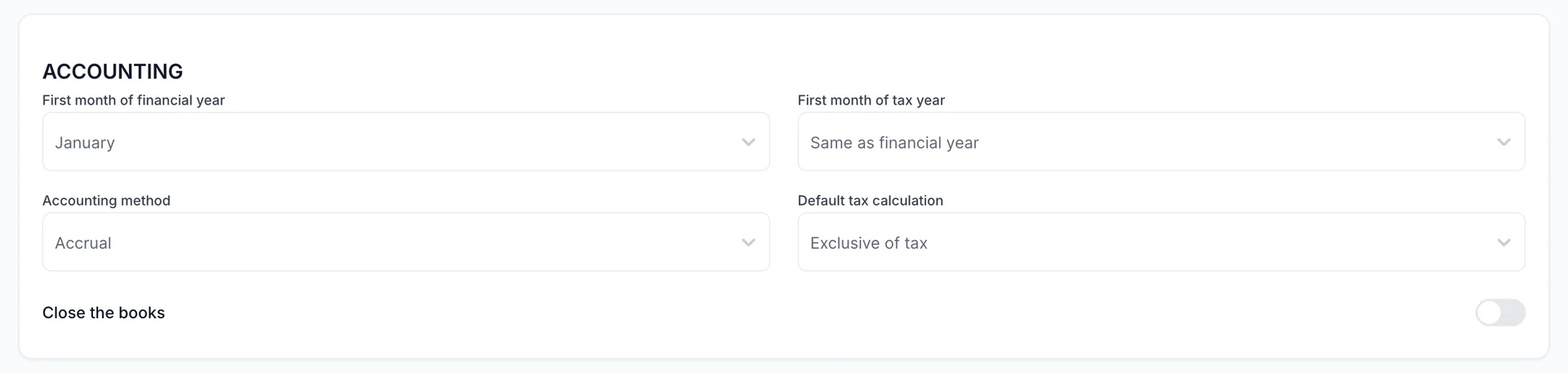
First month of financial year is what every report that says "this year" counts from. Most hotels run January to December; if yours runs April to March, set it here first, before you read a single report.
Accounting method is the real decision on this screen. Accrual counts an invoice as revenue on the day you raise it; Cash counts it on the day the money arrives. The two produce different profit figures from identical facts, and which one you are allowed to use is a matter for your accountant and your tax authority, not a preference.
Default tax calculation says whether the prices you type already include tax. Exclusive of tax means tax is added on top, which is how every document in Prostay Accounting is priced.
Where discounts and re-charged costs land
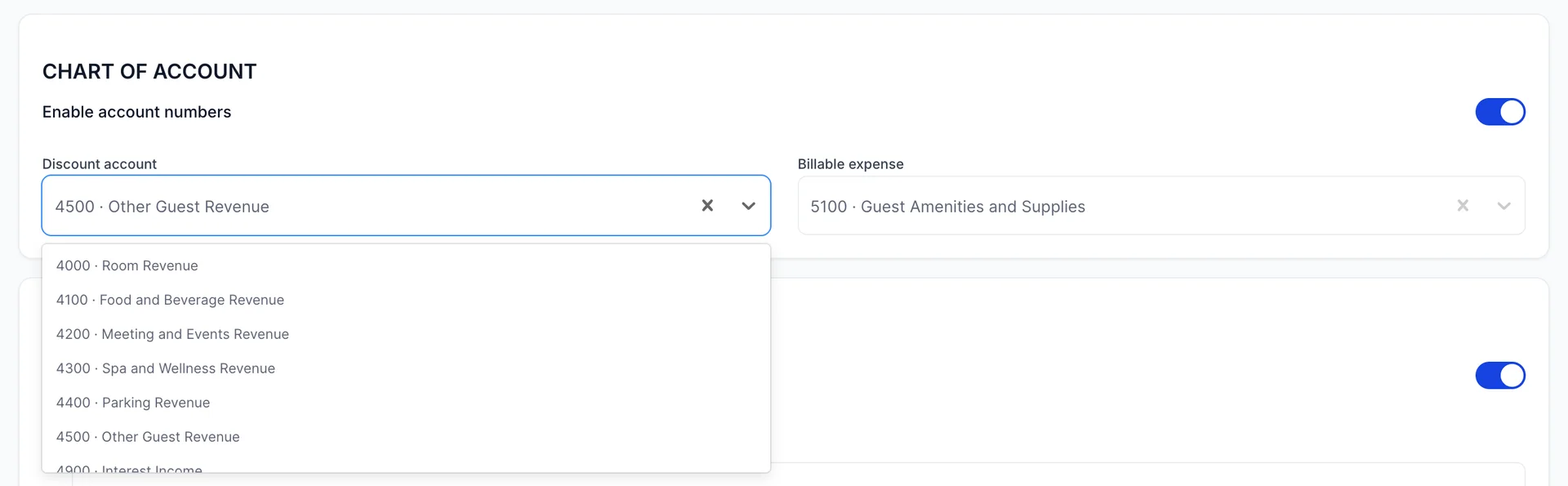
Two settings, both pointing at the chart of accounts. Discount account is where the discounts you give are posted, and the list offers your income accounts, because a discount is revenue you chose not to earn. Billable expense is where a cost you re-charge is posted, and that list offers your expense accounts.
Enable account numbers puts the number in front of the name everywhere an account appears, which is what makes "4500 · Other Guest Revenue" read the way it does above. Leave it on if your chart is numbered, which it is by default.
Taxes
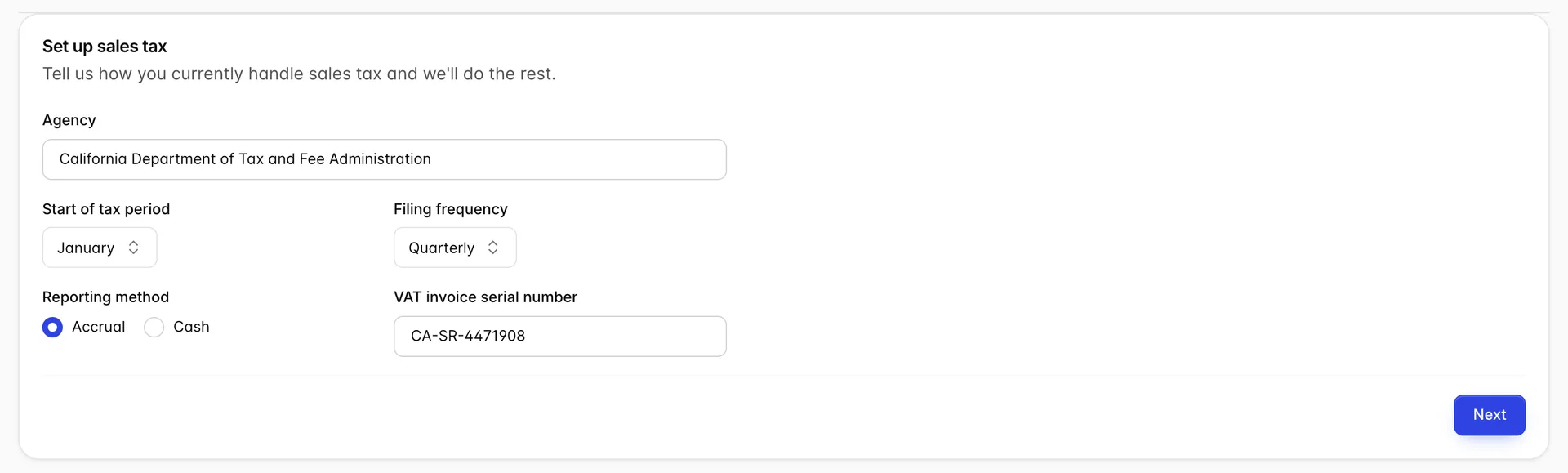
Taxes opens on a short page explaining what tax tracking does, with a Set up VAT button. Pressing it gives you the five questions above: which Agency you file with, the Start of tax period, how often you file, whether you report on an accrual or a cash basis, and your VAT invoice serial number if your country issues one.
Answer the reporting method the same way you answered the accounting method on Advance. They are the same question asked twice, and a property that answers them differently has a tax return that does not match its own books.
Once it is saved, the screen opens on its last step instead, with Edit Configuration to go back and change an answer. That is what the picture above shows.
What changing a setting does not do
Nothing on these six screens reaches backwards. Change the preferred terms from Net 30 to Net 15 and every invoice you have already raised keeps the terms and the due date it was raised on, because a document stores its own. The same goes for the email templates, the markup and the tax basis: they apply to what you do next.
That is the behaviour you want, and it is worth knowing in the other direction too. If you have been invoicing on the wrong terms for a month, correcting the setting fixes the next invoice and leaves the month behind you untouched.
Where to go next
The terms and custom fields you have just set appear on the forms in customers and the sales documents raised against them. The markup and bill terms show up in recording what you spend. If the accounts in the two Advance pickers are not the ones you want, they are yours to change in the chart of accounts.