A bank rule is a standing instruction for coding transactions that arrive in your bank account: when something matching this description comes in, categorise it like this, against this payee. It exists so that the same recurring payment is never coded three different ways by three different people.
What a rule is for
Hotels have a lot of repeating money. Card settlements land daily. The acquirer's fees come out monthly. Utilities, payroll, the telecoms invoice, the agency commission statement. Every one of them looks the same on the bank statement every time, which is exactly the condition a rule needs.
The panel says it in one line at the top: rules only apply to unreviewed transactions. A rule works on transactions that have arrived and have not yet been accepted into your books, and it never rewrites a transaction you have already dealt with. Setting one up today does not go back and recode last quarter.
Reading the list
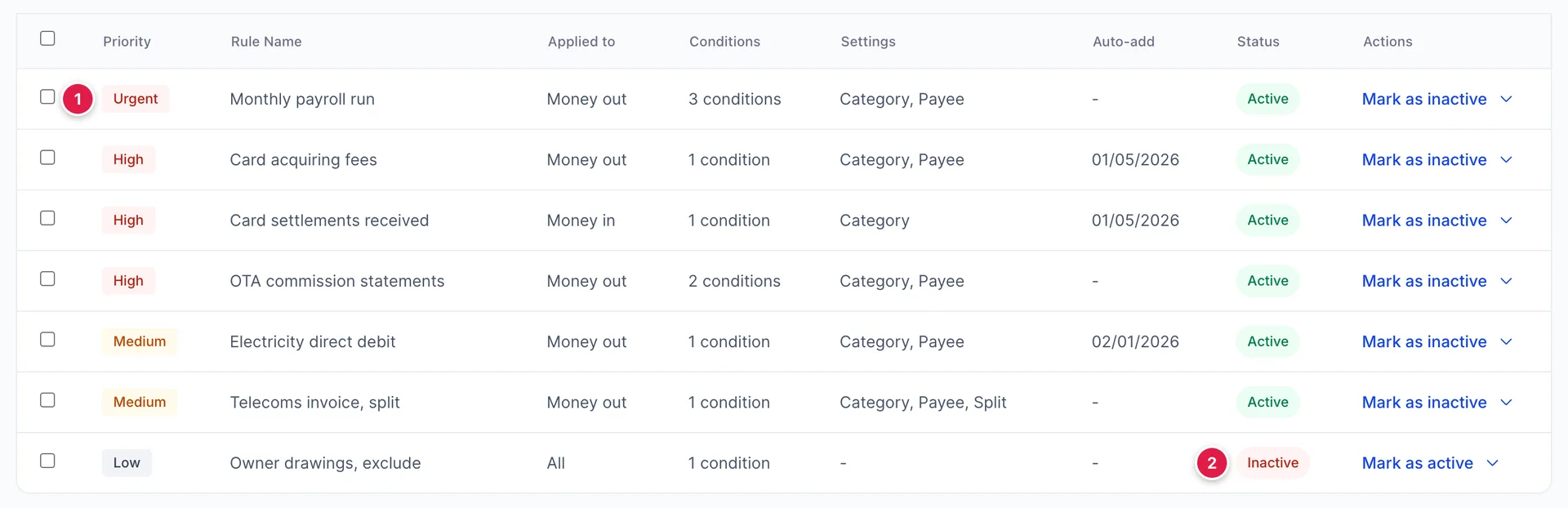
- Priority, from Urgent down to Low. The list is ordered by it, so the rule that will be tried first is at the top.
- Status. An inactive rule stays in the list and does nothing, which is what you want while you work out whether it was the rule that miscoded something.
If a row's menu offers no Edit rule or Delete rule, your role does not include the permission for them, and you can read the rules without being able to change what they do. Neither can be added from Users in System Settings today: the screen checks for rights the role editor has no settings for, so editing a rule is available only to accounts with unrestricted access. That is ours to fix rather than something to work around.
| Column | What it is telling you |
|---|---|
| Applied to | Money in, Money out or All. The direction the rule watches. |
| Conditions | How many tests the rule makes. It does not say what they are, so this is a measure of how narrow the rule is rather than what it matches. |
| Settings | Which of Category, Payee, Customer and Split the rule fills in when it fires. |
| Auto-add | The date the rule started posting on its own, or a dash. A dash here means the rule suggests rather than acts. |
Columns above the table hides any of Priority, Conditions, Settings, Auto-add and Status. The rule name, what it applies to and the actions always stay.
Scoping a rule
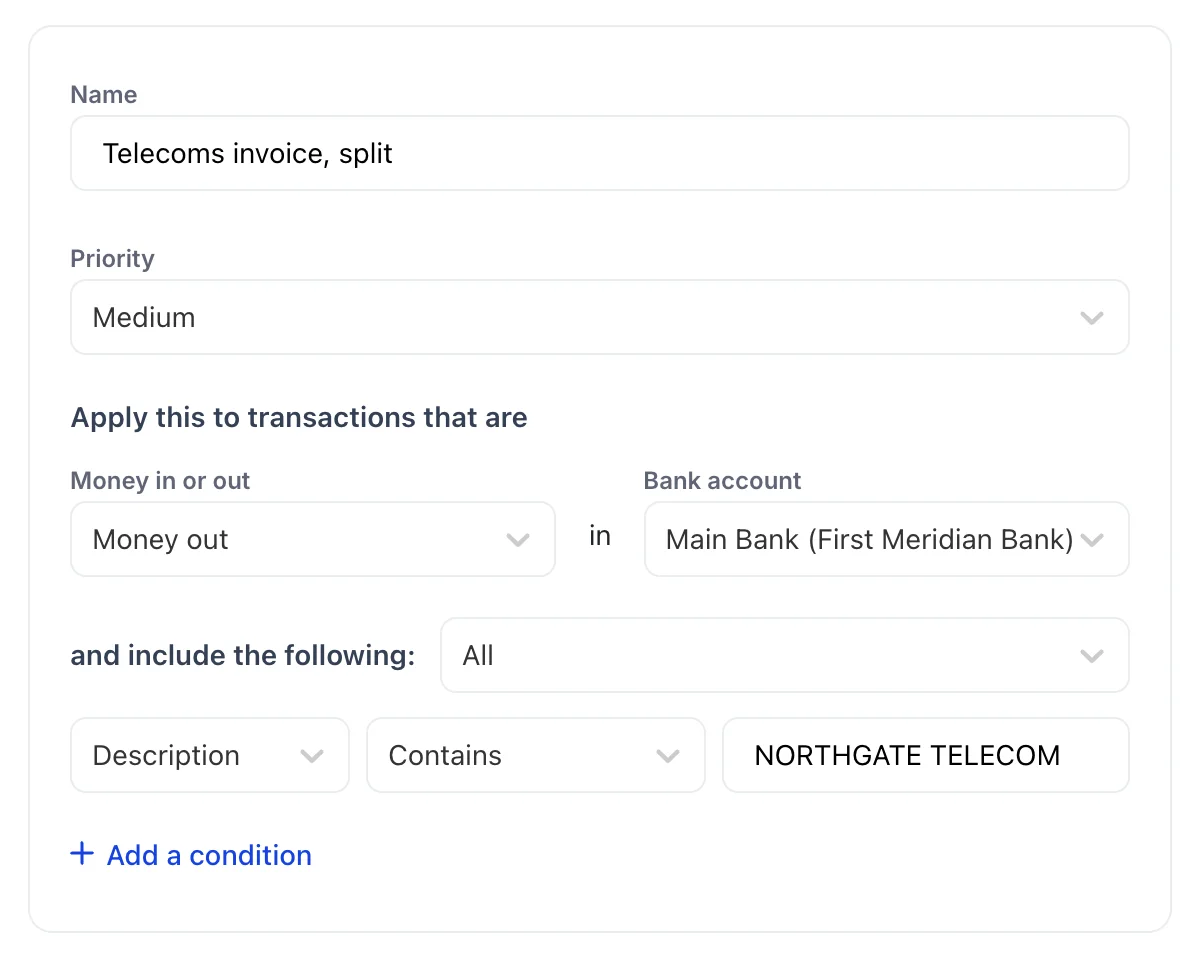
Before any condition is tested, two settings decide whether the rule even looks at a transaction.
- Money in or out. Money out for anything you pay, Money in for receipts, All for both. Setting this correctly is worth doing even when the description alone would be unambiguous, because it halves what the rule has to consider and stops a refund being coded as a cost.
- Bank account. One account, or all of them. Use one when the same wording means different things on different accounts, which is common where a card account and a current account both show an acquirer's name.
Give the rule a name you will recognise in six months. Save stays disabled until you do, because an unnamed rule in a list of twenty is a rule nobody dares delete.
Conditions
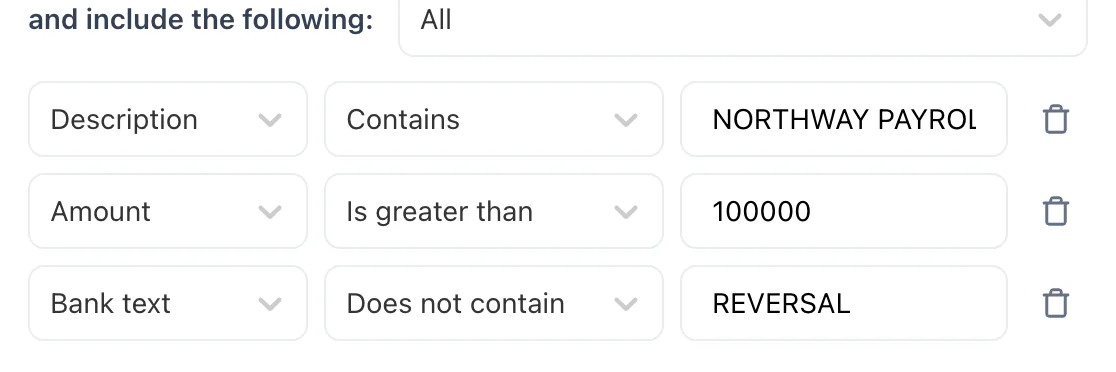
A condition is three parts: a field, an operator and a value. Above them, All or Any decides whether every condition has to be true or just one of them.
| Field | What it tests |
|---|---|
| Description | The transaction description as your books show it. This is the field most rules are built on. |
| Bank text | The raw text the bank sent, which often carries a terminal number, a reference or a word like REVERSAL that the tidied description has dropped. Use it when the description is too clean to tell two things apart. |
| Amount | The value. The box becomes numeric, and the useful operators here are Is greater than and Is less than. |
The operators are Contains, Does not contain, Equals, Is exactly, Is greater than and Is less than. Contains does most of the work on text, because bank descriptions carry dates and reference numbers that change every month around a fixed part that does not.
Add a condition adds a row, and the bin icon beside a row removes it. The last remaining condition cannot be removed, which is deliberate: a rule with no conditions would match everything that came in.
What the rule does when it matches
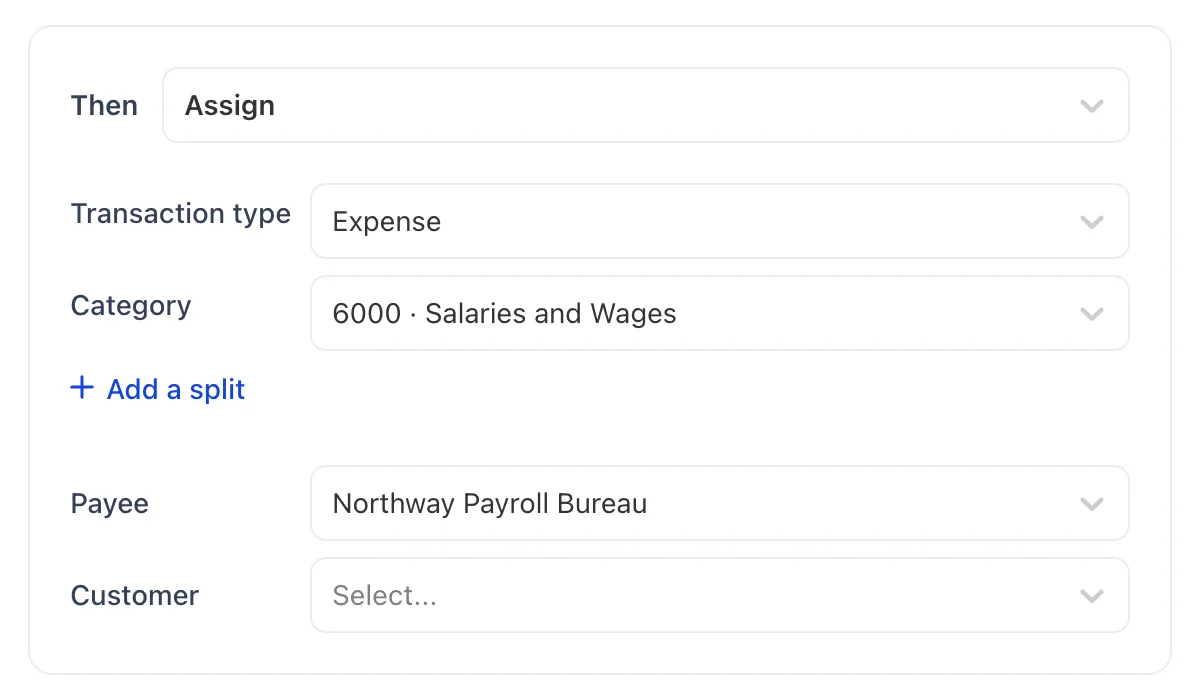
There are two things a rule can do.
Assign codes the transaction. It sets the transaction type, Expense, Income or Transfer, and the category, which is an account from your chart of accounts. Assign more reveals a payee and a customer, and both are worth filling in: the payee is what makes the transaction findable against a supplier, and the customer is what marks it as rechargeable.
Exclude keeps the transaction out of your books altogether. It is for money that moves through the account without being income or cost: an owner's drawing, a transfer between two of your own accounts already recorded on the other side, a duplicate feed entry.
Splitting one payment across two accounts
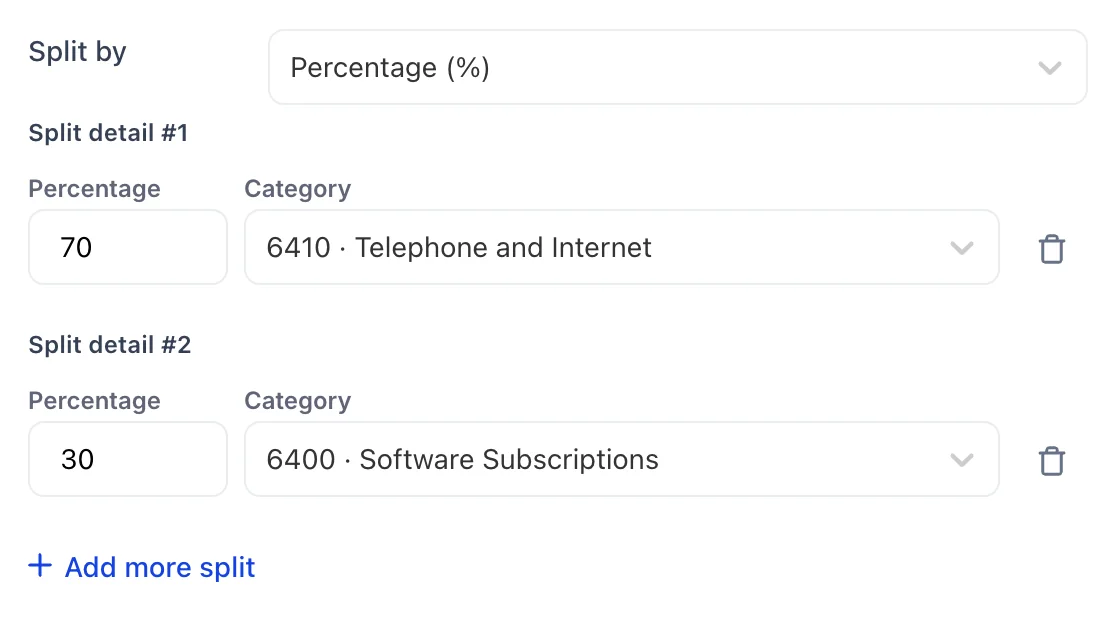
Add a split breaks one transaction across several accounts. Choose Percentage (%) for something whose total changes every month but whose shape does not, such as a telecoms invoice that is always about seventy percent line rental and thirty percent software. Choose Amount where one part is fixed and the rest varies.
Percentages have to add up to a hundred. Ninety coded and ten silently dropped is exactly the sort of thing that surfaces a year later as an unexplained gap.
Auto-add
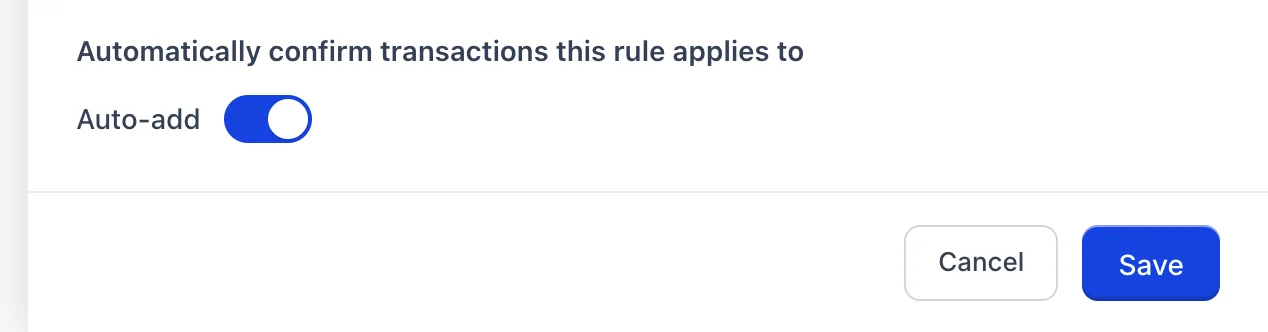
With auto-add off, a matching transaction is coded and waits for somebody to accept it. With it on, the transaction is accepted and posted without anybody looking.
Turn it on for transactions you would approve every time without thinking: card settlements, acquiring fees, the same utility direct debit. Leave it off where the amount varies enough to be worth a glance, or where a wrong match would be expensive to unpick. A useful order of work is to run a new rule with auto-add off for a month, see what it catches, and only then turn it on.
Priority, and rules that overlap
Priority runs Low, Medium, High, Urgent, and the list is ordered by it. When two rules could both match the same transaction, the higher priority is the one that decides.
Use it for the exception. A broad rule coding everything from one supplier to a general account sits at Low, and a narrow rule catching the one payment from that supplier that belongs somewhere else sits above it. Written the other way round, the broad rule swallows the exception and you never see it.
Editing, deactivating and deleting
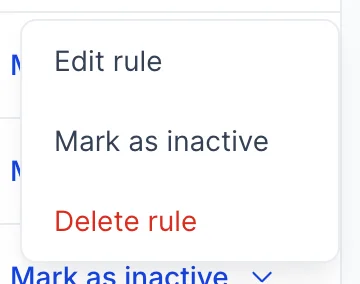
The visible button on each row toggles the rule's status straight away, and the chevron beside it holds Edit rule and Delete rule. Deactivating leaves the rule in place and stops it firing. Deleting is permanent, and there is no reason to reach for it while deactivating exists.
Editing a rule changes what it does next. It does not revisit transactions the rule has already coded, so if a rule has been coding something wrongly, fix the rule and then correct the transactions it has already touched.
Import and export
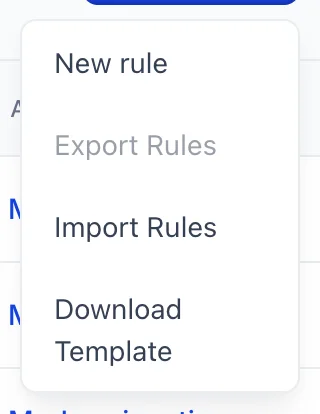
Export Rules writes the ticked rules to a CSV file, which is why it stays greyed out until you have ticked at least one. Import Rules reads a CSV back in, and Download Template gives you the file with the right columns and no rows.
Two properties in the same group usually want the same ruleset, and this is the way to move one across rather than typing twenty rules twice. Check the categories after an import: a rule pointing at an account the receiving property's chart does not hold has nowhere to code to.
Reconciling an account
Reconciling is checking your books against the bank's own record of the same account, one statement at a time. It is what catches the payment recorded twice, the cheque nobody ever banked and the fee nobody knew about. It lives beside Rules, under Transactions.

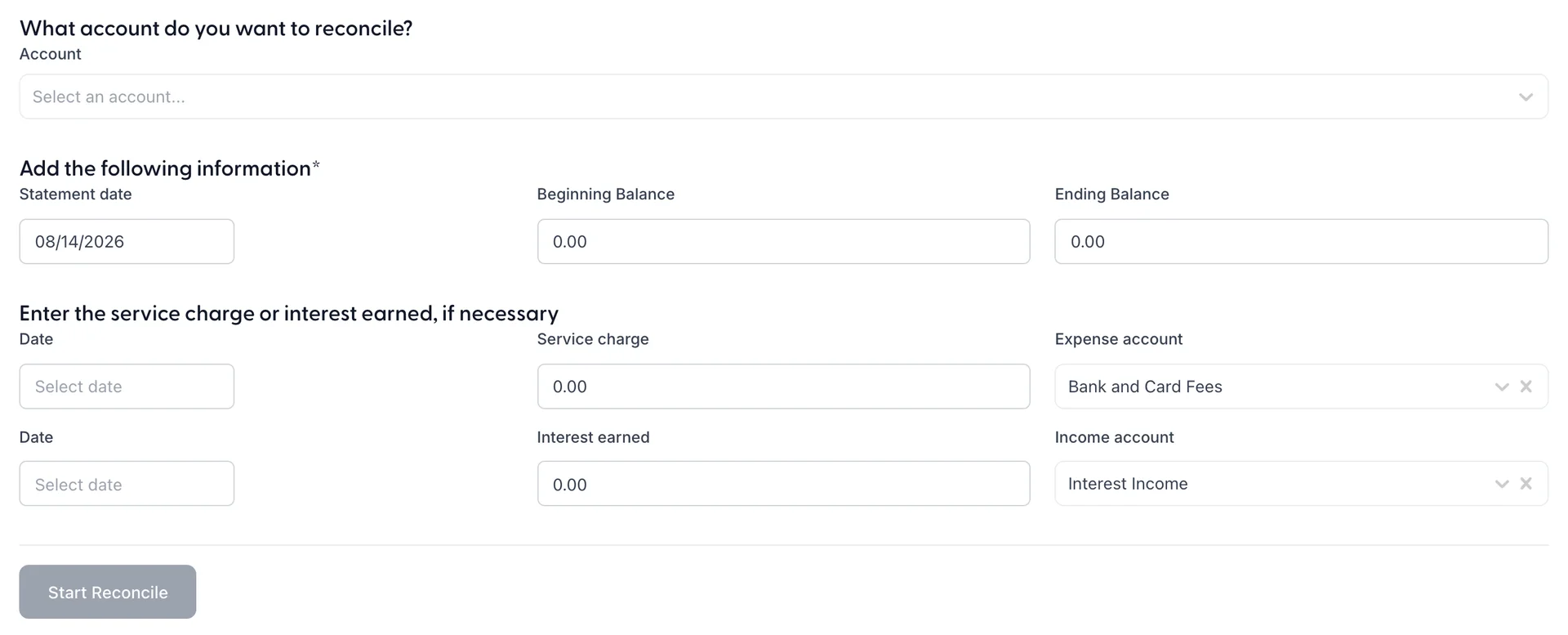
Get Started opens the setup form. Everything on it is copied from the statement in your hand.
| Field | What to put in it |
|---|---|
| Account | Which of your bank or card accounts this statement belongs to. The only required field, and the button stays disabled until it is chosen. |
| Statement Date | The closing date of the statement, not today. |
| Beginning Balance and Ending Balance | The opening and closing figures the bank printed. The beginning balance should match the ending balance of the last statement you reconciled; where it does not, something has been changed behind you and that is worth finding before going further. |
| Service charge and Interest earned | Bank charges and interest the statement shows and your books do not, each with its date and the account to post it to. Entering them here saves recording them separately. |

The flow stops at this form. Start Reconcile reports that matching transactions against a statement is not available yet and that nothing has been saved, which is the truth rather than a partial save you would discover later. Until it is built, the practical substitute is the account's transaction history against the statement line by line.
If Start Reconcile is greyed out before you press it, that is a permission rather than the unfinished feature. An administrator can add it from Users in System Settings, under Accounting › Reconcile.
Where to go next
The accounts a rule codes into are set up in the chart of accounts, and the payees it names come from suppliers. For recording spending by hand, which is how everything reaches your books today, see recording what you spend.