An Instant Site is a full website for your hotel, built inside Prostay and published by pressing a button. It is not a booking page with extra tabs: it has a home page, a rooms page built from your accommodation types, an about page, a contact form, its own design system and its own address. If your hotel has no website, or has one that is expensive to change and years out of date, this is the fastest route to a good one.
What an Instant Site is
The value of it being inside Prostay is that it is not a separate copy of your hotel. The rooms it shows are your accommodation types, the prices are your rates, and the booking buttons go to your booking engine. Nothing has to be kept in step by hand, which is the reason most hotel websites end up quoting a rate nobody has charged since 2019.
It is a separate thing from your booking engine's own pages. The custom pages in adding custom pages to your booking engine live inside the booking flow. An Instant Site is the website that flow hangs off.
Creating one
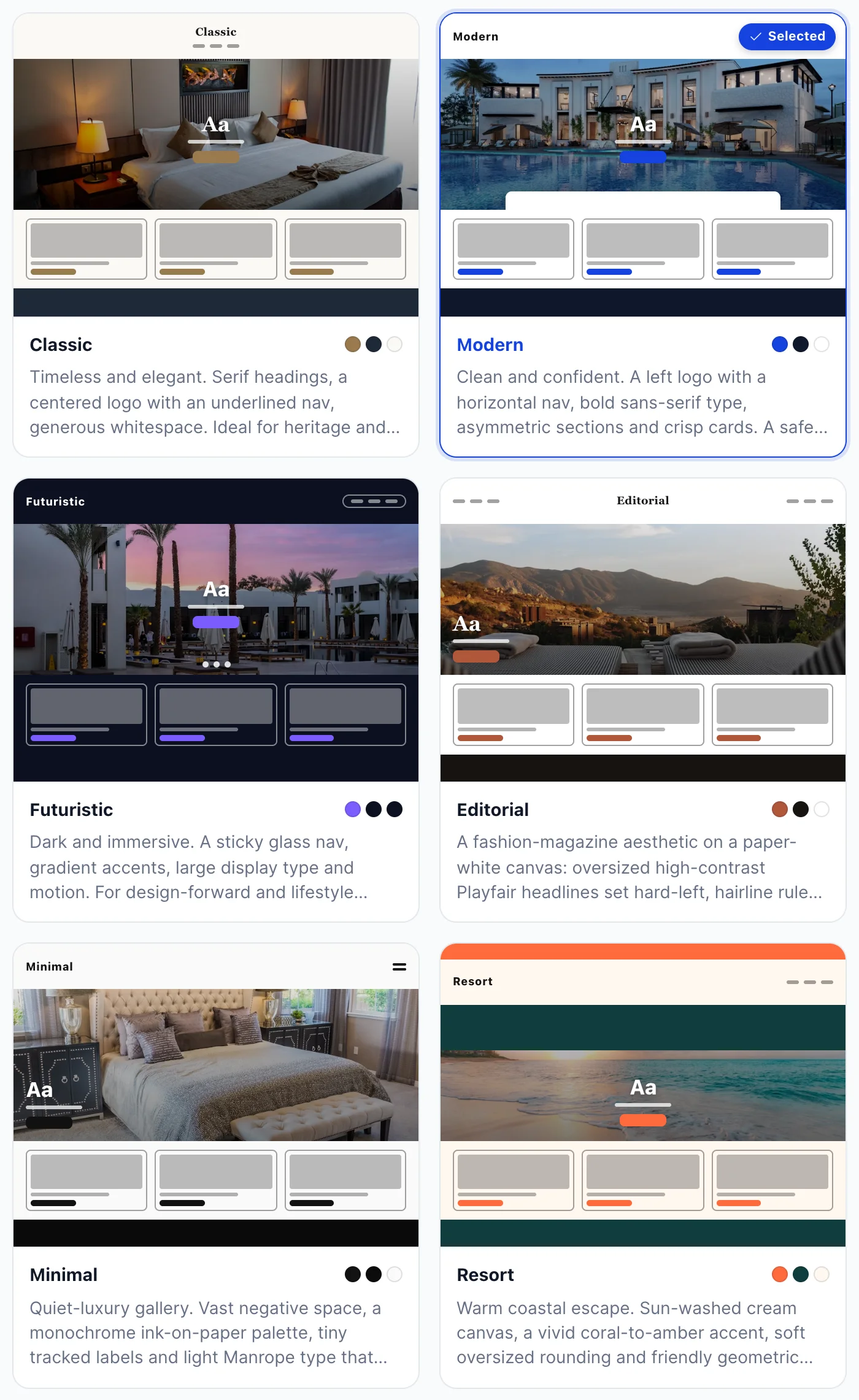
If you have not made a site yet, the screen offers six templates and asks you to pick one. Choose on the strength of the layout rather than the photographs, which are placeholders, and do not agonise: the template is not a commitment. You can switch later and your content comes with you.
| Template | Who it suits |
|---|---|
| Classic | Serif headings, a centred logo, plenty of white space. Heritage properties, country houses, anywhere the building is older than the brand. |
| Modern | Bold sans-serif type, a left logo, crisp cards. The safe default, and the one to pick if you are unsure. |
| Futuristic | Dark, immersive, with a glass navigation and large display type. Design-led city hotels. It needs strong photography and punishes weak photography. |
| Editorial | Magazine styling on a paper-white canvas with oversized headlines. Boutique properties with a story to tell in words as well as pictures. |
| Minimal | Vast negative space and a monochrome palette. Quiet luxury, and unforgiving of clutter. |
| Resort | Warm coastal colours and friendly rounded shapes. Beach and leisure properties. |
The dashboard
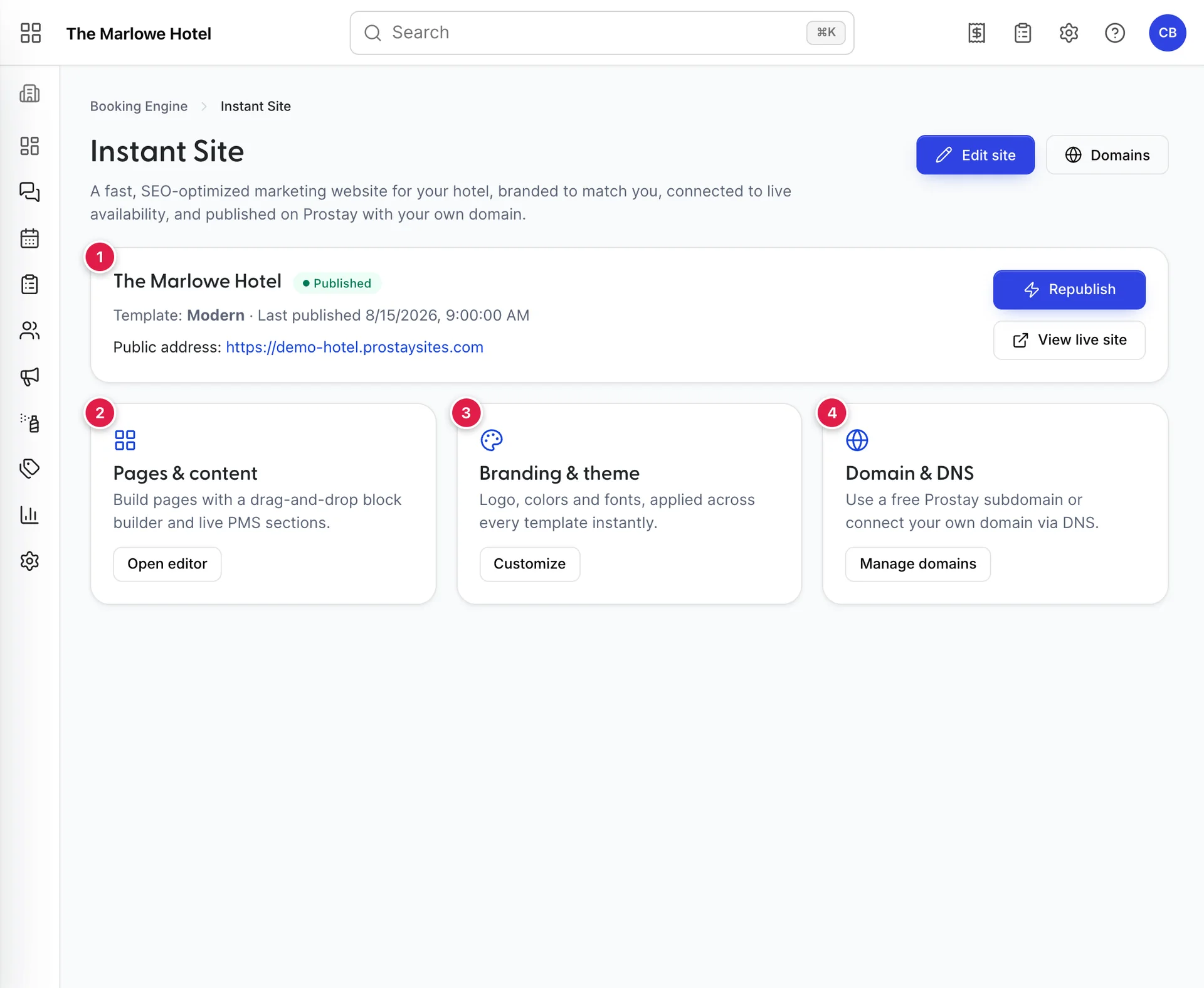
- The status card. Whether the site is published, which template it uses, when it last went live and where it lives. A second amber badge appears here if you have saved edits that are not published yet.
- Pages & content. Opens the editor.
- Branding & theme. Also opens the editor, on the design side.
- Domain & DNS. Opens the Domains screen.
The editor
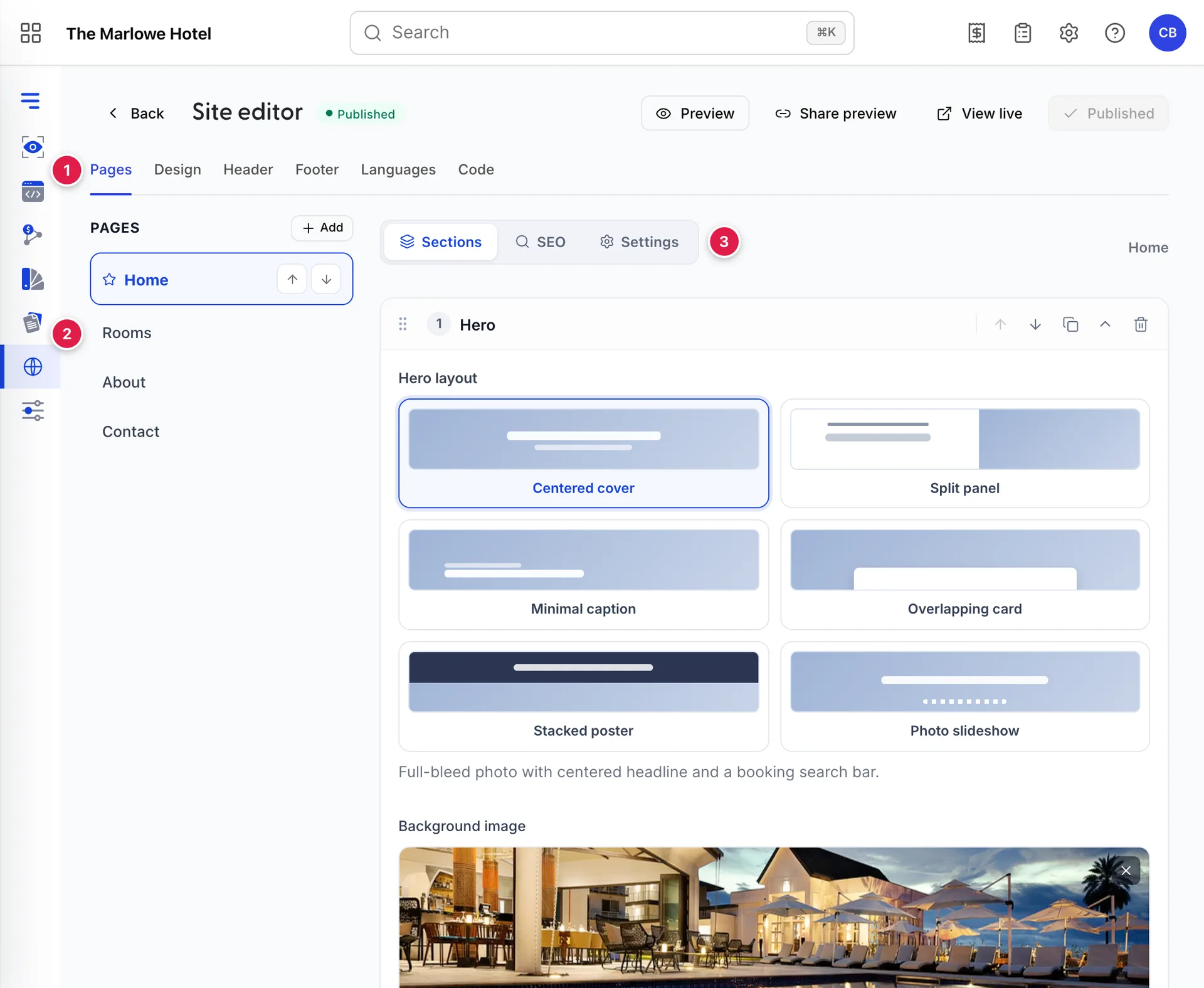
- The six tabs. Pages, Design, Header, Footer, Languages and Code. Everything about the site is behind one of them.
- The page rail. Your pages, in the order they appear in the navigation. Arrows reorder them; the star marks the home page, which cannot be deleted.
- The page tabs. Sections, SEO and Settings for whichever page is open. These are per page, not per site.
Pages, including the legal ones
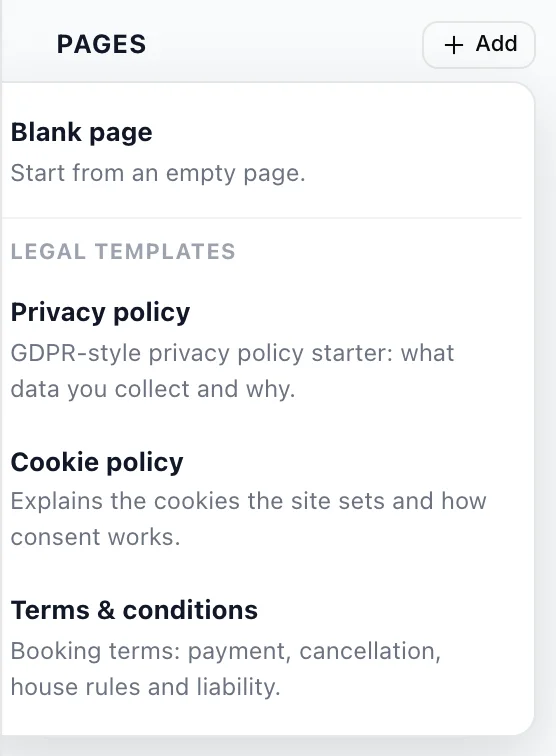
Add gives you a blank page or one of three legal starters: a privacy policy, a cookie policy and a set of booking terms. They save you the blank page, which is the hard part, and they are worth having: a hotel taking card payments and email addresses needs a privacy policy, and a cookie banner that links to nothing is worse than no banner.
Each page is built from sections, and the Sections tab is where you choose their layouts. A hero section, for instance, offers six: centred cover, split panel, minimal caption, overlapping card, stacked poster and photo slideshow. The rooms section is built from your accommodation types, so it keeps itself up to date without you touching it.
Design, header and footer
Design holds the template gallery and your colours, fonts and logo. Changing a template restyles everything and adopts that template's section layouts; your words and images stay exactly where they are, which is why trying all six is a reasonable way to decide.
Header and Footer are separate tabs because they appear on every page: the navigation, the logo, the booking button, and whatever you put at the bottom. Keep the header short. A guest arriving on a phone should see one obvious way to check availability.
SEO, one page at a time
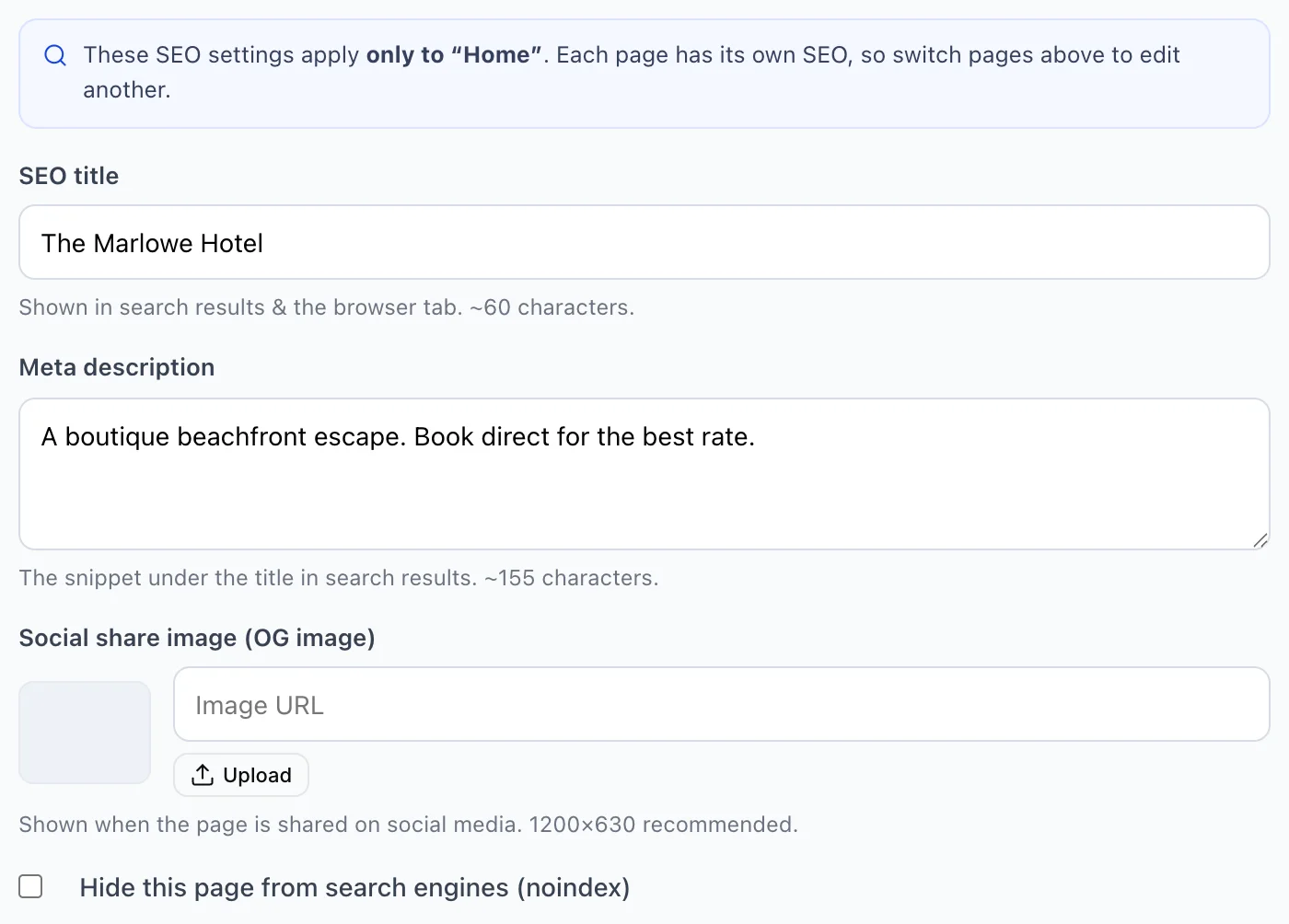
| Field | What it does |
|---|---|
| SEO title | The line a search engine prints as the link, and the browser tab. About 60 characters. Put your hotel name and your town in it, because most people searching for you type both. |
| Meta description | The snippet under the title. About 155 characters. It does not change your ranking; it changes whether someone who can already see you decides to click. |
| Social share image (OG image) | What appears when the page is shared on social media or pasted into a message. 1200 by 630 is the size to use. Leave it empty and a link to your hotel shares as a blank rectangle. |
| Hide this page from search engines (noindex) | Keeps the page out of search results. For a page you send people to directly, such as a wedding block or a corporate rate page. |
Languages
The Languages tab turns on extra languages and gives you a field-by-field list of everything to translate. Anything you leave untranslated falls back to the default language, so a half-finished translation shows a mixed page rather than an empty one. That makes it safe to publish a partial translation and finish it later.
Drafts, previews and publishing
Everything you do in the editor is saved to a draft automatically, a moment after you stop typing. The toolbar says Draft saved when it has. Nothing you save reaches the public site until you publish, so you can work on the site over a week without anyone seeing it half done.
| Button | What it does |
|---|---|
| Preview | Opens your draft in a frame inside the editor, with desktop, tablet and phone widths and a language picker. Use the phone width more than you want to. |
| Share preview | Copies a private link that shows the current draft to anyone who opens it. For sending to an owner or a colleague before you go live. |
| View live | Opens the published site, which is what the public sees. If you have unpublished edits, this will not show them. |
| Publish changes | Pushes the saved draft live. Greys out to Published once there is nothing left to push. |
| Discard changes | Throws away every unpublished edit and restores the published version. It asks first, it appears only once there is something to discard, and what it discards does not come back. |
Your address
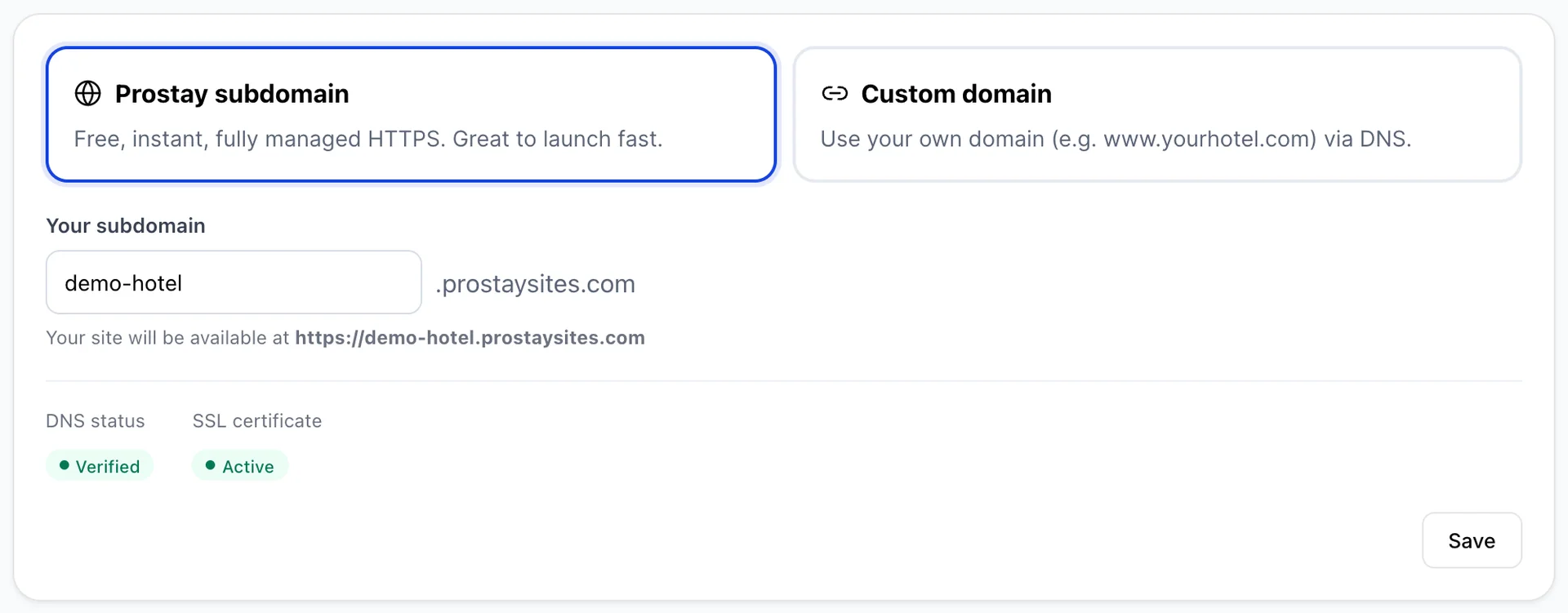
Every site gets a free address at yourhotel.prostaysites.com, working immediately, with HTTPS handled for you. It is a perfectly good place to start, and for a small property with no domain of its own it may be where you stay.
Edit the first part to whatever you like. Keep it recognisable: it will be printed on things, and guests will type it wrong if it is clever.
Connecting your own domain
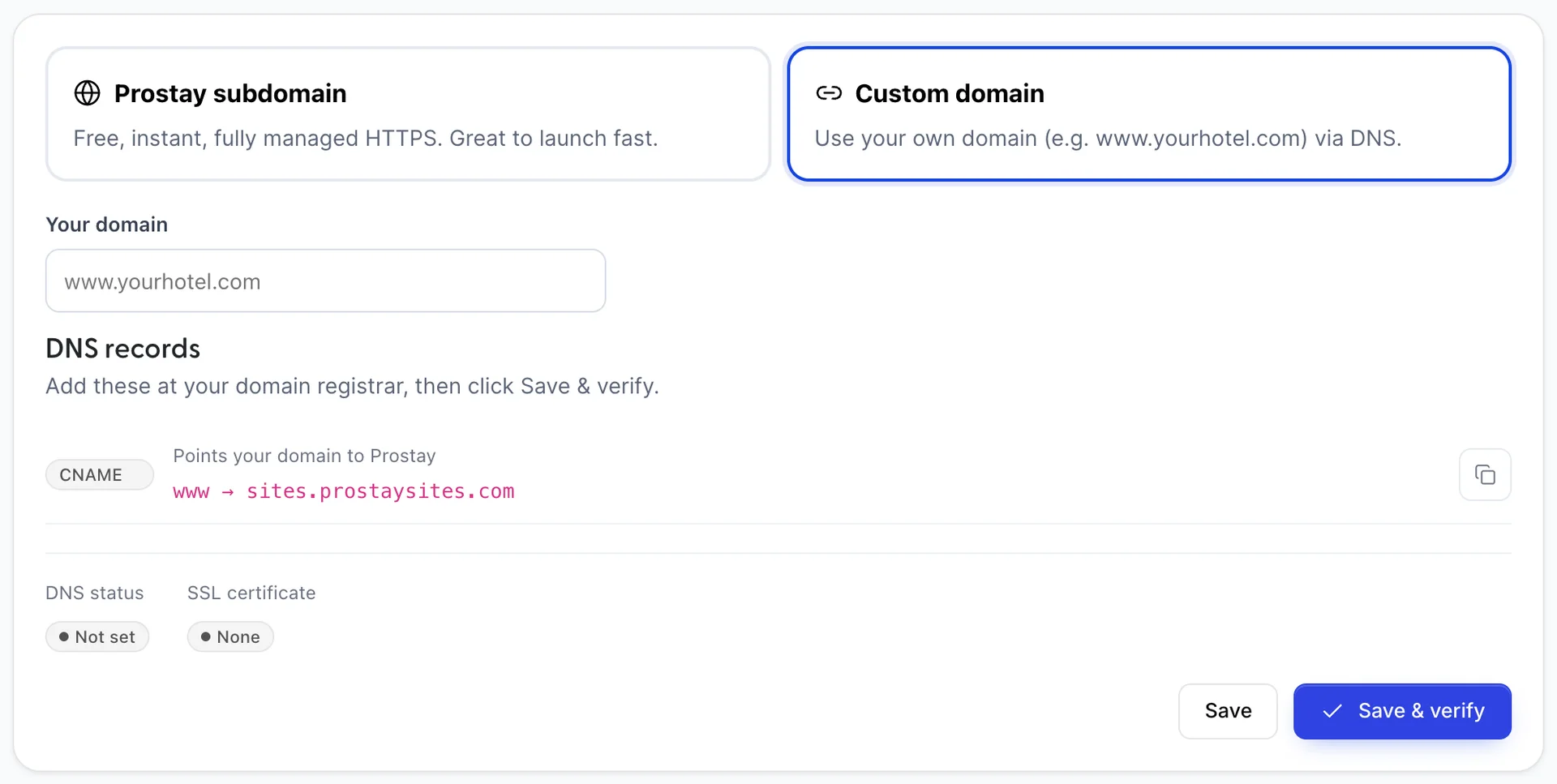
- Choose Custom domain and type the address you want, including the
wwwif you want one. - Read the DNS records section underneath. It fills in once you have typed an address, and it lists every record your domain needs. There is a copy button at the end of each row.
- Add every row it lists at whoever manages your domain: your registrar, your IT supplier, or whoever built your last website. Copy the type, the name and the target exactly as your own screen gives them.
- Come back and press Save & verify.
Take those values off your own screen rather than from the picture above. The target Prostay gives you is issued for your property, so it is the one that will verify, and anything typed from memory or copied out of a guide will leave the domain pointing nowhere.
DNS status and SSL certificate tell you where you are. DNS goes from Not set to Pending to Verified, and the certificate follows once DNS is verified: it moves through Provisioning to Active, and only then does your site load over HTTPS without a warning.
What a guest sees
Everything above is the builder. This is the site itself, at its public address, with no sign-in and nothing of Prostay visible on it.
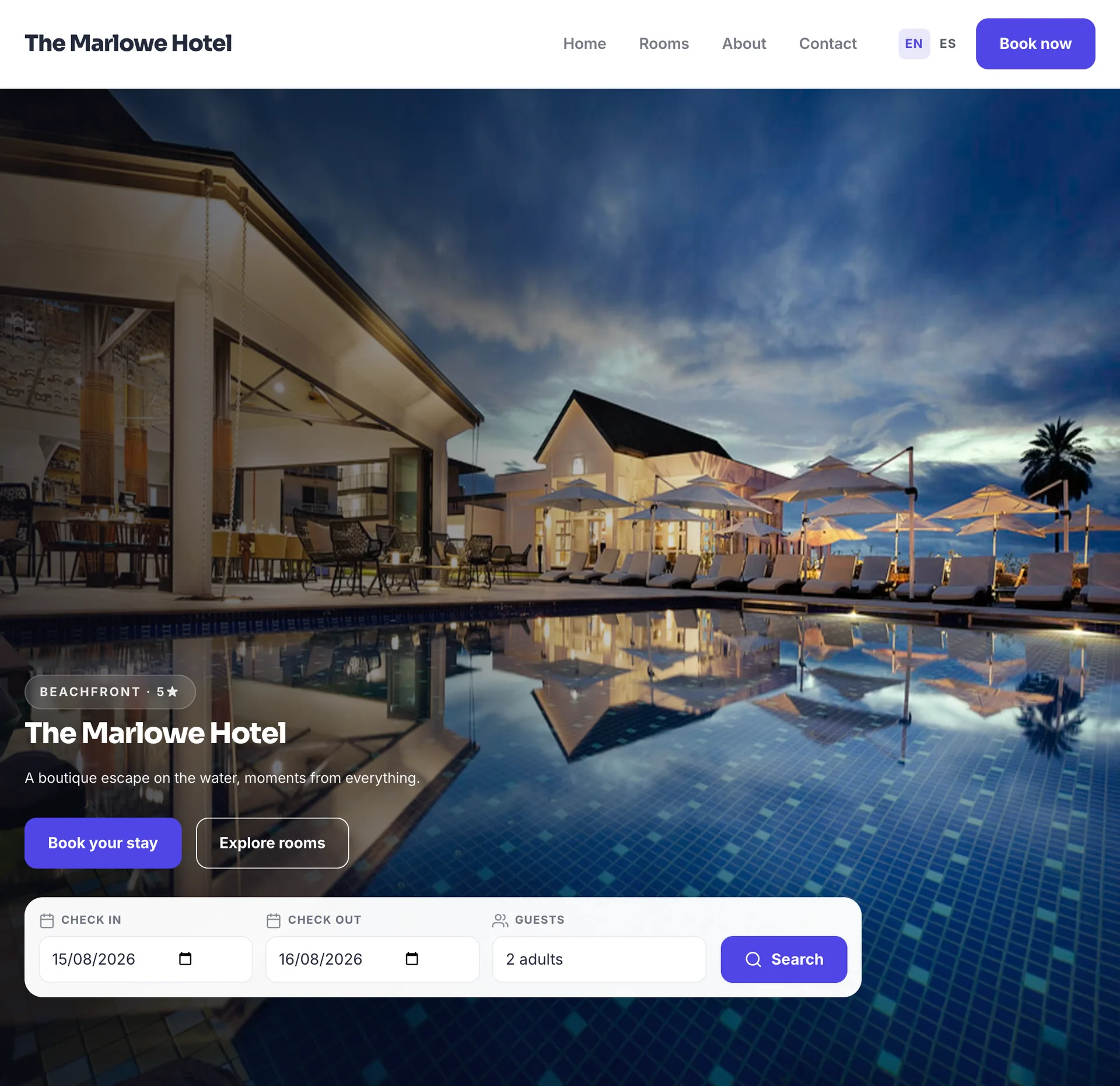
The search panel and every Book now on the site lead to your booking engine, carrying whatever dates and guest count the visitor chose. They do not lead to a copy of it: the guest continues in the same booking flow described in how guests find and book, so anything you have configured there applies here without being set up twice.
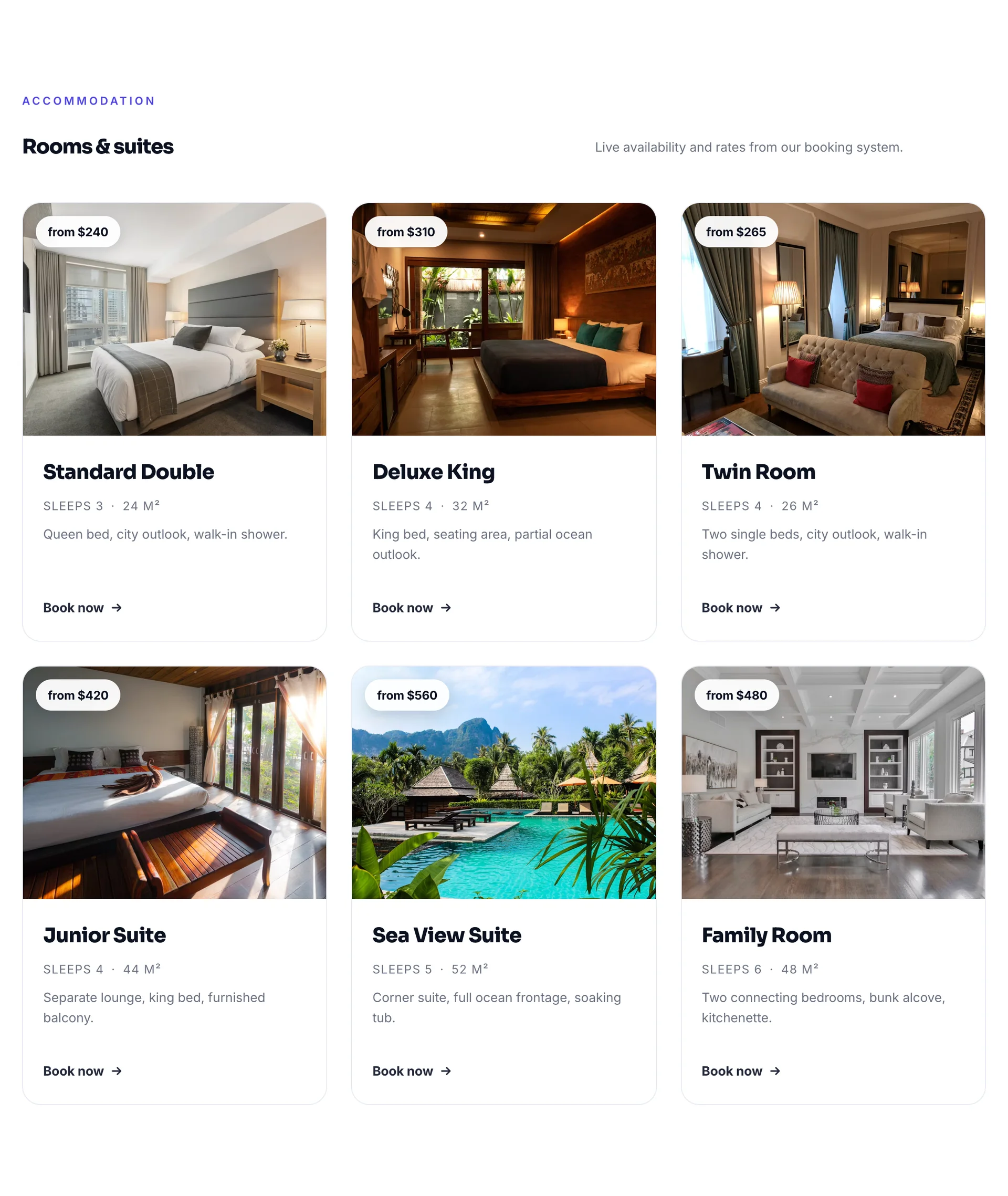
The rooms section lists your active accommodation types, and every part of each card comes from that room type's own settings: the photograph, the description, the occupancy, the size and the rate the from price is taken from. There is nothing to write here and nothing to keep in step. It follows that a room type with no photograph loads as a grey panel on your public website, and a description written as a note to yourself is published as marketing copy, so the accommodation types screen is worth a read before the site goes live rather than after.
A room card opens that room's own page, at an address ending in the room name, with its photographs, its occupancy and size, its amenity list, the same from price and a Check availability button into the booking engine. It is built entirely from the accommodation type, so there is no page to write and no page to forget: adding a room type adds its page.
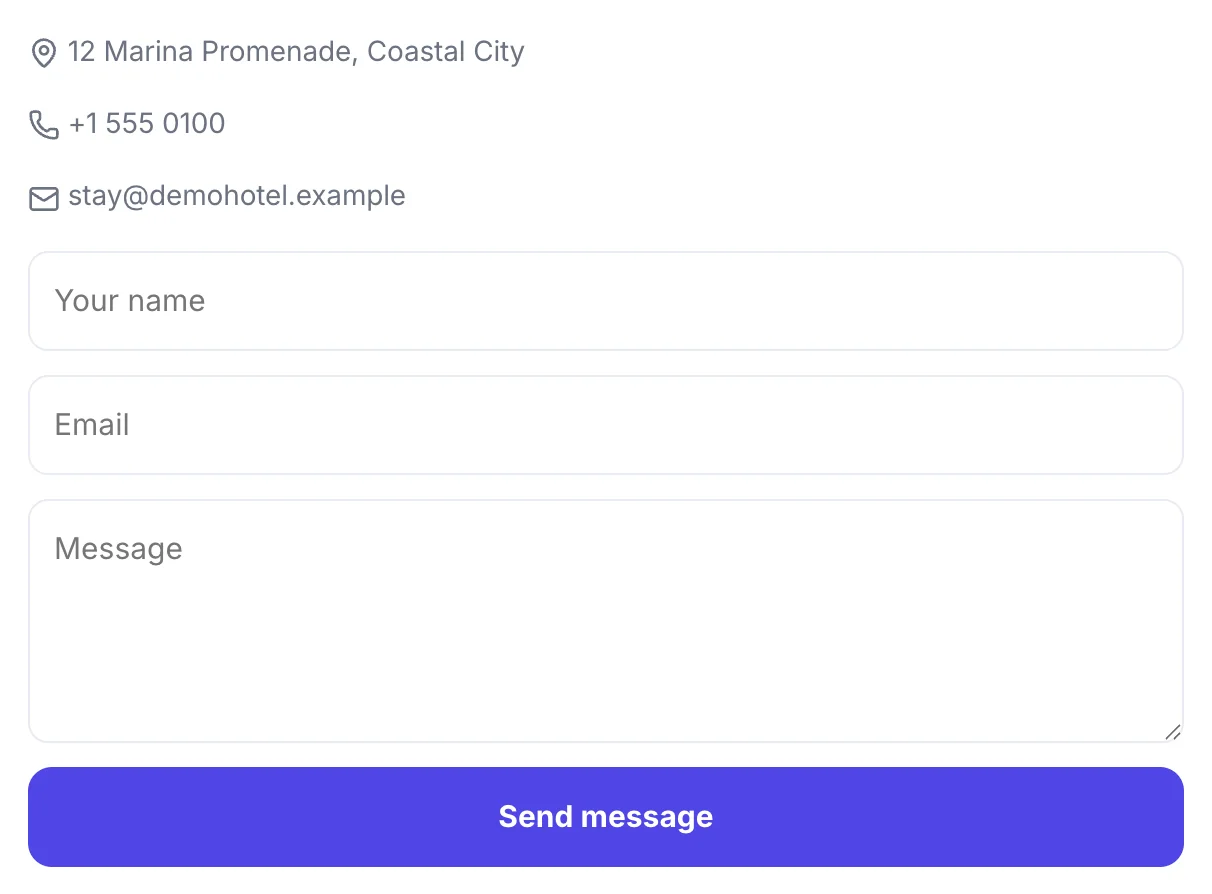
The contact block reads your property record: the street address, the telephone number and the contact email address, with a map of that same address beside them. A field you have not filled in simply does not appear, so a contact page missing a phone number is a property record missing a phone number, and it is fixed in general system settings rather than in the editor. Messages sent through the form arrive as enquiries rather than as bookings.