Manage Booking gives a guest a page of their own where they can look at what they booked and, if you let them, change it. It is one switch with four permissions under it, and every one of those permissions moves work between your front desk and your guest. This article covers what each of them opens up and what happens on your side when a guest uses it.
The switch, and what it costs you
The whole feature is off until you turn on Manage Booking. While it is off, the Manage booking link never appears in the engine's header bar and both self-service addresses redirect a guest straight back to the rooms list, so there is nothing to find even for someone who has the link.
Switching it on is the single highest-leverage thing you can do to reduce inbound email on a direct-booking property. Every "can I add a night" and "what time is check-in on my booking" that reaches your inbox is a guest who had no way to look it up. It also means guests can cancel without speaking to anyone, which is the trade: you will see cancellations you would previously have talked out of happening, and you will stop losing the ones who gave up and rang an OTA instead.
How a guest gets in
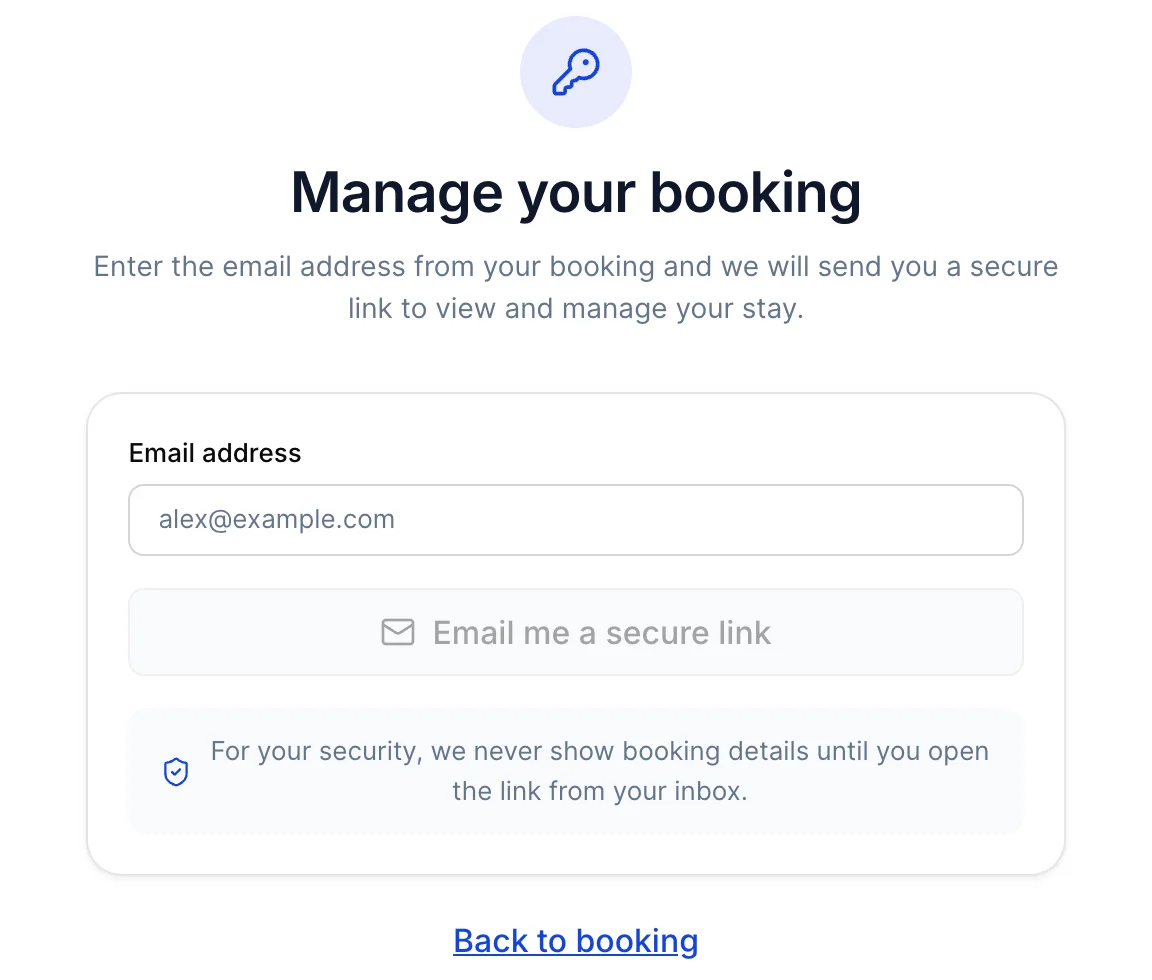
There is no account and no password. The guest types the email address they booked with, and a single-use link is sent to it. The link expires after 30 minutes.
The confirmation deliberately says "if a booking exists for that address" and never confirms that one does. That wording matters: a page that said "we found your booking" would let anyone test whether a given person had stayed with you, which is exactly the sort of thing a guest is entitled not to have leak.
What the guest sees first
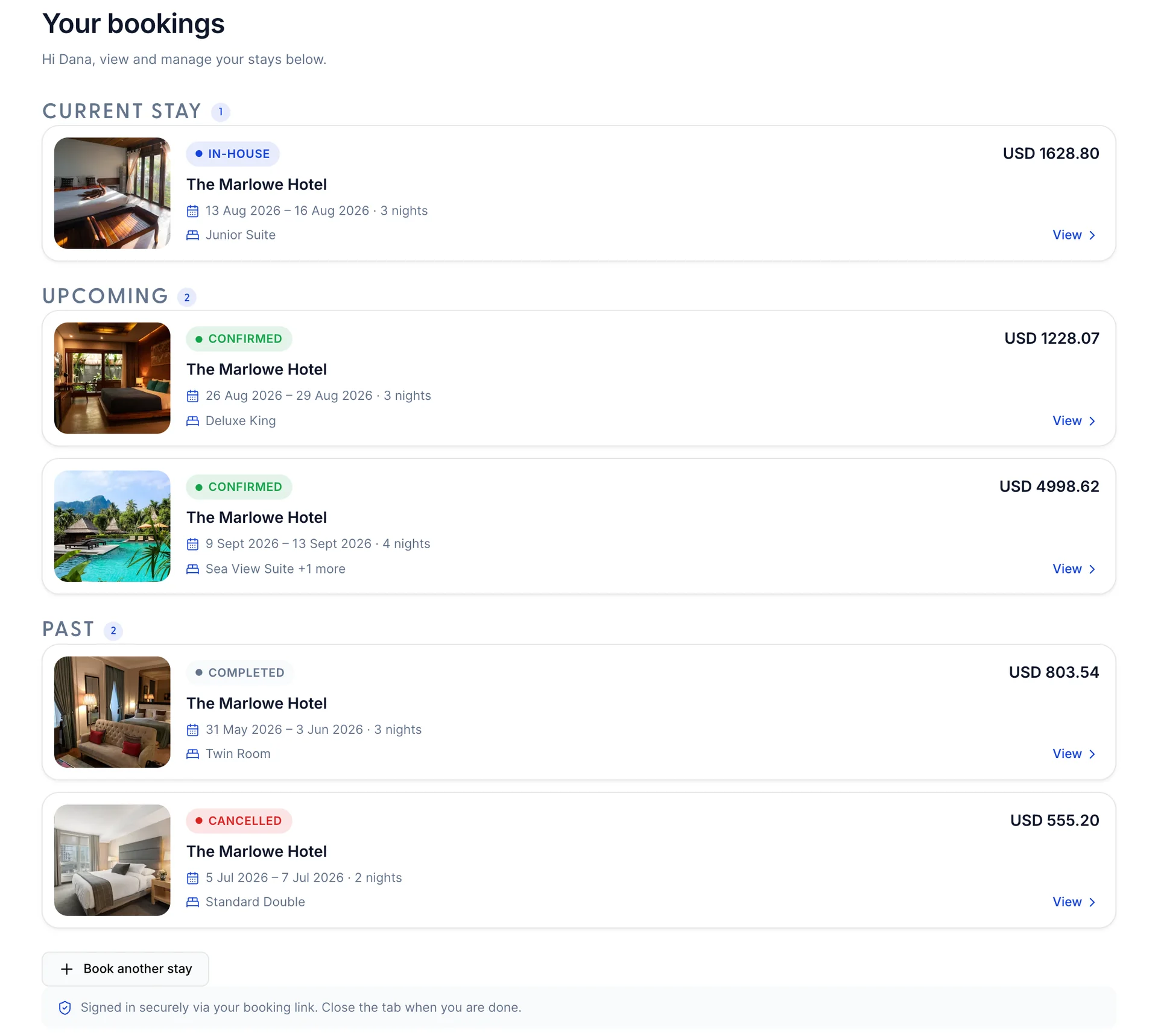
Bookings are grouped into Current stay, Upcoming and Past, in that order, with a count beside each heading. A group with nothing in it is not drawn at all, so a first-time guest sees only Upcoming.
The pill on each card is the reservation status from the PMS: Confirmed, In-house, Completed or Cancelled. A cancelled booking stays in the list rather than disappearing, which saves the "did my cancellation go through" email. A card holding more than one room shows the first room name and +1 more.
Inside one booking

The confirmation number here is the reservation number in the PMS, so a guest quoting it is giving your front desk something it can search on directly.
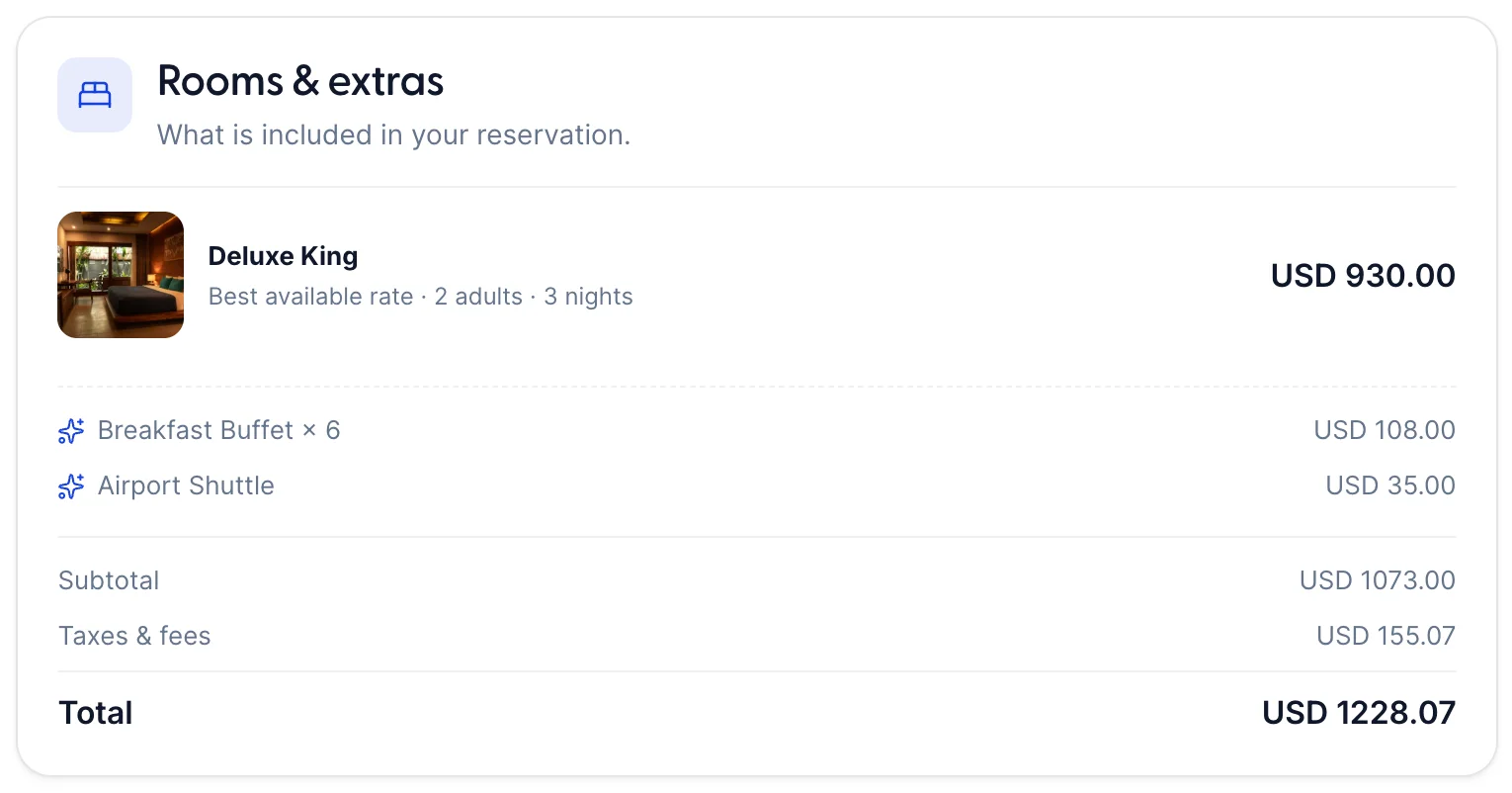
Every room is listed with its rate plan, the party it was priced for and the night count. Extras are listed underneath with the quantity bought, so Breakfast Buffet × 6 is two guests over three mornings. Taxes are rolled into one Taxes & fees line here rather than itemised the way they were in the cart.
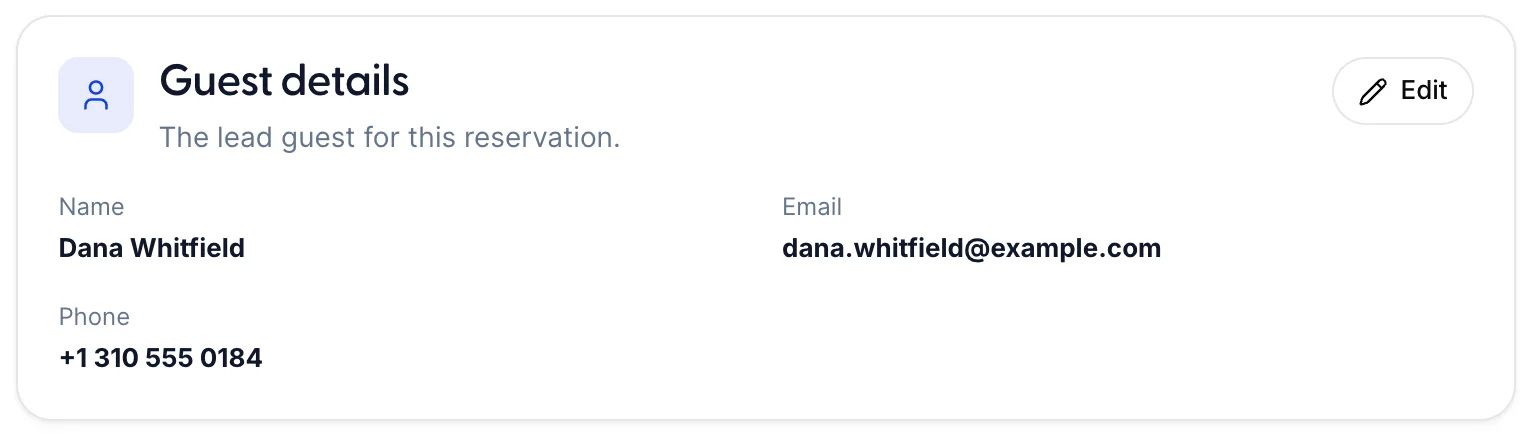
Name, email and phone, with an Edit button that only appears when you have granted that permission. A guest with no phone number on the booking sees Not provided rather than a blank.
The four permissions
Each of these is a separate tick box under the Manage Booking switch, and each one is off until you tick it. Turning the master switch off hides all four without clearing them, so the settings survive if you switch the feature back on later. None of the four does anything to a cancelled booking or to a stay that has already finished: those are read-only whatever you have ticked.
| Permission | What the guest can do, and what it does to you |
|---|---|
| Allow guests to cancel reservations | Adds Cancel booking to the Manage panel, on upcoming bookings only. The guest sees the cancellation policy before confirming. Leave it off and every cancellation comes through your inbox instead, which buys you a conversation and costs you a member of staff. |
| Allow guests to edit or add rooms / addons | Adds Adjust booking, a wizard that searches live availability, on upcoming and in-house bookings. This is the one that changes what you sell: a guest who can add a night at 11pm on a Sunday adds it, and a guest who has to email you about it often does not. |
| Allow guests to add / edit guest details | Adds the Edit button on the Guest details card. Low risk and high value: it is how a wrong phone number gets corrected before arrival rather than at check-in. |
| Allow guests to add / edit reservation notes | Lets the guest write into the reservation's notes, which your front desk reads. Useful for late arrivals and dietary requirements, and worth pairing with a note in your pre-arrival email telling guests it exists. |
Cancelling
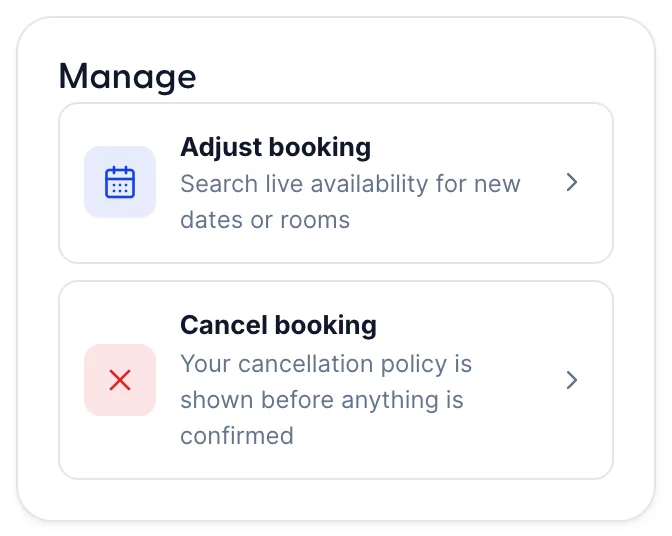
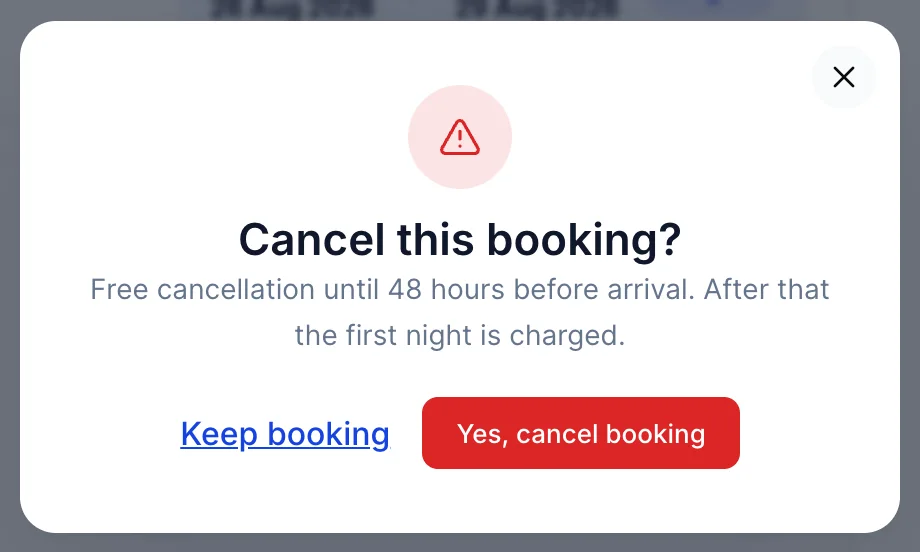
The dialog prints the cancellation policy belonging to the rate that booking was sold on, so a guest on a non-refundable rate is told they are about to lose the money before they press the red button rather than afterwards. The booking then moves to Past with a red Cancelled pill.
Cancelling is offered on upcoming bookings only. A guest already in the house, or one whose stay has finished, gets no Cancel booking row however the permission is set, which is the right answer: a stay in progress is a front-desk conversation, not a self-service one.
Changing rooms or dates
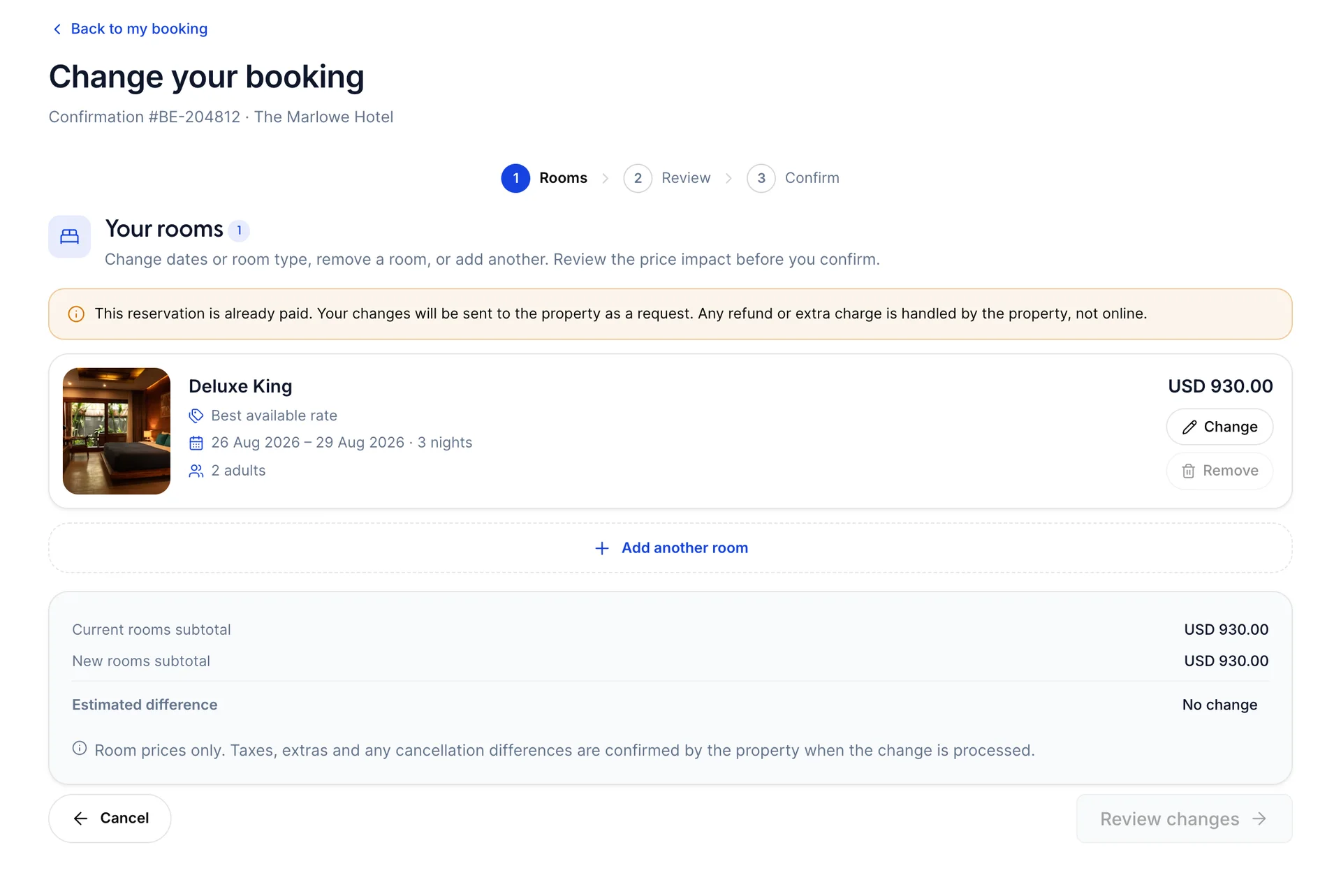
Adjust booking opens a three-step wizard: Rooms, Review, Confirm. On the first step the guest can change the dates or room type of an existing room, remove a room, or add another, and every one of those searches your live availability. A change to dates you have nothing free on simply comes back with nothing.
The panel at the foot compares the current rooms subtotal with the new one and shows an Estimated difference. Estimated is the honest word for it at this point: it is a comparison of room prices, so taxes, extras and any cancellation charge are not in the number the guest is reading.
What the last step actually does depends on one thing, and it is not something the guest chooses: whether you have taken money for the reservation yet.
On a reservation with nothing paid against it, the change is real and it happens while the guest is there. Prostay re-prices the new selection against your live rates before anything is confirmed, so the figure on the last step is a price rather than the estimate from the first. If the change costs more, the guest is asked for the difference and chooses how to settle it: by card now, or at the property when they arrive. If it costs the same or less, there is nothing to collect and the change is applied to the reservation immediately.
On a reservation you have already taken money for, which includes one where only a deposit has been paid, the same wizard ends in a request instead. The guest is told so in an amber notice before they start and again before they submit. Nothing moves either way: money back on a shortened stay and money owed on a longer one are both yours to settle with the guest, which is the right behaviour, because the alternative is software issuing refunds on its own. It does mean somebody has to action it.
Two things stop a change at the last moment, and a guest will phone you about both. A card that is declined leaves the reservation as it was, with the reason from the bank on screen. A room that has gone in the meantime, which is entirely possible when the guest opened the wizard an hour ago, comes back as a message that one or more of the rooms is no longer available for those dates and sends them back to choose again. There is a third, quieter one worth knowing because you cause it: if a payment lands on the reservation while the guest is partway through, their change turns into a request in front of them.
How you find out about a change request
Two tick boxes appear, indented, as soon as you allow guests to edit rooms. They decide how a change request on a paid reservation reaches you.
| Option | What it does |
|---|---|
| Send an email to the property | Emails the property address with the request. Good for a property where somebody is watching a shared inbox all day. |
| Create a task linked to the reservation | Raises a task against the reservation, so the request is visible in Prostay itself and survives being read and forgotten. Better for a property with more than one person on the desk. |
Both can be on at once, and at least one of them should be. With neither ticked, a guest can submit a change request that nothing tells you about.
Which permissions to grant
The two safe ones are guest details and reservation notes. Neither changes what you are owed or what you have sold, both remove real work from your desk, and the worst case is a guest correcting their own phone number. Switch them on and forget about them.
Cancellation is the one that feels risky and usually is not. The guest can already cancel by emailing you; the setting only decides whether they can do it at 2am without waiting. What it does change is your ability to save the booking, so a property that genuinely rescues cancellations on the phone has a reason to leave it off.
Room changes are the one to think about. They earn the most, because a guest adding a night or upgrading themselves is revenue you did not have to sell, and they cost the most, because every change on a paid booking lands as a request somebody has to work through. Turn it on with the task option ticked, and only when somebody owns that queue.
These four switches sit among the rest of the booking engine settings, which is worth a read in one sitting if you have not been through it since the engine went live.