Your booking engine is a page on the internet, and this screen is where you get at its markup. You can add meta tags to its head, run a script when a booking completes, put a banner above the room list, replace the footer, and connect the three tracking products most hotels already run on their main site. What you paste here is served to guests exactly as written.
Who this screen is for
This is the one part of Prostay that assumes you write HTML. Nothing here is validated, nothing is sandboxed, and there is no preview: the contents of each box are injected into the live guest-facing page the moment you save. A missing closing quote in a meta tag will break the tags after it, and a script that throws on load can stop the page rendering. If that sentence worries you, hand this screen to whoever maintains your website and use the style wizard instead, which cannot break anything.
Where the code lives
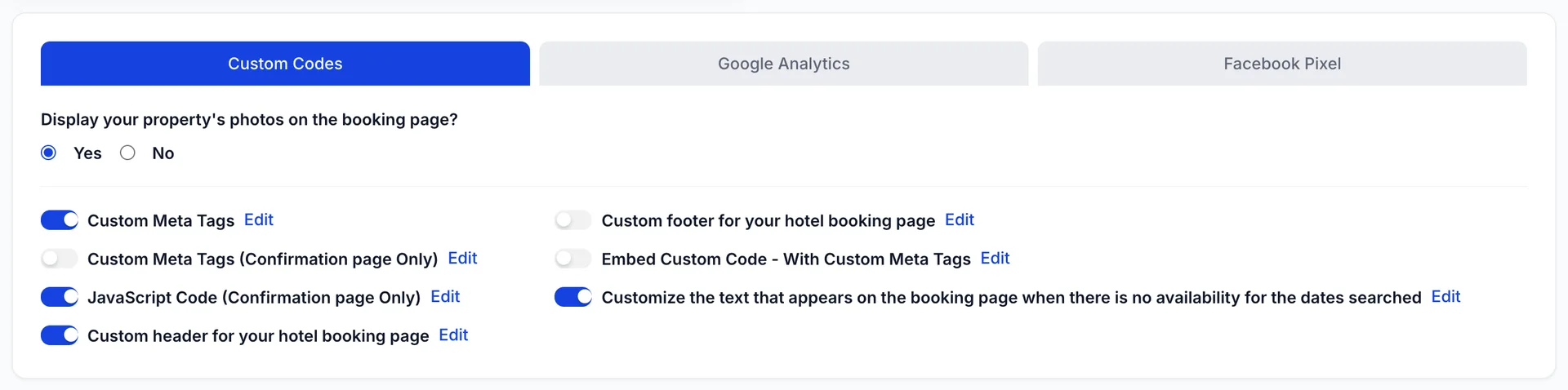
All of it sits in the second card on Booking Engine › Customizations, below the style wizard. Custom Codes holds the seven slots you write into yourself. Google Analytics and Facebook Pixel take IDs rather than snippets: you give Prostay the measurement ID and it writes the tag for you.
The radio at the top of the Custom Codes tab, asking whether to display your property's photos, is a design setting that happens to live here. It is covered in customising how your booking engine looks.
The switch and the Edit link

Every slot works the same way. The switch turns the slot on or off; the Edit link opens a side panel holding whatever is currently saved in it. The two are independent, and that is the single most useful thing to know about this screen: content saved with the switch off does nothing at all. You can keep last season's campaign tag in the box, ready to switch back on, and it will sit there inert until you do.
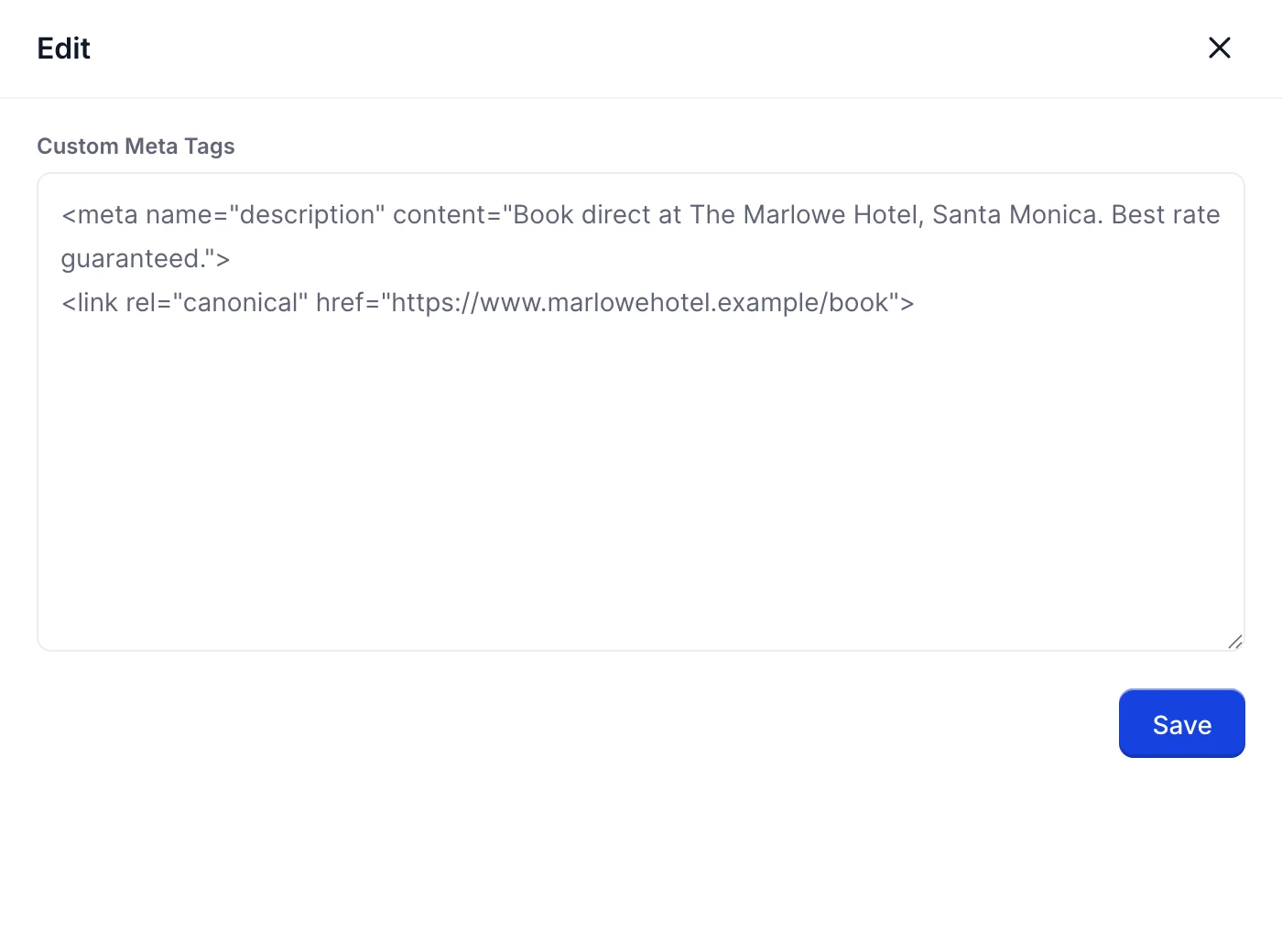
The panel is a plain textarea. It will not indent your code, will not tell you a tag is unclosed, and will not warn you that you have pasted a script into a slot meant for meta tags. Save in the panel copies the text back onto the screen; it does not save it to the server. Nothing on this screen reaches a guest until you press Save on the page itself.
What each of the seven slots does
| Slot | Where it lands, and when it runs |
|---|---|
| Custom Meta Tags | Injected into the head of every booking engine page: the room list, add-ons, checkout and confirmation. Meant for <meta> and <link> tags. Use it for a description, a canonical URL, Open Graph tags and site verification. |
| Custom Meta Tags (Confirmation page Only) | The same, but only on the page a guest reaches after booking. Use it to keep the confirmation out of search results with a noindex tag, which is worth doing whether or not you add anything else. |
| JavaScript Code (Confirmation page Only) | Runs once, on the confirmation page, after a booking completes. This is where conversion tags belong. Paste the full <script> block, not the bare JavaScript inside it. |
| Custom header for your hotel booking page | Rendered as a banner across the top of the booking page, above the hero. It is markup, so a styled <div> works. Good for a promotion, a phone number or a notice about building works. |
| Custom footer for your hotel booking page | Replaces the default Prostay. All Rights Reserved. line at the bottom of every booking engine page. Also markup. This is where a hotel usually puts its company registration, its address and links to its own terms. |
| Embed Custom Code - With Custom Meta Tags | A second head slot, injected alongside the meta tags on every page. The distinction is one of housekeeping rather than behaviour: keep tags in the tags box and scripts here, so that turning off one does not take out the other. |
| Customize the text that appears … if there is no availability | Not code. Plain text, shown to a guest whose search returned nothing. |
Meta tags in practice
The engine already writes a <title> from your property
name and a description from your property record. Adding your own
description tag gives you two, and search engines will pick one. If you want
control of the description, write it here and accept that you are now
maintaining it in two places.
The tags worth adding are the ones Prostay cannot know about: a canonical URL pointing at whichever address you want indexed, Open Graph and Twitter tags so that a link to your booking page shared on social media renders with your photograph rather than a blank card, and the verification tags that Google Search Console, Bing and Pinterest ask you to place in the head.
<meta name="description" content="Book direct at The Marlowe Hotel, Santa Monica. Best rate guaranteed.">
<link rel="canonical" href="https://www.marlowehotel.example/book">
<meta property="og:title" content="The Marlowe Hotel, Santa Monica">
<meta property="og:image" content="https://www.marlowehotel.example/og.jpg">
One tag per line, each one closed. There is no wrapping element: what you
write is what is inserted, so do not paste a whole <head>
element or an <html> document around it.
The two confirmation-only slots
A conversion is a completed booking, and the confirmation page is the only page that proves one happened. That is why two of the seven slots are restricted to it. Tracking code that fires anywhere else counts guests who browsed and left, which inflates your reported conversions and, if you are bidding on that number, spends real money against it.
Put your Google Ads, Bing, affiliate and metasearch conversion tags in JavaScript Code (Confirmation page Only). The booking reference, the room and the total are on the page around your script, but they are not passed to it as variables: if your tag needs the booking value, read it from the page or ask the vendor for a version that does.
The header, the footer and the sold-out message
Three of the slots are not really about tracking. The header banner and the footer are for saying something to a guest, and both accept markup: use inline styles rather than a stylesheet, because there is nowhere here to put one. Keep the header short. It pushes your hero photograph down the page, and on a phone a three-line banner can be most of the first screen.
The no-availability text is the one field on this tab a manager rather than a webmaster should write, and it is worth writing. A guest who searches dates you are full for is a guest who wanted to stay with you. The default tells them there is nothing available; a sentence with your phone number in it, or a suggestion to try a night either side, turns some of them into bookings. It is plain text, so a phone number will not become a clickable link.
Google Analytics and Google Ads
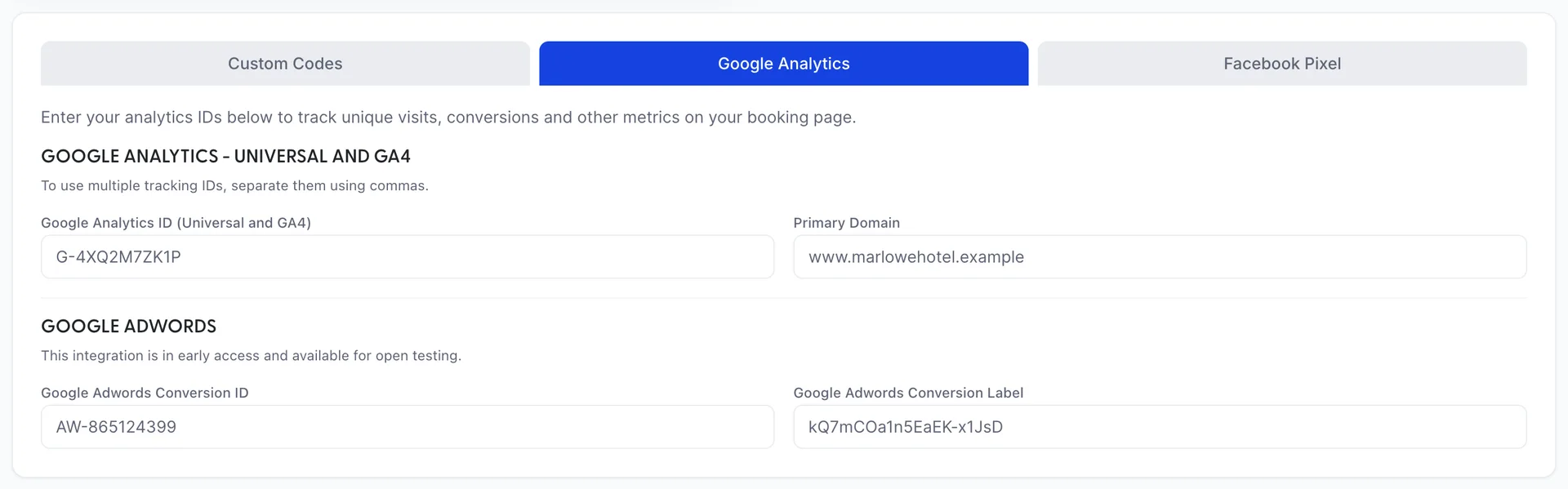
This tab takes identifiers, not snippets. Prostay writes the tag itself, which is why there is nothing to paste and nothing to keep up to date when Google changes its loader.
| Field | What to put in it |
|---|---|
| Google Analytics ID | A GA4 measurement ID, in the form G-XXXXXXXXXX. To feed more than one property, separate the IDs with commas and Prostay will configure each of them. |
| Primary Domain | The domain your main website runs on. Set it when you want a guest's journey from your website into the booking engine to count as one session rather than two, which is what makes your referral report honest. |
| Google Adwords Conversion ID | The account-level ID from Google Ads, in the form AW-000000000. Prostay fires the conversion on the confirmation page only. |
| Google Adwords Conversion Label | The label for the specific conversion action you want credited. Without it the event still fires, but Ads cannot tell which action it belongs to. |
The Facebook pixel

One field, and the note above it is the important part: it wants the numeric ID, the long run of digits from Meta Events Manager, not the block of JavaScript Meta offers to copy. Paste the snippet and no pixel will load. Prostay writes the standard pixel and sends a PageView from every booking engine page.
Analytics in the menu is these same fields
The Booking Engine menu has an Analytics entry of its own, below Customization. It opens a screen holding the same five fields as the two tabs above, reading and writing the same record, so there is nothing on it you cannot do here and nothing here it will overwrite. Whichever one you open, you are editing one set of tracking IDs.
Two things to know if you end up on it. It gives you no confirmation when you save, so reload the page and look at the fields rather than trusting the absence of an error. And its Close button does nothing at all, so leave by the menu.
Testing what you pasted
Save, then open your booking page and look at it rather than assuming. Everything on this screen except the header, the footer and the sold-out message is invisible on the page itself, so the only way to confirm it arrived is to check the source.
- Open your booking page and view source, or open the browser's developer tools and look at the
<head>. Everything Prostay injected from this screen is marked with adata-prostay-injectedattribute, so you can find it quickly. - For the meta tags, confirm each one is a separate tag. If you see your markup inside a single attribute, something is escaped and the tags will not be read.
- For Analytics, open the realtime report and load your booking page. A visit should appear within a few seconds.
- For the confirmation-only slots, make a test booking. There is no way to load the confirmation page without one, which is a nuisance, but it is also the only honest test of a conversion tag.
Both Save buttons on this screen write everything: the style wizard above, all seven code slots, and the IDs on both tracking tabs. Switching between the three tabs does not lose what you typed on the others, so you can set up all three and save once.