Most guests who book with you directly start on your own website, not on your booking page. The widget is what connects the two: a date search, or just a button, that sits on your site and hands the guest to your Prostay booking page with their dates already filled in. This screen builds it and gives you the one line of code that installs it.
What the widget actually is
It is a single script tag. You paste it into your website once, and it draws the widget wherever you put it. Everything you choose on this screen is carried in that one line, which means two useful things: your web developer has almost nothing to do, and changing the widget later is a matter of copying a new line rather than rebuilding anything.
The widget does not take bookings itself. It collects dates and sends the guest to your booking page, which is the thing you style in customising how your booking engine looks. The two are set up separately and it is worth making them look like each other.
How the screen is arranged
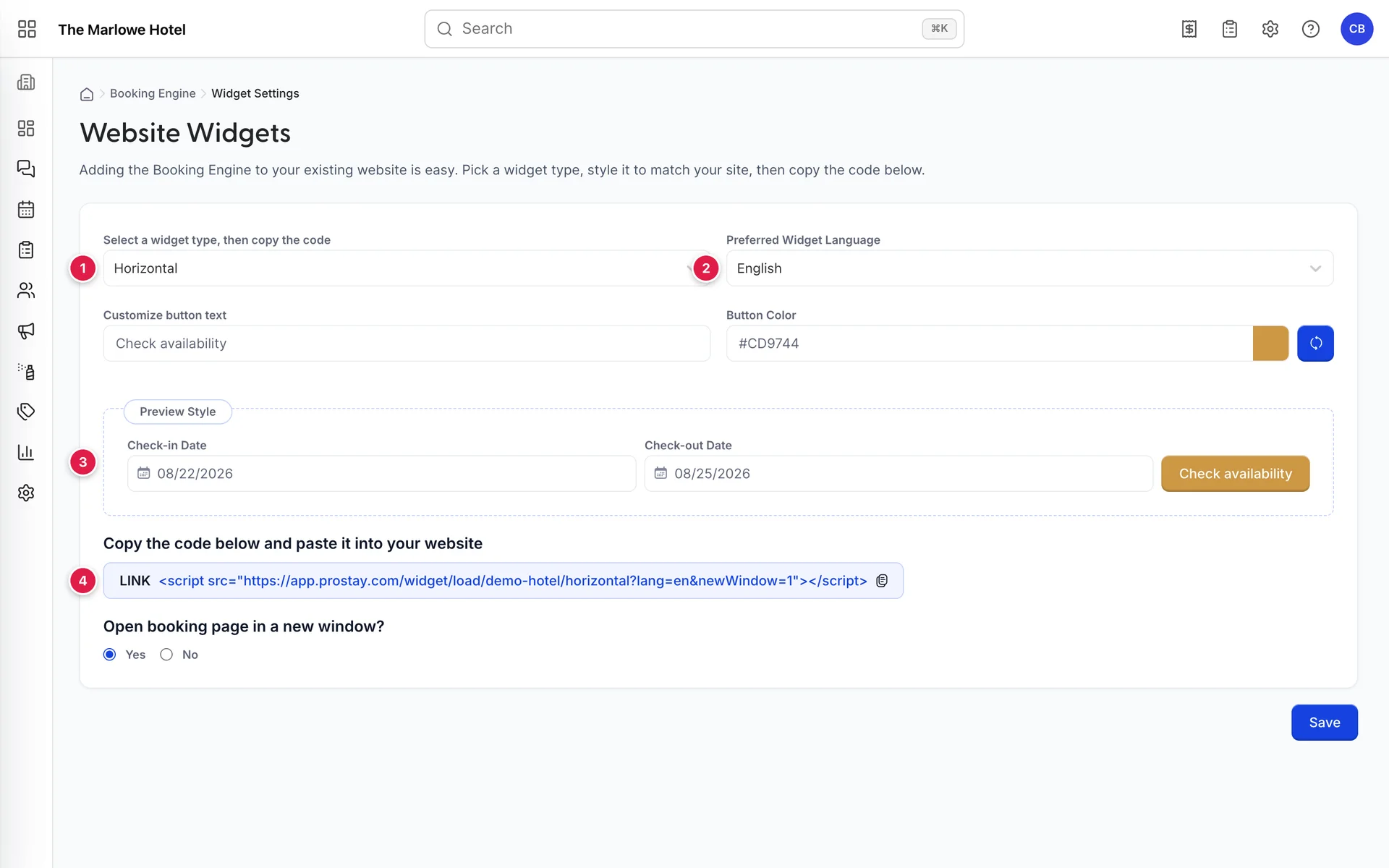
- Widget type. The shape of the thing. Five choices, and the one decision on this screen that really matters.
- Preferred Widget Language. The language the widget itself is written in.
- Preview Style. The widget as it will appear, redrawn as you change anything.
- The embed code. Click it to copy. This is what goes on your website.
The five widget types
Pick by where it has to fit, not by which looks best on this screen. A widget that has to squeeze into a narrow column will look worse than one chosen for the space it has.

| Type | What it is, and where it belongs |
|---|---|
| Horizontal | Both date fields and the button in one row. The default, and the right answer for a wide space: under a hero image, or across the top of a home page. |
| Stacked | The same fields arranged vertically. For a sidebar, a narrow column, or anywhere the horizontal version would be squashed. |
| Floating bar | A band in your brand colour carrying a short message alongside the dates. It is the only type with its own message and its own background, which makes it the one to use for a campaign: park free, book direct, third night half price. |
| Large Button | A button and nothing else. No dates: the guest picks those on the booking page. Use it where a date picker would be noise, such as a room description page. |
| Small Button | The same, smaller. Made for a navigation bar, beside your phone number. |


Choosing the language
Preferred Widget Language sets the language of the widget's own words: the field labels and the button. There are seven, English, German, Spanish, French, Italian, Portuguese and Thai, and the choice is carried in the embed code as a two-letter code.
It is one language per widget, so match it to the page it sits on rather than to your guests. If your website has an English page and a German page, take the code twice, once with each language chosen, and put the matching one on each page.
Styling it to match your site

| Field | What it changes |
|---|---|
| Customize button text | The words on the button. Available for every type. Check availability is a safer default than Book now, because it promises less and is true earlier in the decision. |
| Customize text | Floating bar only. The message beside the dates. Keep it to a handful of words: it shares a single band with two date fields and a button. |
| Brand Color | Floating bar only. The background of the band. Resets to #1643E0. The labels on the bar are white, so a pale colour here makes them unreadable. |
| Button Color | The button, on every type. Resets to #CD9744. This is the one colour on your website that should not blend in. |
Click a colour field to open a picker, or type a hex value. The square beside it shows the colour and the blue button resets it to the default.
New window, or the same one
Open booking page in a new window? decides whether the booking page replaces your website in the guest's tab or opens beside it.
Yes leaves your website open behind the booking, which reads as less of a commitment and keeps a guest who abandons the booking on your site rather than nowhere. No keeps everything in one tab, which is tidier on a phone, where a second tab is easy to lose. Yes is the more common choice for a desktop-heavy audience and the difference is small either way.
The embed code

Clicking the line copies it. Reading it is worth thirty seconds, because everything in it is something you chose:
demo-hotelis your property key, which is how the widget knows whose rooms to show.horizontalis the widget type.lang=enis the language.newWindow=1is the new-window answer, where 1 is Yes and 0 is No.
Where to put it on your website
Paste the line into the HTML of your page, at the exact spot you want the widget to appear. In most website builders that means adding an HTML or embed block. The widget draws itself where the tag sits, so a tag in the footer draws a widget in the footer.
- Choose the type, the language and the colours here, then press Save.
- Click the code to copy it.
- In your website editor, add an HTML or custom code block where you want the widget.
- Paste the line and publish.
- Open the page as a guest would, on a phone as well as a desktop, and put a real search through it.
The one thing worth testing properly is the handover. Pick dates in the widget, follow it to the booking page, and check that the dates arrived and that the rooms shown are the ones you expect. That is the whole job of the widget, and it is the only part of it a guest will notice going wrong.