Your booking engine arrives with the pages a booking needs and nothing else. Custom pages are how you add the rest: the privacy policy your payment provider asks for, the parking instructions guests phone up about, a page about the hotel for people who arrived from a search result rather than from your website. Each one is built from stacked sections, and each one carries its own setting for where it is linked.
What custom pages are for
These pages live inside the booking engine, on the same address as your booking page. That is the point: a guest halfway through choosing a room can read your cancellation terms and come back without leaving the site and losing their basket. A link out to the same document on your main website takes them away from the booking, and some of them do not return.
They are not a website builder. There is no navigation to design, no home page and no blog. If what you want is a full site for the property, that is the Instant Site, covered in publishing an Instant Site.
The list
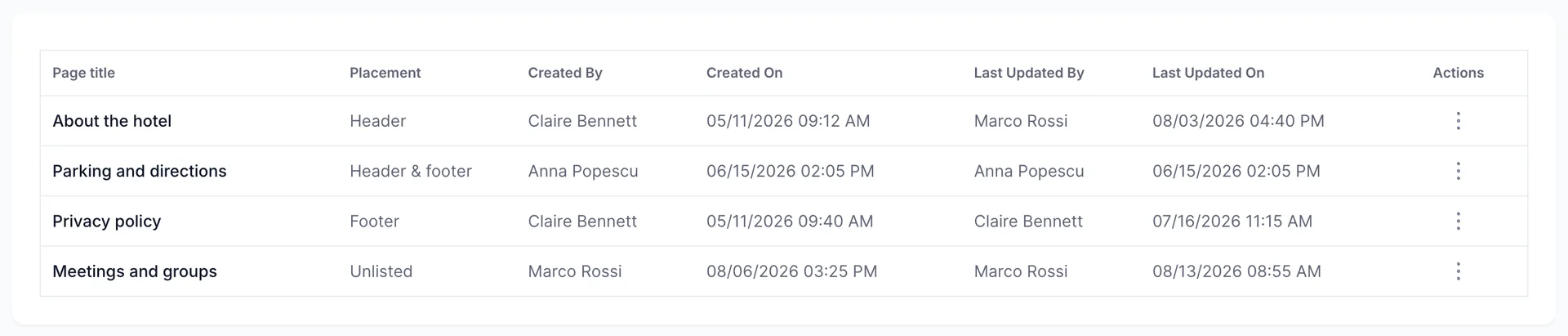
Every page you have built is here, with its placement and an audit trail of who created it and who touched it last. That trail matters more than it looks: a policy page nobody has updated in two years is usually a policy page that no longer matches what you do.
Add New Page at the top right starts an empty one.
The four fields that place a page

| Field | What it does |
|---|---|
| Page Title (required) | The heading on the page and the wording of the link that points at it. It has to be unique: type a title another page already uses and the field turns red and tells you so. Keep it short, because on a phone the header menu has very little room. |
| Visibility | Active or Inactive. Inactive keeps the page and its content but takes it off the booking engine entirely. Use it to write a page over several days, or to retire one you may want back. |
| Placement | Where the link appears: the header menu, the footer, both, or nowhere. Covered below. |
| Page path (required) | The address, written with a leading slash, as in /about. It also has to be unique. This is what you paste into an email or a booking confirmation, so choose something you would be happy reading aloud on the phone. |
Choosing a placement
| Placement | Where the link appears, and when to pick it |
|---|---|
| Header menu | In the navigation at the top of every booking engine page. The most visible option, and the one to keep for pages that help someone decide to book: what the hotel is like, what is nearby, how parking works. |
| Footer | In the row of links at the bottom. Where policies belong. Present on every page, findable when wanted, and out of the way when not. |
| Header & footer | Both. Worth it for the one page you are asked about constantly, and not worth it for anything else, because a header with six items in it stops being a menu. |
| Unlisted (direct link only) | No link anywhere. The page exists at its path and works for anyone you send it to. This is how you handle a page for one audience: a group rate sheet for a wedding party, a corporate rate explanation, a page you are still writing. |
Building the page out of sections
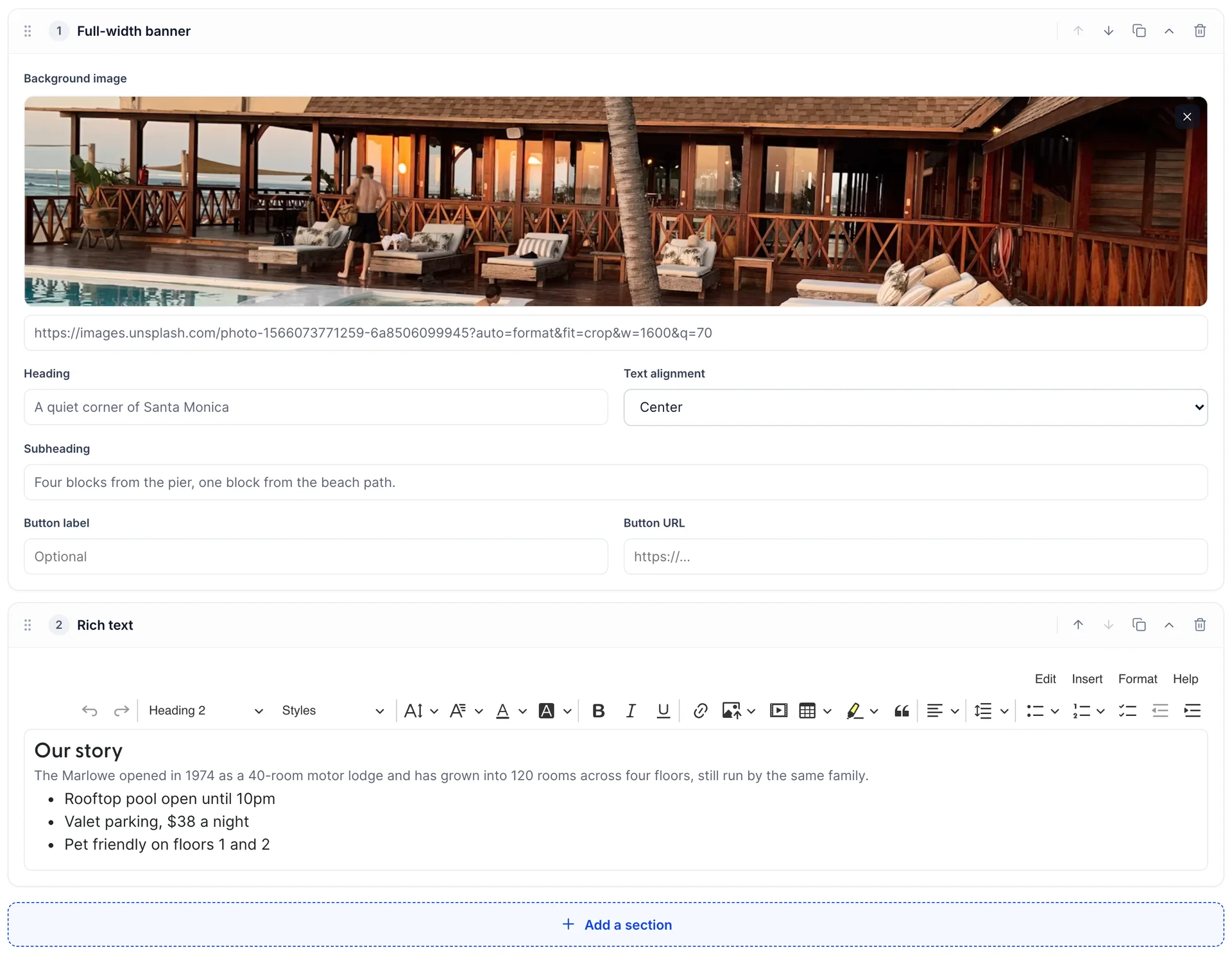
A page is an ordered stack of sections, and it renders top to bottom in the order you see. Each section header carries the same controls: a drag handle for reordering, arrows to nudge it up or down one place, a duplicate button, a collapse button that folds the section away so you can see the shape of a long page, and a delete button.
The eight section types
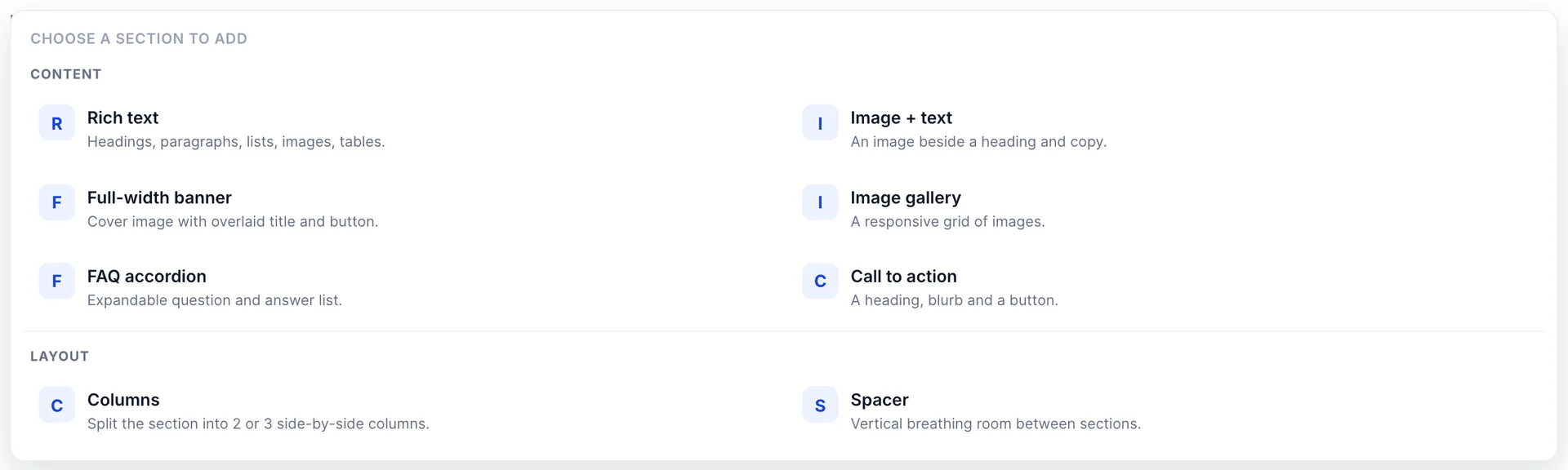
| Section | What it gives you |
|---|---|
| Rich text | A full editor: headings, paragraphs, lists, links, images and tables. The workhorse, and the right choice for a policy page, where the content is the words. |
| Image + text | One image beside a heading and copy, with the image on the left or the right, and an optional button. Alternate the side down a page and a plain page starts to look designed. |
| Full-width banner | A cover image with a title and subtitle over it, left, centre or right aligned, plus an optional button. Best as the first section of a page and rarely worth using twice. |
| Image gallery | A grid of images, two, three or four across, each with its own alt text. Write the alt text: it is what a guest using a screen reader hears, and what shows if an image fails to load. |
| FAQ accordion | Questions that expand to answers. The most useful section on this list for a hotel, because it turns the ten questions your front desk answers daily into a page a guest reads at midnight. |
| Call to action | A heading, a line of copy and a button. Point the button back at your booking page so a guest who has read to the bottom of a page about the hotel can act on it. |
| Columns | Splits the section into two or three columns, each of which holds its own sections. Good for three short blocks side by side, and worth avoiding for long text, which on a phone stacks back into one column anyway. |
| Spacer | Vertical space, small, medium or large. Use it when two sections sit too close together. |
Saving, and why Save stays grey
Save is grey and unclickable until the page has a title, a path and at least one section. That last condition is the one that catches people: a page with the routing fields filled in and no content cannot be saved, even as a draft. If you want to start a page and come back to it, add a Rich text section, type a line into it, set Visibility to Inactive, and save that.
A successful save returns you to the list. If the save cannot reach the server, the screen tells you so and keeps everything you typed. Cancel leaves without saving and does not warn you first, so treat it as a discard button.
The page a guest opens
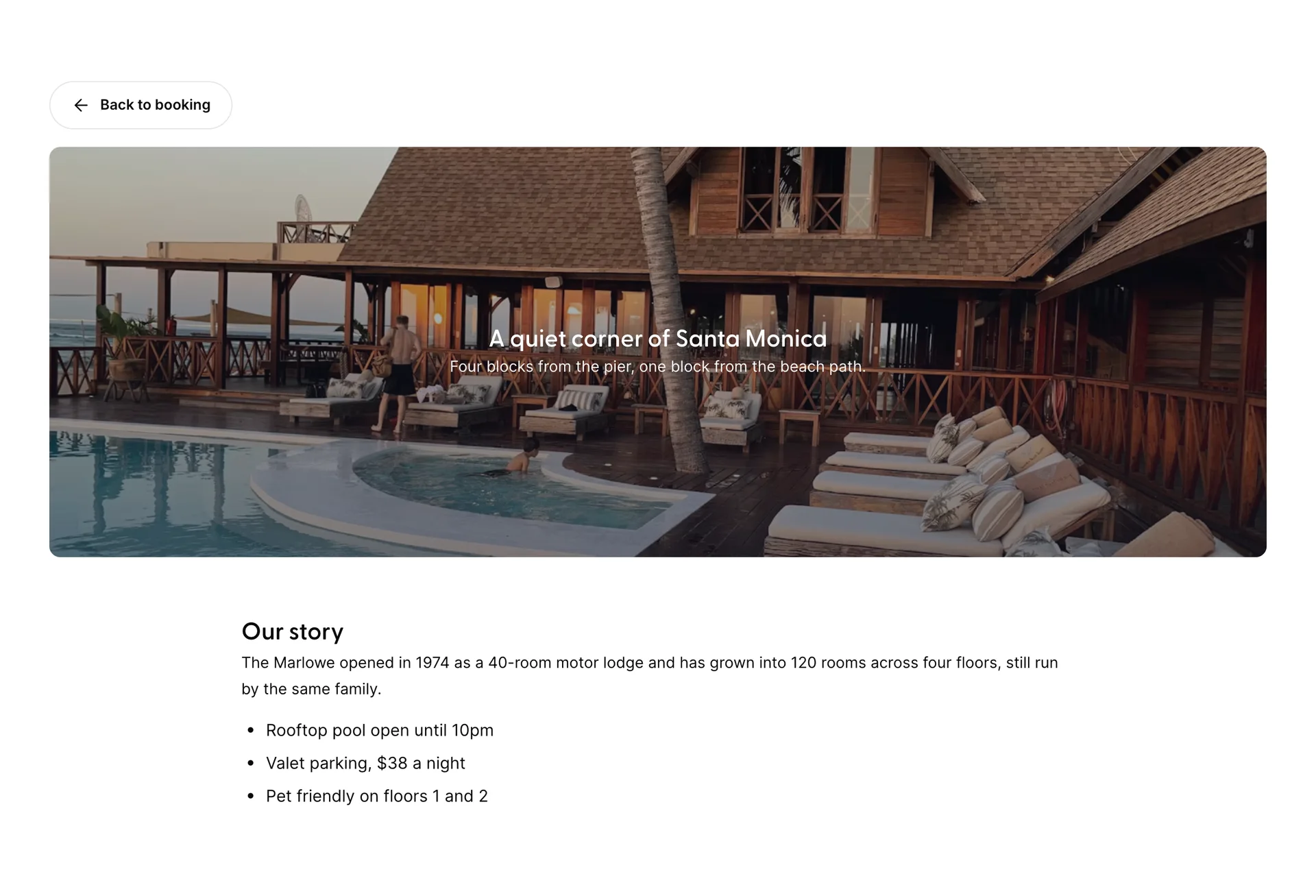
The address is your booking engine's own address, then
/page/, then the page path without its leading slash. A page at
/about is published at
.../page/about. The path is used exactly as you typed it, so keep
it lowercase, with hyphens rather than spaces: a path of
/Spa Days becomes an address with the capital and the gap still in
it, which is the kind of link that survives being clicked and does not survive
being read down the phone.
The page is drawn in your engine's colours, from the sections you stacked, and it keeps the engine's own bar and footer, so the header and footer links to your other pages are still there and a guest can go from About to Parking without returning to the booking. What it does not have is the search bar, which is why there is a Back to booking link above the content: that link is the way back to choosing dates. The browser tab takes the page title rather than your property name, which is worth knowing when you are looking at a guest's screenshot of six open tabs.
Deleting a page
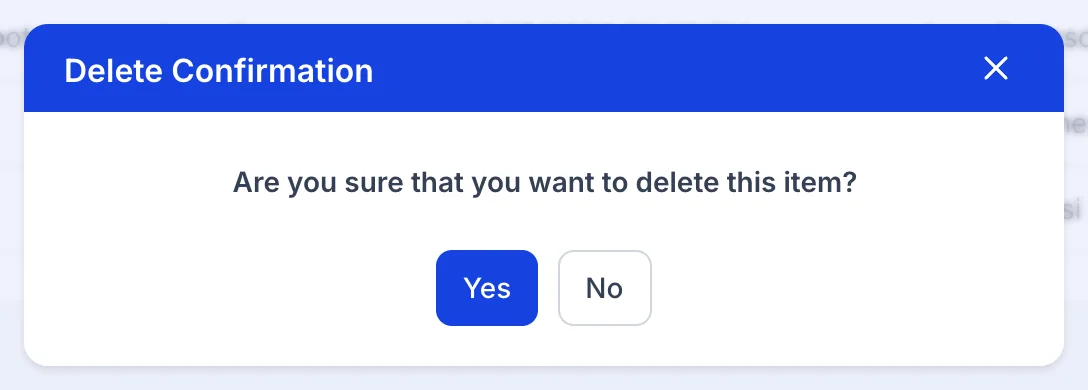
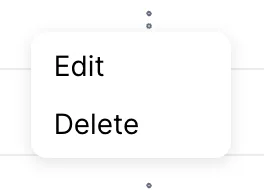
Delete removes the page and everything in it. There is no archive and no undo, and the confirmation does not tell you which page you picked, so check the row before you open the menu. If your reason for deleting is that the page is out of date rather than wrong, set Visibility to Inactive instead and keep the content.