The booking engine is the only screen in Prostay your guests use. Everything it shows is read from decisions you made somewhere else: rates, availability, taxes, cancellation policies, add-ons and the settings screen. This article walks the whole funnel in the order a guest meets it, and says which screen each thing came from, so that when a guest tells you something is wrong you know where to go.
The address, and the bar above the page
Your engine lives at a fixed public address made from two keys: your group's and your property's. You will find it on the booking engine dashboard, in a chip you can click to copy. It is the link to put on your website, in your email signature, on your Google Business profile and in your social profiles. It never changes.
If your account holds more than one property, the same address shortened to your group's key lists all of them and lets the guest choose. That, and the four things you can add to either address so a link opens with the dates already filled in, are in sending guests to the right property.

- Your group's name. The partner account the property belongs to, not the hotel. A single-property account will see the same name twice.
- Manage booking. The way back in for a guest who has already booked. It only appears when you have switched Manage Booking on. See letting guests manage their own booking.
- The language chip. Only appears when Enable language translation is ticked, and only lists the languages you selected.
- The currency chip. Only appears when Enable currency conversion is ticked. See currencies on the booking engine.
The dark strip under the bar is your custom header, a block of your own markup that you write on the Customisation screen. It is the only part of the page above the search bar that you can put arbitrary text into, which makes it the natural home for a direct-booking incentive or a phone number.
The search: three fields, one answer
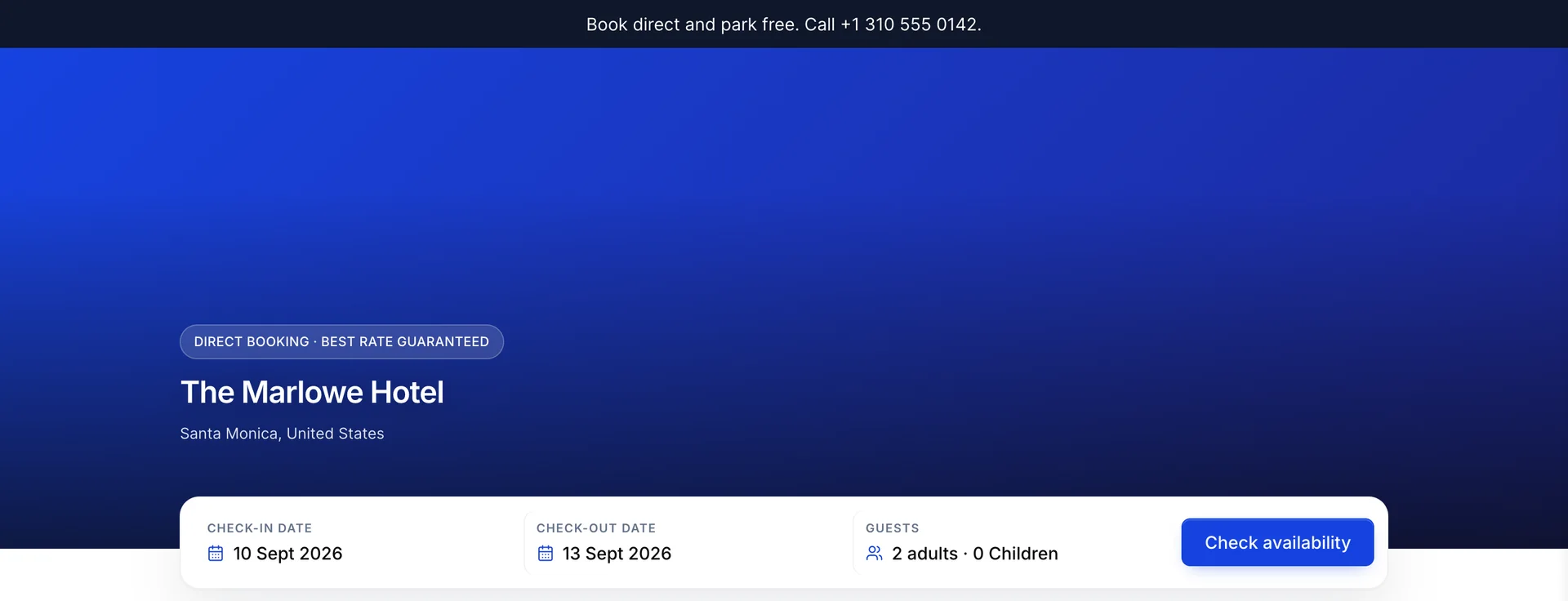
The heading is your property's name and the line under it is your city and country, both taken from your property record. The image behind them, the eyebrow above them and the shape of the whole block come from the Customisation screen.
A guest arriving with no dates gets today and tomorrow already filled in, so the page always has something to show. When you send someone a link you can pre-fill the search by adding the dates to the address, which is what a "check availability" button on your own website should do.
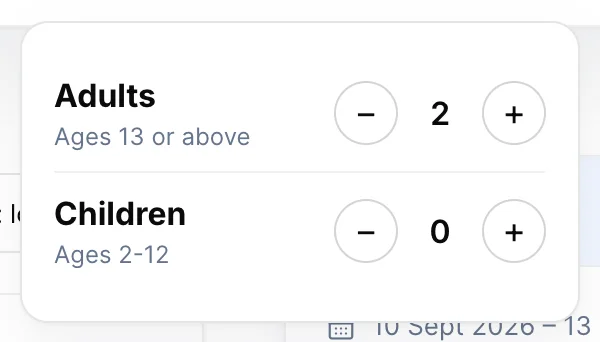
Adults and children are counted separately because they are priced separately. The occupancy you set on each accommodation type decides whether a room is offered at all, and the extra adult and extra child figures on the rate interval decide what the additional heads cost. A family of four searching a property whose largest room holds three will be told there is nothing available, on dates that are in fact wide open.
What "6 rooms available" is counting

Six here means six accommodation types, not six rooms. A property with 120 rooms across six types shows 6 when every type has at least one unit free and a price for those dates. Both conditions matter: a type with plenty of rooms but no rate interval covering the dates does not appear, and neither does a type that is fully sold.
The dropdown offers two orders, Price: low to high and Price: high to low, and it opens on the first of them. Both sort on the cheapest rate for the whole stay, so a type whose flexible rate is expensive but whose non-refundable rate is cheap sorts on the cheap one.
Reading a room card
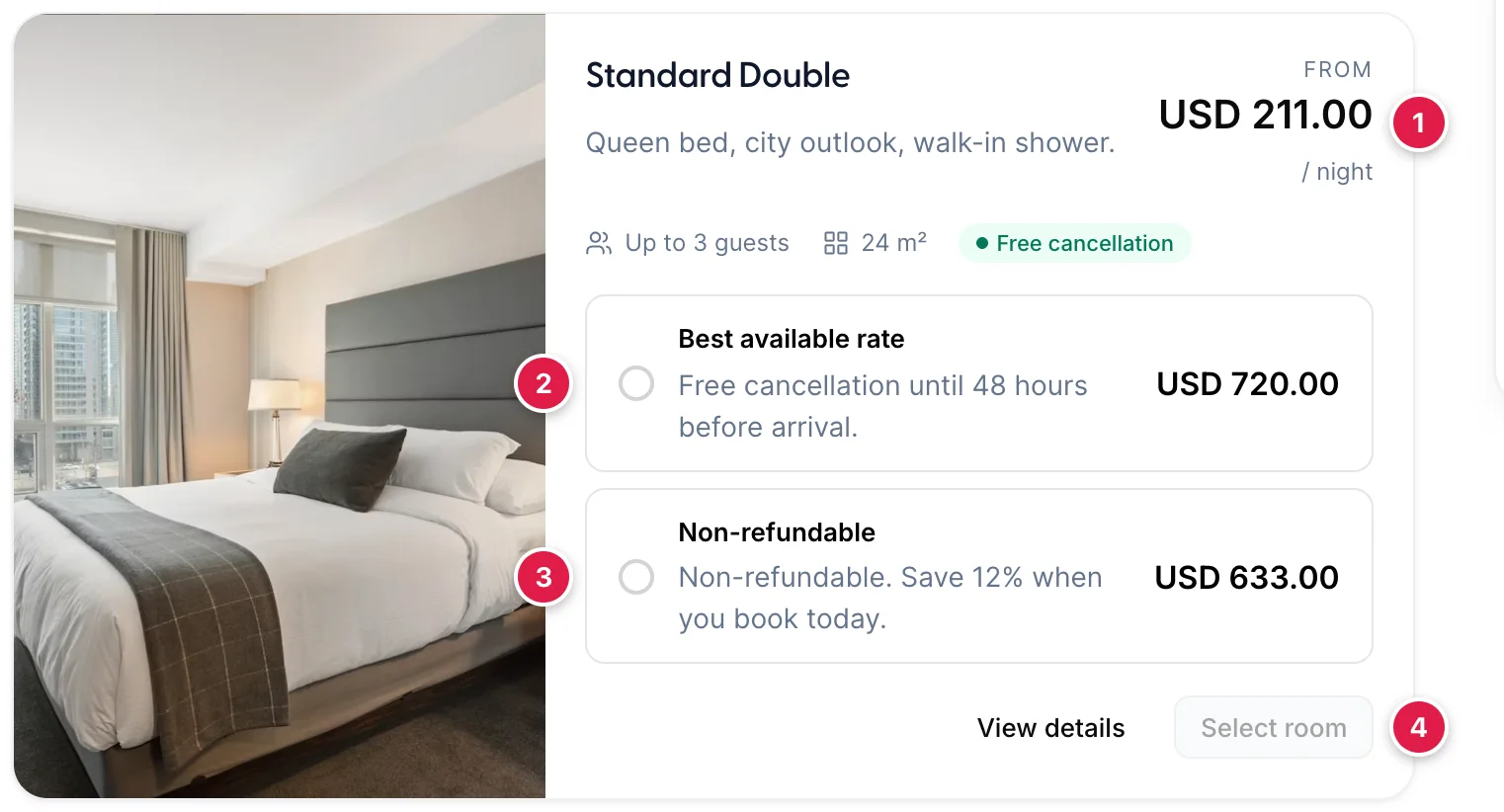
- The "From" price. The cheapest rate plan on the card, divided by the number of nights. It is a headline, not something a guest can book: nothing on the card costs exactly this.
- The first rate row. One row per rate plan available for these dates. The price is the whole stay, before tax.
- The second rate row. Same room, different conditions. The sentence under the name is the rate plan's own description, published verbatim.
- Select room. Greyed out until a rate row is chosen, because the engine cannot add a room to the cart without knowing which rate it was sold on.
The photograph, the name, the description, the occupancy and the room size all come from the accommodation type. The green Free cancellation badge is derived from the rates on the card and appears only when at least one of them is refundable, so a type you sell on a single non-refundable rate does not carry it. View details opens a panel of the type's amenities, and appears only when you have given the type amenities to show.
Per night or per stay
The / night under the "From" price is a setting, not a convention. Booking Engine → Settings offers Show Lowest Sales Price, which divides by the nights as above, and Show Accommodation Total Price for Stay, which shows what the whole stay costs and labels it with the night count.
Per night reads cheaper and is what guests are used to comparing against an OTA. Per stay is honest about the number on the credit card and cuts the drop-off between the rooms list and the cart. Properties with a two-night minimum at the weekend usually do better with per stay, because the per-night headline is a price no guest can actually buy.
The cart, and where the tax comes from
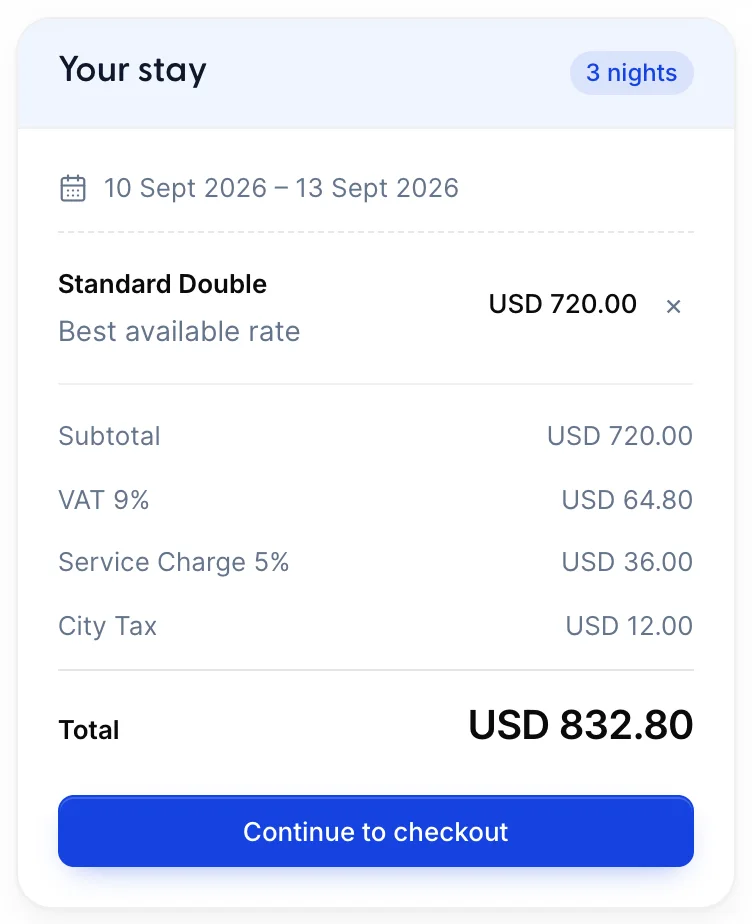
Your stay follows the guest down the page and through every step after this one. Each selected room is a line with a cross that removes it; selecting the same type twice turns the button on the card into a quantity stepper instead of adding a second line.
| Line | Where it comes from |
|---|---|
| Subtotal | Every room line added together, at the rate plan price for the whole stay. Extras chosen on the next step are added here too. |
| Percentage taxes | Taxes you have defined as a percentage, worked out on the subtotal. VAT 9% and Service Charge 5% above are both of these. |
| Per-night and per-person taxes | Fixed charges multiplied out by nights, by guests, or by both. City Tax above is USD 2 per person per night: two guests, three nights, USD 12.00. |
| Total | Subtotal plus every tax line. This is the figure that reaches the folio when the reservation lands in the PMS. |
Only taxes you have marked as applying to the booking engine appear here, and a tax that works out at nothing on this booking is left out rather than printed as a zero. A tax you have restricted to add-ons will therefore be invisible until the guest buys one.
The extras step
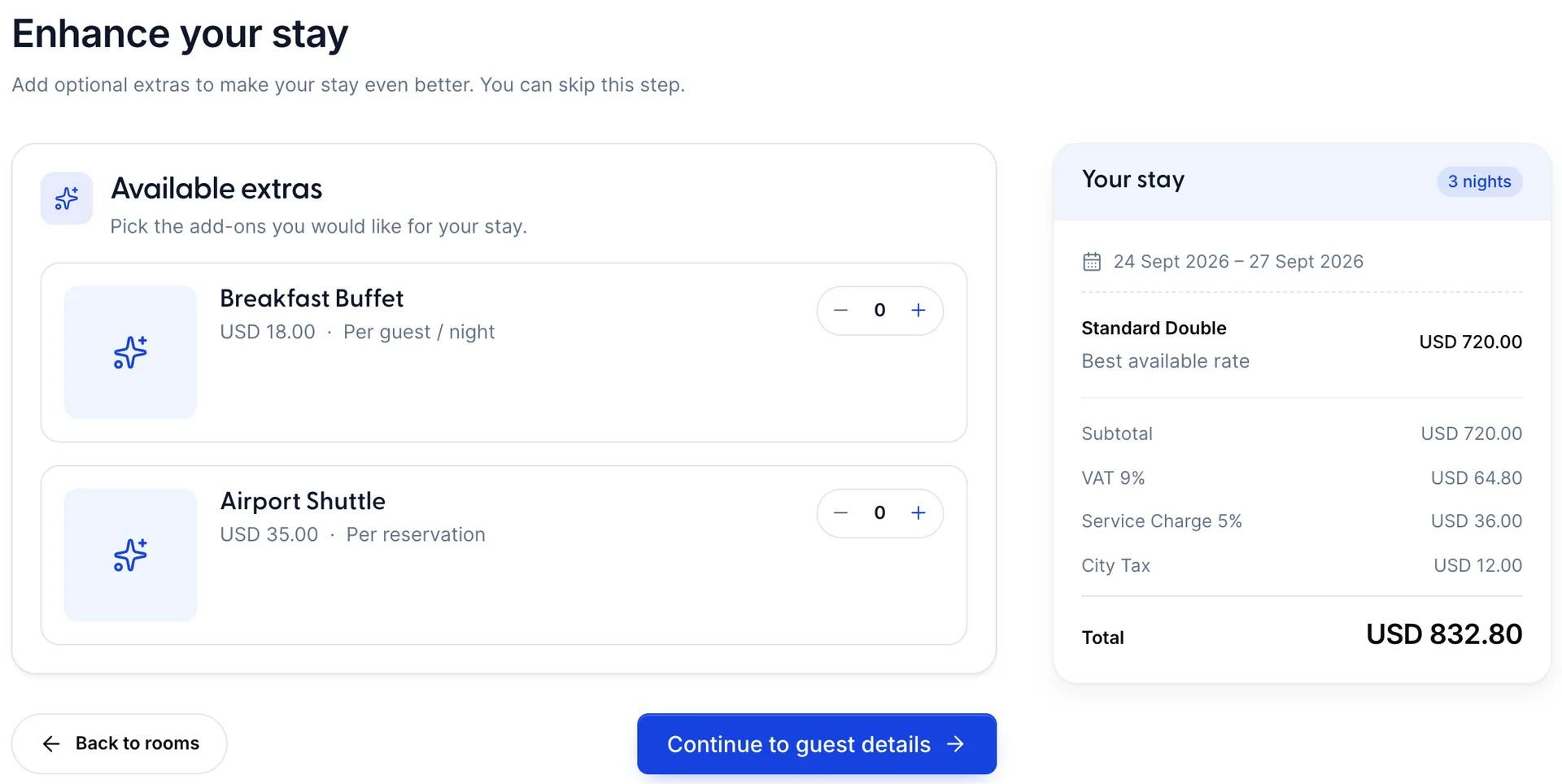
Continue to checkout goes to extras, not to the form. Each add-on carries its price and, next to it, what that price is multiplied by: Per guest / night on the breakfast above turns USD 18 into USD 108 for two guests over three nights, while Per reservation on the shuttle charges USD 35 once however long they stay. This is the one place a guest sees that basis stated, so an add-on priced per night and described as if it were per stay is read wrongly here first.
Which add-ons appear depends on three things you set when you created them: whether the add-on is active, whether one of its intervals overlaps the guest's stay, and whether that interval names the accommodation type in the cart. Note that it is the stay that is tested, not today: an add-on whose interval runs to the end of September is offered to somebody booking in January for a September stay, and withheld from somebody booking in September for October. A restriction by accommodation type is the one that surprises people, because it makes the step's contents depend on which room the guest picked rather than on the property.
When the guest has booked more than one room, the extras are grouped into one card per room, headed with that room's name and the line Extras for this room, and a stepper on one card adds nothing to another. The exception is a per-reservation extra: added against two rooms it is still charged once, which is what per reservation means. A single room gets the one card above, headed Available extras. An add-on you have marked as included in the rate appears with an Included chip and no stepper, so a guest can see they are getting it without being able to buy it twice.
Guest details
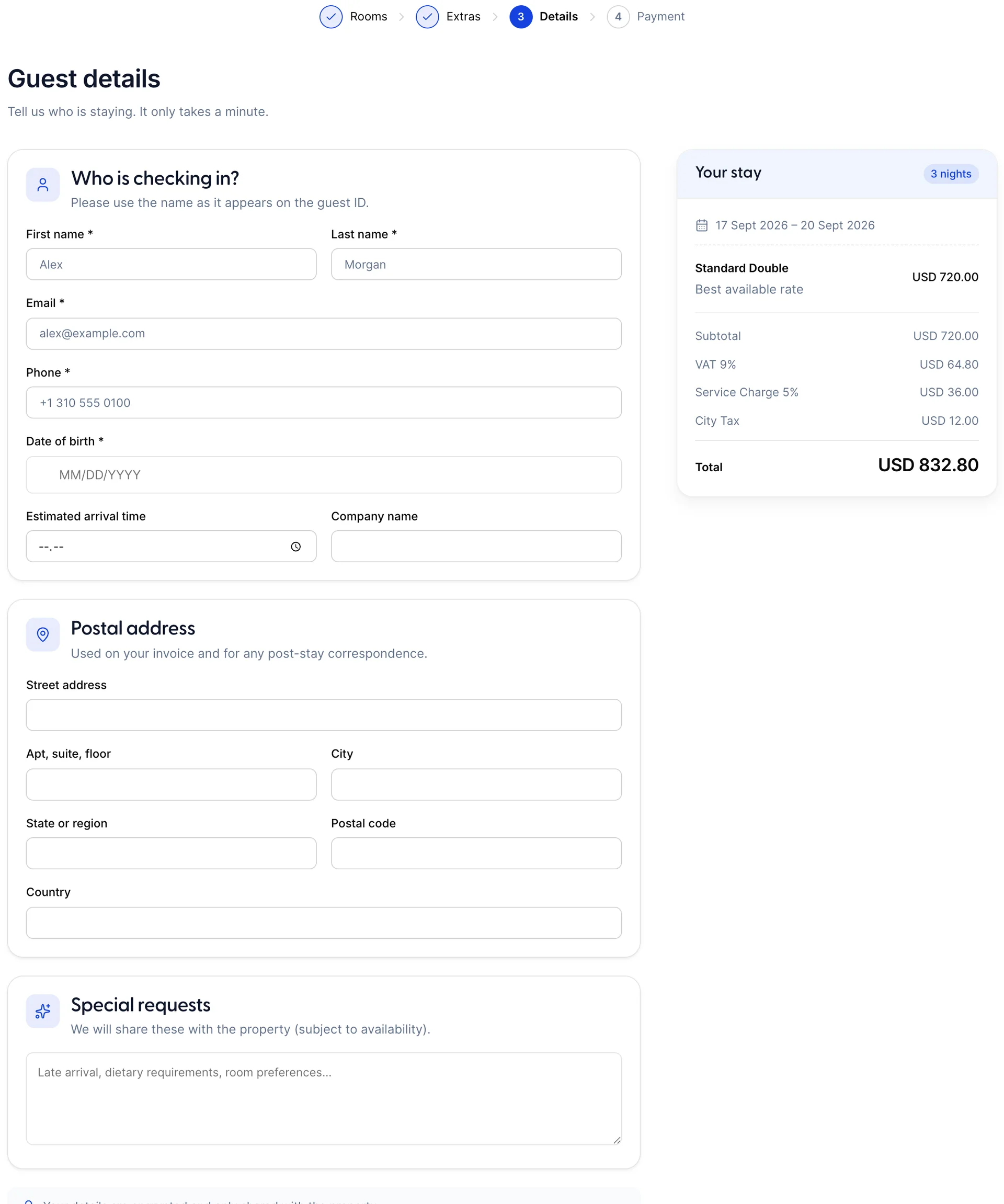
Four fields are always compulsory: first name, last name, email and date of birth. The phone number is compulsory only when you have ticked Require telephone number to book. Every compulsory field carries an asterisk, and Continue stays greyed out until all of them hold something.
Everything below those is drawn only because you asked for it on Booking Engine → Settings. The property above asks for an arrival time, a company name and a postal address, so the guest gets three extra blocks. Each one you tick is a field between a guest and their booking, and the engine is the one place in Prostay where an extra field costs you money rather than saving you time. Ask for the passport number at check-in; ask for the arrival time here only if you actually staff differently because of the answer.
Special requests is always shown and never compulsory. It reaches the reservation as a note, where your front desk will see it. Anything you have added as a guest custom field appears in its own card under this one.
Payment and terms
Which options a guest sees is decided by what you have connected, not by anything on the booking engine screens, and the list is assembled as the page loads. Credit / debit card is always offered and charges through Prostay Pay. A property that has connected its own card processor gets a second card option, named after that processor, which charges its own account instead. PayPal appears once PayPal is enabled, Pay at property unless you have switched it off, and Bank Transfer once you have set it up as a payment method. Pay at property takes no money and confirms the booking anyway.
The card fields belong to the processor and are drawn inside the page, so the security code is part of the card itself and is always asked for. They take a moment to arrive: until the payment is prepared the option says so and Confirm booking will not fire, and a property whose card payments have never been configured sees that stated in the same place, which is the quickest way to catch a half-finished Prostay Pay setup. A card the bank declines leaves the guest on this page with the reason rather than losing the booking.
Bank Transfer asks more of the guest than most properties expect. Your instructions are printed, and under them the guest has to attach a file before they can confirm: JPG, PNG or PDF, up to 5MB. It is compulsory rather than an invitation, so a guest who cannot produce a screenshot or a receipt of their transfer cannot finish on this option at all. Setting the method up and writing the instructions are two separate acts, and only the first one puts the option in front of a guest, so a method set up with nothing written against it offers an upload box above an empty space and no account to pay into. Write the instructions completely enough that the proof is worth having, and expect checking those files to become part of your arrivals routine.
Under the options, a tick box reading I accept the Terms & Conditions appears when your property requires acceptance, with the words linking to a panel holding your terms verbatim. Confirm booking stays disabled until it is ticked. Any reservation custom field you have opened to the booking engine appears here too, and a required one blocks the button in the same way.
A property that requires acceptance but has never written its terms publishes an empty panel and asks the guest to agree to it. Write the terms before you publish the engine address, because this box is the one place your cancellation terms become contractual.
The confirmation
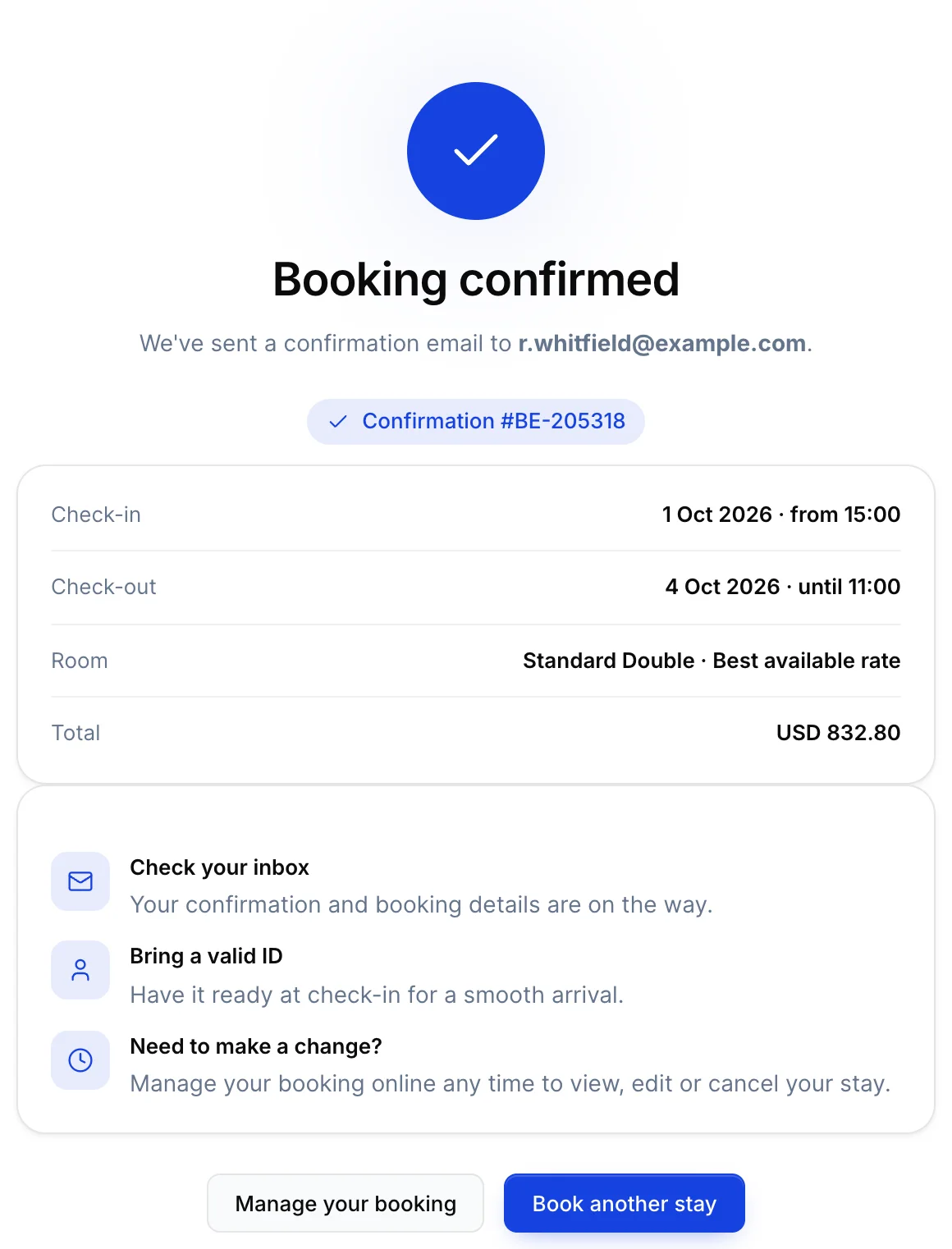
A confirmed booking lands on a page carrying the confirmation number, the dates, the rooms and the total. That number is the reservation number in the PMS: a guest reading it out on the phone is giving your front desk something it can search for directly. The check-in and check-out lines carry your property's times beside the dates, taken from your policies, so this page is the last chance to correct a check-in time a guest is about to plan a flight around.
Two settings change what happens here. When Manage Booking is on, the page offers a link into the guest's own booking. When Redirect on confirmation page is on, the guest is sent to an address of yours after the number of seconds you set, which is how you get a direct booking to register on your own site's conversion tracking. Set the delay long enough for someone to read the number: five seconds is short, ten is safer.
The block at the foot of the page
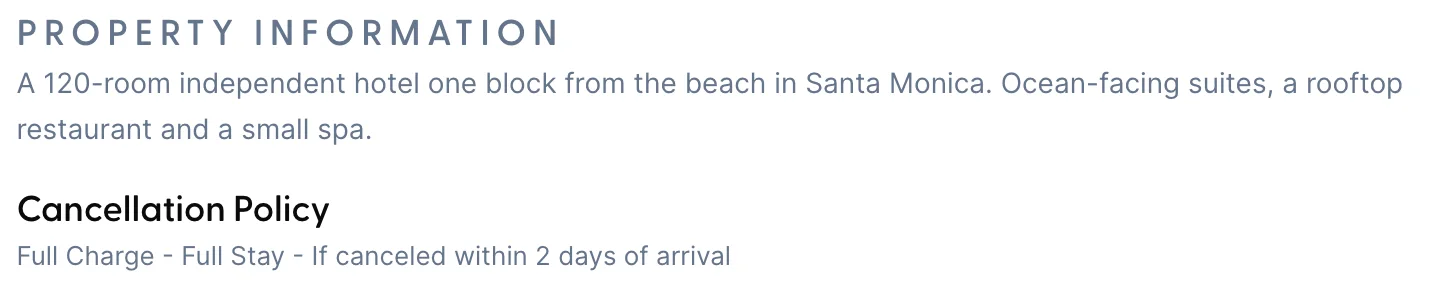
PROPERTY INFORMATION publishes the description on your property record. It is the only long-form text on the rooms page, and it is read by every guest who scrolls past the rooms, so it is worth more than the two lines most properties leave in it.
Under it, each cancellation policy you have marked for the booking engine is printed as one sentence built from its own settings: the charge, what the charge is applied to, and the notice period. A policy built from Full Charge and Full Stay with two days' notice means a guest who cancels inside 48 hours pays for the whole stay. A policy you have not marked for the engine is not shown here, even though it may still govern the booking, so check that the policy attached to your engine rates is the one the guest is being shown.
A map of your address sits below the policy unless you have ticked Hide Property Location Map in Settings.
When the engine shows nothing
An empty rooms list has a small number of causes, and they are worth checking in this order.
| Check | Why it empties the list |
|---|---|
| A base rate interval covering the dates | The commonest cause by a distance. A type with no price for those nights is dropped from the list without comment. |
| Rooms actually free | A type is dropped when nothing is left to sell, including anything held back by a channel allotment. |
| The allotment on Settings | Quantity to Sell caps what the engine may sell independently of what is free. A zero there takes the type off the engine while leaving it bookable by your own staff. |
| Occupancy against the search | A search for four guests only returns types that hold four. |
| The accommodation restriction | When Allow guests to book specific accommodations is on, only the types you listed are ever offered. |
| Minimum stay | A minimum length of stay on the interval turns away a shorter request without saying which rule refused it. |
The fastest way to tell an availability problem from a pricing one is to search the same dates in the availability matrix. If the rooms are there and the engine says they are not, the problem is a rate or a setting, not the calendar.