A payment link is a saved basket with a web address. You build it once, send the address to a guest, and they pay it from their phone without you handling a card. The same link can be paid by several guests, which is what makes it worth building rather than typing.
What a link is
There are two kinds, chosen by the Payment Link Type picker at the top of the create panel:
| Type | How the amount is decided |
|---|---|
| Product | You add products, each with a quantity. The link's price is the sum of them, which is why there is no price field on the link itself. |
| Reservation | You attach a booking from the Property Management System and type the amount. Nothing is calculated from the folio. |
The list
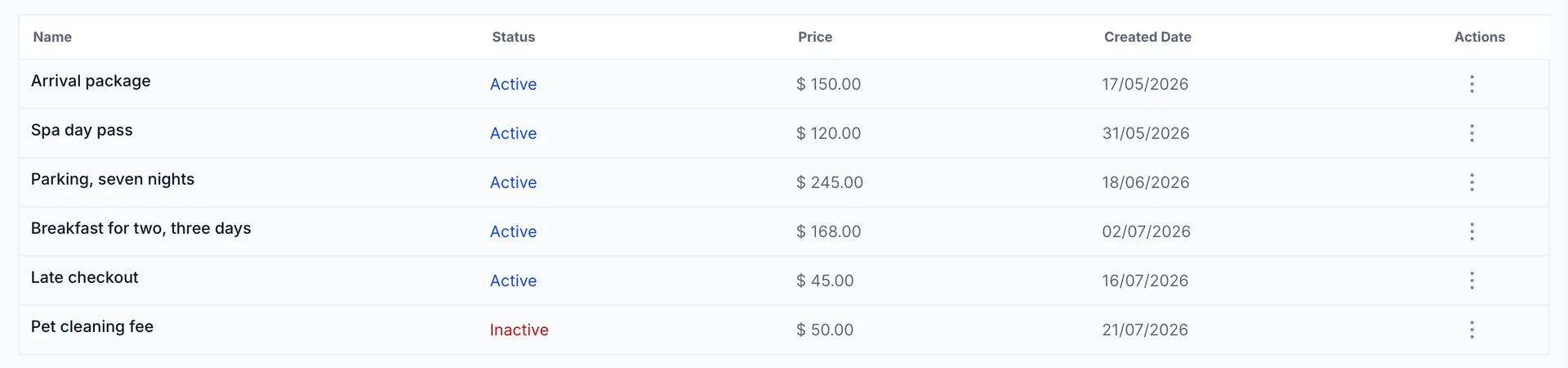
Five columns: the name, whether the link is Active or Inactive, its price, the date it was created, and a row menu. Clicking anywhere else on the row opens the link's own page, which is where you read what it has taken.
The row menu is short, and shorter still on some roles. Copy URL puts the address on your clipboard, and below it sits either Deactivate or Reactivate depending on the state of the link. That second one needs a permission of its own: if your menu offers only Copy URL, your role cannot turn links off, and the same is true of the Create a payment link button, which is not shown at all rather than shown greyed.
Building a product link
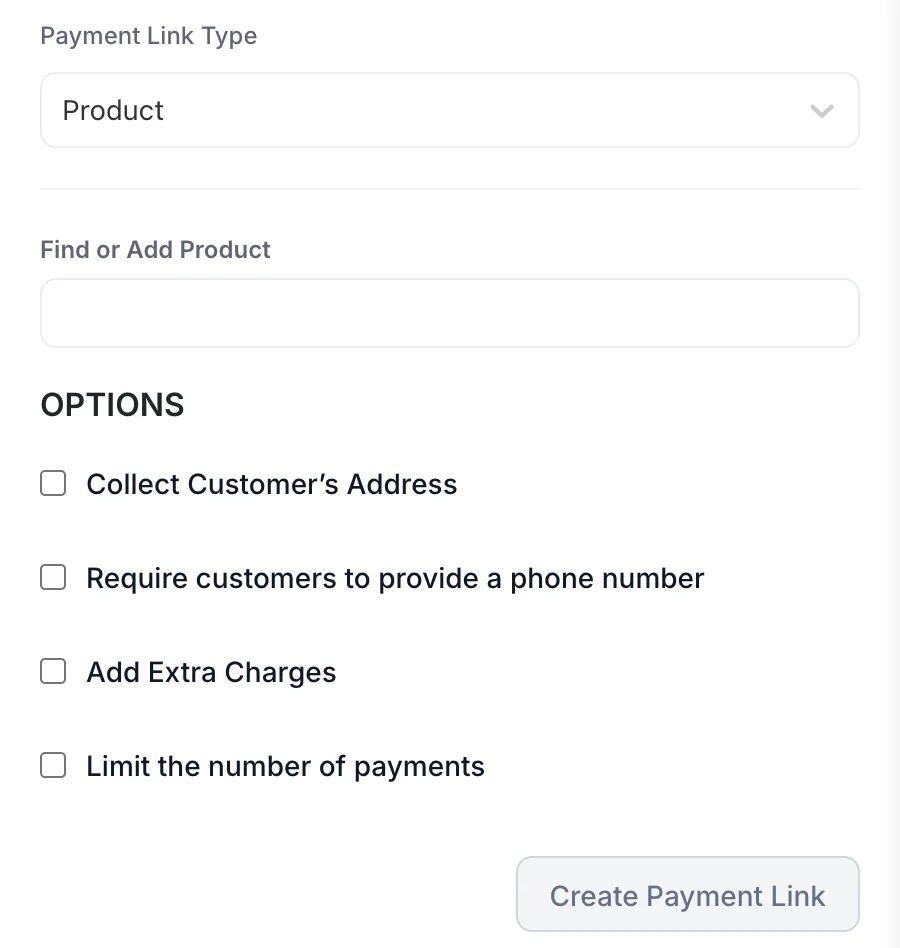
- Click Create a payment link at the top right of the list.
- Leave Payment Link Type on Product.
- Click the Find or Add Product box. A search menu opens listing your active products, with the option to create a new one without leaving the panel.
- Pick a product. It appears as a card in the panel with its price, and the box turns into an Add another product button. The card's own menu offers one thing, Remove; a product's price and name are settled in the catalogue rather than here.
- Repeat for anything else on the link.
- Set any of the four options below, then click Create Payment Link.
What a product link ends up called
There is no name field on a product link, at any point. The panel offers the type, the products and the four options, and that is all. The name in the list comes from the product on the link, and it is the name you will be searching for in six weeks.
So the naming happens earlier than you would expect: in the product catalogue, before the link exists. If you are going to have three parking links, they need three products whose names tell them apart, by the nights or the season or whatever else distinguishes them, because nothing downstream will let you relabel the link. A reservation link is the exception and takes a Name you type while creating it, covered below.
Charging against a reservation
Switch Payment Link Type to Reservation and the panel changes. A Find Reservation box searches your bookings and, once one is attached, shows a card with the lead guest, the booking number, the dates and the booking's grand total. Under it are two fields the product branch does not have: Name, and a required Amount in your property currency.
The booking's grand total on that card is there for reference. It is not copied into Amount and nothing warns you if the two differ, so a deposit, a balance or a whole stay are all just numbers you type. Read the total off the card before you type, rather than off a separate screen.
This branch also offers two options the product branch does not, and they are the reason to prefer it when there is a booking to attach. Send payment receipt to customer mails a receipt when the payment lands. Send payment reminders chases an unpaid link on a rhythm you choose: daily, weekly, or on a date you name. Neither exists for a product link, so a deposit request that needs chasing is a reason to attach the booking rather than build a basket.
The four options
| Option | What it changes for the guest |
|---|---|
| Collect Customer’s Address | Records on the link that a billing address should be collected, and shows as Collect addresses on its Details card. See the note below about what the guest is asked either way. |
| Require customers to provide a phone number | Asks the guest for a phone number. Useful when the link is how you will reach them about the thing they bought. |
| Add Extra Charges | Opens an Extra Charges box where you add named lines on top of the products. Each has a Charge Type of Amount or Percentage, so a flat service fee and a percentage gratuity are both possible. |
| Limit the number of payments | Reveals a count box and caps how many times the link can be paid. This is what turns a reusable link into a single-use one. |
Sending the link
Copy URL in the row menu puts the address on your clipboard, ready to paste into an email, a message or a booking confirmation. The same address is shown on the link's own page, in the tag next to the price.
Prostay does not send the link for you. There is no send button on this screen and no template behind it; the address is yours to put wherever the guest will see it.
What the guest sees
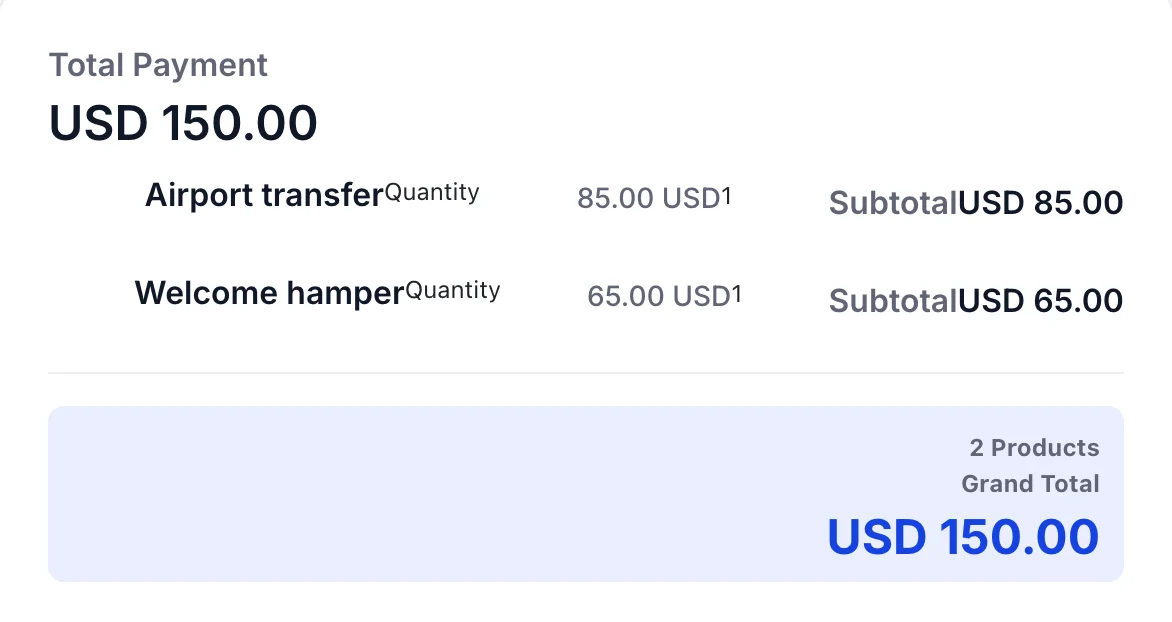
The page has two columns. On the left is the order summary above: the total, one row per product with its unit price, quantity and subtotal, and a grand total. On the right is a Payment Details card asking for Email, Name, Address and Country, all four required, then the card fields, then a button reading Pay followed by the currency and amount.
The card fields themselves need a live payment session to render, which is why they are not in the picture above. What they offer depends on which methods you have switched on; see Choosing which payment methods guests can use.
Nothing on that page identifies the property beyond the products you named, so a link called Late checkout from an unfamiliar address is easy for a guest to mistake for a phishing attempt. Send it in a message that says who you are and what it is for.
What the guest sees after paying
Paying returns the guest to a confirmation page. Which one they get depends on the same thing that divides the two kinds of link: whether there is a booking behind it.
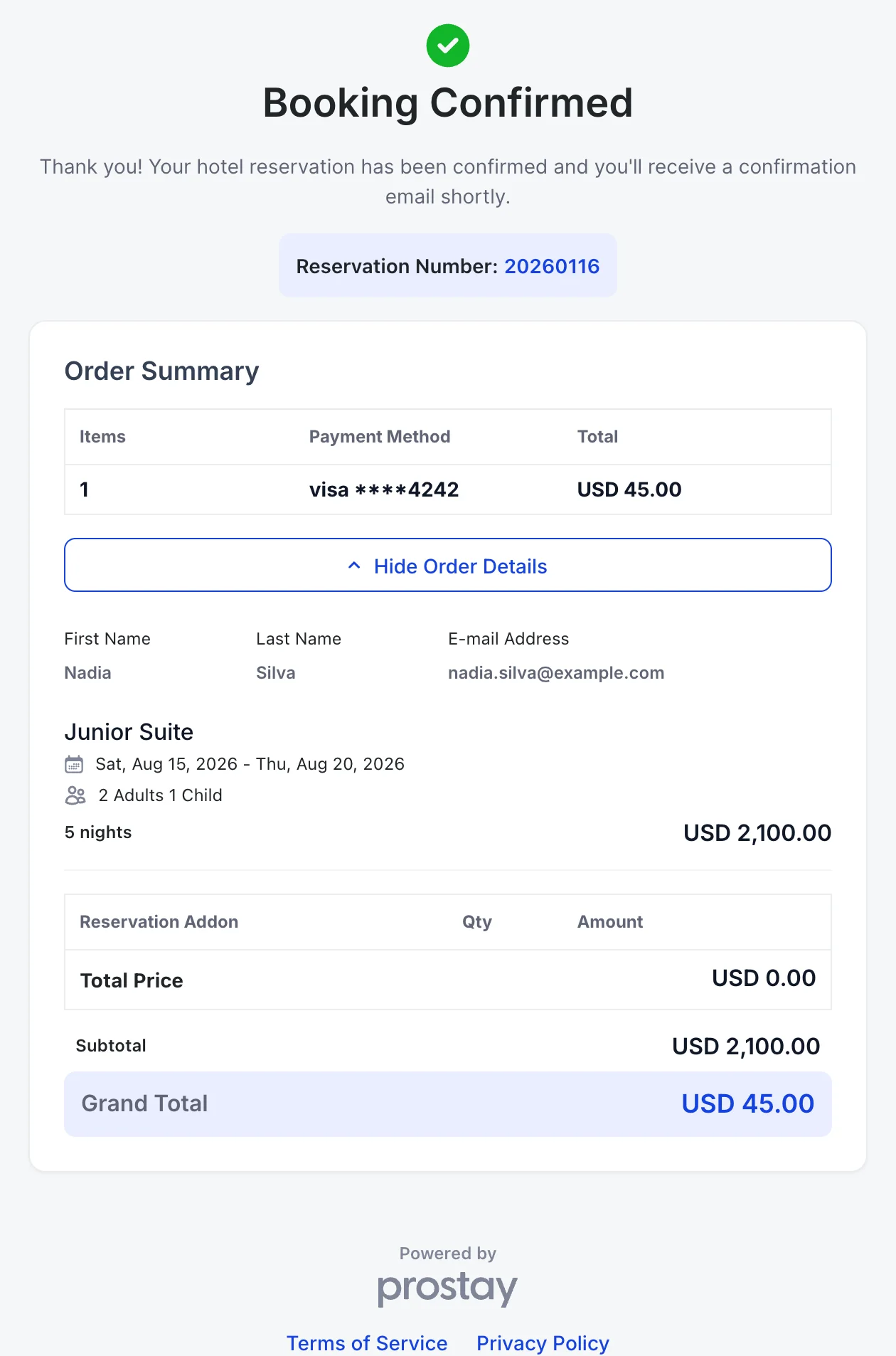
A reservation link ends on Booking Confirmed, with the reservation number under the heading and a promise of a confirmation email. The Order Summary gives the number of items, the card used and the amount taken, and See Order Details opens the rest: the lead guest's name and email, then the room, the dates, the occupancy, the nights and the room total, then any reservation add-ons, a subtotal and a grand total.
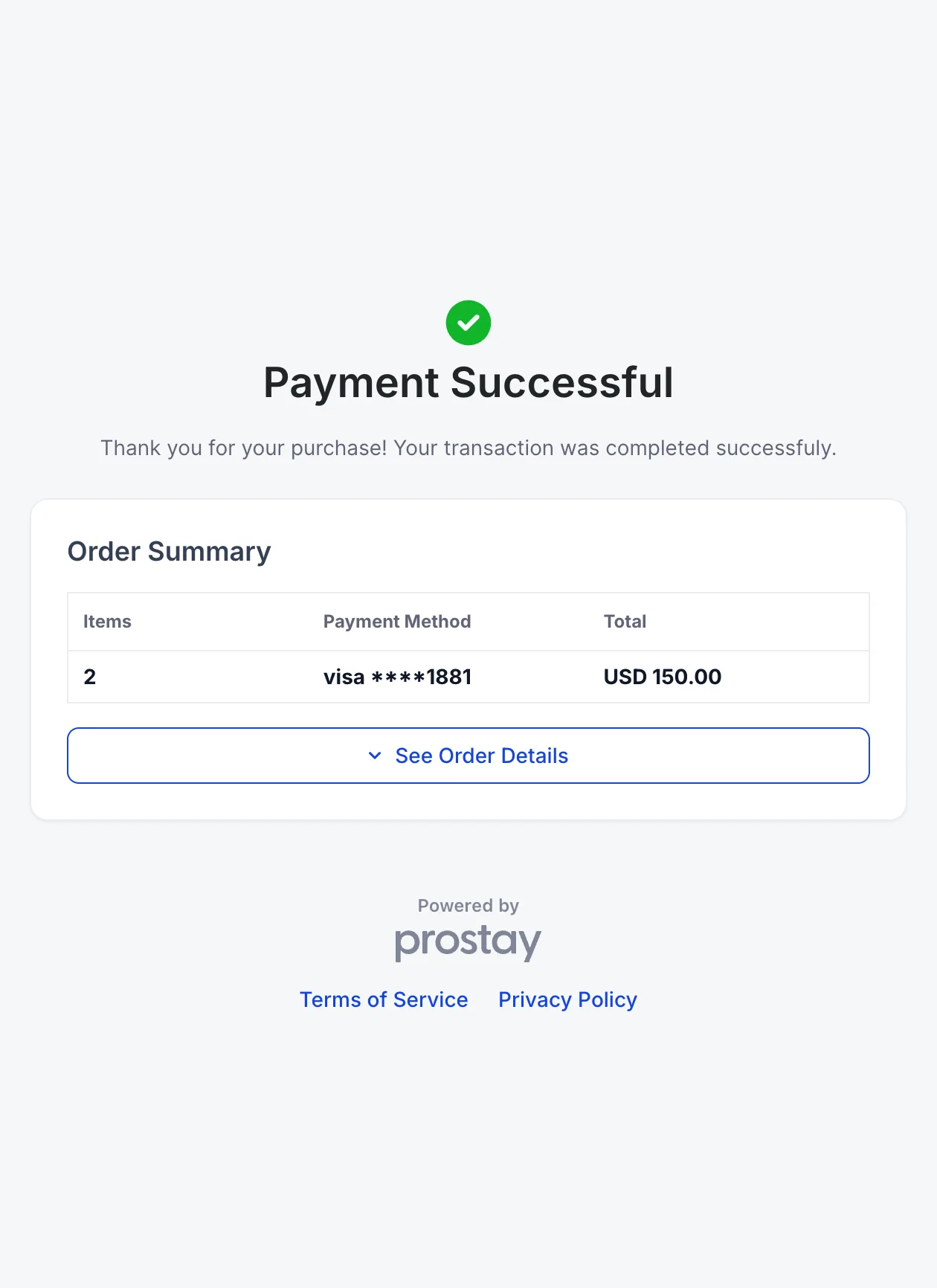
A product link ends on Payment Successful. There is no reservation number and no room, because nothing was charged against a stay; See Order Details opens the same product lines the guest saw before paying. Both pages carry your terms and privacy links at the foot and nothing else, so there is no way back into the site from them, which is another reason to send a link inside a message the guest can reply to.
Reading a link after it has been paid
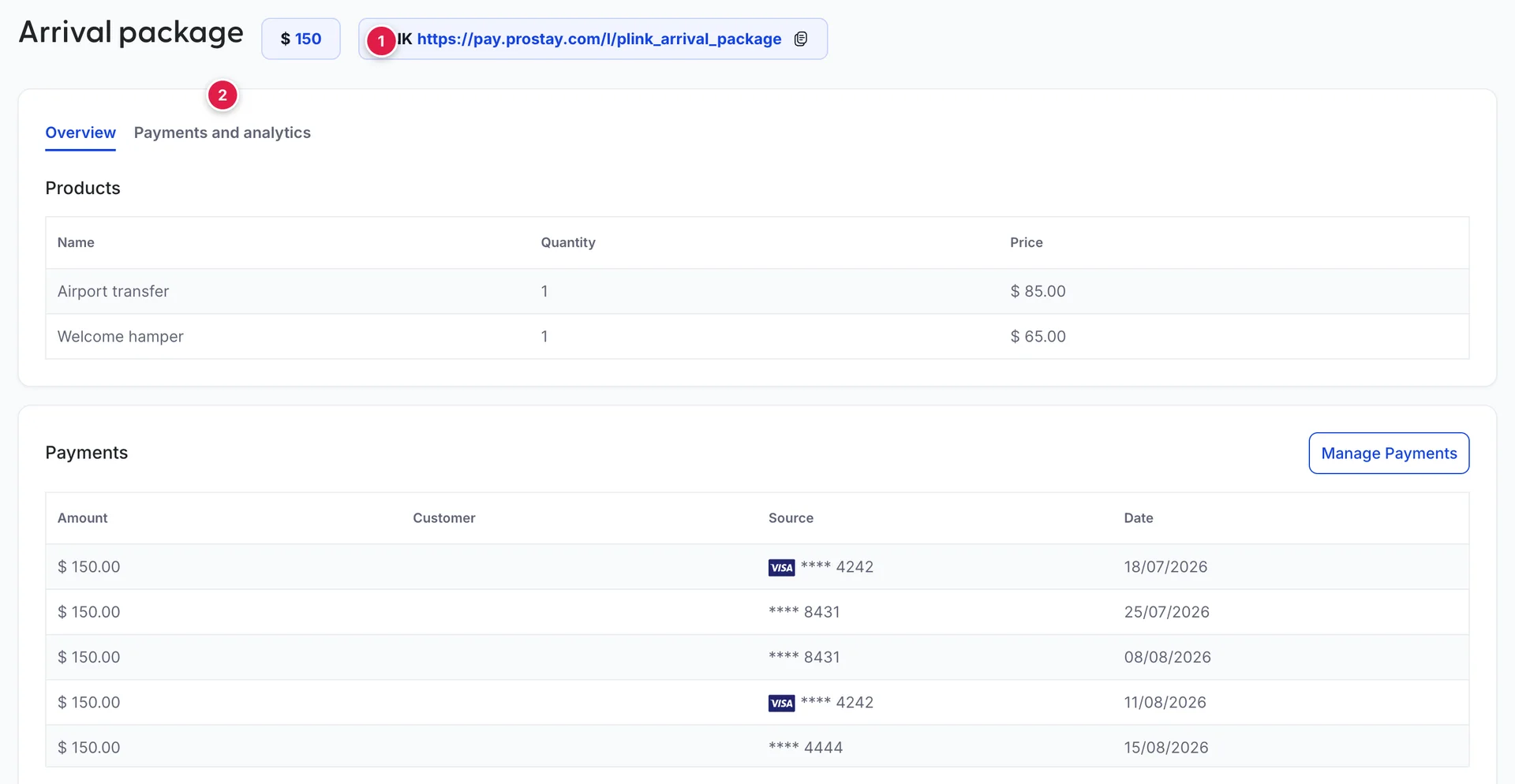
Clicking a row opens the link's own page. The heading carries the price and the address, with a copy button beside the address that saves going back to the list to send it again, and there are two tabs.
Overview holds three cards. Products lists what is on the link. Payments is the useful one: the amount, who paid, the last four digits of the card and the date, one row per guest who has paid this link. It is the fastest answer to "has the Kowalski party paid the parking yet", faster than searching the full Payments list. The Manage Payments button above it does nothing when pressed; work with a payment from the guest's customer record instead.
Details, at the bottom of the same tab, lists the fourteen settings the link is running under: Status, Date created, Limited use, Allow promotion codes, Collect addresses, Collect phone numbers, Allow business customers to provide tax ID, Save payment details for future use, Collect tax automatically, Collect terms of service agreement, Confirmation page, Deactivated link page, Call to action button and Post-payment invoice. Only four of those are offered by the create panel. The rest come from the defaults on your payments account, and this card is the only place you can read what those defaults turned out to be.
The second tab, Payments and analytics, counts what the link has done: how many payments it has taken and what they came to, over a date range you choose, plotted daily, monthly or annually. Below the chart is a recent payments card holding the six latest, with View All beside it for the rest. Those figures and the Payments table on the Overview tab are counting the same payments, so they should agree.
Stopping a link
Deactivate in the row menu turns a link off, if your role has that right. The address keeps existing and stops taking money; where a guest who follows it lands is the Deactivated link page row on the link's Details card. Reactivate puts the link back, unchanged.
Deactivating is the right answer for a season that has ended, a price that has moved on, or a single-use link you forgot to cap and have now been paid for. It is not a way to stop a payment already in flight: a guest partway through the page can still finish.
Once a payment is through, your options are a refund from the guest's customer record, covered in Customers, refunds and receipts.